Introduction to profiling
Profiling is a type of runtime analysis that operates on large amounts of runtime data and gives you a bird's-eye view of what is happening inside a process. The collected data relates to various aspects of program operation, such as CPU usage, memory allocation, and goroutine activity.
Profiling can be instantaneous, like capturing a memory snapshot, or long-running.
When is profiling helpful?
Profiling tools help you:
Identify bottlenecks and diagnose poor performance
Identify hot spots and opportunities for optimization, not necessarily related to a performance problem
Get a better understanding of how a program operates under the hood
Available profiles
GoLand uses the built-in profiles from the runtime/pprof package. Each profile collects a specific type of performance data.
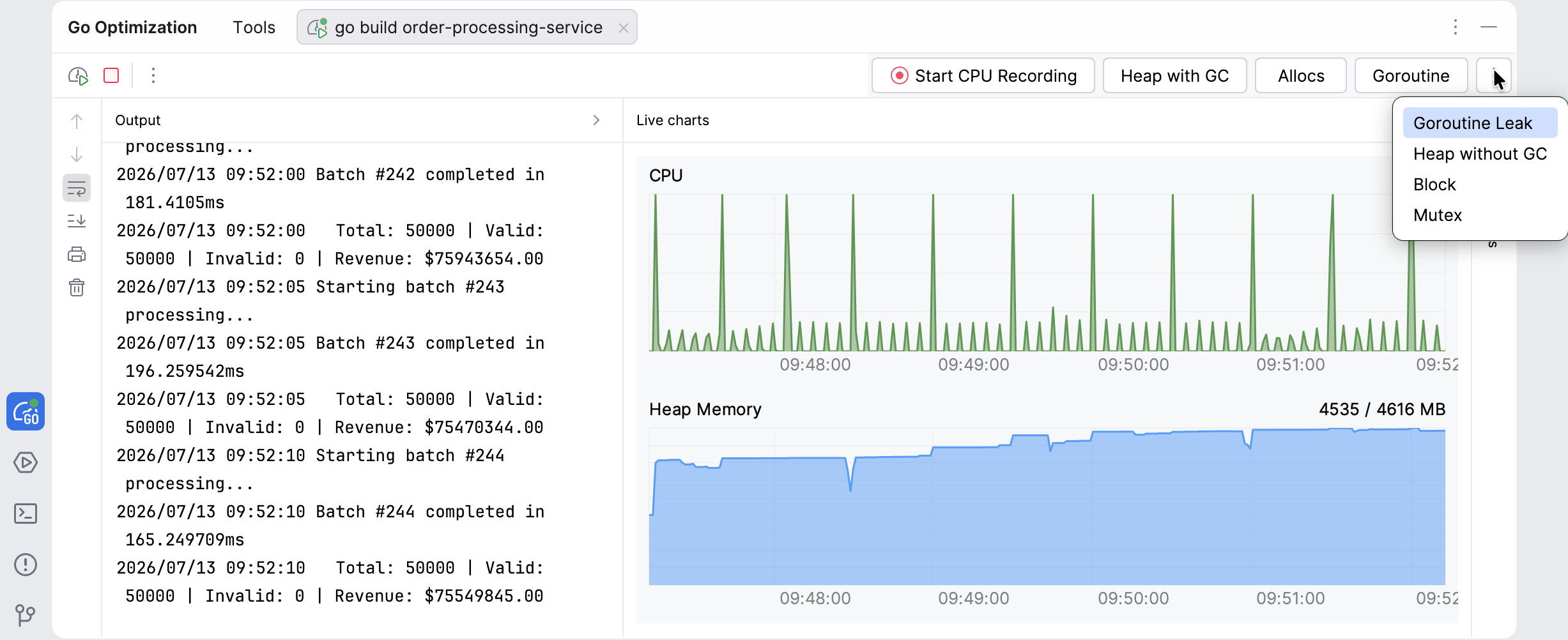
CPU profile
The CPU profile shows where the program spends CPU time.
A profiling snapshot created with the Go profiler can be viewed using different sample types.
CPU Time shows how much time the CPU spent executing a function. This value is derived from sampling data and represents the estimated execution time. Use this sample type to identify CPU-intensive code paths and optimize algorithms.
Samples shows how many times a function appeared in the collected samples. The profiler periodically captures the call stack, and each capture is a sample. A higher number of samples means the function was observed more often during execution. Use this sample type to quickly detect hot spots.
It helps you find functions that actively perform work, not those that wait for I/O or synchronization.
Heap and Allocs profiles
The Heap and Allocs profiles report memory allocation data collected by the runtime.
Both profiles use the same allocation events. The difference is the default sample type:
Heap uses
in-use spaceand shows memory that is currently used by the program.Allocs uses
allocated spaceand shows total memory allocated over time, including memory that was already freed.
Use these profiles to analyze memory usage and find code that allocates frequently. For details, refer to Heap profile and Allocs profile.
GoLand provides two ways to collect heap profiles:
Heap with GC runs garbage collection before collecting the profile. Use this option to analyze memory that is still retained after cleanup.
Heap without GC collects the profile without forcing garbage collection first.
The following sample types are available for the Heap and Allocs profiles:
Allocated objects (
alloc_objects): number of allocated objects.Allocated space (
alloc_space): total allocated memory.In-use objects (
inuse_objects): number of objects currently in memory.In-use space (
inuse_space): memory currently in use.
Goroutine profile
The Goroutine profile shows stack traces of all current goroutines.
A goroutine is a lightweight thread managed by the Go runtime. Use this profile to understand concurrency and detect stuck or unexpected goroutines.
Goroutine Leak profile
The Goroutine Leak profile shows goroutines that the Go runtime has proven can never resume execution, for example, because they are blocked on a channel or lock that no other goroutine can reach.
Unlike the Goroutine profile, which lists every goroutine that exists at the time of capture, the Goroutine Leak profile only reports goroutines that the garbage collector has determined are unreachable and permanently blocked. This avoids false positives caused by goroutines that are merely idle but can still resume.
Use this profile to find goroutine leaks: goroutines that accumulate over time and are never cleaned up, gradually exhausting memory and other resources.
The profile detects a large class of leaks, but it can miss goroutines that are blocked on a synchronization primitive reachable through a global variable or a runnable goroutine.
Block profile
The Block profile shows where goroutines spend time waiting on synchronization primitives.
Synchronization primitives are mechanisms that coordinate work between goroutines and control access to shared data. Common examples in Go include channels, sync.Mutex, sync.RWMutex, sync.WaitGroup, and sync.Cond.
It tracks time spent blocked on operations such as channel send and receive, locks, and other synchronization operations.
Use this profile to find delays caused by synchronization and waiting between goroutines.
The following sample types are available:
Delay: cumulative time goroutines spent blocked waiting on synchronization primitives.
Contentions: number of synchronization wait events.
For details, refer to Block profile.
Mutex profile
The Mutex profile shows lock contention.
A mutex is a lock that protects shared data. Contention happens when multiple goroutines try to acquire the same lock at the same time. If one goroutine already holds the lock, the others must wait until it is released.
Use this profile to find delays caused by lock contention and excessive synchronization.
To investigate a concurrency problem, compare the Goroutine, Block, and Mutex profiles. The Goroutine profile shows current stack traces, the Block profile shows where goroutines wait, and the Mutex profile shows the code that holds contended locks.
The following sample types are available:
Delay: cumulative time goroutines spent waiting to acquire contended locks.
Contentions: number of times lock acquisition encountered contention.
For more details, refer to Mutex profile.
Configure Go profilers
You can configure Go profilers in the IDE settings. The settings define where profiles are stored and how often the profiler collects data.
Configure profiling for applications
Open settings by pressing Ctrl+Alt+S and navigate to .
Configure global profiling parameters:
Default profile directory defines where the IDE stores captured profiles.
Memory profile rate defines how often the profiler samples memory allocations.
The value specifies the average number of bytes between recorded allocations. A lower value increases detail and overhead. The default value is 512 KB.
Block profile rate defines how often the profiler records blocking events.
The value is measured in nanoseconds. Set a lower value to record more events.
Mutex profile fraction defines how many mutex contention events the profiler records.
The value controls the sampling ratio. For example, value 10 means that the profiler records one out of ten events.
Configure profiling for tests
Open settings by pressing Ctrl+Alt+S and navigate to .
Configure profilers for test runs:
CPU profiler records CPU usage during test execution.
Memory profiler records memory allocations.
Use Profile rate to define how often the profiler samples allocations. Set the value to
1to record all allocations. Leave the field empty to use the default value (512 KB).Blocking profiler records blocking events.
A blocking event happens when a goroutine waits for a resource such as a channel or a lock.
Use Profile rate to define how often the profiler samples blocking events. Set the value to
1to record all events.Mutex profiler records mutex contention.
Mutex contention happens when multiple goroutines try to acquire the same lock.
Use Profile fraction to define what portion of events the profiler records. For example, value 10 means that the profiler records one out of ten events.
How profiling works
GoLand uses the standard Go runtime/pprof package to collect profiling data.
When you start profiling, the IDE builds your application with a temporary overlay. The overlay injects profiling hooks into the build without modifying your source files.
The Go profiler profiles only processes started by GoLand. It cannot attach to an already running process.
The IDE runs a command similar to the following:
The overlay file defines temporary changes that enable profiling. GoLand removes these changes after the run completes.