Go templates
A structural search lets you find code fragments that match a user-defined search template. If the template matches part of the source code, the corresponding expression is highlighted. A search template is essentially a query made up of text, variables, filters, scopes, and context. Using these elements, you can refine your search and achieve more precise results.
A variable is a sequence of characters enclosed in dollar signs, for example, $name$ or $field$.
The screenshot below shows a template used to search for structs.
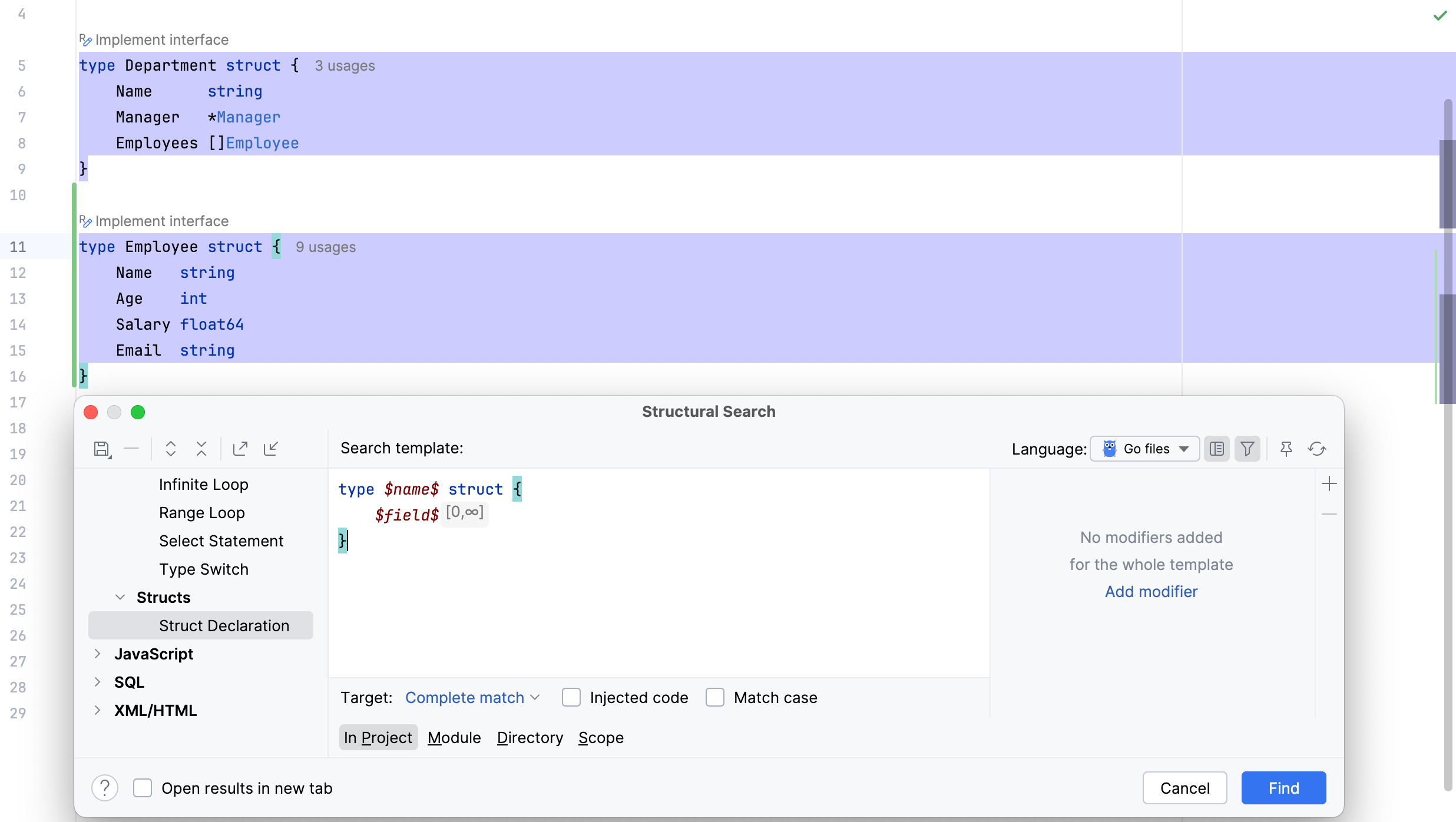
Modifiers are user-defined conditions that can be applied to variables and search templates. They allow you to:
check how many times a variable occurs,
validate the variable’s type,
match the variable against plain text or a regular expression,
apply a Groovy script.
For the complete list of available modifiers, see Search templates, modifiers, and script constraints.
The next example shows the same template as before, but with the $name$ variable using the Text modifier set to Employee. Notice how the highlighted search results in the editor have changed.
Searching for the field in uppercase
In the main menu, go to to open the Structural Search dialog.
To quickly switch to the Structural Replace dialog, click
 .
.In the Structural Search dialog, do one of the following:
Create a template from scratch: select Draft Template from the list of templates and enter the code template (for example,
$variable$to represent your code) in the editor area.To save your custom template for future use, click the Save Template icon (
 ) on the dialog toolbar. You can also choose to save the template as an inspection.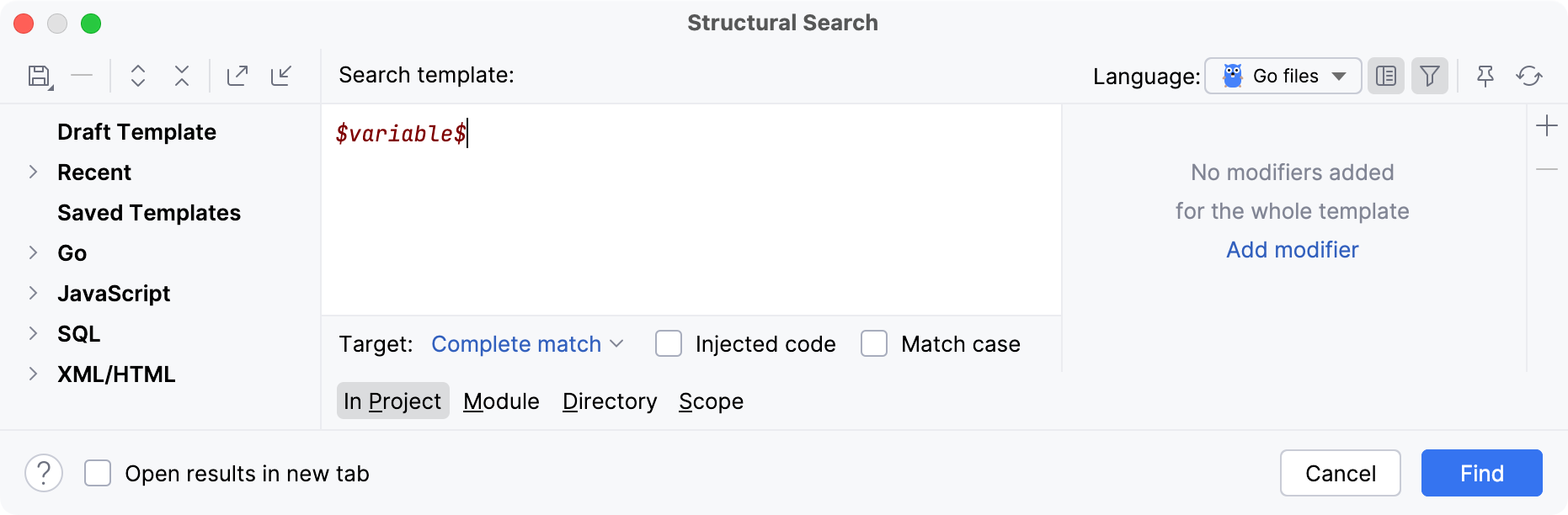
GoLand adds the created template to the Recent node in the template list.
Use one of the existing templates to act as a prototype: select the necessary template from the list of available existing templates.
For example, consider the following code snippet:
package company import ( "fmt" "regexp" ) type Employee struct { NAME string Age int Salary float64 Email string } type Manager struct { Employee Department string } type Documents struct { Passport int SocSecurity string IDCard string BirthCert string } type Department struct { Name string Manager *Manager Employees []Employee } func (e *Employee) Work() { fmt.Printf("%s is working.\n", e.NAME) } func (e *Employee) GetDetails() string { return fmt.Sprintf("Employee: %s, Age: %d, Salary: %.2f, Email: %s", e.NAME, e.Age, e.Salary, e.Email) } func (e *Employee) IsValidEmail() bool { var emailRegex = regexp.MustCompile(`^[a-zA-Z0-9._%+-]+@[a-zA-Z0-9.-]+\.[a-zA-Z]{2,}$`) return emailRegex.MatchString(e.Email) }Let's find a struct that has four fields, with the first one starting with an uppercase letter.
From the list of existing templates, navigate to and select Struct Declaration. GoLand will instantly highlight the matching constructs in the editor if they are present in the opened file.
Click Find to search for these constructions in the entire project.
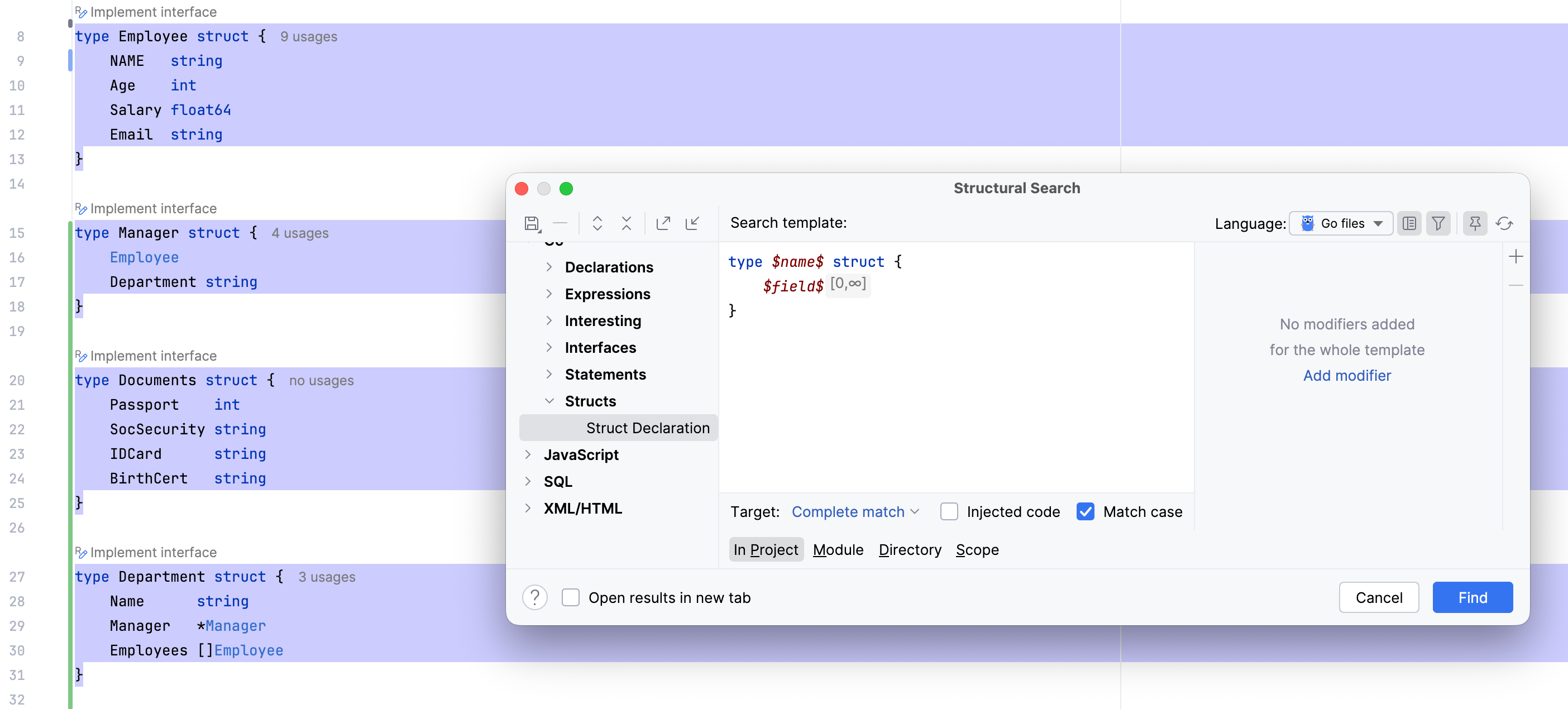
The Structural Search dialog shows the selected template and the values of its filters. You can edit existing filters or add new conditions, such as regular expressions or script constraints. Place the caret on a code variable and use the filter area to manage its filters.
For example, you can change the Count modifier of the
$field$variable and set its Max value to3. The highlighted results are now limited by this setting and should include no more than three fields.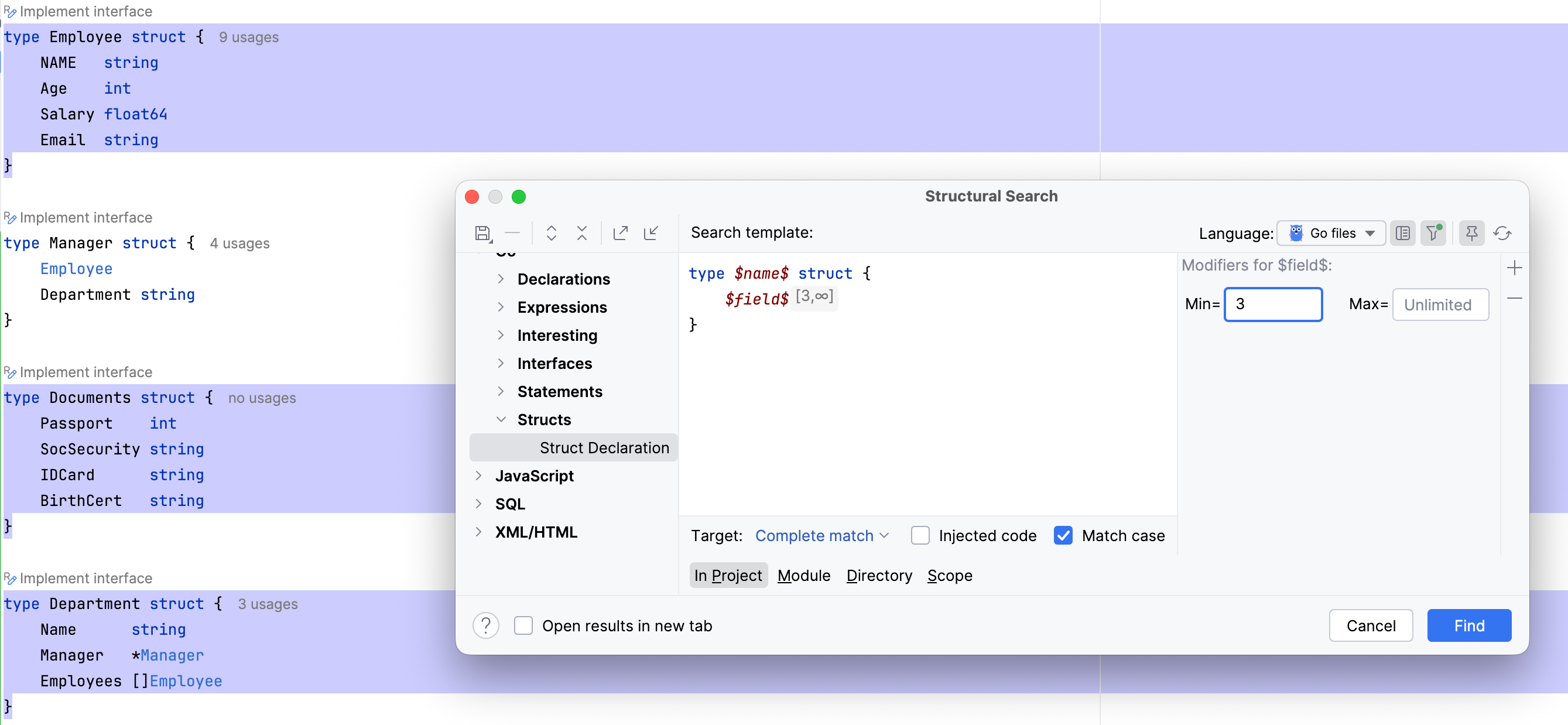
Alternatively, for a more granular search, you can change the search template to:
type $name$ struct { $field$ $fieldType$ $field1$ $field1Type$ $field2$ $field2Type$ $field3$ $field3Type$ }In this example, add a Text modifier for the
$field$variable.For the Text modifier, enter the following regular expression:
\b[A-Za-z]*[A-Z]{2,}[A-Za-z]*\bIn this case GoLand searches only for structs with uppercase characters in the first field.
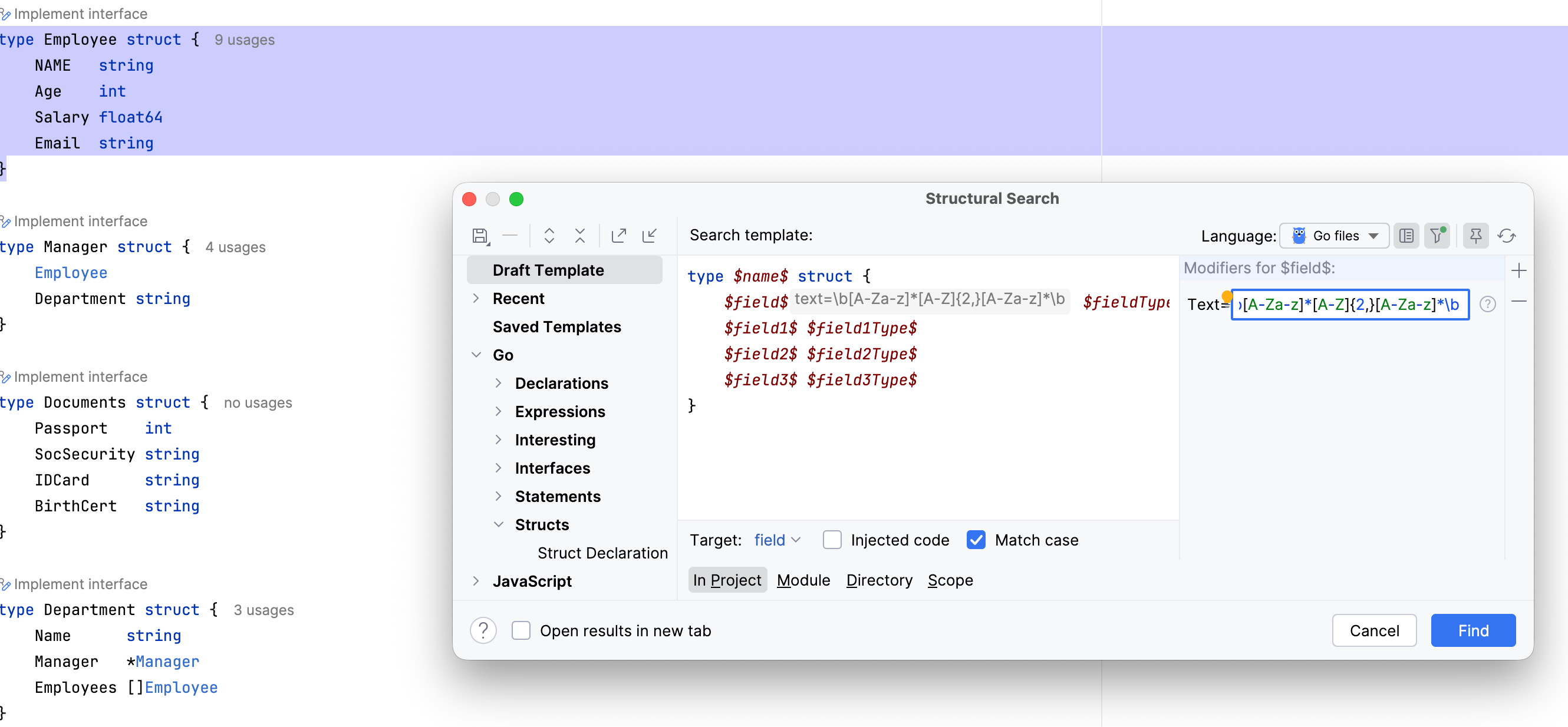
There are also additional options available depending on the selected language.
For example, review the following options:
Language: use the list to select which file types to include in the search. In this case, it is Go.
Target: use the list to select what item to search for.
Injected code: if selected, injected code such as JavaScript in HTML or SQL in Java is included in the search.
Match case: if selected, the search results match the case of the search target.
Specify the search scope: a project, module, directory, or a custom scope.
Click Find.
GoLand shows the results in the Find tool window.
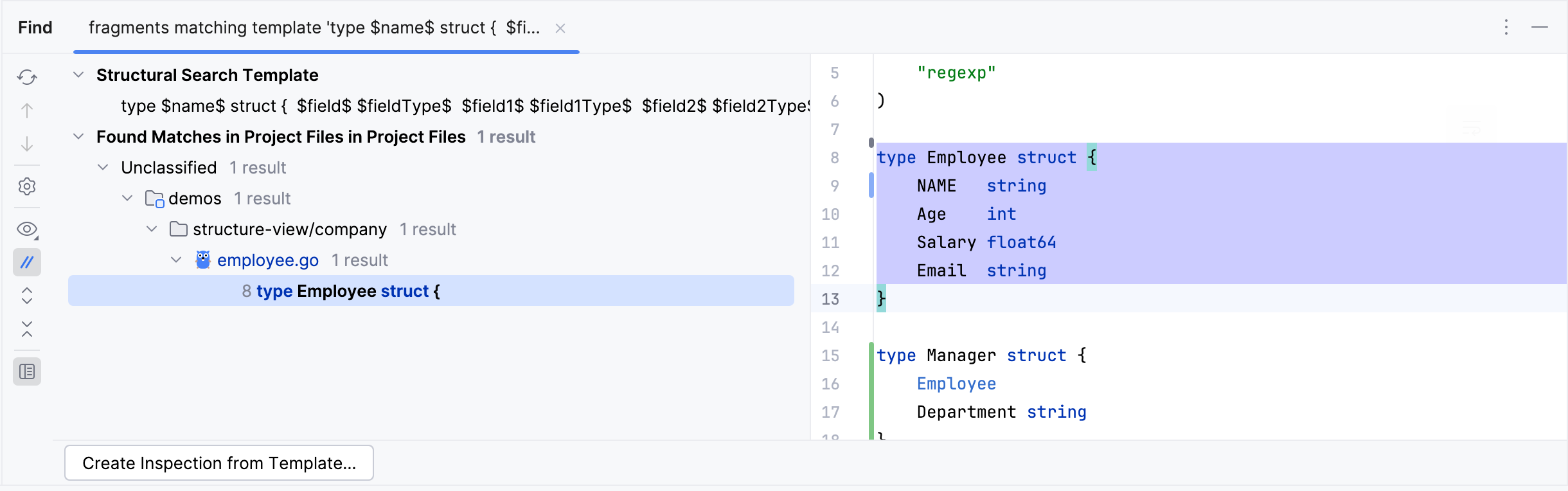
You can add the new search template to structural search inspections as a custom template. To do this, click Create Inspection from Template in the Find tool window. You can then reuse it to inspect your code.