Flyway
Flyway is a database migration tool that lets you version, track, and apply database changes. IntelliJ IDEA supports Flyway with dedicated actions for generating migrations (which define changes to the database) and callbacks (which run at specific points in the migration lifecycle).
Prior to IntelliJ IDEA version 2024.1, some Flyway features were only available with the JPA Buddy plugin. The following video demonstrates these features, which are now available with the Flyway plugin.
Add Flyway to an existing project
Open the build file in the editor (pom.xml or build.gradle depending on the build tool used in your project).
Add the Flyway dependency, and make sure the version matches the rest of your project:
<dependencies> <dependency> <groupId>org.flywaydb</groupId> <artifactId>flyway-core</artifactId> <version>12.0.3</version> </dependency> </dependencies>dependencies { implementation 'org.flywaydb:flyway-core:12.0.3' }dependencies { implementation("org.flywaydb:flyway-core:12.0.3") }(Optional) If you want to run Flyway commands using Maven or Gradle, add the following plugin:
<plugins> <plugin> <groupId>org.flywaydb</groupId> <artifactId>flyway-maven-plugin</artifactId> <version>12.0.3</version> <configuration> <url>${YOUR_DATABASE_URL}</url> <user>${YOUR_DATABASE_USERNAME}</user> <password>${YOUR_DATABASE_PASSWORD}</password> </configuration> </plugin> </plugins>plugins { id 'org.flywaydb.flyway' version '12.0.3' } flyway { url = '<YOUR DATABASE URL>' user = '<YOUR DATABASE USERNAME>' password = '<YOUR DATABASE PASSWORD>' }plugins { id ("org.flywaydb.flyway") version "12.0.3" } flyway { url = "<YOUR DATABASE URL>" user = "<YOUR DATABASE USERNAME>" password = "<YOUR DATABASE PASSWORD>" }For a complete list of Flyway plugin configurations, refer to the Flyway configuration reference.
Press Ctrl+Shift+O to import the changes.
For more information about working with build tools, refer to Maven or Gradle.
Flyway migrations
Flyway migrations define changes to the database schema or data. These are typically SQL files, but Flyway also supports Java-based and script migrations. IntelliJ IDEA provides built-in actions for generating the following types of Flyway migrations:
Init migration: captures a selected data model (database, persistence unit, or mapping context) in its current form. The result is a DDL script that you can use to recreate that data model in an empty database.
Diff migration: captures the differences between two data models: for example, between the current database schema and the entity mappings in your code. The result is a DDL script that you can run against the target model to make it match the source.
Java migration: creates a Java class that extends Flyway's BaseJavaMigration class and includes a stub of the migrate() method. Unlike with other migration types, IntelliJ IDEA does not capture the data model or any schema changes when generating Java migrations.
Generate an init migration
Open the Persistence tool window.
Right-click anywhere in the tool window and select .
In the Flyway Init Schema Migration dialog that opens, select which data model the migration should be based on:
Model: entity mappings from one of the following:
persistence unit (in JPA and Spring Data JPA projects)
mapping context (in Spring Data JDBC projects)
DB: schema from a connected database
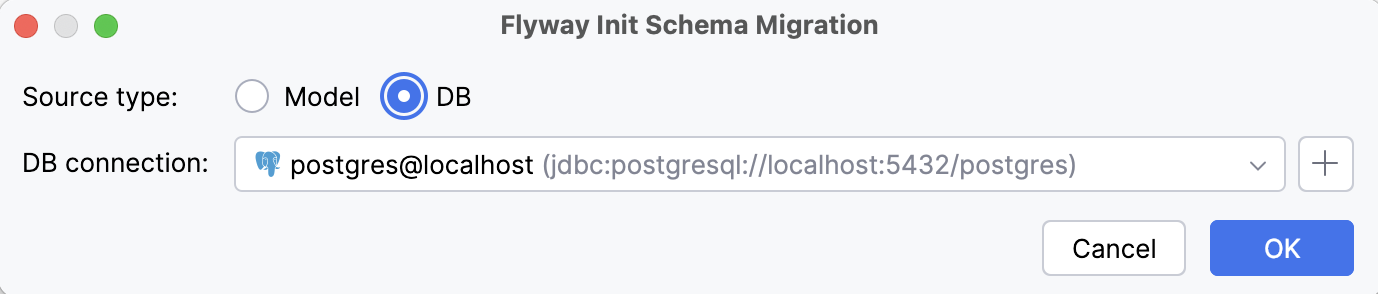
Based on your selection, IntelliJ IDEA automatically fills in the persistence unit, mapping context, or database connection, which you can change if needed.
Click OK.
In the Flyway Migration Preview dialog that opens, configure the migration and click Save.
Generate a diff migration
Open the Persistence tool window, right-click a persistence unit, mapping context, or entity, and select .
Alternatively, open the Database tool window, right-click a database or table, and select Create Flyway Migration….
In the Flyway Diff Migration dialog that opens, select which data models to compare:
Source (referenceURL) (current data model):
DB: schema from a connected database
Model: entity mappings from one of the following:
persistence unit (in JPA and Spring Data JPA projects)
mapping context (in Spring Data JDBC projects)
Target (URL) (previous data model):
DB: schema from a connected database
Snapshot: schema from a data model snapshot
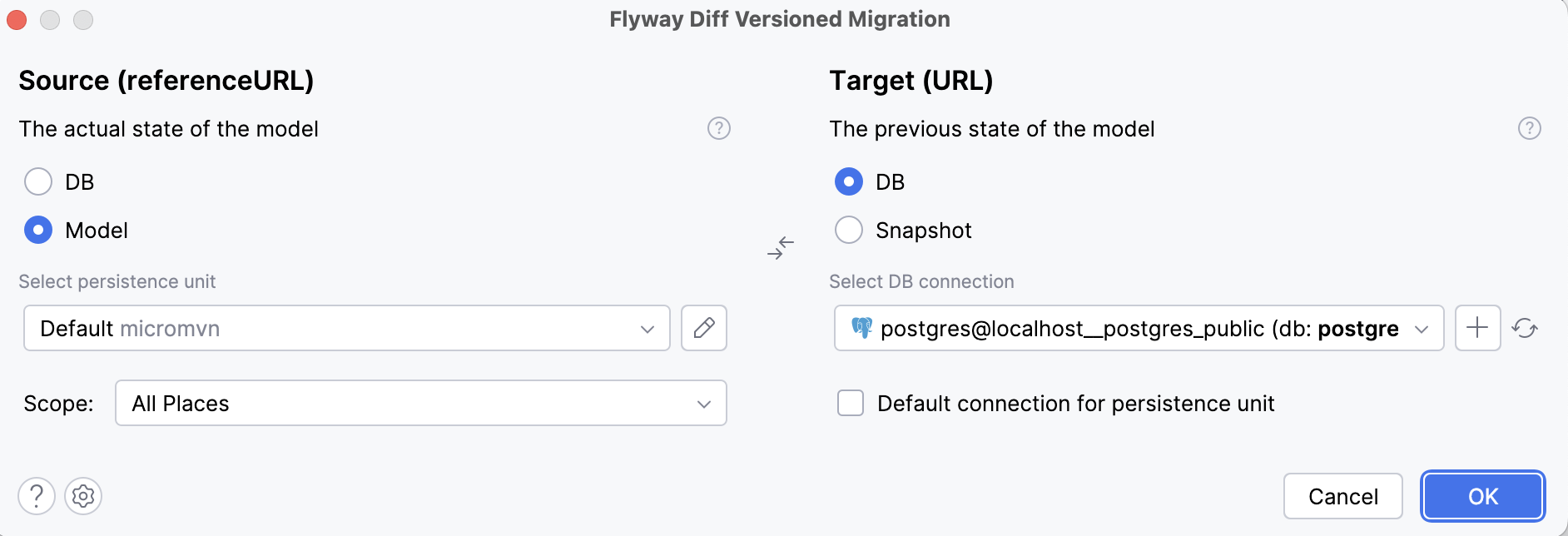
If you select DB or Model, IntelliJ IDEA automatically fills in the database connection, persistence unit, or mapping context, which you can change if needed.
Click OK.
In the Flyway Migration Preview dialog that opens, configure the migration and click Save.
To use quick navigation in a migration file, place the caret at a table name, press Ctrl+B, and select a destination from the Choose Declaration list. Note that you cannot invoke quick navigation on CREATE TABLE statements.

Flyway Migration Preview dialog
The Flyway Migration Preview dialog lets you review the generated DDL statements, organize them into migrations, and configure how to save them.
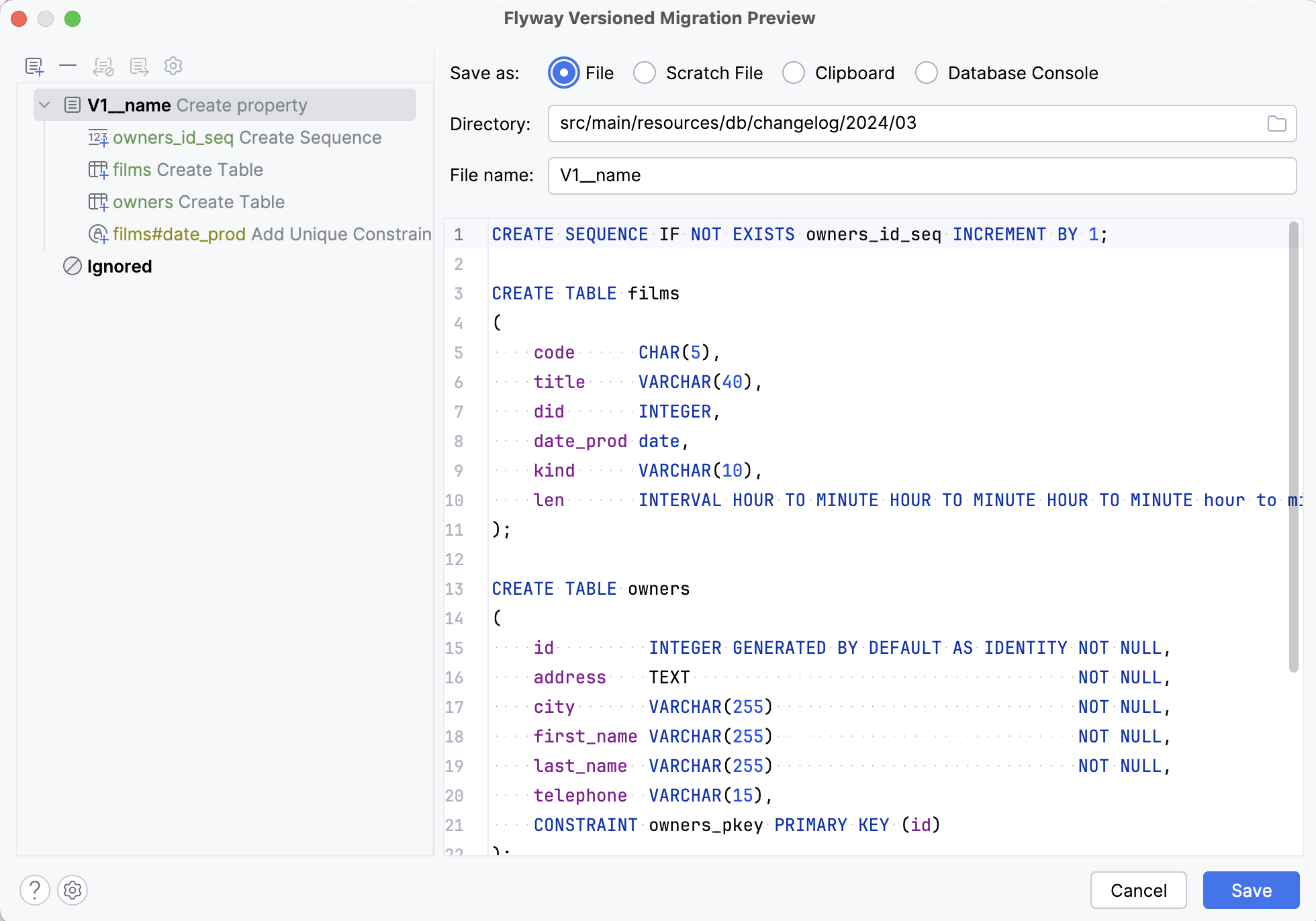
The left side of the dialog displays a tree of the generated schema changes. Each change is color-coded by its danger level and marked with an icon that represents the change type. If you select a specific change, IntelliJ IDEA displays its DDL statement on the right side of the dialog.
The icons above the change tree let you manage the generated changes and migrations:

Add Migration
Create an additional migration.

Remove from Migration
Remove the selected changes from the migration and, optionally, move them to the Ignored section so they are excluded from future migrations.

Restore from Ignored
Move the selected changes from the Ignored section to a migration of your choice.

Move to Another Migration
Move the selected changes to another migration.
If you select this option when there are no other migrations in the dialog, IntelliJ IDEA creates one automatically.

Show Other Actions
Interact with multiple changes at once: Select All with a specific danger level, Expand All, or Collapse All.
The right side of the dialog displays the generated DDL statements for the currently selected changes. If you select a migration (not an individual change), you can also use this section to specify how you want to save it:
Item | Description |
|---|---|
Save as | Choose whether to save the migration as an SQL file, save it as a scratch file, copy it to the clipboard, or open it in a query console. |
Directory | Select a location where IntelliJ IDEA should save the SQL file. |
File name | Set the file name. IntelliJ IDEA automatically fills in the prefix and version based on the Flyway plugin settings. |
Java-based migrations
Java-based migrations are an alternative to SQL migrations for changes that cannot easily be expressed in SQL. They are Java classes that implement Flyway's JavaMigration interface (typically by extending the BaseJavaMigration class) and follow Flyway's naming patterns.
Generate a Java migration
Press Ctrl+Shift+A, type
Flyway Java Migration, and press Enter.In the Flyway Java Migration dialog that opens, set the file name. IntelliJ IDEA automatically fills in the prefix and version based on the Flyway plugin settings.
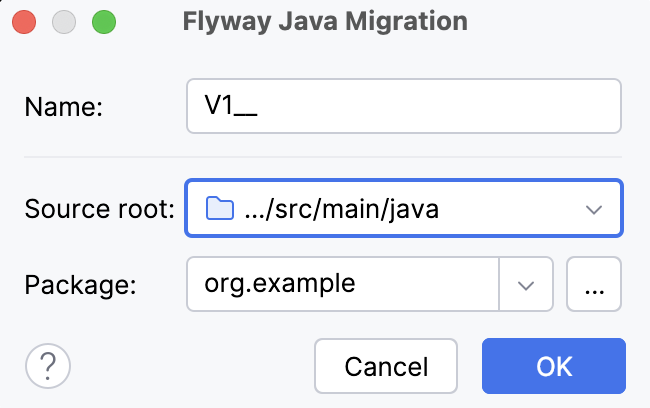
If needed, change the source root or package where the migration should be created.
Click OK.
IntelliJ IDEA opens the generated Java migration class in the editor.
Flyway callbacks
When you run the Flyway migrate command, Flyway executes pending migrations one by one and finishes the process once all migrations are applied. While this flow suits most common scenarios, more complex projects may require running additional logic with each migration or at specific points in the migration lifecycle. Flyway supports such requirements through callbacks.
IntelliJ IDEA provides built-in actions for generating the following types of Flyway callbacks:
SQL callback: creates an empty SQL file with a name that matches one of the recognized callback events.
Java callback: generates a Java class that implements the
Callbackinterface and includes initial implementations of all its methods.
Create an empty SQL callback
Press Ctrl+Shift+A, type
Flyway SQL Callback, and press Enter.The Flyway SQL Callback dialog opens. IntelliJ IDEA automatically fills in the source root and directory where the callback will be created, but you can change them if needed.
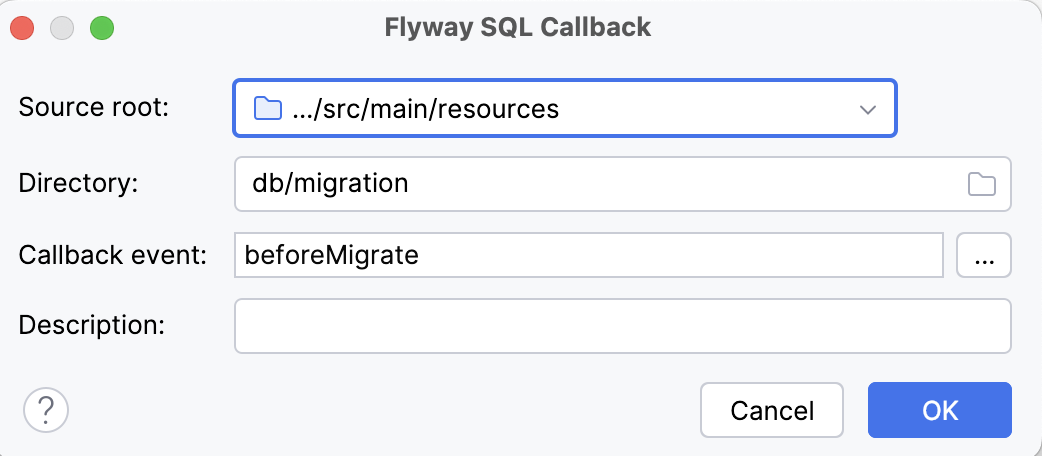
Click
 next to the Callback event field. This opens the Choose Callback Event dialog, where you can select at which point in the migration lifecycle your callback will run.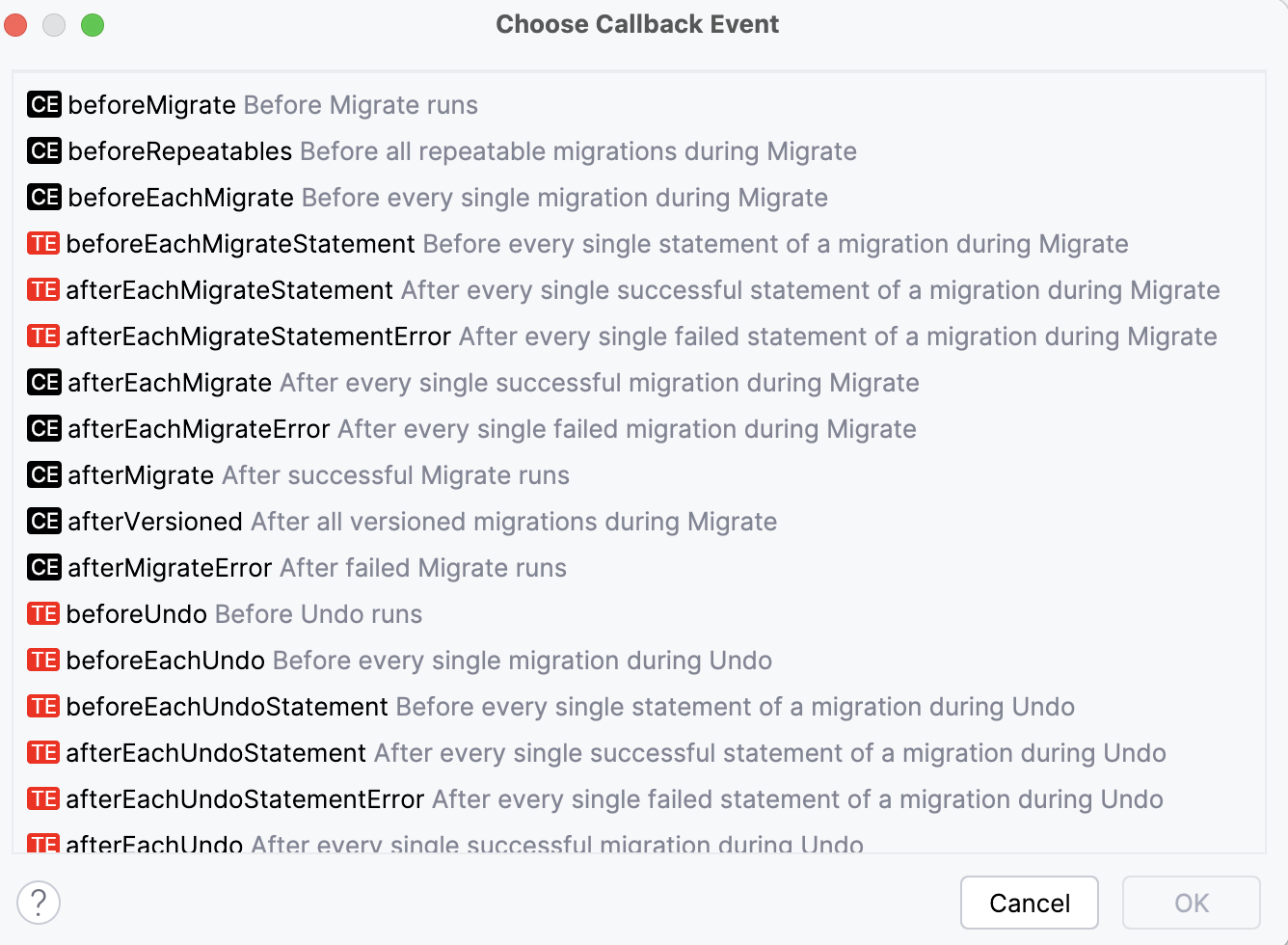
The icon next to each callback event indicates if it is available in Flyway Community Edition (CE) or if it requires the Enterprise Edition (TE).
(Optional) Include a callback description. This value will be appended to the file name.
Click OK.
The IDE opens the callback file in the editor. You can now add SQL statements that will be executed during the selected callback event.
Generate a Java callback
Press Ctrl+Shift+A, type
Flyway Java Callback, and press Enter.The Flyway Java Callback dialog opens. Its options determine the callback class name, location, and initial implementations of the interface methods.
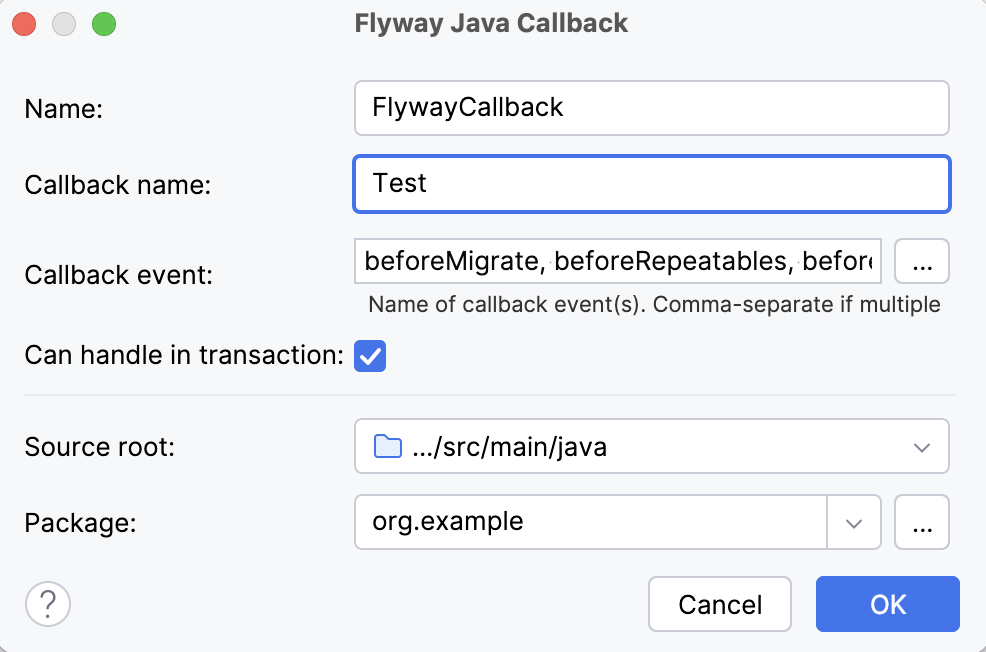
Configure the callback options:
Item
Description
Name
Specify the class name.
Callback name
Specify the callback name. It will be the return value of the
getCallbackName()method.Callback event
Specify at which points in the migration lifecycle Flyway will call the
handle()method from this class. IntelliJ IDEA will automatically add them to thesupports()method.You can type the event names manually or click
to select them from the Choose Callback Event dialog.Can handle in transaction
If you want the
canHandleInTransaction()method to returntrue, select this option.Source root
Select the source root where you want to create the callback.
Package
Select the package where you want to create the callback.
Click OK.
IntelliJ IDEA opens the generated Java callback class in the editor.
Flyway plugin settings
The Flyway plugin settings in IntelliJ IDEA let you configure the naming patterns that the IDE uses when generating migrations.
To access the Flyway plugin settings, open Settings (Ctrl+Alt+S) and go to .
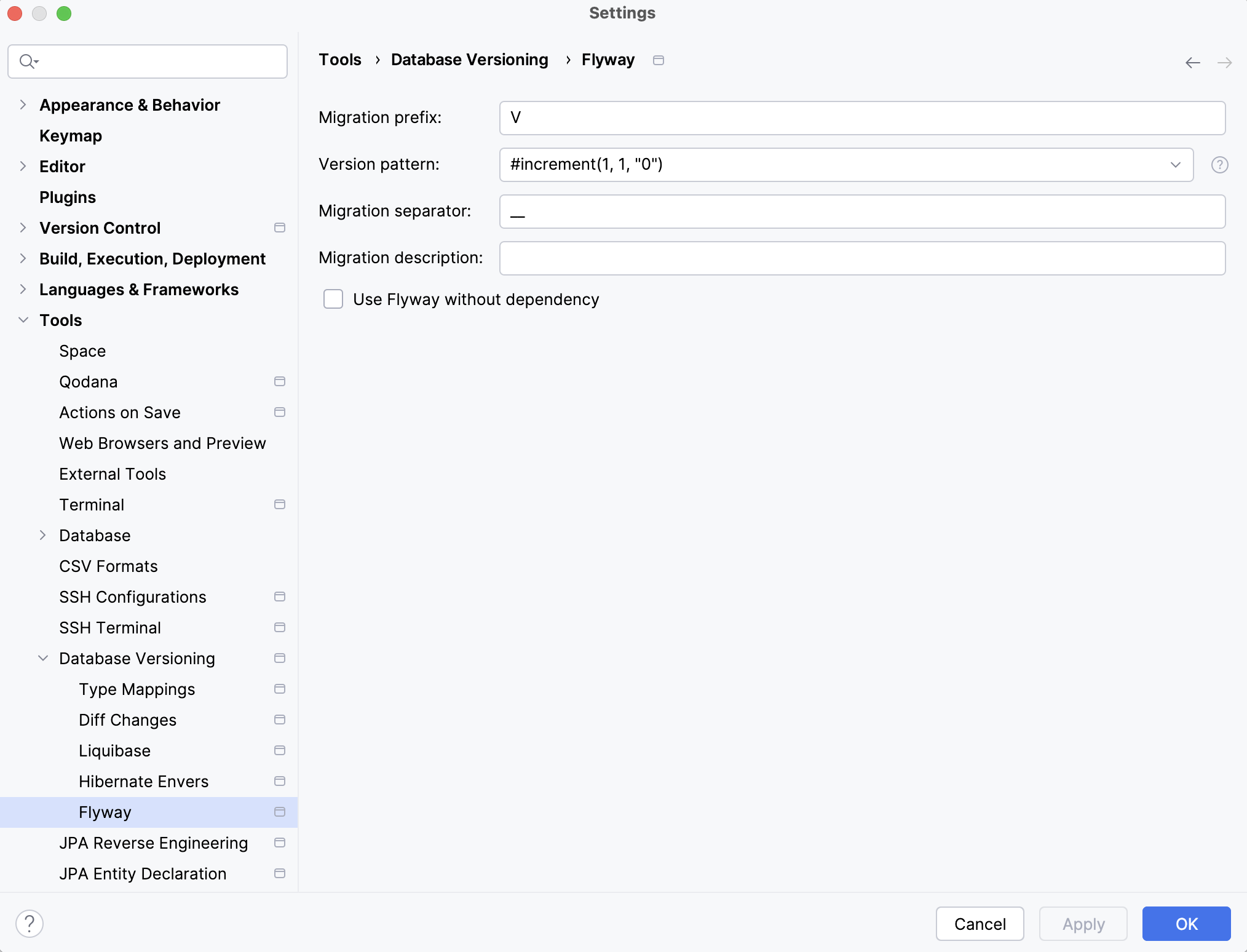
You can configure the following settings:
Item | Description |
|---|---|
Migration prefix | Specify what prefix the IDE should use when generating migration file names. |
Version pattern | Specify a pattern the IDE should use when setting the file version. You can include the following macros:
|
Migration separator | Specify the separator between the file version and description. |
Migration description | Specify the description that will be added after the separator in each file name. |
Use Flyway without dependency | If you want to use Flyway features in IntelliJ IDEA without adding the dependency to your build files, select this option. |