Run and debug React applications
Run a React application
Сlick
 in the gutter next to the
 startscript in package.json, or execute thenpm run startcommand in the Terminal Alt+F12, or double-click thestarttask in the npm tool window ().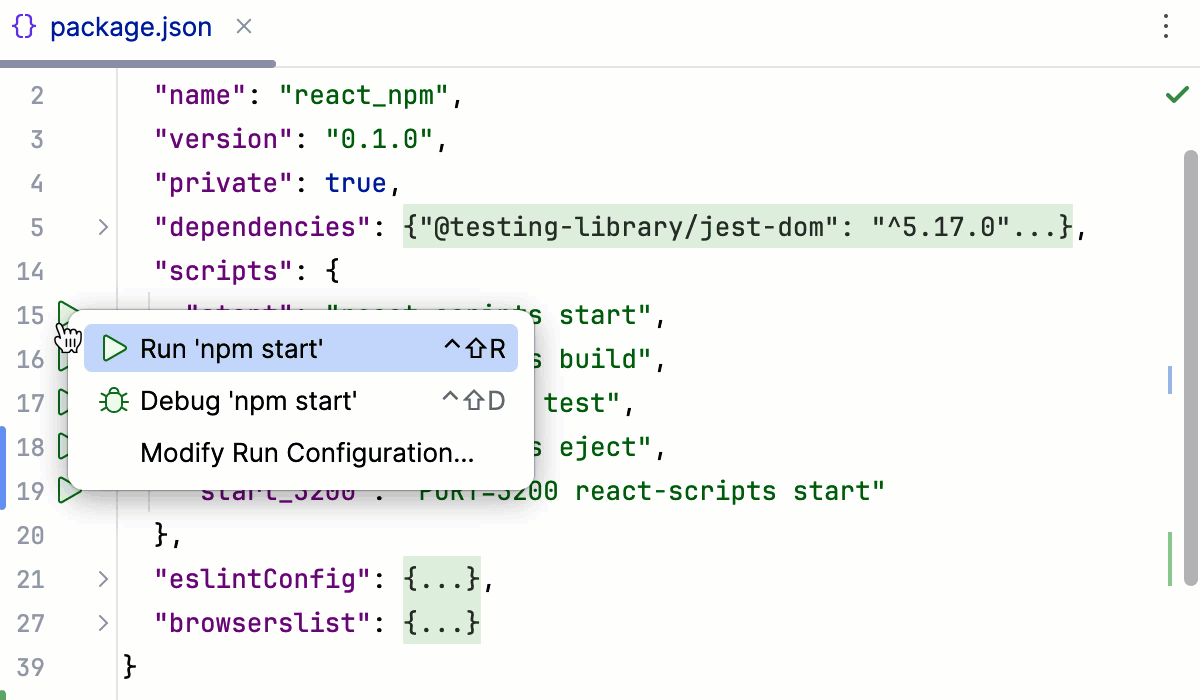
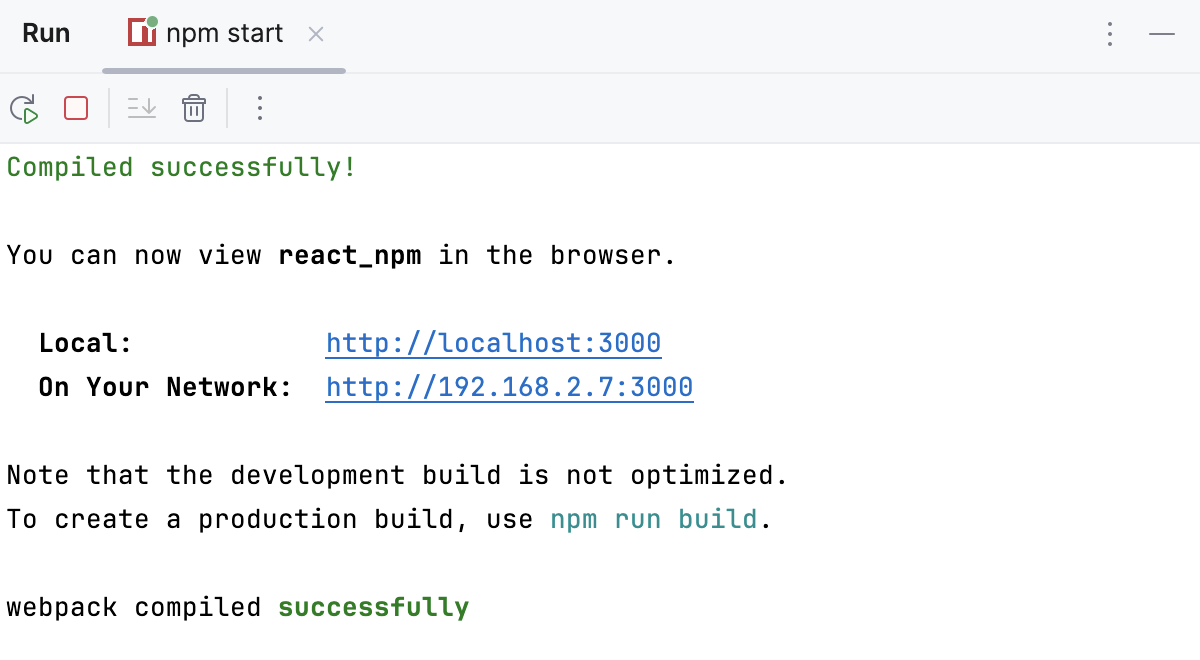
Wait till the application is compiled and the development server is ready.
The Run tool window or the Terminal shows the URL at which your application is running. If your application was generated with create-react-app, the default URL is http://localhost:3000/. Click this link to view the application.
Run a React application via a run/debug configuration
For applications created with create-vite in the IntelliJ IDEA New Project wizard as described above, IntelliJ IDEA generates an npm configuration with the default name npm start. This configuration runs the react-scripts start command that launches the development server and starts your application in the development mode.
In other cases, you need to create a run/debug configuration with the actual settings, such as, host, port, etc., manually.
Create an npm run/debug configuration
Go to . Alternatively, select Edit Configurations from the Run widget on the toolbar.
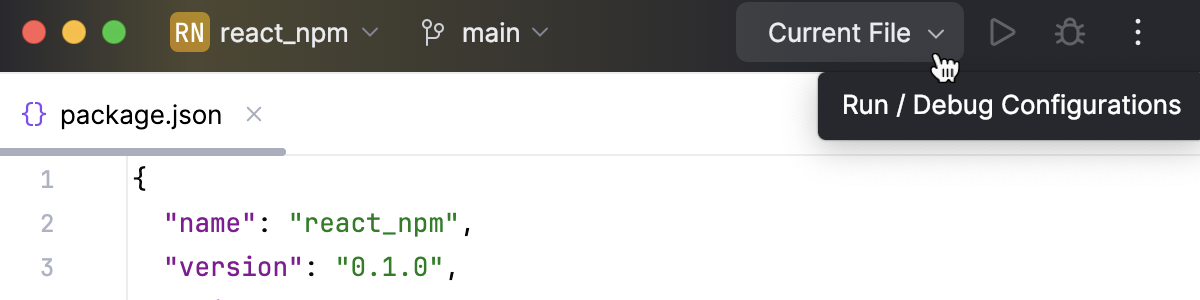
In the Edit Configurations dialog that opens, click the Add button (
 ) on the toolbar and select npm from the list.
 In the Configuration tab of the Run/Debug Configurations: npm dialog that opens, specify the location of the package.json, the Node.js runtime, and the package manager to use.
In the Command field, select run from the list and then select the script to run from the Scripts list. Most likely it will be the default
startscript but you can configure another one in your package.json, for example, to run the application on a custom port.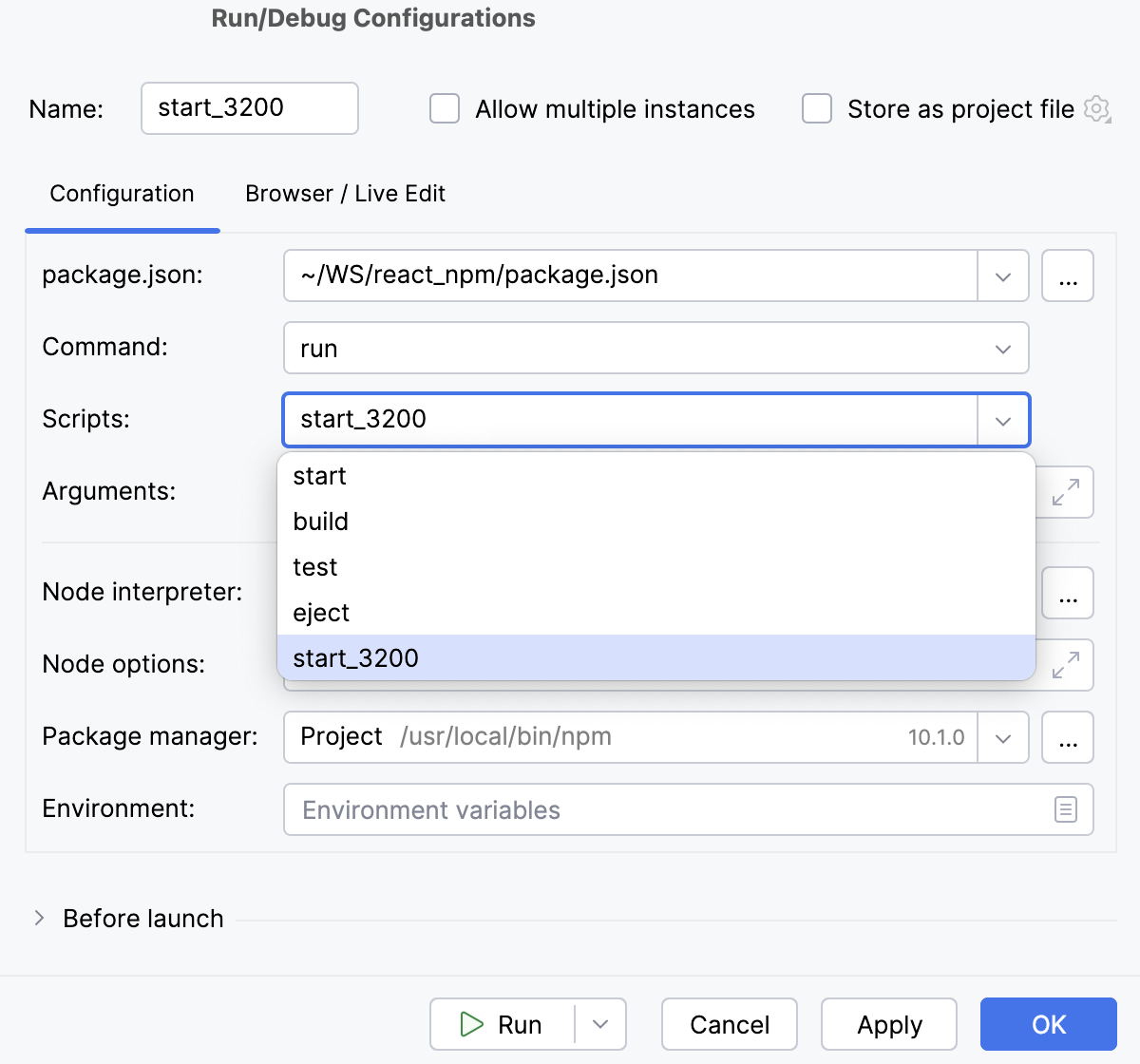
Optionally:
To open the application in the browser, update the configuration as follows: in the Browser / Live Edit tab, select the After launch checkbox, select the browser to open the application in, and specify the URL address at which the application wil run.
If you are going to debug the application, select Google Chrome or another Chromium-based browser.
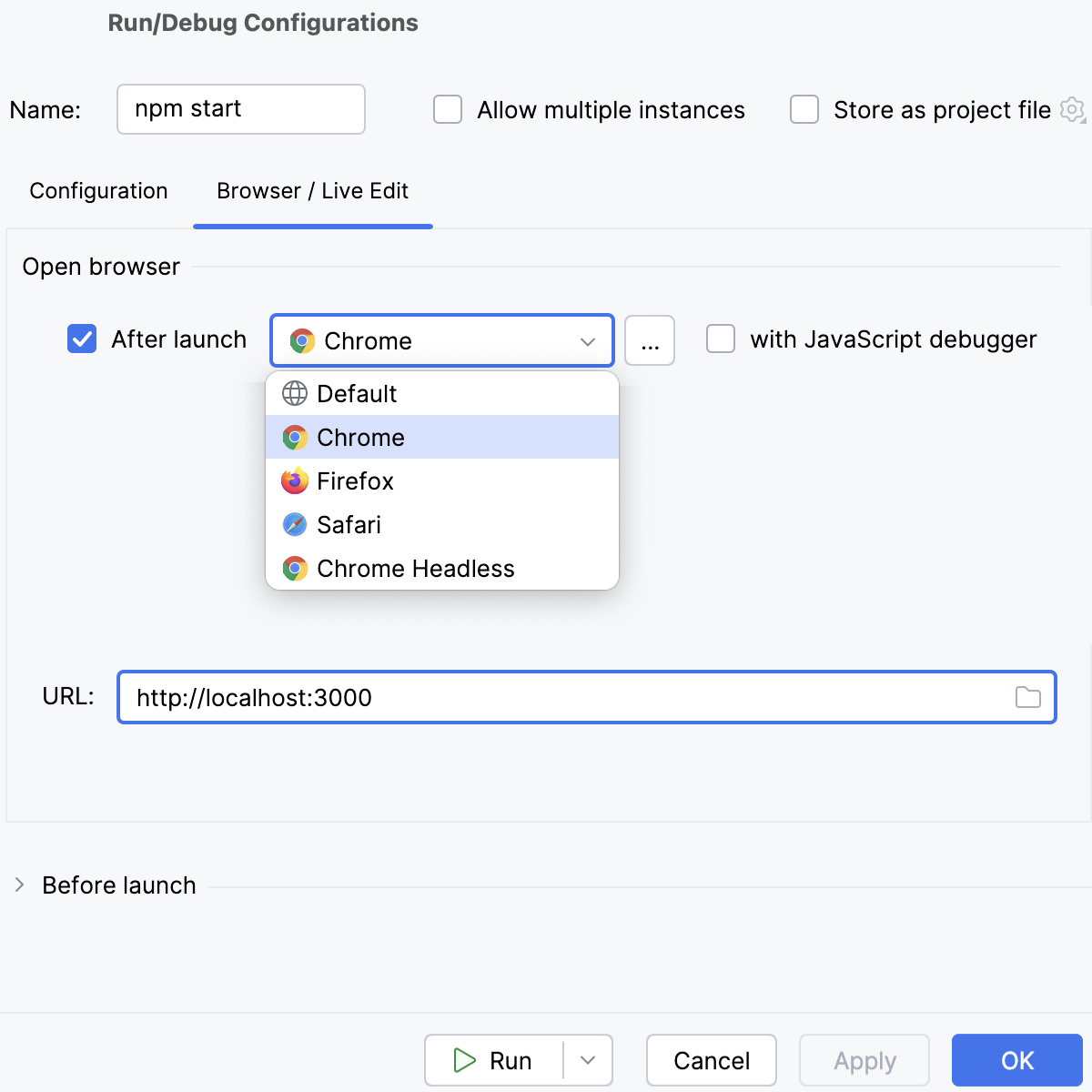
Run an application
Select the npm start run configuration from the list on the toolbar and click
 next to it.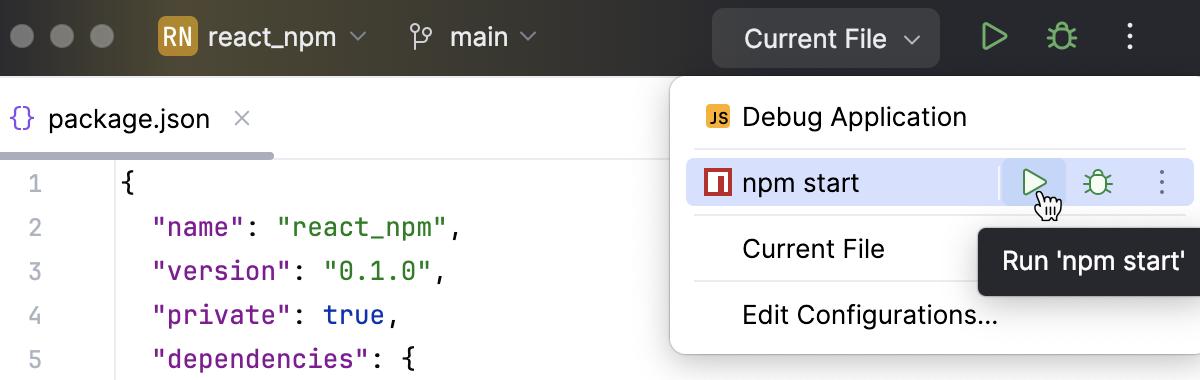
Wait till the application is compiled and the development server is ready.
The Run tool window or the Terminal shows the URL at which your application is running. Click this link to view the application.
Alternatively, enable IntelliJ IDEA to open the application on start as described above.
Debug a React application
You can start a debugging session either by launching a run/debug configuration or from the Run tool window that shows the URL at which your application is running in the development mode.
Start debugging via a run/debug configuration
To debug your React application, you need two run/debug configurations:
An npm configuration to start your application in the development mode, as described above.
A JavaScript Debug configuration to attach the debugger to the application that is running in the development mode.
You can create a JavaScript Debug configuration within the npm configuration to launch them at once, as described in Run and debug a React application with an npm run/debug configuration.
Alternatively, create and launch an npm and a JavaScript Debug run/debug configurations separately, as described in Start debugging with a JavaScript Debug run/debug configuration.
Run and debug a React application with a single npm run/debug configuration
Run and debug a React application with a single npm run/debug configuration
Set the breakpoints in your code.
Create an npm configuration as described above.
If you generated your application with
create-react-app, IntelliJ IDEA has already created an npm configuration with the default name npm start. The configuration is available from the Run widget and in the Run/Debug Configurations dialog.In the Configuration tab of the Run/Debug Configurations: npm dialog that opens, specify the location of the package.json, the Node.js runtime, and the package manager to use.
In the Command field, select run from the list and then select the script to run from the Scripts list. Most likely it will be the default
startscript but you can configure another one in your package.json, for example, to run the application on a custom port.In the Browser / Live Edit tab, select the After launch checkbox, select Google Chrome or another Chromium-based browser from the list, select the with JavaScript debugger checkbox, and then specify the URL at which your application will run.
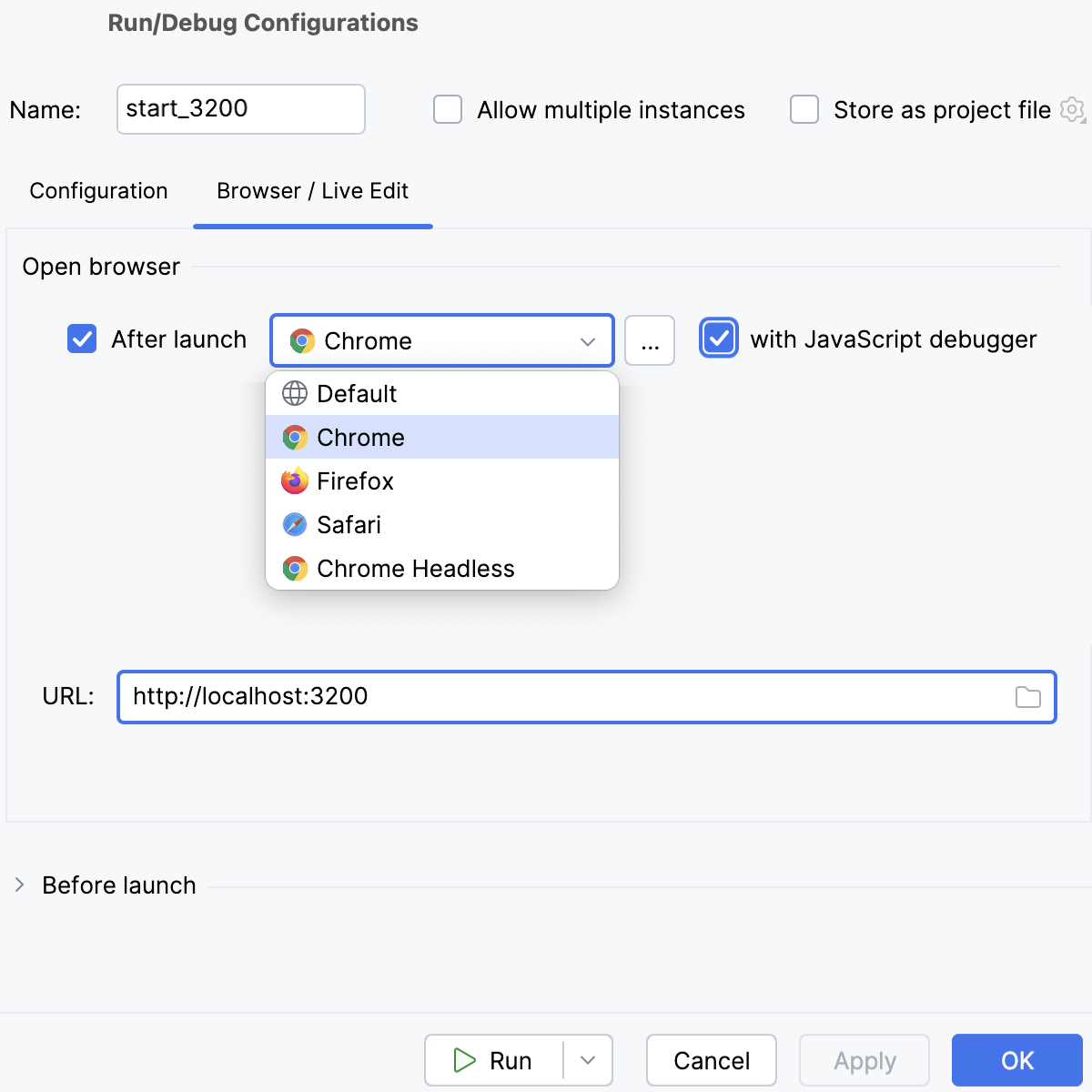
Click Run.
To re-run the configuration, select it from the list in the Run widget and click
next to it.IntelliJ IDEA runs the application in the development mode and at the same time launches a debugging session.
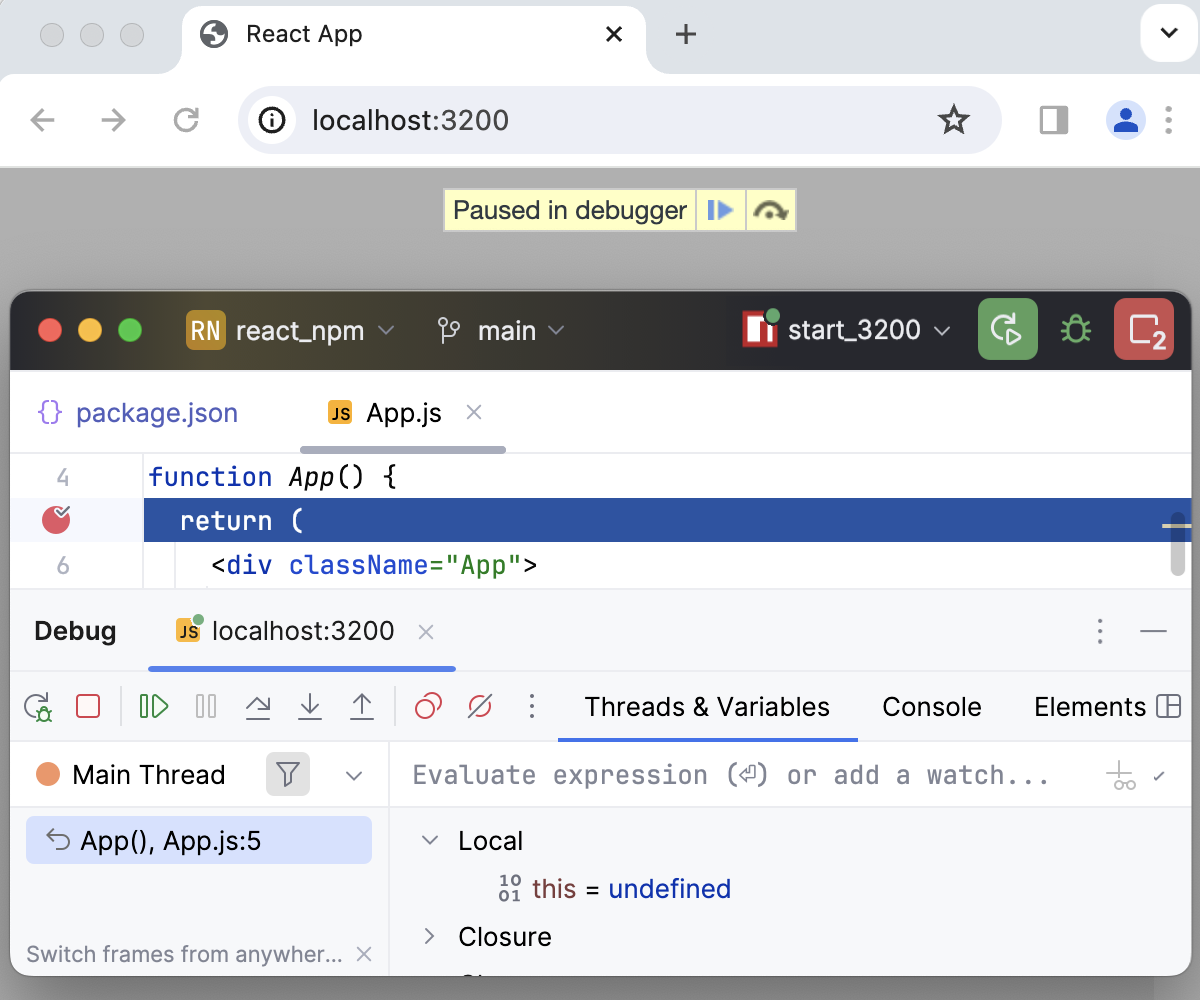
When the first breakpoint is hit, switch to the Debug tool window and proceed as usual: step through the program, stop and resume program execution, examine it when suspended, explore the call stack and variables, set watches, evaluate variables, view actual HTML DOM, and so on.
Start debugging with a JavaScript Debug run/debug configuration
Set the breakpoints in your code.
Start the application in the development mode as described above and wait till the application is compiled and the development server is ready.
The Run tool window or the Terminal shows the URL at which your application is running. Copy this URL to specify it later in the JavaScript Debug configuration.
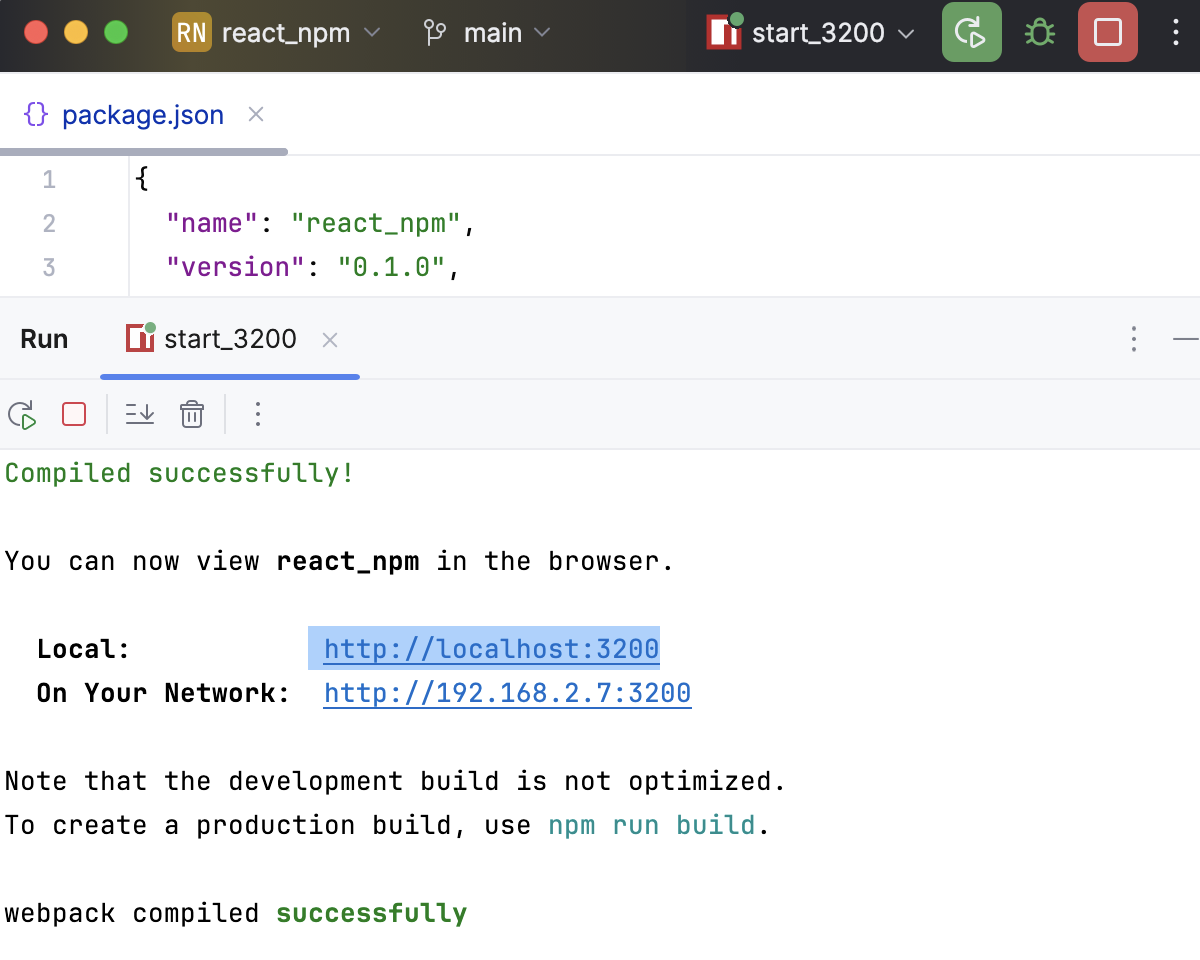
Create a JavaScript Debug configuration. To do that, go to in the main menu, click
, and select Javascript Debug from the list.In the Run/Debug Configurations: JavaScript Debug dialog that opens, specify the name of the configuration and the URL address at which the application is running in the development mode. You can copy this URL in the Run tool window or in the Terminal, as described above.
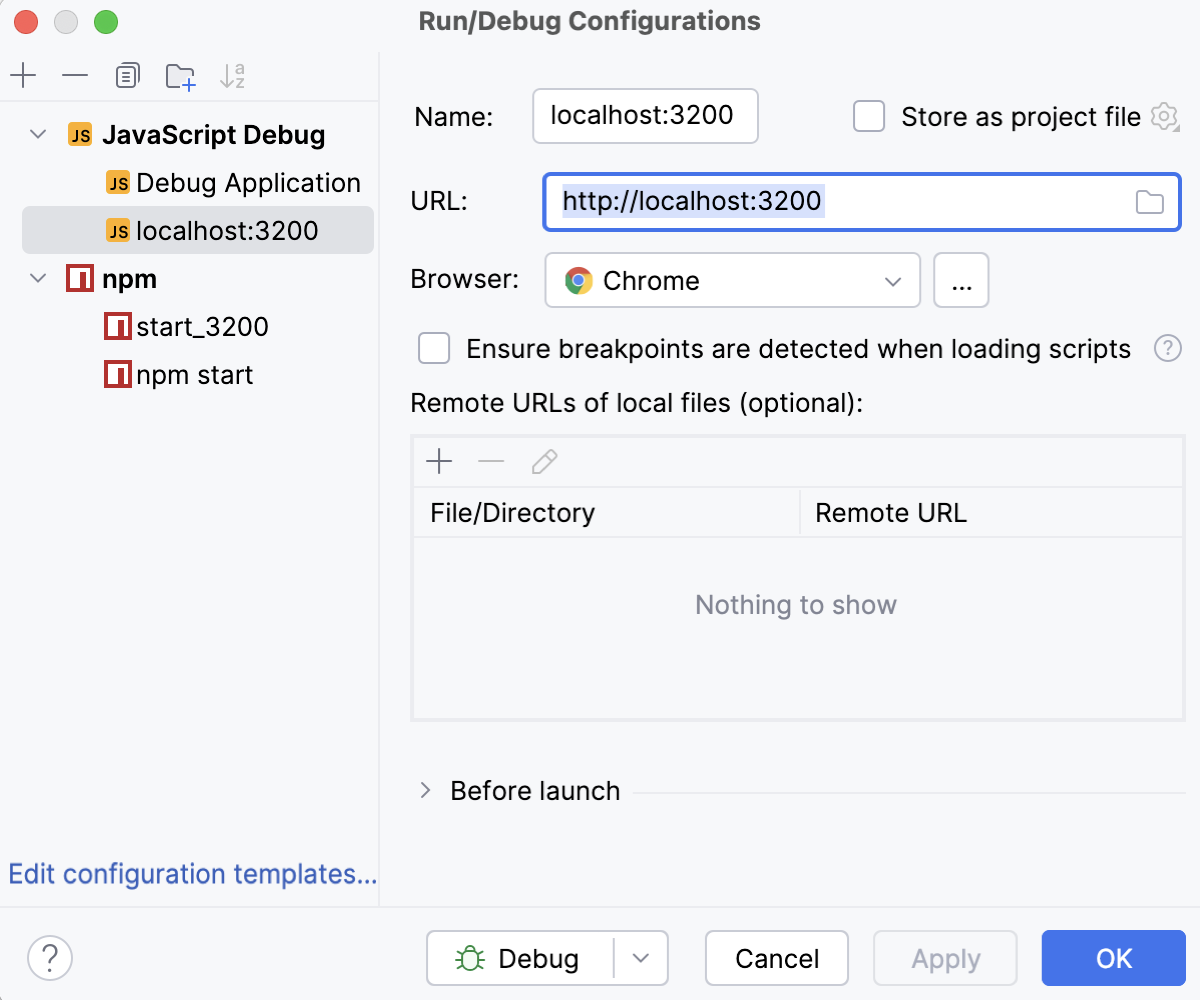
Click Debug.
To re-run the configuration, select it from the list in the Run widget and click
 next to it.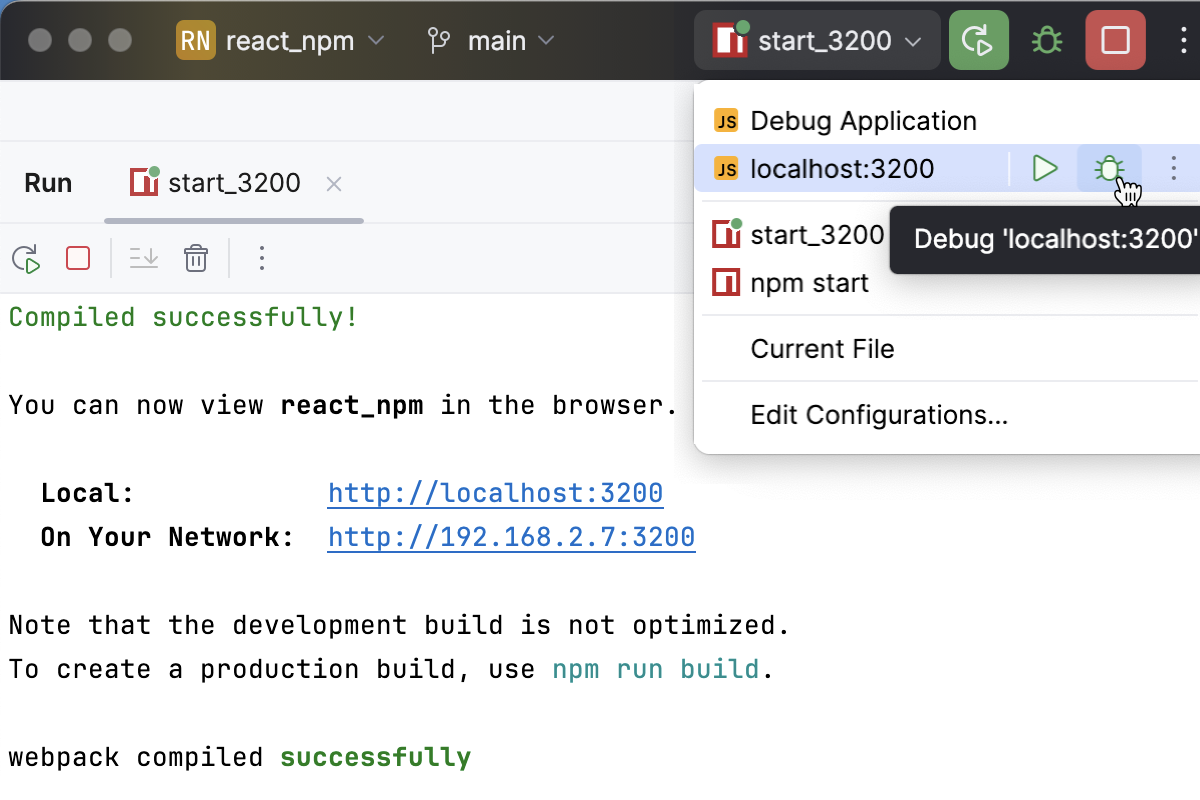
When the first breakpoint is hit, switch to the Debug tool window and proceed as usual: step through the program, stop and resume program execution, examine it when suspended, explore the call stack and variables, set watches, evaluate variables, view actual HTML DOM, and so on.
Start debugging from the Run tool window or from the built-in Terminal
If your application is running in the development mode on localhost, in particular, if it was generated with create-react-app, you can launch a debugging session right from the Run tool window or from the built-in Terminal.
Set the breakpoints in your code.
Start the application in the development mode as described above and wait till the application is compiled and the development server is ready.
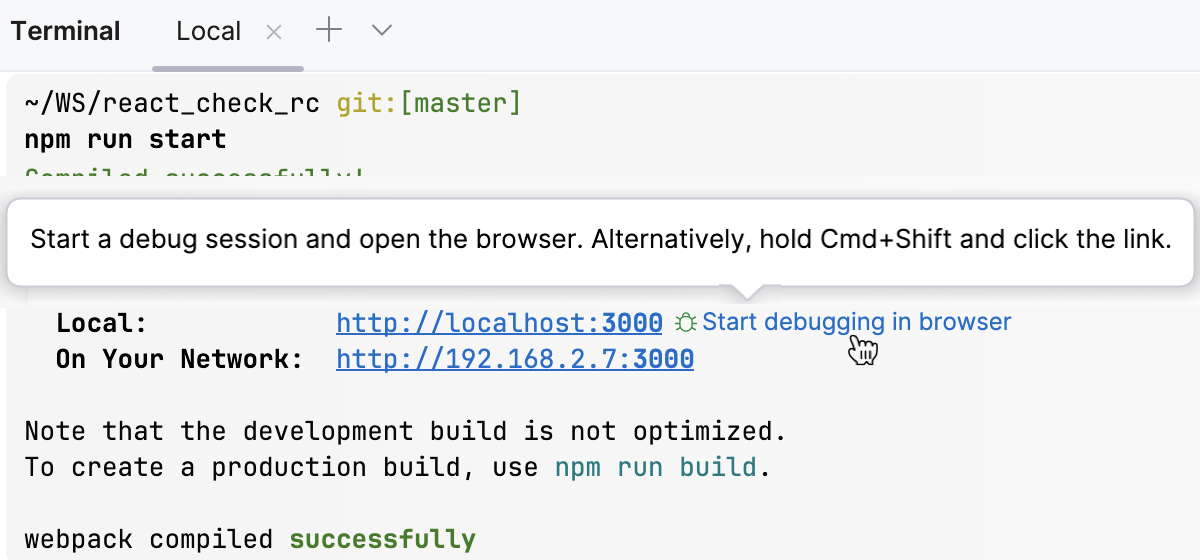
The Run tool window or the Terminal shows the URL at which your application is running. Hold Ctrl+Shift and click this URL link. IntelliJ IDEA starts a debugging session with an automatically generated configuration of the type JavaScript Debug.
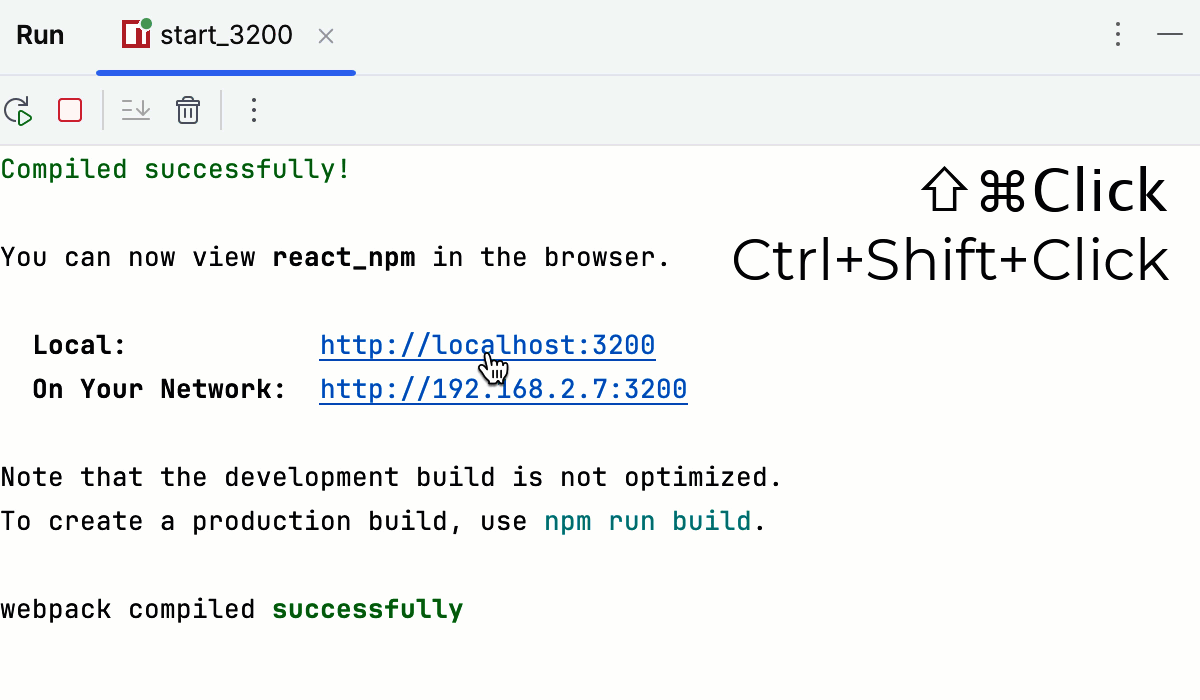
If you launched your application in the development mode from the New Terminal, you can just click the Start debugging in browser button next to the link.
When the first breakpoint is hit, switch to the Debug tool window and proceed as usual: step through the program, stop and resume program execution, examine it when suspended, explore the call stack and variables, set watches, evaluate variables, view actual HTML DOM, and so on.
Known limitations
When you open an application during a debugging session for the first time, it may happen that some of the breakpoints in the code executed on page load are not hit. The reason is that to stop on a breakpoint in the original source code, IntelliJ IDEA needs to get the source maps from the browser. However, the browser can pass these source maps only after the page has been fully loaded at least once. As a workaround, reload the page in the browser yourself.