Test React applications
You can run and debug Jest tests in React applications created with generators. Before you start, make sure the react-scripts package is added to the dependencies object of your package.json.
You can run and debug Jest tests right from the editor, or from the Project tool window, or via a run/debug configuration. For more information, refer to Jest.
Run a test from the editor
Click
 or
or  in the gutter and select Run <test_name> from the list.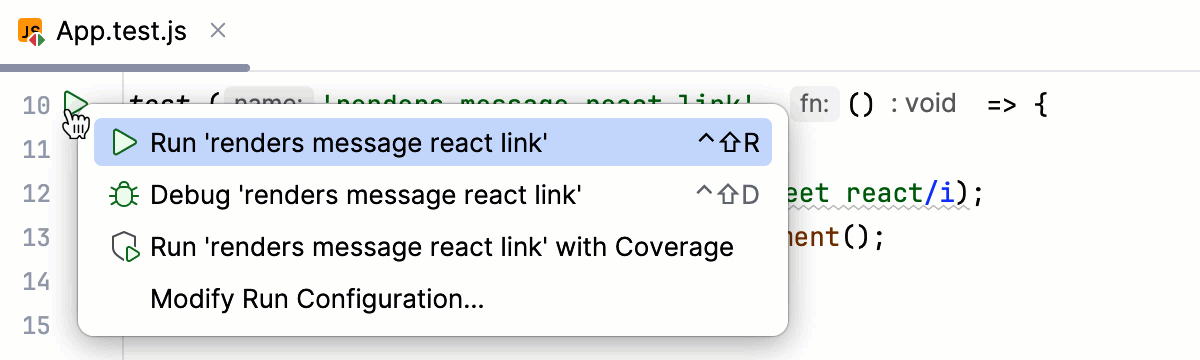
You can also see whether a test has passed or failed right in the editor, thanks to the test status icons
 and
and  in the gutter.
Run tests via a run/debug configuration
Create a Jest run/debug configuration
Open the Run/Debug Configuration dialog ( in the main menu), click
 in the left-hand pane, and select Jest from the list. The Run/Debug Configuration: Jest dialog opens.
Specify the Node.js runtime to use and the working directory of the application. By default, the Working directory field shows the project root folder. To change this predefined setting, specify the path to the desired folder.
In the Jest package field, specify the path to the react-scripts package.
In the Jest options field, type
--env=jsdom.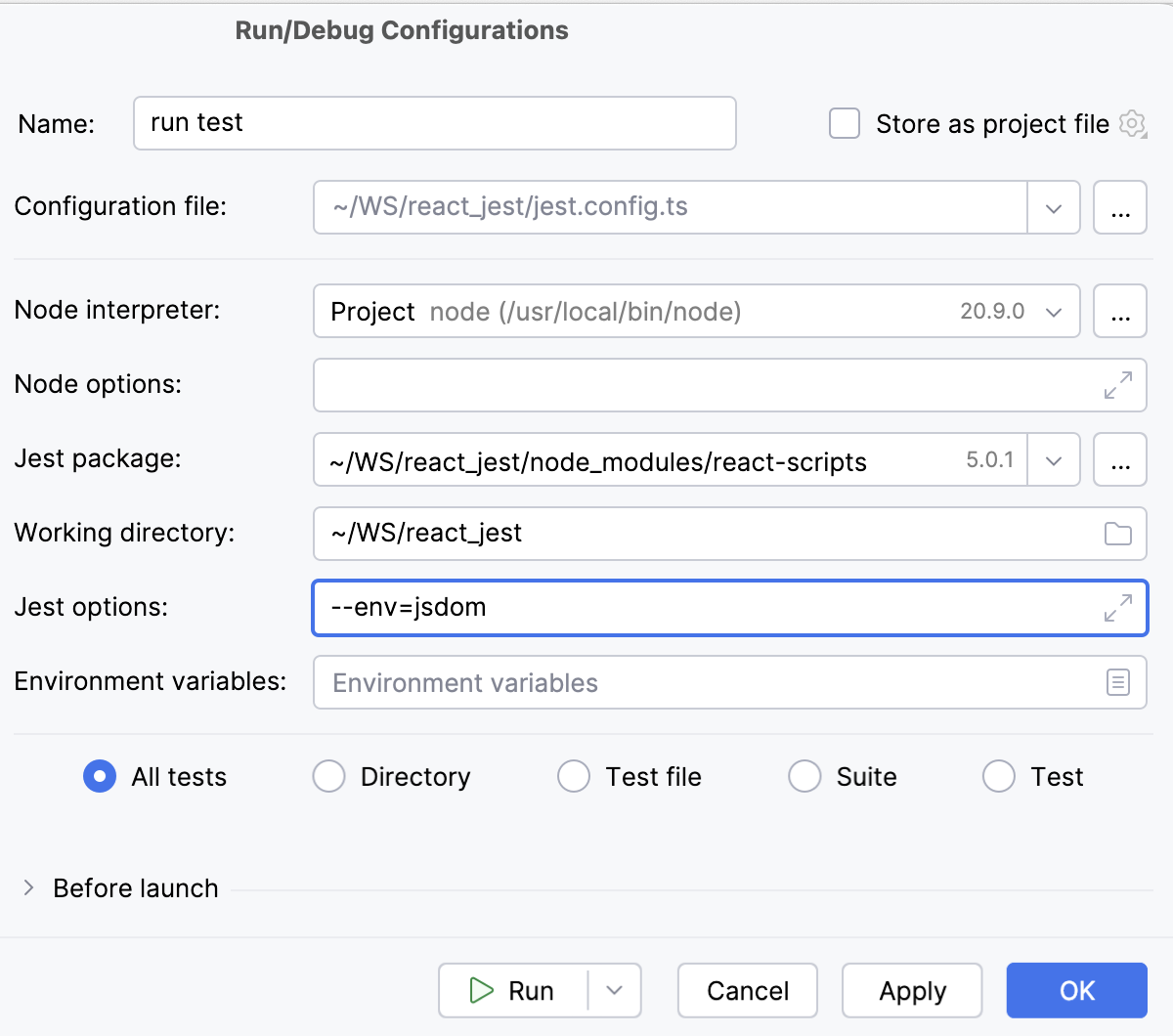
Launch tests via a run/debug configuration
Select the Jest run/debug configuration from the list of configurations and click
 in the list or on the toolbar.
Monitor test execution and analyze test results in the Test Runner tab of the Run tool window. For more information, refer to Explore test results.
Debug tests
Debug tests
Select the Jest run/debug configuration from the list on the main toolbar and click
 to the right.
In the Debug tool window that opens, proceed as usual: step through the program, stop and resume program execution, examine it when suspended, explore the call stack and variables, set watches, evaluate variables, view actual HTML DOM, and so on.