Query results
In IntelliJ IDEA, you can run queries in query consoles and then view and work with the result set data using the IDE interface.
Display
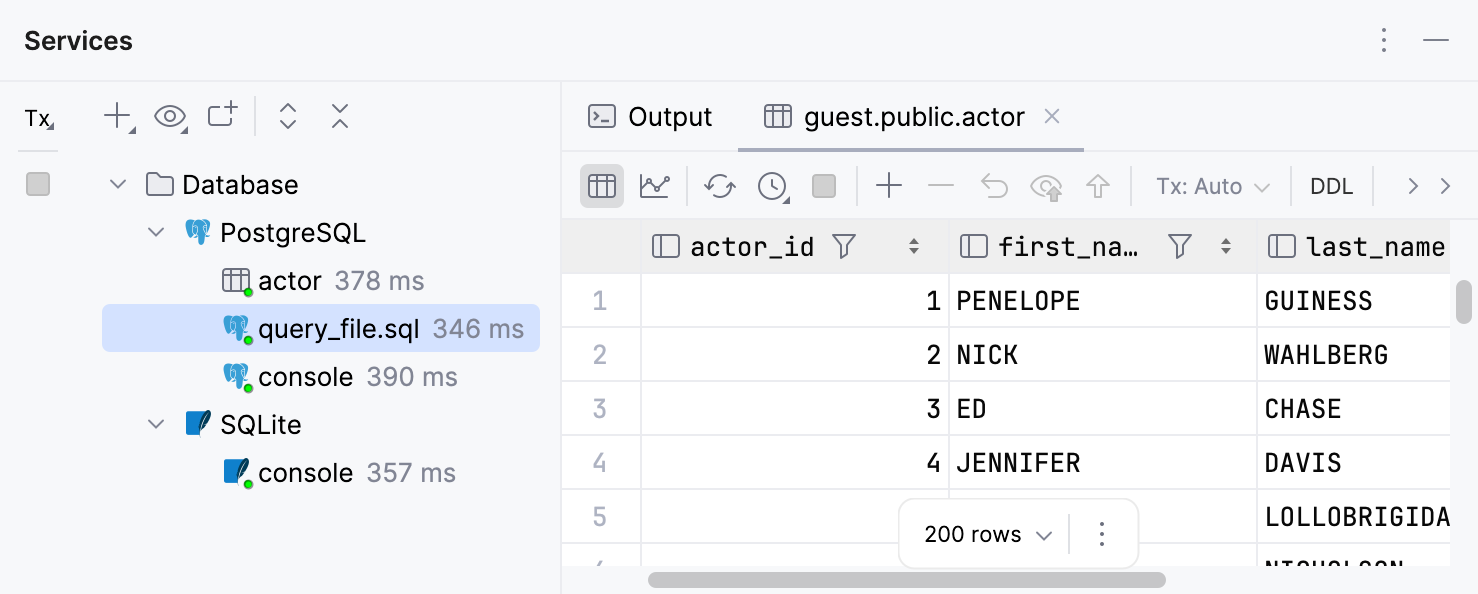
Usually, when you run a query, you receive results in a table format. IntelliJ IDEA displays the results in a data editor.
The data editor and viewer, or data editor, provides a user interface for working with data. In the data editor, you can sort, filter, add, edit, and remove the data as well as perform other associated tasks.
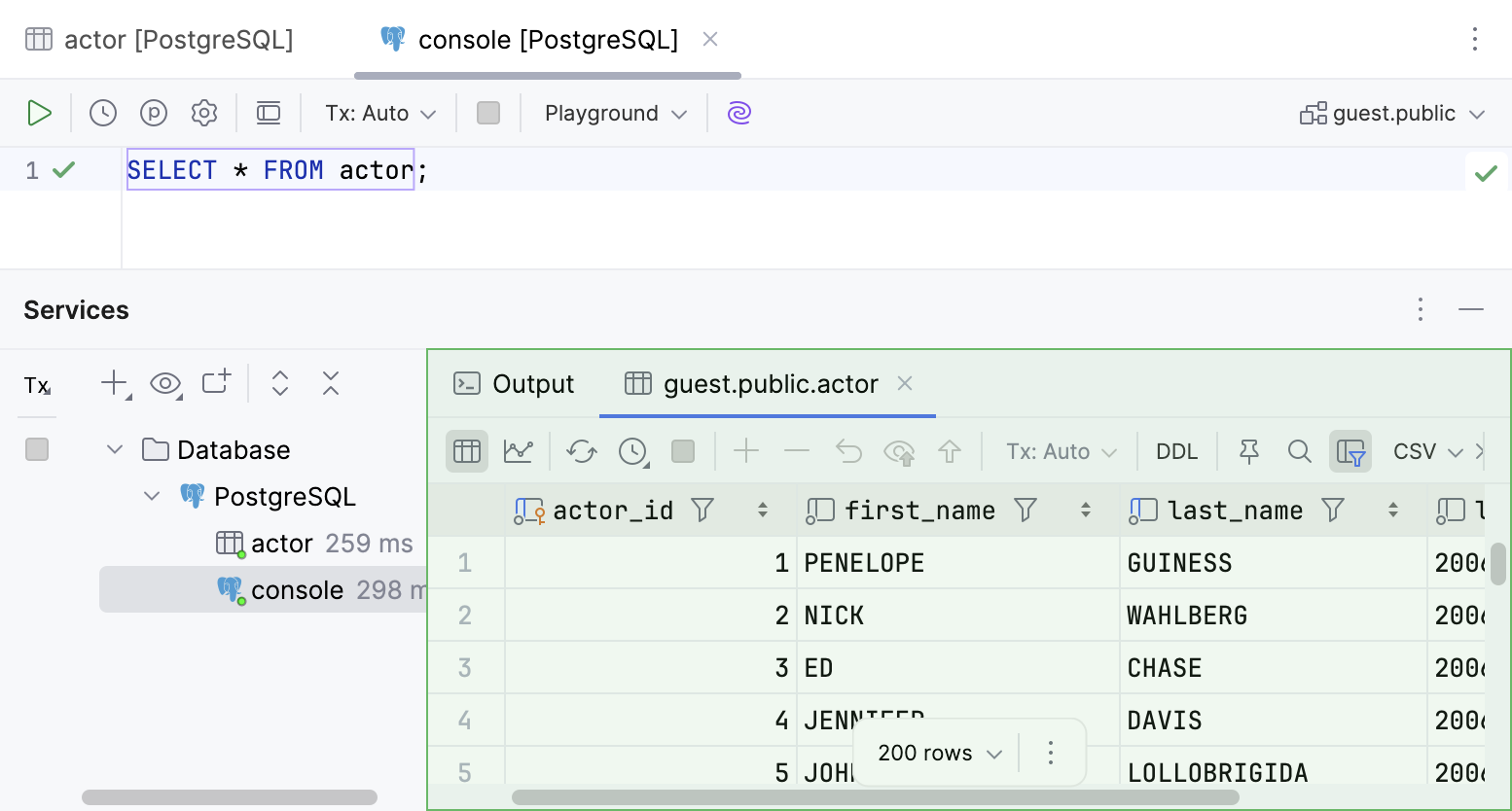
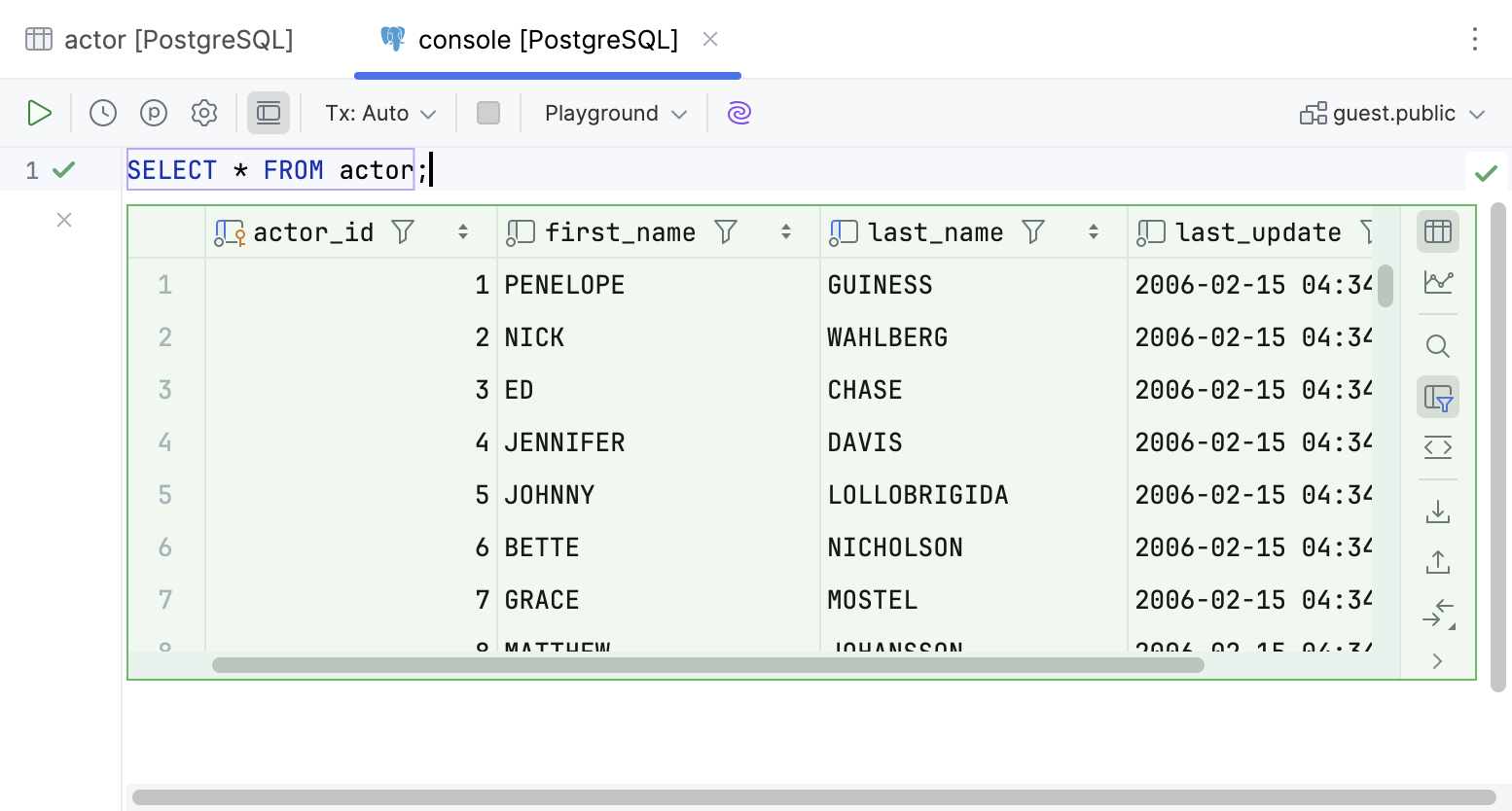
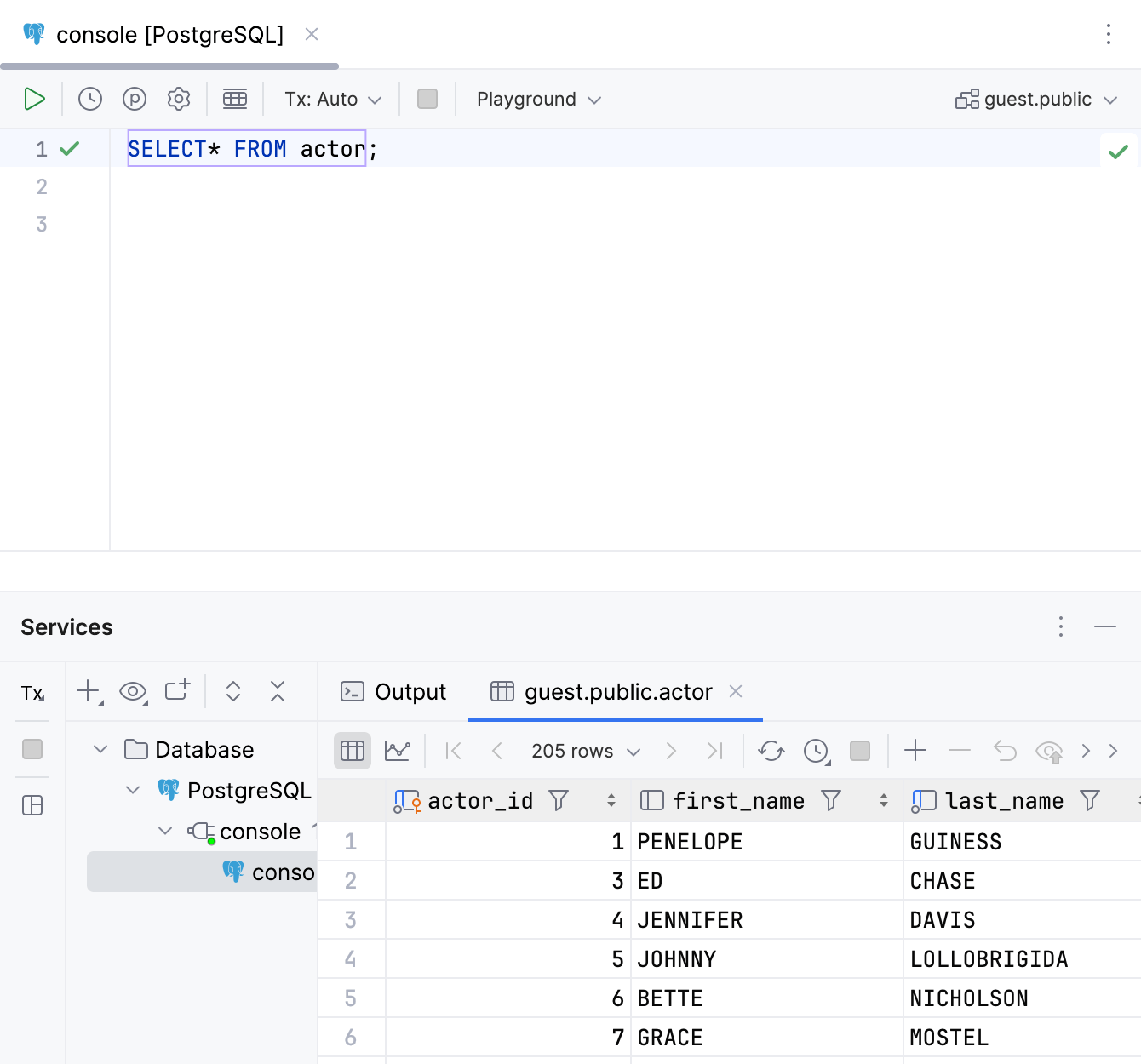
By default, IntelliJ IDEA displays the data editor with query results in a separate tab of the Services tool window. You can also set the results to appear in your query console by using the in-editor results feature.
Select where to display query output and results
You can configure the IDE to display output and results in the Database Output tool window, inline in the editor, or in the Services tool window.
Press Ctrl+Alt+S to open settings and then select .
In Show results in, select the location.
Click OK to apply the changes.
For more information about query consoles and tool windows, refer to Query consoles, Database Output tool window, and Services tool window.
View, format, and work with output
For more information about how to view the results, change the output format, and work with data in it, refer to the Data editor and viewer section:
Result tabs in Services tool window
By default, data editor with results appears in the Result tab of the Services.
Run a query and view results in Services tool window
In a query console, type or paste the query that you want to run.
Click
 Execute on the toolbar. Alternatively, press Ctrl+Enter.
IntelliJ IDEA displays the query result set in the Services tool window tab.
Open a new tab for each new query
By default, IntelliJ IDEA updates the same tab with results each time you run a new query after the previous one. You can change this behavior and create a tab each time you run a new query.
In the IDE settings Ctrl+Alt+S, go to .
Select the Open results in new tab checkbox and click OK.
Use custom titles for tabs with results
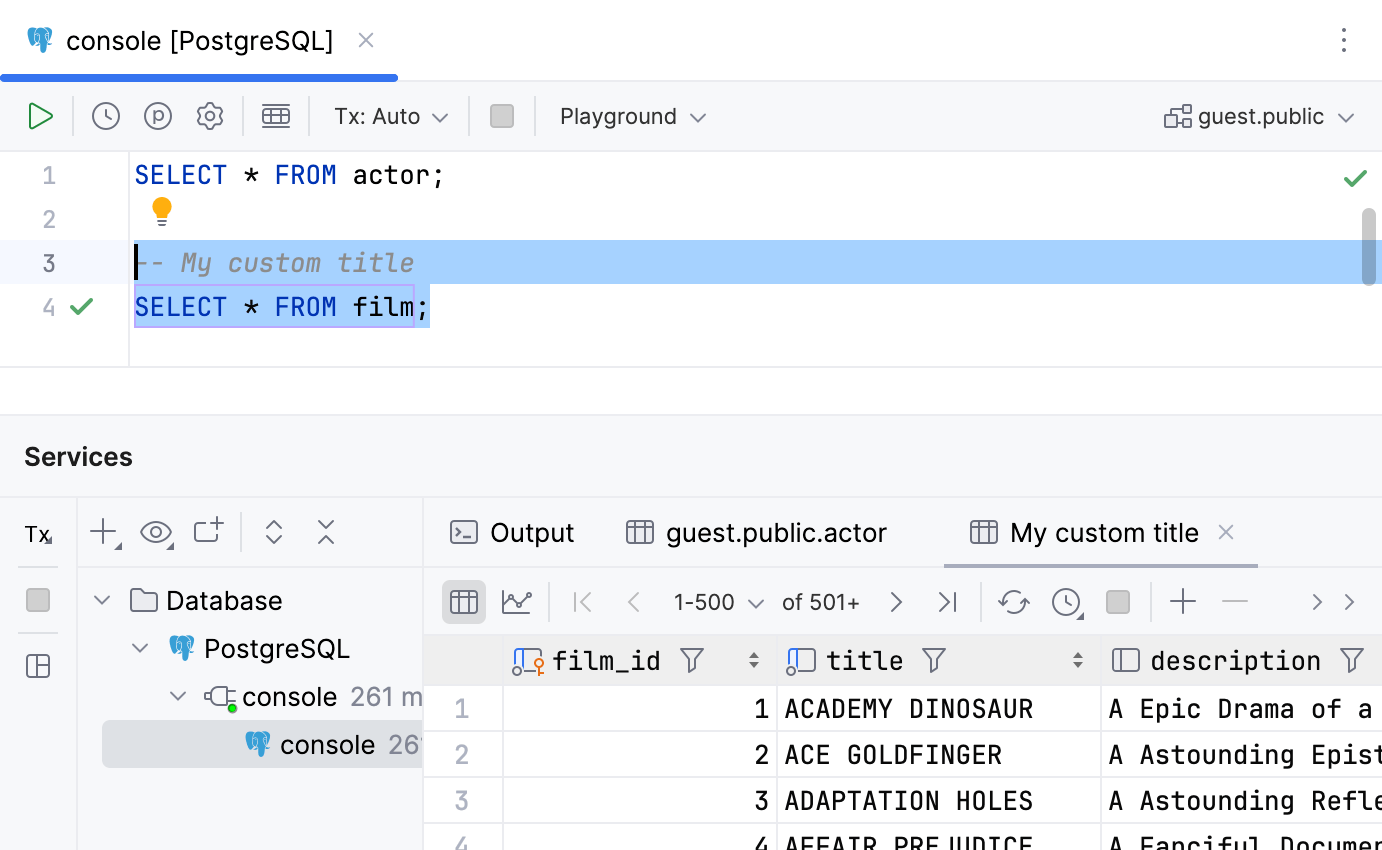
You can define a tab title in the comment section before the query. In the Treat text as title after field, you can reserve a combination of symbols or characters after which any text will be treated as a tab title. By default, no combination is used, so any text after -- or /* is treated as a tab title.
Open settings by pressing Ctrl+Alt+S, navigate to .
In the Treat text as title after field, define a combination for tab titles.
To disable this feature, open settings Ctrl+Alt+S, navigate to , and clear the Create title for results from comment before query checkbox.
For more examples of custom titles for tabs, refer to Name the result tabs at youtube.com.
Pin the tab with query results
If one and the same tab is used to show your query results, and you get the result that you want to keep, you can pin the tab to the tool window.
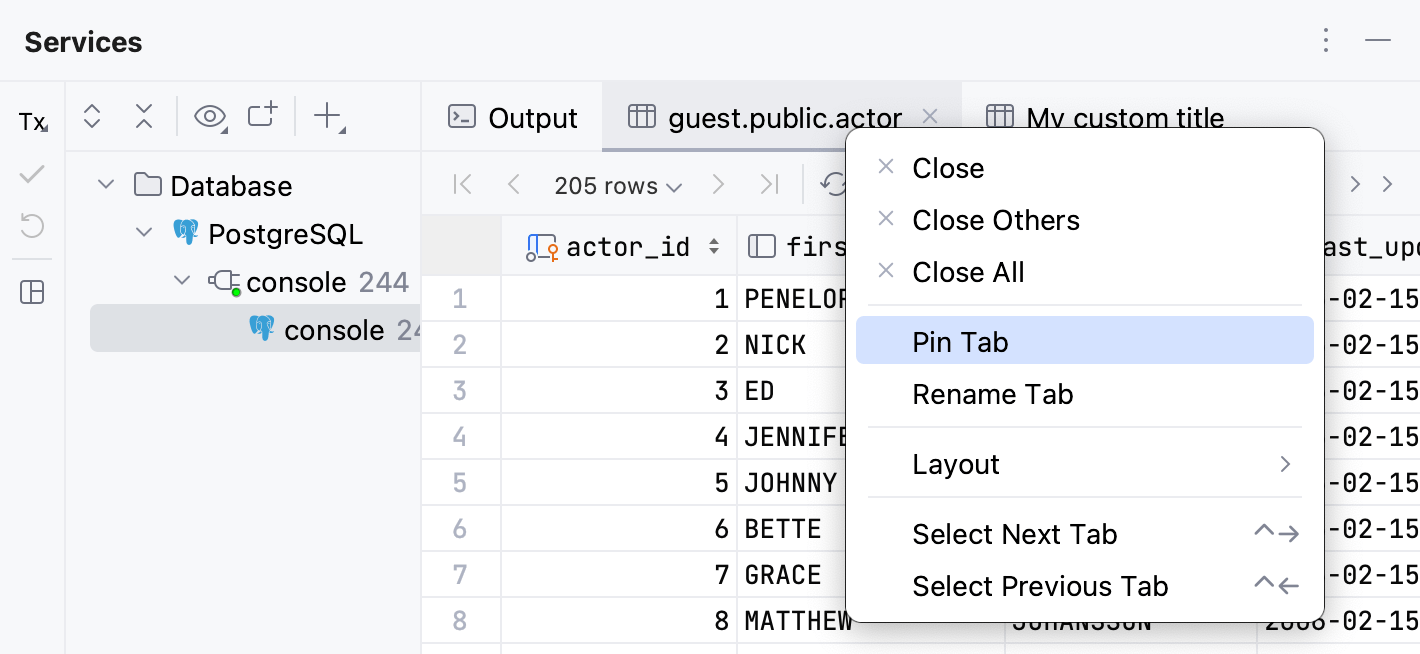
Right-click the tab header and select Pin Tab.
In-Editor Results in query consoles
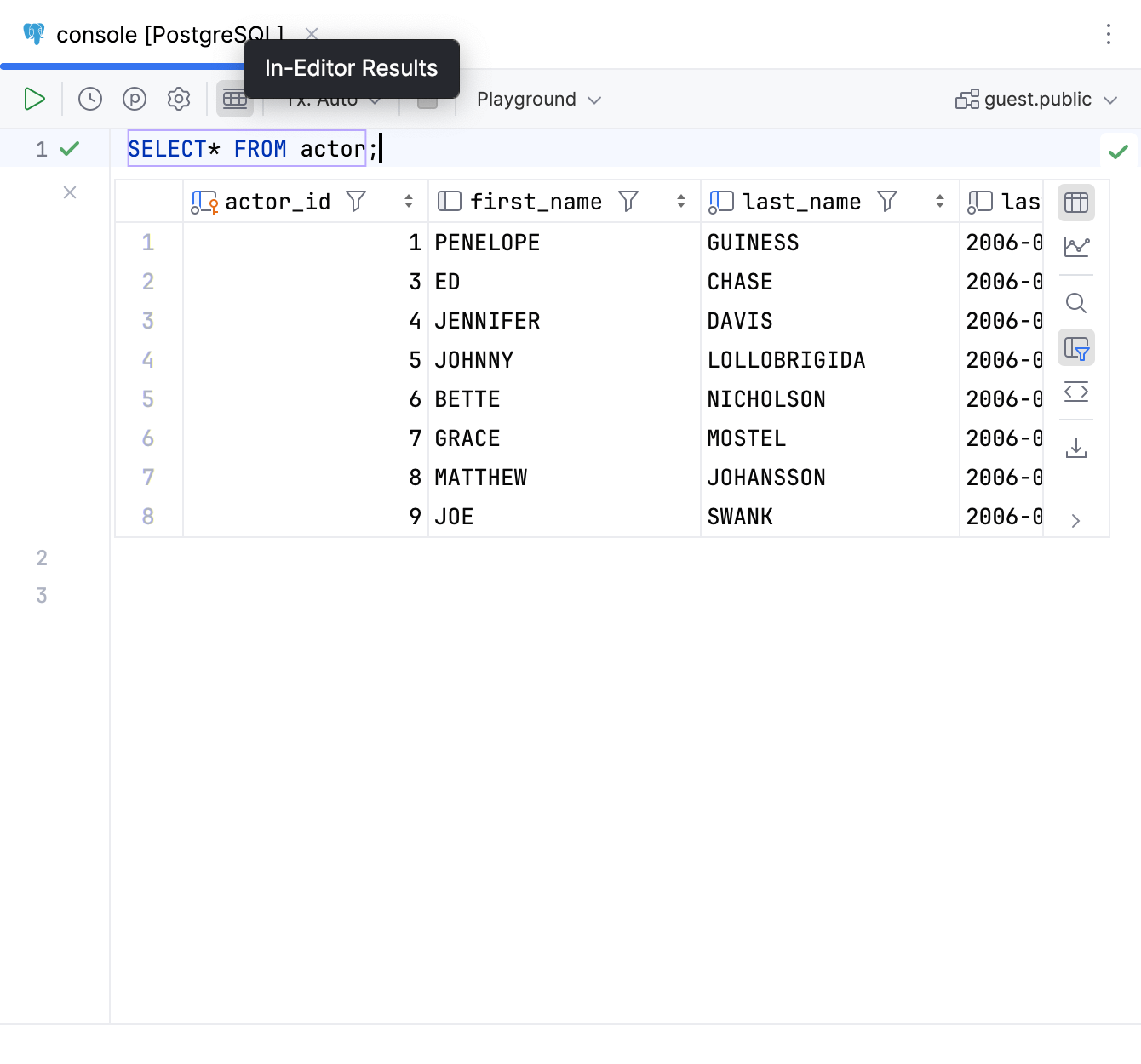
You can also view the query results within the editor. To do that, use the In-Editor Results feature.
To toggle the In-Editor Results feature for the current file, click
 In-Editor Results on the toolbar.
To toggle the In-Editor Results feature for all files across the IDE, open settings by pressing Ctrl+Alt+S and navigate to . In Show results in, select Editor.
Open result sets in editor tabs
You can open a result set in a separate editor tab to work with it in the main editor area.
Select the result set in the Database Output tool window.
On the result toolbar, click
 Open in Editor Tab.
The result set opens in an editor tab, like a database table.
For a query result set, you can view the original query in a separate popup.
View the query that produced a result set
Select the result set in the Database Output tool window.
On the data editor toolbar, click SQL.
The Query popup displays the query that produced the selected result set.
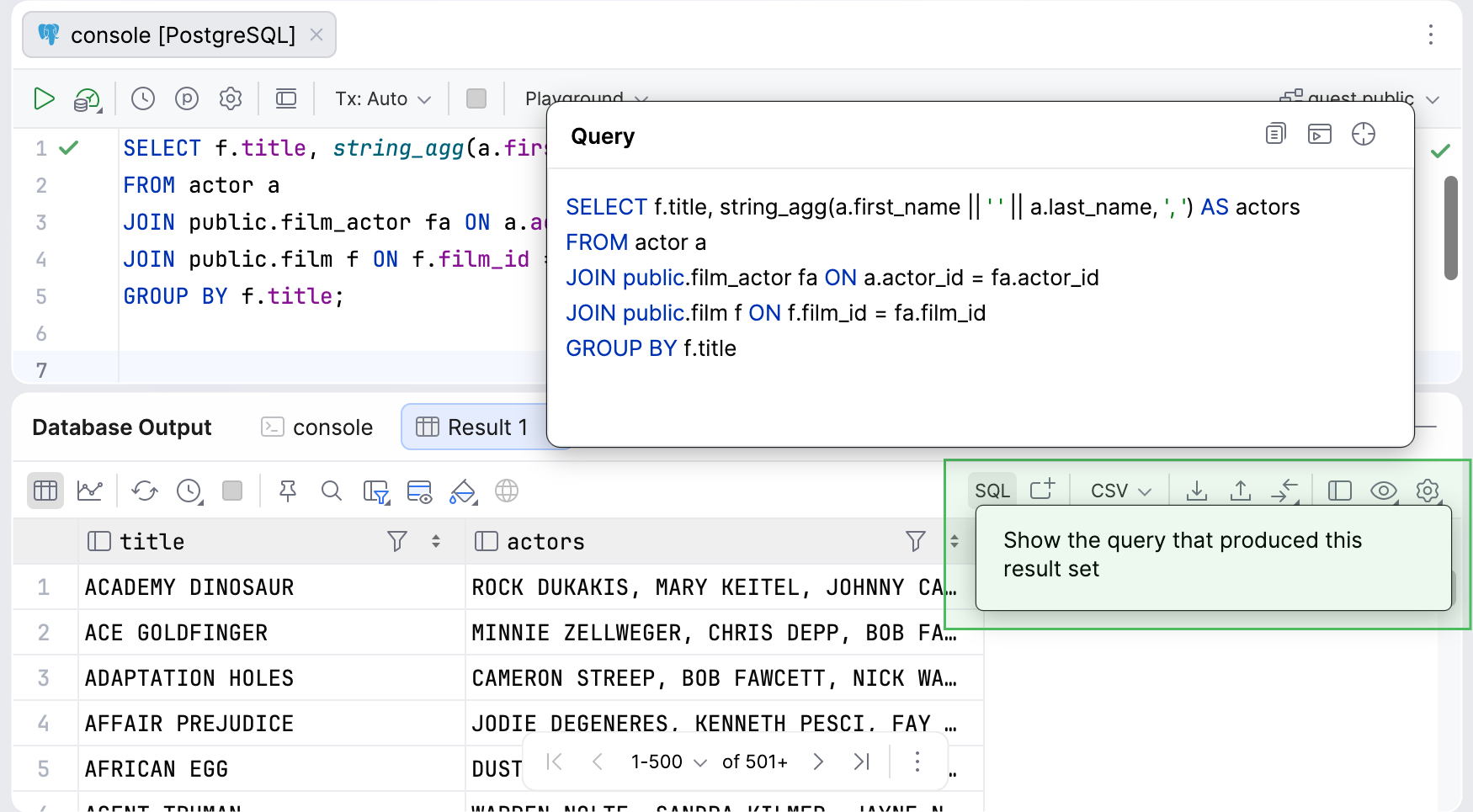
The original query popup dialog provides the following actions:
 Copy to Clipboard
Copy the query text to the clipboard.
 Execute query
Execute the query.
 Highlight in editor
Navigate to the query in its source file and place the caret on its first line.
Editing and exploration
View two result sets in the editor
Click
In-Editor Results on the toolbar to view the result sets one above the other.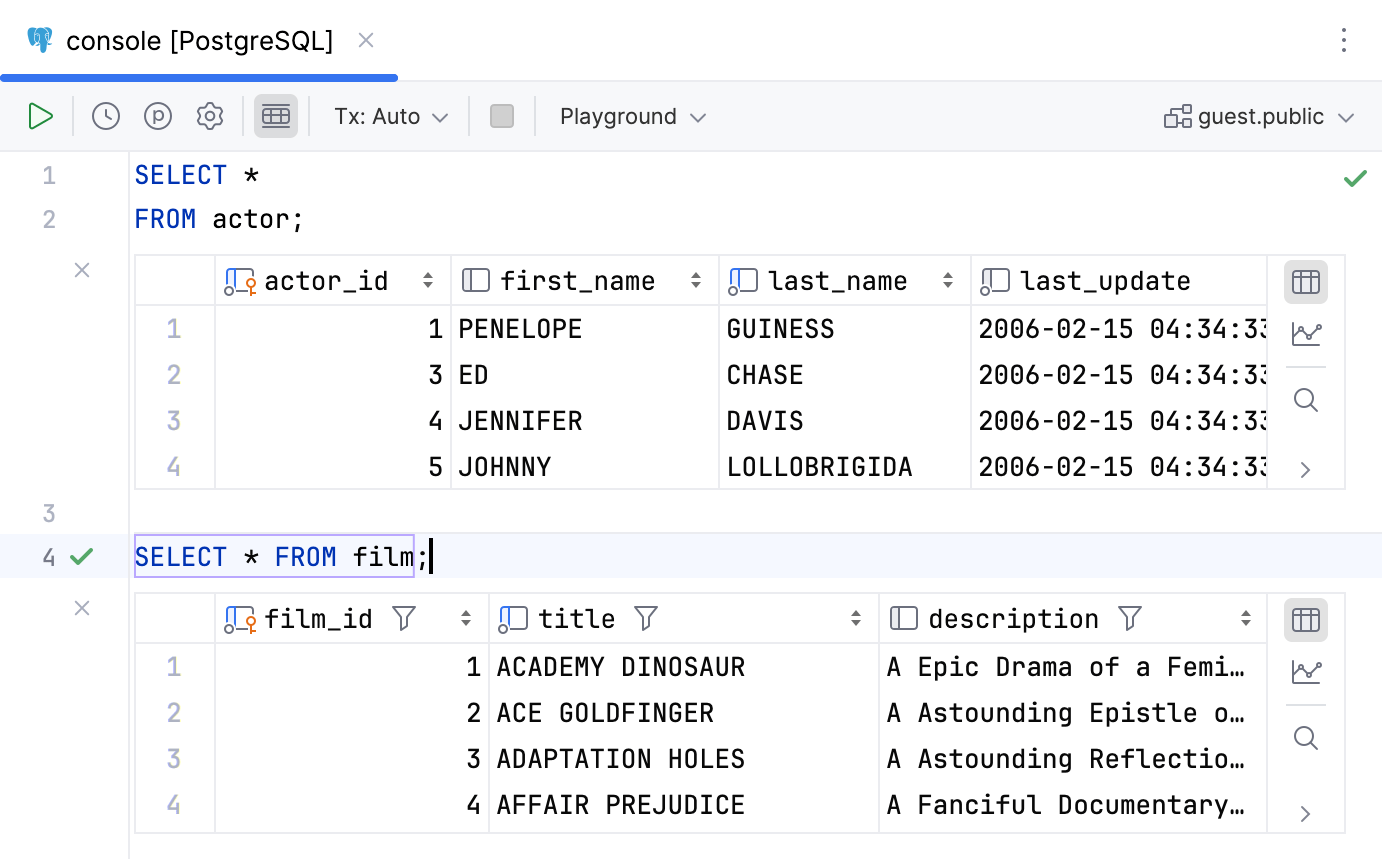
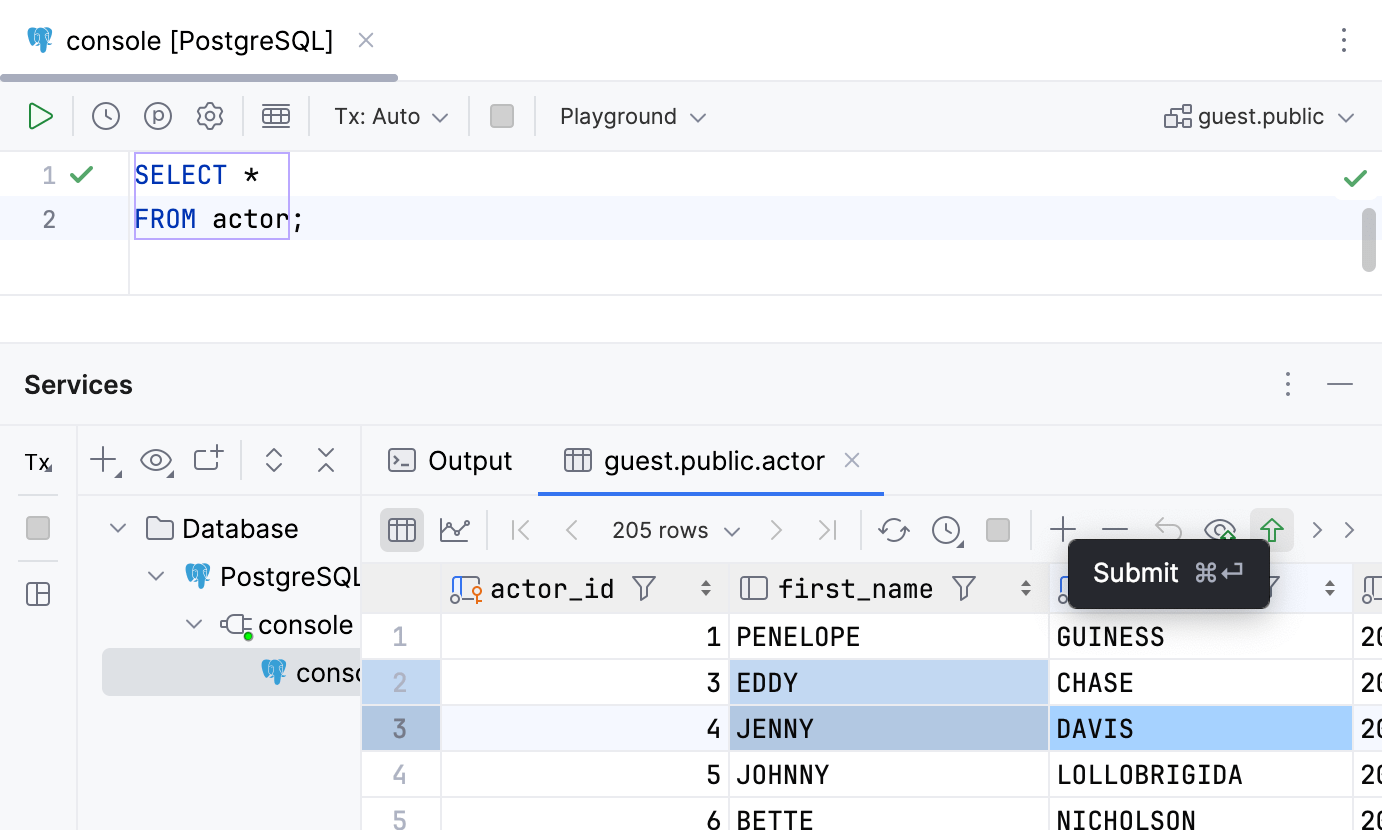
Edit values in the result set
In the result set, click a cell value that you want to edit.
Specify a new value and press Enter.
To submit changes to a database, click
 Submit on the toolbar, or press Ctrl+Enter.
For a full tutorial on submitting changes to a database, refer to the Submit changes to a database topic.
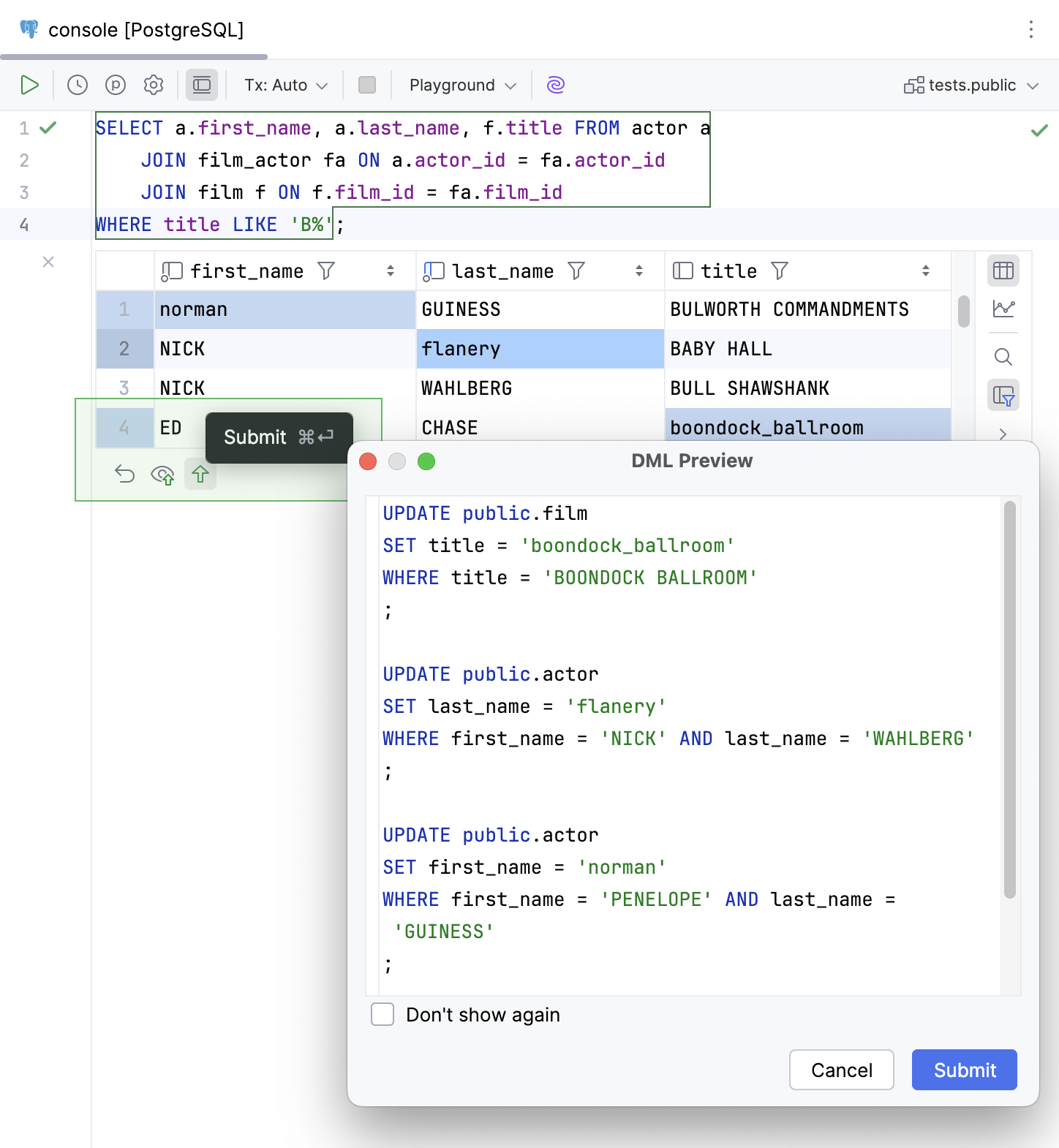
Edit multi-table JOIN results
In the grid, double-click the cell or select it and press Enter
Make your changes.
Press Enter or click any other area.
To submit changes to a database, click
Submit on the toolbar, or press Ctrl+Enter.Review the generated scripts in the DML Preview dialog that appears.
Click Submit to submit your changes to the database.
To ensure this feature works properly, each row must have a field or set of fields that uniquely identifies it.
This feature is not supported for the SQL UNION operator, table self-join operation results, result sets with calculation result columns (for example, CONCAT), or NoSQL databases.
Compare two result sets
Run queries to tables that you want to compare.
In the Services tool window, click
 Compare Data, and select the result set that you want to add to diff.
If needed, change a value of the Tolerance parameter in the comparison dialog. The Tolerance parameter defines a maximum number of differences that are allowed between two result sets. For example, if you want to consider two rows as equal if their data differs in a single column, enter
1in the Tolerance field.See another example of comparing two result sets in Compare data at youtube.com.
Output tab
View query log
On the Output tab of the Services tool window, you can see a log of user and internal queries.
In the Database tool window, open a query console by right-clicking a data source and navigating to .
Alternatively, select a data source and press F4.
Run a query.
In the Services tool window that opens, click the Output tab.
Services tool window reference
For more information about tool window controls and tabs, refer to the the Services tool window topic.