GitLab CI/CD
IntelliJ IDEA recognizes and offers coding assistance for .gitlab-ci.yml files, where you can define instructions for GitLab CI/CD pipelines. For more details, refer to the GitLab documentation.
Enable the GitLab plugin
This functionality relies on the GitLab plugin, which is bundled and enabled in IntelliJ IDEA by default. If the relevant features are not available, make sure that you did not disable the plugin.
Press Ctrl+Alt+S to open settings and then select .
Open the Installed tab, find the GitLab plugin, and select the checkbox next to the plugin name.
Features
The following features are supported:
IntelliJ IDEA provides syntax highlighting for all components of GitLab CI/CD configuration files. You can customize the color scheme for different parts of the configuration:
YAML structure of your configuration file:
IntelliJ IDEA helps you detect configuration issues in your GitLab CI/CD configuration file in real time. This includes duplicated job usage, undefined jobs, and undefined stages.
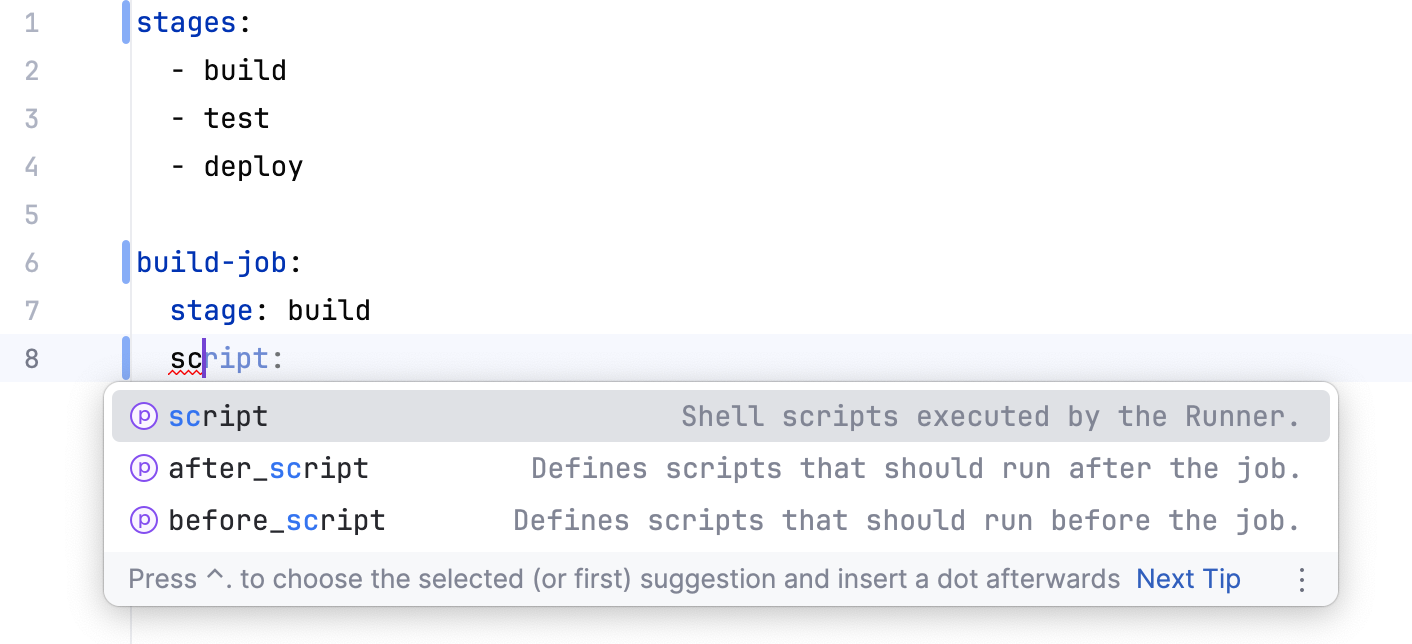
Get completion suggestions for the pipeline configuration syntax, keywords, and CI/CD variables.
Quickly navigate between
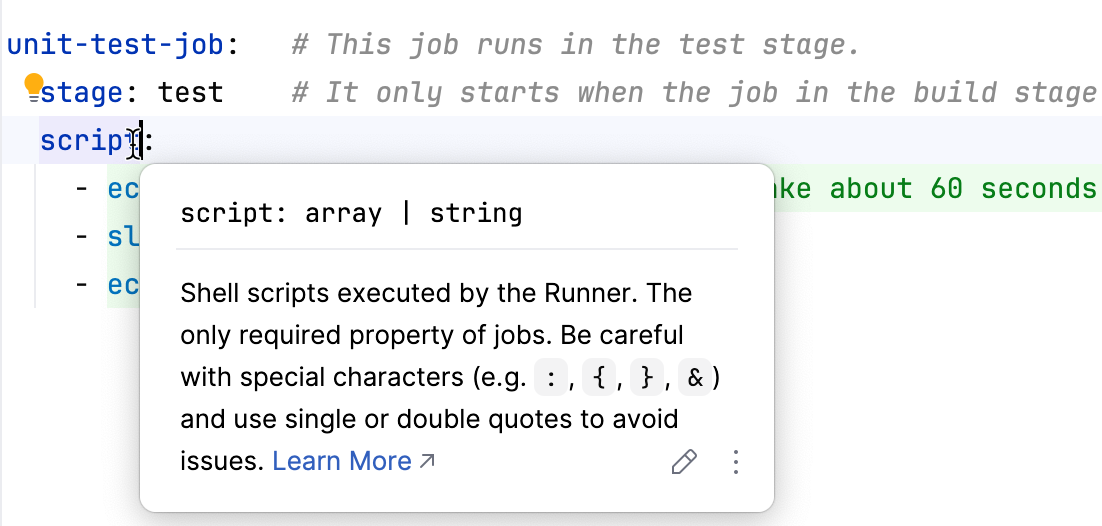
stageandjobdeclarations and usages in your CI/CD configuration file.Hover over a symbol or use the Documentation tool window (Ctrl+Q) to view quick documentation, including links to the official GitLab CI reference.
Search for usages of
stageandjobsymbols directly in your configuration file.You can change the name of
stageandjobsymbols in declarations and usages by applying the Rename refactoring (Shift+F6).Detection of Shell script language injections
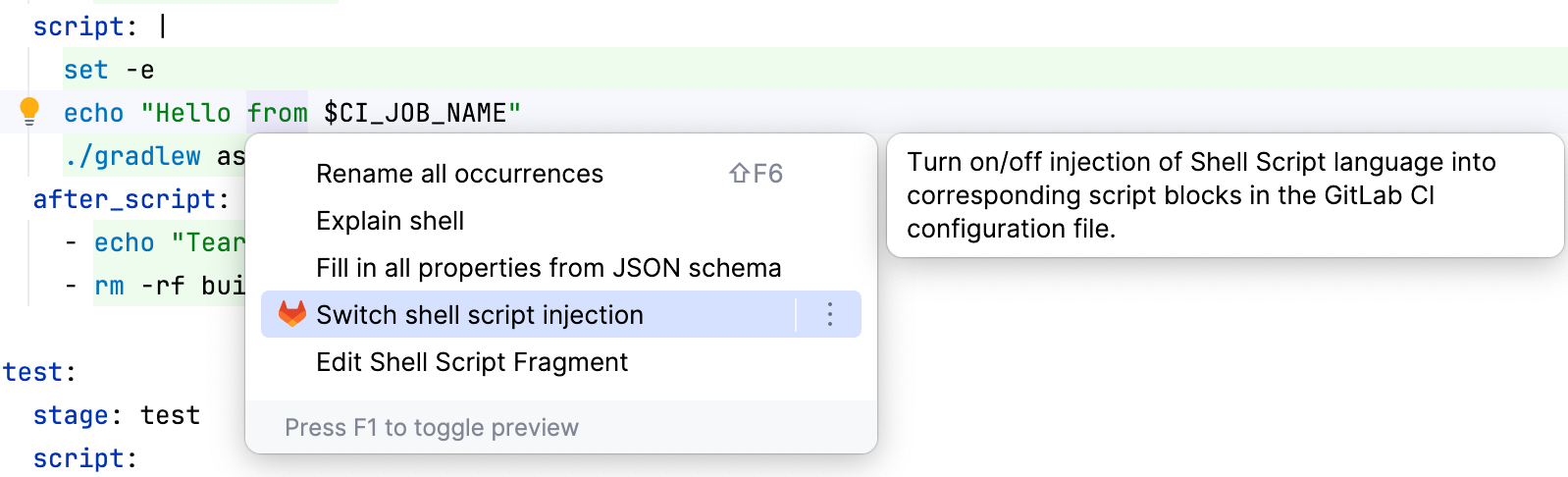
IntelliJ IDEA automatically detects Shell script injections in
before_script,script, andafter_scriptblocks of your configuration file and marks them as Injected Language: Shell Script. The IDE treats these code snippets as full-featured Shell scripts. You can edit Shell script fragments, explain them, and benefit from language-specific features, like syntax highlighting and code completion.You can disable this behavior using the Switch shell script injection intention action on the injected section in your configuration file. Note that switching Shell script injections on or off affects the whole project.
Troubleshooting
Missing coding assistance features
To ensure full support of GitLab CI/CD, check that the correct JSON schema is used for your .gitlab-ci.yml file.
IntelliJ IDEA automatically loads a set of popular schemas, including GitLab's CI schema (usually named gitlab-ci).
If features like code completion, inspections, or navigation are missing or not working as expected, the issue may be related to JSON schema configuration.
Configure a JSON schema
Open your .gitlab-ci.yml file in the editor and check the JSON Schema widget in the bottom right corner. Make sure that
gitlab-ciis selected.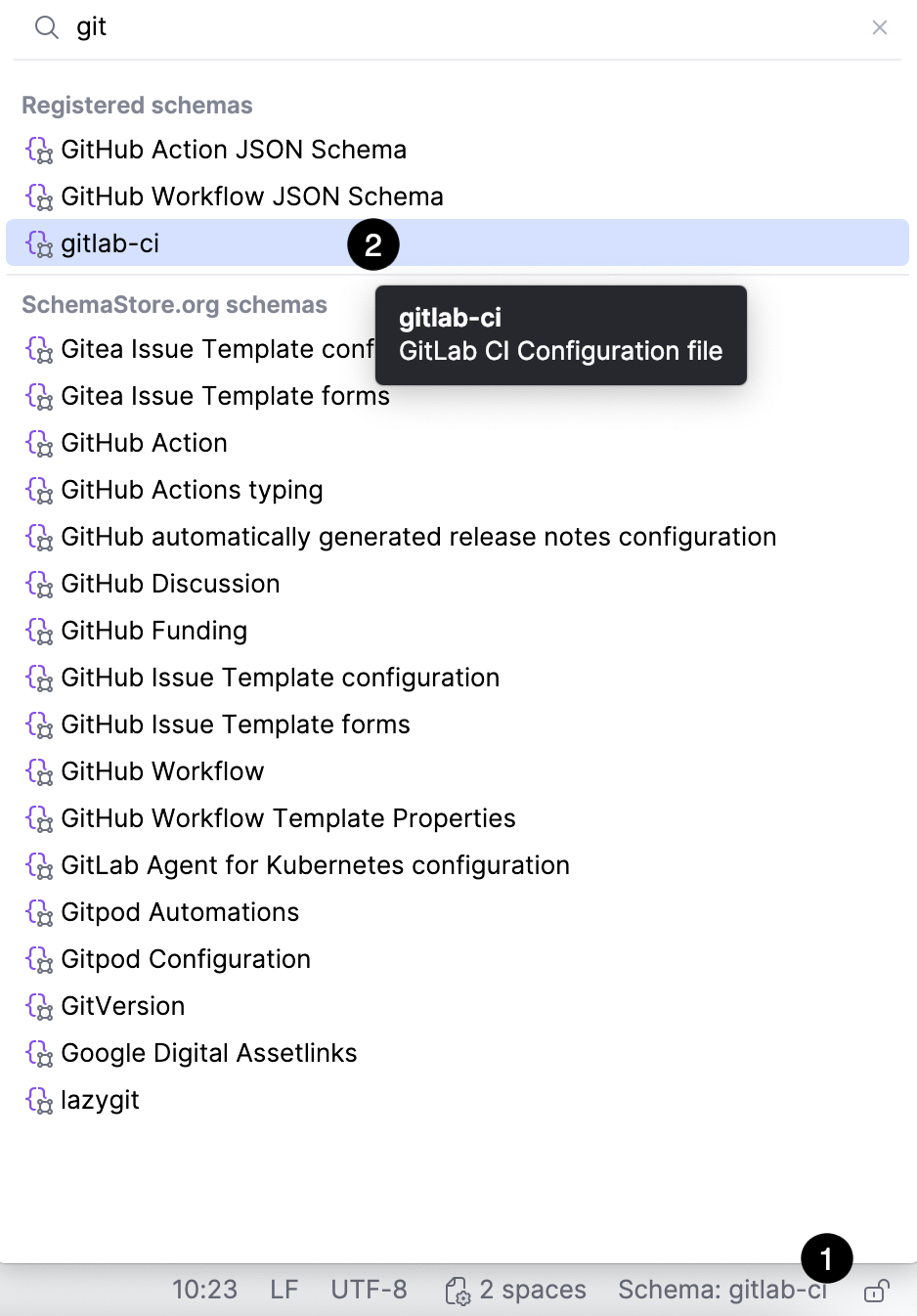
If the schema is not listed:
Download it manually from https://gitlab.com/gitlab-org/gitlab/-/raw/master/app/assets/javascripts/editor/schema/ci.json.
In IntelliJ IDEA, go to and add a custom JSON schema mapping.
Assign the added schema to your .gitlab-ci.yml file using the JSON Schema widget.