HTTP Client variables
When composing an HTTP request, you can parametrize its elements by using variables. A variable can hold the values for the request's host, port, and path, query parameter or value, header value, or arbitrary values used inside the request body or in an external file.
Use a variable inside the request
Enclose the variable in double curly braces as
{{variable}}.
The variable's name may contain letters, digits, the underscore symbols _, the hyphen symbols -, or the dot symbol . (see the note below about dots in variable names).
Variable types
There are several types of variables in the HTTP Client. They differ by scope and priority; if variable names conflict, the value of the variable higher on the list will be used.
Environment variables defined in dedicated environment files and available in any .http file. In case of a name conflict, public variables take precedence over private ones.
Access using
client.variables.environmentorrequest.environment.Global variables defined in response handler and pre-request scripts.
Access using
client.variables.globalorclient.global.In-place variables defined in .http files and available within the same files only.
Access using
client.variables.file.Per-request variables defined before a request and available only within the single request that follows.
Access using
client.variables.requestorrequest.variables.Additionally, the HTTP Client provides built-in dynamic variables with dynamically generated values. Such variables have reserved names.
To simplify working with different types of variables, the HTTP Client provides a single access point client.variables. You can use it in pre-request and response-handler scripts to access all variable scopes. The already existing access points, like client.global, request.environment, and request.variables are also preserved.
Environment variables
Environment variables let you store a set of environment definitions inside your project. For example, instead of providing a hostname in your request explicitly, you can create the {{host}} variable in different environments: a local hostname in the development environment and a public hostname in the production environment. You can then use the Run with list on the top of the current .http file editor to select an environment:
No Environment: if this option is selected, no environment will be used when you run requests in the current file. Select it if your request does not contain any variables.
Environment name (such as production or development): the selected environment will be used for all requests in the current file, and you won't need to select it when you click
 . This can be helpful if you want to run multiple requests with the same environment and don't want to select it each time you run a request.
<Select Environment Before Run>: with this option selected, you'll have to choose an environment each time you click
. This can be convenient if you often switch environments and want to explicitly select them for each run to make sure you execute requests with the needed environments.
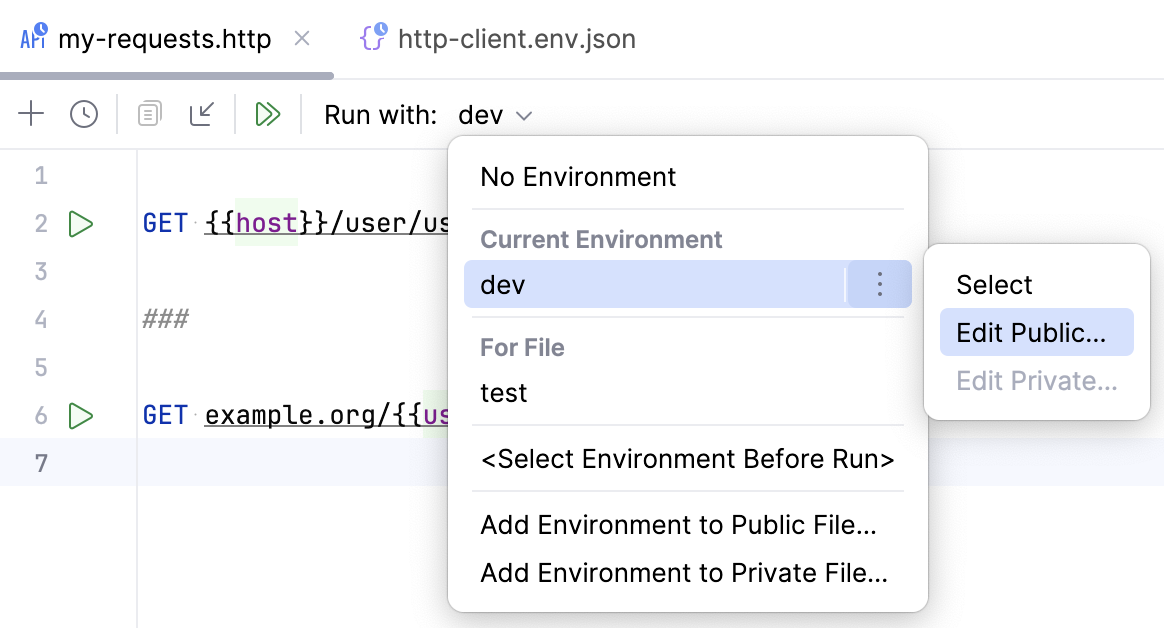
The selected environment will be used as the default one when Viewing a structure of the request, opening the request in the browser, executing the request, and creating a run/debug configuration for it.
Define environment variables
Environment variables are defined in the environment files.
On top of the request's editor panel, in the Run with list, select where you want to add an environment:
Select Add Environment to Public File… if you want the environment to be public. This will add the environment to the http-client.env.json file. This file can contain common variables such as host name, port, or query parameters, and is meant to be distributed together with your project.
Select Add Environment to Private File… if you want the environment to be private. This will add the environment to the http-client.private.env.json file. This file might include passwords, tokens, certificates, and other sensitive information. The values of variables that are specified in the http-client.private.env.json file override the values in the public environment file.
Populate the created files with the desired variables.
The following sample http-client.env.json environment file defines two environments: development and production. The additional http-client.private.env.json file holds the sensitive authorization data.
{ "development": { "host": "localhost", "id-value": 12345, "username": "", "password": "", "my-var": "my-dev-value" }, "production": { "host": "example.com", "id-value": 6789, "username": "", "password": "", "my-var": "my-prod-value" } }{ "development": { "username": "dev-user", "password": "dev-password" }, "production": { "username": "user", "password": "password" } }The example HTTP request is as follows:
GET http://{{host}}/api/json/get?id={{id-value}} Authorization: Basic {{username}} {{password}} Content-Type: application/json { "key": "{{my-var}}" }Before you execute the request, IntelliJ IDEA lets you choose an execution environment using the Run with list on top of the request's editor panel.
Depending on your choice, the resulting request will be one of the following:
GET http://localhost/api/json/get?id=12345 Authorization: Basic dev-user dev-password Content-Type: application/json { "key": "my-dev-value" }GET http://example.com/api/json/get?id=6789 Authorization: Basic user password Content-Type: application/json { "key": "my-prod-value" }
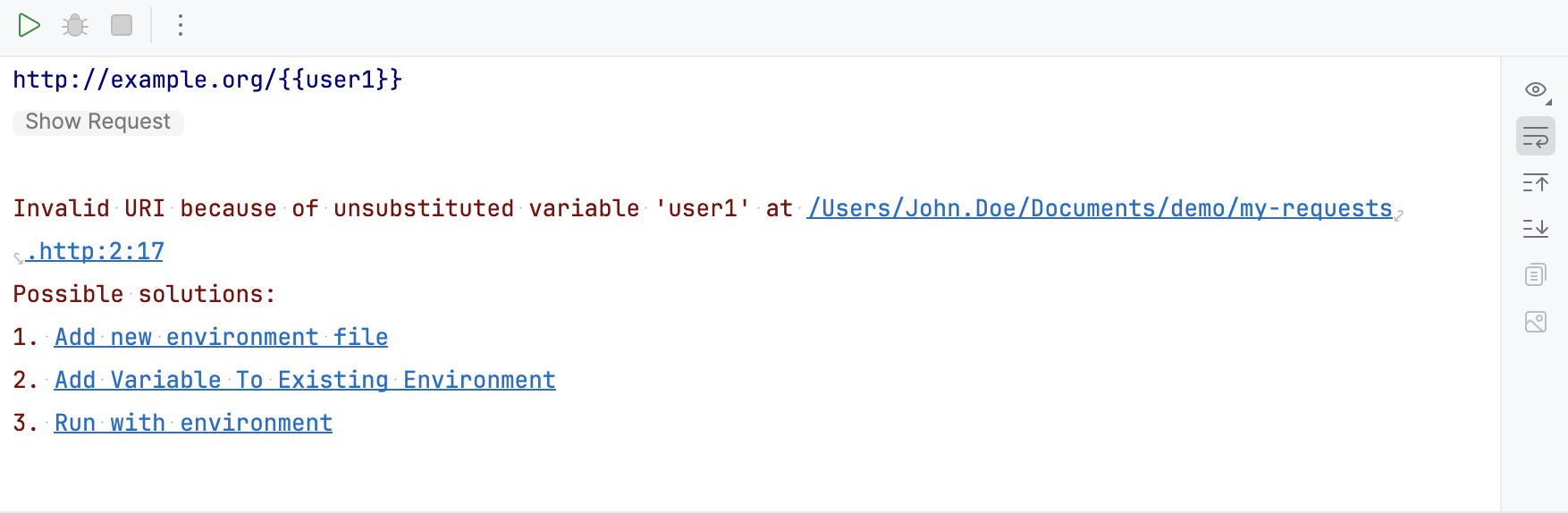
If a variable is unresolved when executing a request, IntelliJ IDEA displays a notification letting you quickly create, update, or choose a different execution environment.
Manage multiple environment files
Your project may have multiple directories with HTTP request files and corresponding environment files in them. In this case, the following sections can be available while selecting an environment for a request:
For File shows environments stored in the current and parent directories.
If you select an environment from this list, the HTTP Client tries to find it in the files (public and private) stored in the current directory. If there is no file with this environment, it checks the parent directory.
From Whole Project shows environments stored in all other places of your project (other than the current and parent directory). If files from these directories contain an environment with the same name as an environment from the For File section, it won't be shown in the list.
You can give an environment a unique name if you want it to be seen everywhere in your project.
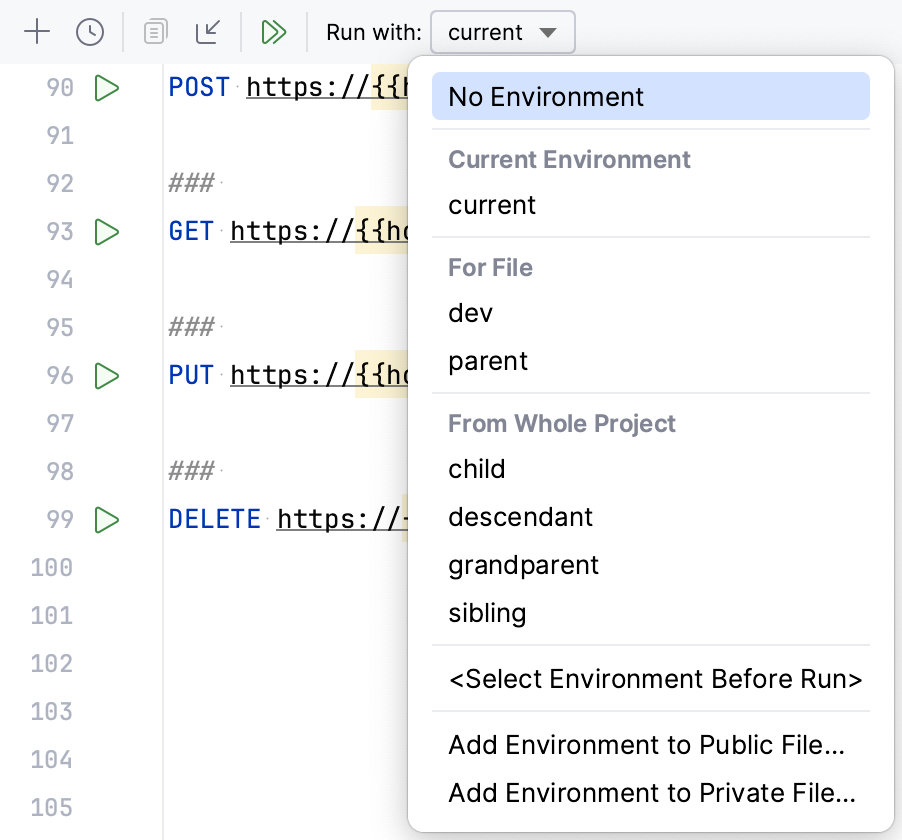
Let's illustrate this with an example. Suppose you have the following project structure:
An .http file stored in the service1 directory will use the myKey1 value for the key variable when you select the dev environment. An .http file stored in the service2 directory will use the myKey2 value for the key variable.
If the private files contain the host variable, the .http files will use its value because private files take precedence over public files. Otherwise, they will use the value from the public file.
In-place variables
The scope of an in-place variable is an .http file, in which it was declared. Use in-place variables if you want to refer to the same variable in multiple requests within the same file.
To create an in-place variable, type @ followed by the name of the variable above the HTTP method section. For example:
Per-request variables
You can use the request.variables.set(variableName, variableValue) method to set values of variables used in HTTP requests. Write it in a pre-request script wrapped in {% ... %} above your HTTP request. For example:
Variables defined in a pre-request script are available only within a single request that follows the script.
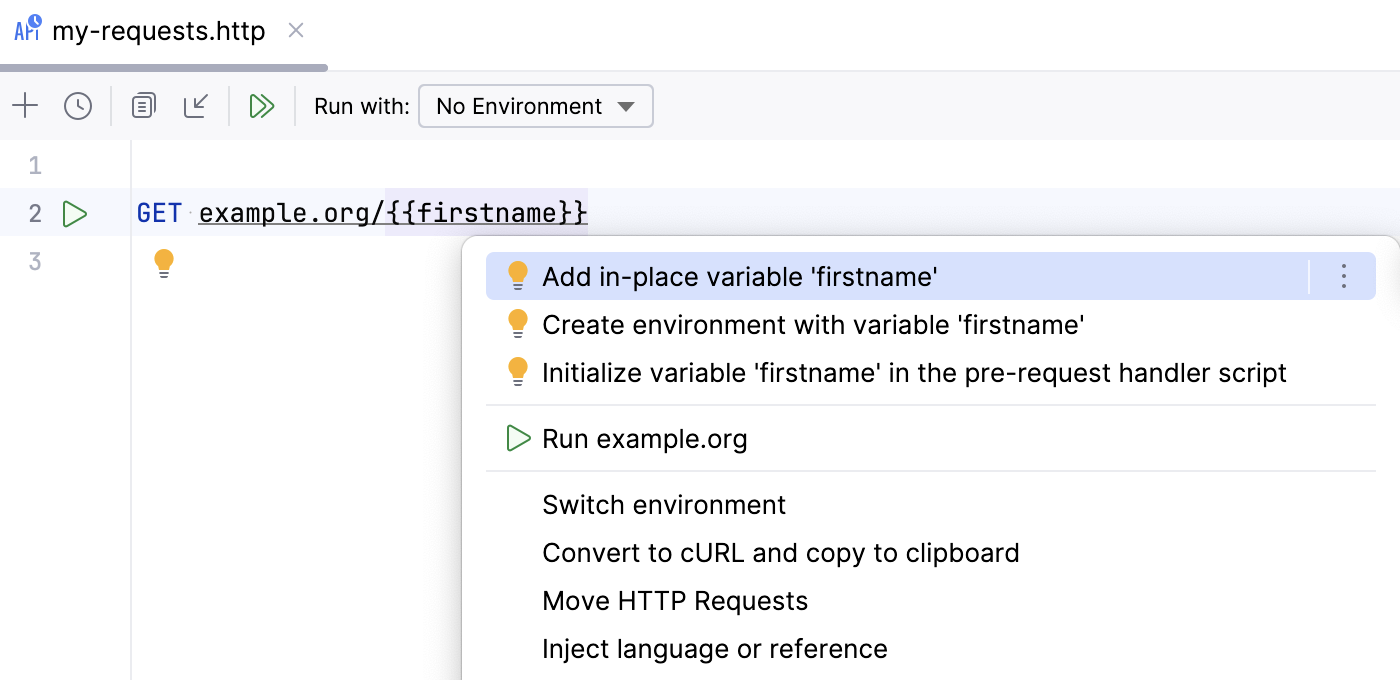
Use the Initialize variable context action (Alt+Enter) to quickly add an in-place or environment variable or to initialize a variable in the pre-request handler script.
In pre-request scripts, you can also use HTTP Client Crypto API to generate HTTP signatures based on cryptographic hash functions, such as SHA-1, SHA-256, SHA-512, MD5, and pass them as variable to your requests. For example:
Dynamic variables
Dynamic variables generate a value each time you run a request. Their names start with $:
$uuidor$random.uuid: generates a universally unique identifier (UUID-v4)$timestamp: generates the current UNIX timestamp$isoTimestamp: generates the current timestamp in ISO-8601 format for the UTC timezone.$randomInt: generates a random integer between 0 and 1000.$random.integer(from, to): generates a random integer betweenfrom(inclusive) andto(exclusive), for example random.integer(100, 500). If you provide no parameters, it generates a random integer between 0 and 1000.$random.float(from, to): generates a random floating point number betweenfrom(inclusive) andto(exclusive), for example random.float(10.5, 20.3). If you provide no parameters, it generates a random float between 0 and 1000.$random.alphabetic(length): generates a sequence of uppercase and lowercase letters of lengthlength(must be greater than 0).$random.alphanumeric(length): generates a sequence of uppercase and lowercase letters, digits, and underscores of lengthlength(must be greater than 0).$random.hexadecimal(length): generates a random hexadecimal string of lengthlength(must be greater than 0).$random.email: generates a random email address.$exampleServer: is replaced with the IntelliJ IDEA built-in web server, which can be accessed using HTTP Client only. The variable is used in GraphQL and WebSocket examples.
Use dynamic variables in request parts, such as URL parameters or body:
In pre-request handler scripts and response handler scripts, use them without curly braces, similarly to regular JavaScript variables. For example:
More dynamic variables
You can generate random data of other types, such as addresses, colors, and company names. The HTTP Client supports the following classes from the Java faker library (and those of their methods that do not require any parameters):
$random.address$random.beer$random.bool$random.business$random.ChuckNorris.fact$random.code$random.color$random.commerce$random.company$random.crypto$random.educator$random.finance$random.hacker$random.idNumber$random.internet$random.lorem$random.name$random.number$random.phoneNumber$random.shakespeare$random.superhero$random.team$random.university
Localization of dynamic variables
By default, the HTTP Client generates random data using the default locale of the Java faker library (English, United States). For example, the following request
generates a random address formatted according to the default locale: Apt. 123 Main Street, Springfield, IL 12345.
To generate region-specific data, you can explicitly specify one of the supported locales using the locale modifier:
You can make localized random values deterministic by specifying a random seed. Using the same seed and locale produces the same value on each execution.
In the following example, 12 is the random seed used to initialize the random generator:
System environment variables
In the HTTP Client, you can use environment variables from your operating system.
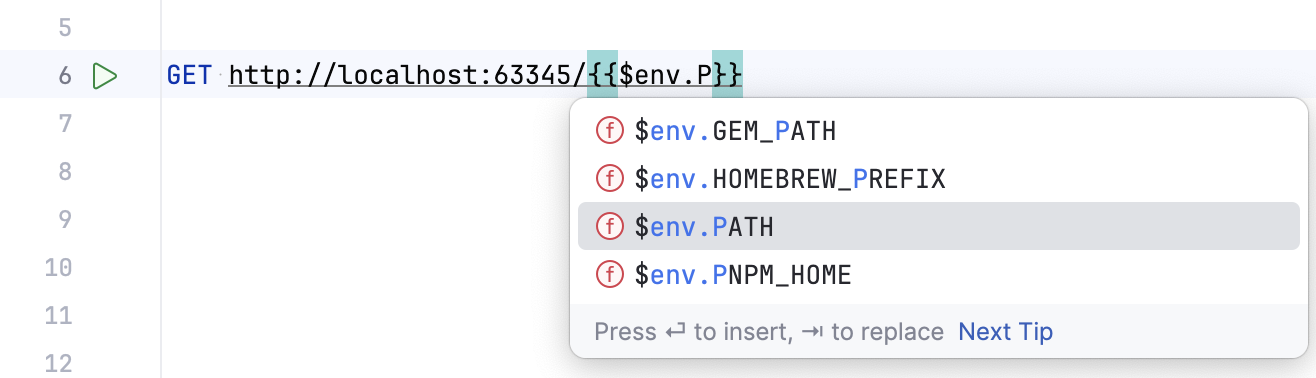
To access them, use the {{$env.ENV_VAR}} syntax where ENV_VAR is the name of your environment variable. In pre-request handler scripts and response handler scripts, use them without curly braces, similarly to regular JavaScript variables. For example:
Start typing the variable name to get suggestions for available variables:
Iterate over collections in variables
Environment variables and variables initialized in pre-request scripts can represent a collection of elements, for example, a list of IDs or usernames. When such a variable is used in an HTTP request, the HTTP Client sends a separate request for each element from this list. IntelliJ IDEA also supports JSONPath expressions for such variables, which lets you access specific elements or a subset of elements and send requests for each of them.
For example, if you have a server that returns information about a book by its ID, you can assign a JSON array [1,2,3,4,5] to a variable id, and then use it in the body or URL part.
The HTTP Client will send five consecutive requests, replacing the variable with the subsequent item from the collection for each request.
Similarly, you can use collections in the request body. In the following example, the HTTP Client will send three requests with different values in the body: name: Alice, name: Bob, and name: Charlie.
Using JSONPath, you can also access specific parameters of JSON objects in an array. For example, in the following query, the HTTP Client will send requests for each name value for all objects within a variable called users.
To make it easier to use JSONPath in variables, IntelliJ IDEA provides you with JSONPath coding assistance, including completion for known JSON object parameters, validation, and highlighting. The JSONPath language is injected in all HTTP Client variables (enclosed in double curly braces) except for dynamic variables.
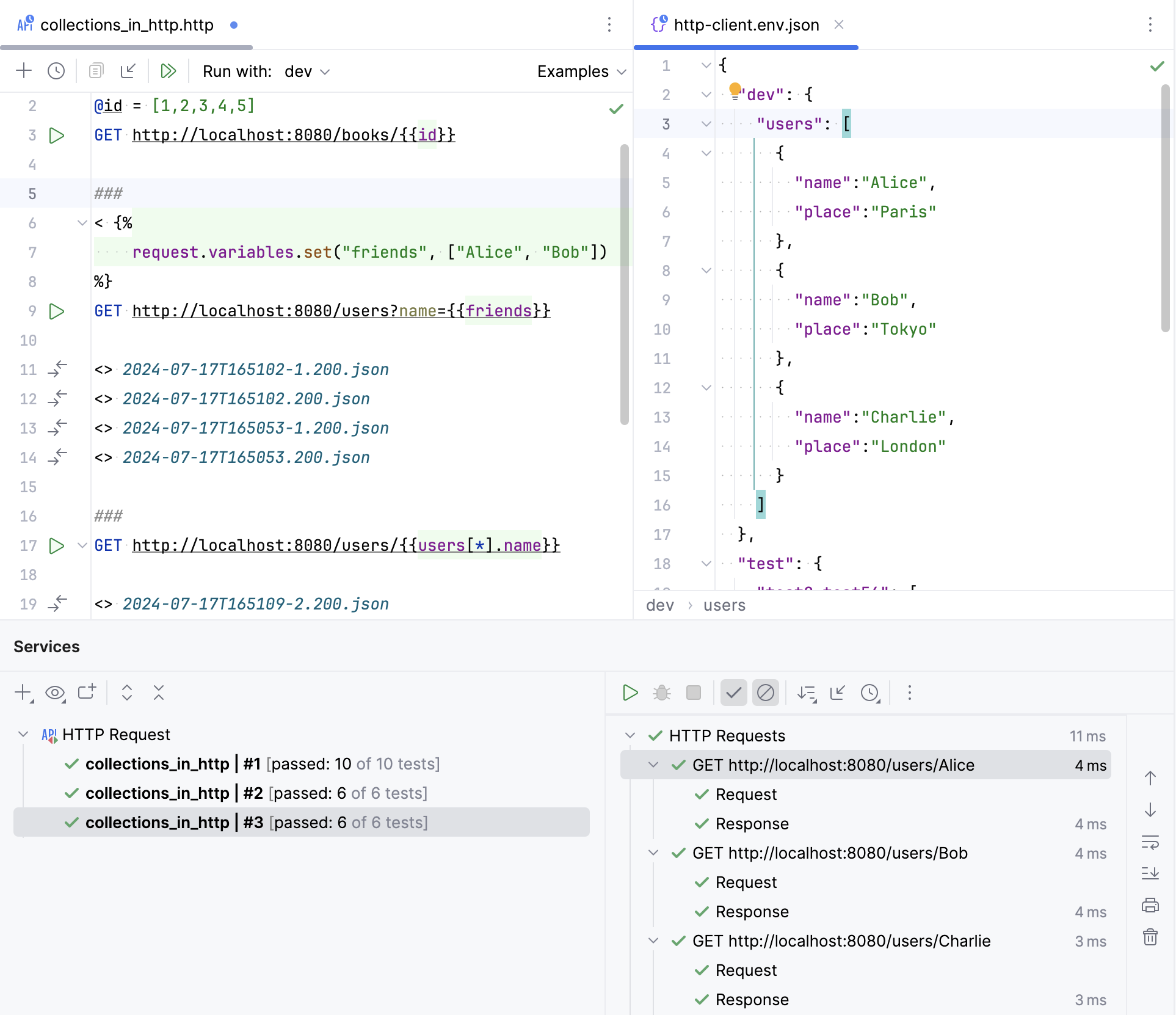
To get the current index in the loop in pre-request scripts and in response handler scripts, use the request.iteration() method. For example, 0 indicates that the first item of the array is being processed, and the first request is being sent.
Example of request.iteration()
To get the value by its index in the loop in pre-request scripts and in response handler scripts, use the request.templateValue(Integer) method.