Spring Modulith
Spring Modulith is a Spring project that helps developers build well-structured, modular Spring Boot applications.
Spring Modulith provides tools and best practices for creating domain-driven, modular monoliths. This approach simplifies the development of large, complex applications without the adoption of microservices architecture from the start of development.
Enable the Spring Modulith plugin
This functionality relies on the Spring Modulith plugin, which is bundled and enabled in IntelliJ IDEA by default. If the relevant features are not available, make sure that you did not disable the plugin.
Press Ctrl+Alt+S to open settings and then select .
Open the Installed tab, find the Spring Modulith plugin, and select the checkbox next to the plugin name.
Add the Spring Modulith dependency to a new project
You can add the Spring Modulith dependency when you create a new project with the Spring Boot project wizard.
In the main menu, go to , then select Spring Boot from the Generators list.
Configure the basic project settings and click Next.
In the Dependencies list, find and select Spring Modulith, then click Create.
Structure of a modular application
A Spring Modulith application usually consists of:
A main package with a class that is used to run the application. This class is annotated with
@SpringBootApplicationand usually has themain(…)method used to run it.Application modules — direct sub-packages of the main package that have:
Provided interface: an API made available to other modules, typically implemented using Spring beans and domain events published by the module.
Internal implementation components: intended for internal use within the module, not accessible from outside.
Required interface: a module's use of other modules' features, like calling their Spring beans, listening to their events, or using their exposed configuration properties.
Here is an example arrangement of a simple application:
OrderRestController.java from the orders module here has a dependency on the exposed ProductApi.java from the catalog module.
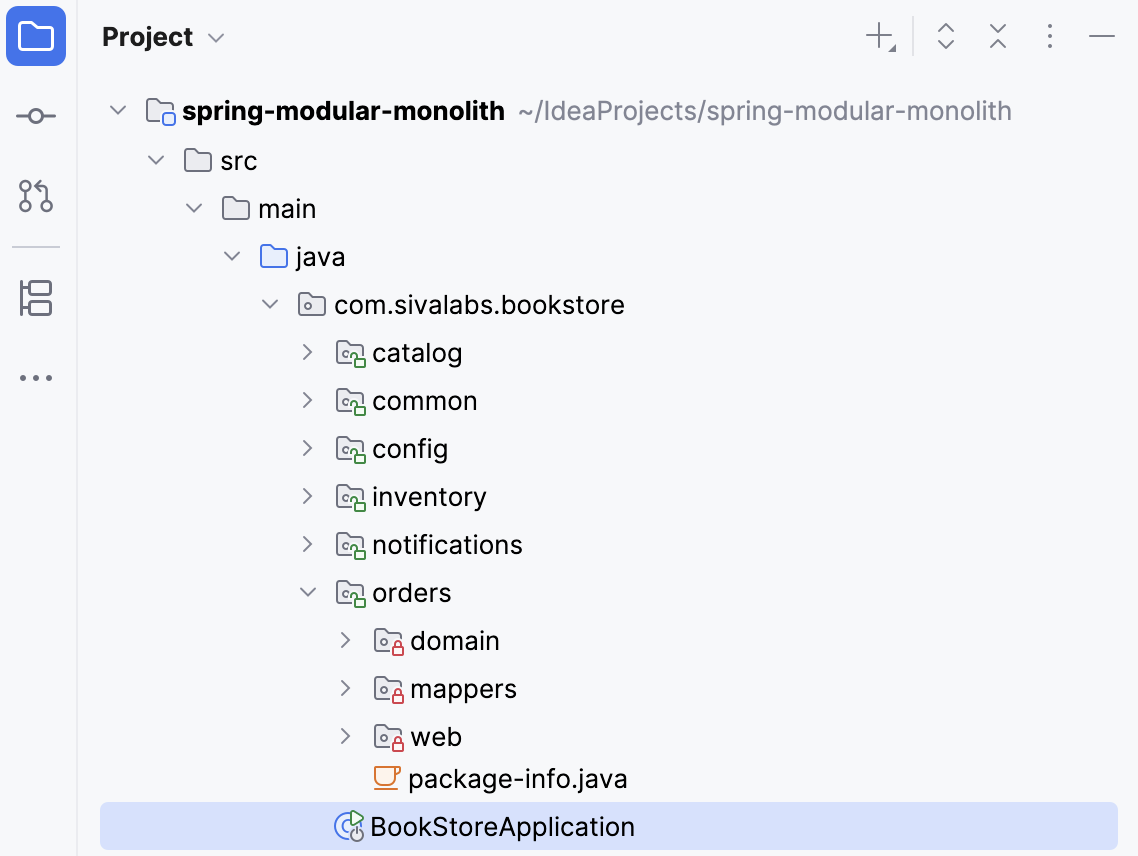
In IntelliJ IDEA, as soon as you open the Project tool window Alt+1, you can review the structure of your modular application and navigate between its parts.
In the picture below, there is a modular application with top-level modules marked by a green lock and internal components marked by a red lock.
Also, you can inspect the logical structure of the application from the framework's point of view: select the main application class that is annotated with @SpringBootApplication and press Alt+7 (or go to in the main menu).
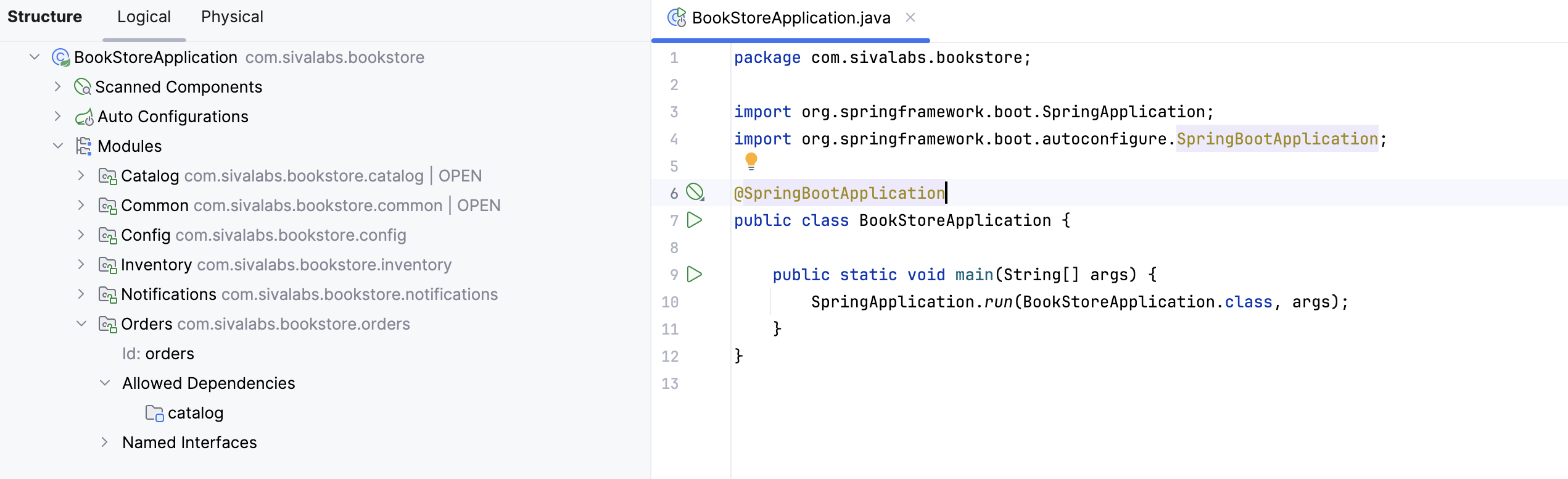
The Modulith-specific  Modules node shows the list of application's modules, their IDs, allowed dependencies, and named interfaces.
Apply the Spring Modulith's guidelines
IntelliJ IDEA helps maintain your application's structure in line with Spring Modulith's architectural principles by providing a set of inspections and quick-fixes. By default, these inspections have the severity level of an error, but the highlighted code does not cause neither compilation nor runtime errors. These issues will fail Modulith-specific tests only.
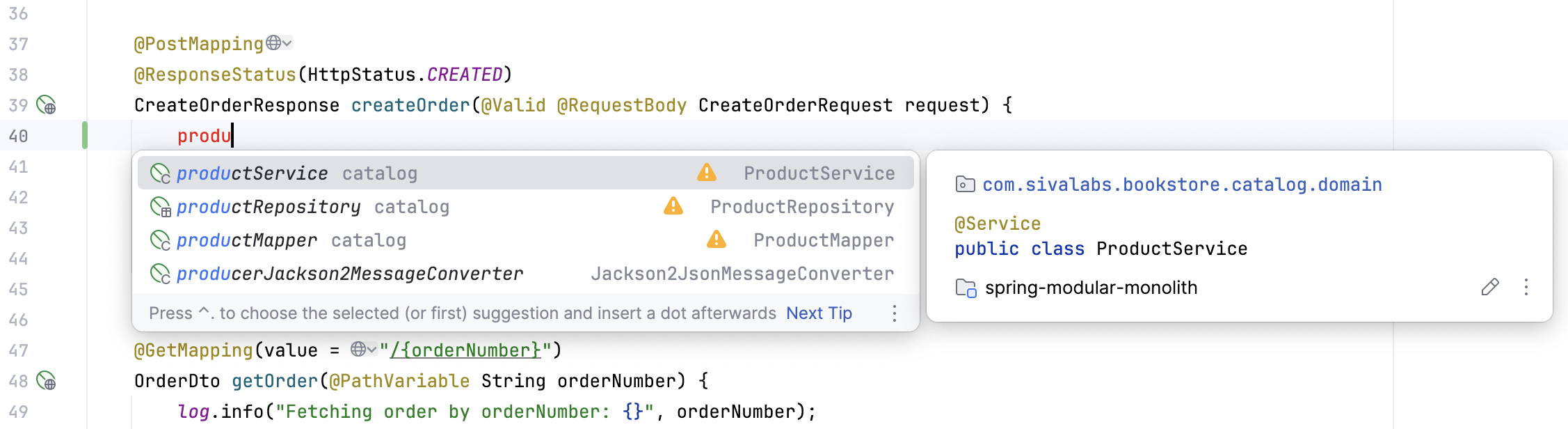
When implementing an application with Spring, developers may need to inject various Spring beans into other beans. IntelliJ IDEA helps with this by providing a bean autocompletion feature.
For Spring Modulith, this feature has been adjusted. If an injection violates the application's module boundaries, you will see the warning icon in the completion popup.
For the existing code, IntelliJ IDEA highlights bean usages that break the Spring Modulith rules and suggests quick-fixes that will refactor your code to align with the modular structure (invoked by clicking  or pressing Alt+Enter).
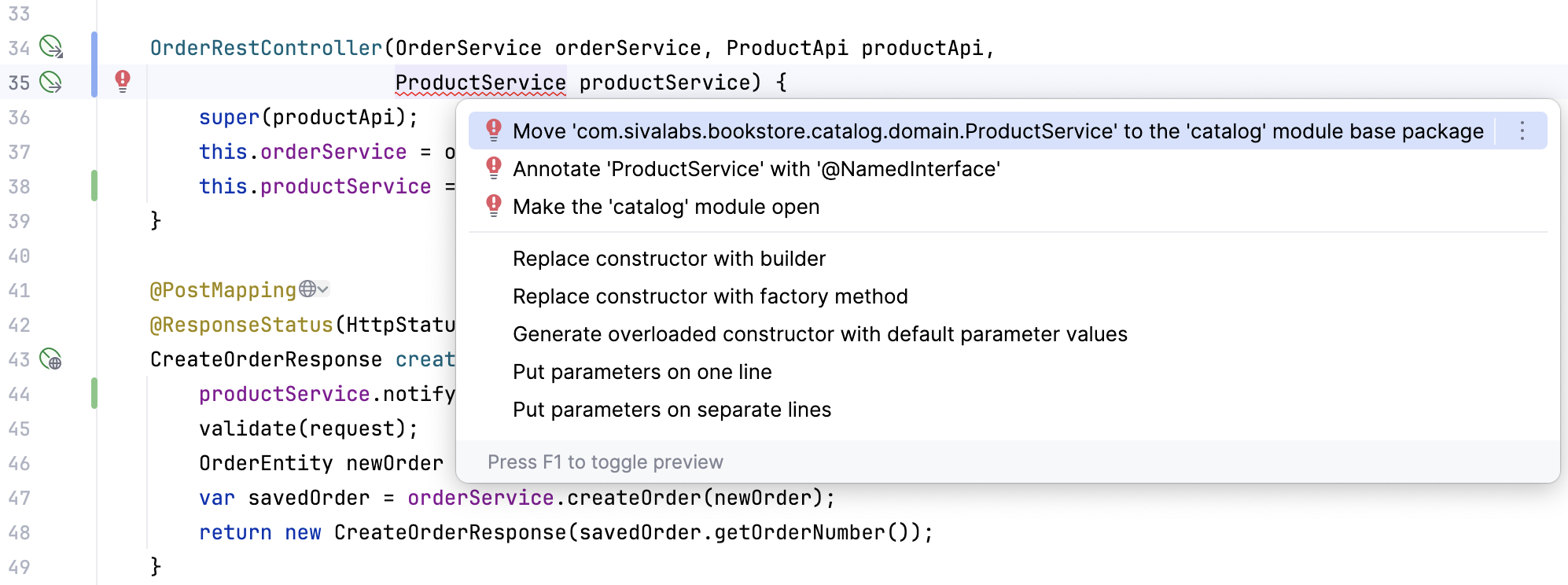
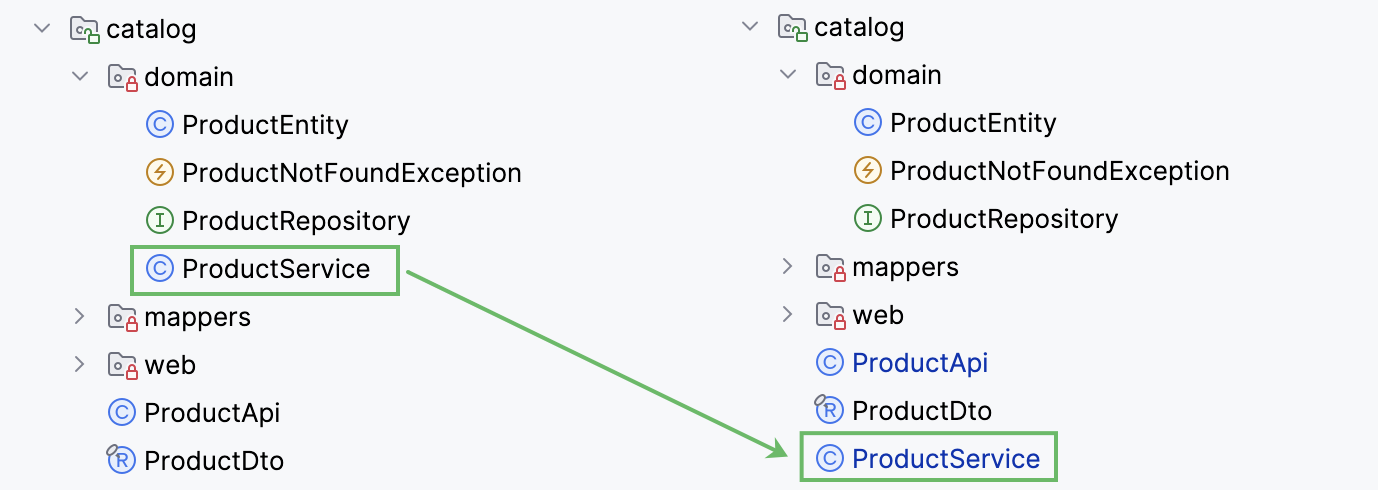
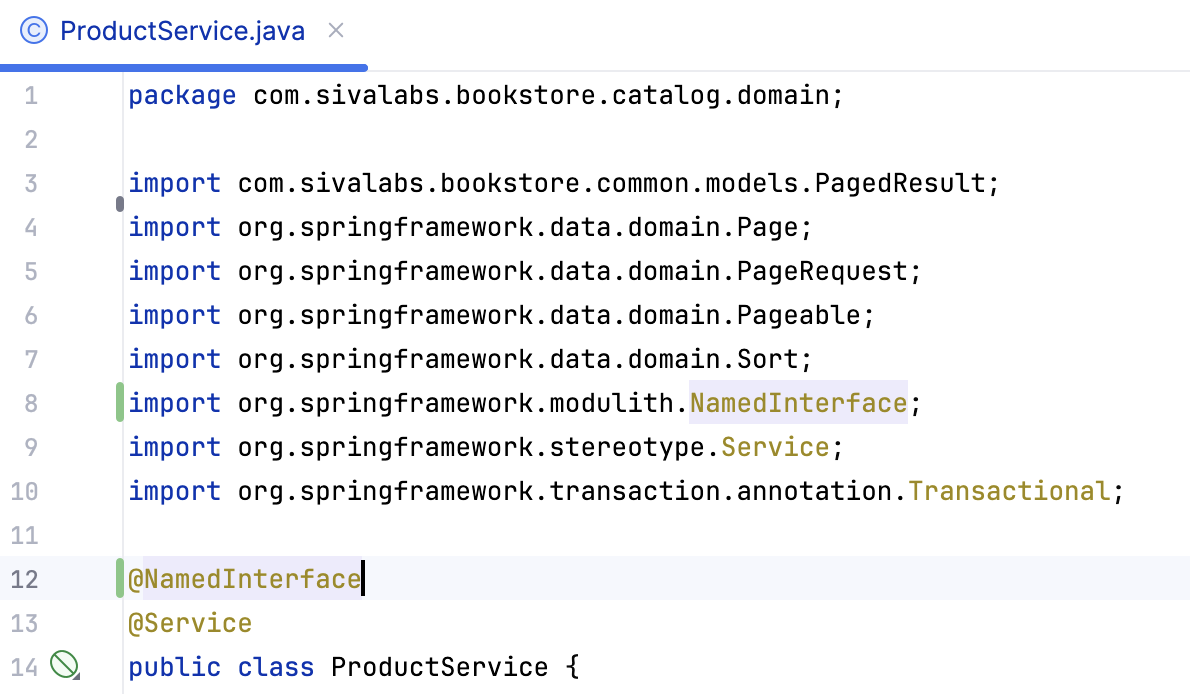
Depending on your architectural guides, you can select from the following quick-fixes:
Move the component from the original module to the base package.
Annotate the injected class with @NamedInterface to open this class for other modules.
Open the module that contains this class.
The quick-fix creates a
package-info.javafile with the@ApplicationModuleannotation for the module that contains the class you want to import. The module is marked asOPEN.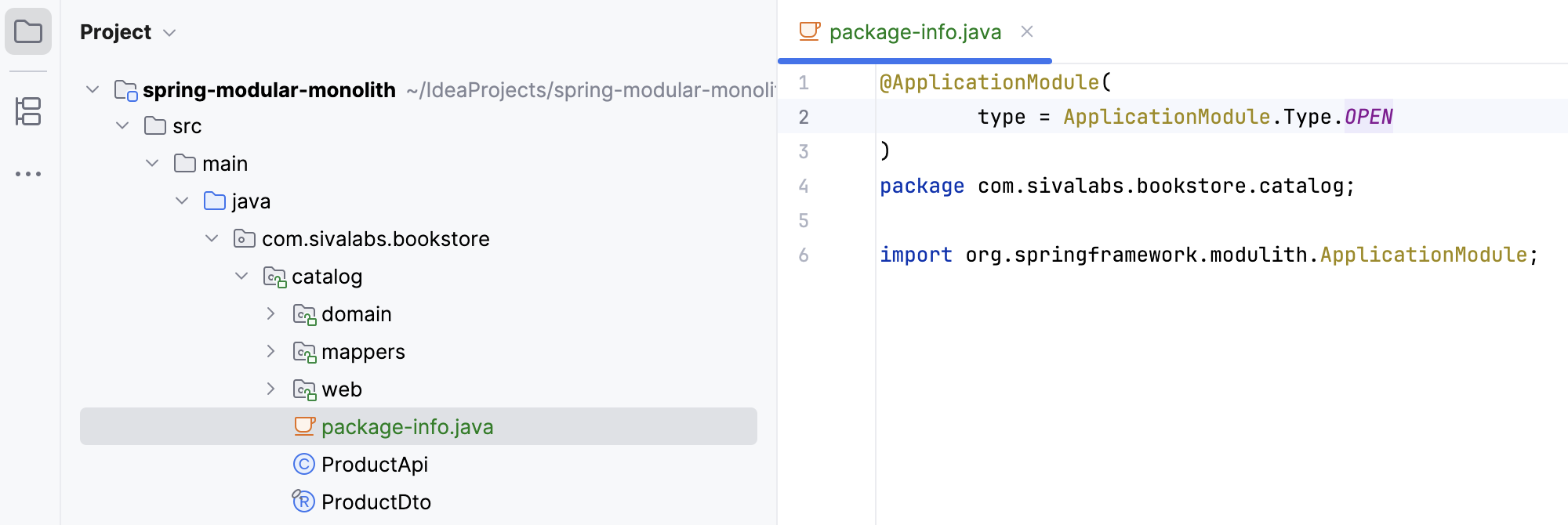
Work with application module dependencies
When we specify intermodule dependencies, IntelliJ IDEA provides name completion and validation for modules, as well as navigation between them.
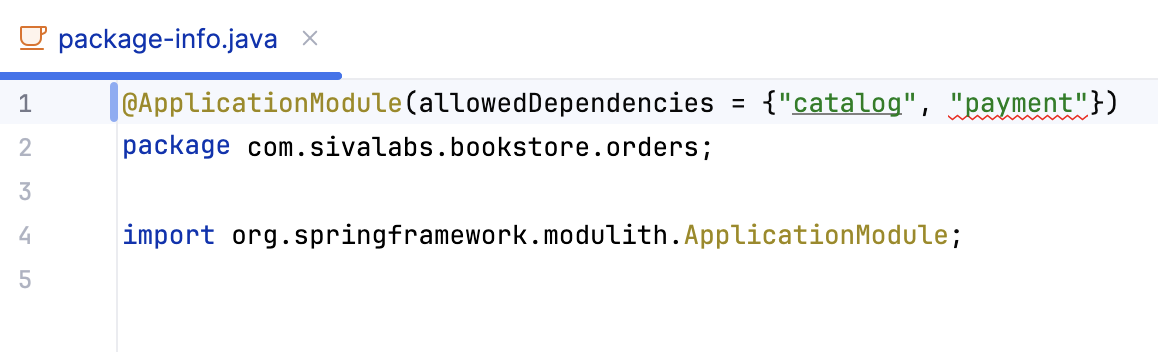
To add a dependency from one module to others explicitly, we need to modify the
package-info.javafile in the module that requires the dependency.For example, to make the
ordersmodule depend on thecatalogandcommonmodules, we need to modify thepackage-info.javafile located in theordersmodule.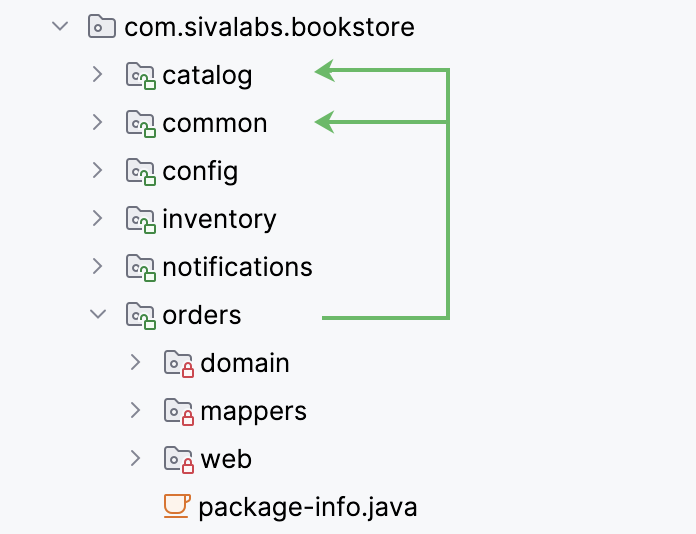
In the
package-info.javafile, place the caret inside the quotation marks inallowedDependencies = {""}and press Ctrl+Space or start typing the module's name.IntelliJ IDEA shows available module dependencies in the completion popup:
module— a dependency on the entire module.module :: interface— a dependency on a specific named interface provided by the module.module :: *— a dependency on all interfaces provided by the module.
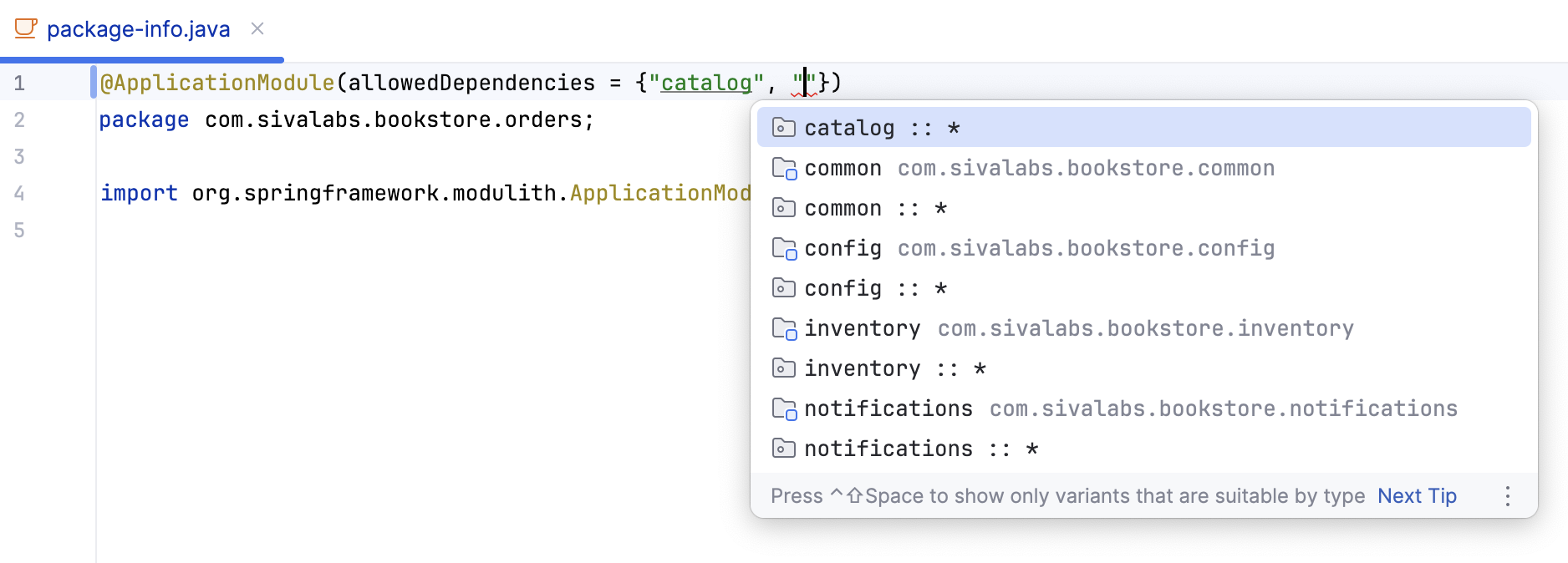
Select the one you want to add and press Enter.
You can navigate to an added module by clicking it and pressing Ctrl+B.
The module gets selected in the Project tool window Alt+1.
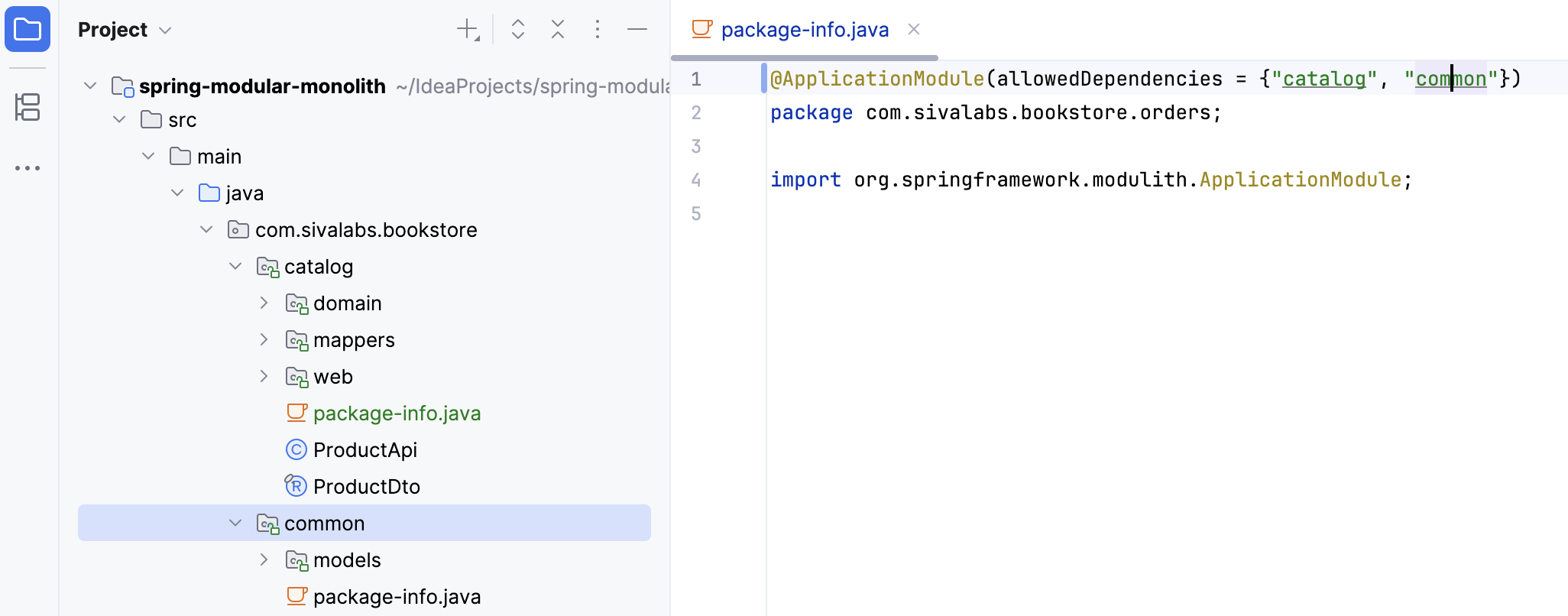
If a module listed as a dependency does not exist, IntelliJ IDEA will highlight the reference, allowing you to fix the application's structure to prevent a startup failure.