Tutorial: Create a live template with variables and functions
In this tutorial, you will learn how to create and use a simple live template that includes variables and functions.
We are going to use the Spring PetClinic application as a sample project. The resulting live template will:
Create a new Java class extending the
Petclass.Define a String attribute called
food, where the value is chosen from a list.Implement the
petFood()method that prints a message.
To get started, open the Spring PetClinic application in IntelliJ IDEA. If you do not have it locally, clone the application from GitHub:
Clone the sample project
The source code of the application is hosted on GitHub at https://github.com/spring-projects/spring-petclinic.
In the main menu, go to .
Specify the URL of the repository and click Clone.
If necessary, agree to open the cloned project in a new window.
Now we will create a new live template. To showcase how variables and functions work in templates, we will add the following variables to the template text:
$ClassName$: the name of a new class that extends thePetclass. It does not have a predefined value, which means that IntelliJ IDEA will prompt you to enter the class name after inserting the template.$Food$: a list of three possible values:meat,grass, andfruit. We will use theenum()function to define this list. After inserting the template, IntelliJ IDEA will prompt you to choose one of the values in the editor.$PetName$: the class name starting with a lowercase letter so that it can be used in a sentence. This demonstrates the use of thedecapitalize()function applied to another variable.
Create a live template with variables
Press Ctrl+Alt+S to open settings and then select .
Select the Java group, click
 , and select Live Template.
In the Abbreviation field, specify the characters that will be used to expand the template. For example,
pet.In the Template text field, paste the following template:
type $TypeName$ struct { food string } func (p *$TypeName$) PetFood() { food := "$Food$" println("The $typeName$ eats " + food) }class $ClassName$ extends Pet { String food = "$Food$"; public void petFood() { System.out.println("The $PetName$ eats " + food); } }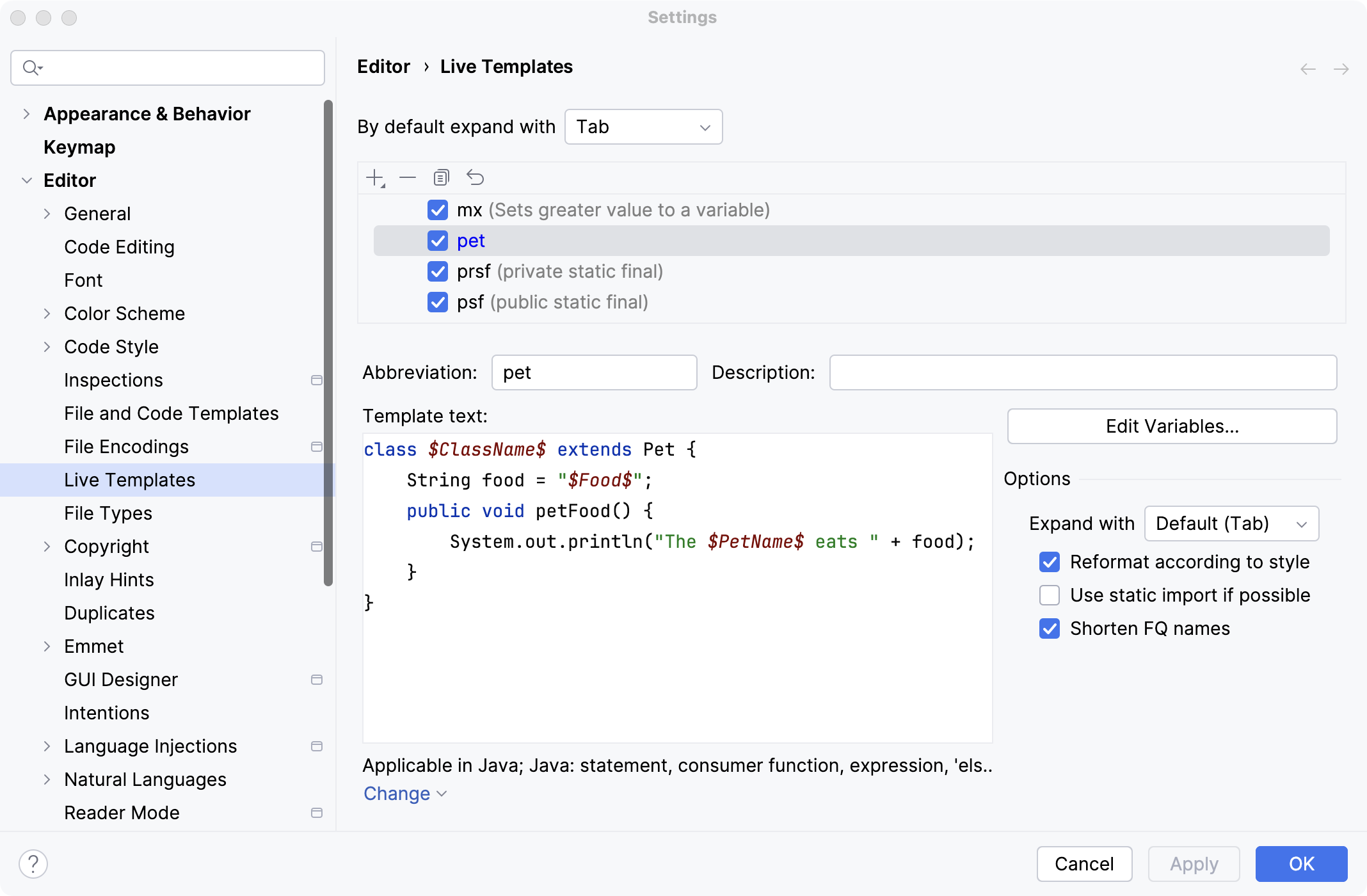
If there is a No applicable contexts warning, click Define and select Java to make the live template available only in this context.
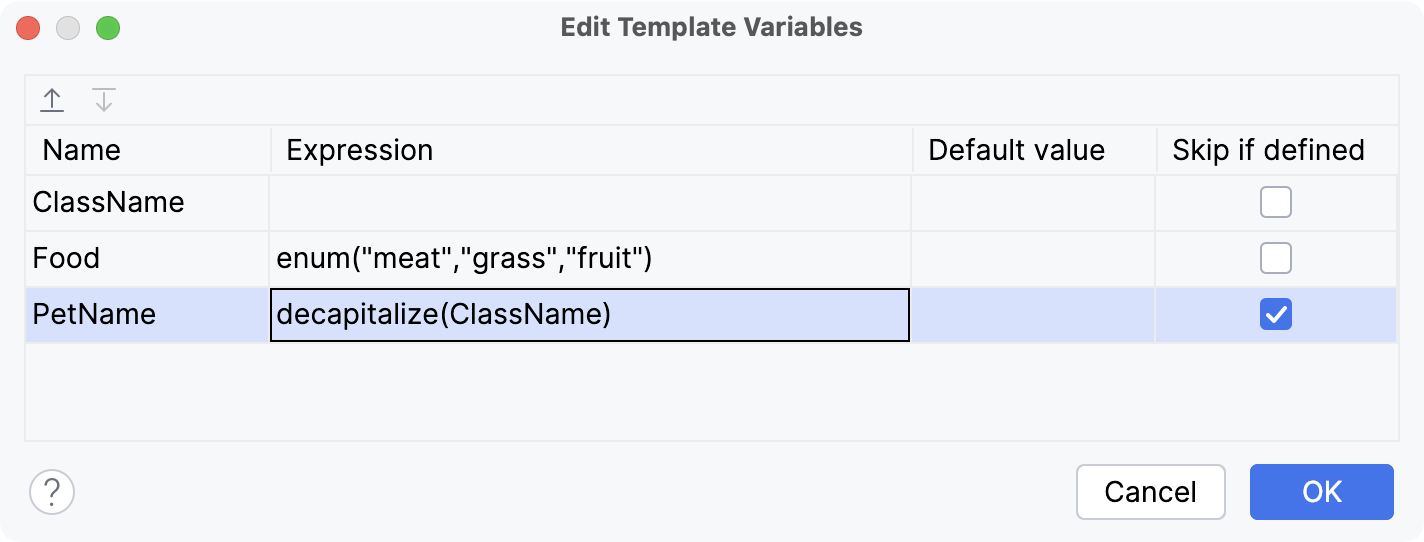
Click Edit Variables… and, in the Edit Template Variables dialog, configure the variables:
$ClassName$: leave the Expression field empty. When using the template, IntelliJ IDEA will prompt the user to enter a class name after inserting the template.$Food$: in the Expression field, enterenum("meat","grass", "fruit"). When using the template, IntelliJ IDEA will display a list of these values in the editor to choose from.$PetName$: in the Expression field, enterdecapitalize (ClassName). This function converts the first letter of the$ClassName$variable value to the lower case.Select Skip if defined because the value is derived automatically and does not require user input.
Use the created template
In the Project tool window, navigate to the
Ownerpackage and create a new Java class. SpecifyHorseas a class name.In the editor, start typing the template abbreviation (
petin our example) and select it from the completion dropdown.Enter the class name as a variable value:
Horse. Press Tab to jump to the next variable.Using the keyboard arrows, select
grassas a value of thefoodstring and press Enter.