Workspace
IntelliJ IDEA lets you work with multiple projects simultaneously and view and manage them within a single frame (workspace). A workspace represents the development environment that contains all required projects, code, and libraries in one place.
You can also create multiple workspaces and switch between them in IntelliJ IDEA.
Working in a workspace can improve team collaboration, enhance productivity, and help efficiently allocate resources.
For example, it's especially useful when working with multiple Git repositories, microservices, or a monorepo.
Install the Multi-Project Workspace plugin
This functionality relies on the Multi-Project Workspace plugin, which you need to install and enable.
Press Ctrl+Alt+S to open settings and then select .
Open the Marketplace tab, find the Multi-Project Workspace plugin, and click Install (restart the IDE if prompted).
Creating a workspace
You can create an empty workspace or create one with projects either from the IntelliJ IDEA welcome screen or from within the IDE.
Create a new workspace from the Welcome screen
Launch the New Project wizard. If no project is currently opened in IntelliJ IDEA, click New Project on the welcome screen. Otherwise, select from the main menu.
Name the new workspace and change its location if necessary.
Select the Create Git repository to place the new workspace under version control. Since the workspace is a file that contains only references to your projects, this action creates a Git repository only for the workspace.
You will be able to do it later at any time.
Click Create to create an empty workspace, or under the Workspace Projects section, click
 or the Add Projects link to add projects from your local file system to the workspace and then click Create.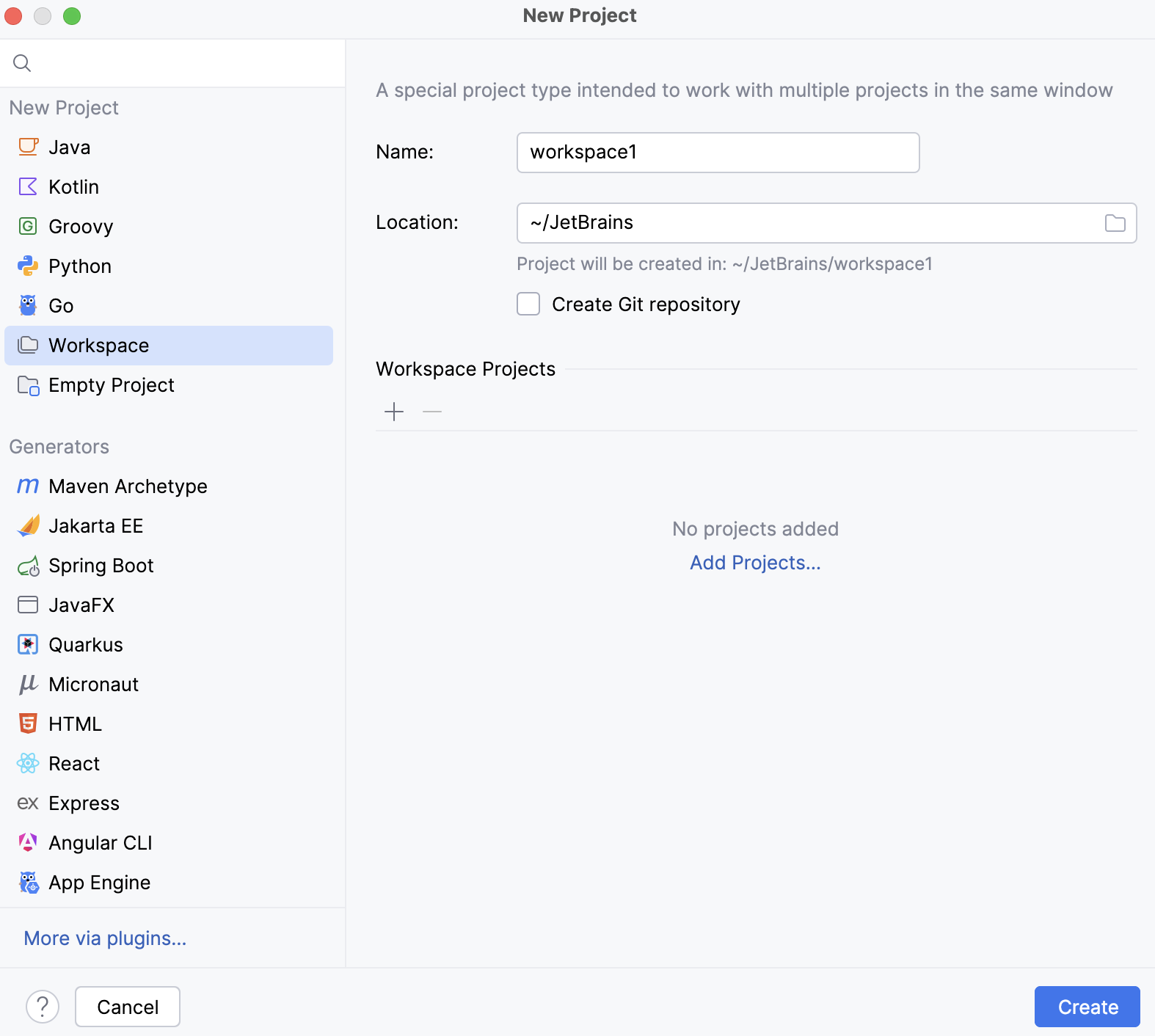
IntelliJ IDEA opens the created workspace with the attached projects.
Create a workspace from inside the IDE
From the main menu, select File | Open.
In your local file system, select projects you want to combine into one workspace and click Open.
In the notification dialog that opens, click Yes.
In the New Workspace dialog, add the name and location of your workspace and click OK.
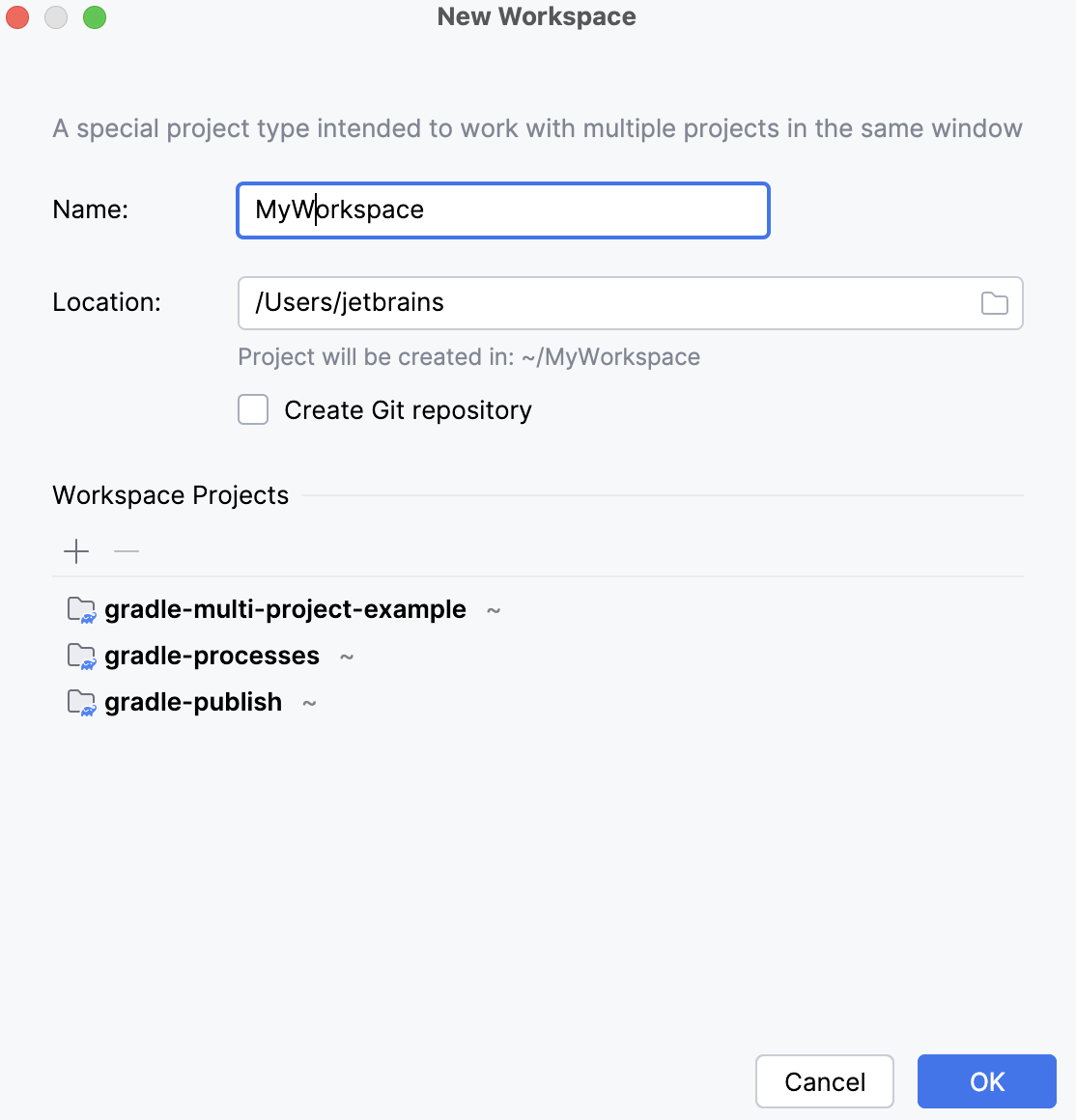
IntelliJ IDEA opens the workspace in the IDE with selected projects.
Workspace structure
When you open the created workspace in the IDE, you can view its structure in the Project tool window. This tool window lists all the included projects. Note that a workspace does not change the original project's configuration or its location.
IntelliJ IDEA detects build tools used in the projects, marks them with appropriate icons, and displays the additional tool windows (such as Maven and Gradle).
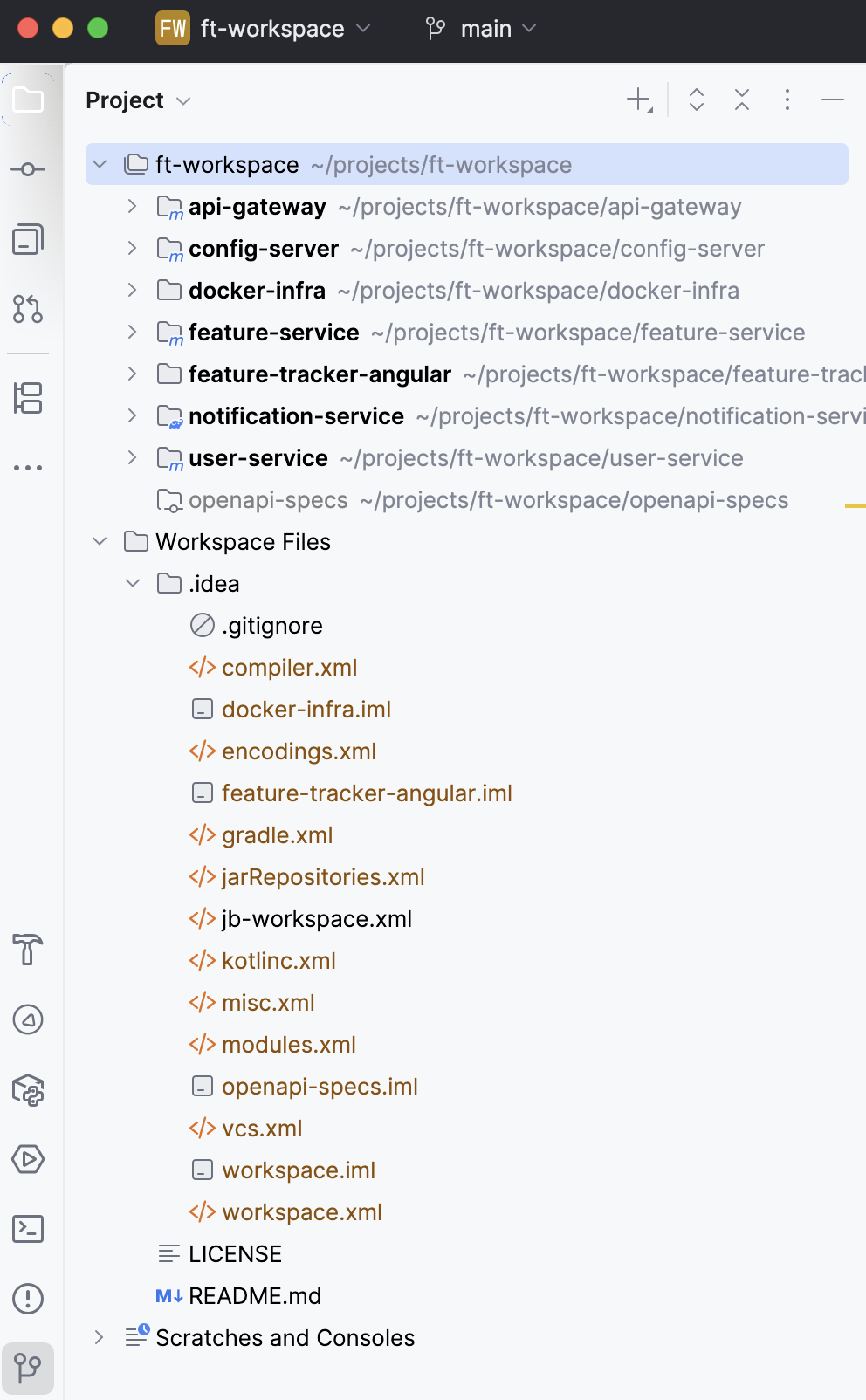
The Project tool window also contains the generated workspace files including the jb-workspace.xml file. This file stores paths to the workspace projects and preserves the project path even if you remove a project from your local file system. However, you can manually edit the jb-workspace.xml file to add or remove the projects.
Access the jb-workspace.xml file
In the Project tool window, select Workspace Files | .idea. locate file and open it in the editor.
In the list that opens, select the
jb-workspace.xmlfile to open it in the editor.
You can add newly created, already existing, or cloned projects to the opened workspace.
Add a project from the workspace context menu
Open your workspace in the IDE.
In the Project tool window, right-click the workspace and select Add Projects to Workspace.
From your local file system, select a project you want to add and click Open.
The project is added to the workspace. If you need to remove it, right-click the project and select Remove project-name from Workspace.
IntelliJ IDEA supports Maven and Gradle build tools within the projects inside the workspace. Such projects are marked with the appropriate Maven or Gradle icons in the project tree, and the related tool windows will be available.
Add a project to the opened workspace from the main menu
Press Ctrl+Alt+S to open settings and then select .
From the options on the right, under the Project section, select Ask option and click OK.
From the main menu, select to add a project from your local file system or to add a project from the outside repository.
Follow the suggested steps.
In the notification dialog that opens, click Add to Workspace.
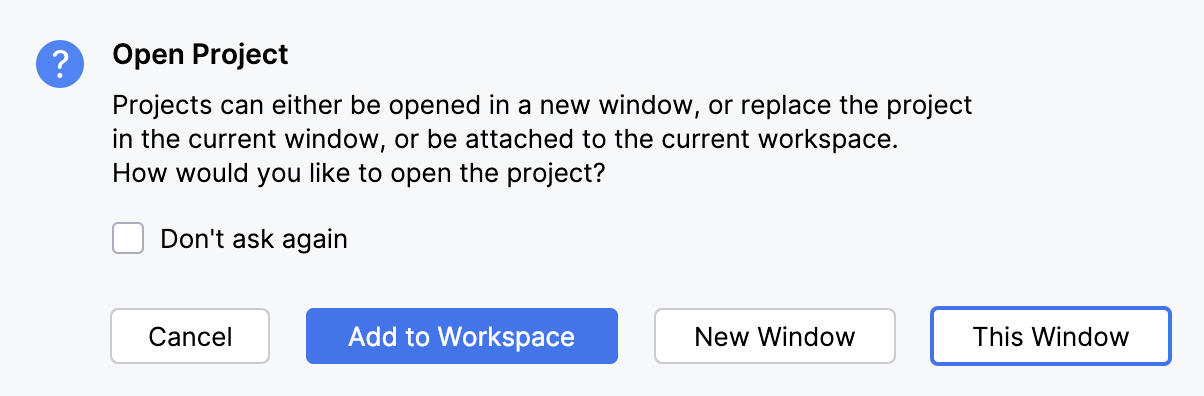
As a result, the project is added to the opened workspace.
Managing projects inside workspace
You can manage the projects within the workspace, including the following notable actions:
Check out only a subset of the projects defined in a workspace.
Unload projects (or in case of Gradle or Maven unlink projects) from the workspace if you don't need to work with them at the moment.
When working with different Git projects, view and manage Git repositories to which those projects belong.
Commit workspace configuration files to a Git repository to enable sharing and versioning.
Since the created workspace is located in its own repository, you can share a link to your workspace if you want others to access the projects it defines.
Check out subset of projects
If you want to work with only specific projects from the repository you are cloning, you can check out only the projects you need.
Launch the New Project wizard. If no project is currently opened in IntelliJ IDEA, click New Project on the welcome screen. Otherwise, select from the main menu.
In the Clone Repository dialog, add the repository information and click Clone.
In the Checkout Projects dialog, select projects you want to open in the workspace and click OK.
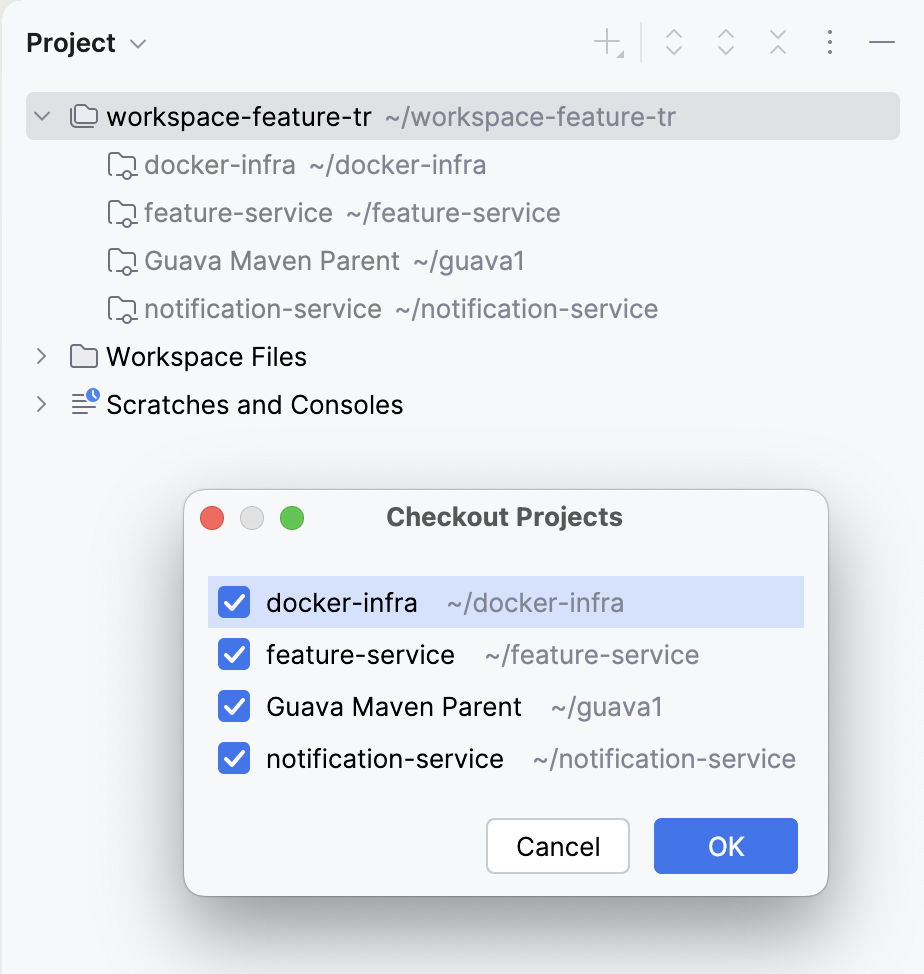
IntelliJ IDEA loads only the selected projects keeping others inactive. If you decide to add an inactive project, right-click it and from the context menu select Checkout 'project-name'.
Unload a project
You can load or unload projects in the workspace. For example, you created or opened a workspace with several projects and then decided to work just with some of them, you can unload projects you don't need.
In the Project tool window, right-click a project you want to unload.
From the context menu, select Unload 'project-name'.
The project becomes inactive. Using the Load 'project-name' option will return the project's active state.
If a project inside the workspace uses Gradle or Maven build tool, you can unlink a project from your workspace.
Unlink a Gradle project
Click
 on the right sidebar to open the Gradle tool window.
Right-click a project you need and from the context menu, select Unlink Gradle Project.
IntelliJ IDEA removes the project from the Gradle tool window, stops its synchronization and deactivates it in the workspace.
If you need to link the project again, right-click it in the Project tool window and select Load 'project-name'.
Unlink a Maven project
Click the Maven icon on the right sidebar to open the Maven tool window.
Right-click a project you need and from the context menu, select Unlink Maven Projects.
IntelliJ IDEA removes the project from the Maven tool window, stops its synchronization and deactivates it in the workspace.
If you need to link the project again, right-click it in the Project tool window and select Load 'project-name'.
View Git repositories
In the IDE, click Git repository in the menu bar. The context menu lists all repositories.
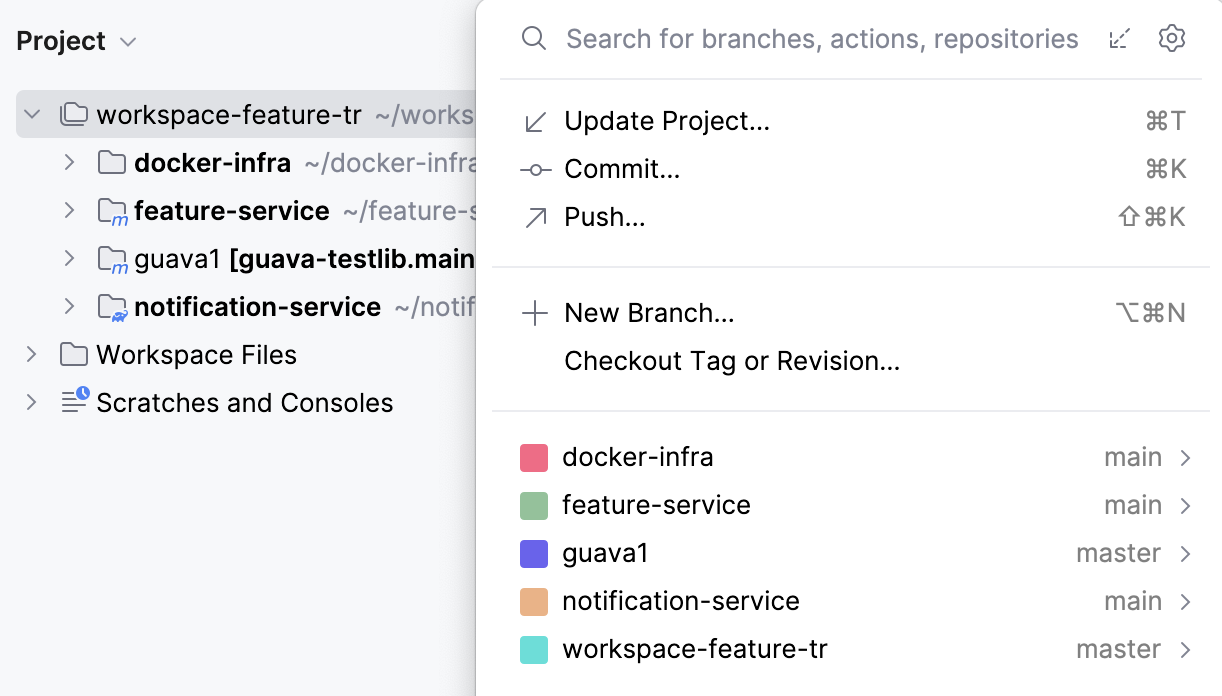
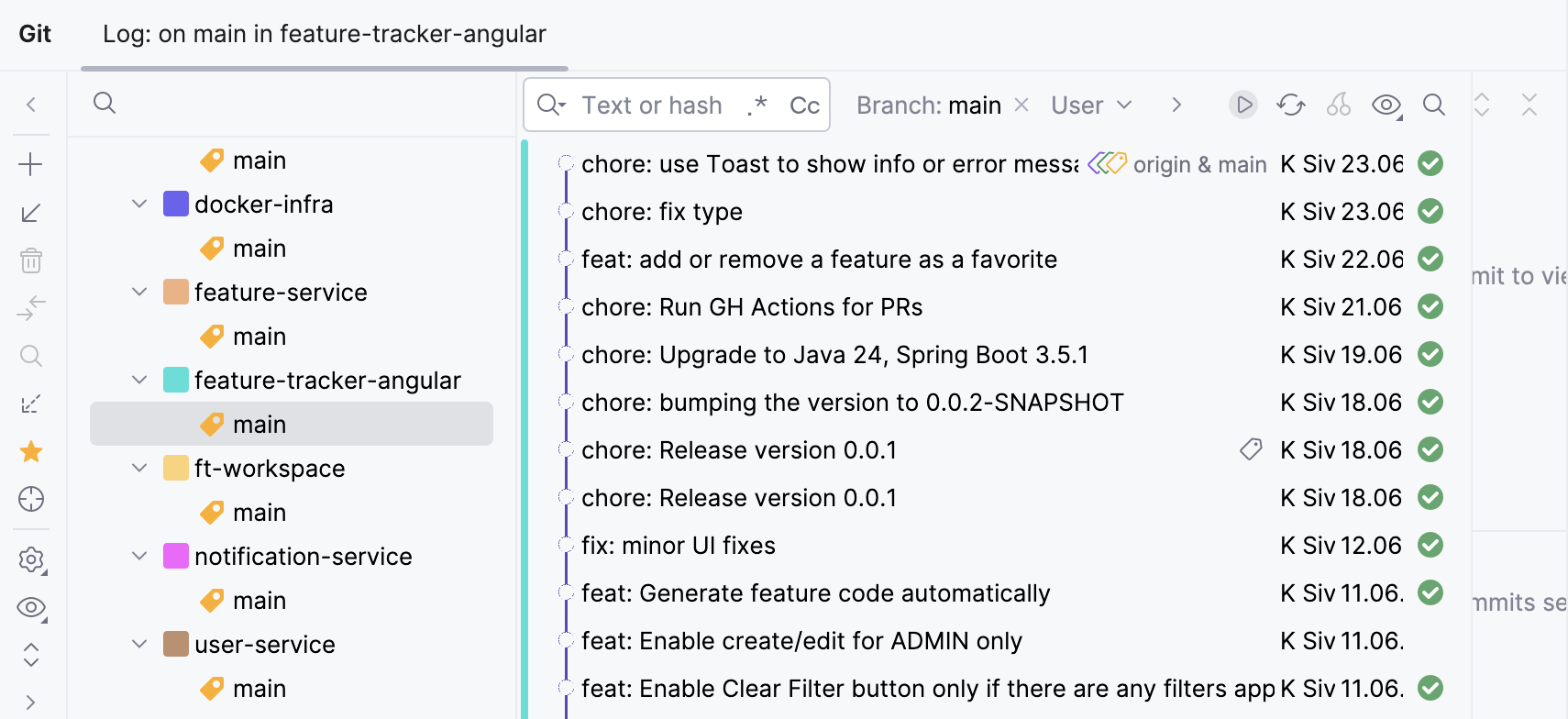
If you open the Git window, you notice that all projects are grouped by their own repositories for better management and readability.
Double-click the repository to view commits only for the selected project and its branch.
You can build just one project inside the workspace or all of them.
Build projects
In the Project tool window, select a project you want to build.
From the main menu, select Build | Build Project 'project-name'.
If you want to build the whole workspace, select Build All Projects.