Add or remove team admins
Add or remove team admins to manage who can distribute licenses and update settings in your teams.
Add a team admin
Log in to JetBrains Central Console.
In the sidebar, under Licensing, select Teams.
If you don't see this page, or the controls on this page are inactive, your role doesn't have the necessary permissions.
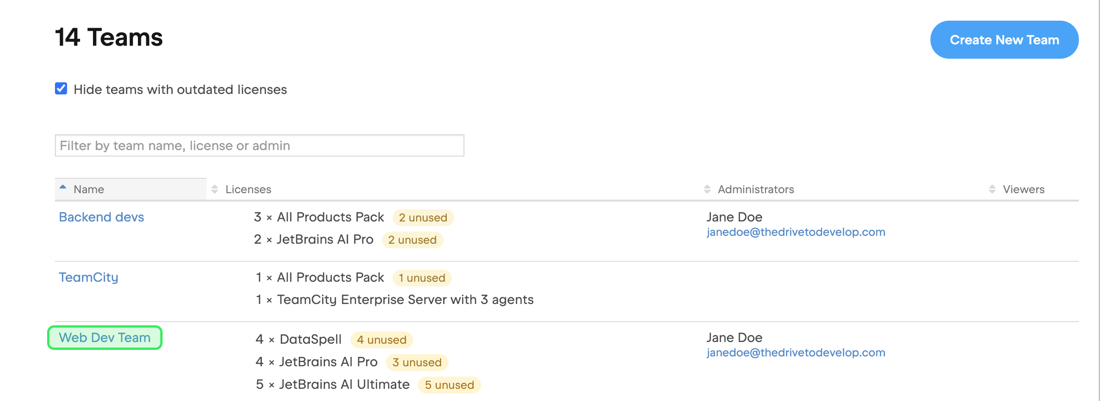
Click the name of the desired team in the list.
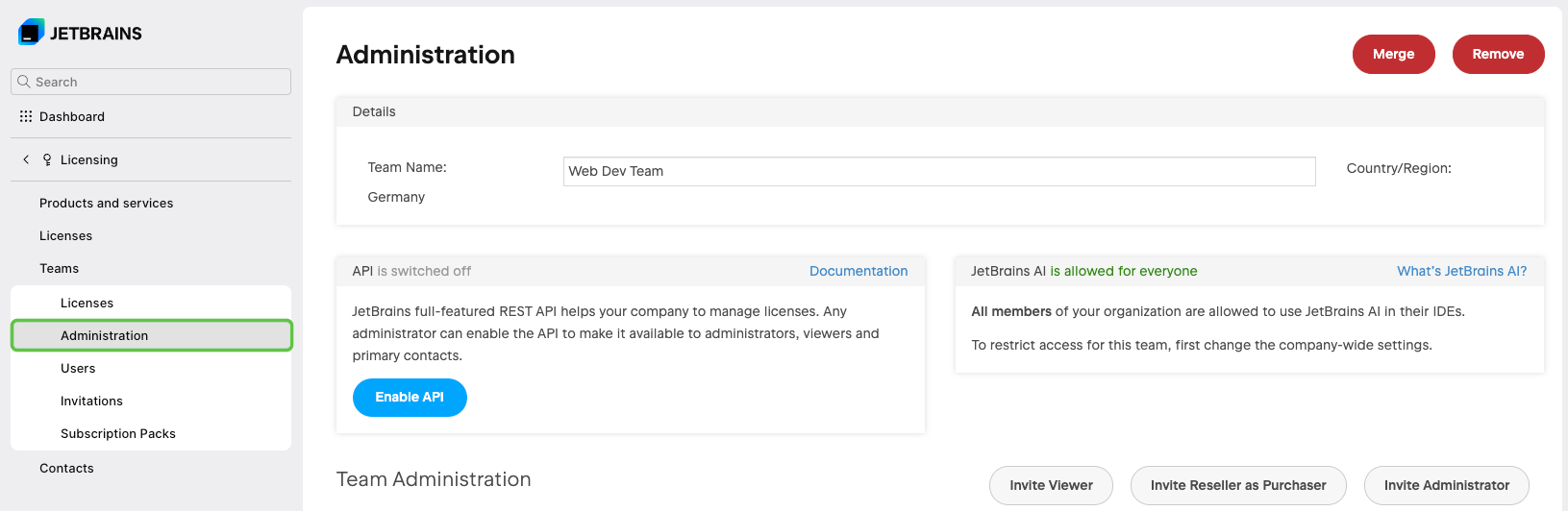
In the menu on the left, click Administration.
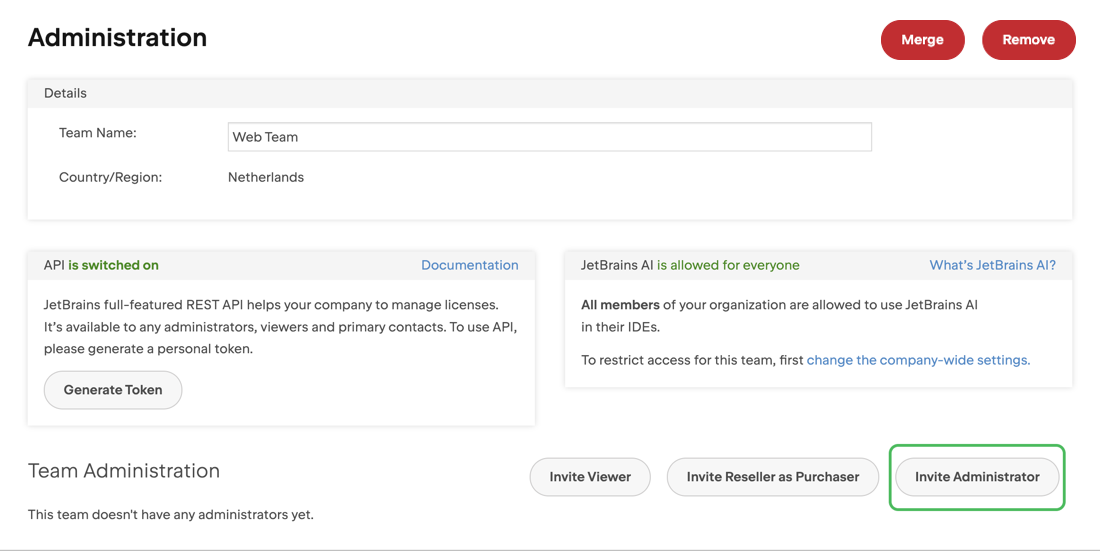
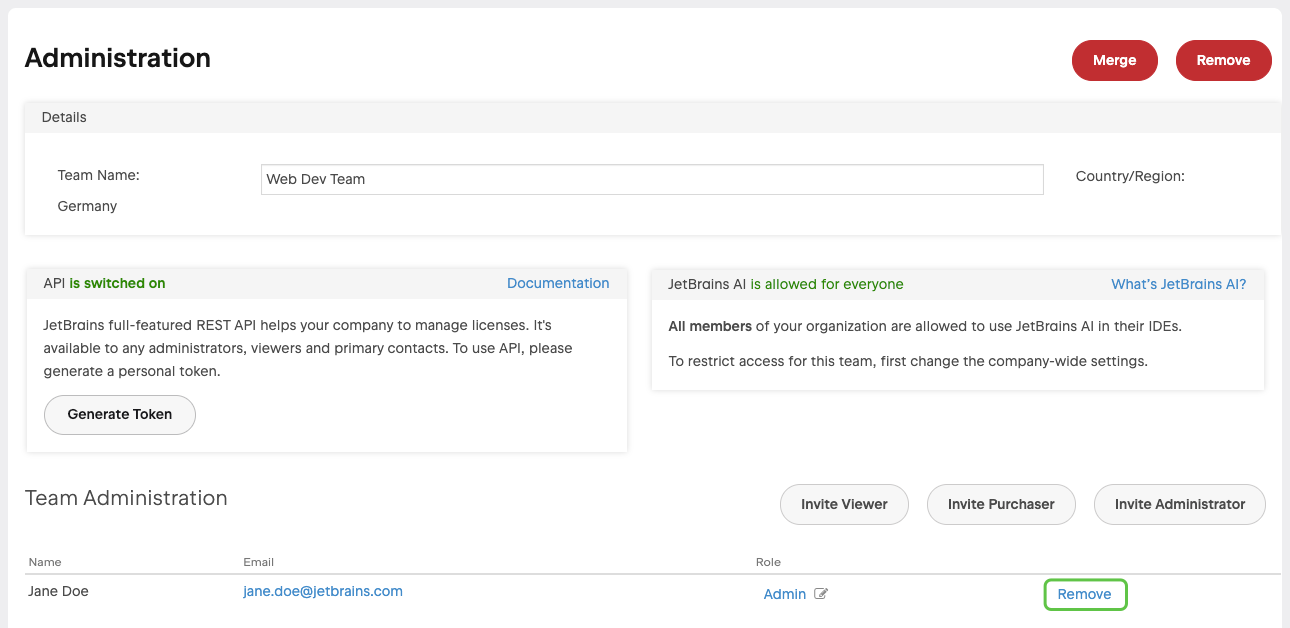
On the team administration page, click Invite Administrator.
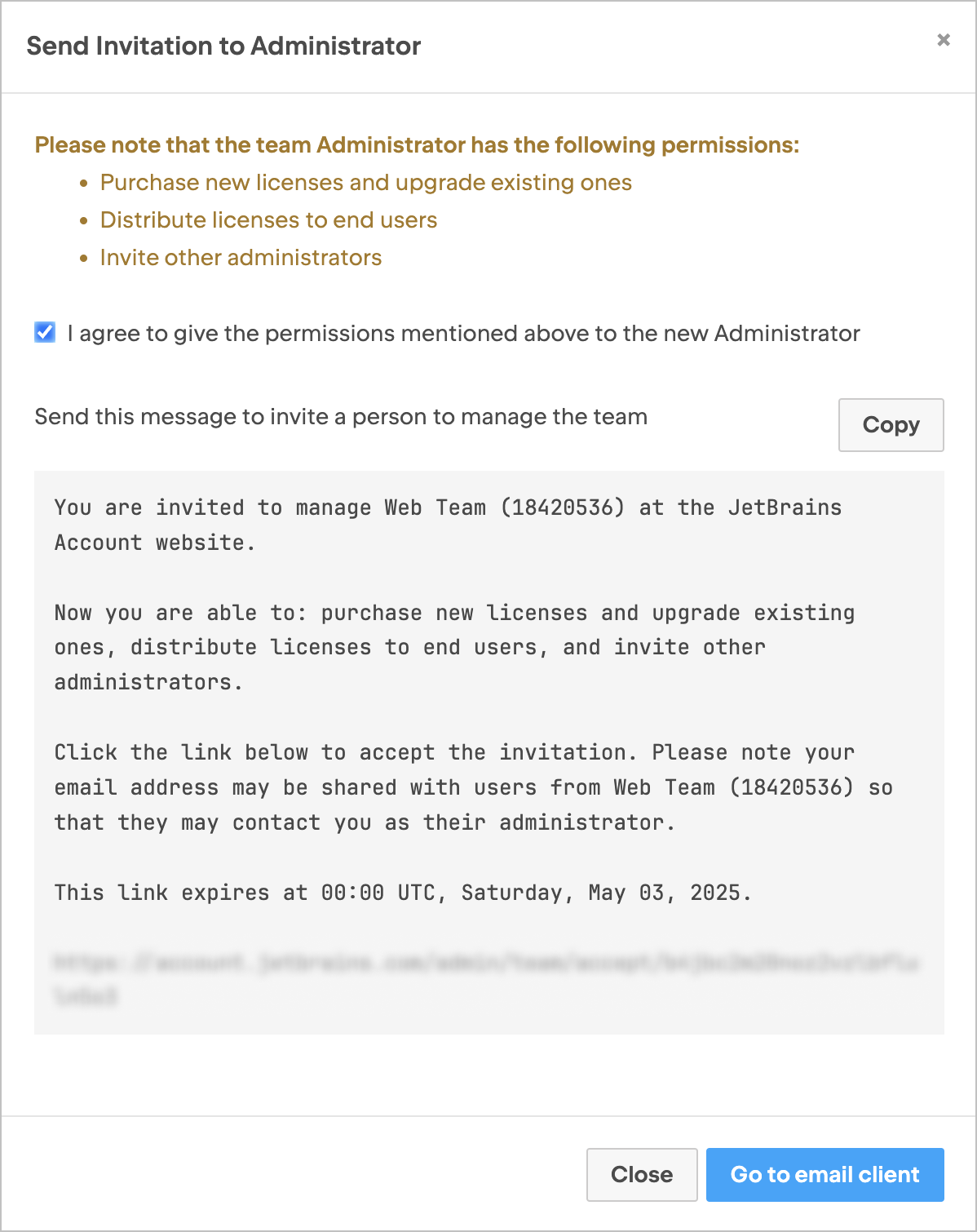
In the dialog that opens, review the list of admin permissions you’re about to grant to your invitee and then select the option I agree to give the permissions mentioned above to the new Administrator.
You’ll see the invitation text. Click Copy to copy it to your clipboard, or select Go to email client to open it in your default email app. You can then share the invitation via email, instant messaging, or any other method you prefer.
When the recipient clicks the link in the invitation email, they’ll be redirected to the JetBrains Central Console login page. They’ll need to log in to an existing JetBrains Account or create a new one.
Once they log in, their account will be granted admin permissions for the specified team.
Remove a team admin
Log in to JetBrains Central Console.
In the sidebar, under Licensing, select Teams.
If you don't see this page, or the controls on this page are inactive, your role doesn't have the necessary permissions.
Click the name of the desired team in the list.
In the menu on the left, click Administration.
On the team administration page, find the admin you want to remove, and click Remove.
In the confirmation dialog that pops up, click Remove.