Transfer licenses between teams
You can transfer any licenses between teams in your organization’s profile. This can be helpful when you want to delegate the management of specific licenses to a certain team administrator or when you need to add licenses to your License Vault or IDE Services instance for automatic distribution.
Transfer licenses to an existing team
Log in to JetBrains Central Console.
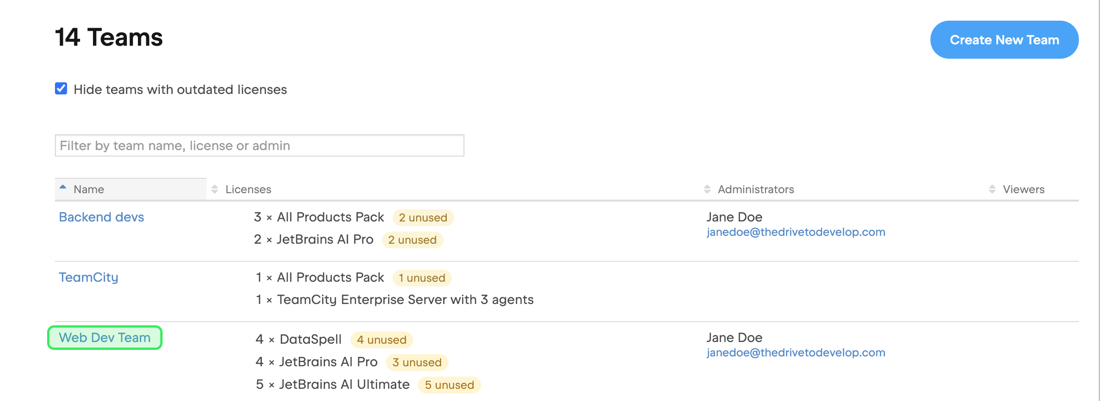
(Optional) If you want to transfer licenses from a particular team, in the sidebar, select Teams and click the name of the desired team in the list.
If you don't see this page, or the controls on this page are inactive, your role doesn't have the necessary permissions.
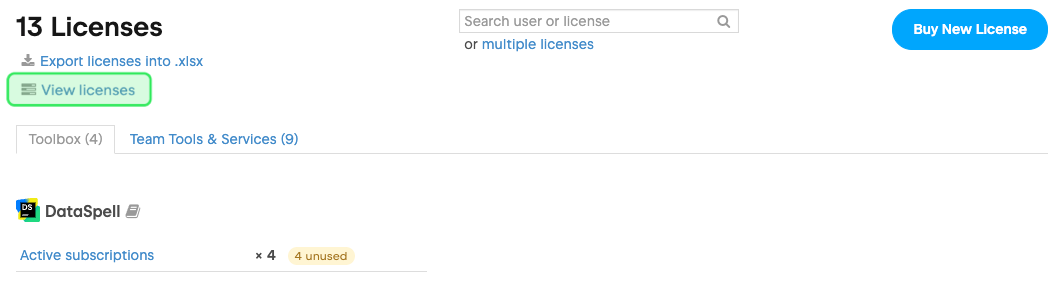
Click View licenses under the total number of licenses.
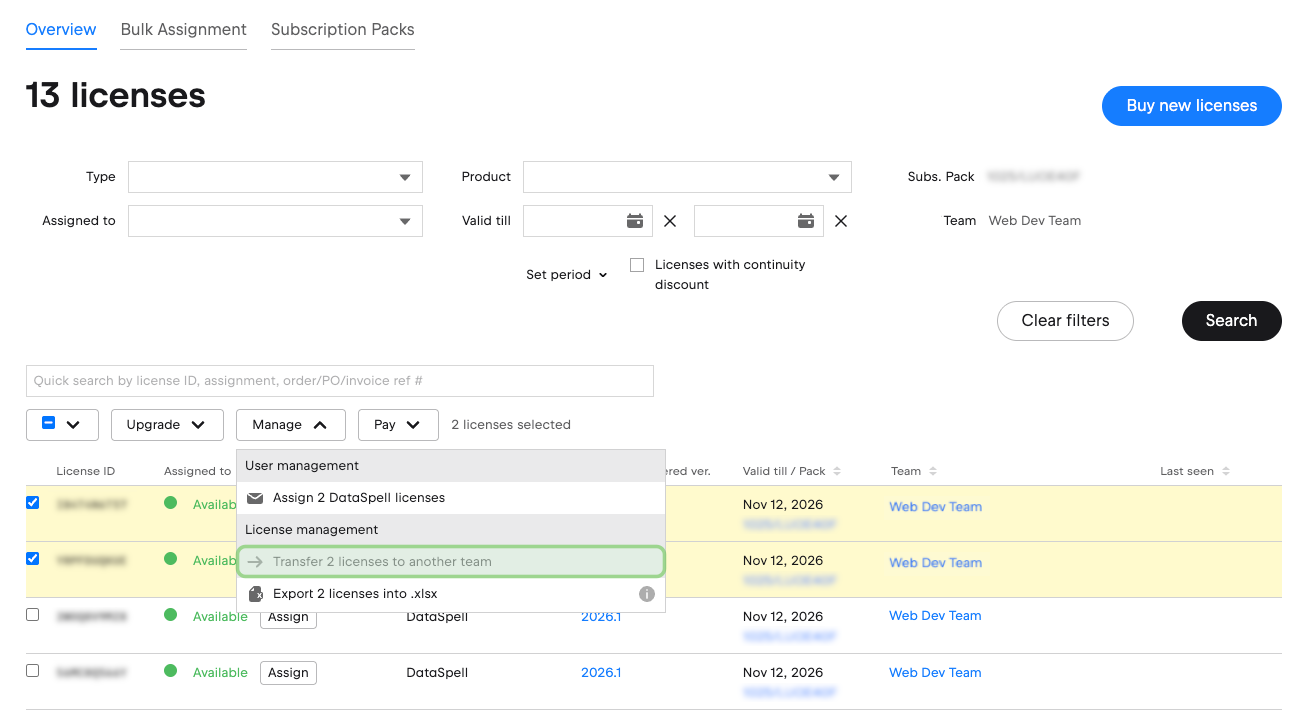
Check the boxes next to the licenses you want to transfer and click Manage at the top. Then select Transfer x licenses to another team.
In the window that appears, select the desired team in the dropdown and click Transfer.
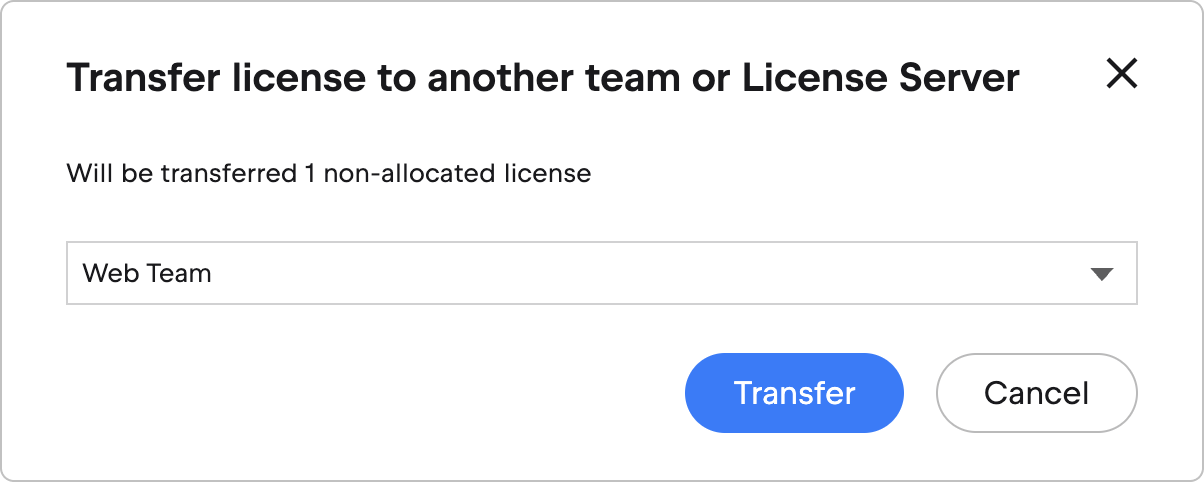
The licenses will be immediately transferred to the selected team.
Transfer licenses to a new team
Log in to JetBrains Central Console.
Select Teams in the sidebar.
If you don't see this page, or the controls on this page are inactive, your role doesn't have the necessary permissions.
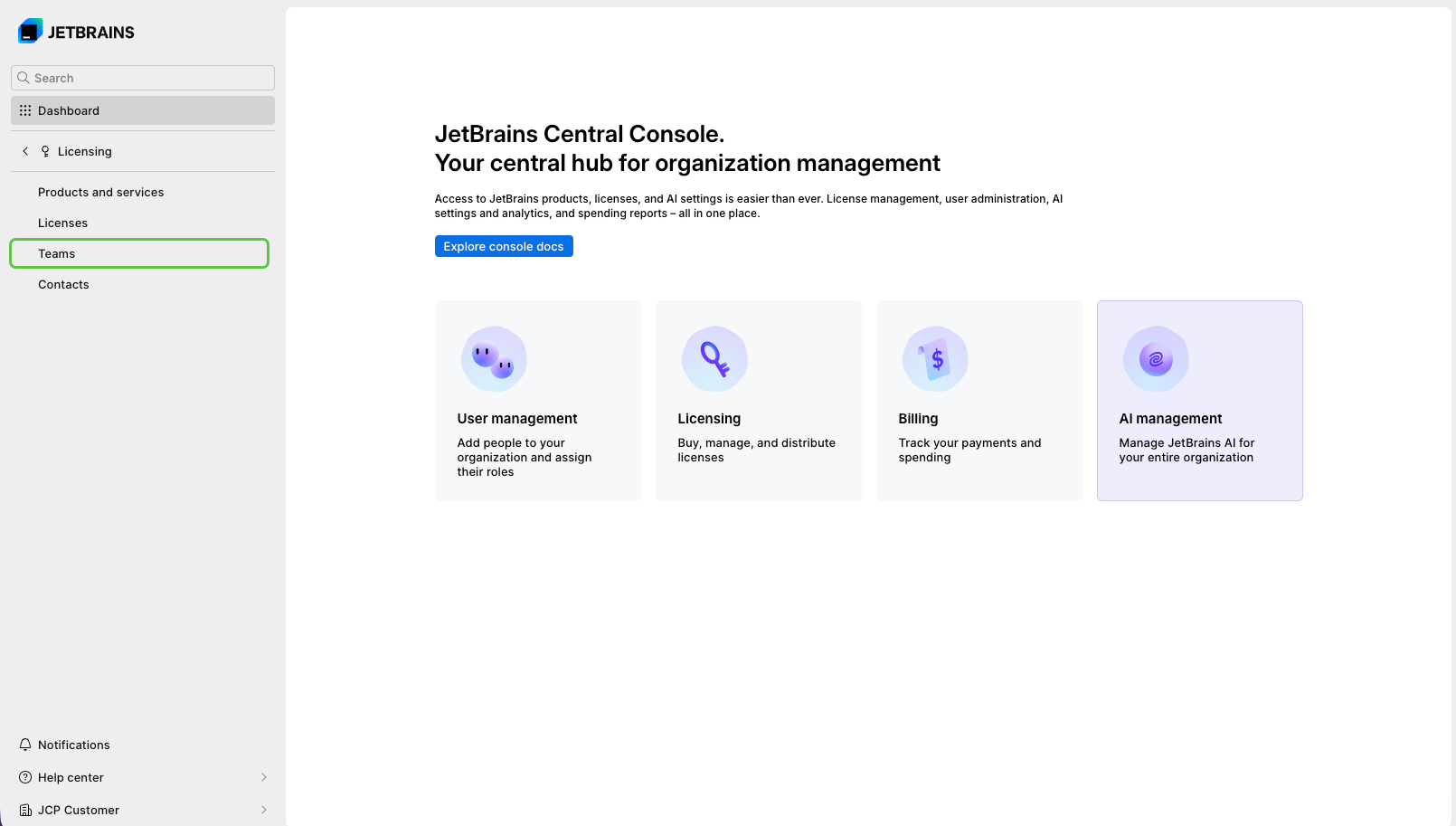
Click the name of the desired team in the list.
Click View licenses under the total number of licenses.
Check the boxes next to the licenses you want to transfer and click Manage at the top. Then select Transfer x licenses to another team.
In the window that appears, select New team in the dropdown and enter a name for the new team.
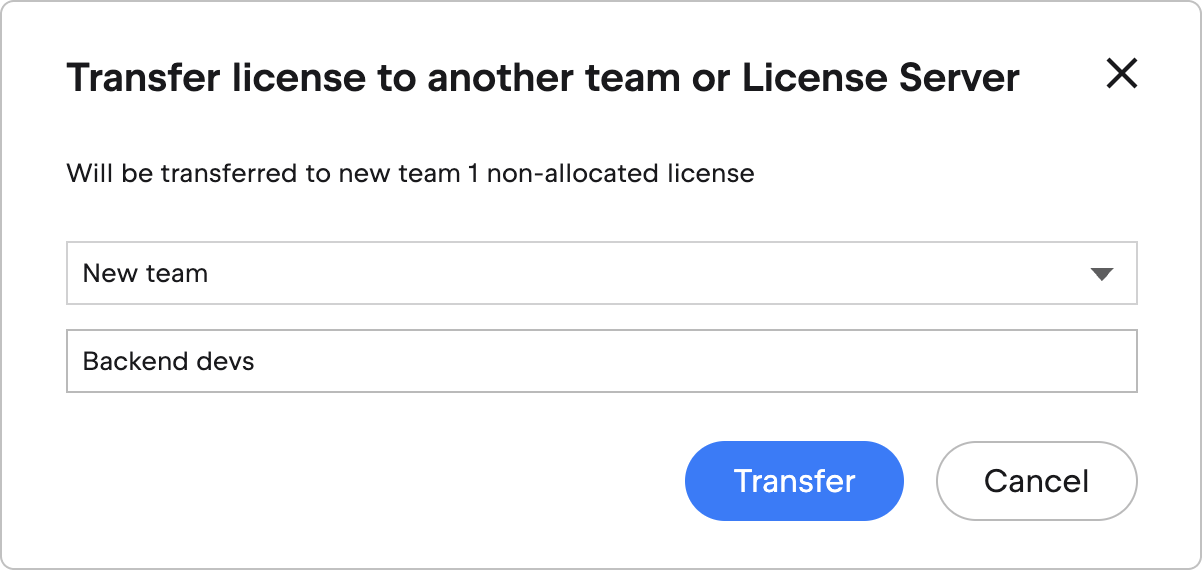
Click Transfer.
The new team will be created immediately, and the licenses will be transferred. You will also become the admin of the newly created team.