Merge teams
You may want to merge teams when rearranging the organizational structure via your JetBrains Central Console.
How team merging works
When you merge two teams, one team is deleted, and the other one inherits all the merged team licenses and properties except for AI Assistant access settings. For example, when you merge Team A into Team B:
All licenses from Team A are transferred to Team B.
All admins of Team A become admins of Team B.
All bulk invitations created in Team A are transferred to Team B, including the expired ones.
The AI Assistant access settings of Team A are ignored, and the same settings for Team B stay unchanged after the merge.
Merge two teams
Log in to JetBrains Central Console.
In the sidebar, under Licensing, select Teams.
If you don't see this page, or the controls on this page are inactive, your role doesn't have the necessary permissions.
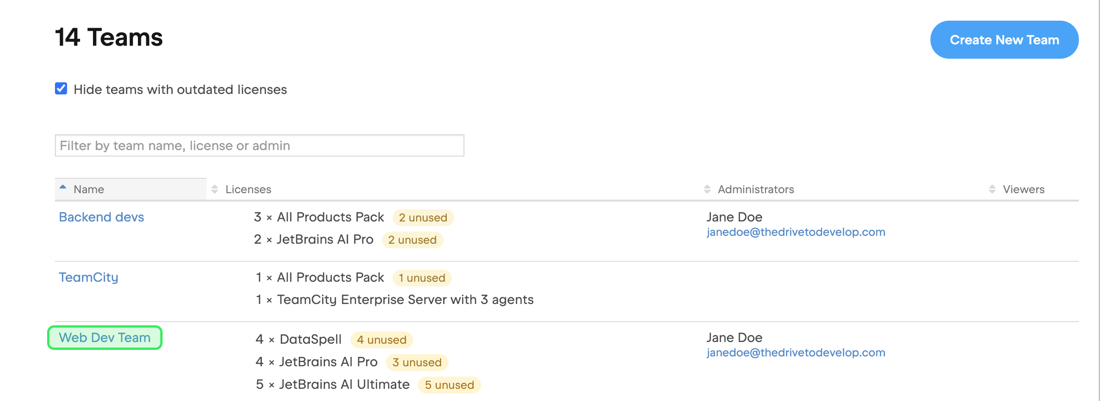
Click the name of the team you want to merge.
In the menu on the left, click Administration.
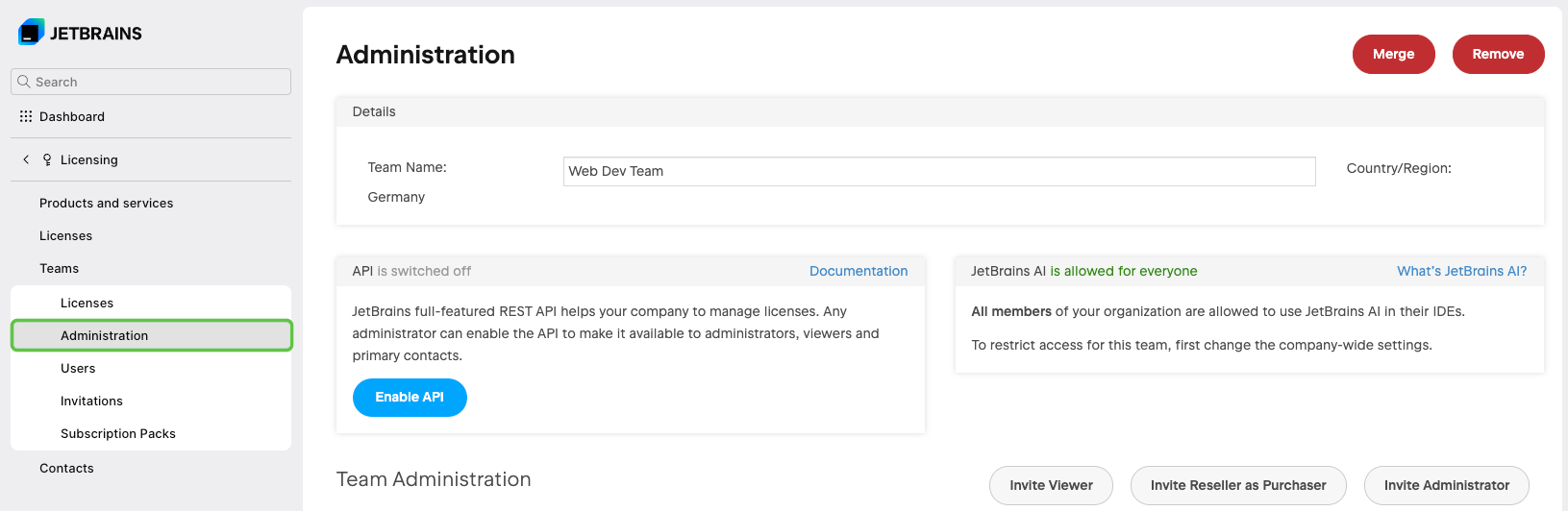
Click the Merge button in the upper-right corner.

In the window that appears, choose the team into which you want to merge, and then click Merge to confirm this action.
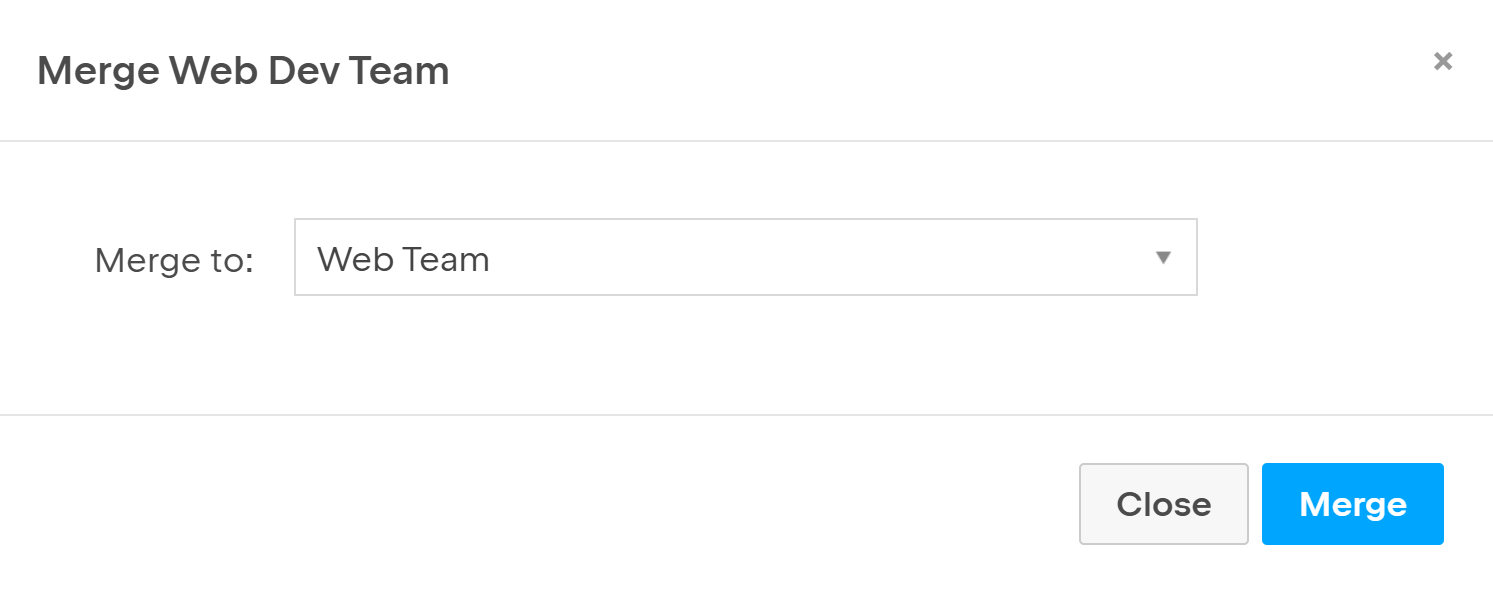
The team you selected in Step 3 is immediately merged into the team you selected in the popup.