Assigning commercial licenses with bulk invitations
The bulk sharing option allows you to quickly distribute licenses within your team without manually assigning them to each individual user. Just copy an invitation link and share it with your team members.
Create a bulk invitation
Log in to JetBrains Console.
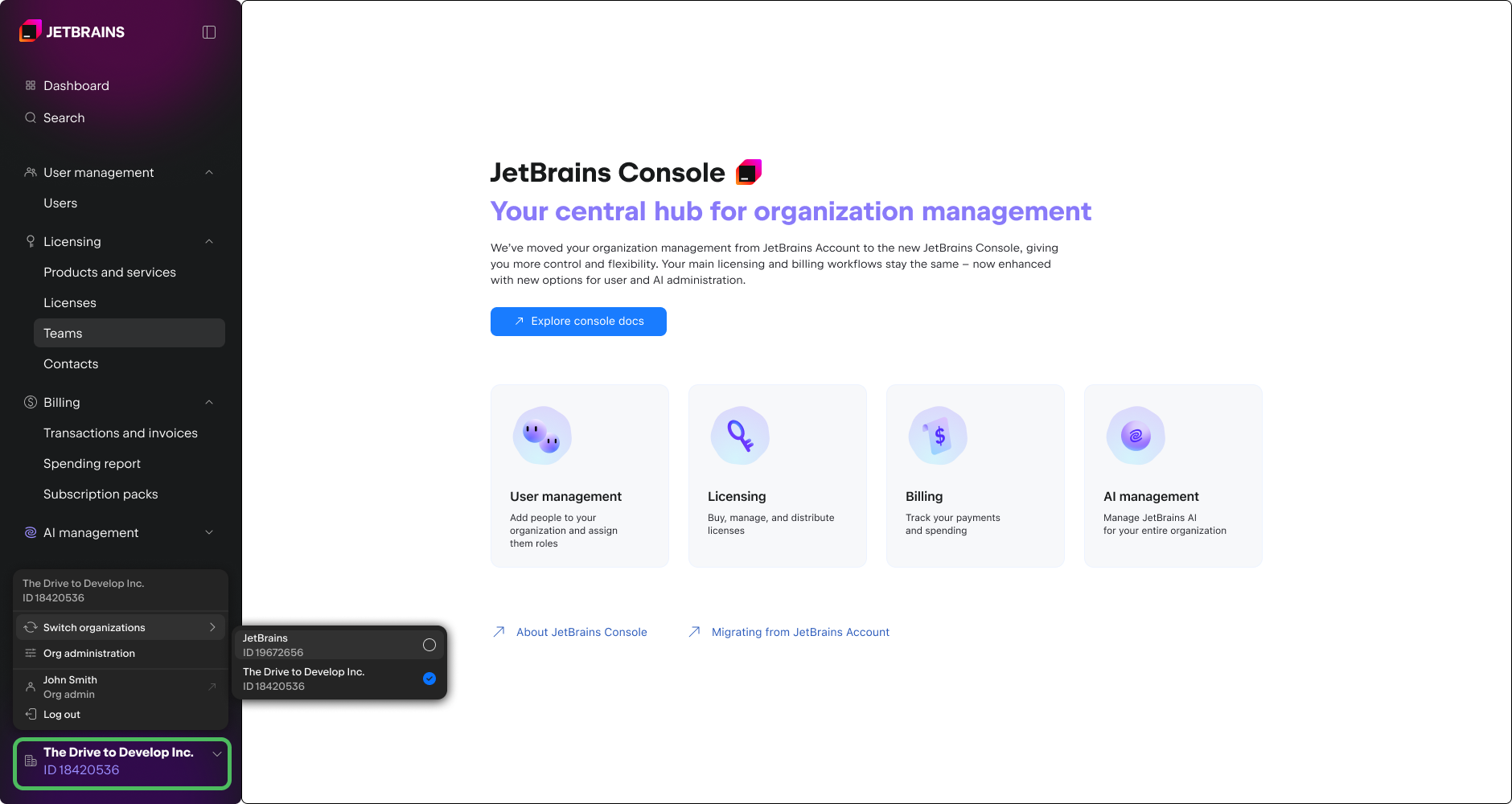
In the sidebar, click the name of your organization or your team.
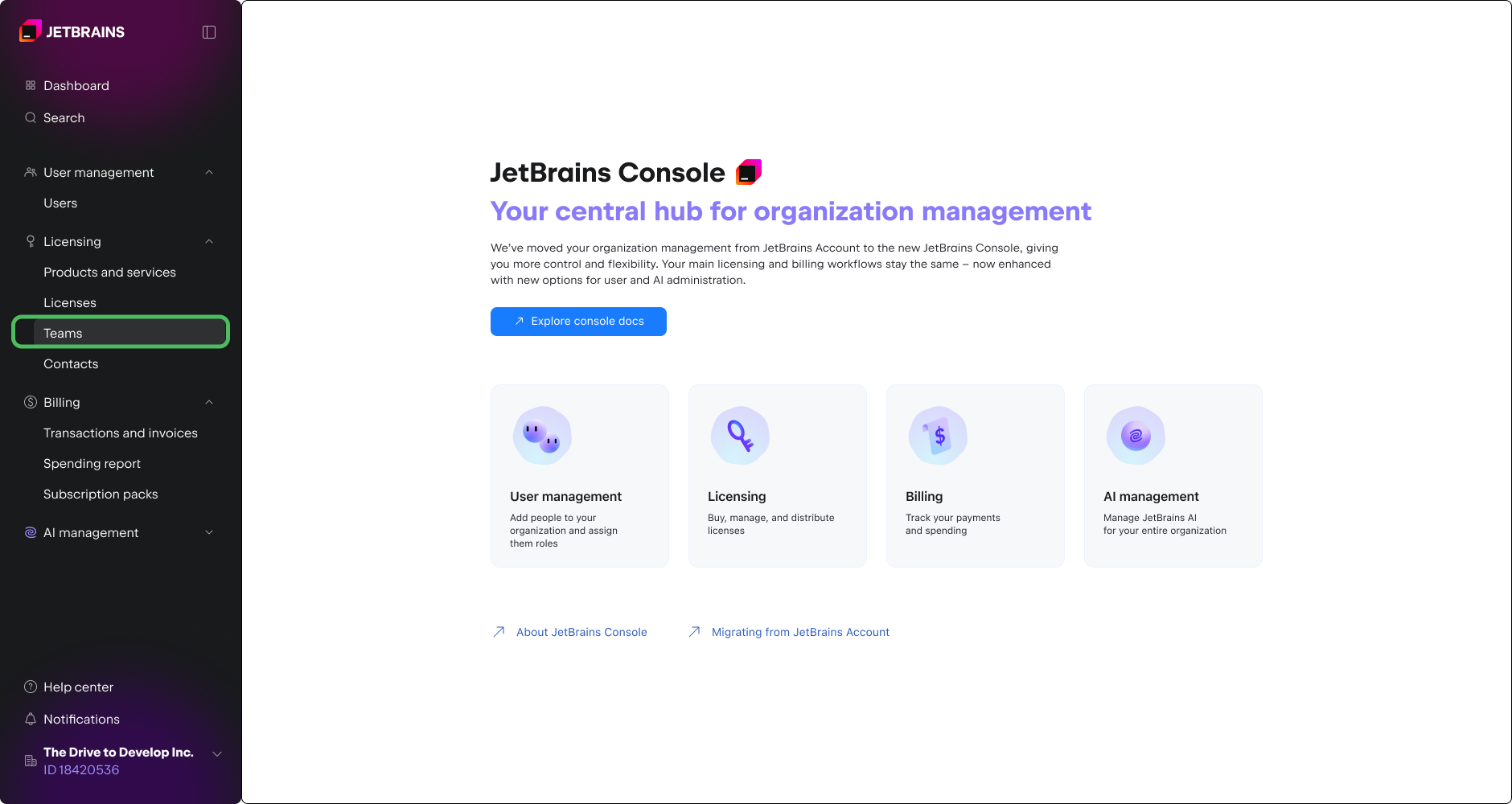
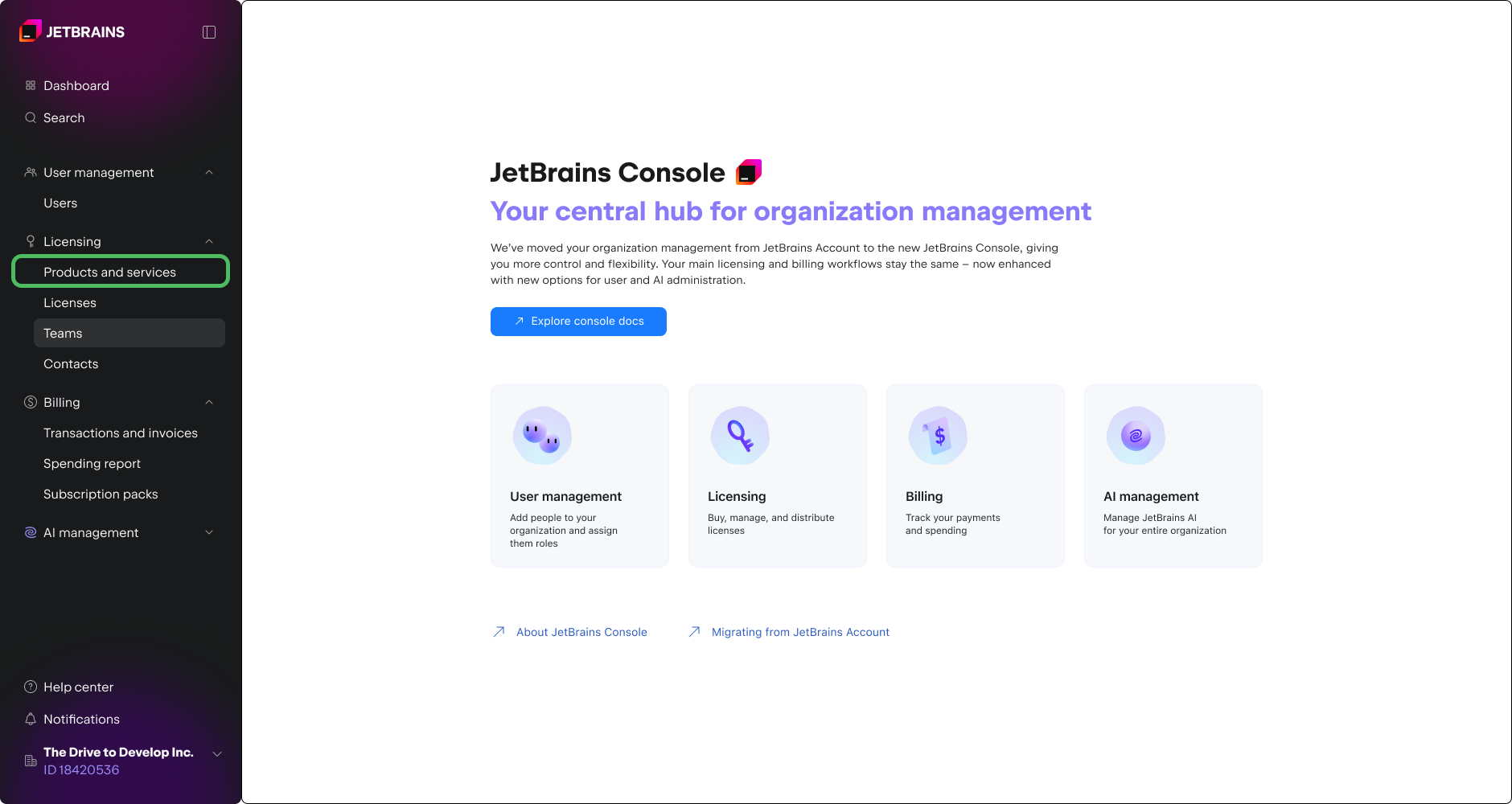
Click Teams in the menu on the left.
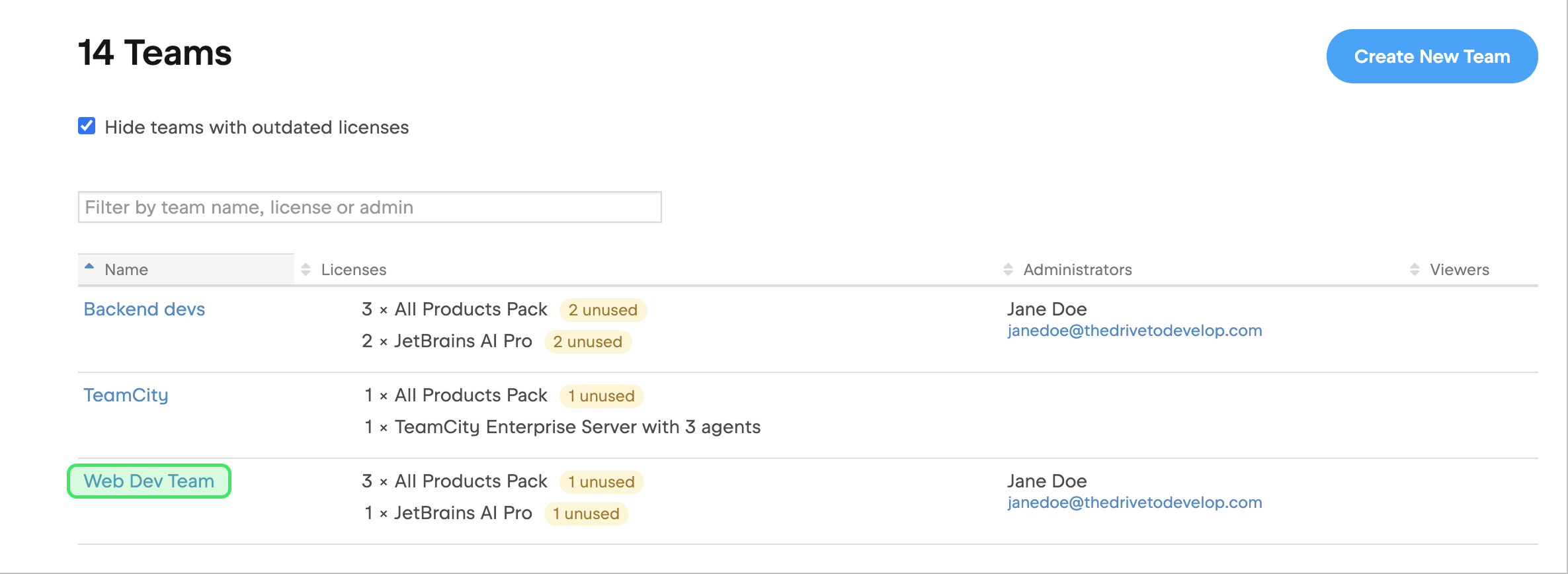
Select the team that your licenses belong to. If you're not sure which team that is, follow these instructions to find out.
In the menu on the left, click Invitations and then click Create Invitation.

In the dialog that pops up, select the product that you want to create an invitation for.
Optionally, you can:
Enter the name of the invitation for future reference.
Specify how long your invitation link will remain active.
Restrict access to this invitation to users with specific email domains.

Once you're done, click Create. On the invitation page, copy the invitation link and send it to your users.

That's it – your part is done! Your team members can now claim the licenses. That process is outlined in the next section.
You'll receive an email notification each time a user successfully obtains a license. At the bottom of the invitation page in the Accepted invitations section, you'll see the list of users that have obtained licenses using this particular invitation link.

Claim a license using the invitation link
To claim an assigned license:
Users that already have an account only need to sign in to claim a license.
Those who don't have an account will need to create one. You can also refer them to this article for instructions.
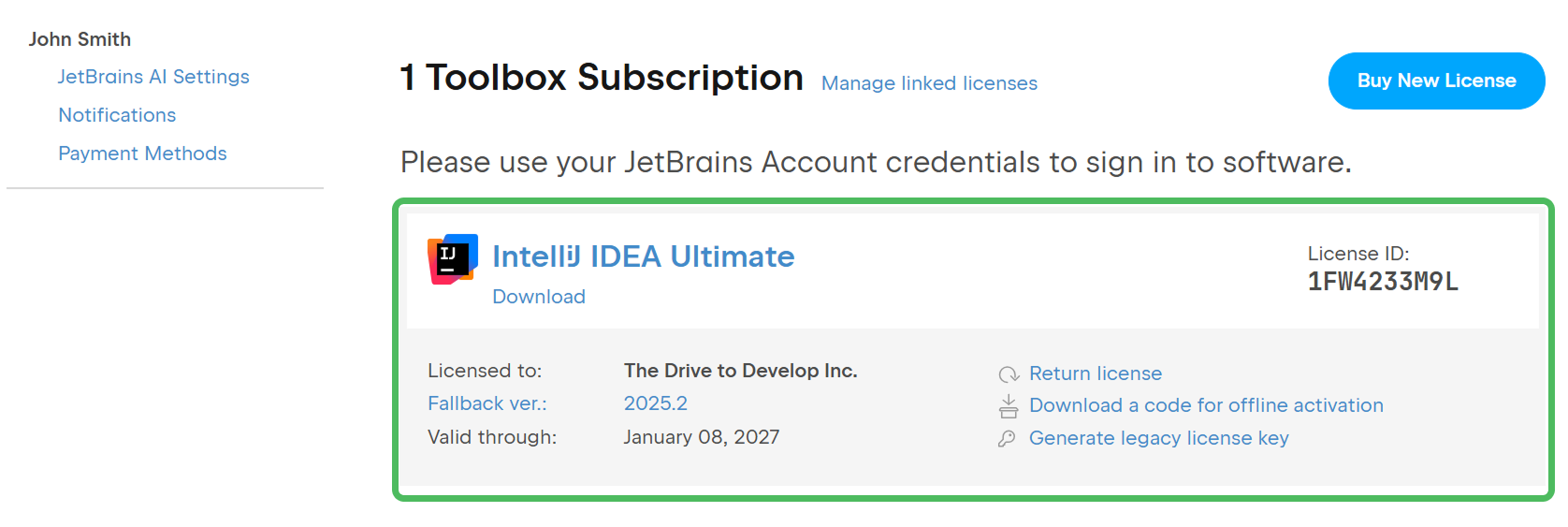
Once logged in, the user will see their new license on the account page. Now they can enter their account credentials in their JetBrains product to activate it.
Find the team to which your licenses belong
Normally, you specify a team for new licenses at checkout. It can be an existing team or a new one. If you made a purchase without specifying the team, you'll find your licenses in an automatically created team named after the order reference number.
If you’re not sure which team to look for, start from the license view.
Log in to JetBrains Console.
In the sidebar, click the name of your organization. If you manage several organizations, switch to the relevant one.
In the sidebar under Licensing select Products and services.
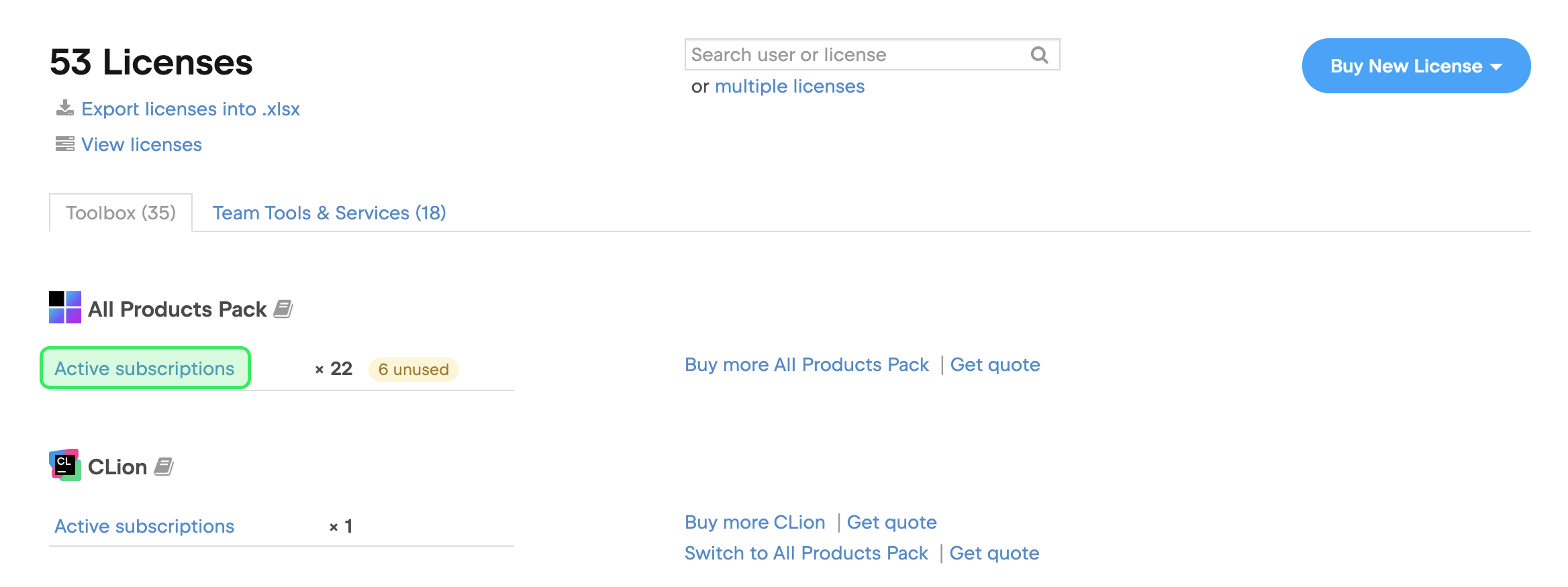
Find the product that you want to assign to users and then click Active subscriptions.
You'll find the team's name in the Team column of the license table.
