Manage contacts
Contacts added to JetBrains Central Console receive notifications about the organization's JetBrains products and licenses. Depending on the role, they may also have access to certain account areas. To learn more about contact roles, see Contacts.
In this article, you'll learn how to manage your organization's contacts.
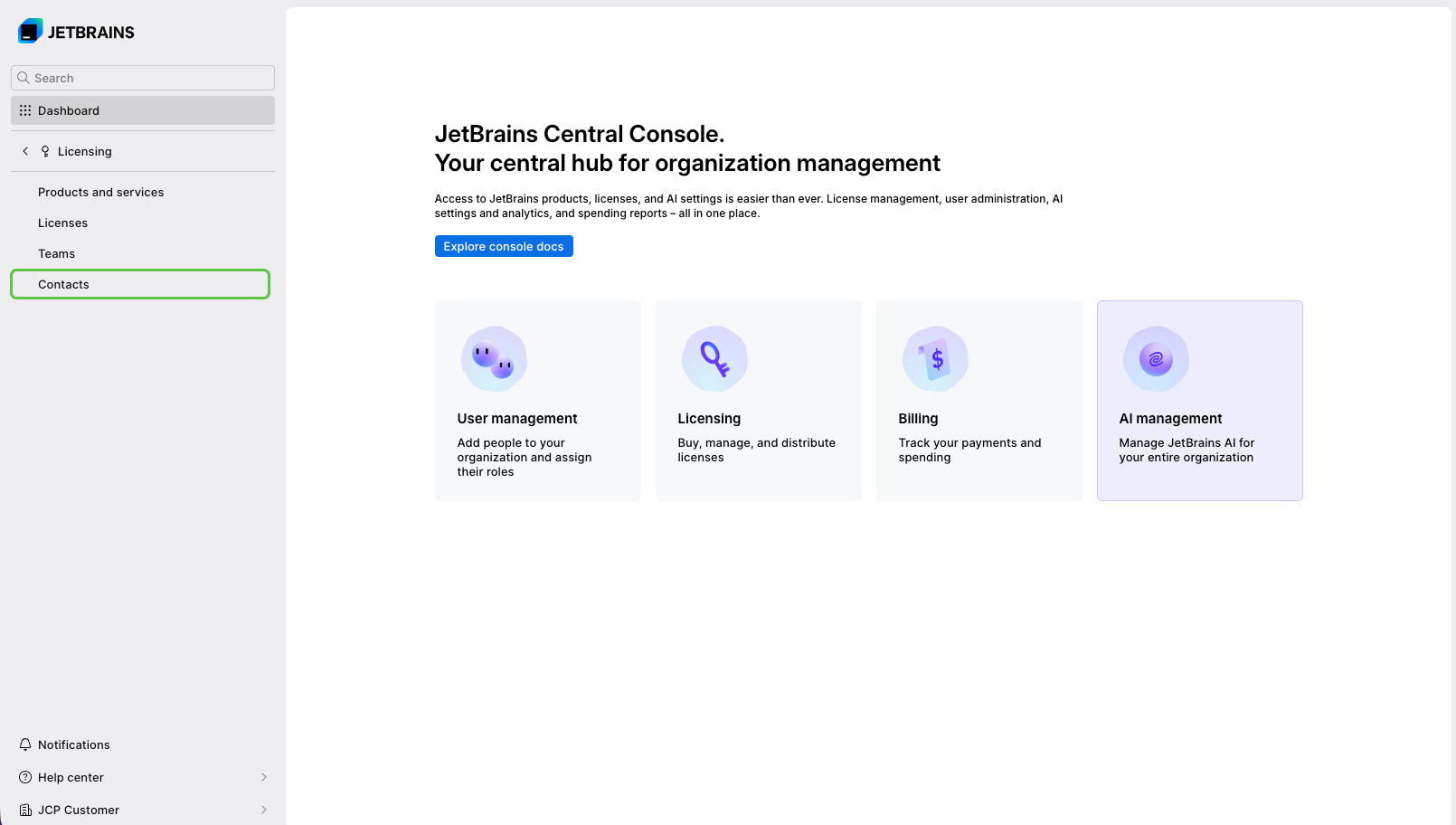
View list of contacts
Log in to JetBrains Central Console.
In the sidebar under Licensing select Contacts.
Add contacts
You can create new contacts in JetBrains Central Console if the contact’s email address belongs to your organization’s verified domain.
If you don’t have a verified domain or your contact’s email address doesn’t belong to it, you can invite them to join your organizational account.
Add contacts from a verified domain
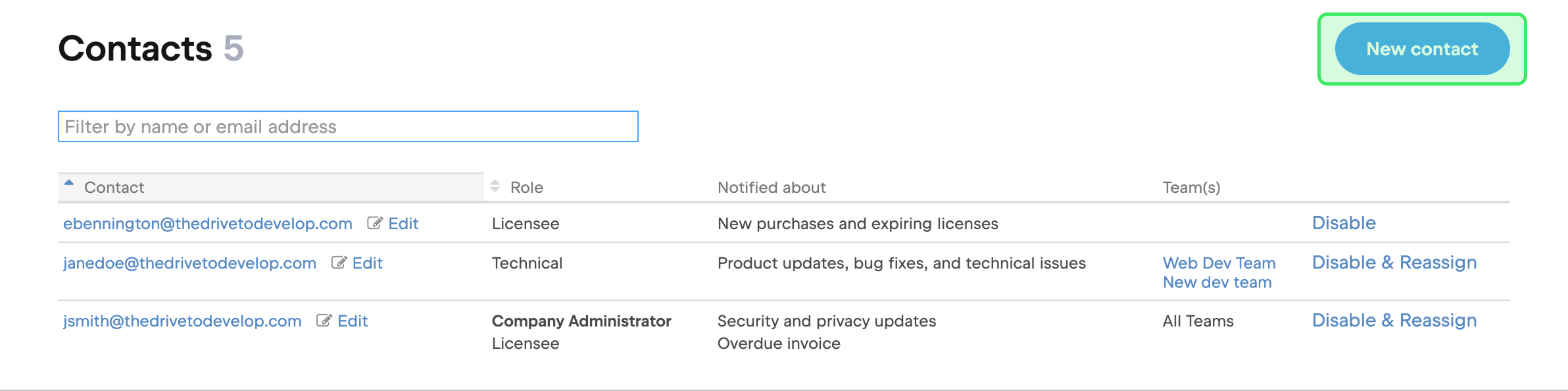
Go to the Contacts section in JetBrains Central Console.
Click the New contact button at the top of the page.
In the New contact dialog, select the Add a contact from your company tab.
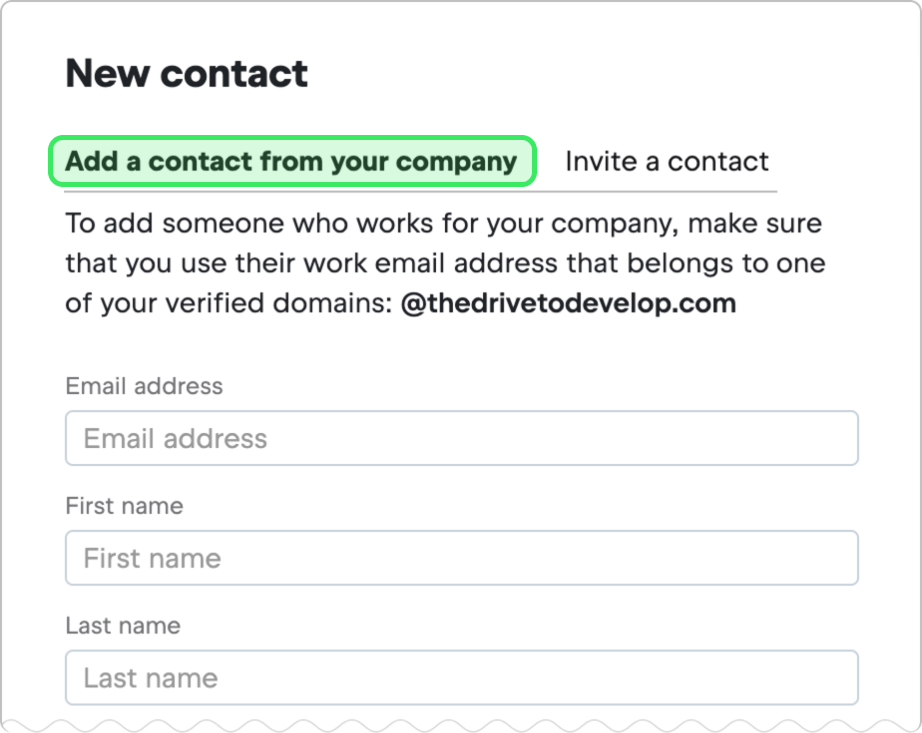
Enter your contact’s name and email address and set their preferred notification language. Then, select the roles and notifications you want to assign them.
Click Save.
The new contact will immediately appear in your contact list.
Invite contacts
If you don’t have a verified domain or your contact’s email address doesn’t belong to it, you can’t add the contact directly. However, you can invite them to join your organizational profile.
Go to the Contacts section in JetBrains Central Console.
Click the New contact button at the top of the page.
In the New contact dialog, select the Invite a contact tab.
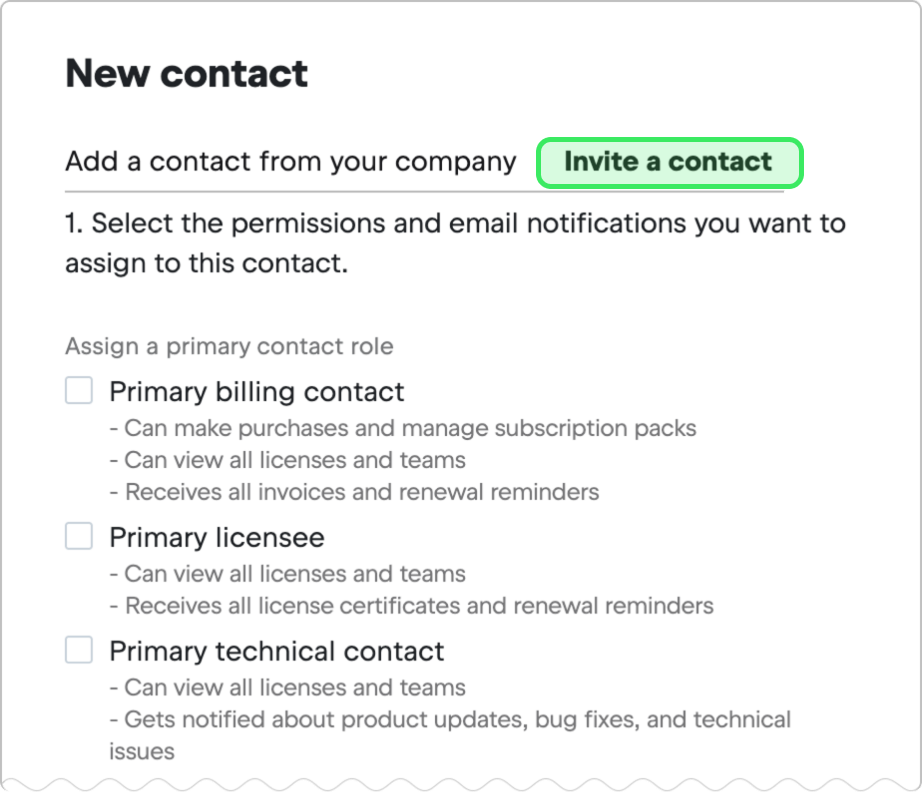
Select the roles and notifications to assign to this contact.
Click Next.
In the next step, you’ll see the invitation message. Click Copy to copy it to the clipboard or Go to email client to create an email draft.
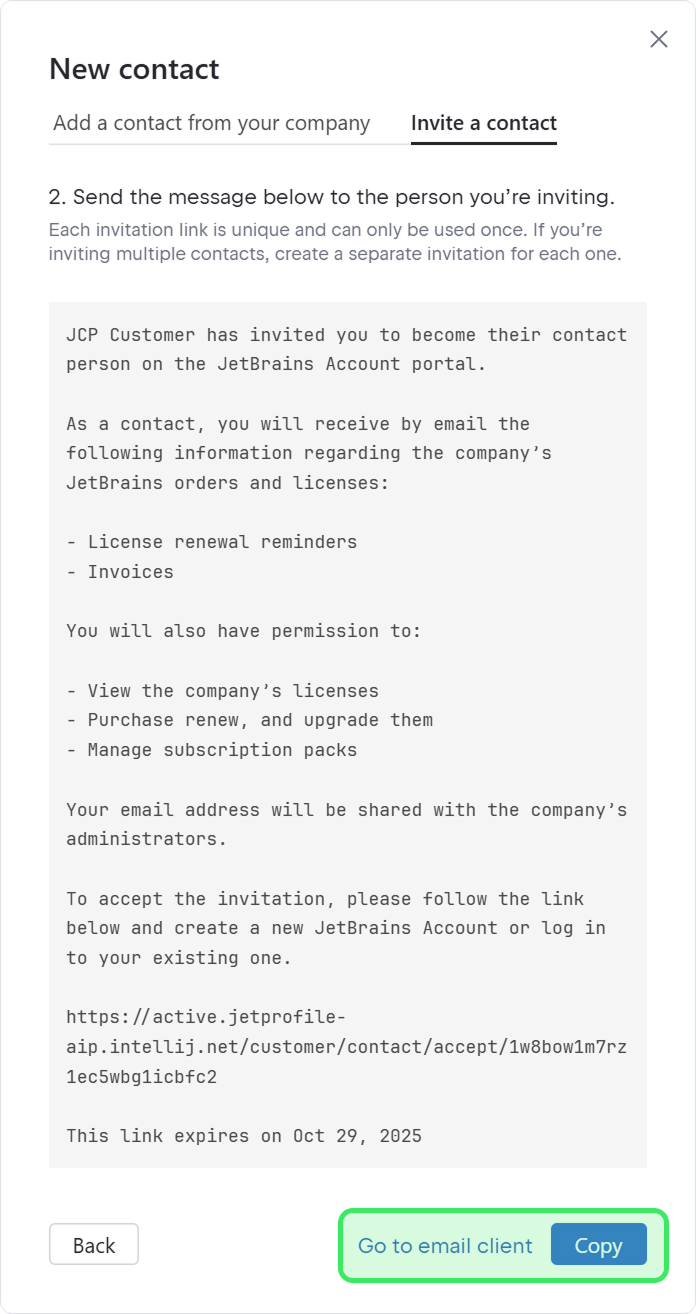
Share the message with your invitee via email or any other method.
Join the organization's profile
To join your organizational profile, the invitee will need to do the following:
Follow the link in the invitation.
Log in with an existing JetBrains Central Console or JetBrains Account or create a new account.
Once the new contact has followed these steps, you’ll see them on the contact list.
Automatically-added contacts
Contacts are added automatically in the following cases:
When you invite a new organization or team admin to your company’s profile.
When someone adds a new licensee or billing contact when placing an order on behalf of your company.
When you disable an existing contact and reassign their roles to a new person who wasn’t originally in your contact list.
All of these users will automatically appear on your contact list. By default, they don’t get any organization-wide contact roles, but you can assign additional roles to them as needed.
Change roles for existing contacts
Go to the Contacts section in JetBrains Central Console.
Find the contact whose roles you want to change. You can search for a contact by name or email address. In the Role column, you’ll see their current roles.
Click Edit next to the contact’s email address.
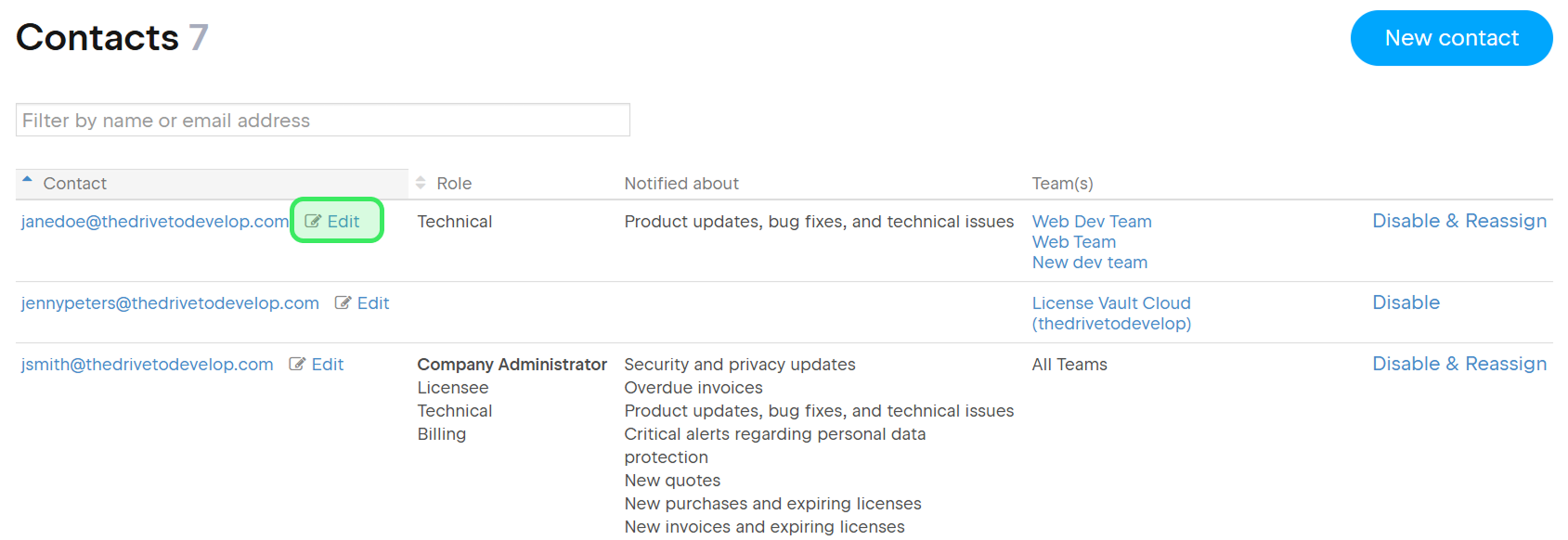
In the popup, select or clear the checkboxes next to the roles you want to assign to or remove from this contact.
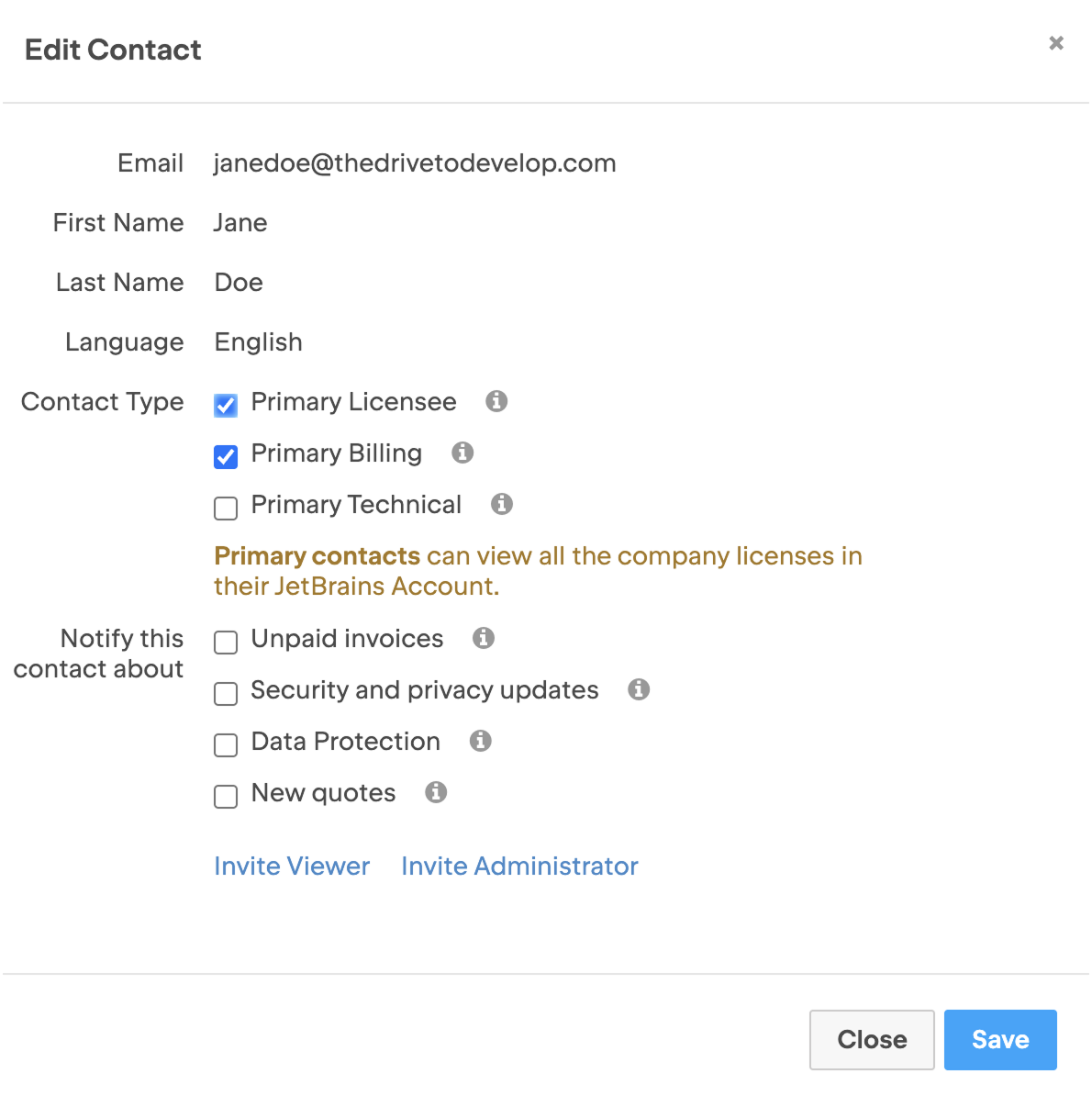
Click Save to apply the changes.
Disable contacts
You can disable a contact if you want to revoke their access to your organizational account and stop them from receiving email notifications. In some cases, you’ll also need to reassign their role to someone else.
Go to the Contacts section in JetBrains Central Console.
Find the contact you want to disable. You can search for a contact by name or email address. In the Role column, you’ll see their current roles.
Depending on the contact’s current roles, you’ll see either a Disable or Disable & Reassign button in the last column of the contacts table. Click the button.
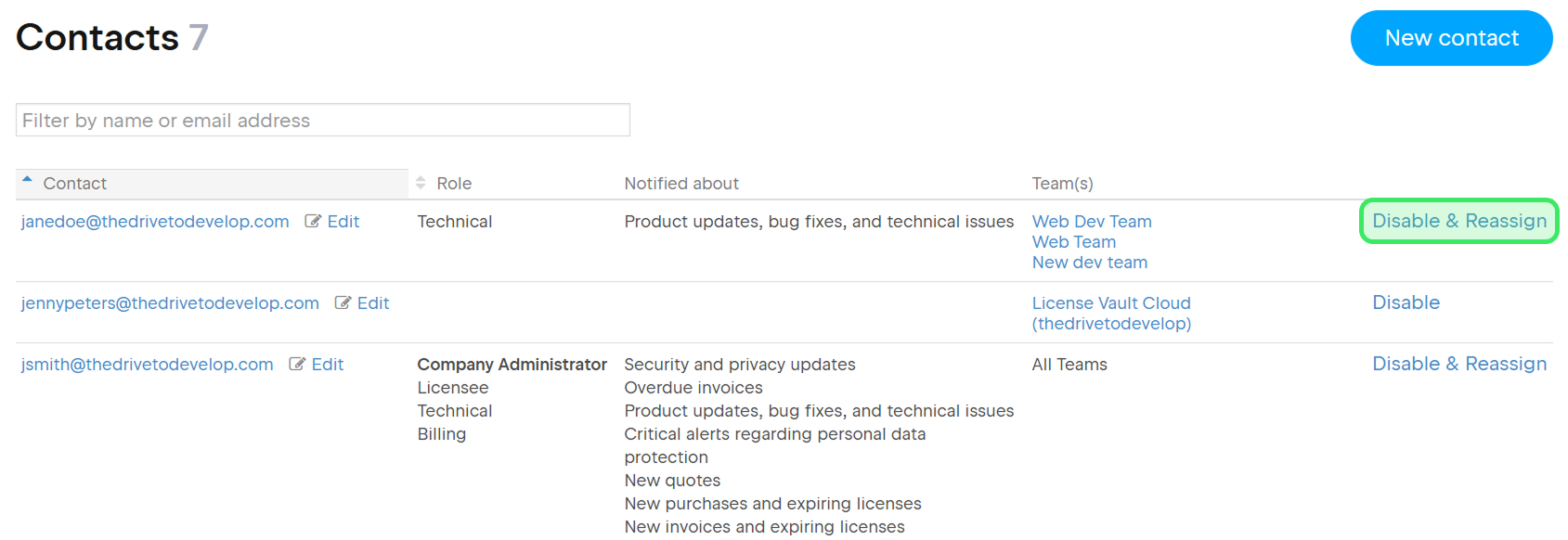
If the contact is listed as the licensee or billing contact for at least one of your organization’s past orders, you'll be requested to provide a replacement contact to take over access and notifications for these orders.
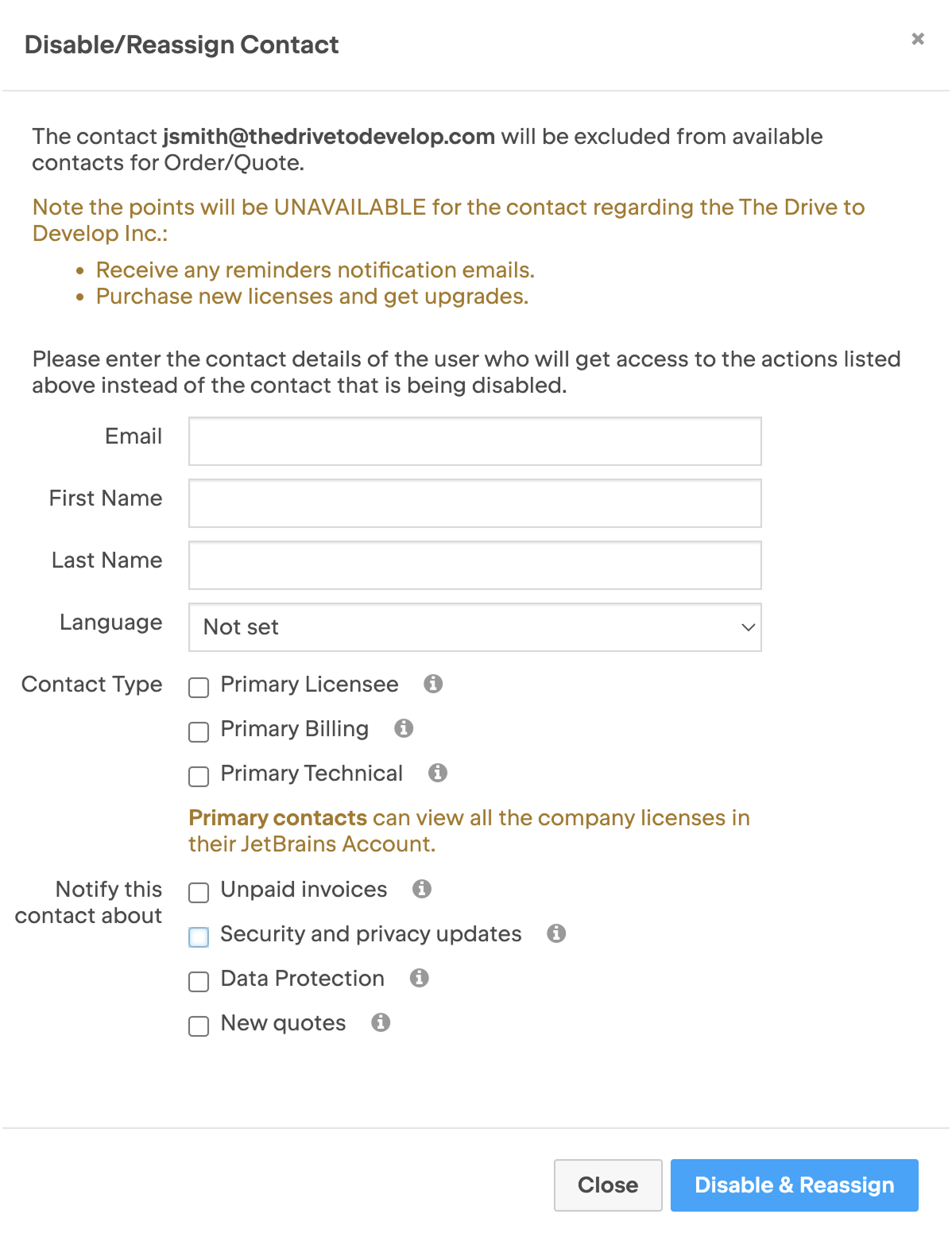
For contacts without order history, a simple confirmation popup appears.
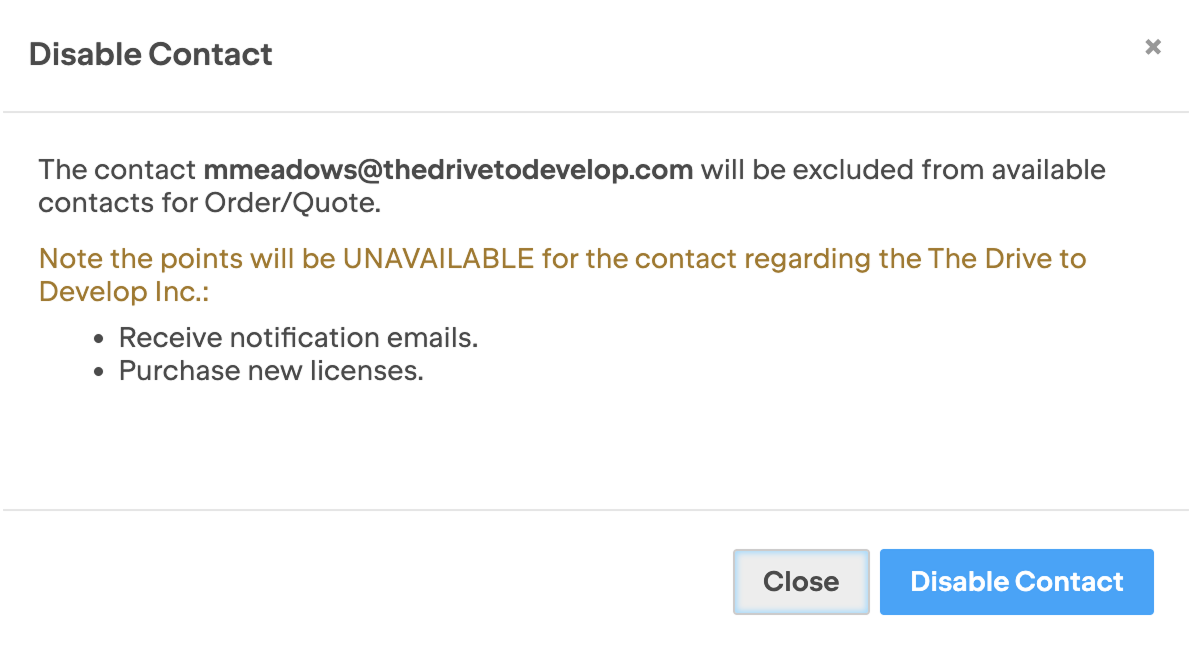
Click Disable or Disable & Reassign in the popup to confirm your action.
Re-enable a disabled contact
To enable a contact that has been previously disabled, contact Support.