MPS Editor. Guided Tour
Basics
MPS editor is a powerful tool for creating and modifying source code. As any other IDE editor, it supports basic features like bookmarks,breakpoints,syntax highlighting, code completion,, folding code blocks, etc. There are, however, plenty of advanced features like intention actions, intelligent and fast navigation, and a lot more.
To configure your editing environment, use the Editor settings page and its child pages. There is also a Quick Switch Scheme command that lets you change color schemes, themes, keymaps, etc. with a couple of keystrokes.
Learn about the specific features of the MPS editor in the Editor section of the MPS User's Guide. The sections below discuss the most common issues of working with the editor.
The editor is tab-based. All operations with the editor tabs are available from the context menu of a tab, or from node of the main menu.
Active editor
When you open a file for editing, it opens in its own tab. The editor you are currently working in, is the active editor.
Editor's areas
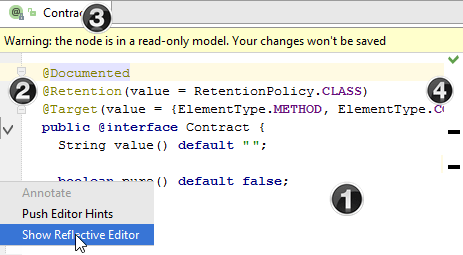
- 0. Editor area
- 1. Gutter area
- breakpoints,
- 2. Document tabs
To navigate between the tabs, use the keyboard shortcuts Alt+Right or Alt+Left.
Clicking a tab while the Ctrl key is pressed, allows navigating to any part of the file path, through opening it in an external browser.
Context menu of a tab provides all commands applicable to a file opened in the editor, for example:
- 3. Validation side bar / marker bar