Contacts
Contacts receive notifications about your organization's products and licenses.
All contacts are divided into two groups:
Organization members are users who belong to your organization. You can add users to the list of organization member contacts manually, or they can be added there automatically in some cases. These contacts can have roles within the organization, allowing them to not only receive notifications but also view or manage parts of the organization's profile.
For more information, see JetBrains Air documentation.
External contacts are users who are not members of your organization. Their contact information is added to the list automatically. They receive notifications assigned to them, but they don't have access to your organization.
All contacts receive email notifications about products and licenses. But the notifications have two different scopes:
Order-specific contacts can only access and receive notifications about specific orders assigned to them.
Organization-wide contacts receive notifications about all orders, products, and licenses across the organization.
Multiple contacts can receive the same notifications, and a single contact can receive multiple types of notifications.
You can add new contacts, disable or enable existing ones, or change their notifications.
Automatically-added contacts
Some users can be added to the list of contacts automatically. It happens in the following cases:
When someone adds a new licensee or billing contact when placing an order on behalf of your company.
When you disable an existing contact and reassign their notifications to a new person who wasn’t originally in your contact list.
All of these users automatically appear on your contact list. If they are already added to the list of organization's users, they are added to the organization members list. If not, they become external contacts.
If they already have billing or licensing notifications assigned to them, they continue receiving email notification about orders or licenses across your organization. If not, they will become an order-specific contact. But you can assign additional notifications to them as needed.
Order-specific contacts
When purchasing JetBrains products, you specify the licensee and billing contacts on the checkout page. The licensee receives the license certificate, while the billing contact receives the invoice for the order.

By default, your billing contact is the same as your licensee. But you can provide a separate contact for billing if you wish.
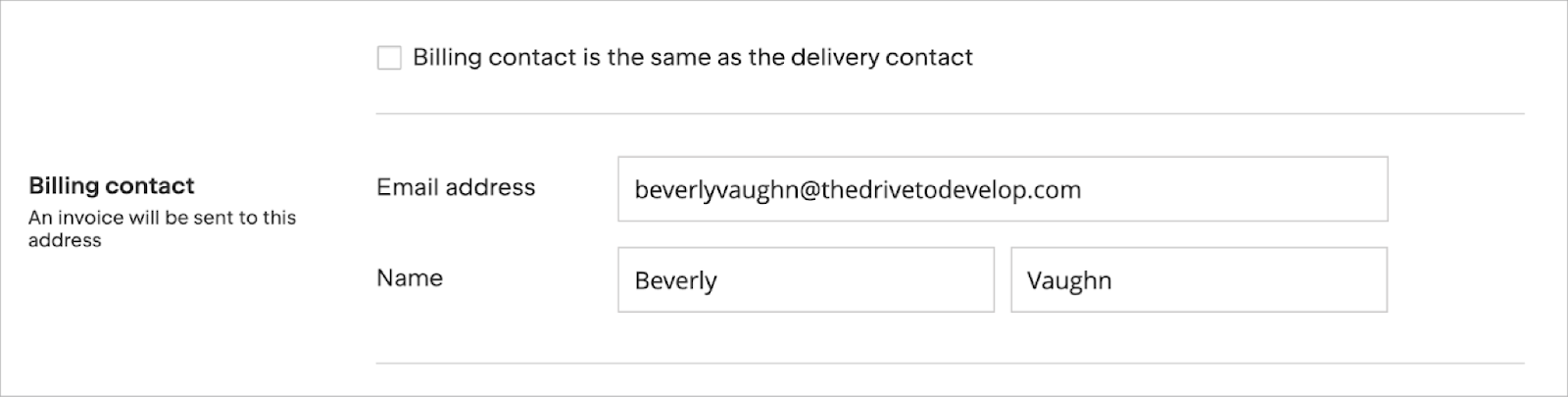
If you buy your licenses through a sales representative or a JetBrains partner, they will specify the licensee and billing contact information on your behalf.
These contacts are automatically added to your organization’s contact list. They can be external contacts or organization members depending on whether they were previously added to the organization's user list.
By default, they will only have access to and receive email notifications about this specific order. But you can assign additional email notifications to themas needed.
External contacts
External contacts are users who receive notifications about products and licenses in your organization but aren't its members. They can only be added to the list of contacts automatically. You can change which notifications they receive and disable their notifications.
External contacts don't have access to your organization. If you want these contacts to view or manage parts of the organization, you can add them as a member to the organization and then assign them a role with necessary permissions. When you do that, these users will be moved from the external contact list to the organization member contact list.
For information about adding members to your organization and assigning roles to them, see JetBrains Air documentation.
Manage contacts
Managing contacts involves adding users who should receive notifications and defining the types of notifications they receive.
View the list of contacts
Log in to JetBrains Console.
In the sidebar, under Organization, select Contacts.
If you don't see this page, your role doesn't have the necessary permissions.
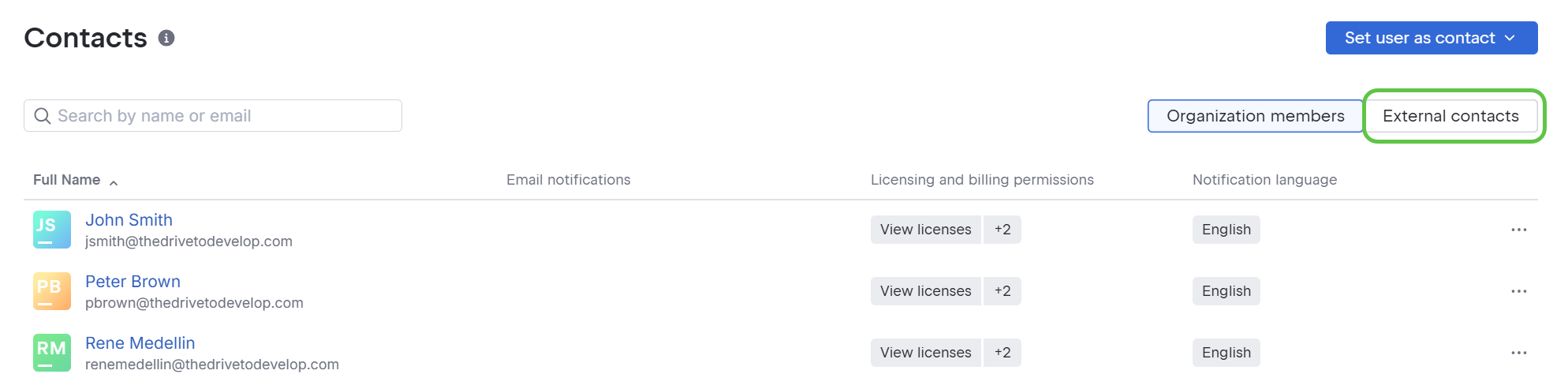
You will see the list of organization member contacts. To view external contacts, click External contacts in the upper-right corner.
Add a user to contacts
Log in to JetBrains Console.
In the sidebar, under Organization, select Contacts.
If you don't see this page, your role doesn't have the necessary permissions.
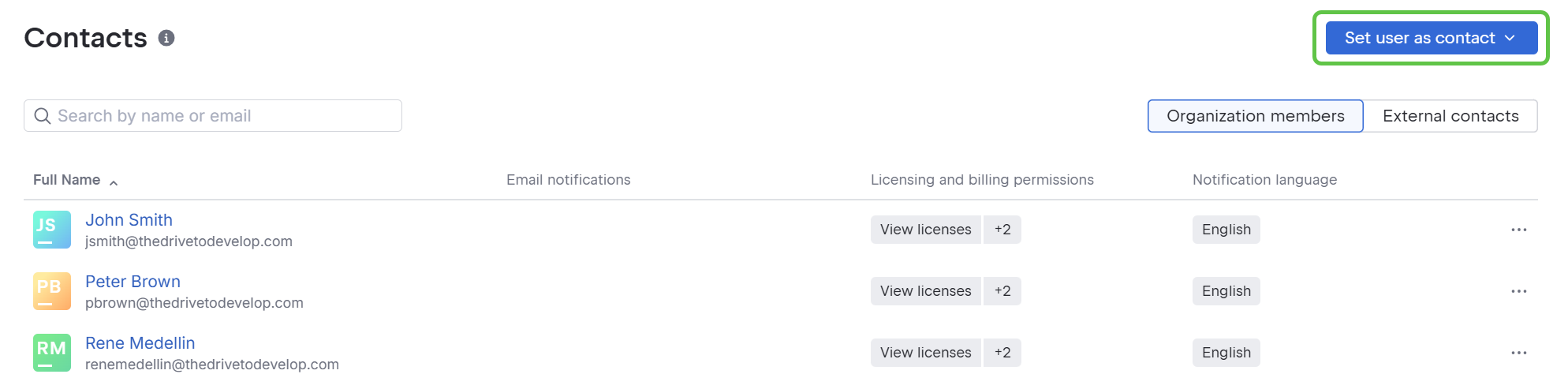
Click the Set user as contact button at the top of the page.
Select the desired user from the list or use the search to find them.
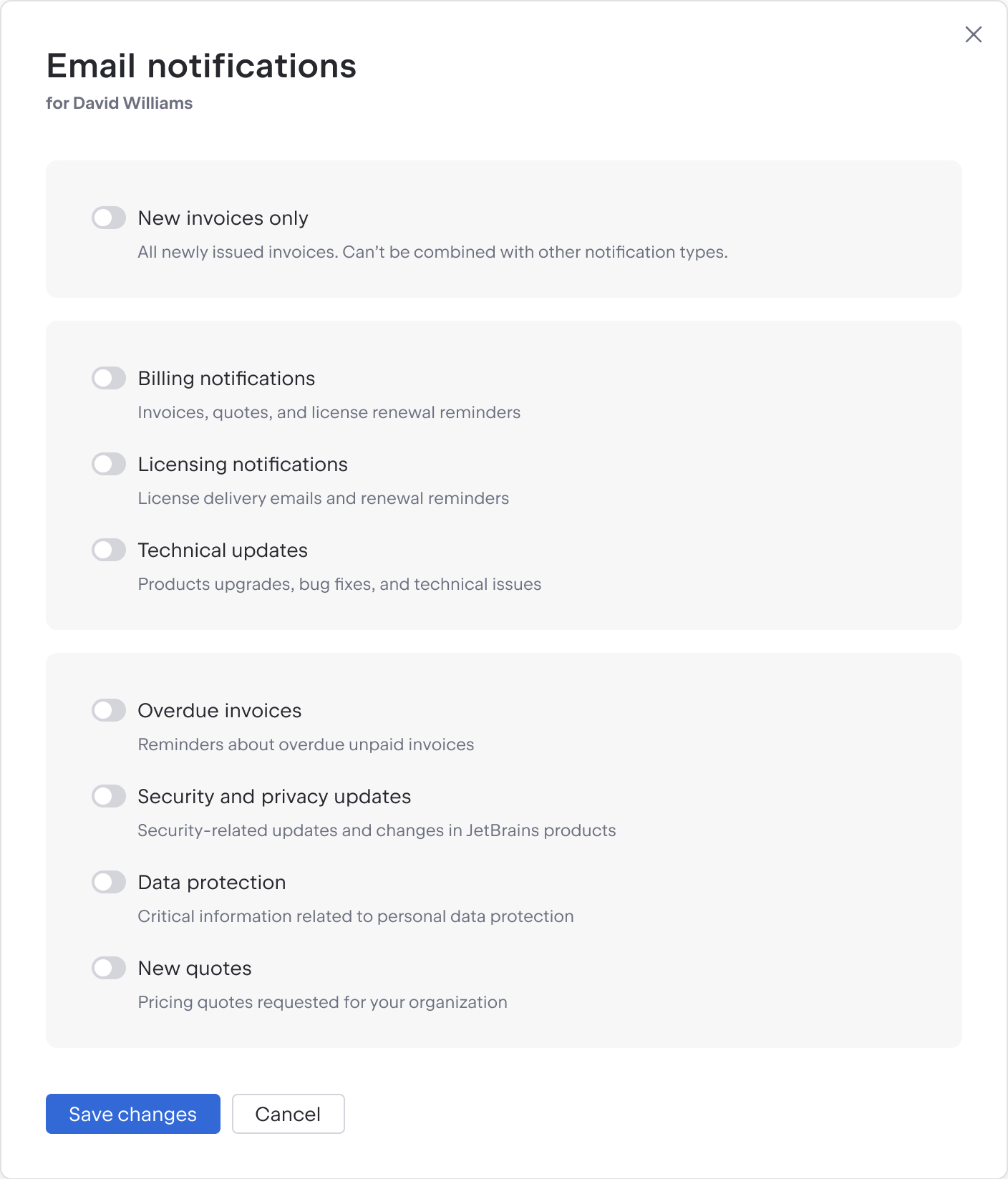
In the Email notifications dialog, toggle the email notifications you want this user to receive.
Click Save changes.
Change notifications for existing contacts
Log in to JetBrains Console.
In the sidebar, under Organization, select Contacts.
If you don't see this page, your role doesn't have the necessary permissions.
In the list, find the user whose notifications you want to change. You can search for a contact by name or email address. In the Email notifications column, you’ll see the notifications they currently receive.
Click
 next to the user and select Change notification settings.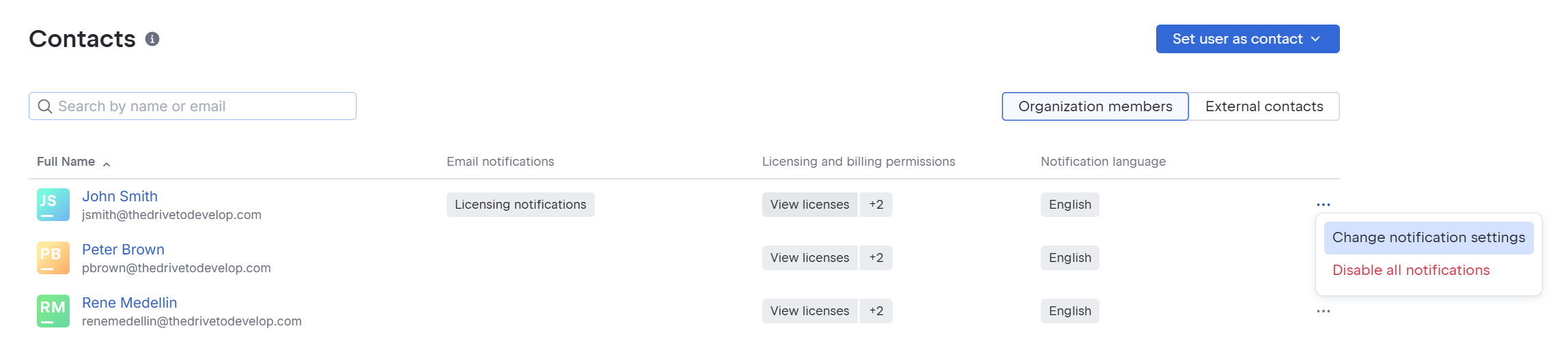
In the Email notifications dialog, toggle the desired notifications on or off.
Click Save changes.
Disable notifications for a contact
You can stop a user from receiving emails by disabling the notifications. In some cases, you’ll also need to reassign their notifications to someone else.
Log in to JetBrains Console.
In the sidebar, under Organization, select Contacts.
If you don't see this page, your role doesn't have the necessary permissions.
In the list, find the user whose notifications you want to disable. You can search for a contact by name or email address. In the Email notifications column, you’ll see the notifications they currently receive.
Click
next to the user and select Disable all notifications. If the contact is listed as the licensee or billing contact for at least one of your organization’s past orders, you'll need to provide a replacement contact to take over notifications for these orders.
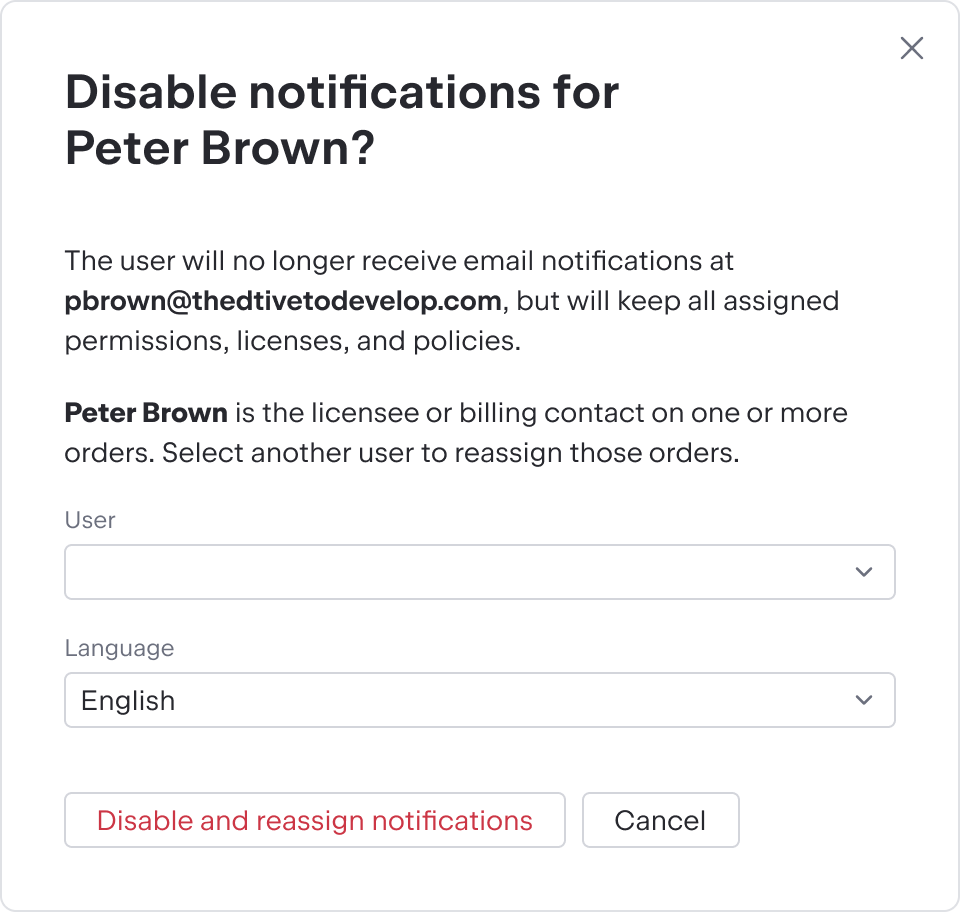
For contacts without order history, a simple confirmation dialog appears.
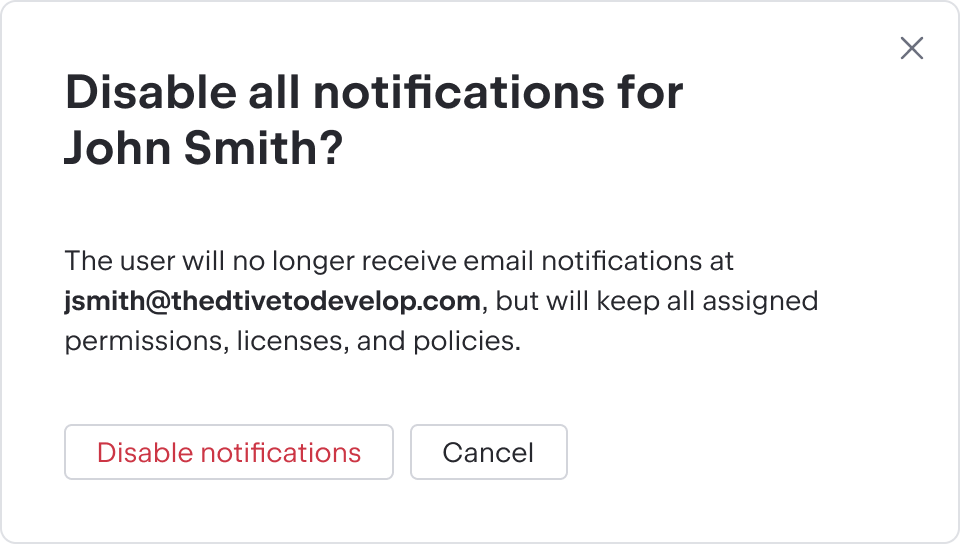
Click Disable notifications or Disable and reassign notifications in the dialog to confirm your action.
Re-enable notifications for a contact
You can re-enable notifications for that were previously disabled for a contact. Once you do that, they will start receiving the same emails as before. In the Email notifications column, you’ll see the notifications they used to receive. You can also change their notifications after enabling.
Log in to JetBrains Console.
In the sidebar, under Organization, select Contacts.
If you don't see this page, your role doesn't have the necessary permissions.
In the list, find the user whose notifications you want to enable.
Click
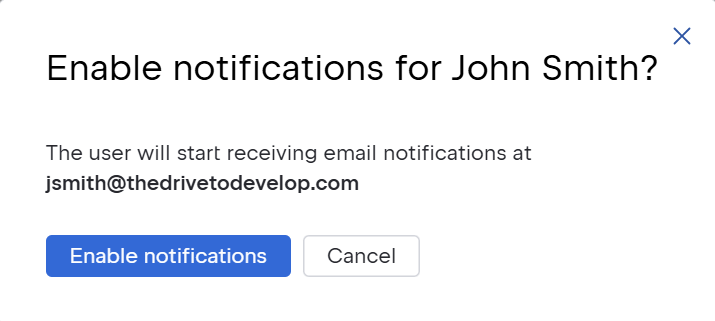
next to the user and select Enable notifications. 
Click Enable notifications in the dialog to confirm your action.
Email notification types
When you add a new contact or change an existing one, you can decide which email notifications they will receive.
Notification type | Emails sent |
|---|---|
New invoices only | All new invoices issued for your organization |
Licensing notifications |
|
Technical updates |
|
Billing notifications |
|
Overdue invoices | Reminders about overdue unpaid invoices |
Security and privacy updates | Security-related updates and changes in JetBrains products |
Data protection | Critical information related to personal data protection |
New quotes | All pricing quotes requested for your organization |