Code analysis and helpers for string literals
In system string formatting methods
ReSharper for Visual Studio Code analyzes format strings and arguments of all .NET string formatting methods, such as String.Format, Text.StringBuilder.AppendFormat, or Console.WriteLine.
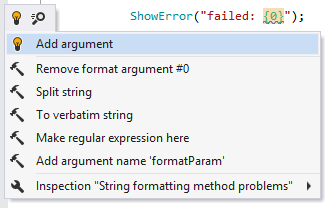
If arguments and format placeholders mismatch (which leads to the FormatException in runtime if arguments are missing), ReSharper for Visual Studio Code generates warnings for missing or redundant arguments:

You can fix this problem by pressing Alt+Enter over the warning. ReSharper for Visual Studio Code will suggest either adding the missing argument or removing the mismatched format placeholder.
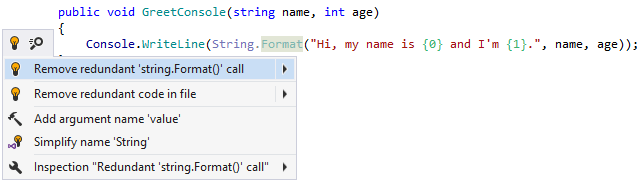
ReSharper for Visual Studio Code also helps you detect and remove redundant calls of string formatting methods inside other string formatting methods. For example:
To convert a concatenation of string literals and variables, press Alt+Enter anywhere within the concatenation and use the To String.Format invocation context action. For example, if we apply this context action in the return statement of the following method:
It will be converted to:
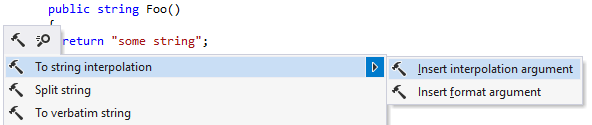
You can also use context actions to automatically add and remove format placeholders and arguments in strings. When you invoke the Insert format argument action within a string literal, ReSharper for Visual Studio Code inserts a new placeholder with the proper index and brings you to the position where you can immediately start typing the argument. This action can also be invoked on a plain string. In this case ReSharper for Visual Studio Code will automatically convert it to the String.Format call.
To remove a format placeholder together with the corresponding argument, place the caret at the placeholder, press Alt+Enter and choose Remove format argument.
In custom string formatting methods
To enable code analysis and assistance features in custom string formatting methods, use the [StringFormatMethod] and [StructuredMessageTemplate] attributes from the JetBrains.Annotations namespace.
Consider a custom string formatting method ShowError:
If the method is called incorrectly, as shown below, ReSharper for Visual Studio Code has no chance to detect the missing argument:

Make ReSharper for Visual Studio Code aware of a custom string formatting method
Reference the
JetBrains.Annotationsnamespace as described in the Annotations in source code section.Annotate your custom string formatting method with the
[StringFormatMethodAttribute]attribute, which takes a single argument — the name of the format string parameter:[StringFormatMethod("formatString")] public void ShowError(string formatString, params object[] args) { // some custom logic Console.WriteLine(formatString, args); }ReSharper for Visual Studio Code will be able to warn you about missing arguments when this custom formatting method is invoked.
Alternatively, annotate the parameter that accepts a formatted string with the
[StructuredMessageTemplateAttribute]:void LogNewUser([StructuredMessageTemplate] string message, params string[] args) { // Log new user } void Test() { // Warning: Non-existing argument in format string LogNewUser("User created: {username}"); }This second approach allows you to use custom strings as placeholders, as
usernamein the example above.
In interpolated strings
Modern versions of C# provide a more elegant alternative to the String.Format method — interpolated strings. That is why ReSharper for Visual Studio Code highlights usages of String.Format with the suggestion to convert them into interpolated strings. You can use a quick-fix to apply the conversion with a couple of keystrokes.
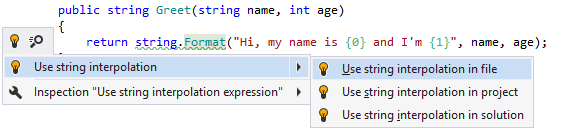
If you need to add the $ at the beginning of the string when you are deep into typing out the string, you can press Alt+Enter and choose To string interpolation.