Inlay hints
Inlay hints are editor adornments that improve the readability of your code. ReSharper uses the existing mechanism of VS Code Inlay Hints to display the hints and their behavior is controlled by the corresponding VS Code settings. The content of the hints is provided by the powerful ReSharper code analysis engine that takes into account the entire solution structure.
Push-to-Hint mode
Inlay hints can be helpful, but on the other hand, they take editor space and may seem redundant in some cases. To view inlay hints on demand, you can use the Push-to-Hint mode. It lets you keep the hints hidden and only view them when needed.
To enable the Push-to-Hint mode, select offUnlessPressed in the Inlay Hints: Enabled selector in settings.
Show inlay hints on a key press
Make sure that the application focus is in the editor.
Press Ctrl+Alt. Inlay hints will be shown as long as you hold the keys.
If you want inlay hints to be always shown or hidden in all editor tabs, select on or off in the Inlay Hints: Enabled selector.
Parameter name hints
As an alternative to writing named arguments in method calls, you can make use of ReSharper for Visual Studio Code's parameter name hints — editor adornments that show parameter names next to the corresponding arguments at method calls.
Consider the following method call:
When you read this code, you have to stop and study the method signature to understand what happens here (you can do it either with the parameter information tooltip or by navigating to method declaration). With parameter name hints, the same call becomes much clearer:

Type name hints
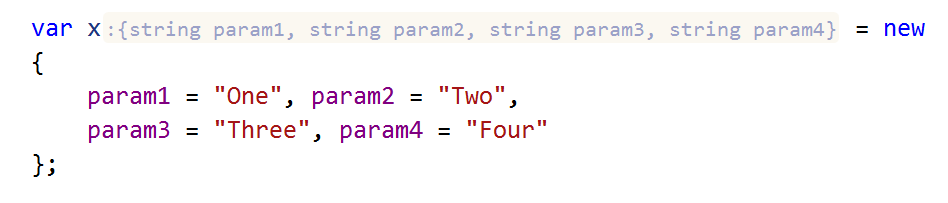
Type name hints help you understand the types that variables and expressions have in different contexts. For example:
anonymous types,
parameters of lambda expressions,

return types of methods in a call chain,

and in many other cases.
Code analysis hints
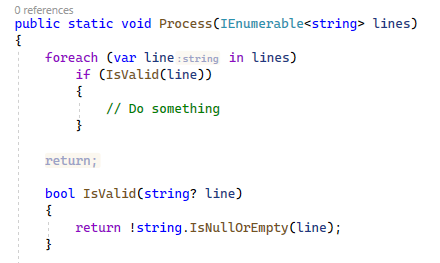
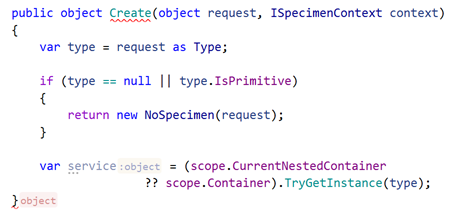
You can display missing returns in functions and missing breaks in switch statements using inlay hints. This lets you immediately understand what exactly is missing:
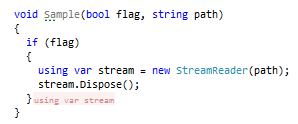
You can use inlay hints to see places where resource variables are disposed:
If you are using the [MustDisposeResourceAttribute] from JetBrains.Annotations to enforce resource disposal in the calling code, ReSharper for Visual Studio Code helps you visually identify constructors and factory methods that return a disposable resource:

Inlay hints for unnamed constructs
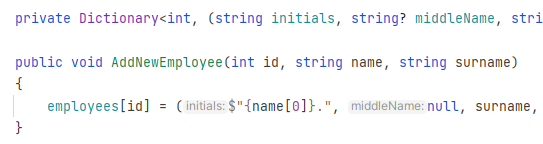
You can see tuple component names as inlay hints when those names are not apparent from the component expression:
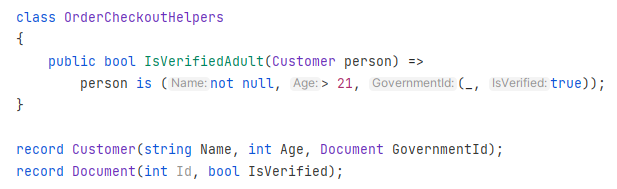
Inlay hints can greatly improve the readability of a deconstruction pattern by showing the declared names of its components:
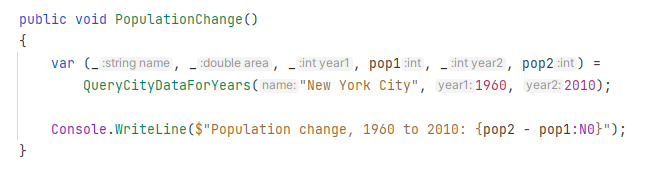
When a method returns more variables than needed, and some are discarded with _, inlay hints can help you see what is discarded.
'#pragma warning' hints
#pragma warning directives allow you to disable and restore specific warnings by their ID. It is hard to remember what each ID means, therefore ReSharper for Visual Studio Code can add inlay hints with warning descriptions. Note that this kind of hint only works with compiler warnings, whose IDs start with CS.

Trailing local function hints
Having local functions at the end of a code block is a common practice, but when reading such blocks, you often need to scroll past local function definitions to make sure there is no executable code after them.
To improve readability in such cases, ReSharper for Visual Studio Code offers inline hints that either visualize the implicit control flow markers such as return; and continue, or show //Local Functions if there is no more executable code in the block.