Coding assistance
ReSharper for Visual Studio Code provides a lot of features that greatly improve your development performance.
Increase typing speed with code completion and typing assistance
Ctrl+Space
As you type, completion suggestions appear automatically. What you normally need is to type a couple of characters and pick the corresponding suggestion. Even without typing, you can invoke the completion list with Ctrl+Space.
In addition to completion suggestions, there are several typing assistance features that can improve your coding speed.
Generate boilerplate code with code templates
Ctrl+Space
Apart from suitable language identifiers, completion lists also include code templates that can generate entire code constructs for you. You can find more information about specific kinds of code templates in the corresponding topics:
Live templates cover most of the boilerplate code that you create from scratch — check out the list of available live templates.
Postfix templates help you transform expressions that you have already typed without jumping backwards — just type a dot after an expression and pick a template from the completion list.
Learn more about Postfix templates.
Source templates are similar to postfix templates, but you can define them right in your source code.
Transform code with context actions
Alt+Enter
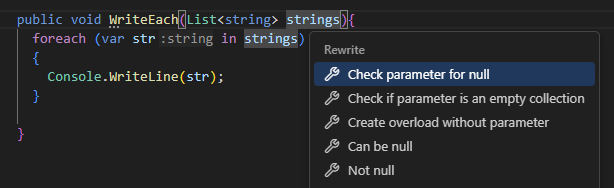
Context actions let you quickly transform code in a local scope. There are hundreds of them for different cases — you can press Alt+Enter at any place to check the available actions.
Study available method signatures with parameter info
Ctrl+Shift+Space
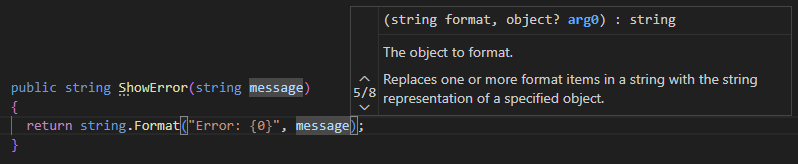
Whenever you are writing or studying a function call, ReSharper for Visual Studio Code helps you view details on the allowed arguments for all overloads of the function. In a popup, you will see all public signatures with parameters and a brief description taken from the function's XML documentation, if one is available .
When your caret is inside the braces of an invocation, you can press Ctrl+Shift+Space to see the currently used signature or the shortest signature if there are no arguments.
Study symbol details with quick documentation
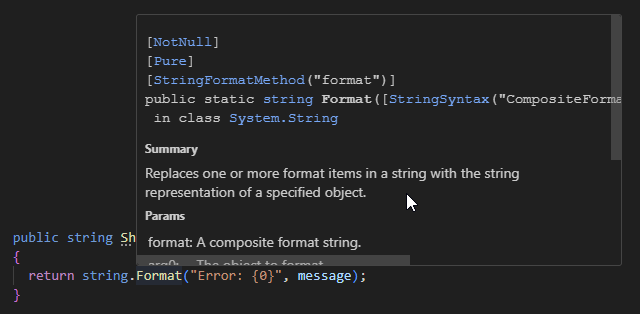
With ReSharper for Visual Studio Code, you can quickly review the documentation of a symbol right in the editor. If the symbol is documented in a supported format (such as XML-docs for C#), you will see all the documentation with proper formatting. Otherwise, the basic symbol information will be shown (such as full method signature or type visibility and namespace).
To view the documentation of a symbol, hover the mouse over it.