Use AI agents to execute complex tasks
In agent mode, ReSharper AI Assistant runs an AI coding agent that works within the context of your solution. An agent can generate code, explain and refactor complex logic, and suggest and implement improvements.
Agent modes
At the bottom of the AI Assistant tool window, you can select one of the following chat modes:
- AI Chat
The regular chat mode. AI Assistant answers your questions but does not run an agent. For more information, refer to Chat with AI Assistant.
- Junie
Agent mode that uses Junie, the AI coding agent by JetBrains.
- Claude Agent
Agent mode that uses Claude through the Claude ACP adapter.
- Codex
Agent mode that uses Codex through the Codex ACP adapter.
Capabilities
Write and edit code autonomously — an agent builds and modifies your application. You can ask it to write complex logic based on text prompts, or have it edit and update your existing codebase.
Execute autonomous refactorings — an agent applies changes instead of only suggesting them. You can task the agent with splitting a large class into several logically separated modules, or have it find and fix suboptimal code across your files. For semantic code changes, agents can use ReSharper refactoring tools.
Perform terminal and VCS operations — drive your workflow directly from the prompt. An agent can run terminal commands to create or delete files, initialize Git repositories, stage and commit changes, write commit messages, and manipulate branches without you opening a command line.
Explore, explain, and advise — an agent can answer project-specific questions, explain complex legacy algorithms, and suggest architectural improvements.
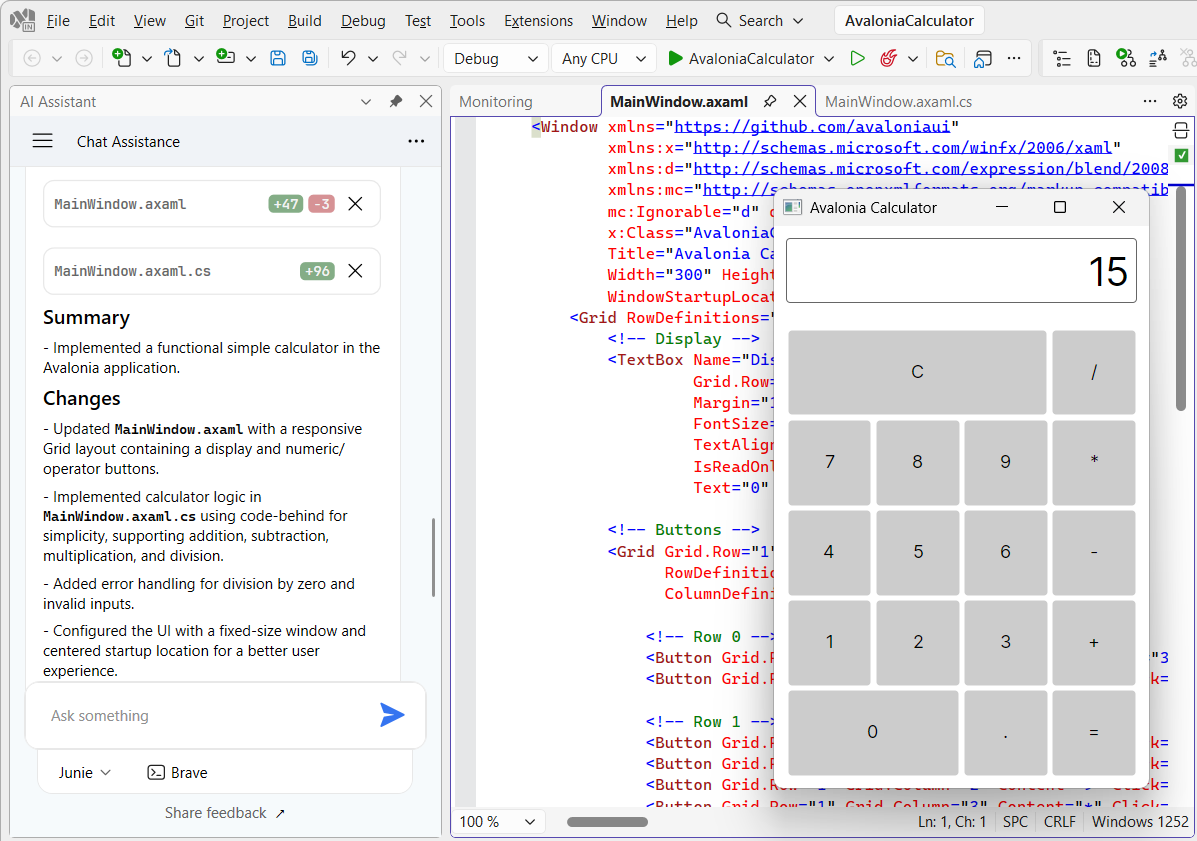
ReSharper tools and refactorings
ReSharper registers its MCP server as resharper. Agents use this MCP server to call ReSharper tools while they work on your tasks.
Agents can use ReSharper refactoring tools for semantic code changes. These tools resolve symbols through the ReSharper index and update related references. The following refactoring tools are available to agents:
For more information about refactorings in ReSharper, refer to Refactorings.
Current limitations
Agents have general access to all files in the solution directory. Fine-grained manual context management is not yet available.
Get started
Before you start, make sure that AI Assistant is installed and that you are logged in. For more information, refer to AI Assistant.
Start working with an AI agent
Select from the main menu to open the AI Assistant tool window.
If a previous session of an AI chat is open, click + on the toolbar.
At the bottom of the AI Assistant tool window, above the input field, select Junie, Claude Agent, or Codex.
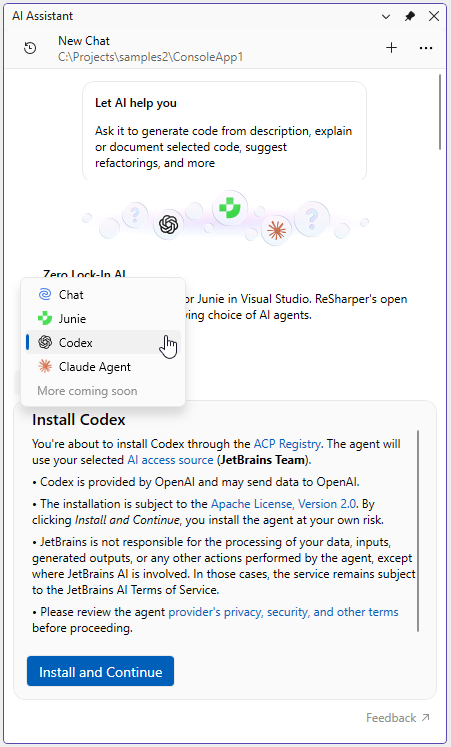
If the selected agent is not installed, click Install and Continue.
Below the input field, you can configure a set of options specific to the selected agent, such as model, working mode, and so on:
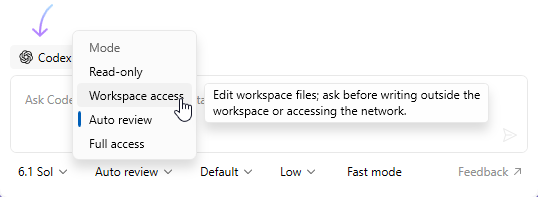
Type your task in the input field and send it.
Agent permissions
In agent mode, the agent can edit files in your solution directory and run terminal commands. Actions that can have a wider impact require your approval before the agent executes them.
Turn off agent mode
To turn off agent mode, select AI Chat instead of Junie, Claude Agent, or Codex at the bottom of the AI Assistant tool window. In AI Chat, ReSharper AI Assistant works as a regular chat and does not edit files.
Troubleshooting
AI Assistant tool window does not open
Make sure AI Assistant is enabled in ReSharper. Go to and select the AI Assistant checkbox. For more information about AI Assistant options, refer to AI Assistant. General options.
If there is no AI Assistant category in the options, run the dotUltimate Setup Wizard, make sure that Install or Repair is selected next to AI Assistant in the list, and complete the wizard.
AI Assistant explains what to do instead of doing it
Make sure that Junie, Claude Agent, or Codex is selected instead of AI Chat at the bottom of the AI Assistant tool window.