Develop Godot Asset Store addons in Rider
JetBrains Rider 2026.2+ provides a project template for creating Godot projects from scratch. You can use it to create Godot games, assets, and editor extensions for Godot Asset Store with preconfigured project structure, build settings, and run configurations.
Before you start, make sure that Godot v.4.5 or above is installed on your machine. You can download and install the latest version from the official Godot website.
Enable required plugins
This functionality relies on the following plugins, which are bundled and enabled in JetBrains Rider by default: Godot, Godot.NET, and Godot Shared (Technical).
If the relevant features are not available, make sure that you did not disable these plugins.
Press Ctrl+Alt+S to open settings and then select .
Open the Installed tab, find the plugins, and select the checkboxes next to the plugin names.
Create a Godot project
Open the New Solution dialog in one of the following ways:
On the Welcome screen, click New Solution.
From the main menu, select .
In the left pane, select Godot under Game Development.
Configure the project settings:
Solution name: Specifies the name of the solution and the addon project.
Solution directory: Specifies the directory where JetBrains Rider will create the solution.
Create Git repository: Initializes a Git repository for the new project. Enabled by default.
Template:
Godot Game Project - a project intended for gameplay/runtime functionality.
Godot Asset - an addon intended for sharing scripts, shaders, or other assets.
Godot Editor Plugin - an addon intended for extending the Godot editor.
Use CMake to manage project:
Enables CMake-driven project management, allows adding GDExtensions and managing addons. Allows hiding third-party code from the project structure and indexing in the IDE, suitable for complex projects.
Add C++ GDExtension - adds a native C++ GDExtension to the project.
Download Rider addon for Godot - automatically downloads the JetBrains Rider Integration add-on for Godot editor during CMake configuration. Can be configured for other addons too.
Click Create.
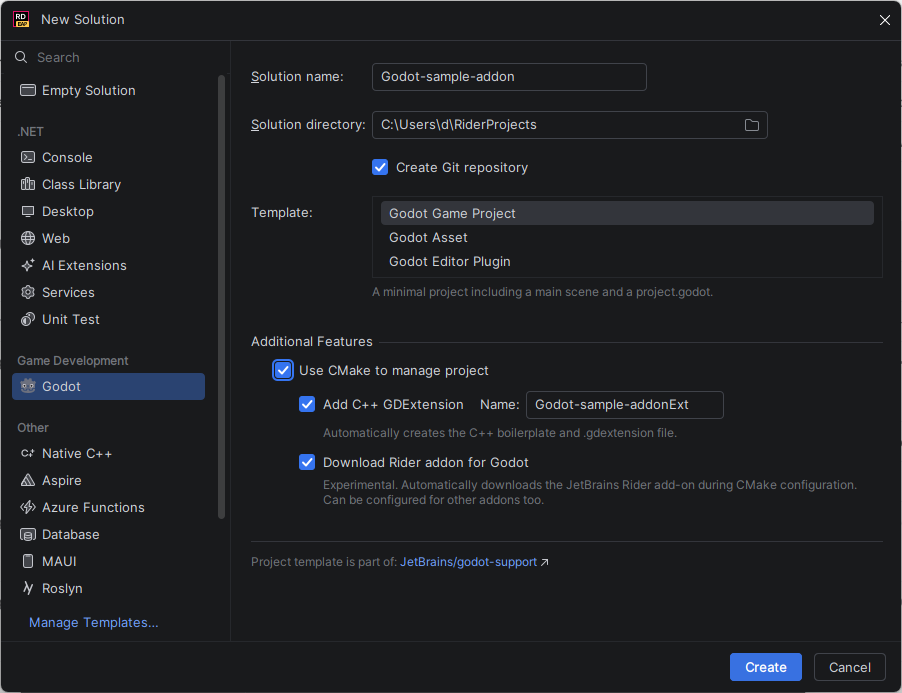
JetBrains Rider creates a new Godot addon solution with the minimal required project structure and configuration files.
CMake configuration
When Use CMake to manage project is selected in the New Solution wizard, JetBrains Rider creates a CMake-based addon project and configures the required integration automatically.
If Use CMake to manage project is not selected, you can proceed to the Import the project in Godot section.
If CMake or Ninja isn't installed on your system, JetBrains Rider detects the missing tools and prompts you to download and install them automatically.
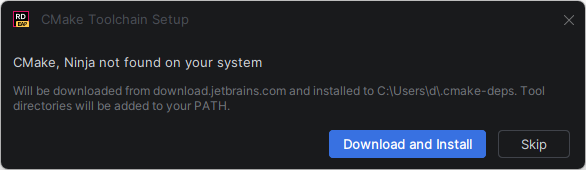
The tools are downloaded and installed locally, and their directories are added to the system PATH.
After the solution is created, JetBrains Rider opens the CMake Settings dialog where you can configure the CMake profile used for the project.
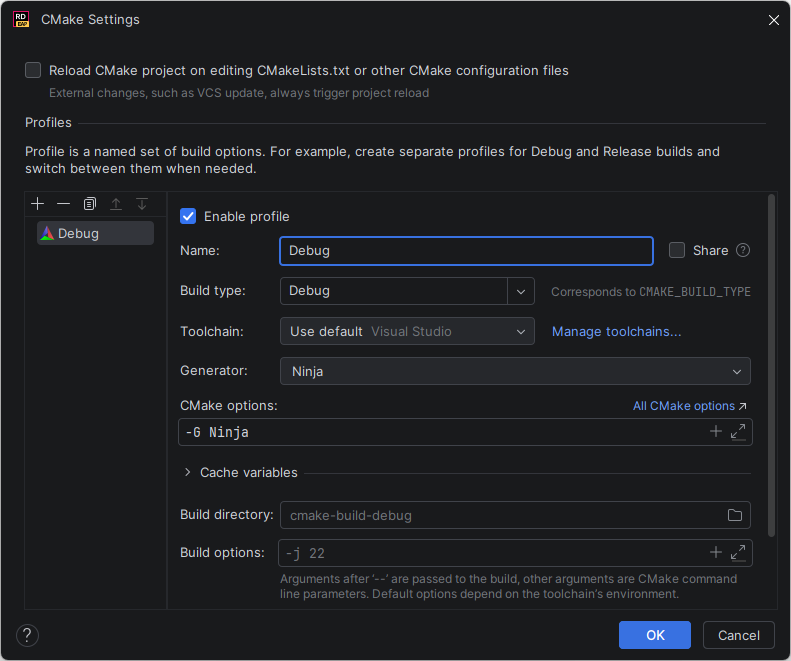
The most important setting is Generator, it specifies the CMake generator used to produce the build system files. Choosing NMake on Windows would significantly slow down the build, use Ninja instead.
In most cases, the default settings detected by JetBrains Rider are enough. Click OK to apply the configuration and load the project.
If Use CMake to manage project is selected in the wizard, JetBrains Rider also creates a CMake project around the addon with the following project structure:
CMakeLists.txt: the main CMake configuration file.
Additional CMake-generated files and build directories.
This structure is different from a typical manually created Godot addon, but it simplifies adding native GDExtension modules later and improves IDE performance for larger projects by allowing JetBrains Rider to manage indexing and generated files more efficiently.
Some generated or auxiliary files may be hidden in the Solution Explorer. To show all files in the project, click Show All Files  on the toolbar.
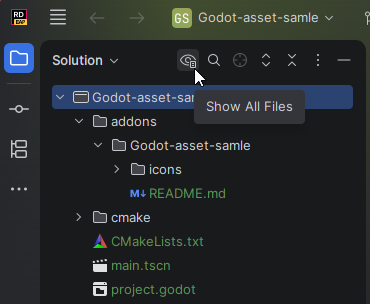
If the Add C++ GDExtension option was checked in the wizard, build the native part of the addon in JetBrains Rider:
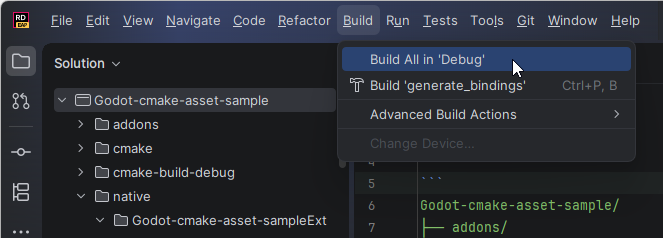
Import the project in Godot
To continue working on the project, import it in the Godot editor. This enables JetBrains Rider to detect the Godot version and path to the Godot editor, and automatically configure editor integration, run configurations, and debugging support.
Open the newly created project in the Godot editor and then close the editor. After the editor opens the project once, JetBrains Rider detects the Godot project files and completes the synchronization.
After the project is synchronized, you can:
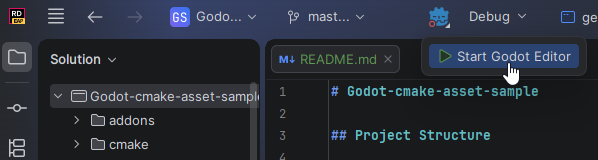
Open the Godot editor directly from the JetBrains Rider toolbar.
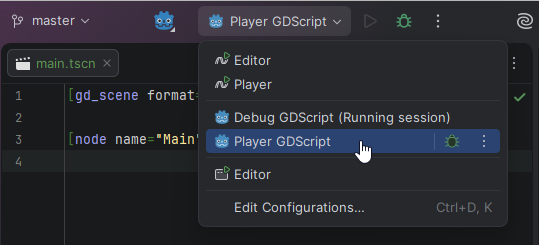
Use dedicated run configurations to run and debug the addon from JetBrains Rider.
Run and debug
JetBrains Rider uses run configurations to run and debug Godot addons.
After the project is synchronized with the Godot editor, JetBrains Rider automatically creates a preconfigured GDScript run configuration. You can use it to run and debug .gd files directly from JetBrains Rider.
If the project uses the CMake wrapper, JetBrains Rider also creates a CMake Application run configuration for debugging native .cpp code.
Before debugging C++ code, configure the CMake Application run configuration:
Executable: Specify the path to the Godot executable on your machine.
Working directory: Specify the path to the Godot project directory.
Program arguments (optional): Specify additional Godot command-line arguments. For example, add
--editorto start the Godot editor during the debug session.
After the configuration is completed, you can run or debug the addon directly from JetBrains Rider using the toolbar or the Run menu.
Prepare the release
The template follows the recommendations from Submitting to the Asset Store.
For an addon without GDExtensions, you can zip the addons/<asset_name>/ folder locally.
With GDExtension, you need to build it for every target platform (Windows, macOS, Linux, Android, iOS, and others) that you want to support.
For reference, here is an example of how the JetBrains Rider addon for Godot is built, targeting Windows, macOS, and Linux: editor-plugin-release.yml. The GDExtension is built on each OS separately, and the results are aggregated.
Publish the addon to the Godot Asset Store
JetBrains Rider doesn't provide dedicated publishing tools for the Godot Asset Store, but you can publish the addon using the standard Godot Asset Store workflow.
For detailed submission requirements and recommendations, see the official Godot documentation: Submitting to the Asset Store.