Optimize Godot editor for Rider
Below are the recommended settings for configuring the Godot editor for optimal integration with Rider as your external editor. To access these settings, make sure that the Advanced Settings switch is enabled at the top of the Editor Settings dialog.
Use Rider Add-on in Godot Editor
A convenient alternative to manual configuration of Godot settings is JetBrains Rider Integration add-on for Godot editor. It allows you to quickly apply a set of editor settings recommended for working with JetBrains Rider, which ensures a smooth development experience in Rider, including project discovery, run configurations, and code insight for C# and GDScript. Using the add-on, you can always switch between the Rider-optimized settings and the stock Godot settings with a single click.
Install Rider Add-on
Open the Godot Editor and click AssetLib at the top of the window.
Type
riderin the search bar that appears, and click JetBrains Rider Integration add-on to install it.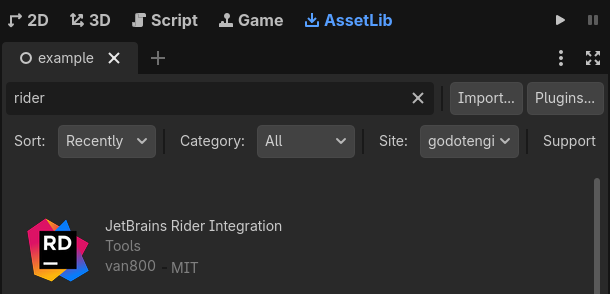
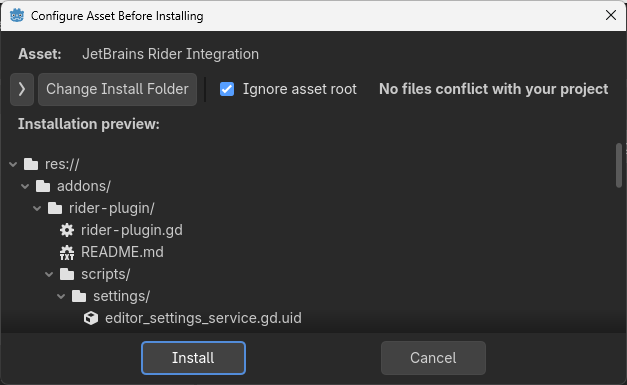
When the add-on is downloaded, make sure that Ignore asset root is selected, which is the default option, and click Install to finish the installation.
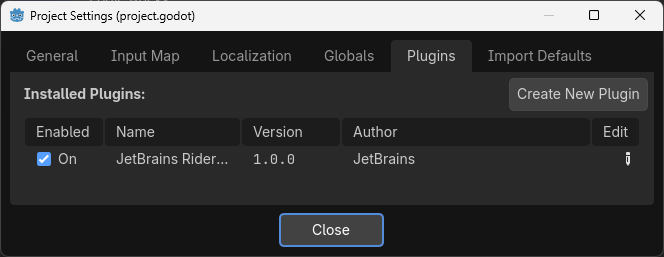
When the installation is finished, select from the menu, switch to the Plugins tab and enable the Rider add-on:
When the add-on is installed and enabled, the Use Rider toggle appears on the toolbar:
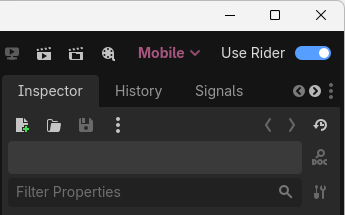
This toggle allows you to switch between the two sets of options defined in the res://addons/rider-plugin/presets.json. Depending on the state of the toggle, the values from on or off sections are applied to the editor settings.
Here is an example of how the configuration in presets.json looks like. You can customize the sets of values to your liking.