Get started with ASP.NET Web apps
JetBrains Rider provides first-class support for developing ASP.NET and ASP.NET Core web applications on Windows, macOS, and Linux. This guide outlines the minimal steps required to create and run your first web application.
Prerequisites
Besides having JetBrains Rider on your machine, you only need to install .NET SDK — the latest stable version is recommended. You can verify the SDK installation by opening the Terminal window and running:
Create a New ASP.NET Project
Launch Rider and click New Solution on the Welcome screen. If Rider is already open, select from the menu.
In the New Solution dialog that opens, select Web under the Project Type on the left.
Fill in basic settings:
Solution name — if you are new to .NET, a solution is the typical unit for an independent piece of development, similar to a workspace in most other frameworks. Use the selector next to the solution name to choose which solution file format to use — .sln or .slnx.
Project name — automatically generated to be the same as the solution name, but you can change it if you plan to have multiple projects in the solution.
Solution directory — where to save the solution.
Put solution and project in the same directory — you can select this checkbox if you do not plan to add more projects to your solution.
Create Git repository — select this checkbox if you want to version your code with Git and use integrated Git features. You can create a Git repository at any time later.
Target framework — the latest stable version available on your machine is preselected automatically.
Language — we will use C# in this tutorial.
Select a project template. The most popular templates include:
Web App (Razor Pages) — page-focused applications with an easy learning curve. We will use it in this tutorial.
Web App (Model-View-Controller) — classic MVC pattern, enterprise-like apps.
Blazor Web App — interactive web UI with C#.
Web API — allows building backend/microservices based on pure REST/HTTP API with no views
Click Create.
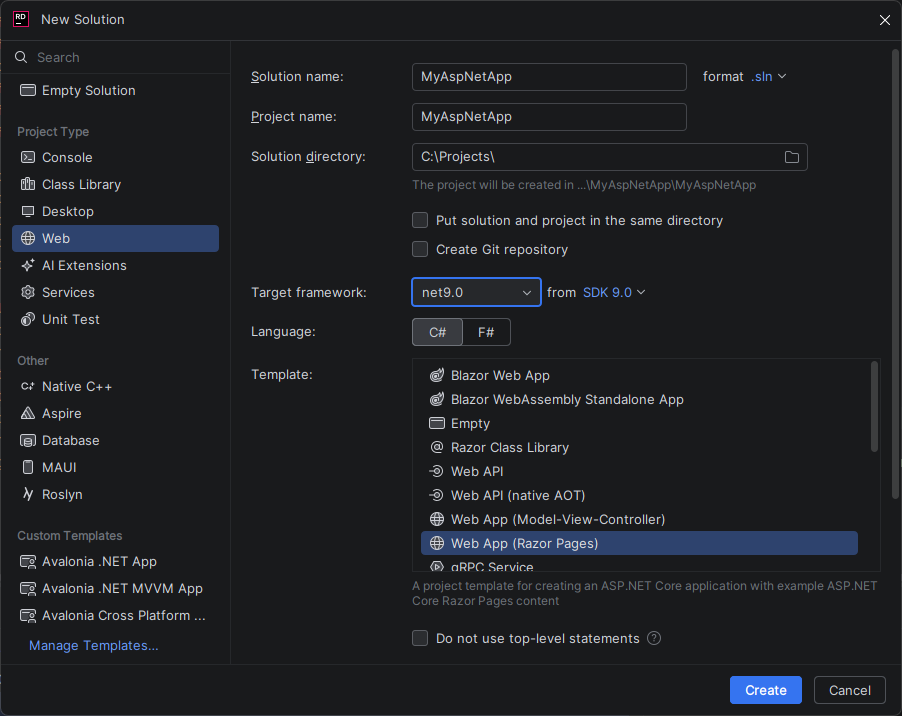
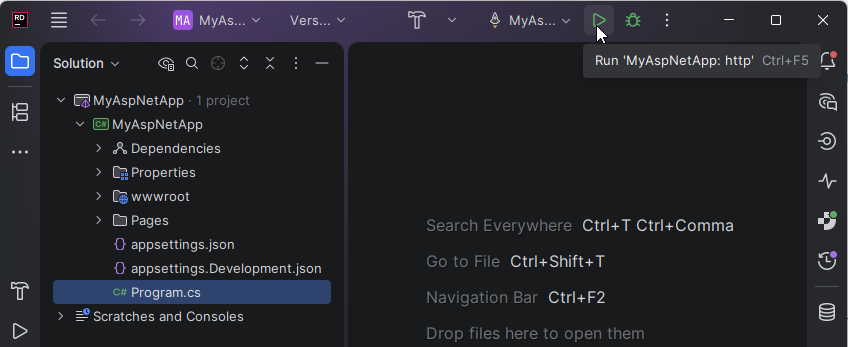
Rider generates the necessary files and folders and opens the solution.
Understand project structure
Typical ASP.NET Core projects include:
Program.cs — application entry point and middleware pipeline
Pages/ — container for Razor .cshtml files representing Web pages
appsettings.json — configuration
wwwroot/ — static files (CSS, JS, images)
Rider provides navigation, inspections, and refactorings across all these components.
First run
Most project templates include a minimal configuration and basic startup logic, so you can run your project right away by clicking Run  on the toolbar.
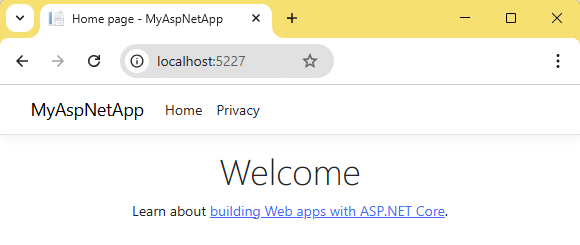
Rider builds the solution, starts the built-in web server, and opens a new browser tab with the project page.
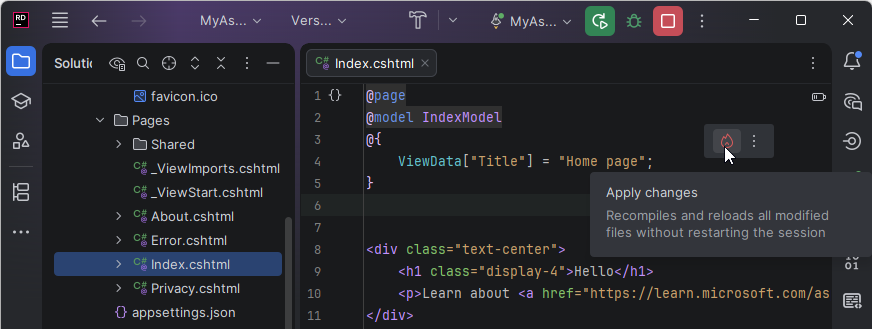
To quickly check the relation between the source code of the project and its output, find the source code of the initial web page (pages/index.cshtml), change the page title from Welcome to Hello, click Apply Changes and reload the browser page.
Next steps
Depending on your goals, you can continue learning how the ASP.NET app works by doing one of the following:
Set a breakpoint in your code, for example, in Program.cs, and click Debug
 on the toolbar. When the program stops, explore values of the variables and step through the program to understand how the program is executed.
Add a new page — right-click the Pages folder in the Solution Explorer and choose . For example, if you add a page file About.cshtml, it will be available at
http://localhost:5227/AboutTest your API endpoints — open the Endpoints tool window to see all available endpoints in your project and generate HTTP requests for them.
Send HTTP requests directly from the IDE — use the built-in HTTP Client to compose and execute requests to your web application without leaving JetBrains Rider.