Work with C# source generators
C# source generators run during compilation and produce additional C# files that are compiled into your project. With JetBrains Rider, you can inspect generated sources in the editor and the solution explorer. You can also debug the resulting code at runtime, and (when supported by the toolchain) debug the generator itself.
Inspect source generator output
When a generator runs, it produces C# sources (for example, files ending with .g.cs). JetBrains Rider lets you navigate to these sources so you can verify what was generated and how it is used by the consuming project.
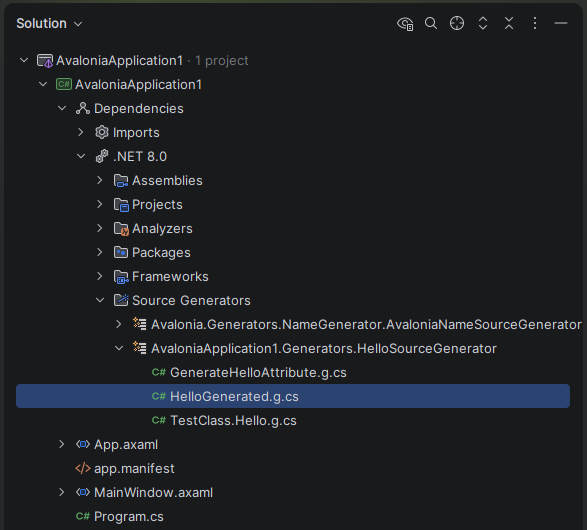
In the Solution Explorer, expand the node to see the generated files:
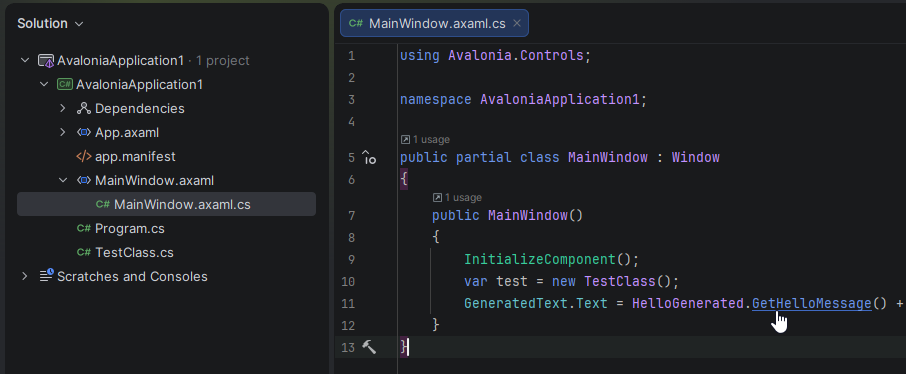
Use Go to Declaration ( Ctrl+B or Ctrl/Cmd-click) from a symbol in your code to reach the generated declaration.
Open the generated file in the editor and inspect the emitted types, members, and attributes.
You can study where the generated symbols are used in the solution by invoking Find Usages Alt+F7 on generated types and members.
Generated files will be automatically updated as soon as the generator updates the file on disk.
Debug source-generated code
You can debug code produced by a source generator the same way you debug any other C# code. When your application or tests execute generated methods, you can step into them, inspect variables, and use the call stack to understand how the generated logic behaves.
Step into source-generated code during debugging
Start a debugging session for the application or test that uses the generator output.
When execution reaches a call into generated code, use debugger stepping actions to enter the generated method.
Inspect variables and evaluate expressions to verify the runtime behavior of the generated logic.
Troubleshooting
If you can inspect generated files but cannot debug the generator project, check the following:
Package/toolchain mismatch. Generator debugging can be sensitive to Roslyn and compiler toolset versions. Align package versions with those supported by your JetBrains Rider version or compare your setup with the templates referenced by JetBrains.
Generator not executing. Some scenarios may reuse build results. Rebuild the consuming project to ensure the generator runs.
Incremental generator caching. Incremental generators can skip work if inputs do not change. Modify relevant inputs or clean/rebuild to force regeneration.