XML documentation comments
JetBrains Rider provides several features for XML documentation comments in C# files.
Add XML documentation
Place the caret before the declaration of a type or type member and type the opening comment ///.
JetBrains Rider will generate a documentation stub and, depending on the context, add all necessary tags, such as summary, param, and returns to the comment.
To turn off automatic generation of comment stubs on ///, clear the Insert documentation comment stub on '/' checkbox on the page of JetBrains Rider settings Ctrl+Alt+S.
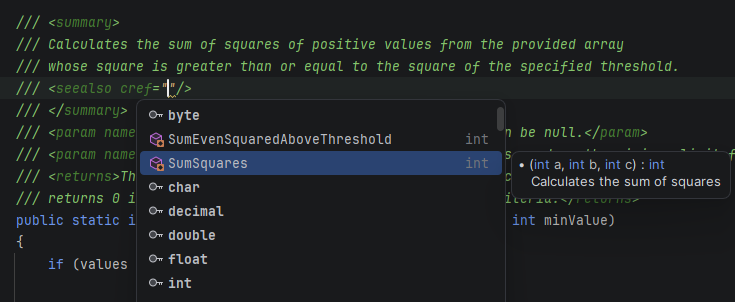
When editing XML documentation comments, JetBrains Rider also provides code completion for standard tags and attributes:
View documentation for referenced symbols
When working with usages or references of symbols that have XML documentation, you can view the documentation in a convenient format using Quick Documentation Ctrl+Q or Parameter Information Ctrl+P.
Reformat comments
JetBrains Rider allows you to configure formatting options for XML documentation comments and reformat them accordingly during code cleanup.
Rendered documentation
With JetBrains Rider, XML documentation comments can be displayed as easy-to-read formatted text without the comment characters and tags.
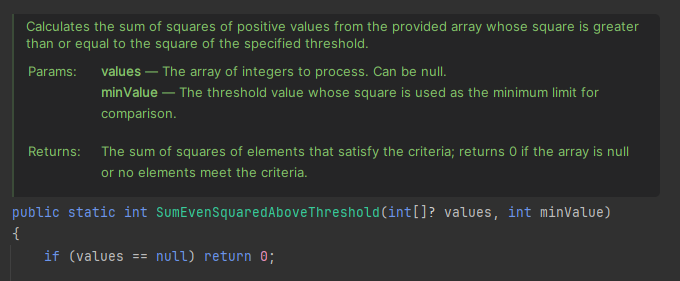
By default, the rendered comments view is shown for read-only, decompiled, and library code.
To use the rendered view not only in read-only files, but in all files, select Render documentation comments under the page of JetBrains Rider settings Ctrl+Alt+S. This allows you to toggle individual XML comment blocks into rendered mode. To display all documentation comments in rendered mode by default, select the Calculate rendered doc comments in non-reader mode checkbox; however, please note that this may affect performance in large files.
To toggle an individual comment to the rendered view, click  in the gutter or press Ctrl+Alt+Q. The icon will change to
  , which you can click to return to the normal view.
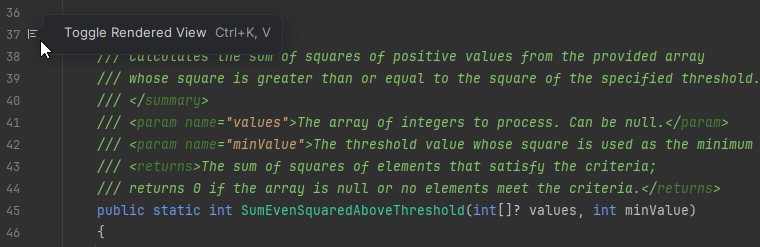
To enable rendered mode for all XML documentation comments in the current file, select Render All Doc Comments from the gutter context menu.
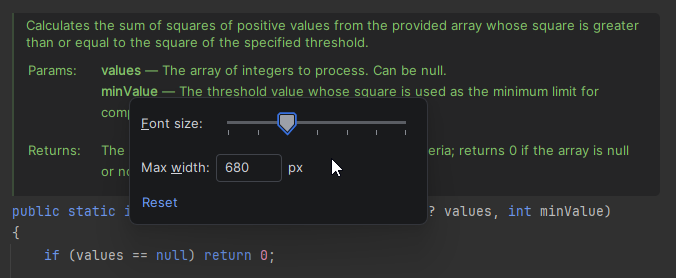
To adjust the font size or the width of the rendered comments block, right-click the block and choose Adjust Appearance: