Features Trainer
RubyMine includes a built-in Features Trainer. This interactive training course on IDE basics can help you learn how to do some common tasks, such as refactoring code, navigating through projects, and more.
The course is divided into several tutorials, each with a number of lessons that teach you how to do a specific task.
Tutorials are broader topics, that cover a specific area of the IDE, such as code completion or navigation.
Lessons are smaller steps within a tutorial, each focused on a single task or concept.
You can start the course or a specific tutorial from the Welcome screen or from the editor.
To complete a lesson, you need to finish all the tasks in it. However, there is no need to go through all the lessons and tutorials – you can choose to do only the ones you find most relevant, refer to Features Trainer and Switch between lessons and tutorials.
Before you start
Make sure the IDE Features Trainer bundled plugin is enabled in the Installed tab of the Settings | Plugins page as described in Plugins.
Start the learning course
You can start a lesson from the Welcome screen or from the editor.
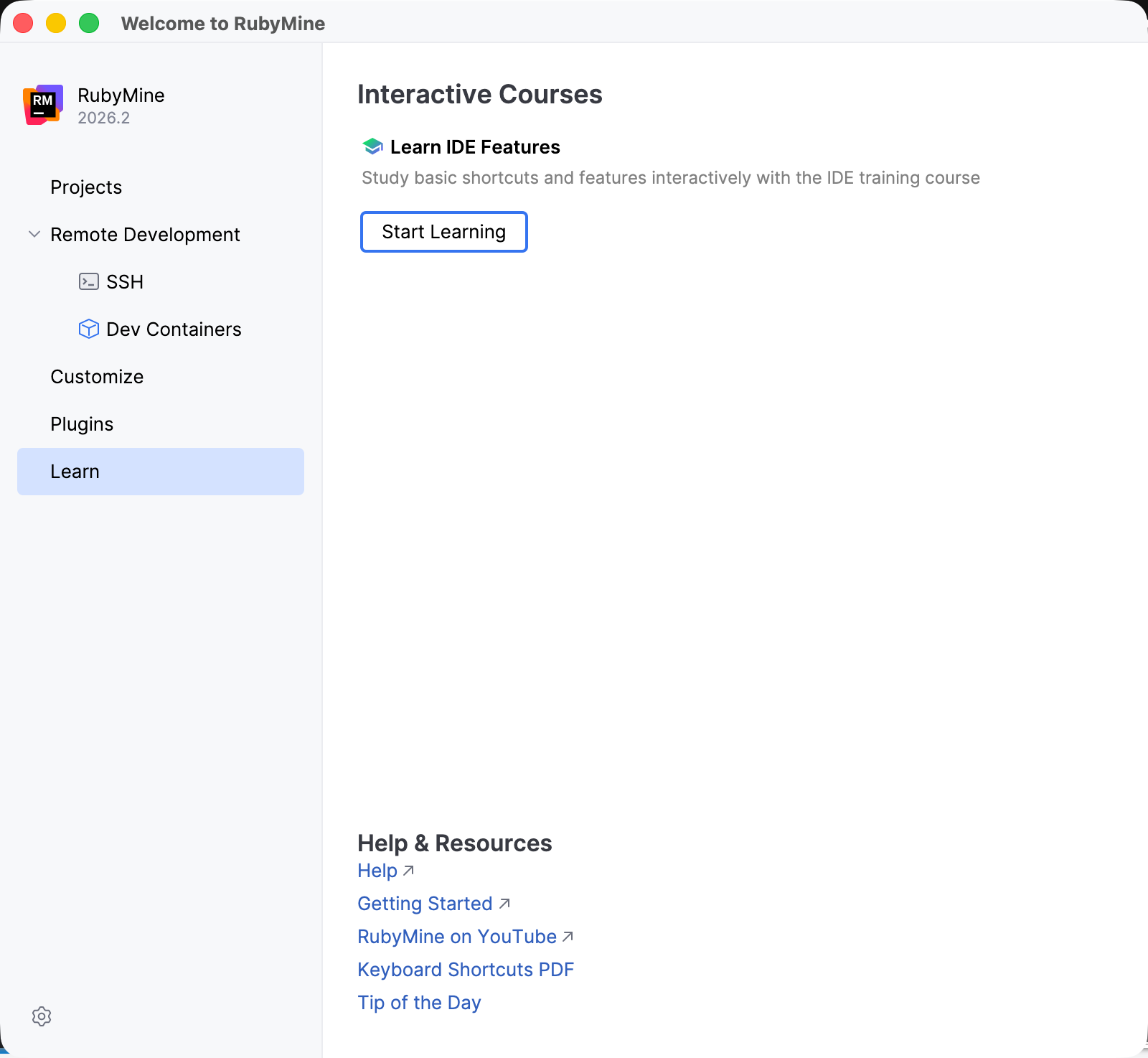
On the Welcome screen, click Learn in the left-hand pane and click the Start Learning button.
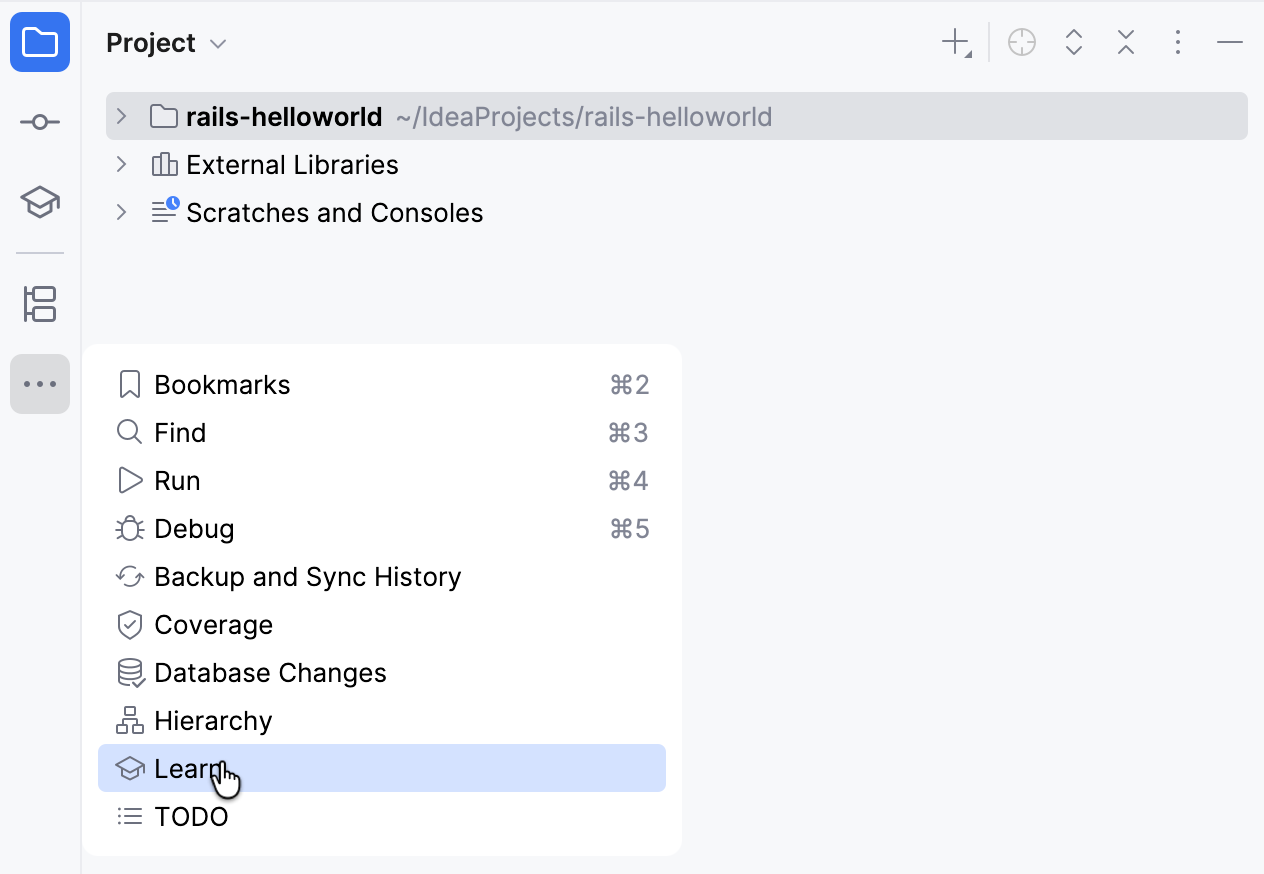
On the right side of the editor, click More tool windows and select Learn.
Alternatively, you can select from the main menu.
RubyMine generates a learning project and opens the context that corresponds to the first lesson of the selected tutorial.
Start a tutorial from the Learn tool window
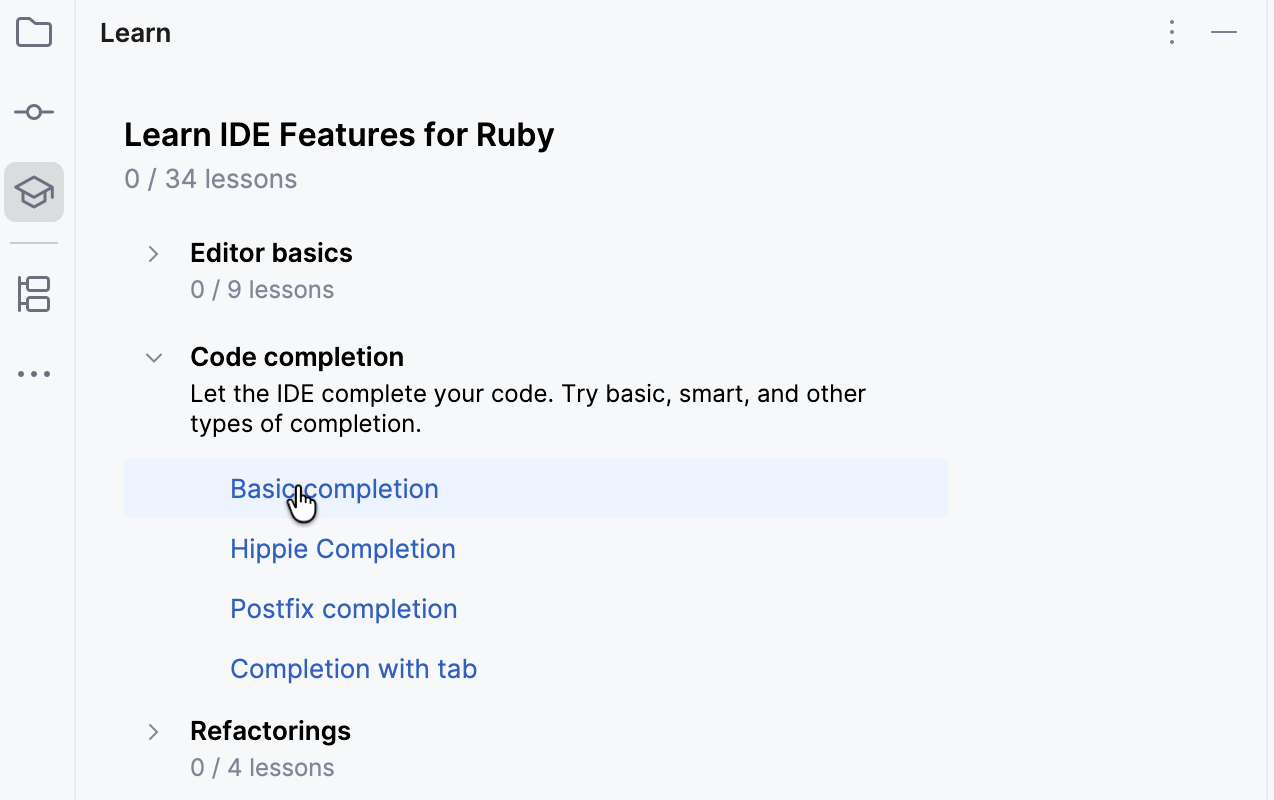
Click the tutorial you want to complete and then click Open in the Open a Learning Project dialog.
In the Open Project dialog, select whether to open the tutorial in a new RubyMine window or in the same. To attach the learning project to the current project, click Attach, refer to Attach a project to the main one.
Switch between lessons and tutorials
You can choose to do only those tutorials and lessons that you find most relevant and easily skip lessons, switch between tutorials, and drop them.
To pass to the next lesson, open the Learn tool window, scroll to the bottom of it, and click Next: <The name of the next lesson> or click another lesson link.
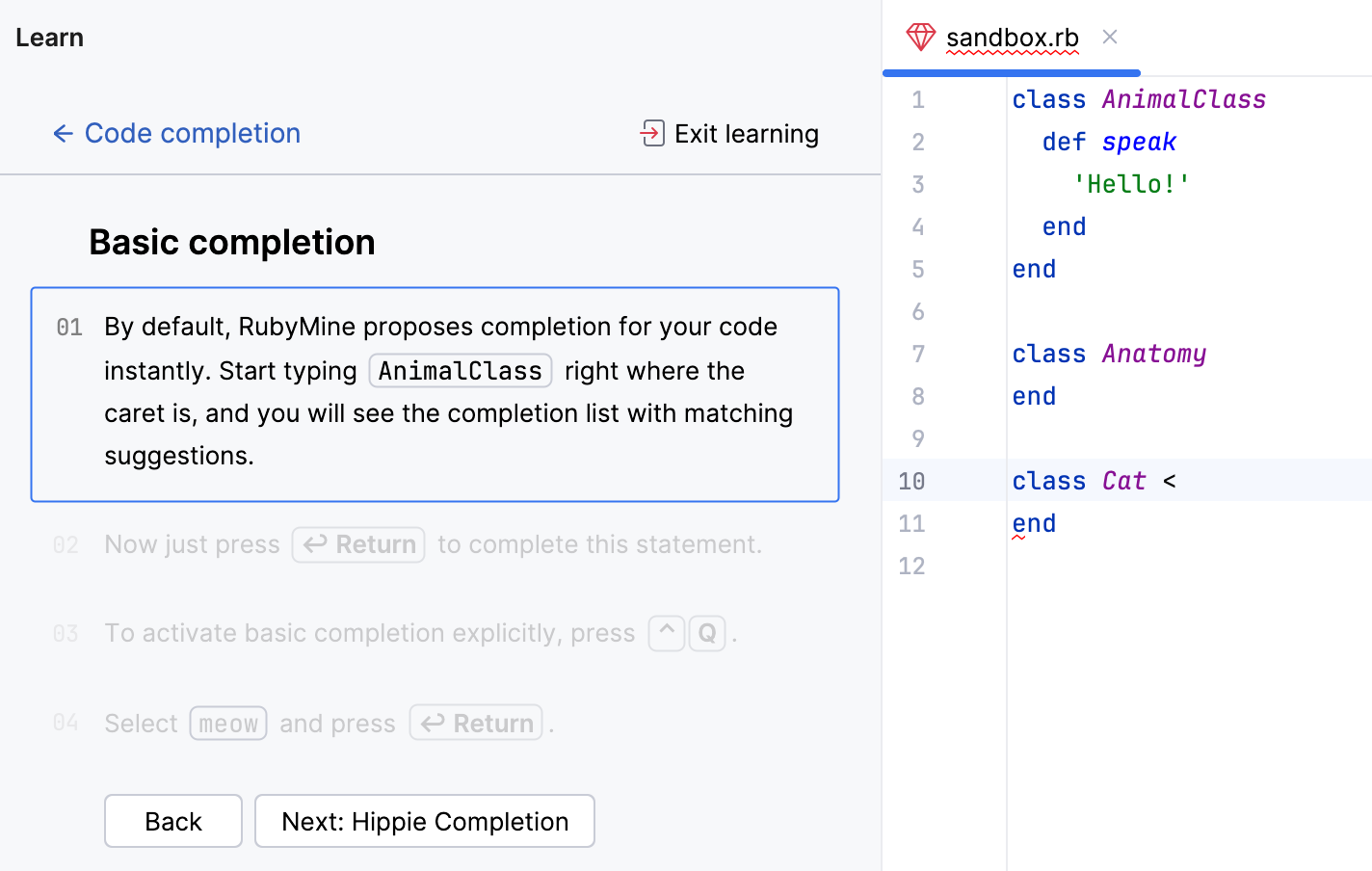
To switch to another tutorial without losing the progress for the current one, click the link with its name at the top of the Learn tool window.
Then click the tutorial you are interested in and select the lesson you want to complete.
To abandon a tutorial without saving the progress in it, open the Settings dialog (Ctrl+Alt+S) , go to , and click Reset Lessons Progress.
When you click OK, you return to the Learn tool window that shows a list of all the available tutorials instead of the information about the tutorial you canceled.
Configure Features Trainer options
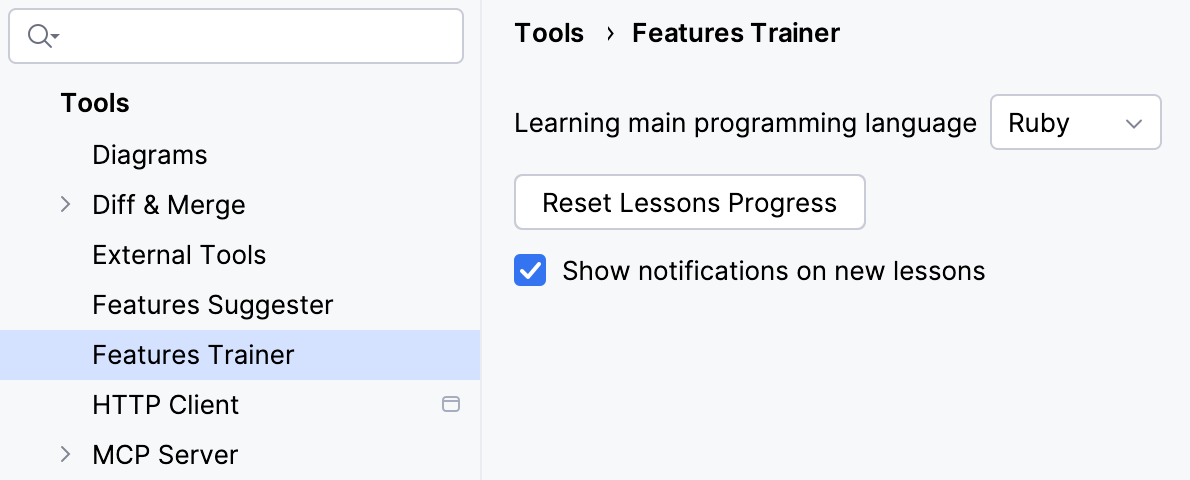
Press Ctrl+Alt+S to open settings and then select .
Use the following options:
To get notified when a new lesson becomes available, select the Show notifications on new lessons checkbox.
To start learning from the beginning, click the Reset Lessons Progress button.
Apply the changes and close the dialog.