Bundler
RubyMine supports integration with Bundler and enables you to handle gem dependencies for your application right inside the IDE.
Install Bundler
As a rule, the installed Ruby interpreter comes with Bundler installed. If not, you can install Bundler to the project interpreter in one of the following ways:
Select from the main menu.
Press Ctrl twice and execute the
gem install bundlercommand in the invoked popup.Open the RubyMine terminal emulator and execute the
gem install bundlercommand.
Bundle init
After installing Bundler, you can generate a Gemfile for the current project:
Select from the main menu.
Install gems
You can install gems defined in the Gemfile to the project interpreter as follows:
Do one of the following:
Press Ctrl twice. In the invoked popup, start typing bundler, select
bundle installand press Enter.Select from the main menu.
Open the Gemfile, place the caret at any highlighted gem missing in the project interpreter and press Alt+Enter. Select Install missing gems using 'bundler' and press Enter.
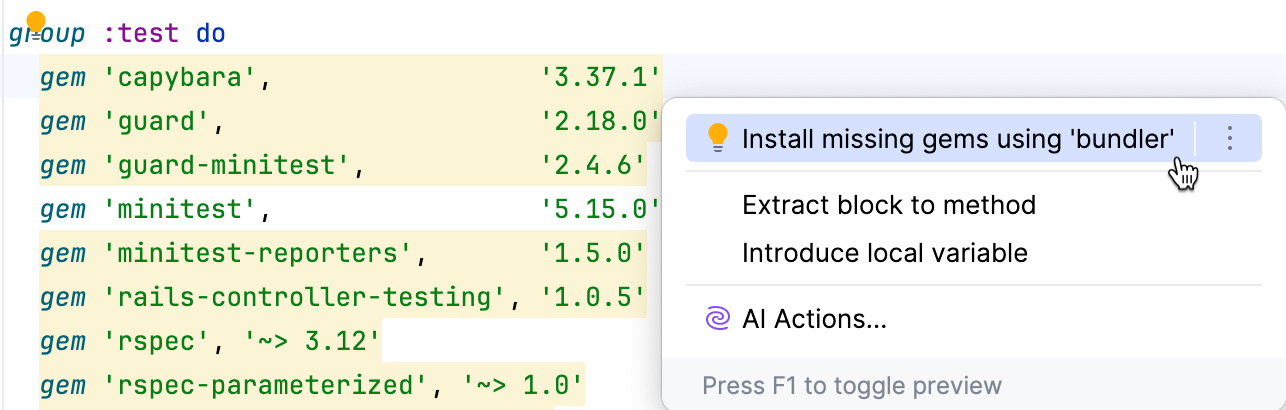
(Optional) By default, if the current project interpreter does not have the required Bundler version specified in Gemfile.lock, RubyMine installs it.
To disable this option, perform this procedure.
In the Bundle Install dialog, click Run to run the
bundle installcommand without any arguments.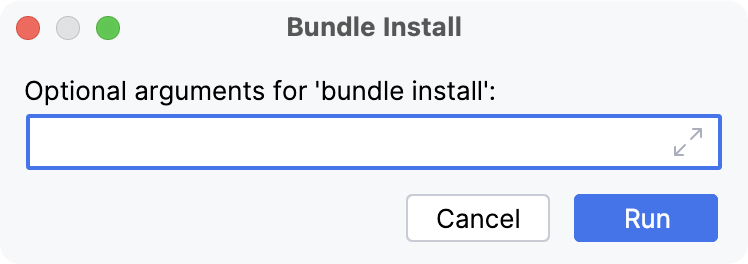
If necessary, pass the required arguments when running this command, for example:
--without production: install all gems except ones mentioned in the production group within the Gemfile.--path vendor/bundle: install gems to the vendor/bundle project directory. In this case, Bundler adds the .bundle/config file to a project’s root. RubyMine processes this configuration file to detect that gems are installed into vendor/bundle.
Wait until gems are installed. The Run tool window will display this process:
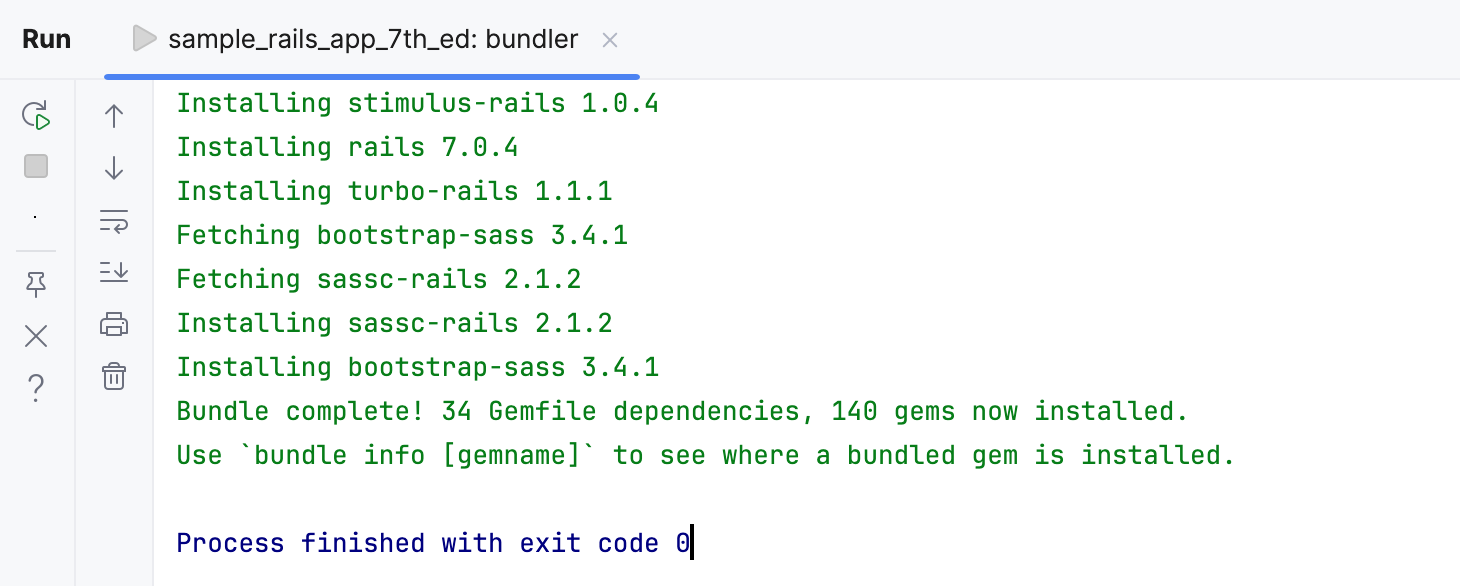
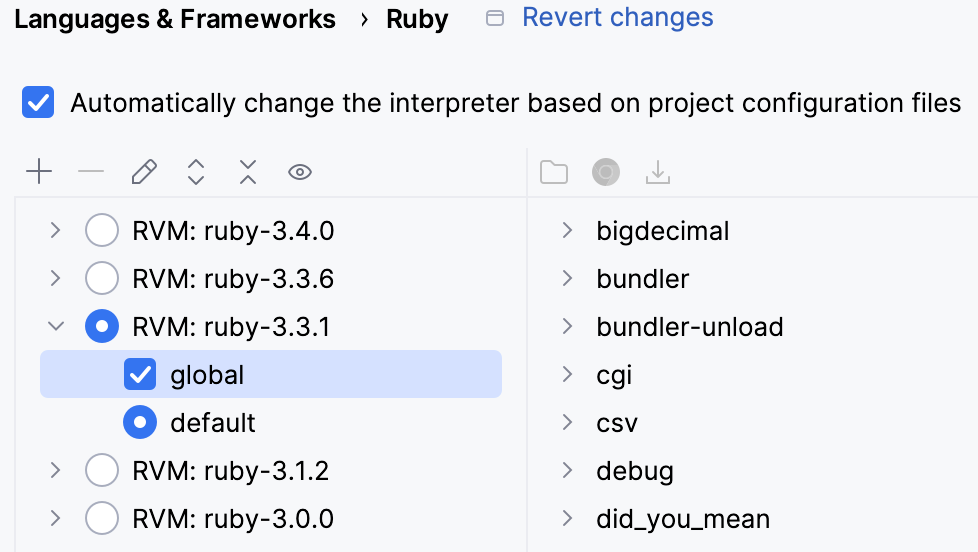
You can see the installed gems in the Ctrl+Alt+S page.
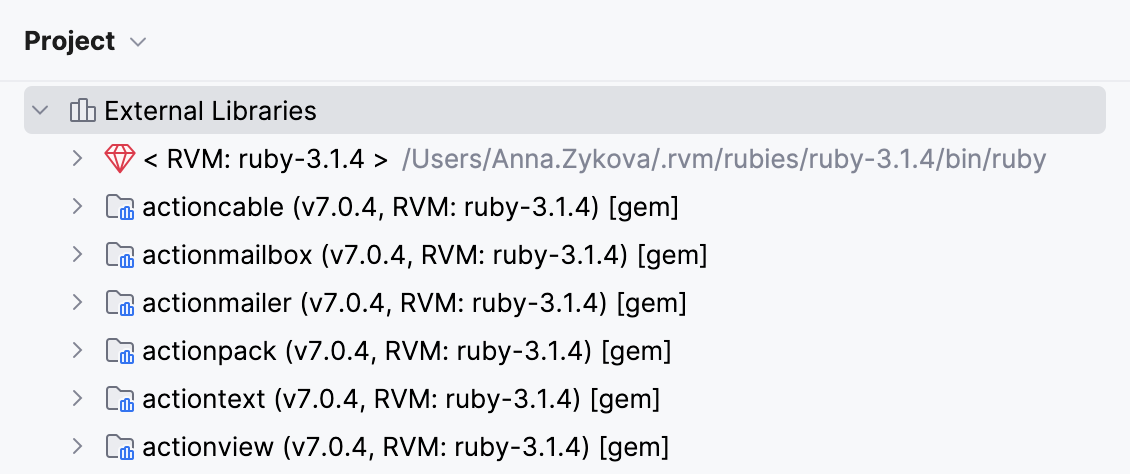
And you can also find them in the External Libraries node of the Project view Alt+1.
Customize Bundler settings
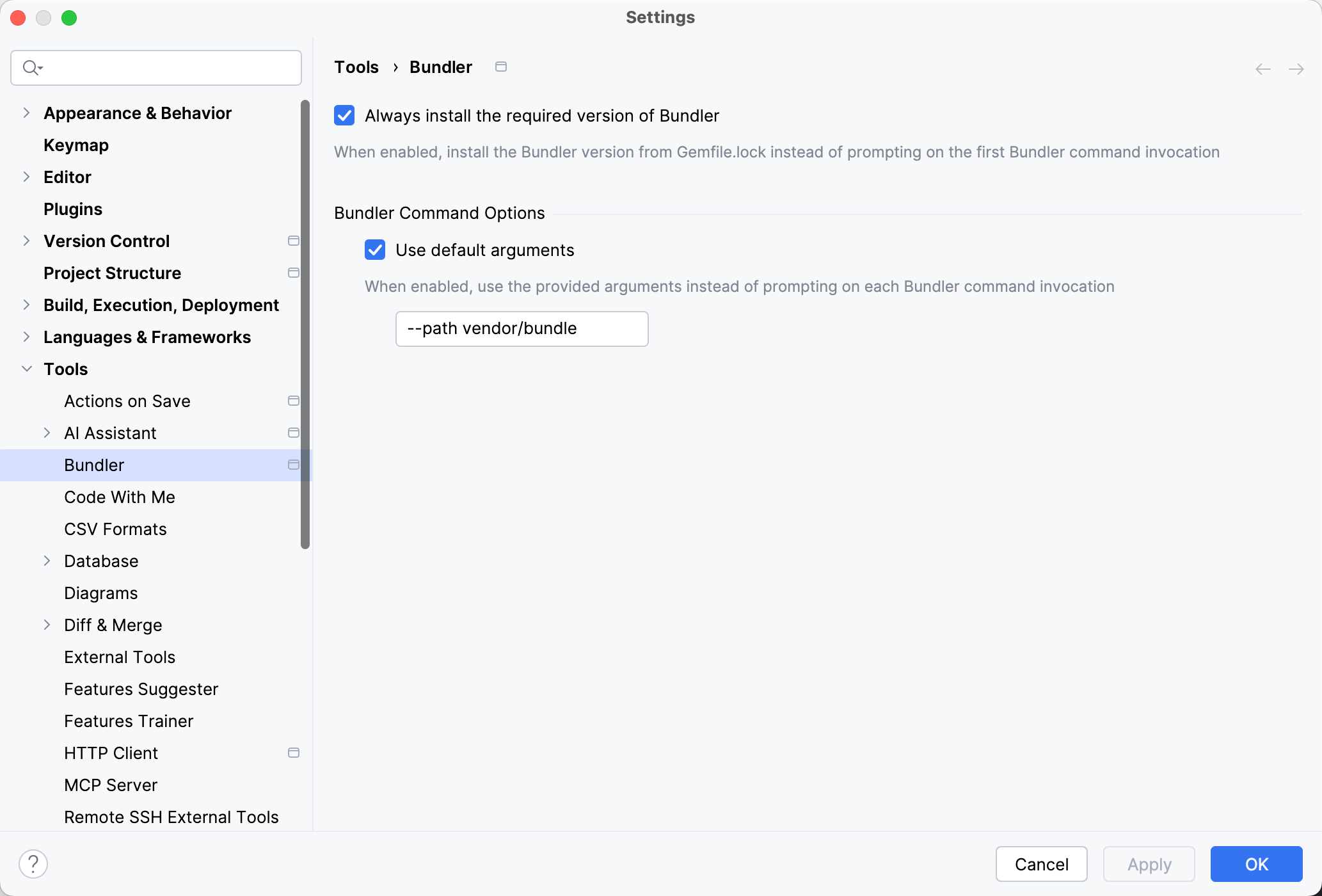
Use the Bundler menu to disable or enable automatic installation of the required Bundler version and customize default arguments for Bundler commands.
Disable automatic Bundler installation
By default, RubyMine automatically installs the version of Bundler specified in your Gemfile.lock file. To disable this setting, perform the following steps.
Open settings (Ctrl+Alt+S), and navigate to .
Clear the Always install the required version of Bundler checkbox.
Once this option is disabled, RubyMine installs the required version of Bundler only after you confirm it in the respective notification window.
Customize default arguments
Use this option to provide default arguments for Bundler commands. This will allow you to run such commands without being asked for arguments on each Bundler command invocation.
Open settings (Ctrl+Alt+S), and navigate to .
Make sure the Use default arguments checkbox is selected and provide the required argument in the text field below.
Install gems to a remote interpreter
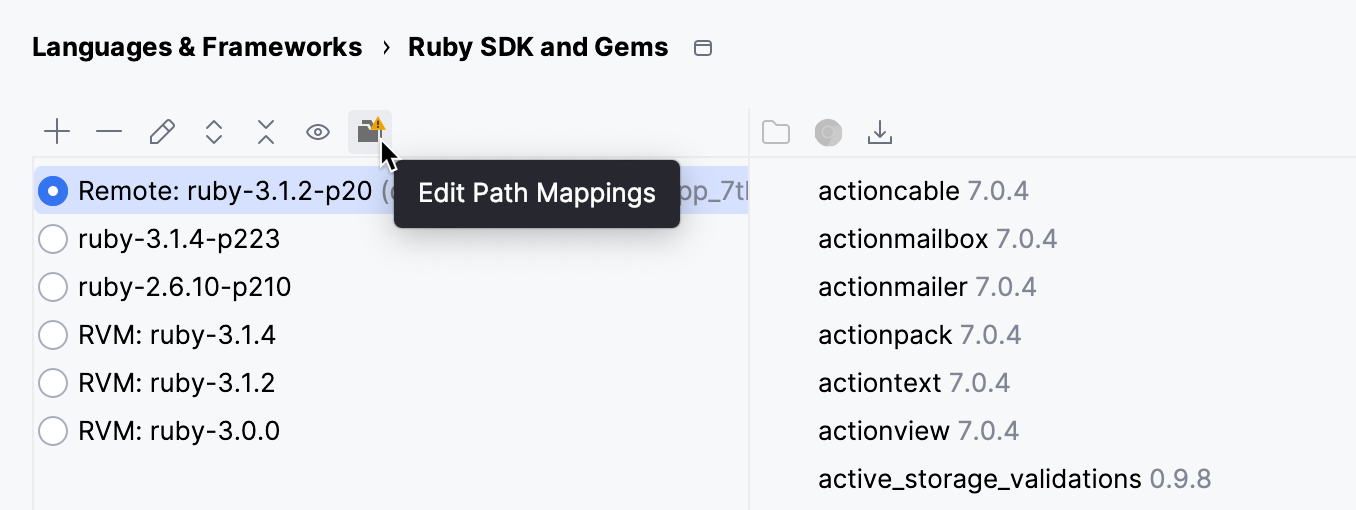
If you are using a remote Ruby interpreter, RubyMine uses the Gemfile placed on a remote machine to install the gems. This requires configuring mappings between files of a local and remote project. To do this, click the Edit Path Mappings  button in .
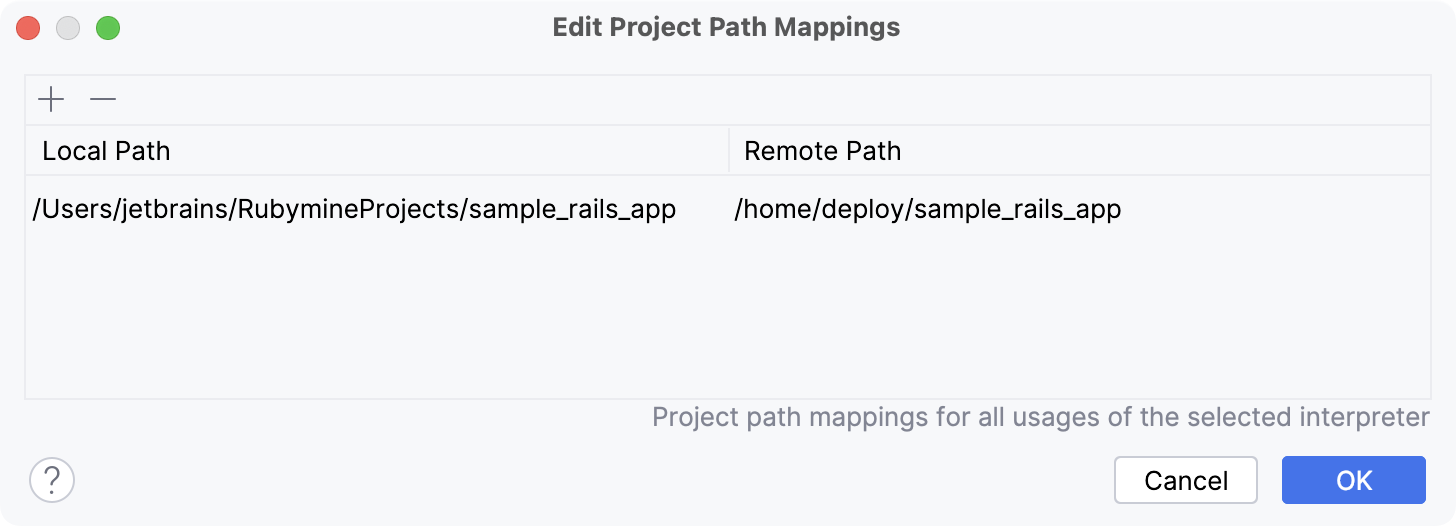
In the Edit Project Path Mappings dialog, specify the local and remote project root paths:
After you configured mappings, install gems using the Install Gems to Local Interpreter instruction.
Note that when you are using a remote interpreter, RubyMine downloads gems from a remote machine to a local cache to be able to use code insight features. In this case, you may encounter a situation when new gems were installed on a remote machine outside the IDE. To update a set of gems stored in a local cache, click the Synchronize gems  button in the Ruby Interpreters page.
Bundle exec
RubyMine provides the capability to run and debug Ruby and Rails applications, run tests, and deploy your code in a universal way - by using run/debug configurations. Run/debug configurations provide the default set of startup parameters that allow you to run the desired command quickly. You can execute any of these commands in the context of the bundle in the following way:
Open the Run/Debug Configuration dialog in one of the following ways:
Select from the main menu.
With the Navigation bar visible (), choose from the run/debug configuration selector.
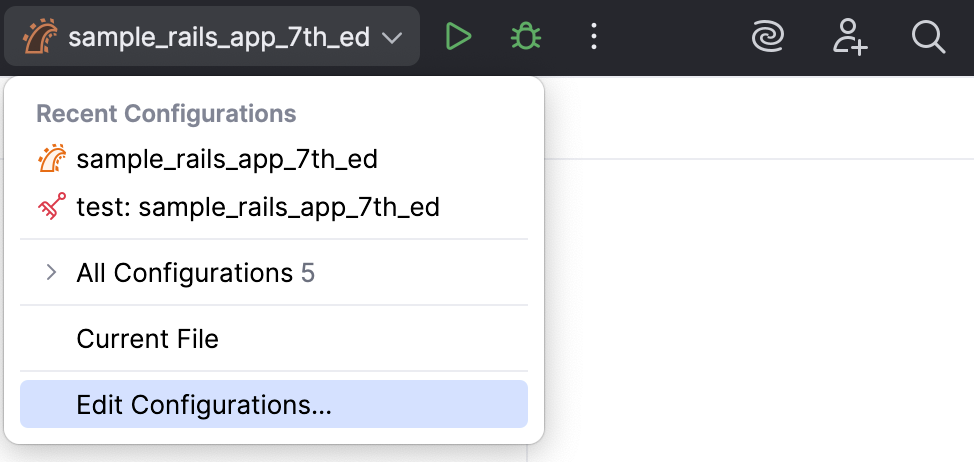
Press Alt+Shift+F10 and then press 0.
In the opened Run/Debug Configurations dialog, select the required configuration and open the Bundler tab.
Configure the Run the script in the context of the bundle ('bundle exec') option:
Auto-detection: select this option to run your code with
bundle execwhen it is possible.Disabled: select this option to disable the use of
bundle exec.
Click OK.
Run bundle check in dry mode
RubyMine provides an option to run bundle check in dry mode. In this case, Bundler will not create or update your lockfile.
In the main menu, go to Ctrl+Shift+A.
Start typing
Run silent bundle check with --dry-run. Select the option and press Enter to enable it.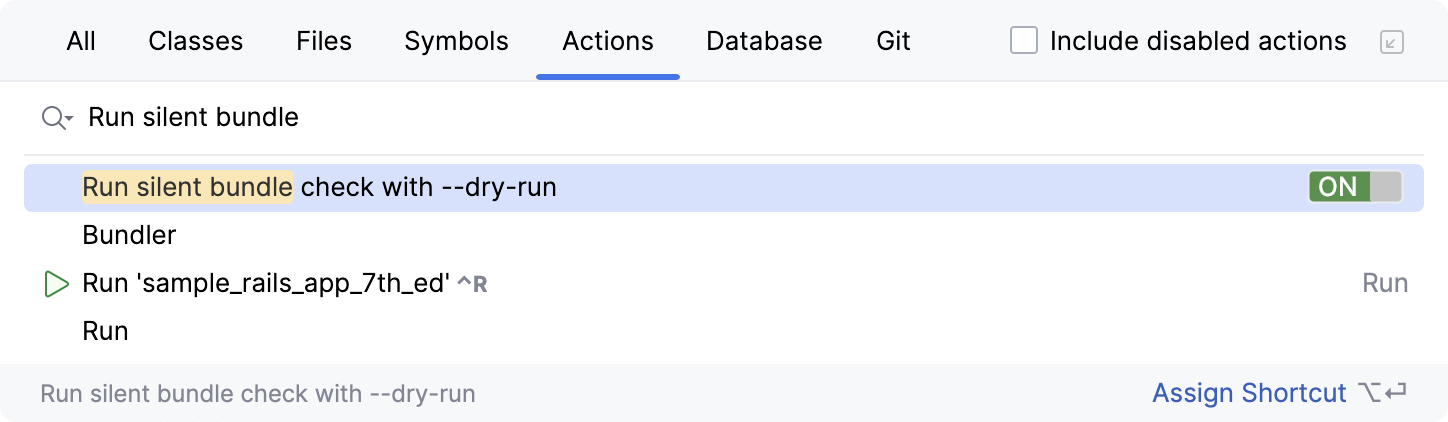
Once you've enabled this option, you will need to maintain your lockfile yourself. After changing your Gemfile, run
bundle check/bundle lockto update your lockfile.