Code style
This page explains how to customize Rust code style and formatting settings in RustRover to maintain consistent formatting and adhere to any specific coding standards.
The IDE comes with two pre-defined schemes: the Project scheme and the Default scheme.
In the Project scheme, the settings that you configure apply only to your current project.
These settings are stored in the codeStyles folder under .idea and are shared through VCS together with the project.
The IDE creates the folder after you modify code style settings for your project.
In the Default scheme (IDE-level scheme), the settings that you configure apply to all existing projects that have the Default code style scheme selected.
These settings are stored in the codestyles folder under the RustRover configuration directory and are not shared through VCS.
If you want to use the project code style scheme as your default scheme, you can copy it to the IDE level. The other way around is also possible: you can overwrite your current project settings with the settings from an IDE-level scheme and share them with other members of your team.
Configure schemes
In RustRover, code style settings are language-specific, so you need to configure them for every language that you use in your project separately. You can also copy the settings from one language and apply them to another language.
Create a new code style scheme
To create a new code style scheme, duplicate an existing IDE-level scheme and then configure the duplicate according to your needs.
Press Ctrl+Alt+S to open settings and then select .
Here you can configure general code style settings.
If you want to create a code style for a specific language, select this language from the list.
Select of the existing schemes stored in the IDE and click
 Show Scheme Actions.
From the list, select Duplicate to create a copy of the scheme.
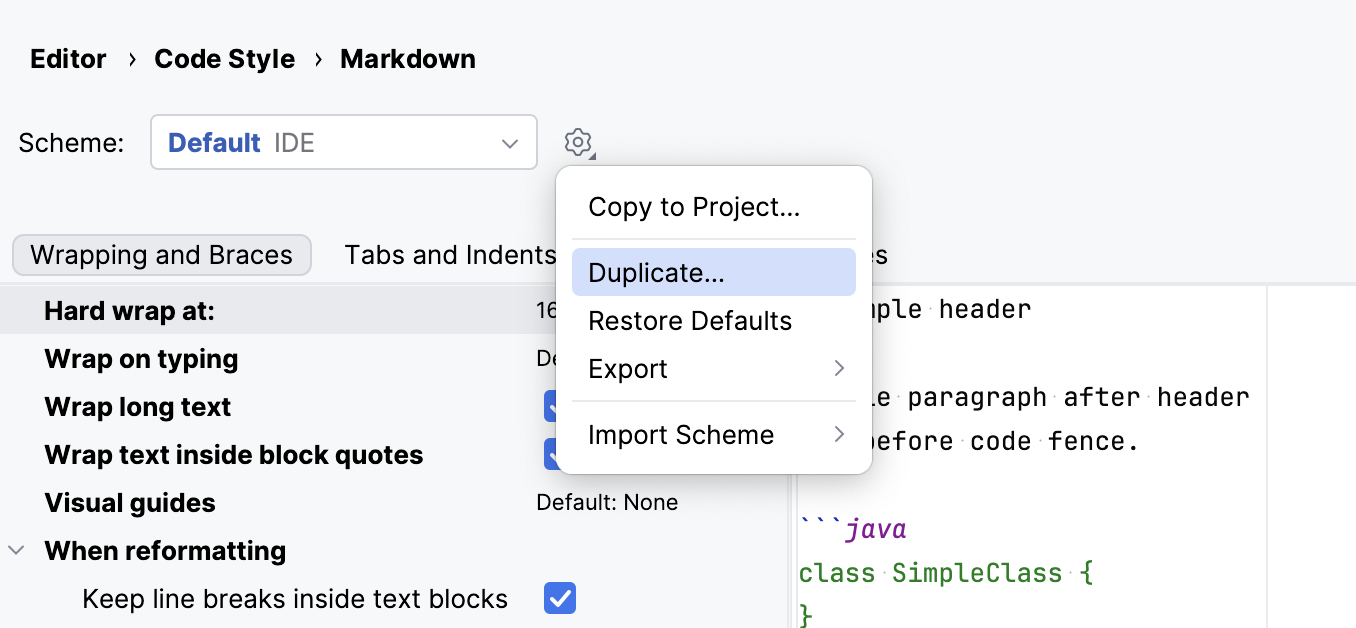
Name the new scheme and press Enter to save it.
After that, you can configure the settings in the new scheme.
Configure code style for a language
Press Ctrl+Alt+S to open settings and then select .
To configure a scheme for new projects, go to .
Select the language for which you want to configure the code style.
Select the code style Scheme that you want to configure: the Project scheme or one of the IDE-level scheme.
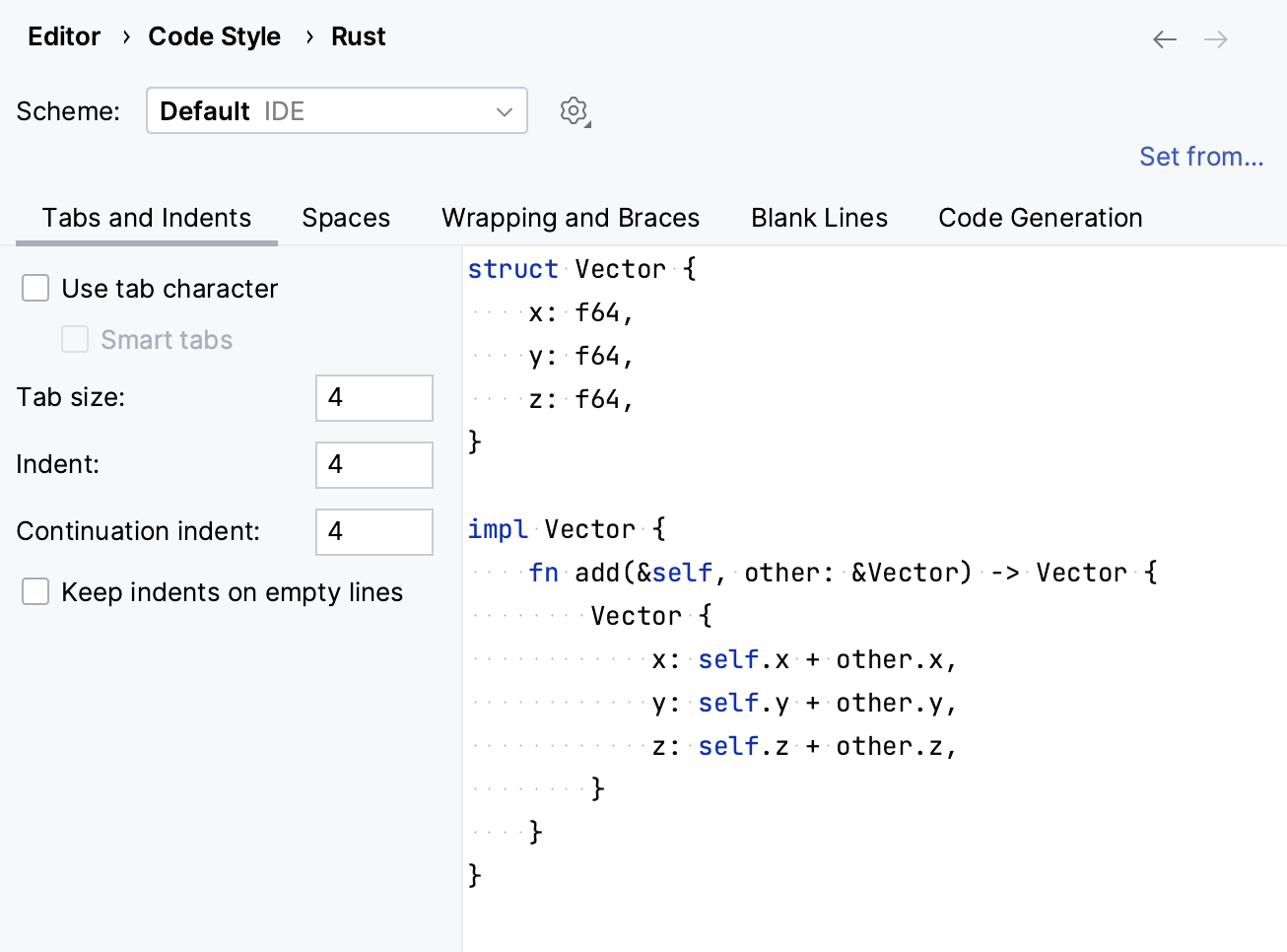
Browse through the tabs and configure code style preferences.
Use the right section of the dialog to preview the changes. When you change a setting, one or several blinking areas appear in the preview area emphasizing the changes.
Apply code style from another language
For most of the supported languages, you can copy code style settings from other languages or frameworks.
Press Ctrl+Alt+S to open settings and then select .
To configure a scheme for new projects, go to in the main menu.
Select the language for which you want to configure the code style.
Select the code style Scheme that you want to modify: the Project scheme or one of the IDE-level scheme.
Click Set from in the upper-right corner.
The link is shown only if it is possible to apply code style settings from another language.
From the list that appears, select the language to copy the code style from.
Copy code style settings
Press Ctrl+Alt+S to open settings and then select .
To configure a scheme for new projects, go to in the main menu.
Select the code style Scheme that you want to copy: the Project scheme or one of the IDE-level scheme.
Click the
Show Scheme Actions icon and select one of the following options:Copy to IDE… (for the Project scheme): copy the selected scheme to the IDE level.
RustRover saves the new code style with the specified name to the RustRover home directory.
Copy to Project… (for IDE-level schemes): overwrite your current project settings with the settings from the selected IDE-level profile.
Duplicate (for IDE-level schemes): create a copy of the selected IDE scheme on the same level.
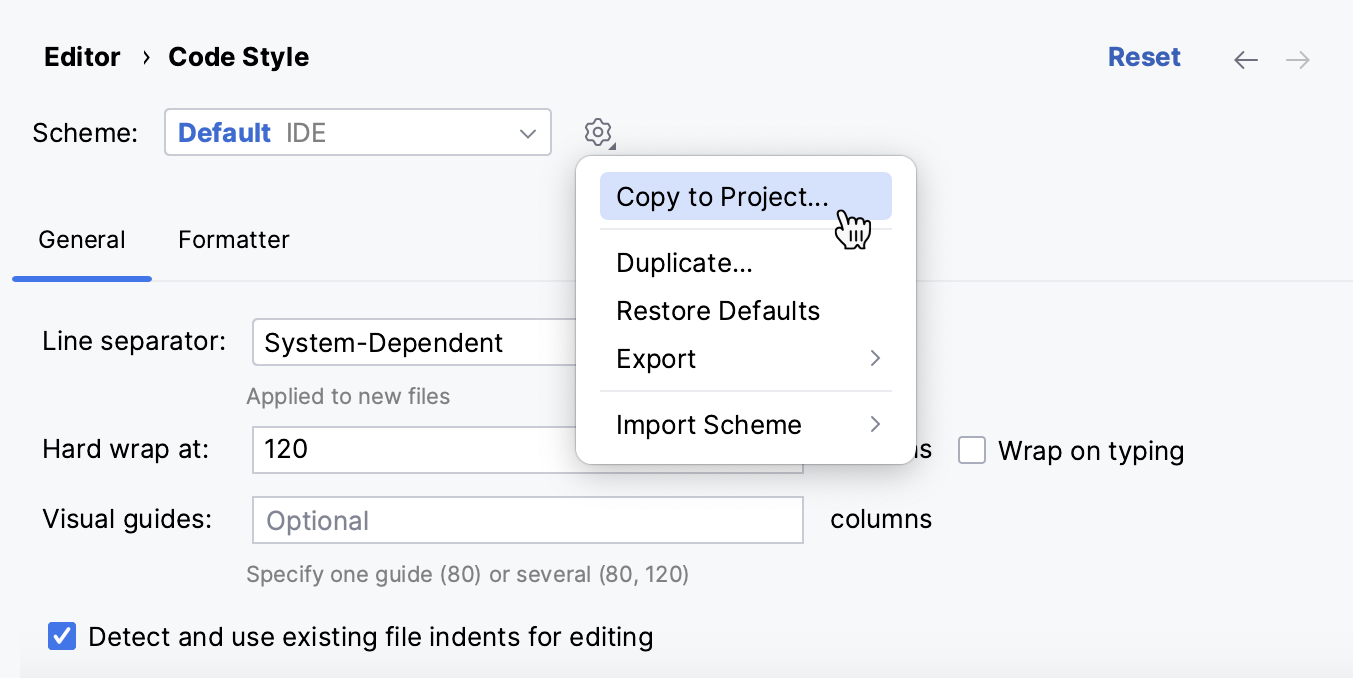
In the Scheme field, type the name of the new scheme and press Enter to save the changes.