Jira Integration
The SpaceCode-Jira integration is designed for teams already using Jira for issue tracking. By configuring a connection to your existing Jira instance from SpaceCode, you can preview Jira issues in SpaceCode, link issues to commits and merge requests and update their status automatically. The integration involves installing the SpaceCode for Jira app to Jira and the Jira application to SpaceCode.
Key features
Showing link previews and unfurls for Jira issues
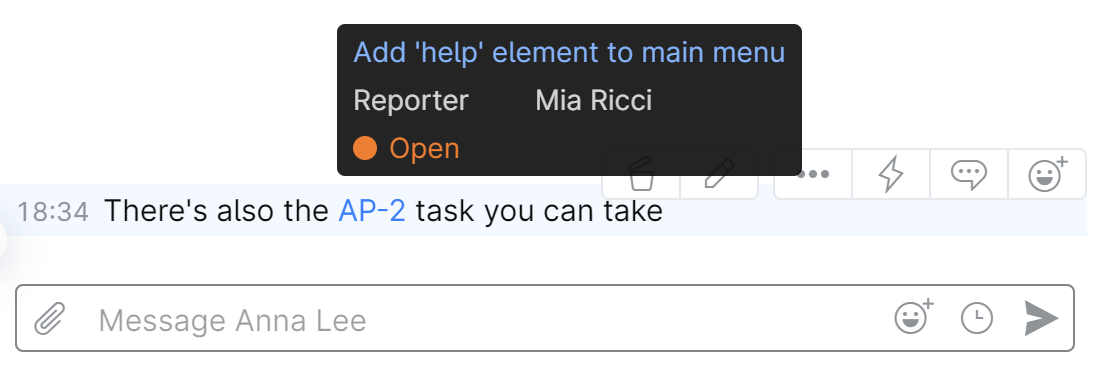
You can preview Jira issues mentioned in commit messages, code reviews, and merge requests. For example, if you mention an ID of a Jira issue, it'll transform to a link with a preview of the issue details:
If you paste a whole link to a Jira issue, it will be unfurled:

Linking Jira issues in commits and merge requests
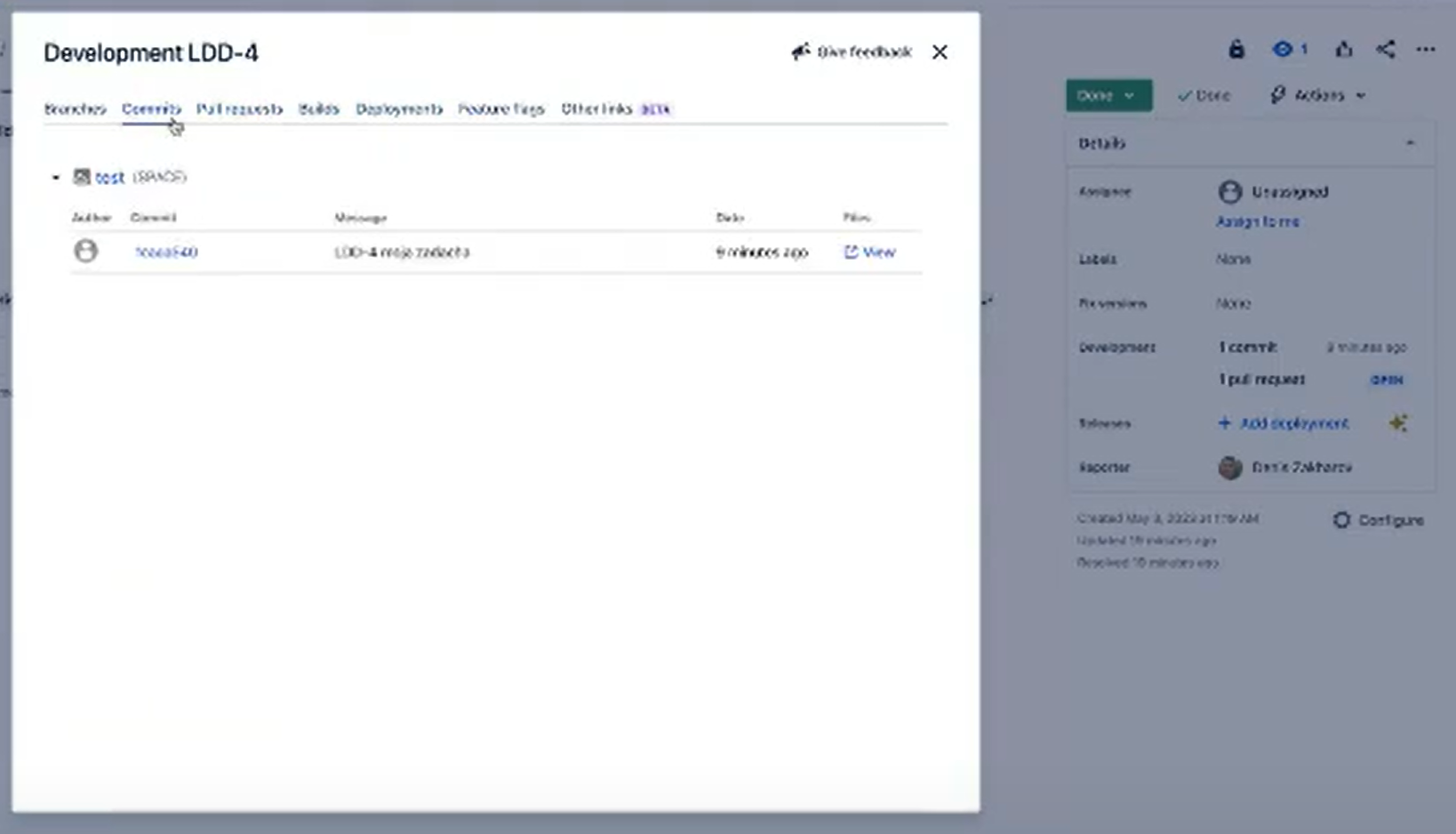
If an issue ID is included in a commit message, a link to the commit or merge request will be automatically added to the corresponding issue in Jira. If the merge request is closed in SpaceCode (indicating the changes have been merged), the status of the related issue in Jira will be updated automatically.
To make this feature work, you should first map projects in Jira to their counterparts in SpaceCode.
Set up Jira integration
On the top right, click your avatar and choose Administration.
Scroll down the left sidebar menu and choose Featured Integrations.
Locate Jira Integration and click Enable.
Click Install app to Jira.

You'll be redirected to the SpaceCode app installation page in the Atlassian Marketplace.
Click Get it now.
If you're not logged in to your Jira instance (site), you'll be prompted to do so.

If you have more than one Jira sites, choose the one you want to integrate with SpaceCode and click Install app.

Confirm by clicking Get it now.
SpaceCode app will be installed to your Jira site.
Click Get started.

Select a Jira project to connect to SpaceCode and click Connect.

You will be redirected to the SpaceCode marketplace and prompted to install the Jira application into your SpaceCode organization.
If your JetBrains account is associated with more than one SpaceCode organization, make sure the correct organization is selected. You can also enter the address of the SpaceCode organization you want connected to Jira.

Click Install.
The Jira application will be installed in your SpaceCode organization, and you'll be taken to the project mapping dialog.
To link SpaceCode merge requests with Jira issues, you need to pare one of your SpaceCode projects with a particular Jira project.
Select the projects you want to link and click Connect.

You can map several project pares by clicking Add mapping.
Turn ON the switch to enable automatic issue status update on merge request completion.
You Jira integration is now set up and enabled. You can manage or disable it by navigating to .