YouTrack Integration
The SpaceCode-YouTrack integration is designed for teams already using YouTrack for issue tracking. By configuring a connection to your existing YouTrack instance from SpaceCode, you can preview YouTrack issues in SpaceCode, link issues to commits and merge requests and update their status automatically.
Key features
Showing link previews and unfurls for YouTrack issues
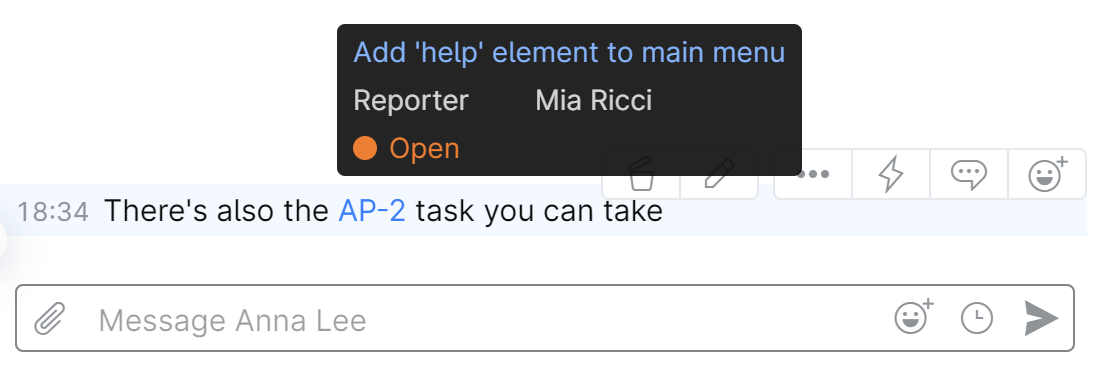
You can preview YouTrack issues mentioned in commit messages, code reviews, and merge requests. For example, if you mention an ID of a YouTrack issue, it'll transform to a link with a preview of the issue details:
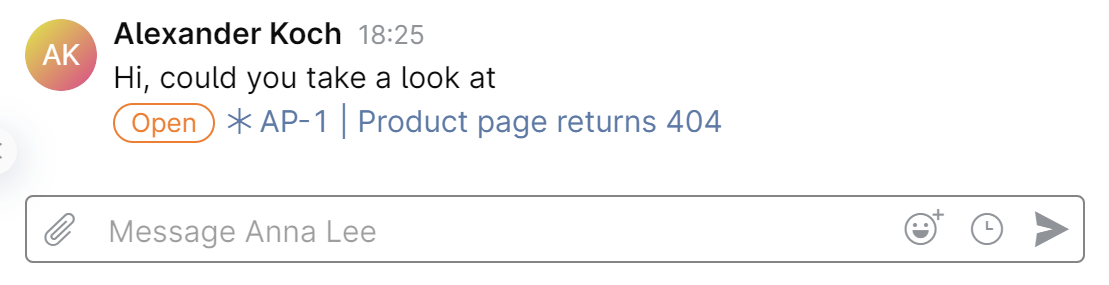
If you paste a whole link to a YouTrack issue, it will be unfurled:
Linking YouTrack issues in commits and merge requests
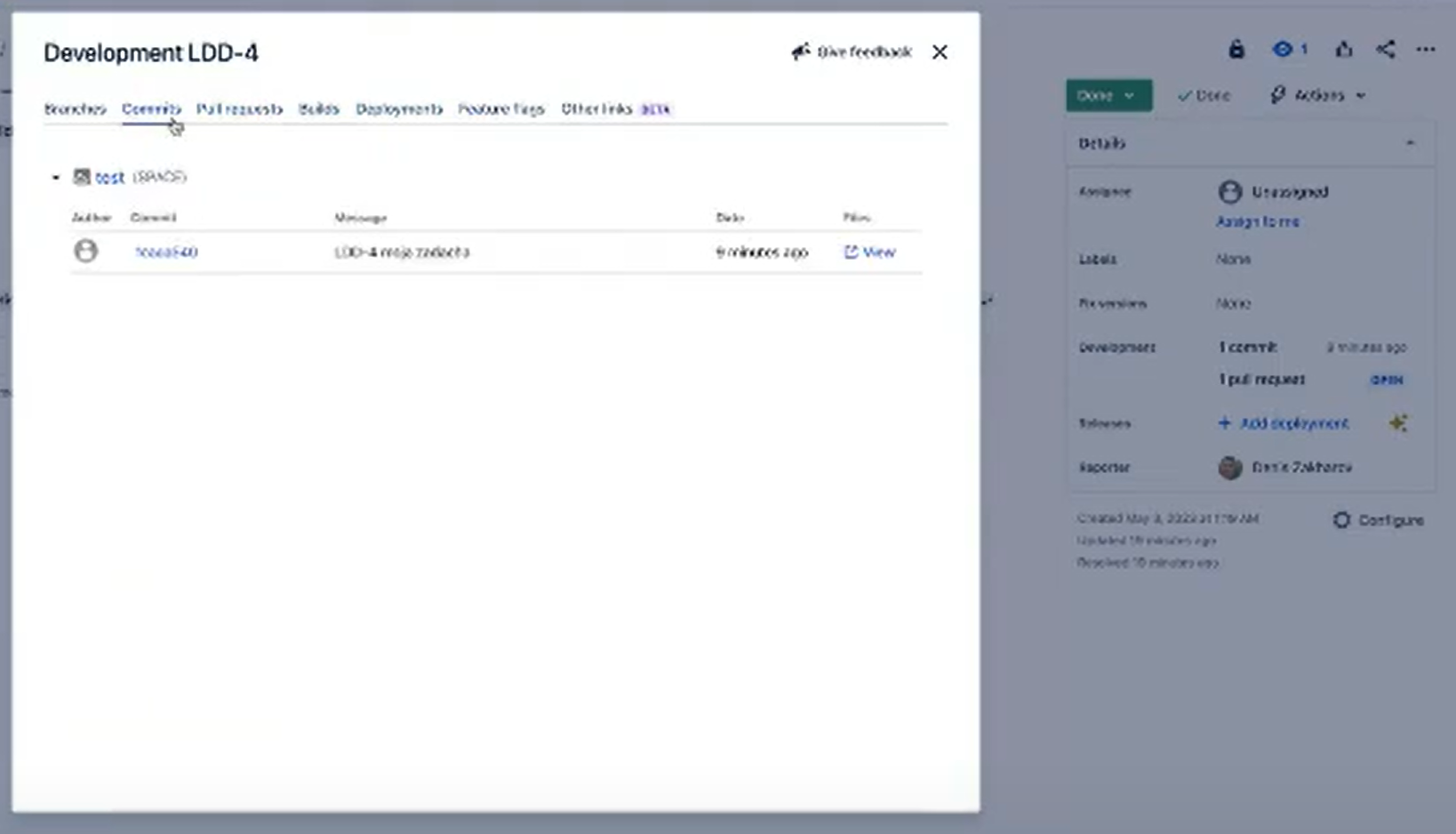
If an issue ID is included in a commit message, a link to the commit or merge request will be automatically added to the corresponding issue in YouTrack. If the merge request is closed in SpaceCode (indicating the changes have been merged), the status of the related issue in YouTrack will be updated automatically.
To make this feature work, you should map projects in YouTrack to their counterparts in SpaceCode.
Set up YouTrack integration
On the top right, click your avatar and choose Administration.
Scroll down the left sidebar menu and choose Featured Integrations.
Locate YouTrack Integration and click Enable.
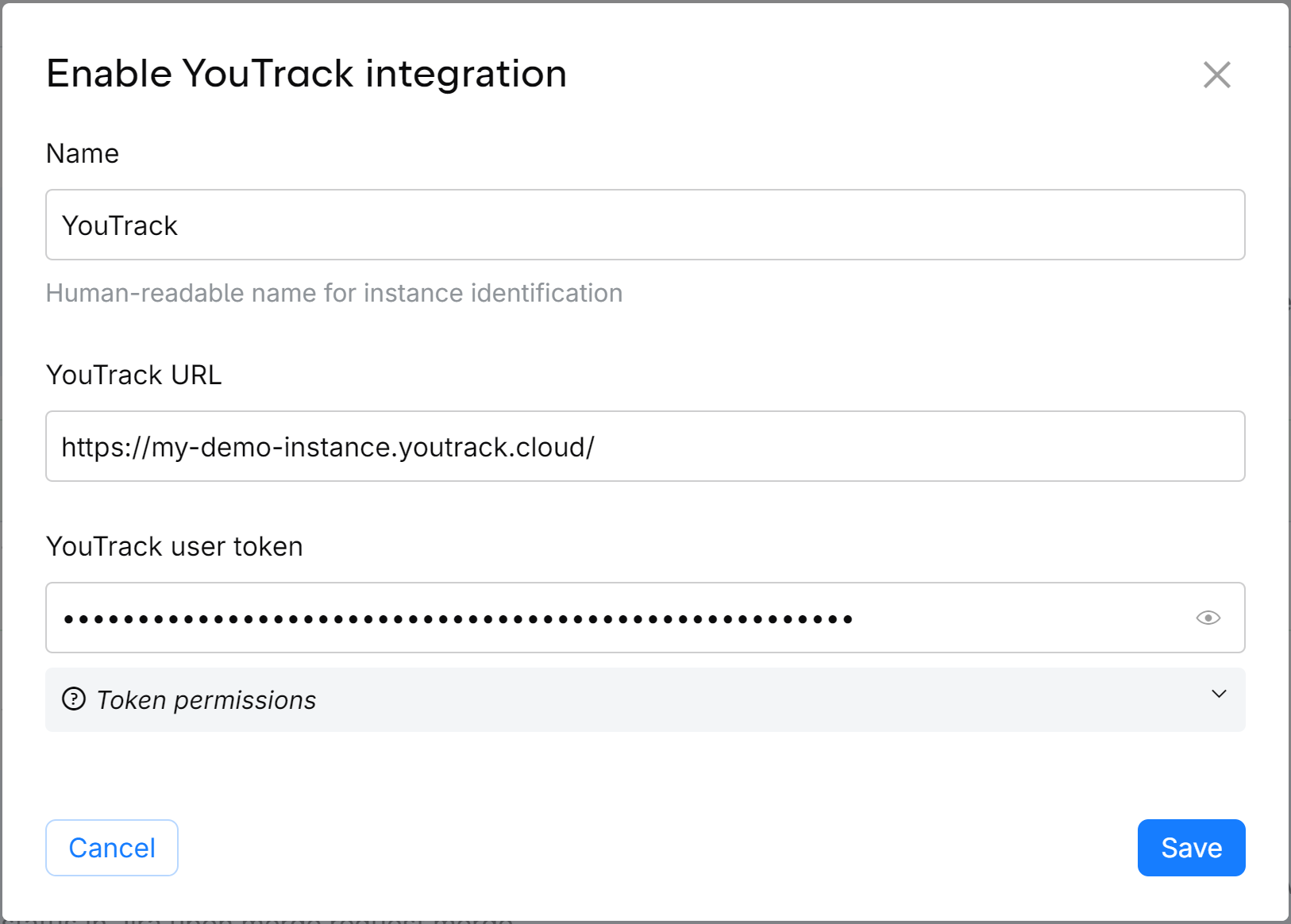
Enter your YouTrack instance URL, e.g.
my-youtrack-instance.youtrack.cloudProvide a permanent token from YouTrack for authentication.
Important notes about tokens:
You can use your personal token, however for optimal integration with SpaceCode, we strongly recommend creating a dedicated user in YouTrack specifically for this purpose, rather than utilizing a token belonging to an existing user.
This user will be shown in YouTrack issue comments as the author of status changes, if automatic issue status updates are enabled upon merging.
In addition to the global integration-wide token that should be entered in this field, you can provide separate tokens for each project mapping (described further). This is particularly useful for large YouTrack instances with multiple projects, as it helps maintain security by limiting the permissions granted to a single token. To accomplish that, you will need to create dedicated users with respective permission sets and generate a token for each of them.
Follow the corresponding YouTrack guide to create a token:
The YouTrack user associated with the token should have the following permissions:
Read Project Basic— to fetch the basic info about YouTrack projects. This permission must be granted for the projects that will be shared with SpaceCode.Low-level Admin Read(optional) — to read the VCS integrations configured in YouTrack, granted at the global scope.
The following project-level permissions should be granted either to this token, or to the separate tokens you can provide for specific projects:
Read Issue— to fetch issue summary, status and assignee for issue preview within SpaceCode.Update Issue (optional)— to automatically update issue status in YouTrack when a linked merge request gets merged in SpaceCode.Read Project Full (optional)— to fetch available issue statuses for automatic issue status update configuration.Update Project (optional)— to configure VCS integration for the project on the YouTrack side.
To grant necessary permissions to a user, follow these YouTrack instructions.
Click Save.
If the connection is successful, your YouTrack instance will be shown on the top of the integration page.
Project Mapping
If you want to enable linking YouTrack issues in commits and merge requests, you need to configure project mapping. To do this, specify which projects in SpaceCode correspond to which projects in YouTrack.
Select the projects you want to link and click Connect.
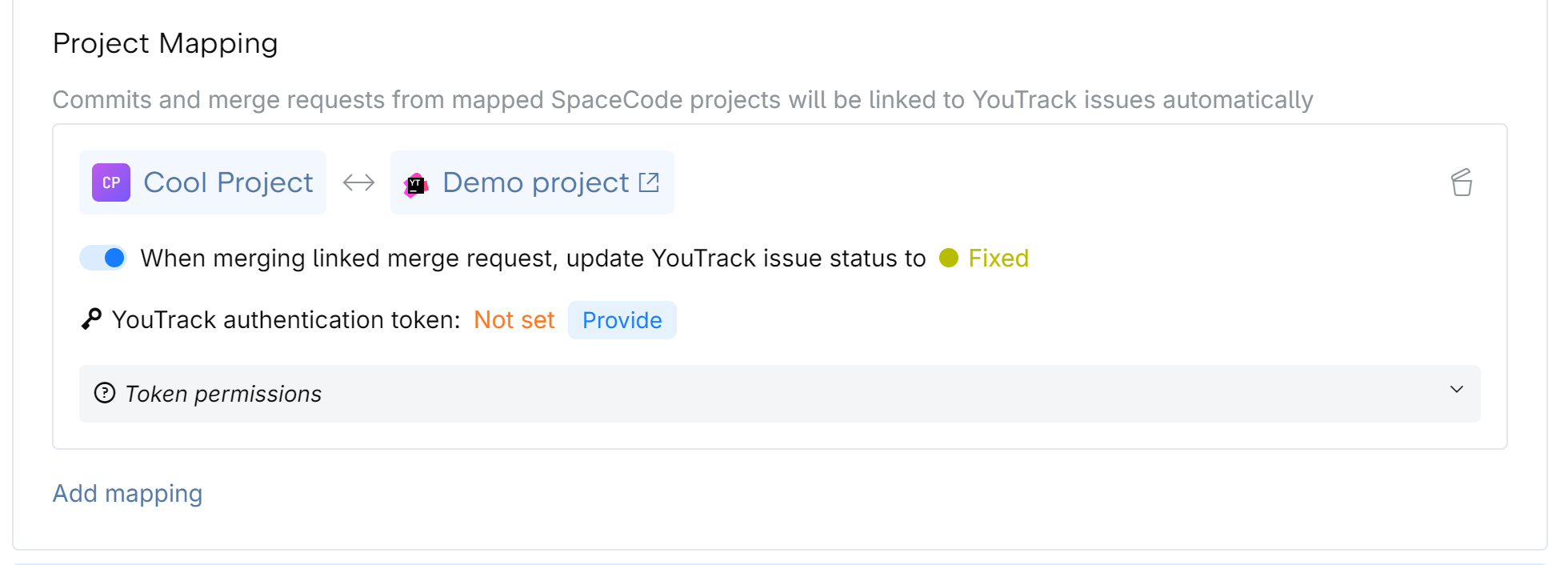
You can create several project pares by clicking Add mapping.
To automatically update YouTrack issue status upon merging a linked merge request, enable the corresponding option and choose a status.
Authentication token. For each mapping, you can enter the same token you entered for the instance-level integration, provided it has the necessary permissions. Alternatively, you can create and provide separate tokens with project-level permissions described above.
You YouTrack integration is now set up and enabled. You can manage or disable it by navigating to .