Two-Factor Authentication
Two-factor authentication (2FA) adds an extra layer of security and protects your account from unauthorized entry.
With the 2FA enabled, you'll have to enter an additional security code generated by an authentication app to log in to SpaceCode.
Enable two-factor authentication
Download and install an authentication app of your choice on your mobile device or desktop and create a new account for SpaceCode. You can use any app that supports TOTP/RFC standard, such as:
Google Authenticator (Android, iOS)
Authy (Android, iOS, Mac OS, Windows)
1Password (Android, iOS)
Log in to SpaceCode.
On the top right, click your avatar and choose .
On the left sidebar menu, choose 2FA.
Click the Set up 2FA... button.
Scan the QR code with your device or provide your app with the key, if it can't recognize the QR code.
Your app will generate a 6-digit code. Enter the code into the field and click Confirm.
The next time you log in to SpaceCode, you will be asked for a code generated by your app.
Disable two-factor authentication
On the top right, click your avatar and choose .
On the left sidebar menu, choose 2FA.
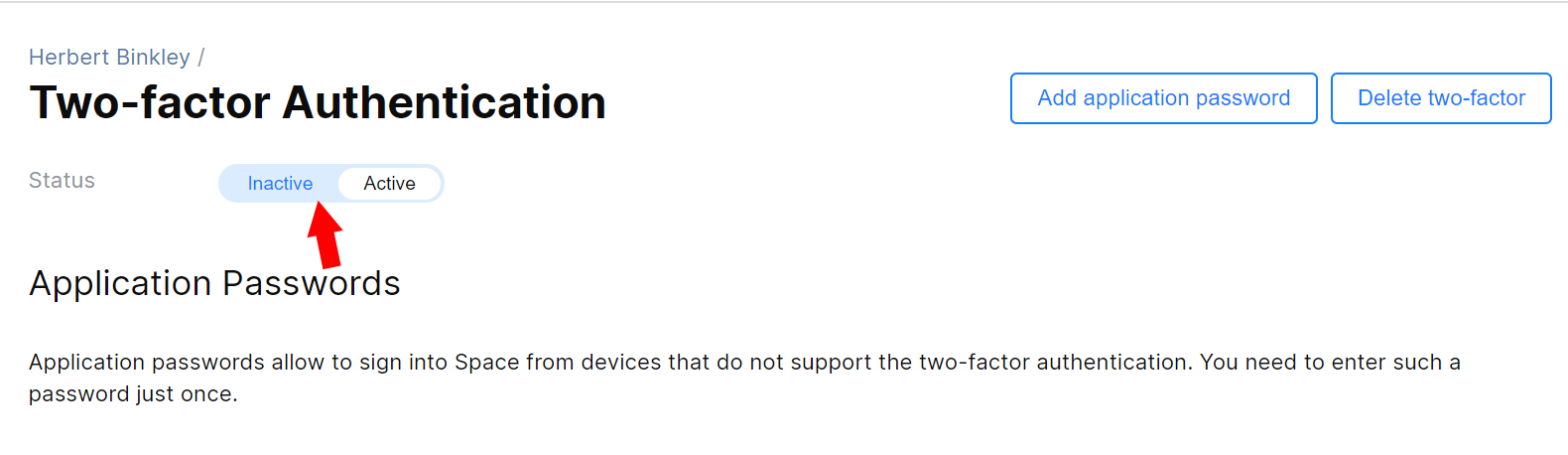
Switch the status to Inactive: