Create Build Chain
This tutorial explains how to create a separate pipeline that works in tandem with the one created in the previous Configure and Run Your First Build walkthrough.
Topic covered in this tutorial:
Pipeline dependencies and build chains
Building Docker images
Job agent requirements
Build agent terminal
Reusing upstream chain builds
Publishing and exchanging artifacts
Basic concepts
In TeamCity, there are two main methods of linking standalone entities into a single workflow.
- Build chain
A Build Chain is a sequence of interconnected build configurations and pipelines.
Relationships between these standalone objects are configured from right to left, or downstream to upstream. For example, to run two pipelines in the sequence "Pipeline A → Pipeline B", add a dependency on "Pipeline A" to "Pipeline B". In other words, you tell TeamCity that "B" depends on "A".
This has two effects:
"Pipeline A" has no dependencies and can run solo. Running it will not trigger "Pipeline B".
"Pipeline B" depends on "Pipeline A", so it cannot run independently. When you trigger "B", it requires a completed "A" run. Depending on your chain settings, TeamCity will either start a new "Pipeline A" run and wait for it to finish, or reuse the results of a previous successful "Pipeline A" run and start "B" immediately.
- Finish build trigger
Finish build triggers are the opposite of build chain dependencies. They allow you to create left-to-right relations between build configurations (pipelines are not currently supported). In this case, the "Config A → Config B" sequence runs when you trigger an upstream "Config A". When it finishes, it automatically triggers the downsteram "Config B". In this setup, "Config B" can run solo without triggering any external builds.
Finish build triggers are mostly used in conjunction with regular build chains.
See this section for more information about different ways to create relations between TeamCity entities: Set Up Dependencies.
Step 1: Create a pipeline
Go to the General settings of a project that owns the pipelines created in the previous tutorial.
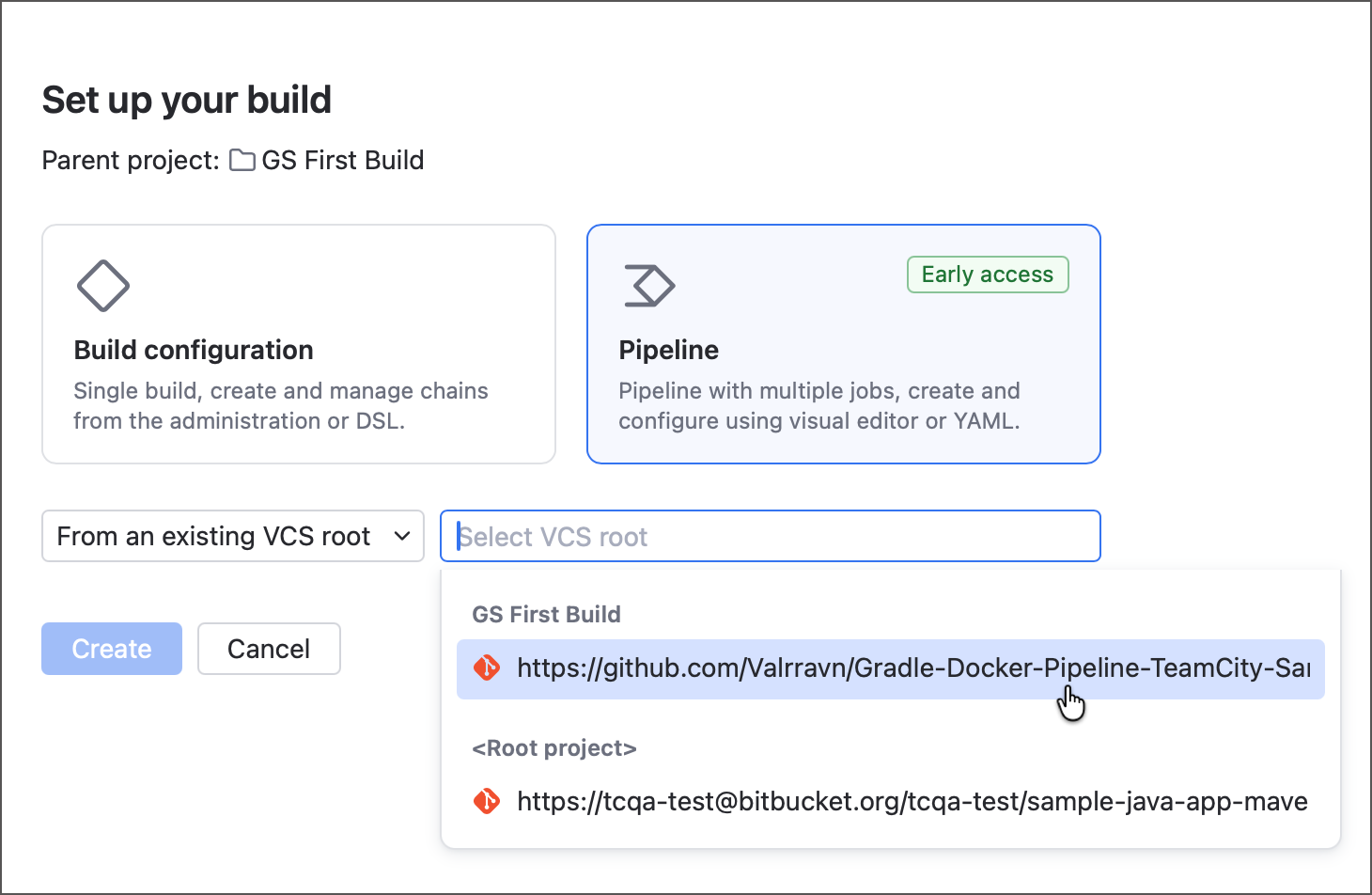
Click Create pipeline.
Since you already have a pipeline that checks out the required project from GitHub, you can select the From an existing VCS root option. This way you can instantly reuse all settings required to access the repo.
Add a Script build step that uses
./docker/Dockerfileto build the Docker image. If you are unsure how to configure build steps or utilize the YAML editor, see the previous part.jobs: Job1: name: Docker build steps: - type: script script-content: docker build -f ./docker/Dockerfile -t johndoe/myapp:%build.number% .Since this job builds an image, you want it to run on build agents that have either Docker or Podman installed. To it being assigned to a build agent that has no required tooling, add an agent requirement using yet another predefined TeamCity parameter,
container.engine.jobs: Job1: ... runs-on: self-hosted: - requirement: exists name: ImageBuilderTool parameter: container.engineRun the pipeline and ensure it finishes successfully. You can verify the image was built by running
docker image lsin the agent terminal.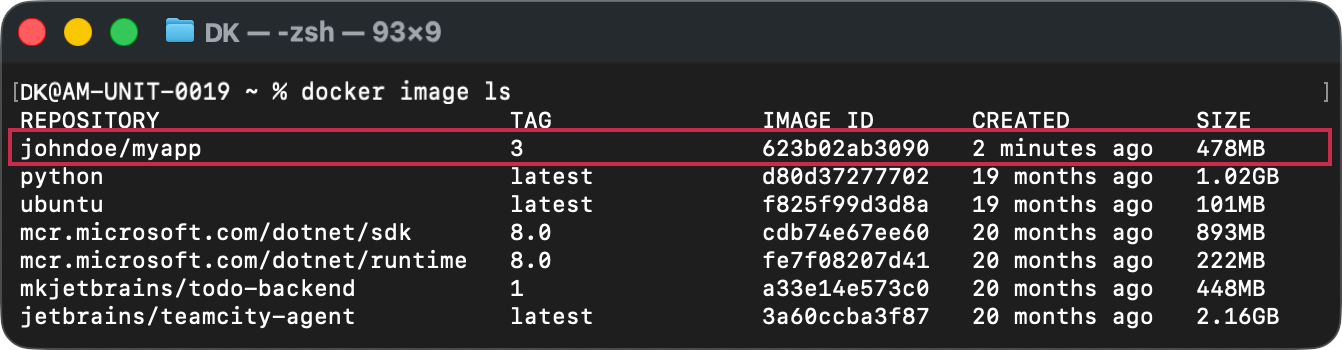
Step 2: Configure a build chain
You now have two separate pipelines: one that builds and tests your app, and another that produces a Docker image. To connect them, create a build chain.
The Docker pipeline should be downstream because the image should be produced only after the app has been built and tested. Since chain dependencies are configured from right to left (owned by downstream objects and pointing to upstream ones), you need to add the dependency in the Docker pipeline.
Open Docker pipeline settings and select the pipeline to view its settings instead of individual job settings.
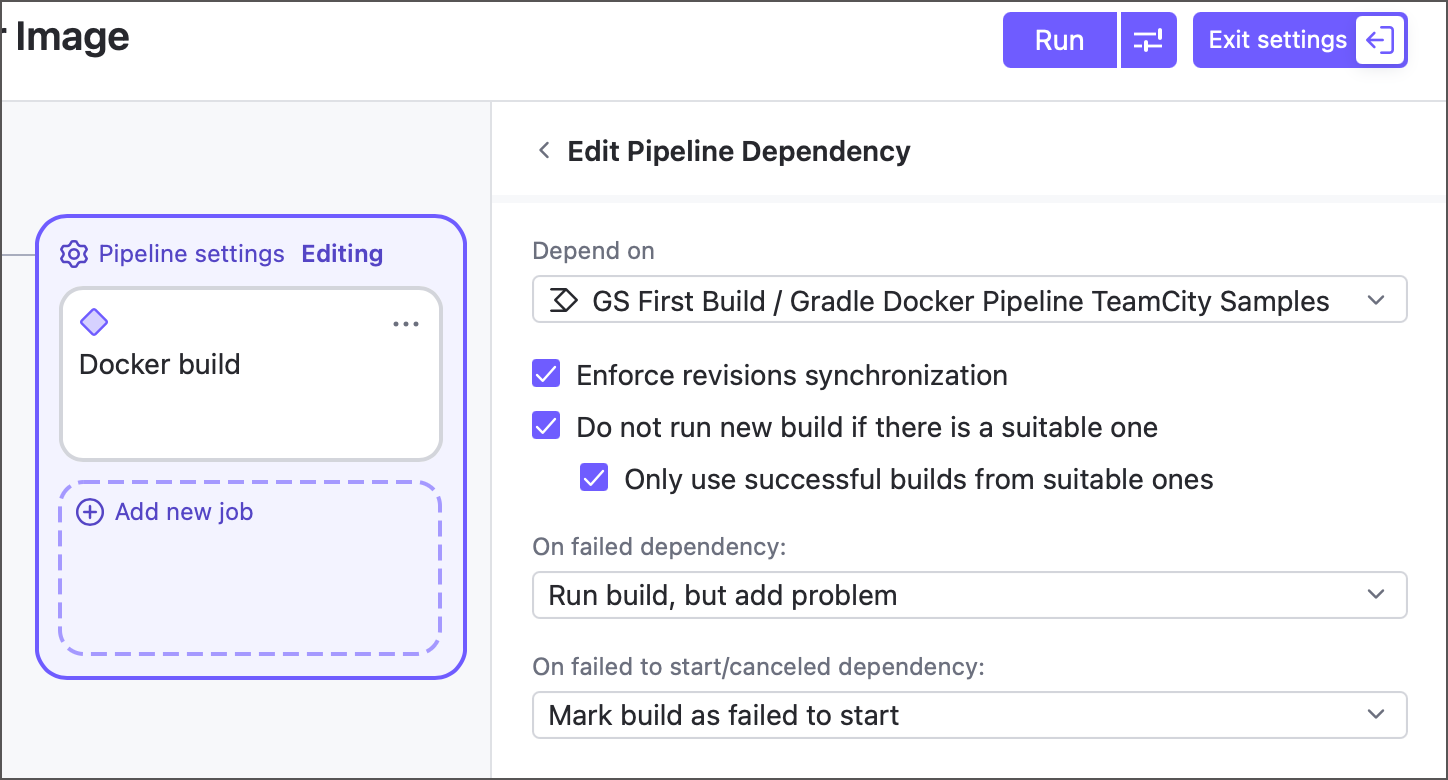
Click Add next to the Pipeline dependencies section.
Choose your another pipeline from the Depend on list and click Done.
Disable all Job settings | Optimizations | Reuse Job Results options in both pipelines. In real-world workflows, you would likely keep some of these optimizations enabled, but for now we’ll turn them off to focus on dependency settings without adding another layer of reuse logic.
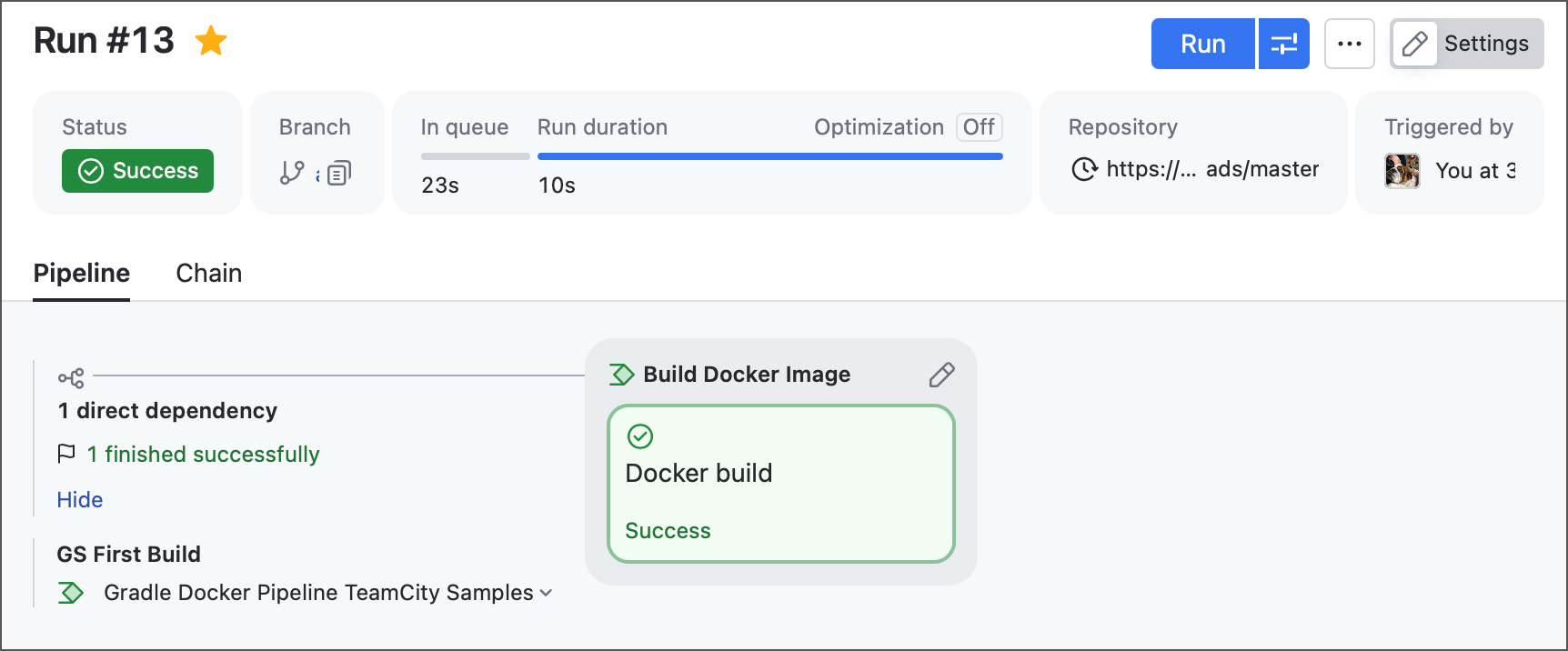
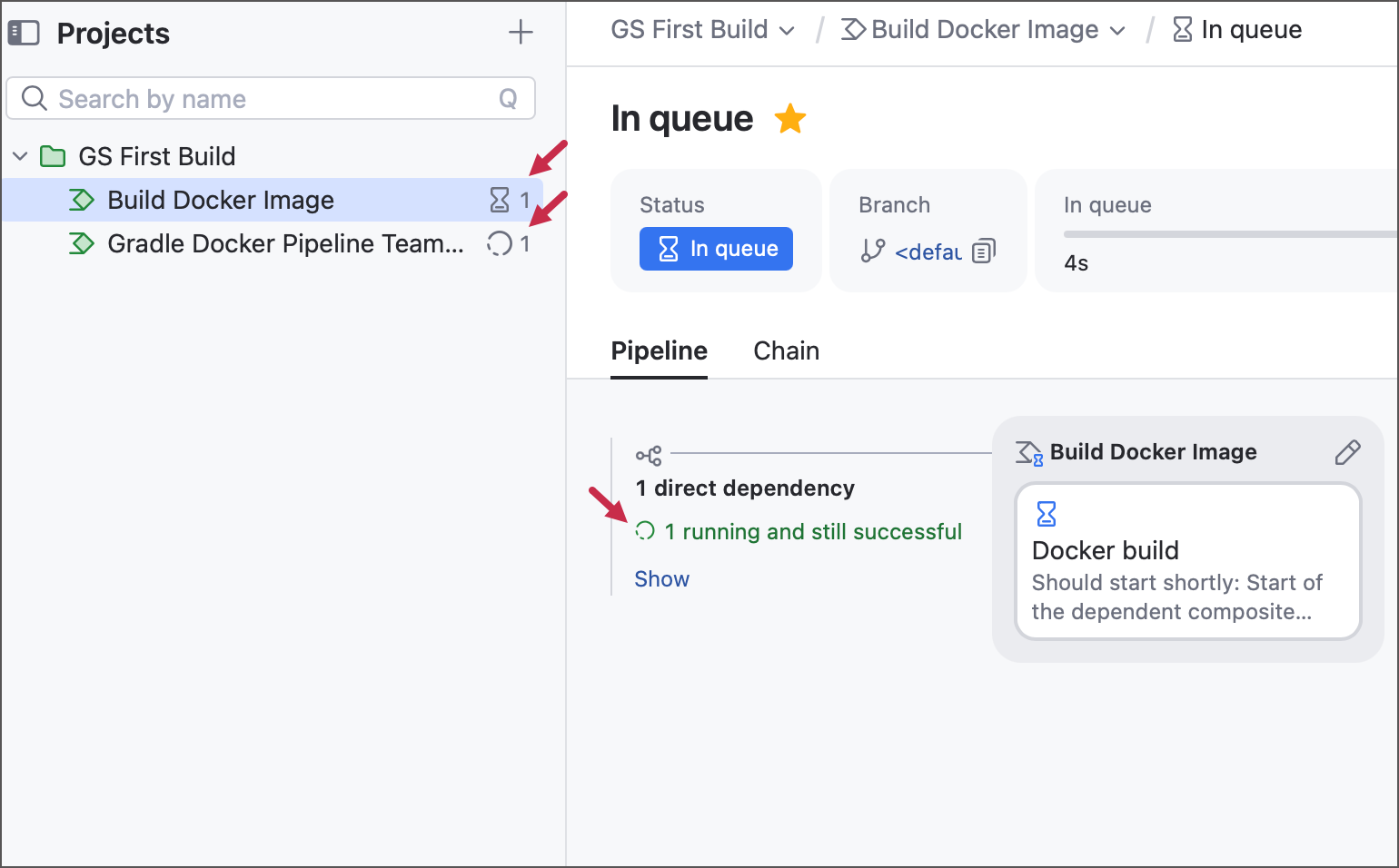
Run your Docker build configuration. You should see both of your pipelines running. Switch to the Chain tab of Docker pipeline's run results page to view detailed information about each section of the chain: build number, run duration, and so on.
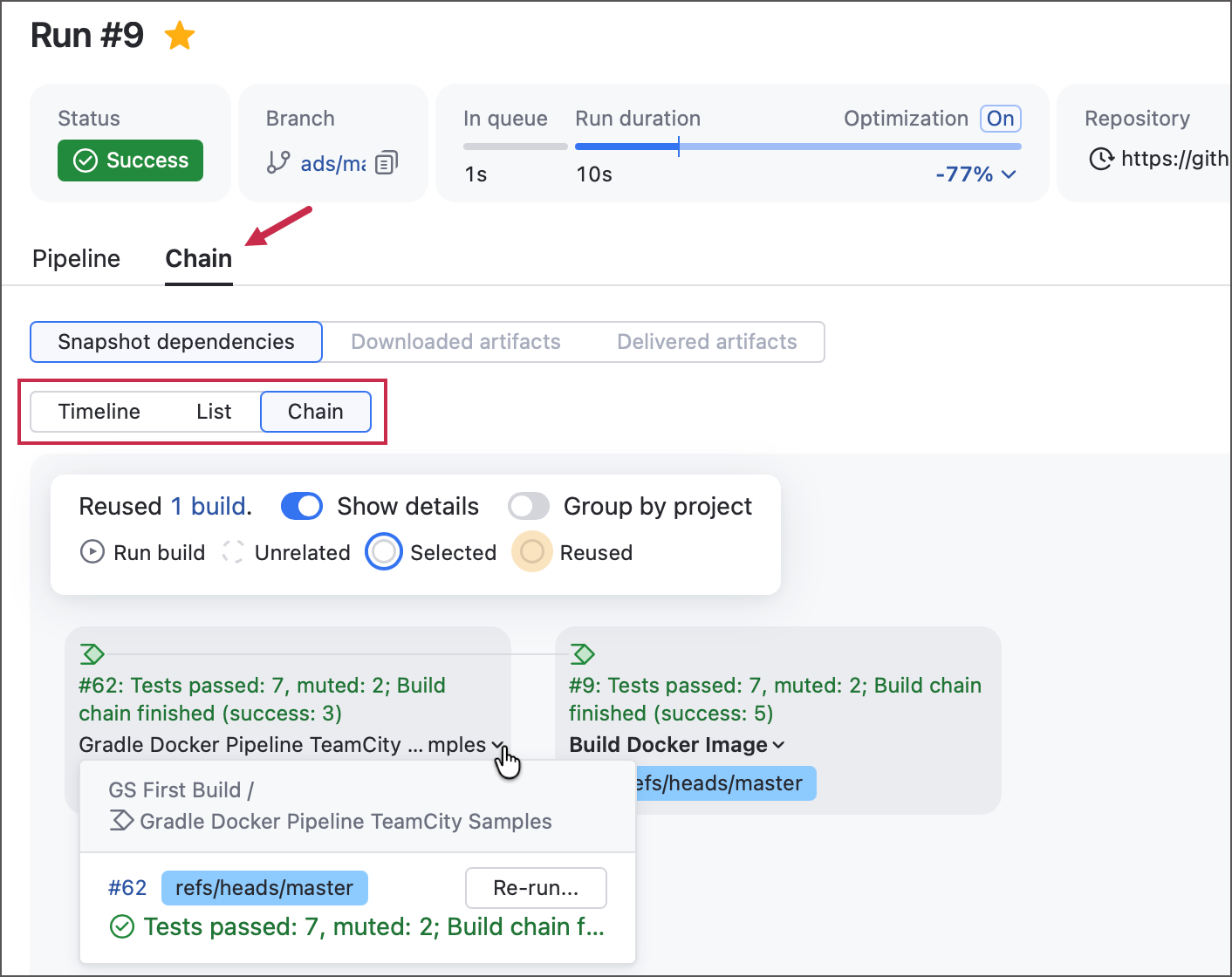
Re-run the Docker pipeline. Because the pipeline dependency configured in step #3 has Do not run new build if there is a suitable one enabled, TeamCity will reuse the previous run of the upstream pipeline and run only the Docker pipeline again.
You can confirm this on the Chain tab: the upstream pipeline build number should stay the same.
Run your first build/test pipeline. Notice that it runs alone and does not trigger the Docker pipeline.
Open Docker pipeline settings and edit your existing dependency. Disable the Do not run new build... setting.
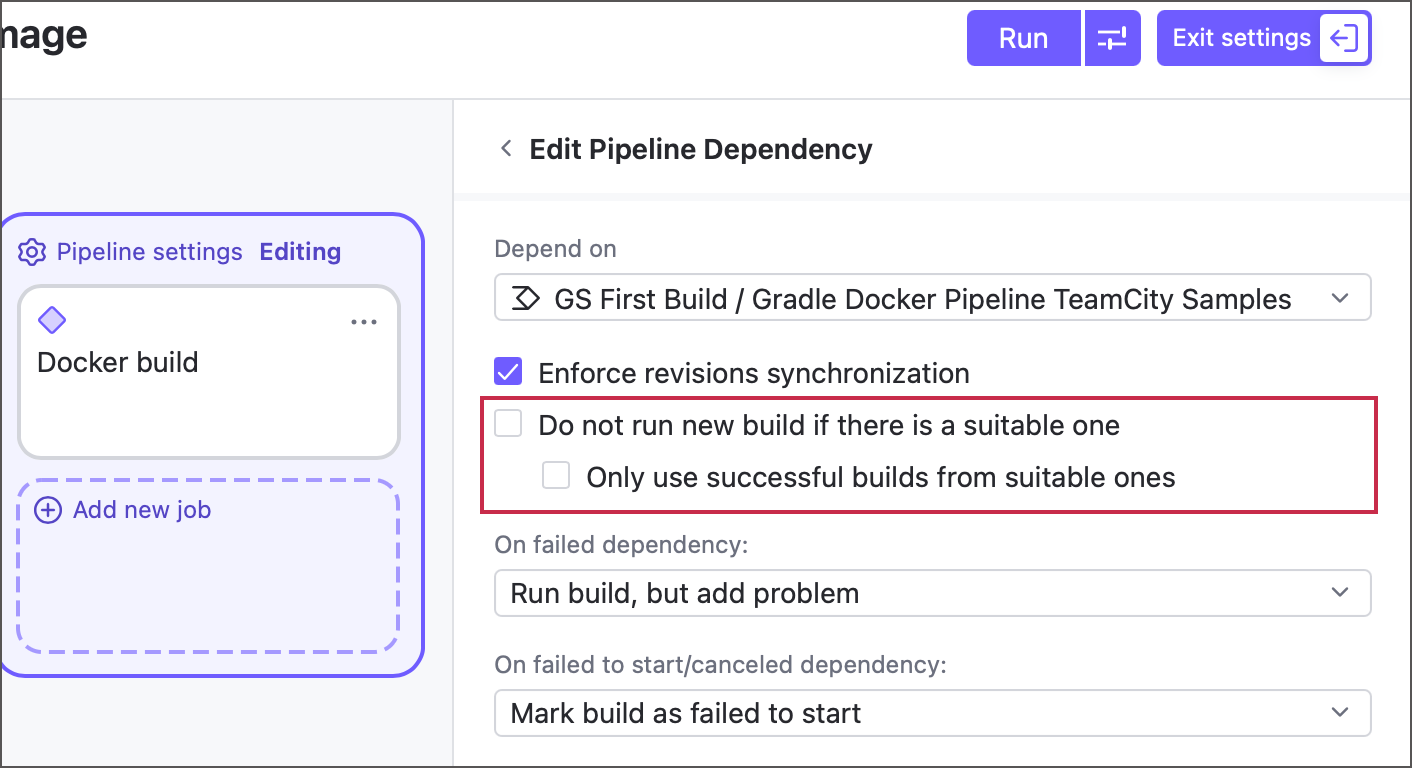
Run the Docker pipeline a few times. Now that the reuse setting is off, you should see both pipelines starting anew every time.
Step 3: Publish and exchange artifacts
In step 1, you may have encountered the file '/build/libs/todo.jar' not found error. To reproduce it, run the two pipelines on separate agents with both {agent_home}/work directories cleared to ensure a clean environment.
This error occurs because:
The Dockerfile copies
./build/libs/todo.jarinto the image.This file, along with its parent directory, is generated during the build phase and is not stored in the repository.
The agent that runs the Docker pipeline checks out the remote sources and runs
docker build. Since it has not rungradle clean buildfirst, the expectedtodo.jarfile is missing.
To resolve this issue, you need to pass the ./build/libs/todo.jar generated by the build/test pipeline down the chain.
Open the settings of your upstream build/test pipeline and select the building job.
In the Output files settings section, add the
./build/libs/todo.jarfile with both Shared file and Artifact checkboxes selected.jobs: Job1: name: Job 1 steps: - type: gradle name: Build app tasks: clean build jdk-home: '%env.JDK_11_0_ARM64%' dependencies: - Job2 - Job3 allow-reuse: false runs-on: self-hosted: - requirement: equals name: Agent name parameter: system.agent.name value: macOS J21 files-publication: - path: ./build/libs/todo.jar share-with-jobs: true publish-artifact: true ...Run this build and ensure the target file is published on the Artifacts tab. Any TeamCity user with sufficient permissions can download published artifacts from build result pages.
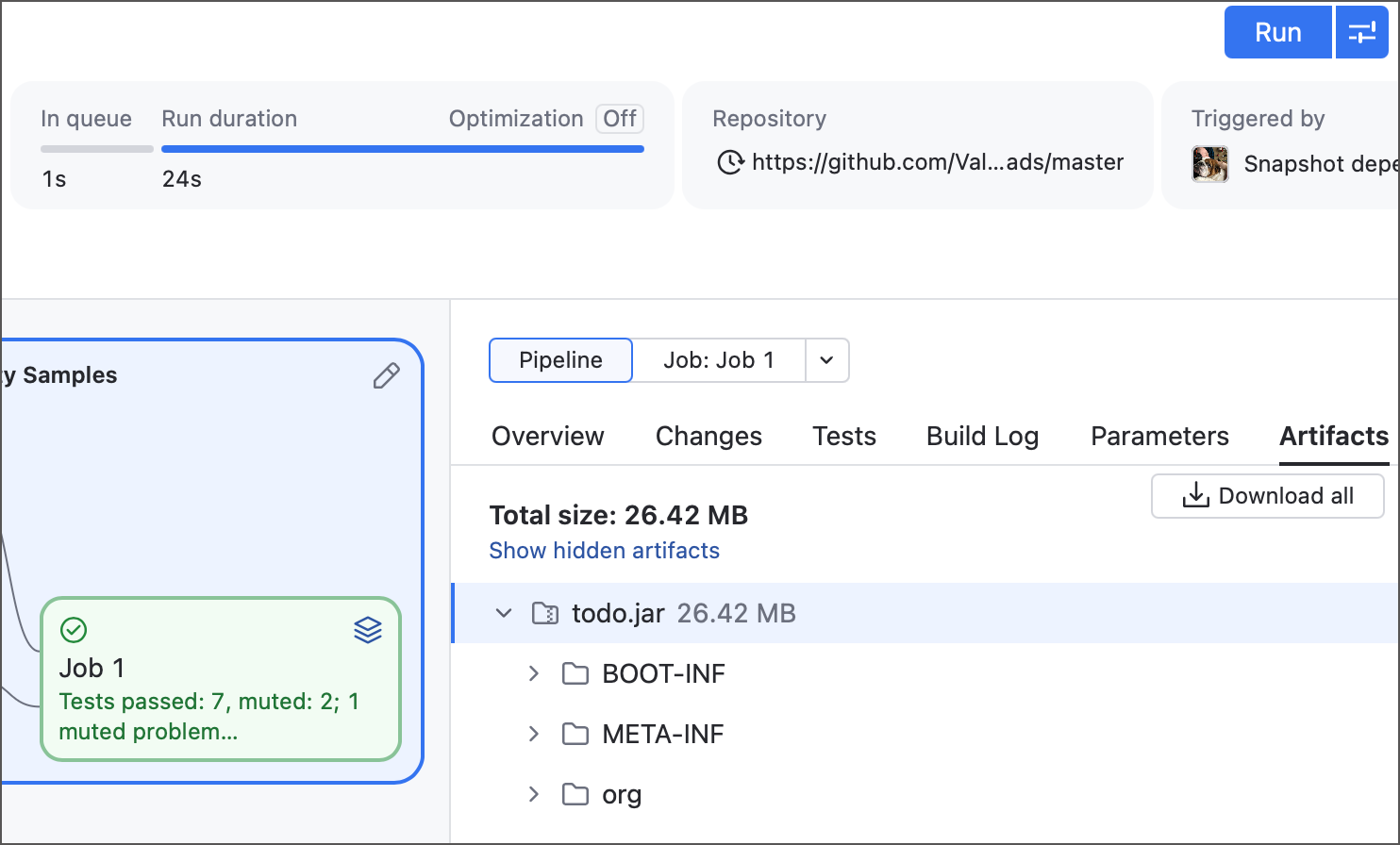
The Shared file checkbox makes the file available to downstream jobs, but only within the same pipeline. External pipelines and configurations further down the chain do not import shared files automatically, so you need to import them manually.
In classic build configurations, you can do this by declaring artifact dependencies, which work similarly to the pipeline dependencies you used to link the two pipelines. In pipelines, artifact dependencies are not fully supported yet and can only be added by editing the YAML configuration file.
jobs: Job1: name: Docker build steps: - type: script script-content: docker build -f ./docker/Dockerfile -t johndoe/myapp:%build.number% . ... download-artifacts: - GSFirstBuild_GradleDockerPipelineTeamCitySamples: # same ID as in 'dependencies' block from: dependency artifact-rules: todo.jar=>./build/libs clean-destination: true dependencies: - GSFirstBuild_GradleDockerPipelineTeamCitySamples: reuse: noneRun the build chain and ensure it now finishes successfully, even when each pipeline is processed on a separate agent.