Job Settings
Jobs contain individual build steps that run sequentially. This article covers common settings that control how the sequence is executed.
Edit Job Settings
To view and edit job settings, click the Settings toggle in the top right corner, then click any job tile (or the "Add" tile to create a new job).
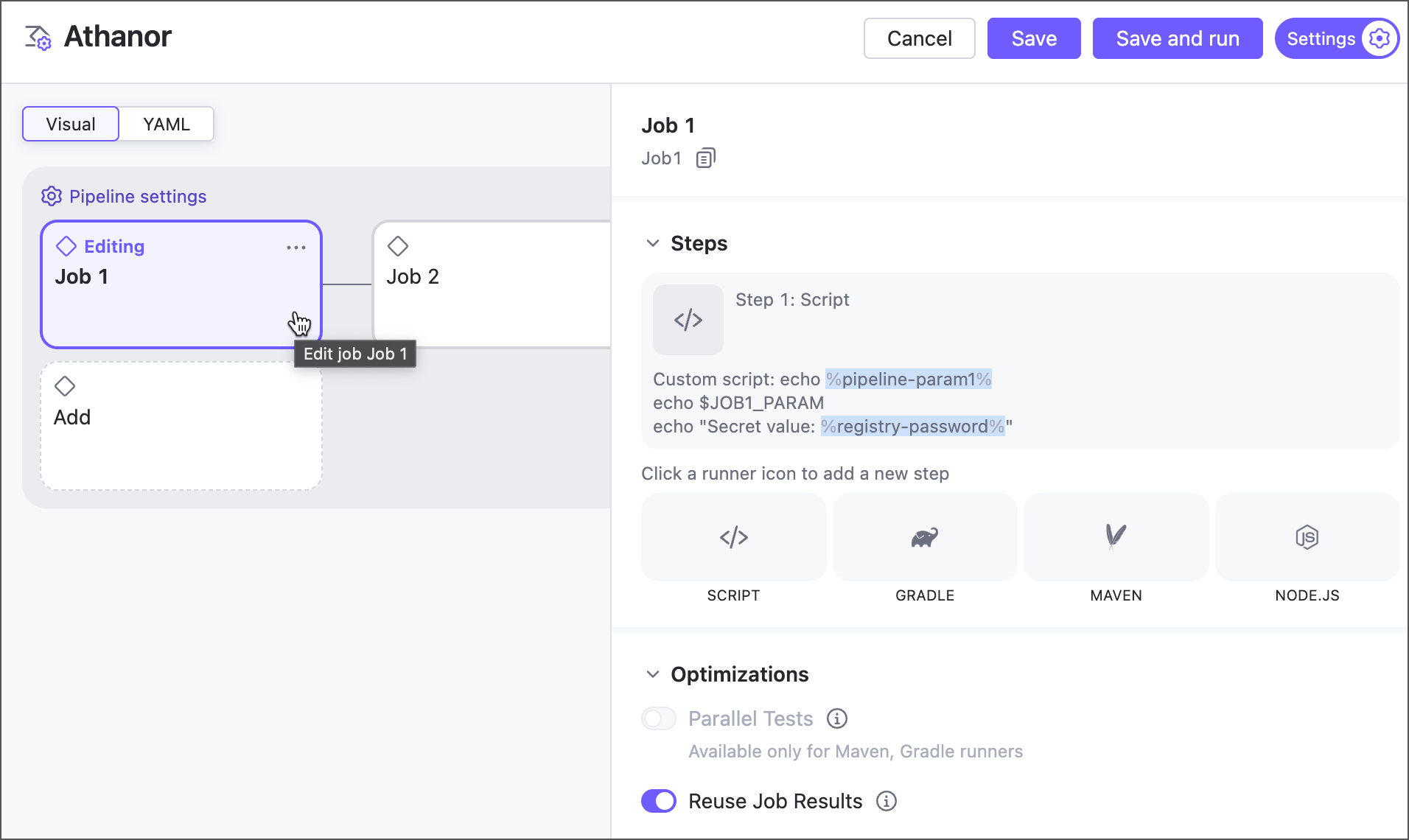
You can also switch from the visual editor to the code and edit the markup directly.
Dependencies
This section allows you to arrange stand-alone jobs into a unified workflow. You can also do this in the visual editor: hover over the edge of a job to reveal a plus icon, then drag it to either side of the job you want to connect it to.
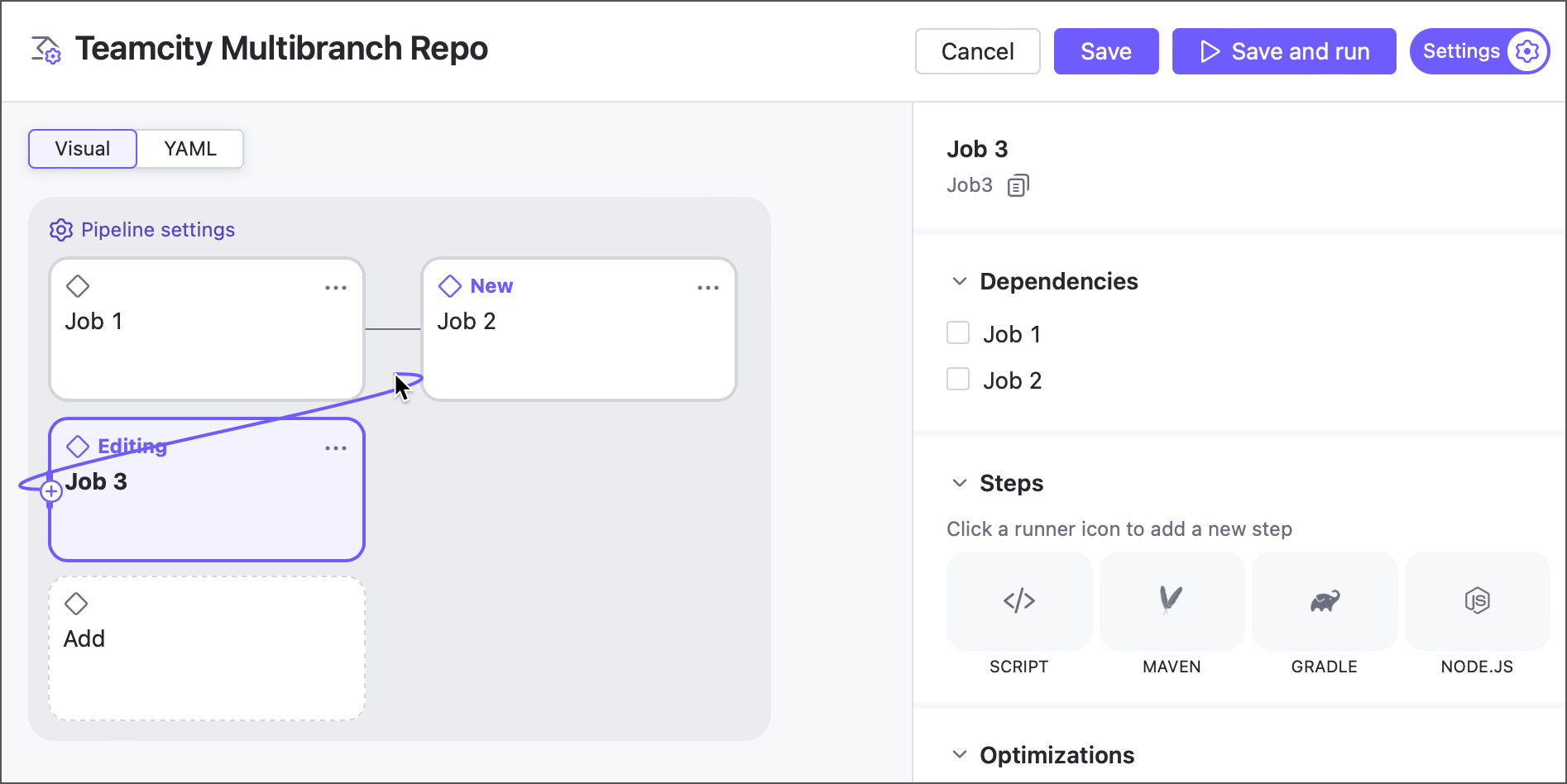
When you add a dependency on an upstream job, you can also configure:
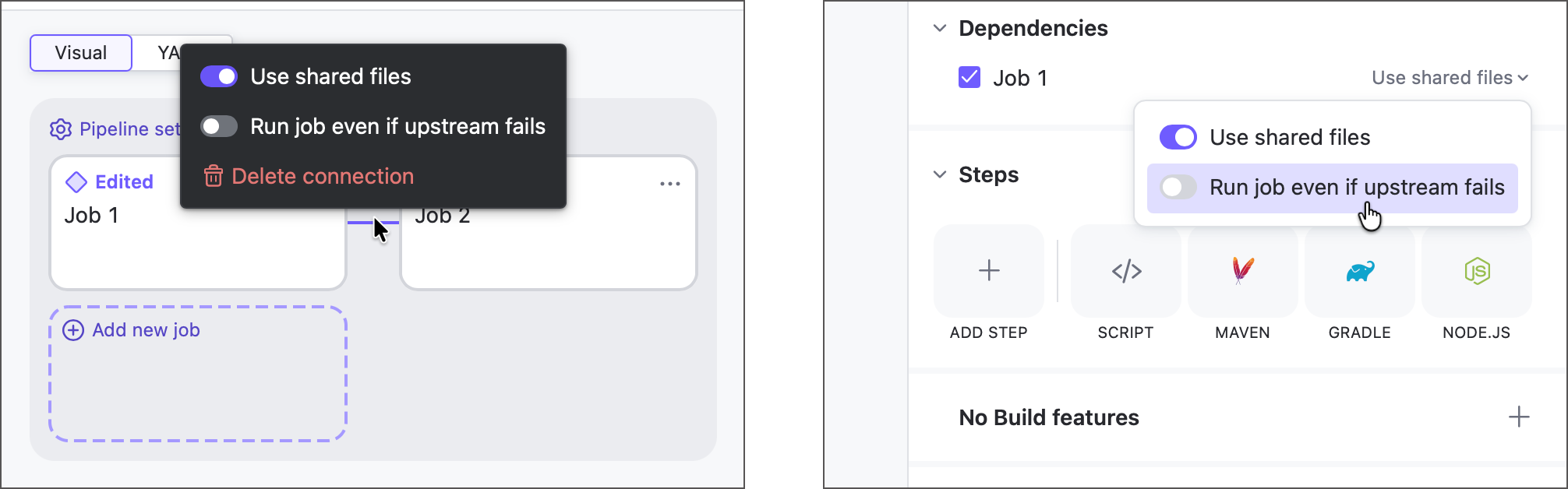
Ignore shared files — if enabled, the job does not automatically download files its upstream job shares. Available only when the upstream job shares any files.
Run job even if upstream fails — by default, if an upstream job fails, every job that depends on it, directly or indirectly, is removed from the queue and canceled with the "some of the builds it depends on have failed" error. Enabling this option for a specific dependency lets the job run even if that particular upstream job fails; the pipeline run is still marked as failed overall. Use it, for example, to make sure a cleanup or notification job always runs.
Steps
Use this section to define what the job does, such as building and testing projects, running custom scripts, uploading Docker images, and so on.
Currently, pipelines support four types of steps you can add. All of them are lightweight versions of corresponding classic build configuration steps
Script
This is a universal step that executes commands directly in the agent machine terminal. As a result, you can interact with any tool installed on the agent: cURL, Python, MSBuild, Homebrew, and so on.
For example, the following step downloads artifacts produced by a target build configuration:
Gradle
Tailored for interacting with the Gradle build tool, this step can build, test, and package Java, Kotlin, Groovy, Scala, Swift, and other projects.
Maven
The Maven build step is designed to process Java, Kotlin, Groovy, and other projects using Apache Maven.
Build Features
Like steps, build features perform specific actions. However, features run at predefined points in the build lifecycle, while steps are more flexible and can be arranged as needed.
For example:
Script is a build step that executes terminal commands. Its behavior depends on your settings: it can run a single command or a full script, use inline or file-based scripts, and execute at any point in the pipeline.
Swabra is a build feature that performs one specific action — cleaning files produced during the build — at a specific time, either before or after the build.
At the moment, pipelines support only a subset of the build features available for build configurations:
- Build files cleaner (Swabra)
Tracks files created, modified, or deleted during the build. New files are removed when the build finishes or when the next build starts, while modified and deleted files are reported in the build log. You can also limit tracking to specific files and directories.
Learn more: Build Files Cleaner (Swabra)
- Build cache
Improves build performance by reusing files generated during previous runs, such as downloaded npm packages or Maven local repository artifacts.
Learn more: Build Cache
- Free disk space
Automatically cleans the agent disk to make sure enough free space is available for new builds.
Learn more: Free Disk Space
- XML report processing
Lets TeamCity use report files generated by external tools. Supported formats include test framework reports such as JUnit, Maven Surefire/Failsafe, TRX, and Google Test, as well as code analysis reports from tools like SpotBugs, PMD, and Checkstyle.
Learn more: XML Report Processing
Optimizations
This section covers settings to significantly speed up pipeline runs, saving time, resources, and, for cloud agents, infrastructure costs.
Parallel Tests — Allows Maven and Gradle steps to split test suites into batches, spawning N virtual builds running in parallel on separate build agents.
Reuse Job Results — If no enabled repositories contain new changes, TeamCity skips re-running the job and reuses artifacts, status, and results from a previous run. This ensures only jobs affected by recent changes are executed.
Reused jobs are explicitly marked in the UI to avoid any confusion.
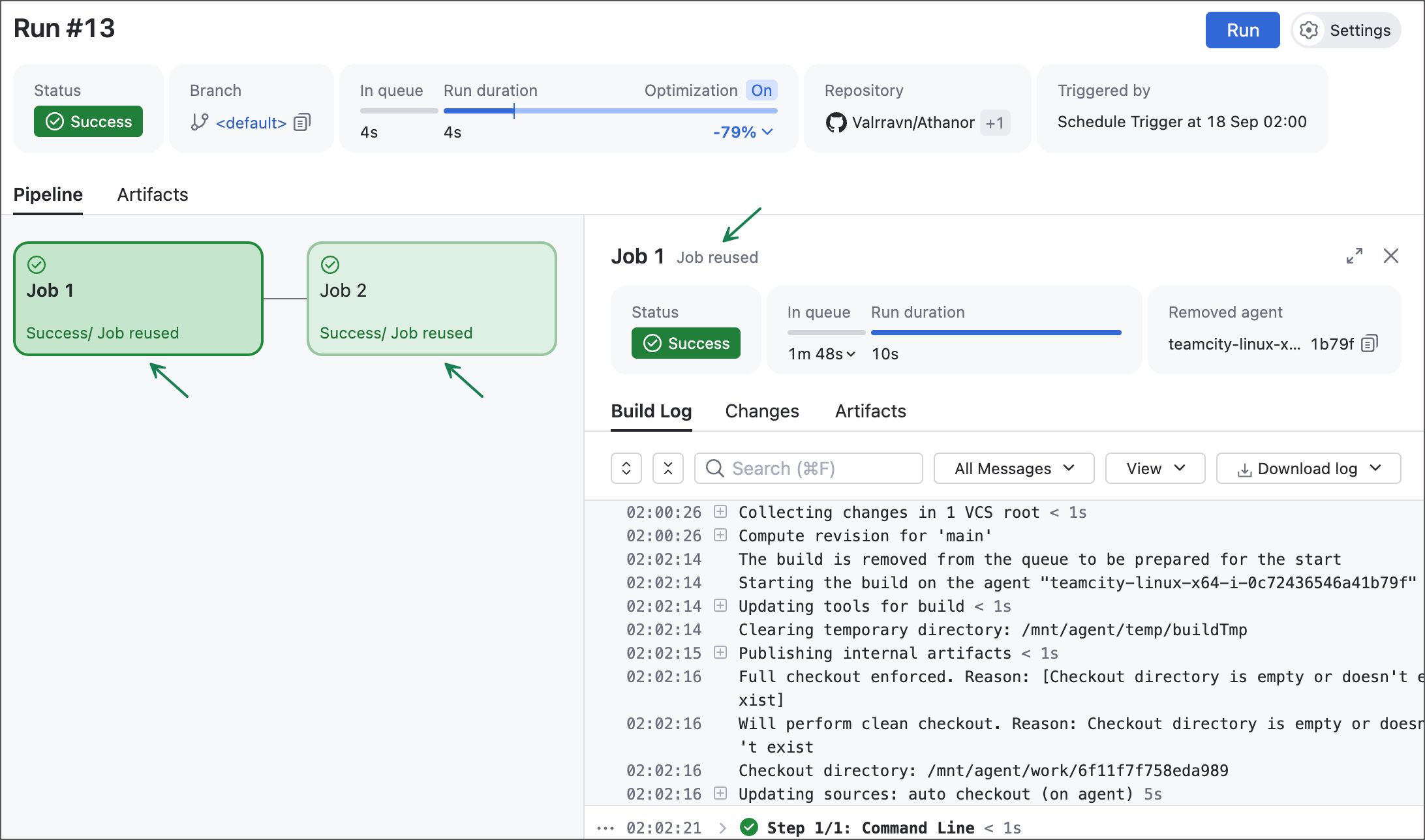
Notice the "Optimization" tile at the top: TeamCity completed this run nearly five times faster than the previous one, with reused runs saving almost 80% of the last run’s duration.
Agent Requirements
TeamCity automatically tracks agent software to ensure queued runs are assigned only to compatible agents. For example, if a Maven step must run in a container, agents without Docker or Podman are marked incompatible.
Similarly, if a job uses a parameter that is not defined in either project, pipeline or job Parameters sections, TeamCity checks the agent machine as the last remaining potential source of this parameter value. For example, if the command-line step runs echo %myParam% with an unknown parameter reference, only agents with a non-empty "myParam" parameter can run the job.
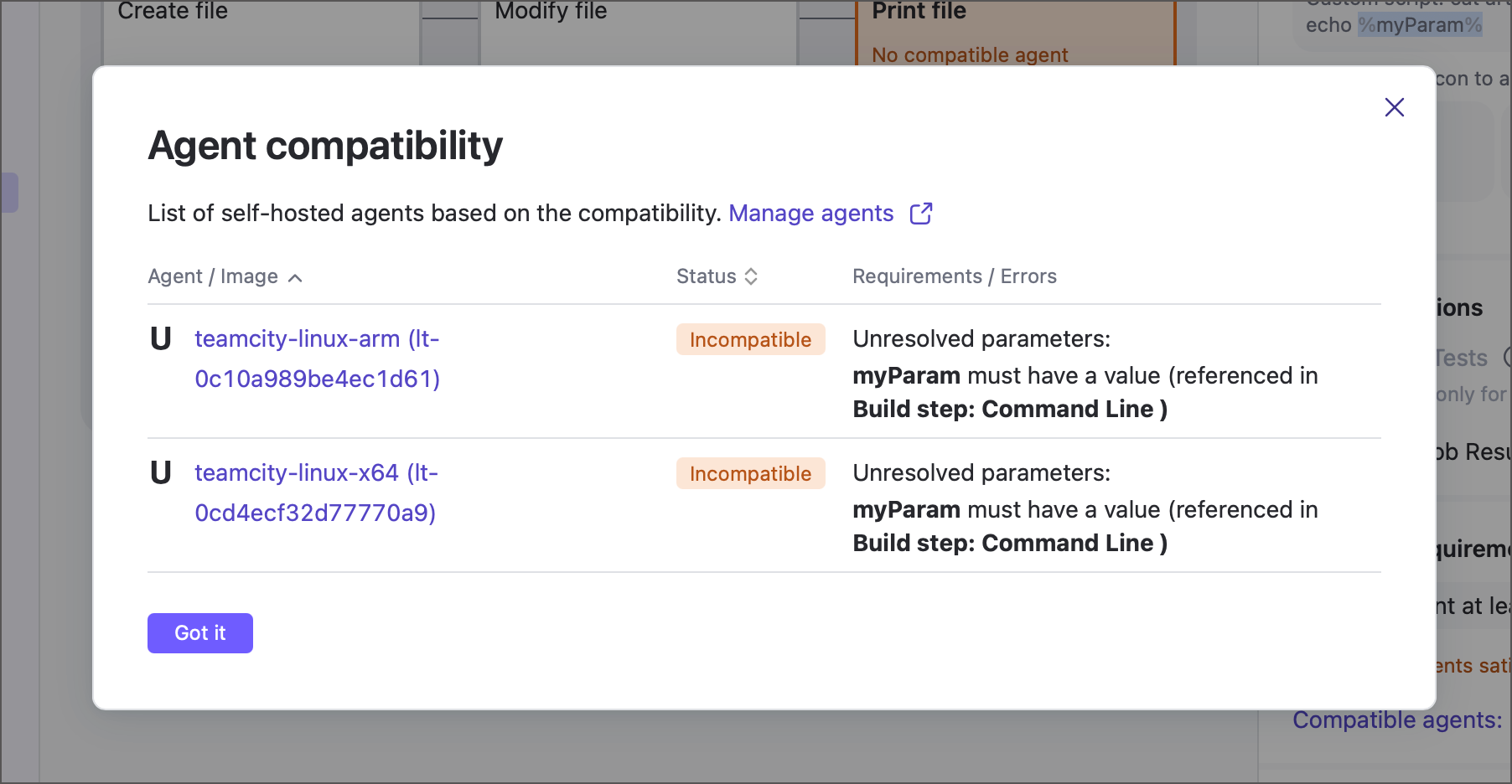
The Agent requirements section allows you to define extra conditions for eligible agents, such as names, hardware specs, or installed tools.
TeamCity displays ready-to-use options for most basic agent hardware requirements: the number of CPU cores, the total amount of agent memory, and the CPU architecture.
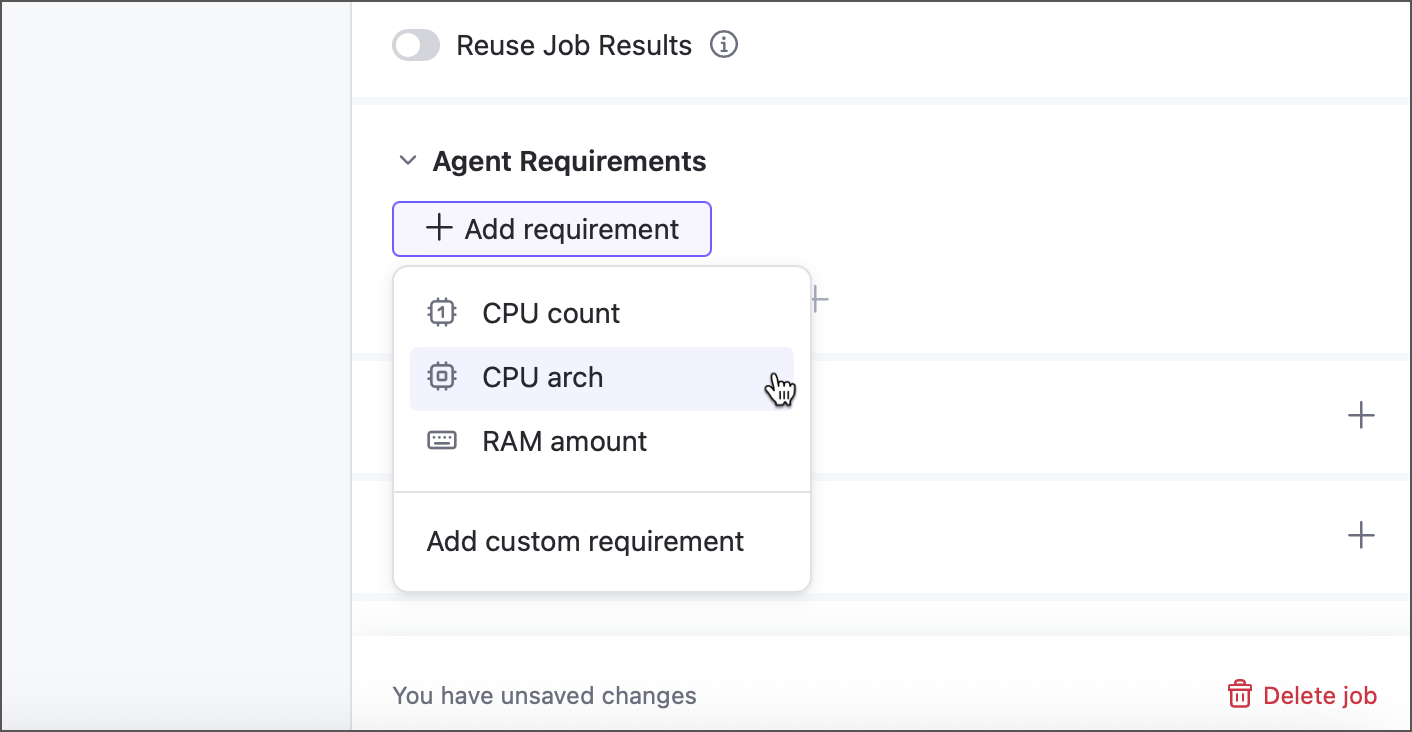
Click Add custom requirement to define your own requirements. Each requirement is an <agent.parameter> <operator> [value] expression. TeamCity evaluates these expressions for each authorized agent, marking agents that return "true" as eligible to run the job and labeling the rest as incompatible.
- Agent parameter
A parameter reported by the agent machine whose value must match the required criteria. Below are a few examples of various agent parameters:
teamcity.agent.jvm.os.arch— reports the agent machine architecture. For example,aarch64for macOS agents running on Apple ARM devices.env.ANDROID_SDK_HOME— returns the path to the Android SDK installed on the agent machine. For example,/home/builduser/android-sdk-linux.teamcity.agent.jvm.user.timezone— stores the timezone of the agent machine. For example,Etc/UTC.MonoVersion— returns the version of the Mono platform. For example,6.12.0.200.
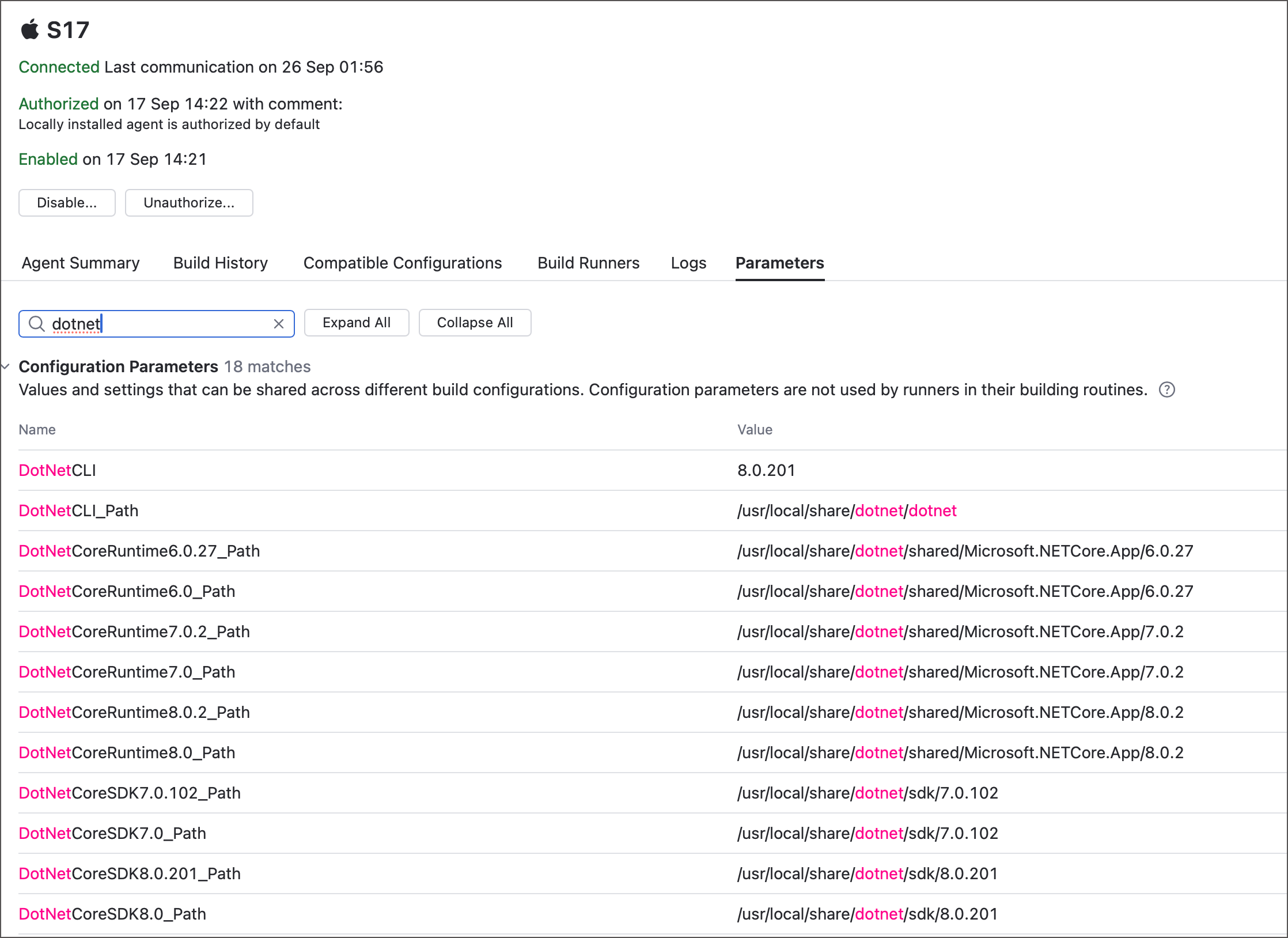
Navigate to Agents | <TeamCity_Agent> | Agent Parameters tab to check what parameters agents report and find those that store agent hardware and software data.
See also: List of Predefined Build Parameters.
- Operator
The logical operator used to compare the actual agent parameter value with the given one. For example, "less than", "starts with", "contains", and so on.
See also: Requirement Conditions
- Value
A custom value to compare against the agent's parameter value. The only operator that does not require a value is
exists, which checks whether the agent reports the required parameter, no matter what actual value it has.
The following YAML sample defines three requirements: 16 GB of RAM, at least 10 GB of free disk space, and Python 3 installed. Standard TeamCity requirements use the shorter alias: value syntax, while custom ones use the complete <parameter> <operator> [value] expressions (with an extra name parameter for the public title).
Parameters
Parameters are name-value pairs designed to substitute raw values with references. When TeamCity encounters a parameter reference (%param-name%), it substitutes it with the actual parameter value.
TeamCity supports two layers of parameters: pipeline parameters and job parameters. Pipeline parameters in their turn are available as input and output parameters.
Job parameters are typically available only in their own parent jobs. By default, they include the
env.prefix. To access a job parameter from a downstream job, use thejob.<source_job_ID>.<parameter_name>syntax. The sample below illustrates a job with a single parameter. The downstream job uses a reference to this parameter to specify its ownParamJobB.jobs: Job1: name: Job 1 steps: - type: script script-content: |- echo "Print Job1 parameter: %env.ParamJobA%" # prints 'foo' parameters: env.ParamJobA: foo Job2: name: Job 2 dependencies: - Job1 parameters: env.ParamJobB: '%job.Job1.env.ParamJobA% bar' steps: - type: script script-content: |- echo "Print parameter from upstream Job: %job.Job1.env.ParamJobA%" # prints 'foo' echo "Print modified parameter: %env.ParamJobB%" # prints 'foo bar'Pipeline input parameters are shared across all jobs of this pipeline. See Pipeline parameters to learn more.
Pipeline output parameters cannot be used in the very same pipeline. Instead, they are passed to downstream pipelines and configurations that belong to the same chain. See Pipeline Dependencies to learn more.
Job steps can also send the setParameter service message to dynamically edit parameter values (or create new parameters). Note that the modified value will be available only after the step that sent this message finishes.
Output Files
Files shared by a job can serve as artifacts, internal files for downstream jobs, or both.
- Artifacts
Artifacts are files displayed on the Artifacts tab of the run results page. Users with permission to view the project can download these files to local storage.
You can view artifacts in two ways:
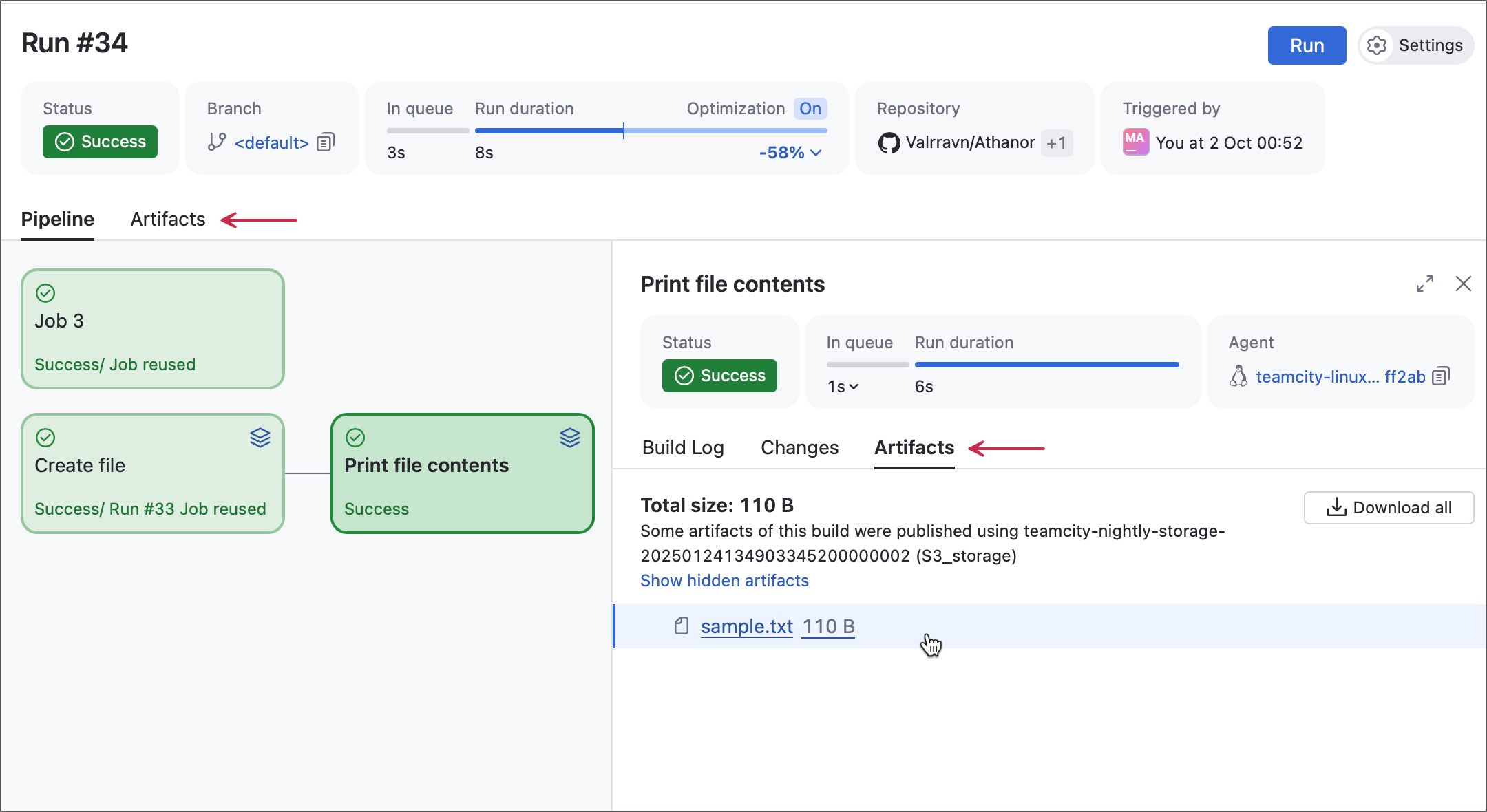
On the run results page, open the Artifacts tab to see all artifacts published by jobs in the pipeline.
From the same page, select a job to open its side panel, then switch to the Artifacts tab to view artifacts produced by that specific job.
- Shared files
Shared files are passed down the pipeline to subsequent jobs. These are typically internal files or files that are not yet finalized.
Unlike artifacts, shared files are not displayed in the main Artifacts tab of the build results page. However, they show up on the Artifacts tab of the job side panel, packed into a hidden .shared_files.zip archive.
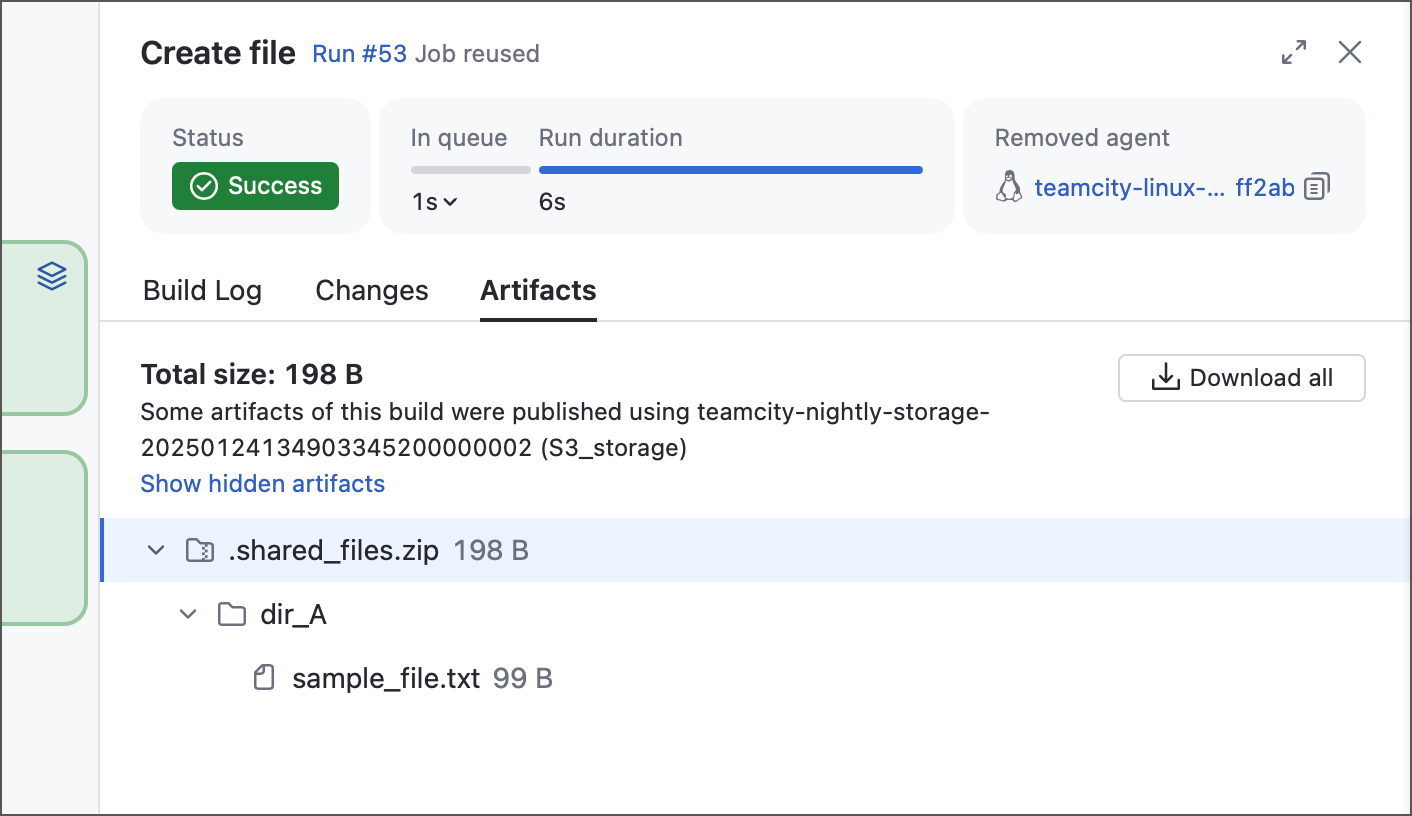
The YAML example below shows one job that creates and modifies a file, and a second job that imports the file and prints its contents. "Job 2" then publishes the file as an artifact.
jobs: Job1: name: Create file steps: - type: script script-content: |- touch sample.txt echo "File created by Job 1, build #%tc.build.number%" >> sample.txt files-publication: - path: sample.txt share-with-jobs: true publish-artifact: false Job2: name: Print file contents dependencies: - Job1 steps: - type: script script-content: cat sample.txt files-publication: - path: sample.txt share-with-jobs: false publish-artifact: true
These two types are not mutually exclusive: when adding an output file, you can tick both Shared file and Artifact checkboxes.
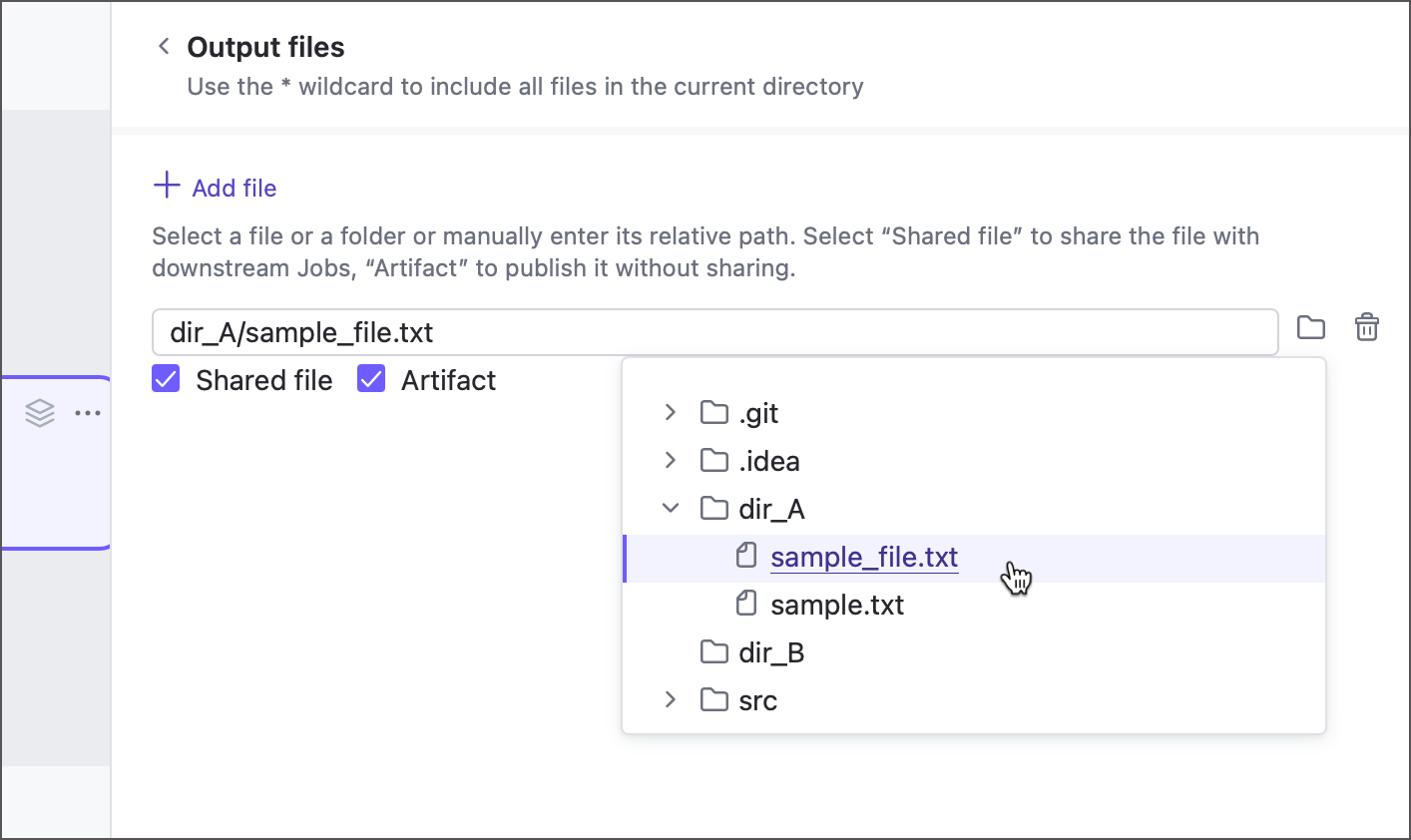
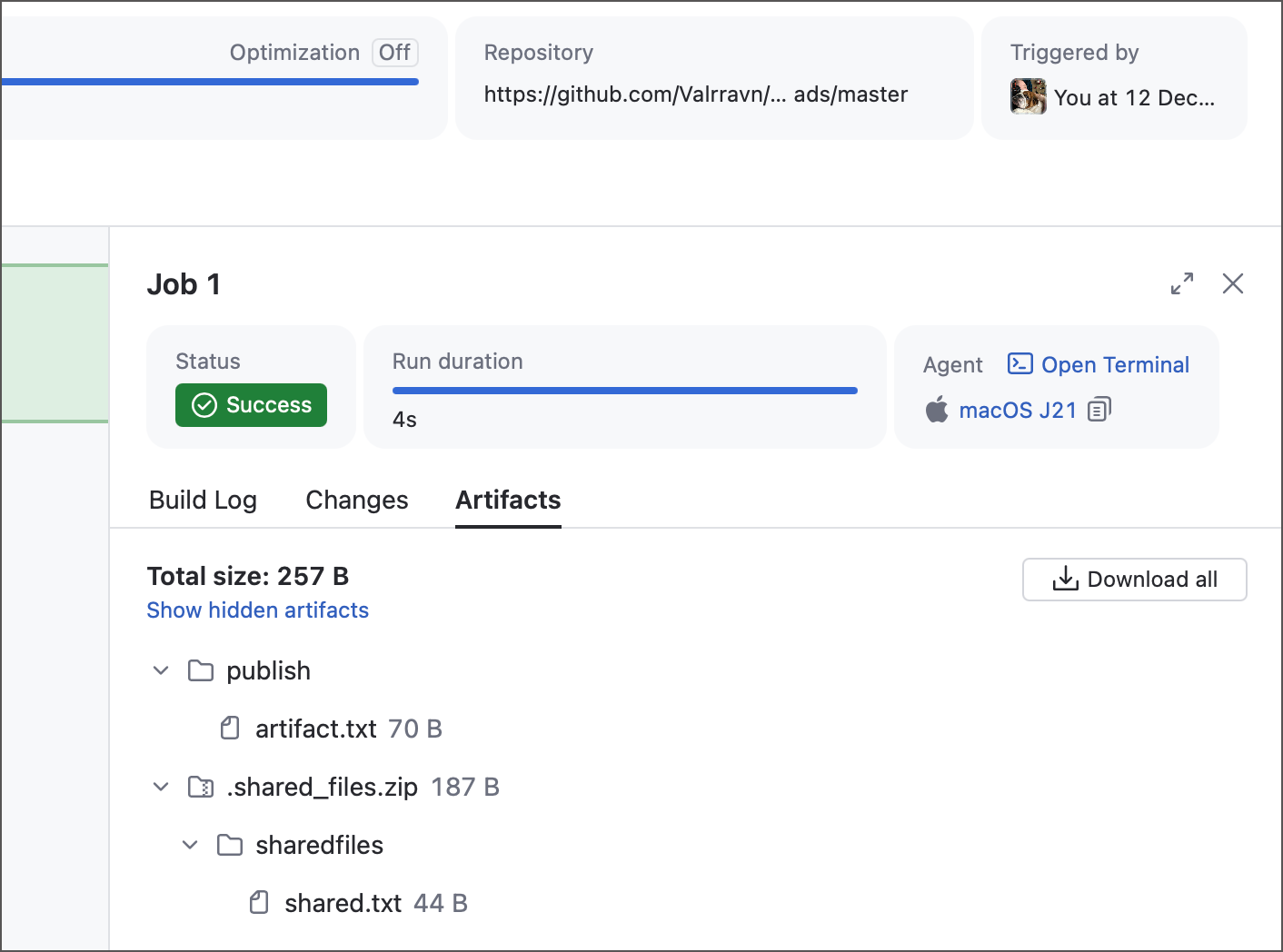
Note that shared files retain their parent directory hierarchy, whereas artifacts do not. The following sample illustrates a job that produces two files, both in their related folders.
Despite the almost identical step scripts and files-publication rules, the results slightly differ. Shared files are placed into the hidden ".shared_files.zip" archive along with their parent folders, whereas artifacts are grouped under the "publish" directory as is.
Repository
This section allows you to select which remote repositories this job should check out. To add a repository, create a new entry in the Repositories section of pipeline settings.
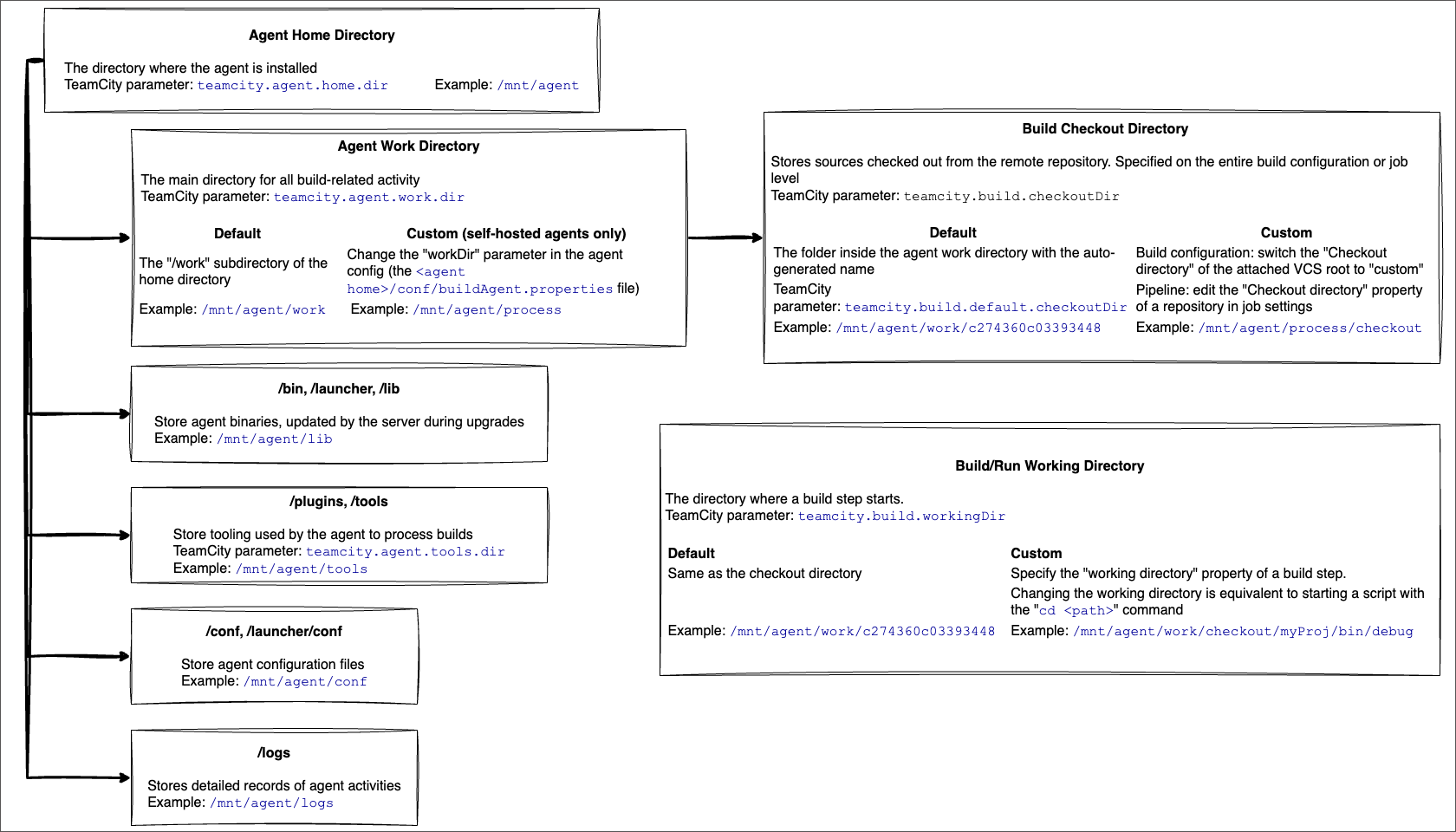
By default, sources are checked into a sub-folder of the agent work directory. To ensure agents do not constantly lose sources of one job when running another, this subfolder has an auto-generated name unique for each job (for example, /mnt/agent/work/6fa95896c6cadf54).
You can specify a custom directory for checked out sources via the corresponding option of a Repository section item. The path to the checkout directory can be absolute, however it is highly recommended to use either relative paths (MyCustomFolder) or paths that reference pre-defined TeamCity parameters (%teamcity.agent.work.dir%/MyCustomFolder).
The diagram below outlines the relations between core directories involved in a building process.
Refer to the following articles to learn more:
Agent Home Directory — the installation directory of a build agent.
Agent Work Directory — the subfolder of agent home directory that stores build-related files.
Build Checkout Directory — the subfolder of agent work directory where all checked out sources are downloaded.
Build Working Directory — the directory where a build step starts (equals to "build checkout directory" by default).
Integrations
Both pipeline and job settings panels include an Integrations section for connecting to private Docker and NPM registries.
In the pipeline settings, you manage the full list of available integrations for jobs.
In job settings, toggles let you select which registries the job should log in to automatically, ensuring build steps can access the required data.
See the Pipeline Integrations section for the complete information.