Storybook Connect
The Storybook Connect plugin enables navigation through stories and adding skills that help build UI screens and web pages from Storybook as context.
The plugin also allows for adding the skills that help AI agents quickly scaffold new stories and find missing ones, see Analyze and generate stories.
The Bring Your Own Key (BYOK) approach is also supported, so you can use models from compatible AI providers with your own API keys.
You can interact with the Storybook from WebStorm via the dedicated Storybook Connect tool window or in the command-line mode, from the built-in Terminal.
Before you start
Make sure you are using WebStorm 2026.1 or later.
Install the Storybook Connect plugin on the Settings | Plugins page, tab Marketplace, as described in Installing plugins from JetBrains Marketplace.
To get access to the agentic development features in WebStorm, make sure the JetBrains Air bundled plugin is enabled in the Installed tab of the Settings | Plugins page as described in Plugins.
Set up Storybook Connect in a project
Open a project with Vue.js, Angular, Next.js, React, or another frontend framework.
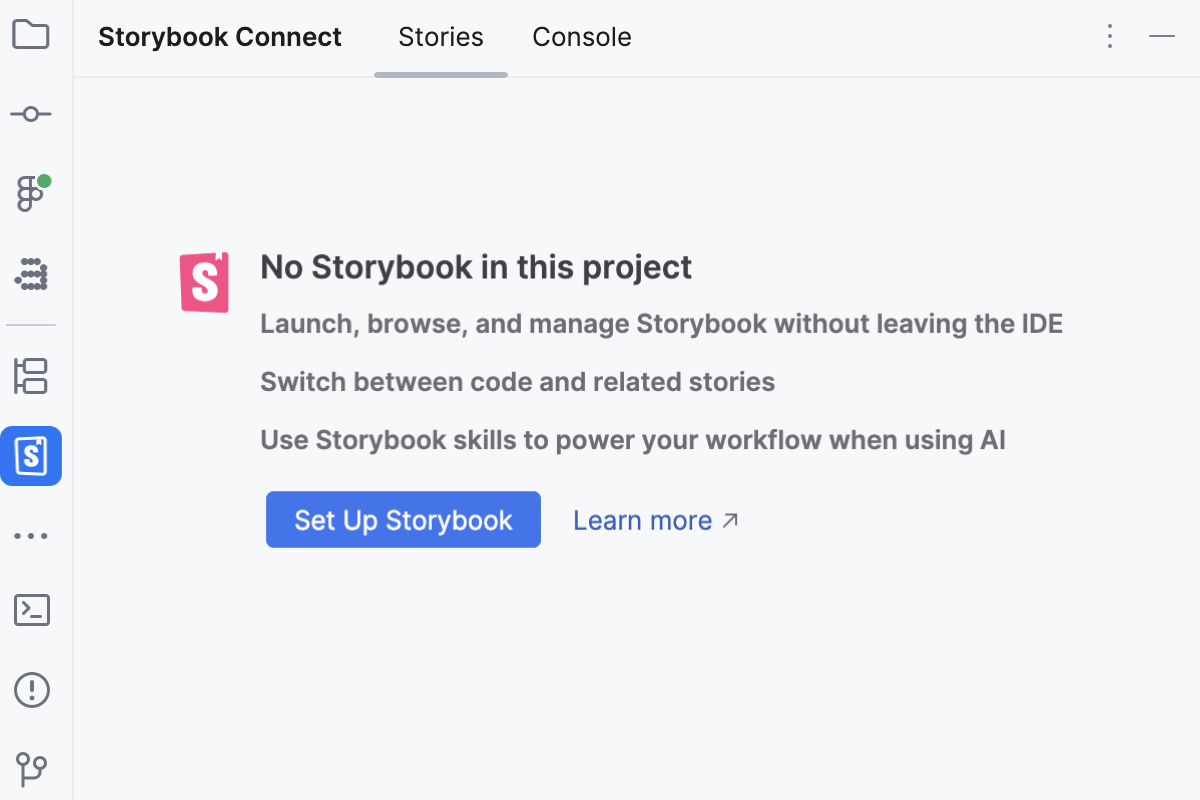
Open the Storybook Connect tool window () and click Set Up Storybook.
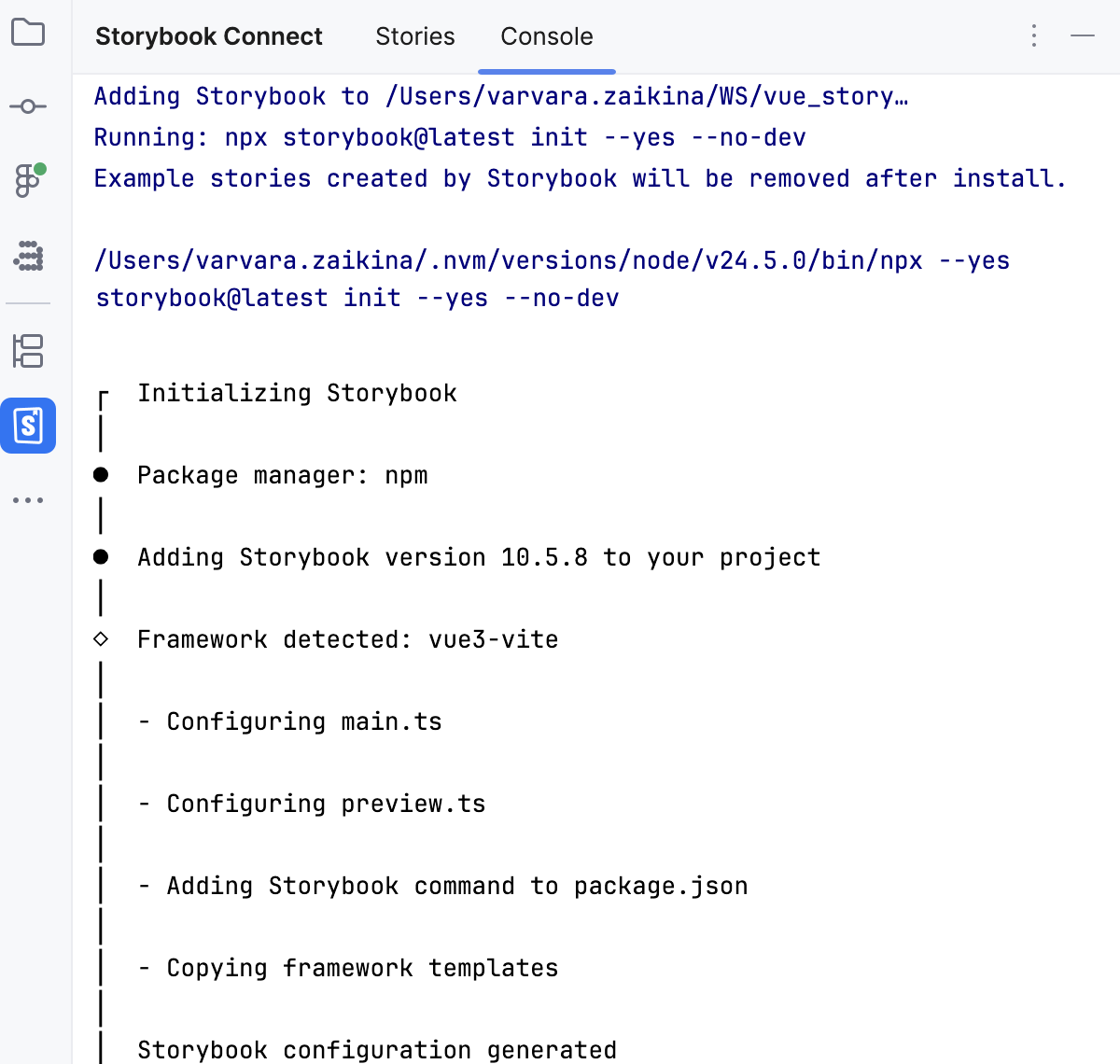
WebStorm initializes Storybook in the project. Open the Console tab to view the log.
Set up Storybook skills
On the Stories tab of the Storybook Connect tool window, click Add Storybook skills in the information popup.
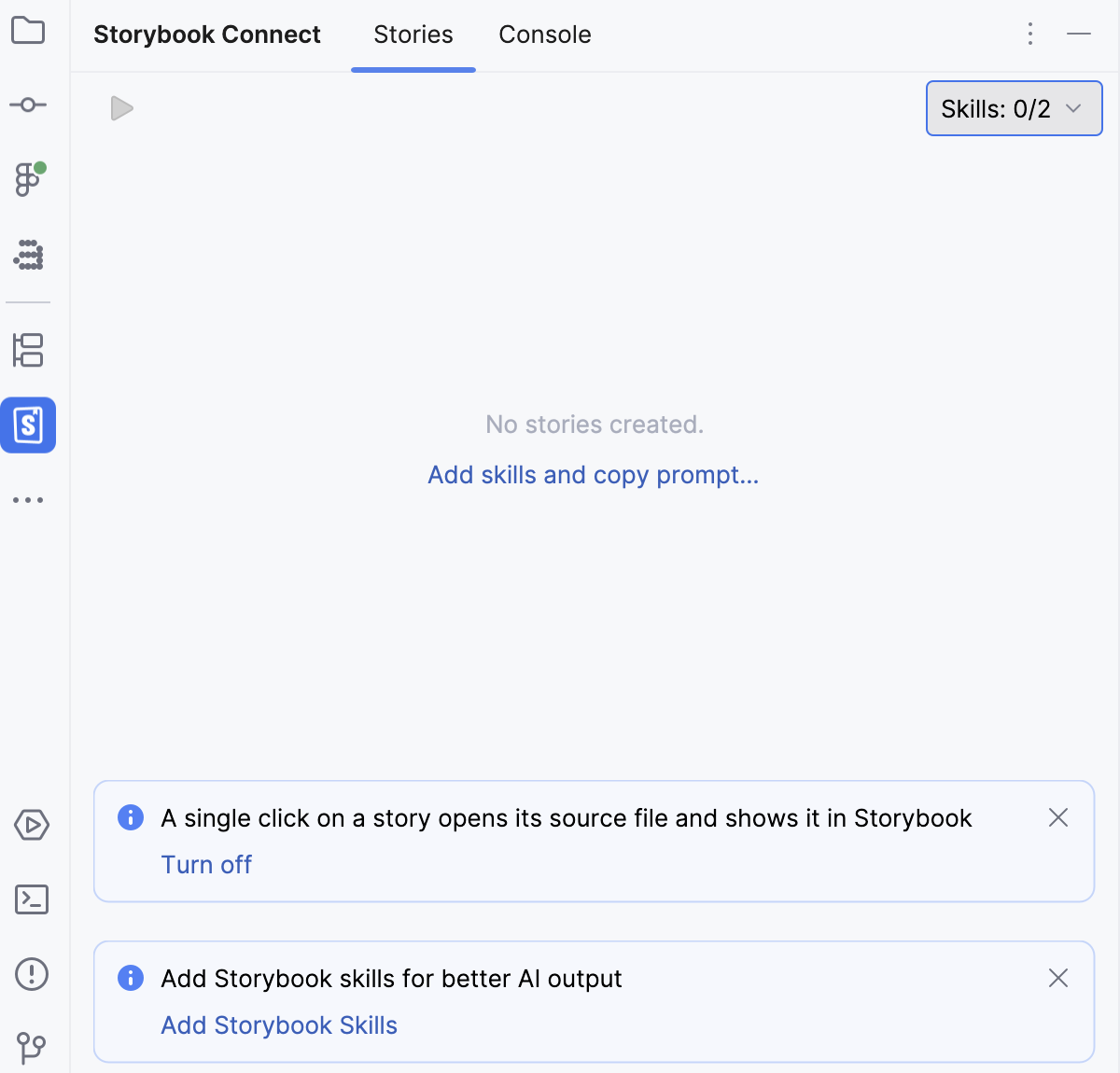
To view the added skills, click
 .
.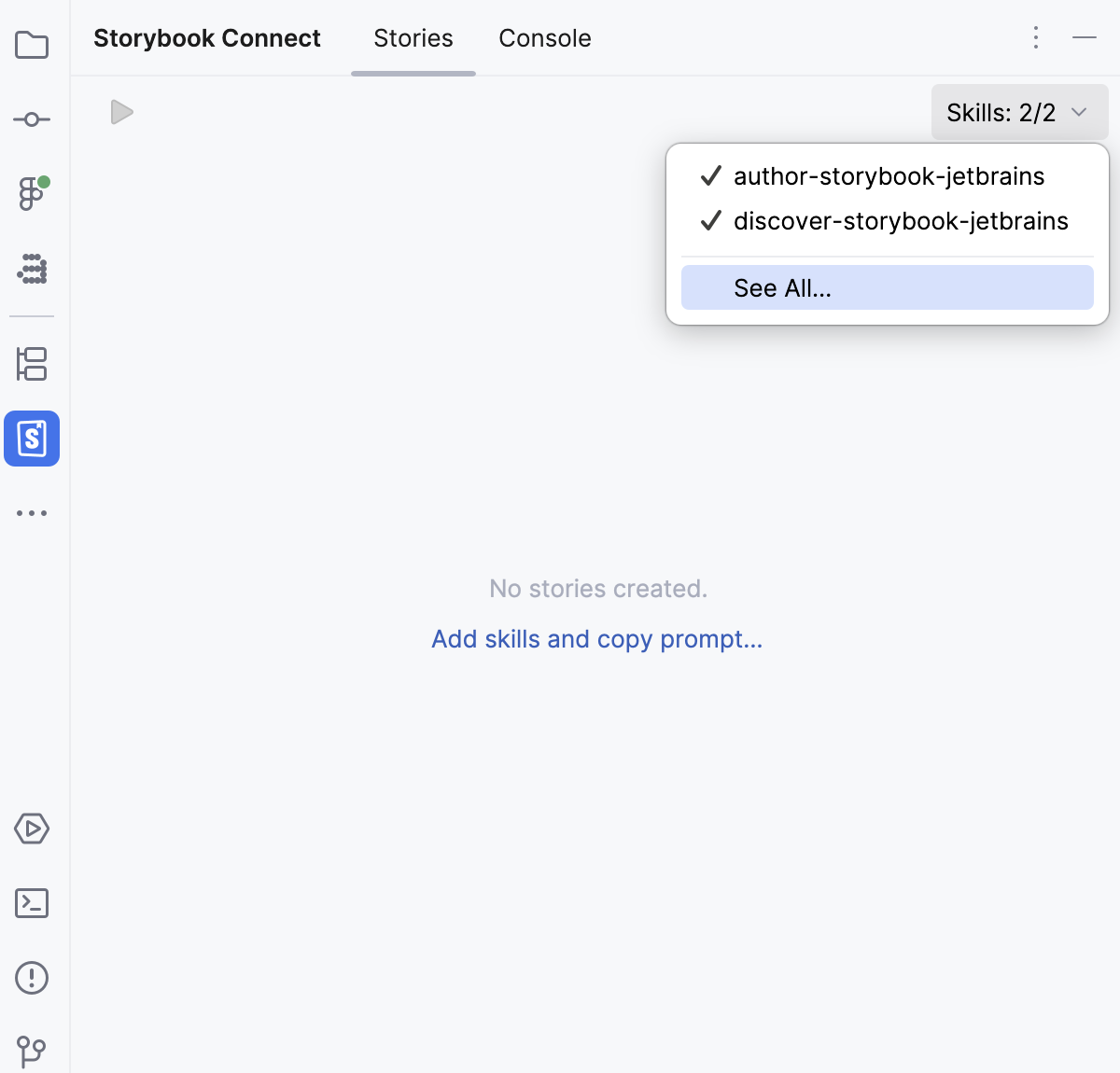
Click See All to open the page of the Settings dialog.
Enable synchronization between WebStorm and Storybook
It might be helpful to synchronize WebStorm with Storybook, so when you select a story in the Storybook Connect tool window, the story is automatically selected in Storybook. Such synchronization is supported via the addon-storybook-sync. You can install it when initializing Storybook in a project or when running Storybook from WebStorm for the first time.
In either case, the Storybook Connect tool window by default displays a banner suggesting that you install addon-storybook-sync. Click Install, Dismiss, or Learn more.
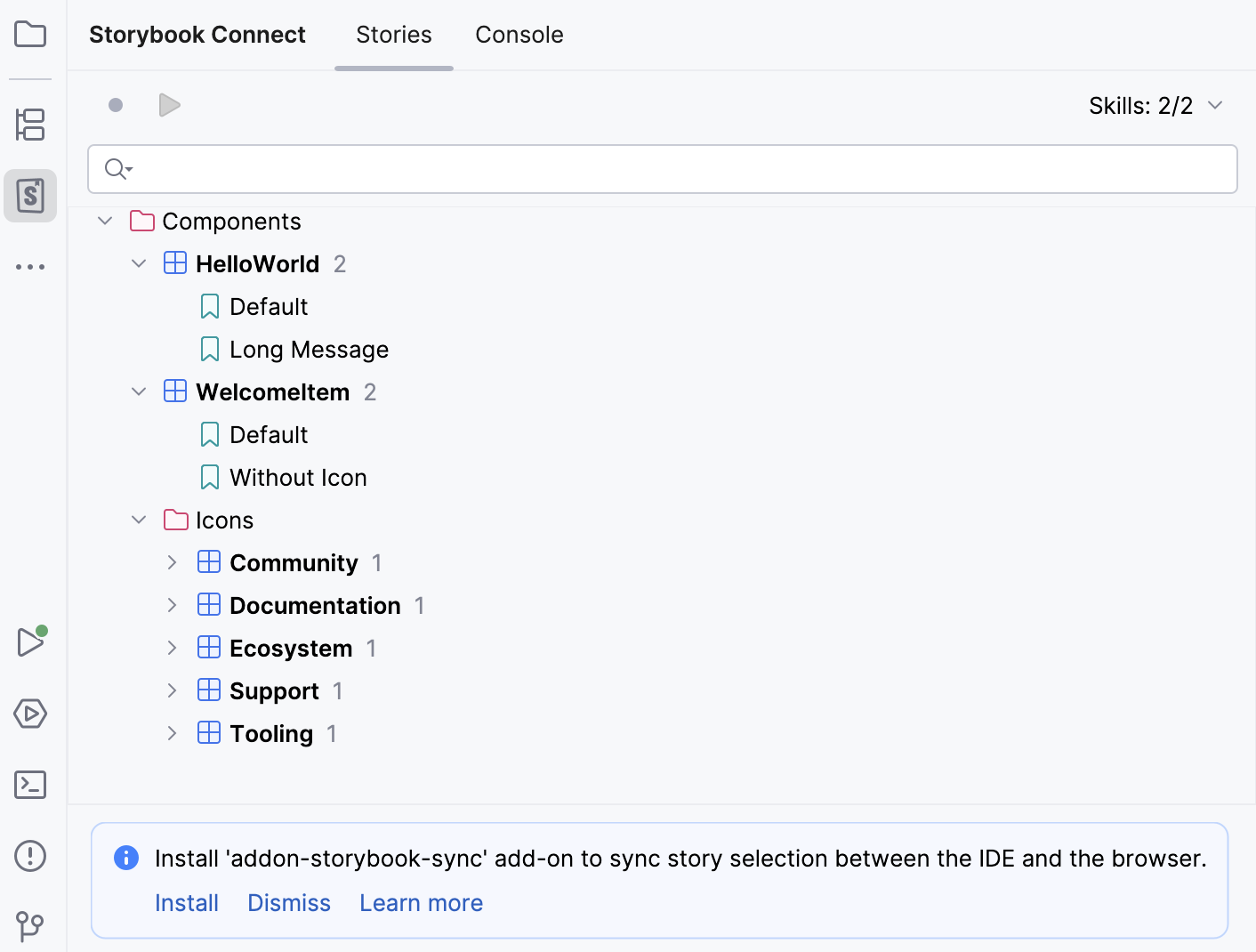
- Install
If you click Install, WebStorm installs the
addon-storybook-syncpackage as a development dependency, adds['addon-storybook-sync']toconfig: StorybookConfigin main.ts, and restarts the Storybook dev server.- Dismiss
If you click Dismiss, WebStorm just restarts the Storybook dev server.
Configure the addon-storybook-sync installation policy
To change the default installation policy, open the Settings dialog Ctrl+Alt+S, go to , and then select Always or Never from the Add the Storybook sync addon list.
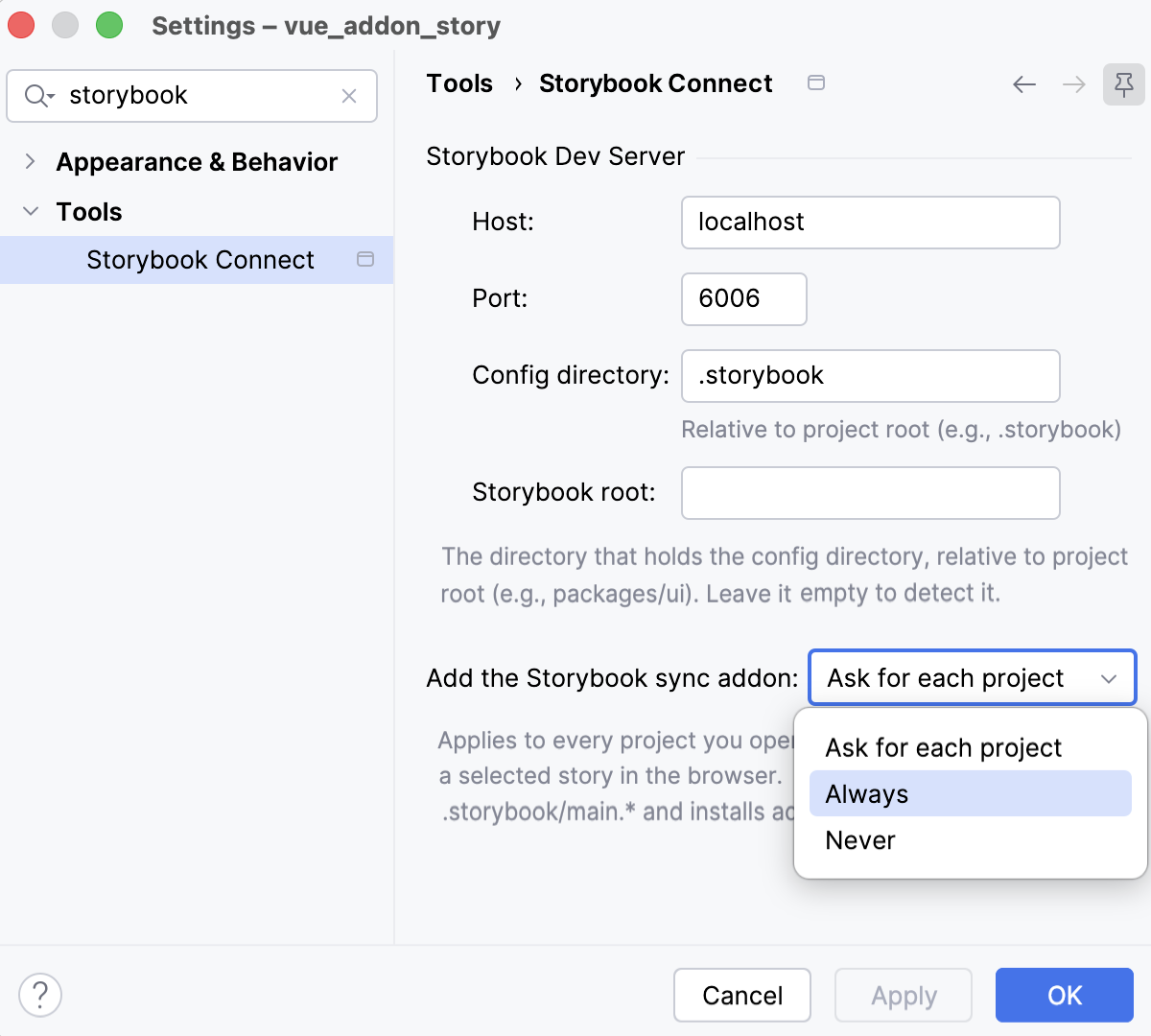
Analyze and generate stories
Story generation and analysis are based on two agent skills that are installed into your project and integrated with the JetBrains Air:
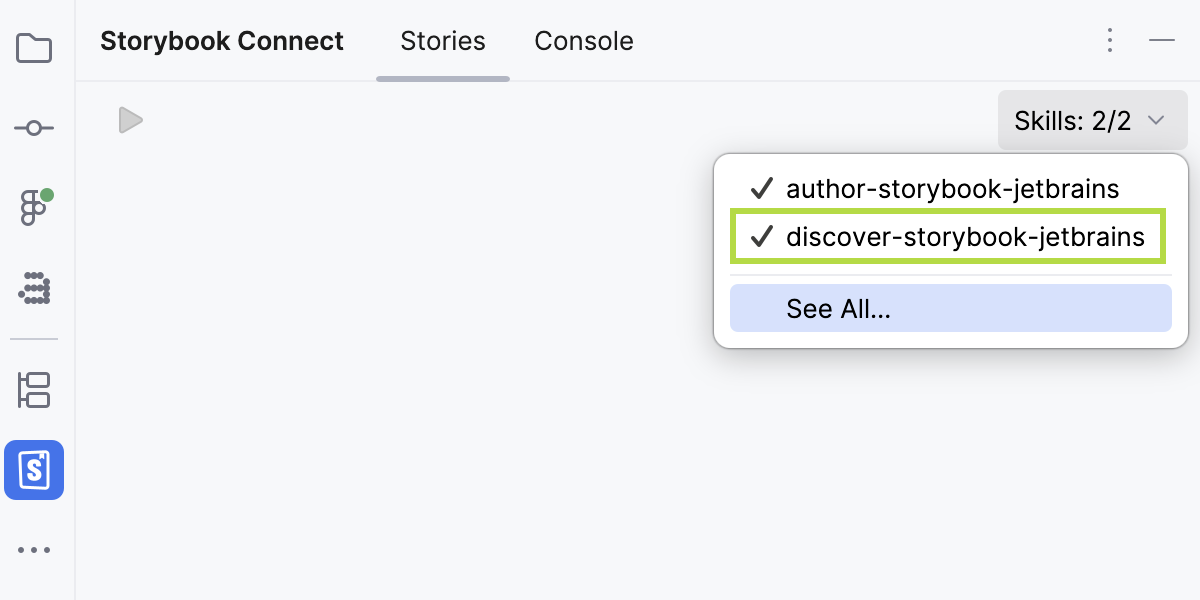
author-storybook-jetbrains provides Storybook's official story-writing guidance, templated with your project's framework, renderer, and Storybook base URL.
discover-storybook-jetbrains teaches the AI how to drive the Storybook Connect CLI: audit component coverage and generate missing stories.
You can toggle these skills from the tool window header.
Generate stories
In the Stories tab of the Storybook Connect tool window, click Add skills and copy prompt.
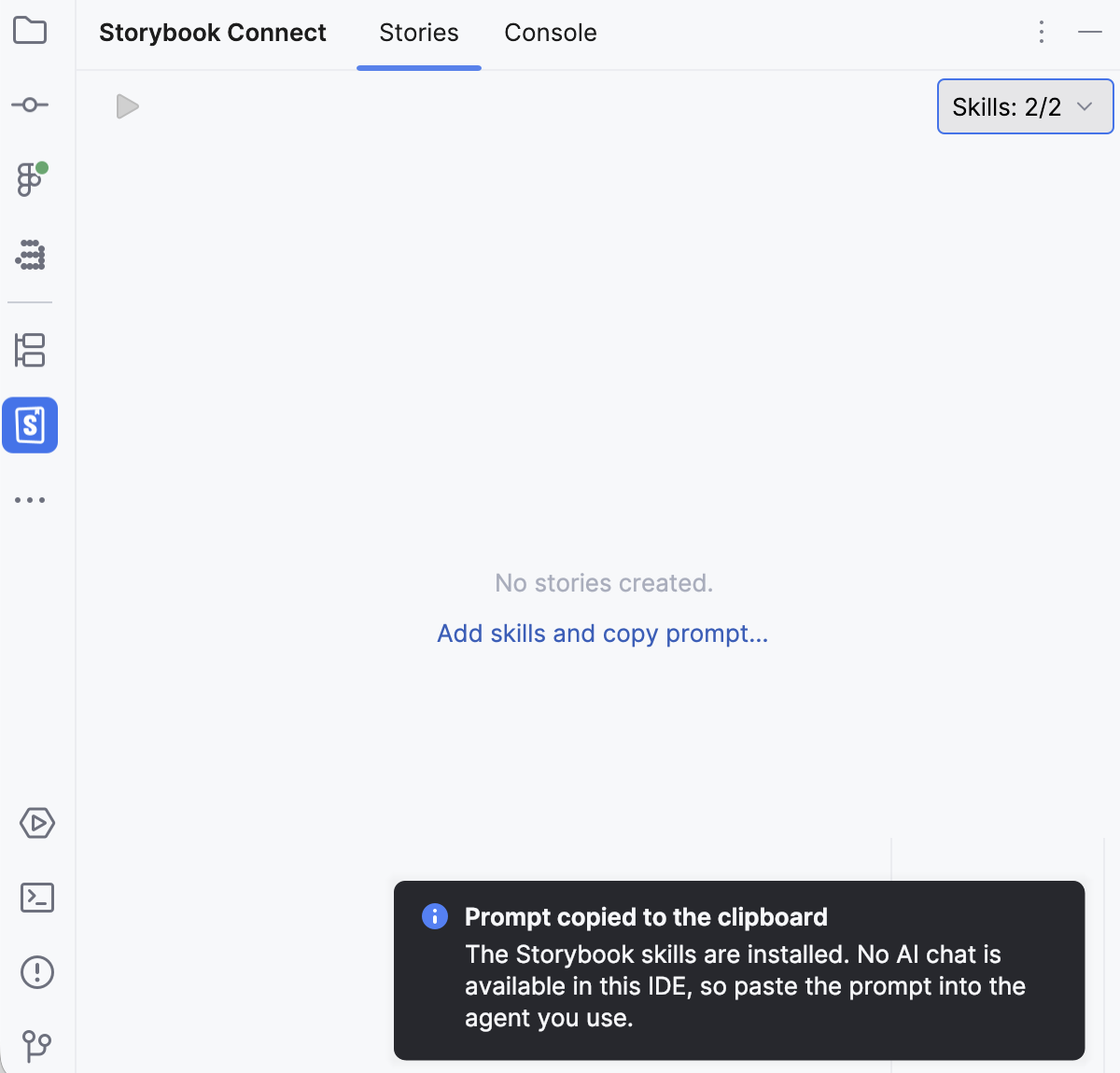
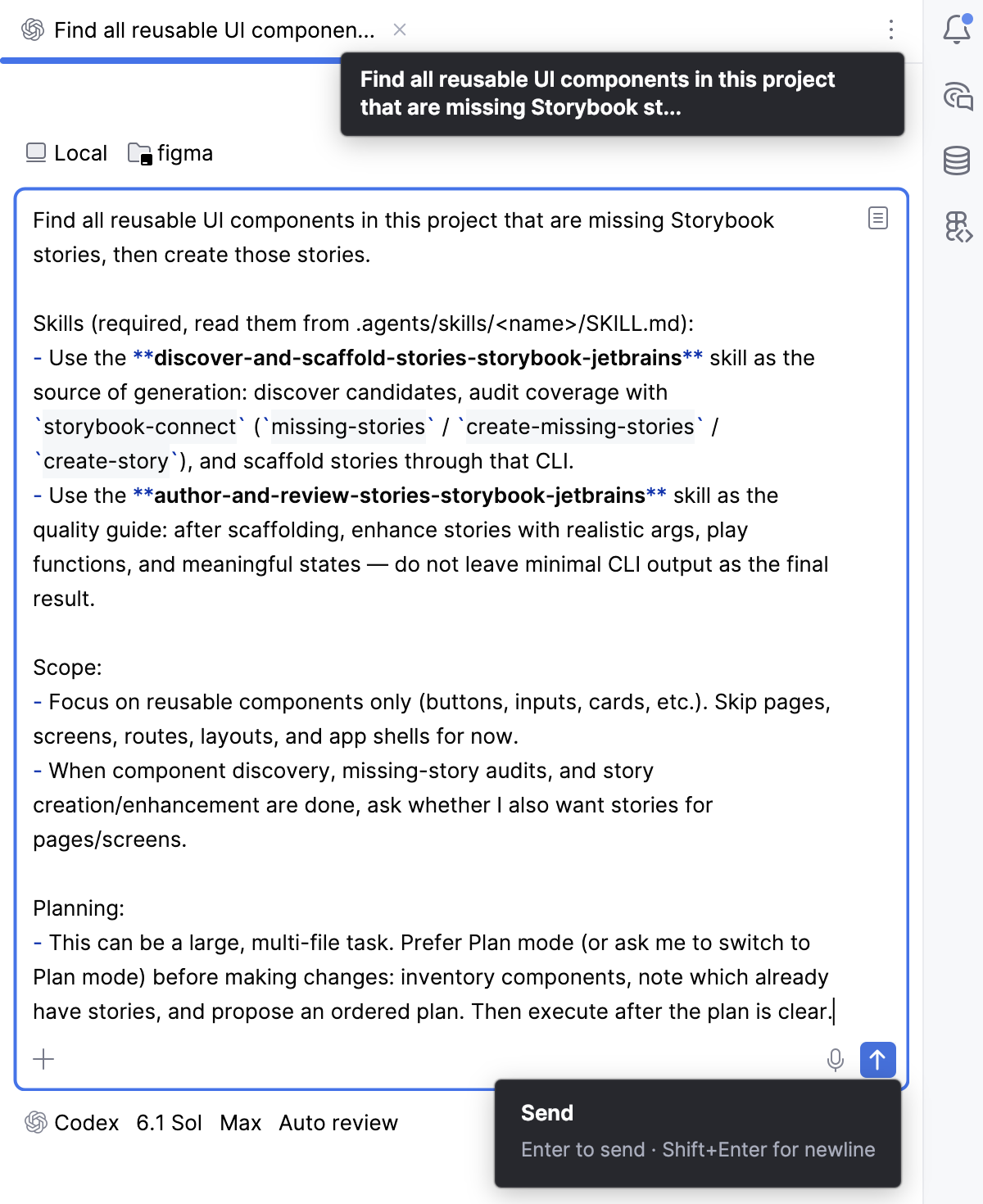
Paste the copied prompt, review it, and click
 .
.
Find missing stories
In the Stories tab of the Storybook Connect tool window, make sure the discover-storybook-jetbrains skill is enabled.
Write an appropriate prompt, for example:
Use the discover-storybook-jetbrains skill to find missing stories.Click
, when ready.
Analyze stories
Storybook Connect keeps your selection in sync between Storybook and WebStorm in real time, so you switch back and forth less. The synchronization works both ways:
When you select a component in Storybook, the selection appears in the Stories tab of the Storybook Connect tool window.
When you click a component in the Storybook Connect tool window, the component becomes the current selection, and the corresponding node is focused in Storybook.
View the selected component in the editor
Storybook Connect ensures synchronization between the Storybook Connect tool window and the editor.
Click a component in the tool window to open the corresponding .stories. file in the editor. The cursor is placed at the description of the component.
Generate and analyze stories from the command line
When you install Storybook Connect, a storybook-connect is registered on the WebStorm launcher, giving you (and any AI agent or CI script) type-driven insights into your components without running Storybook.
component-props- use this sub-command to extract resolvedproptypes, kinds (variant,boolean,string,number,color,date,callback, …), optionality, defaults, and JSDoc.possible-stories- use this sub-command to have a non-combinatorial story set planned: Default + one story per variant value + one per boolean + one per other optional prop. One prop varies per story.missing-stories- use this sub-command to get a diff between the plan and the existing .stories.tsx file and a report of covered and missing stories.create-story- use this sub-command to have one planned story (by name) or all stories varying specificpropswritten. Appends to an existing story file or scaffolds a fresh CSF3 file.create-missing-stories- use this sub-command to have every missing planned story in one invocation written.
Open your command-line shell or the embedded Terminal (Alt+F12) .
Type one of the following CLI commands in the format:
WebStorm storybook-connect component-props <path_to_the_file_to_use> WebStorm storybook-connect possible-stories <path_to_the_file_to_use> WebStorm storybook-connect missing-stories <path_to_the_file_to_use> WebStorm storybook-connect create-missing-stories <path_to_the_file_to_use>For example:
WebStorm storybook-connect component-props ./src/Button.tsx WebStorm storybook-connect possible-stories ./src/Button.tsx WebStorm storybook-connect missing-stories ./src/Button.tsx WebStorm storybook-connect create-missing-stories ./src/Button.tsxBy default, JSON is used as the output format for machine consumption. To get human-readable output, add use the
--textflag.
Control Storybook dev server
To open Storybook in the browser, click
 on the toolbar of the Storybook Connect tool window.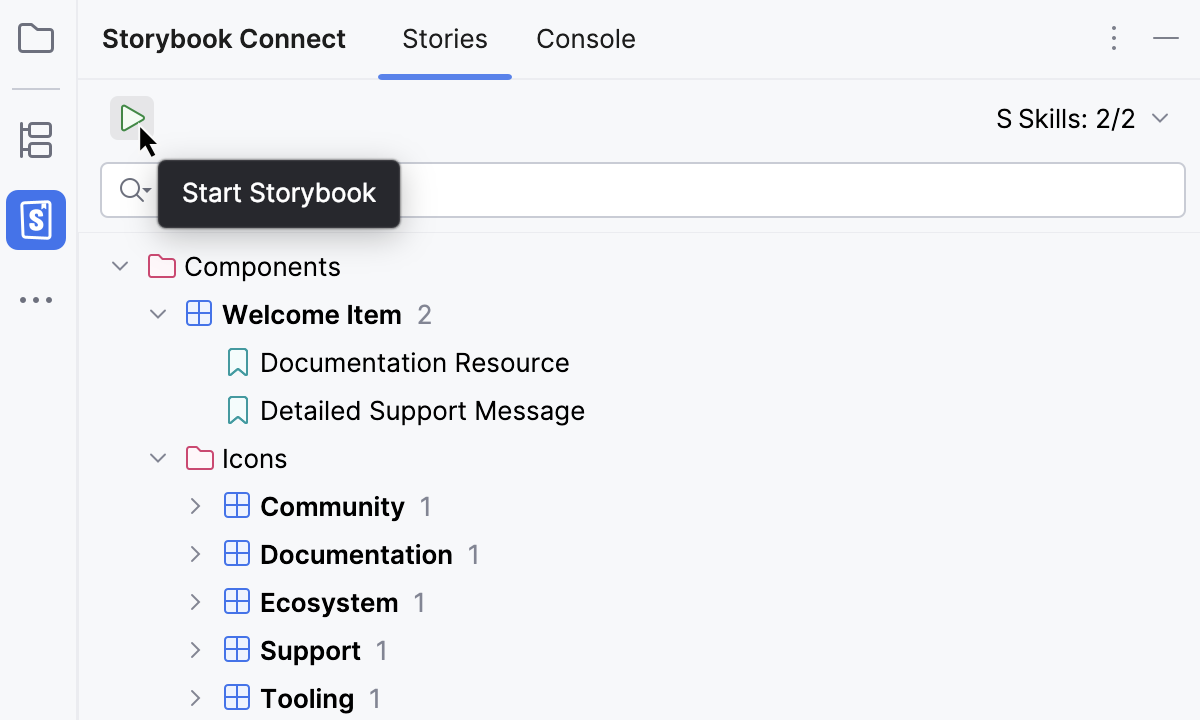
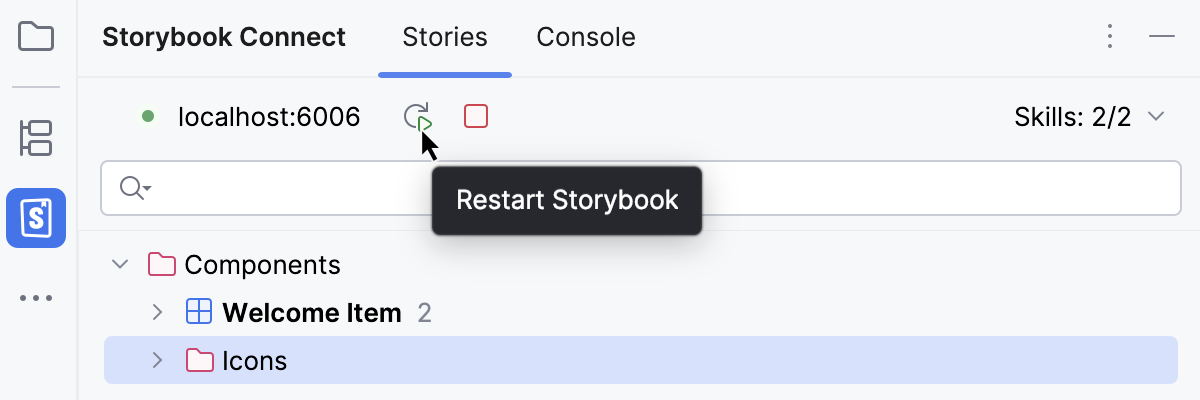
To restart the Storybook dev server, click
 .
.
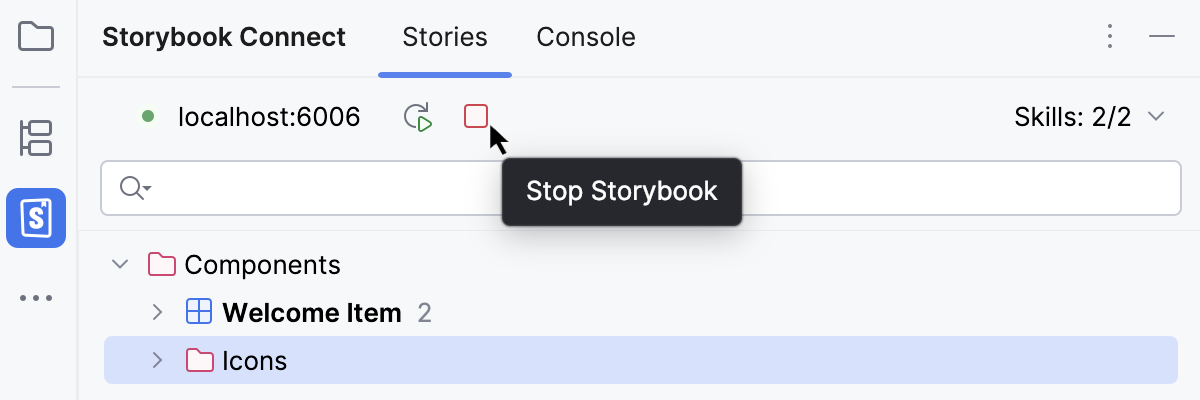
To stop the Storybook dev server, click
 .
.
To modify the default port (
6006) and the default configuration directory, open the Settings dialog (Ctrl+Alt+S) and go to .