Create and Edit Roles
If you want to create a custom set of permissions that are available to a group or user account, you can create new roles or edit the permissions that are assigned to an existing role.
If you want to create a role that is similar but not identical to an existing role, create the role with the Clone action instead. For more information, see Clone a Role.
Create a Role
If you want to provide specific access to a user or group but do not want to modify any of the predefined roles, create a new role.
To create a new role:
From the main navigation menu, select
 .
.Click the New role button.
A dialog for defining the new role opens.
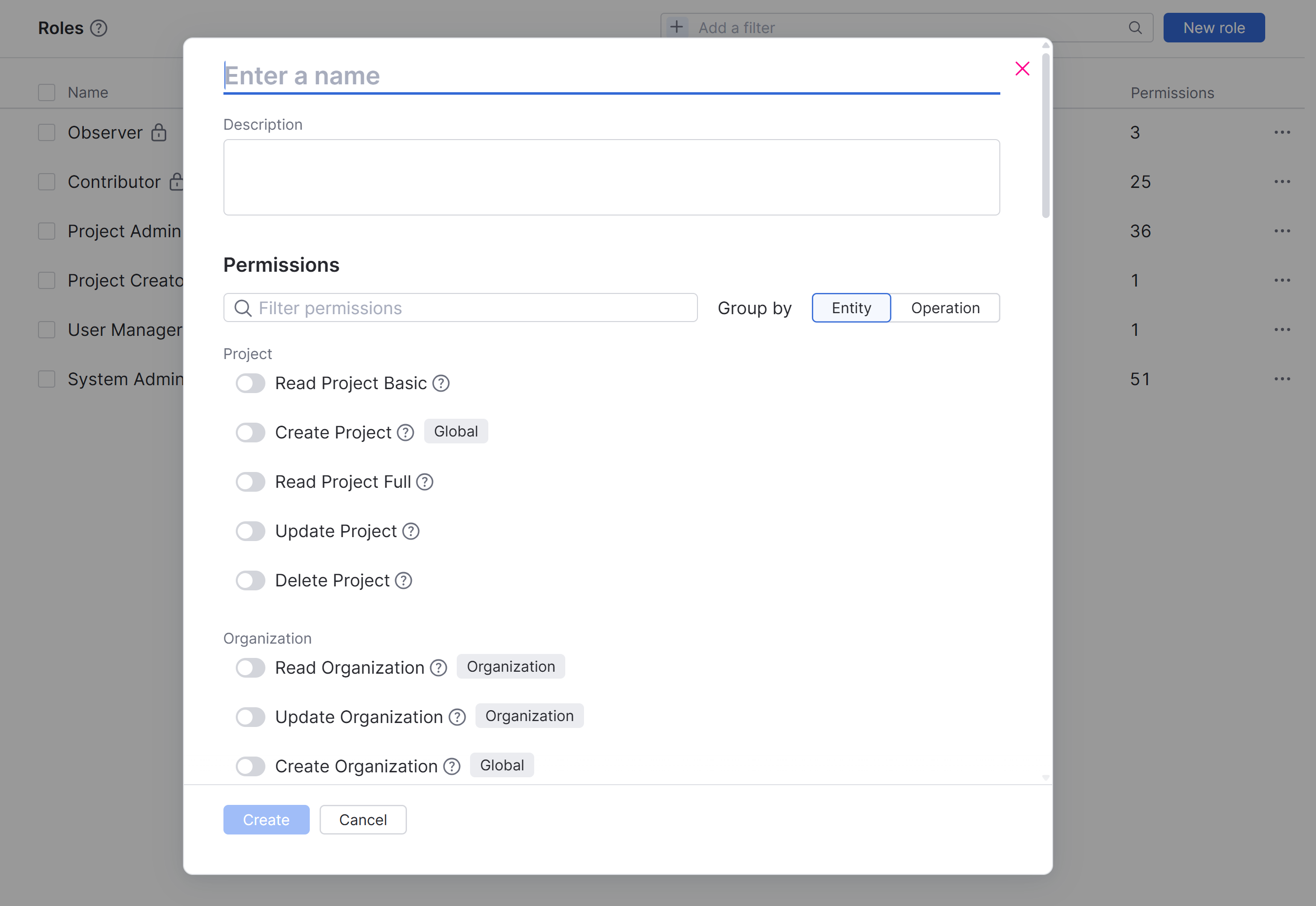
Enter a name for the new role.
Enter an optional description of the new role.
To configure the set of permissions that are available to the role, activate one or more options in the Permissions section of the form.
Use the search box to filter the list of permissions by permission name.
Use the Group by option to group the list of permissions by Entity or Operation.
Click the Create button.
Once you have created and configured all the roles that you want to use, you can create or configure groups and assign roles to them on a per-project basis.
Edit an Existing Role
If there is a specific permission you would like to enable for users who are already assigned a specific role, you can modify an existing role.
To edit an existing role:
From the main navigation menu, select
.Select a role from the list.
To update the role name or description, click the
 icon, update the existing values, then click the Save button.
To modify the set of permissions that are available to the role, activate or deactivate specific permissions in the Permissions section of the form. For more information about specific permissions, see Permissions.
Use the search box to filter the list of permissions by permission name.
Use the Group by option to group the list of permissions by Entity or Operation.
Changes to permissions are applied and saved automatically.