Manage Project Members and Access
The People page in the Project Settings gives you access to manage who has access to work with issues and author content in the project. Permissions in a project are determined by the roles assigned to users or groups. From this page, you can:
View who has access to the project.
Add users and groups to the project team.
Manage roles for the project team.
Manage roles assigned to users and groups who are not members of the project team.
Change the project owner.
To access this page, select  Projects from the main navigation menu, click to expand the
  More menu for a specific project in the list, then select People. This page is also available from the navigation menu in the project sidebar.
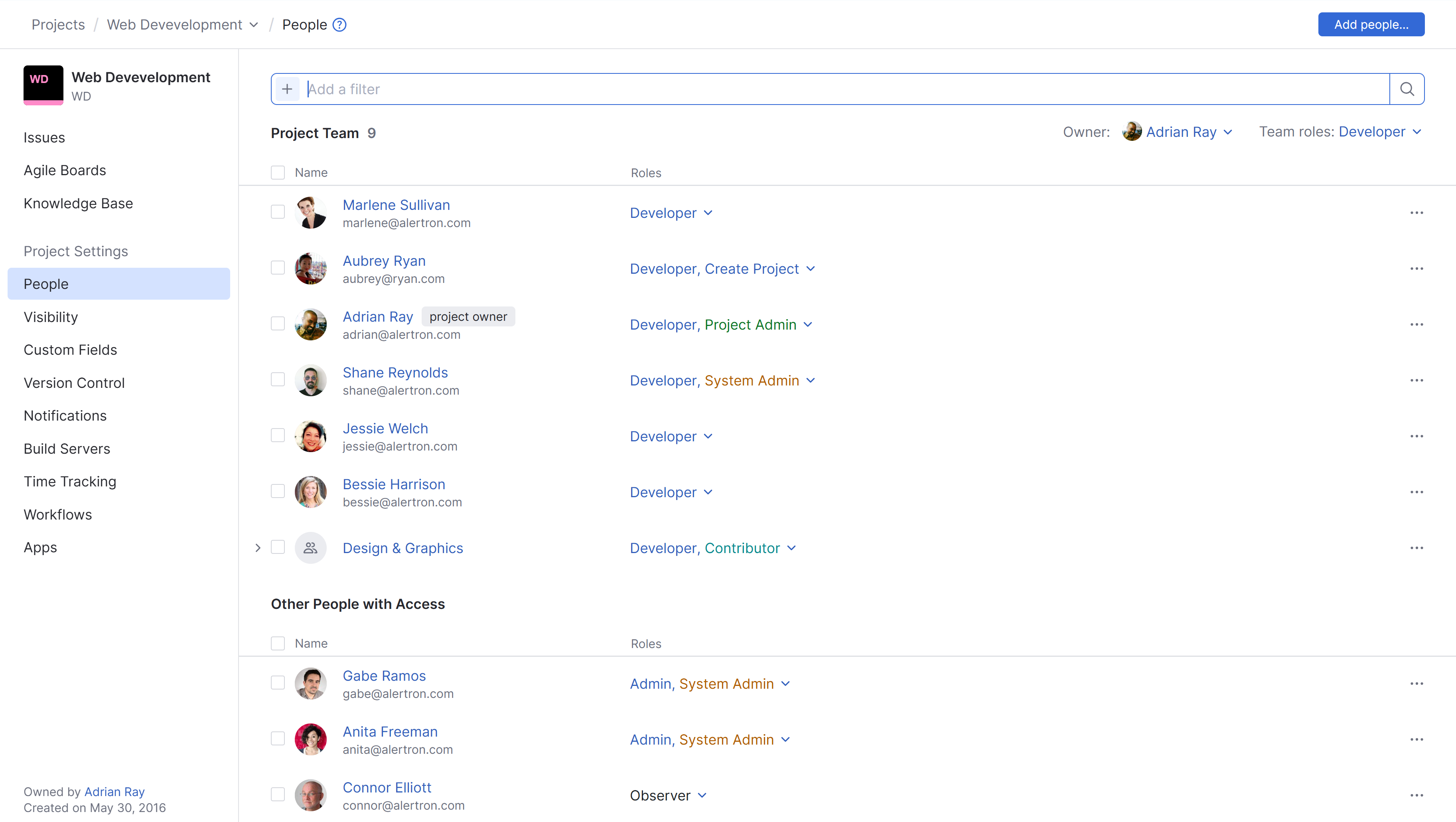
The search box at the top of the page lets you filter the list by permission or role. To apply a filter, start typing in the search box. YouTrack will suggest available attributes that match your input as you type. When you select an attribute, YouTrack automatically inserts a search operator and suggests possible values. From there, you have the following options:
Enter the value or values you want to filter for.
Click the
 icon to remove a parameter.
For example, if you want to see which users have permission to update the project settings, enter Permission is Update Project.
The People page is divided into two sections:
The Project Team section displays users and groups who are members of the project team.
The Other People with Access section shows users who have access to the project through global roles or direct assignments.
Project Team
The Project Team section displays users and groups who are members of the project team. These users typically contribute to project work and have roles that allow them to perform project operations.
Access for these users is defined at the project level based on the roles assigned to the project team.
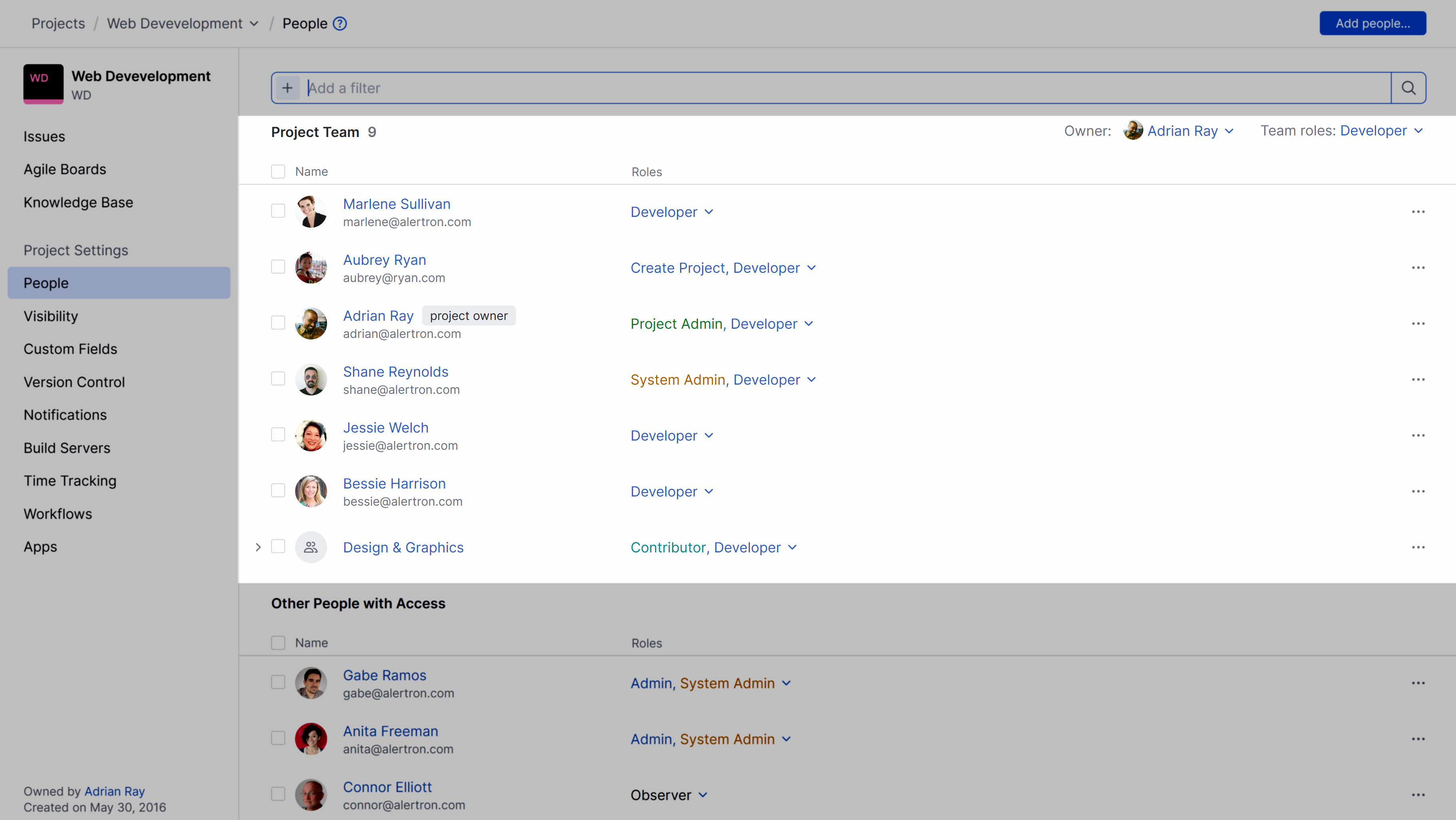
Add People to the Project Team
There are two ways you can add people to the project team. The first is here, on the People page of the project settings. There is also an option that lets you add members to the project team when assigning an issue to someone or setting the value for a field that stores references to users in the system.
When you add users to the project team, they inherit the roles that are assigned directly to the team. To perform this operation, your permissions must be equal to or higher than those that are granted directly to the team in the project.
To add users to the project team from the Team page:
From the main navigation menu, select
Projects.From the project list, select a project.
From the project navigation menu, select People.
Click the Add people button in the header.
In the Add People dialog, select one or more users or groups. The list of items is filtered as you type.
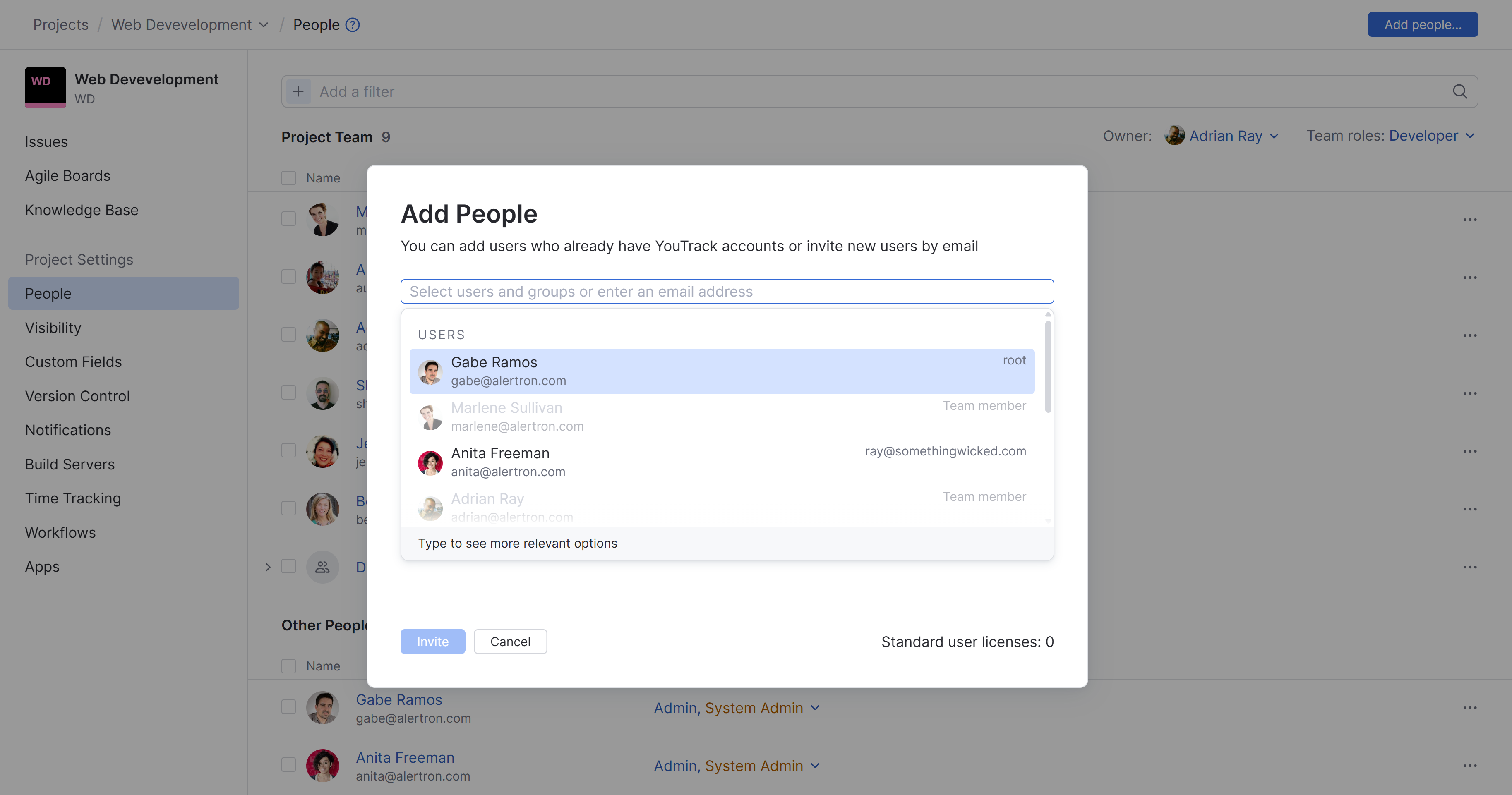
You can add any combination of users, groups, or both.
Make sure the Add to team option is enabled.
Click the Invite button.
The selected users are added to the project team.
Users inherit any role assigned to the project team in the current project.
YouTrack sends an invitation email to any user who doesn't already have an account.
You can also add members to the project team when assigning an issue to someone or setting the value for a field that stores references to users in the system.
To add users to the project team from an issue:
Create a new issue or open an existing issue in your project.
Select a custom field that stores references to users in the system. The most common example is the default Assignee field.
Select a user under the heading PEOPLE OUTSIDE THIS PROJECT.
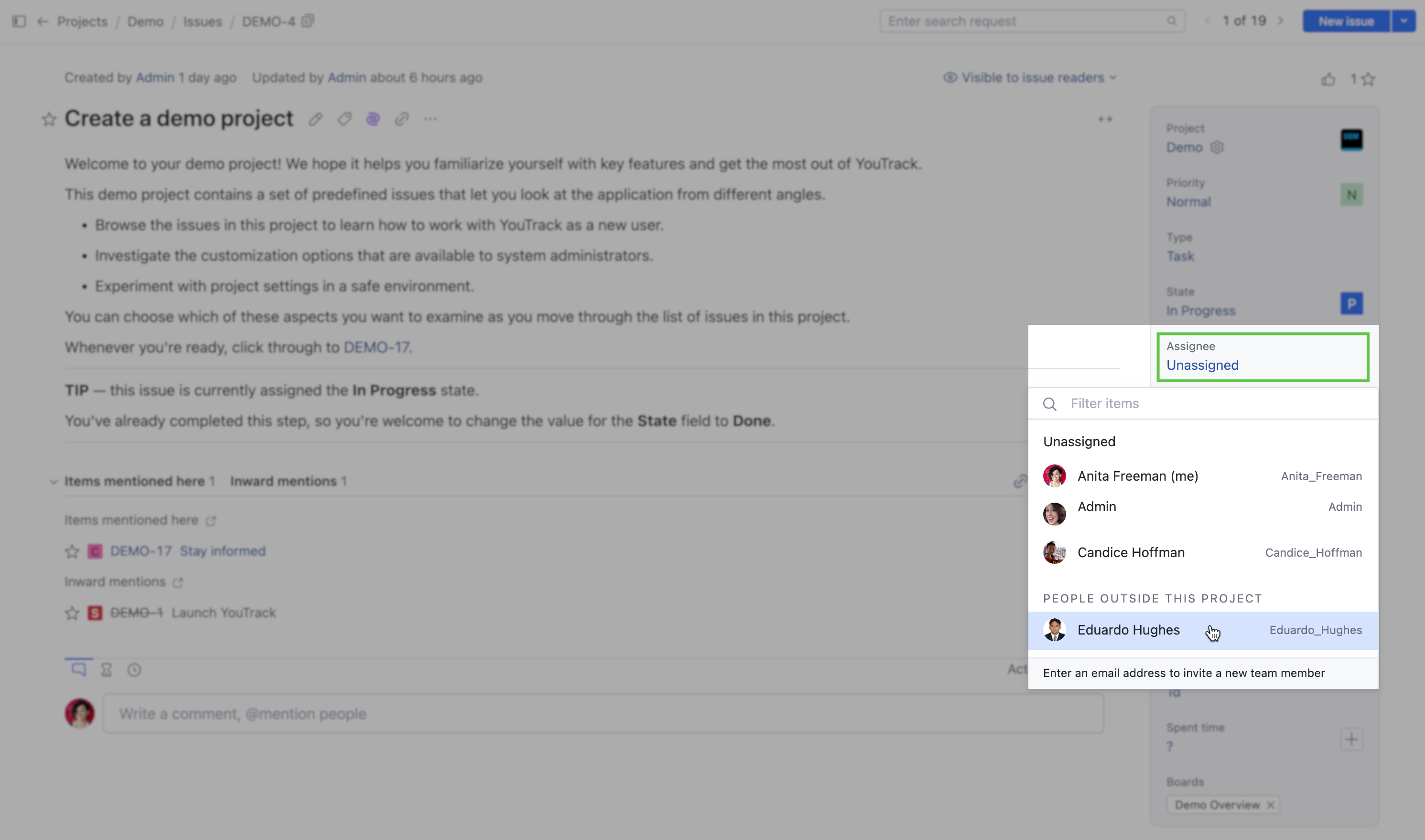
Click Confirm in the dialog box to finish adding the new project team member
The new team member inherits the roles that are assigned directly to the team.
Add Groups to the Project Team
There are two advantages to using groups to add its members to a project team:
You can add multiple users to your project at once.
By using a group to manage membership, new users who are added to the group are automatically added to all the project teams that include the group. Conversely, removing a user from a group removes the user from all project teams that include the group.
There is, however, a limitation. You cannot exclude single group members from the project team. If the group contains any members that you want to exclude from the project, you should either create a new group that contains the desired subset of users or add group members to the project team as single users. To learn how to create groups in YouTrack, see Create a Group.
As when you add users to the project team, this operation requires that your permissions are equal to or higher than those that are granted directly to the team in the project.
To add groups to the project team:
From the main navigation menu, select
Projects.From the project list, select a project.
From the project navigation menu, select People.
Click the Add members button.
In the Add People dialog, select one or more groups.
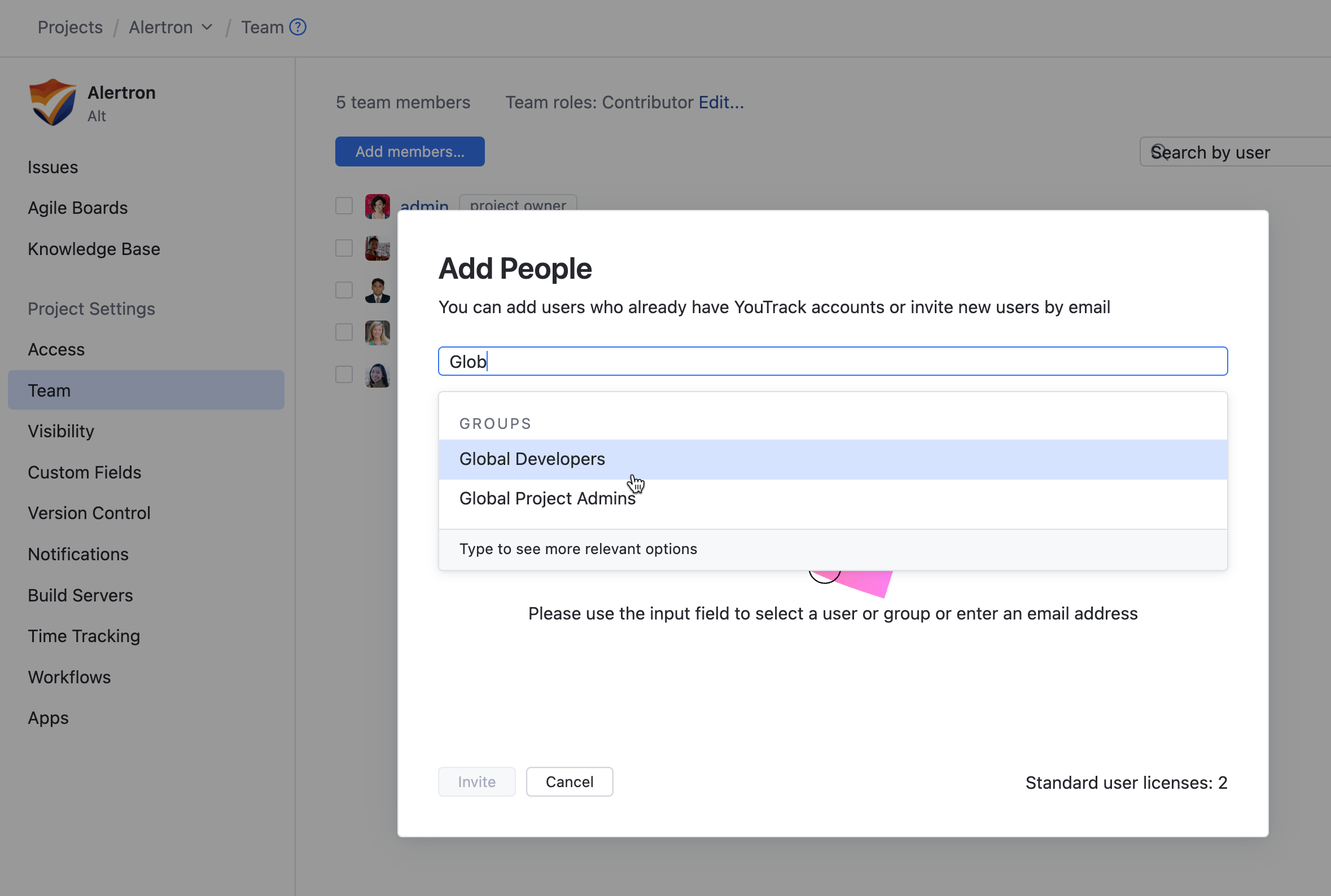
The items in the drop-down list are filtered to show users. To find and select a group, start typing its name in the input field.
Make sure the Add to team option is enabled.
Click the Invite button.
The group inherits any role assigned to the project team in the current project. Members of this group inherit access to the project based on their membership in the group.
Remove People from the Project Team
Whenever someone no longer needs access or finishes their work on the project, you can remove them from the project team.
Removing users from the project team can be tricky. Each member of the project team can have access to a project directly, indirectly, or both. You can only remove users from the project team when they were added to the project directly. Otherwise, you must either remove the user from any group that has been added to the project or remove the groups from the project team.
When you remove users from the project team, they lose access defined by the roles that are granted to the project team. If the user is not a member of any groups that are assigned to the project team, you may need to restore vital permissions by assigning the user another role.
To remove users from the team:
From the main navigation menu, select
Projects.From the project list, select a project.
From the project navigation menu, select People.
Select one or more users from the list and click the Remove from team button in the header.
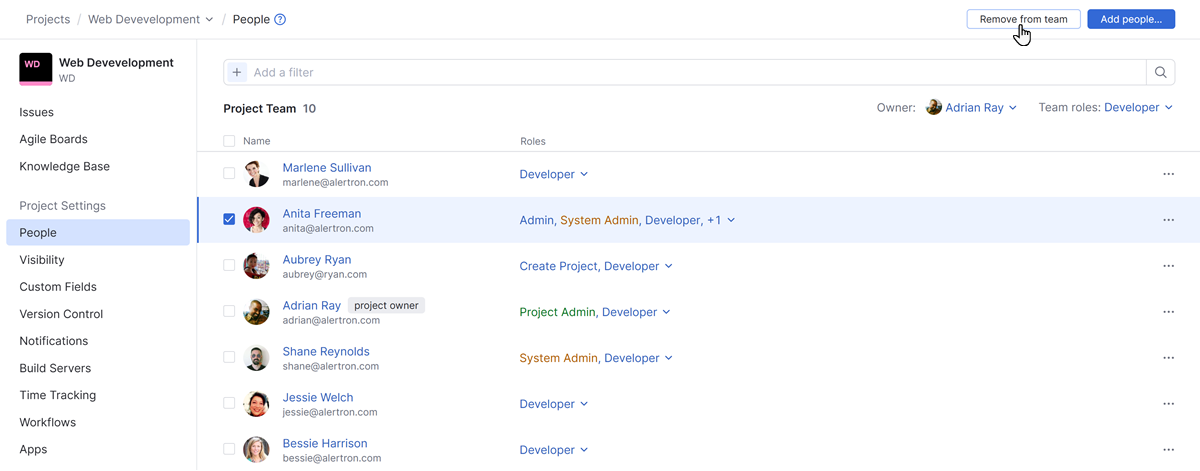
An alternative method for removing single users is to expand the
More menu and select the Remove from team option.In the confirmation dialog, click the Confirm button.
If the user is not a member of any group that has been added to the project team, the user is removed from the project team.
If the user still appears in the project team as the member of a group, you have two options. You can:
Remove the user from any groups that have been added to the project.
Remove any groups that include this user as a member from the project. This action removes all members of the selected groups from the project team.
Remove Groups from the Project Team
If a group of users does not require access to your project, you can remove the whole group from the project team. This situation arises when you add a large group, like the All Users group, that contains some users who should have access to your project but also contains users who should not have access. You can also have organizational changes where the members of a group are no longer assigned to your project.
You may also want to remove a group from the project team to disable the feature that adds new members to the project team or removes users from the project team automatically when they are removed from the group.
When you remove groups from the project team, group members lose access granted to the Contributor in the project. You may need to restore vital permissions by assigning the group another role.
To remove a group from the project team:
From the main navigation menu, select
Projects.From the project list, select a project.
From the project navigation menu, select People.
Select one or more groups from the list and click the Remove from team button.
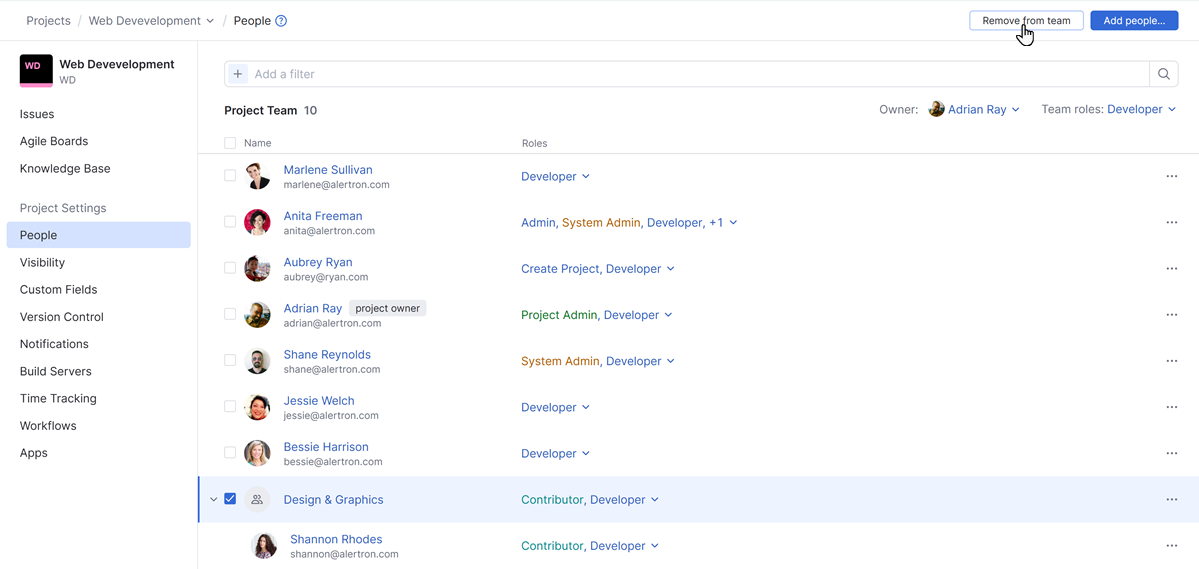
An alternative method for removing single groups is to expand the
More menu and select the Remove from team option.In the confirmation dialog, click the Confirm button.
The group is removed from the project team.
Manage Team Roles
When a user or group is added to a YouTrack project team, they automatically receive the roles assigned to that team, which define their effective permissions in the project. This approach streamlines access management by applying team level roles to all members without requiring individual role assignments.
The default team role can be found in the Project Team section of the People page.
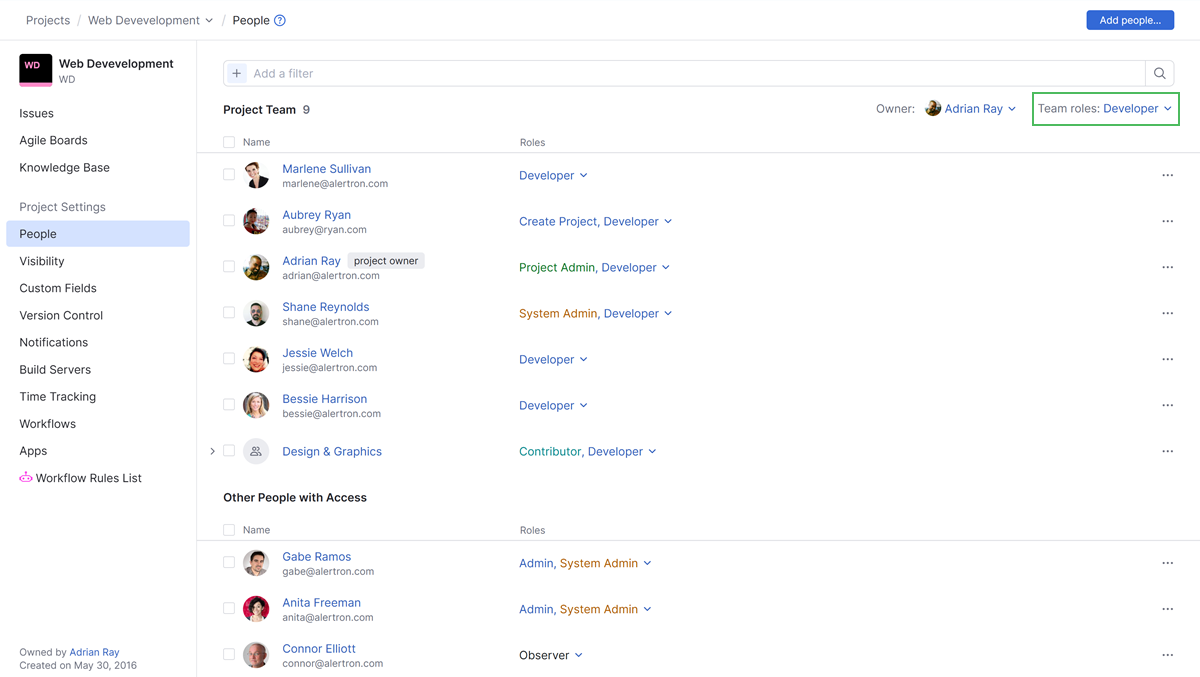
If you want to update the level of access for all project members, you can add or revoke the roles assigned to the team.
This setting only lets you assign predefined roles. To provide a different level of access, create a custom role. For more information, see Create and Edit Roles.
To update the role assigned to project team members:
From the main navigation menu, select
Projects.From the project list, select a project.
From the project navigation menu, select People.
Click to expand the list of Team roles in the Project Team section of the page.
Select one or more roles to add from the list. Remove team roles by deselecting the corresponding checkbox.
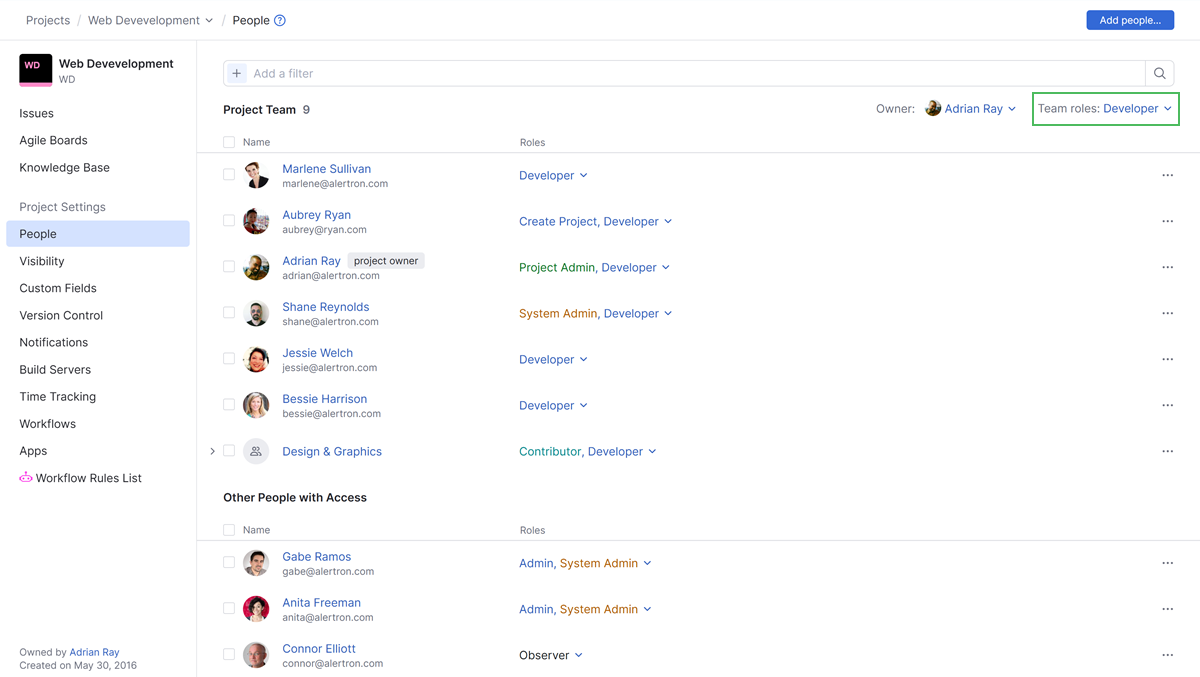
Changes are applied immediately after selecting a role. Revoking roles requires additional confirmation.
Transfer Project Ownership
The project owner is generally responsible for overall control of the project, including managing access, maintaining settings, and acting as the main point of accountability. When the current owner leaves the organization, moves to a different role, or is no longer responsible for the project direction, you can transfer ownership to another member of the project team.
When ownership is transferred to a new user, the new owner is automatically granted the Project Admin role in the current project. This ensures that the new owner will have permission to perform any action required for the ongoing maintenance of the project.
To transfer ownership of a project:
From the main navigation menu, select
Projects.From the project list, select a project.
From the project navigation menu, select People.
Click to expand the possible set of users for the Owner in the Project Team section of the page.
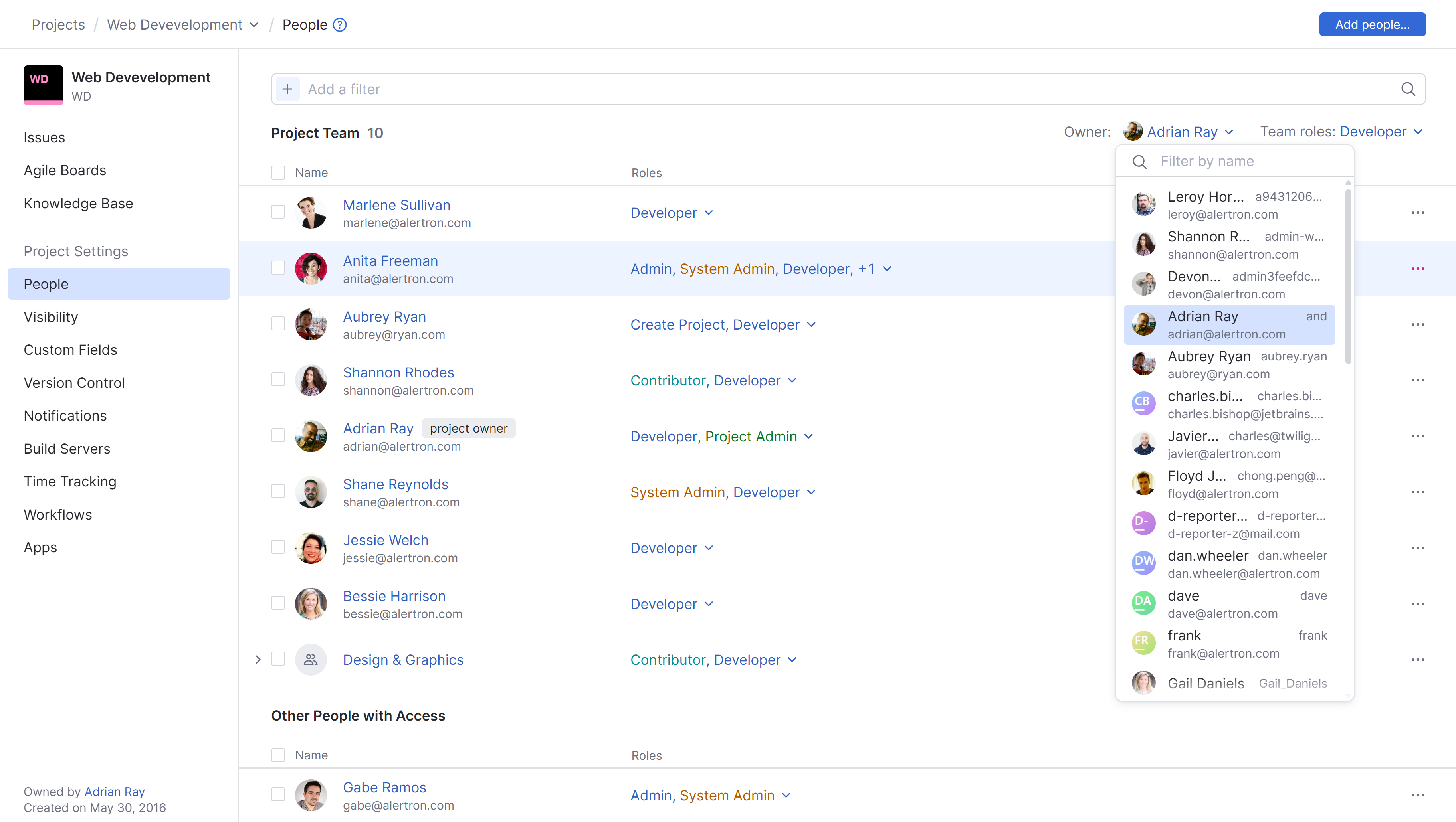
Select a user from the list of users in the project.
Confirm this action in the confirmation dialog.
Manage Issue Assignees
The project team is separate from the list of assignees for issues in the project. There are operations that help synchronize the list of assignees with the project team. However, these two sets of users can be managed independently. This means that your project team can include users who are not assigned issues and your issues can be assigned to users who are not members of the project team.
In YouTrack, assignees are taken from the set of values for the Assignee field. This field references a list of users who can be assigned an issue in the project. When you add users and groups to the project team, they are also added to the set of values for the Assignee field. It is also possible to add users to the list of assignees without adding them as a member to the project team. For more information, see Manage Assignees.
Other People with Access
The Other People with Access section shows users who have access to the project through global roles or direct assignments.
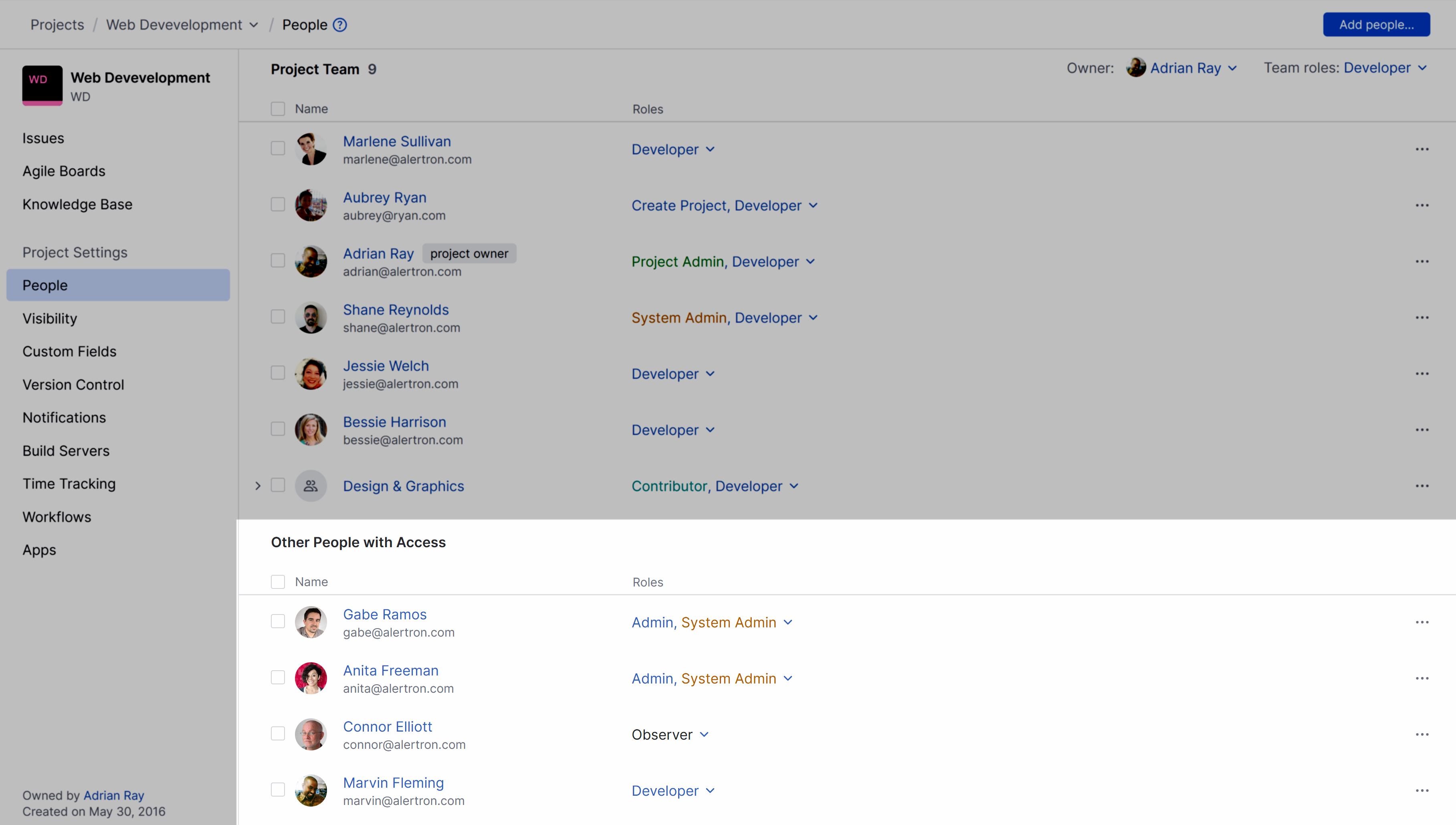
You might grant users or groups direct access using roles when they need permissions in the project but are not part of the core working team. The project team is designed to represent people who actively work together on the project, while other users such as administrators, supervisors, or stakeholders may require access without participating in daily work. These users can be given roles directly without being included in the team structure.
Grant Access to Other People
Adding users or groups to the project team grants them the access level defined by the team default role. Granting a role to a user or group directly lets you specify exactly what actions a user or group can perform in the project. This enables fine-grained access management and helps ensure that users only receive the permissions they actually need.
To grant access to other people in a project:
From the main navigation menu, select
Projects.From the project list, select a project.
From the project navigation menu, select People.
Click the Add people button in the header.
The Add People dialog opens.
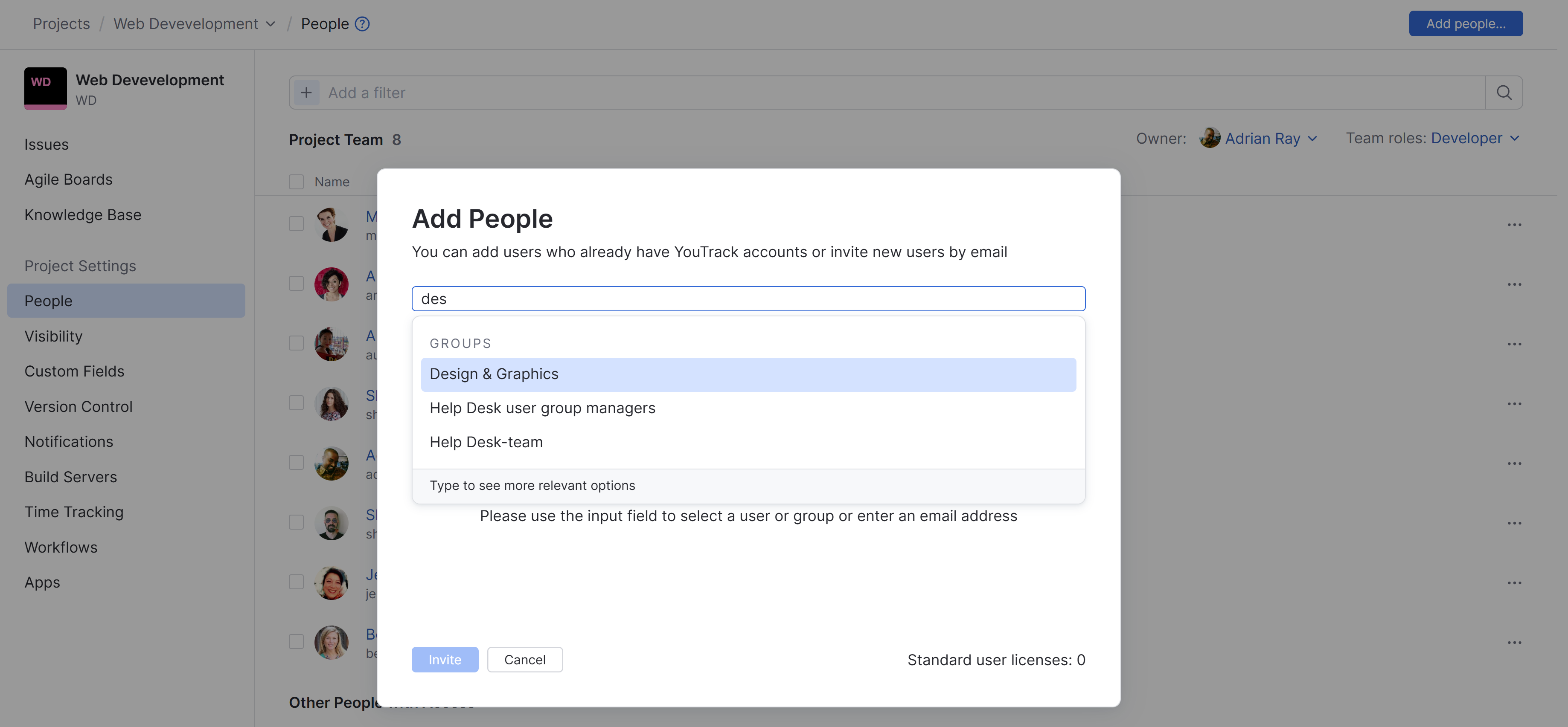
In the Add People dialog, select one or more users and/or groups.
Switch off the Add to team option.
From the Roles drop-down list, select the role or roles that you want to grant in the project.
Click the Invite button.
The selected users and groups are granted access as defined by the selected role in the project.
Revoke Access from Other People
You may need to revoke access when a user leaves the organization, changes roles, or is no longer involved in the project. Removing access helps prevent unauthorized changes, protects project data, and ensures that only relevant team members can interact with project resources.
To revoke access granted directly to a user or group:
From the main navigation menu, select
Projects.From the project list, select a project.
From the project navigation menu, select People.
Click to expand the list of Roles for the user or group whose access you want to revoke.
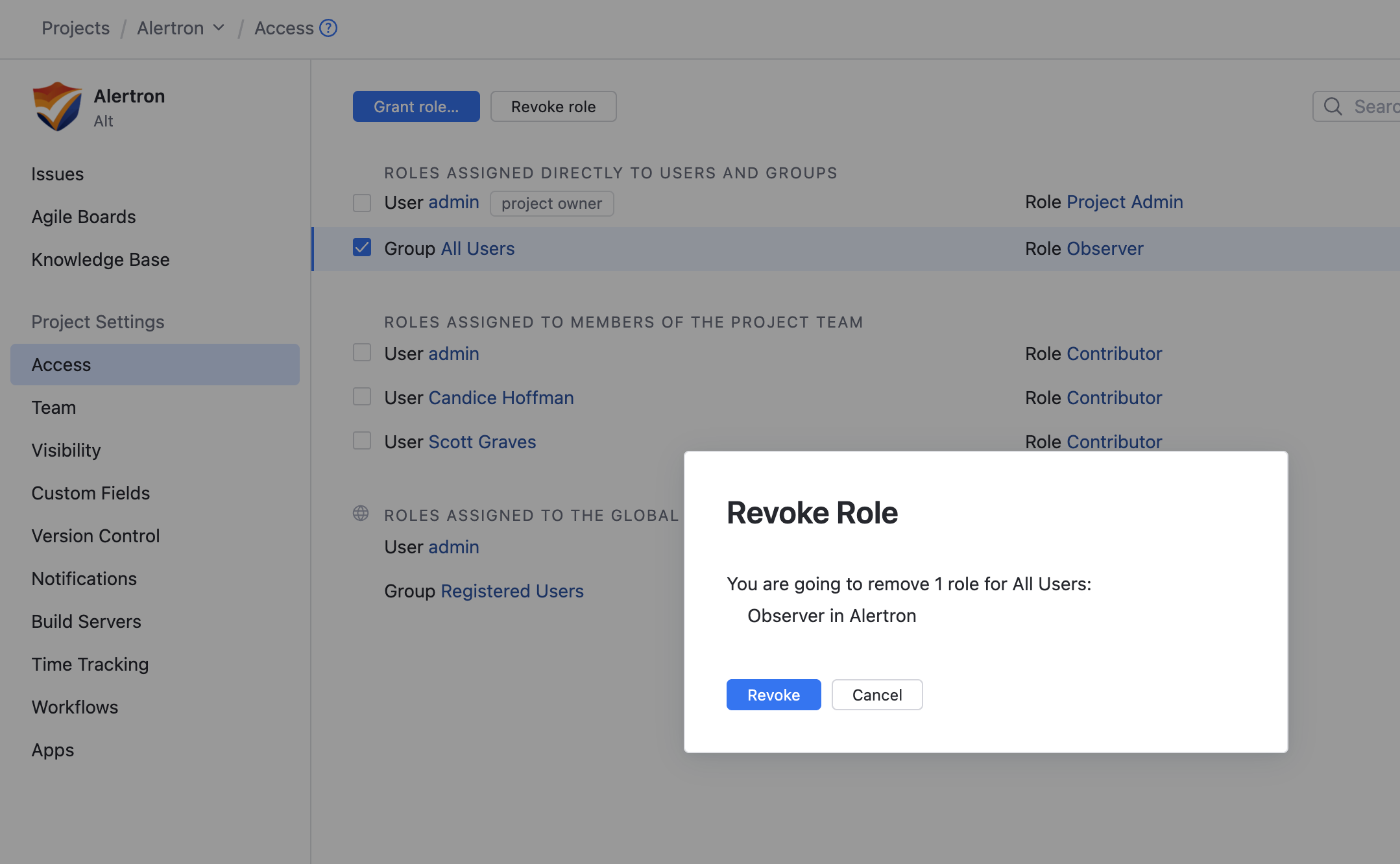
Deselect the role or roles you want to revoke.
Confirm the action in the confirmation dialog.
The role is revoked from the selected user or group.
Revoking Roles Assigned at the Global Scope
Roles with global scopes grant access to all projects in the system. These role assignments cannot be revoked at the project level. The option to deselect these roles on the People page is deactivated.
If you need to revoke access from users and groups with roles with global scopes, open the profile page for the user or group and revoke access from the Roles tab.
To learn how to perform this action for a user account, see Revoke a Role from a User.
To learn how to revoke global access from a group of users, see Revoke a Role from a Group.