Bitbucket Cloud Auth Module
The Bitbucket Cloud authentication module is a pre-configured OAuth 2.0 module that lets users log in to YouTrack with their Bitbucket Cloud credentials.
Enable Bitbucket Cloud Authentication
To allow users with existing accounts in Bitbucket Cloud to log in to YouTrack, enable the authentication module.
This procedure takes place in three steps:
Generate a Redirect URI in YouTrack. When you create an authentication module, YouTrack generates a redirect URI to use with the authorization service. This URI identifies the source of each login request.
Generate a Client ID and Secret in the authorization service. Every login request sent from YouTrack includes a unique identifier. The ID and secret you store in the authentication module tell the Bitbucket Cloud authorization service that each login request is authorized.
Enable the Auth Module in YouTrack. When you have generated the information that YouTrack uses to authenticate with the Bitbucket Cloud authorization service, copy the values to YouTrack and enable the module.
Generate a Redirect URI in YouTrack
To get started, open YouTrack and create an authentication module for Bitbucket accounts. When you create the authentication module, YouTrack generates a redirect URI to use with the authorization service.
From the main navigation menu, select
 .
.Click the New module button.
The Select an identity provider dialog opens.
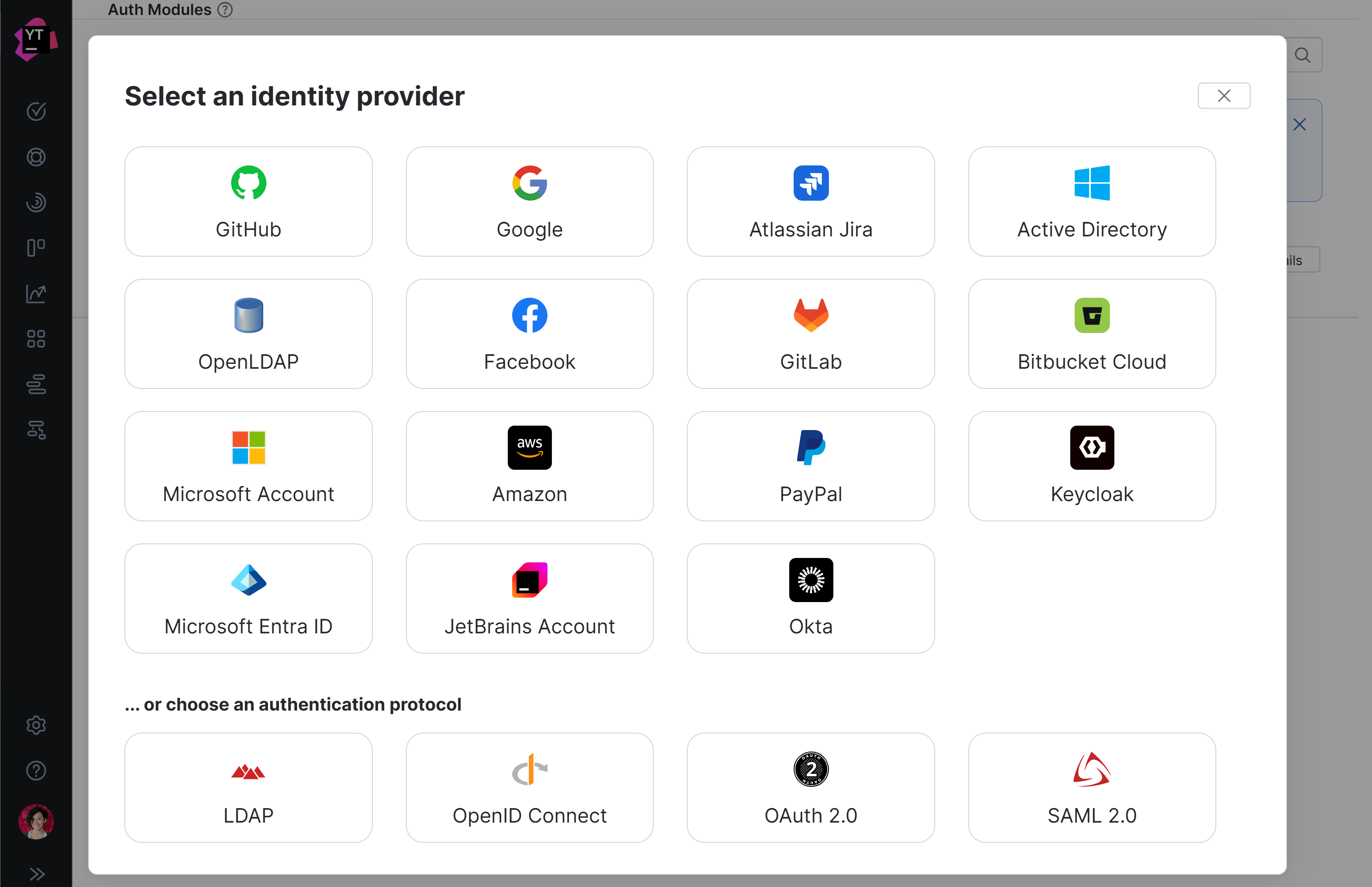
In the Select an identity provider dialog, select Bitbucket Cloud.
The Auth Modules page displays the settings for a new Bitbucket Cloud authentication module.
YouTrack generates a redirect URI for you to use in the authorization service.
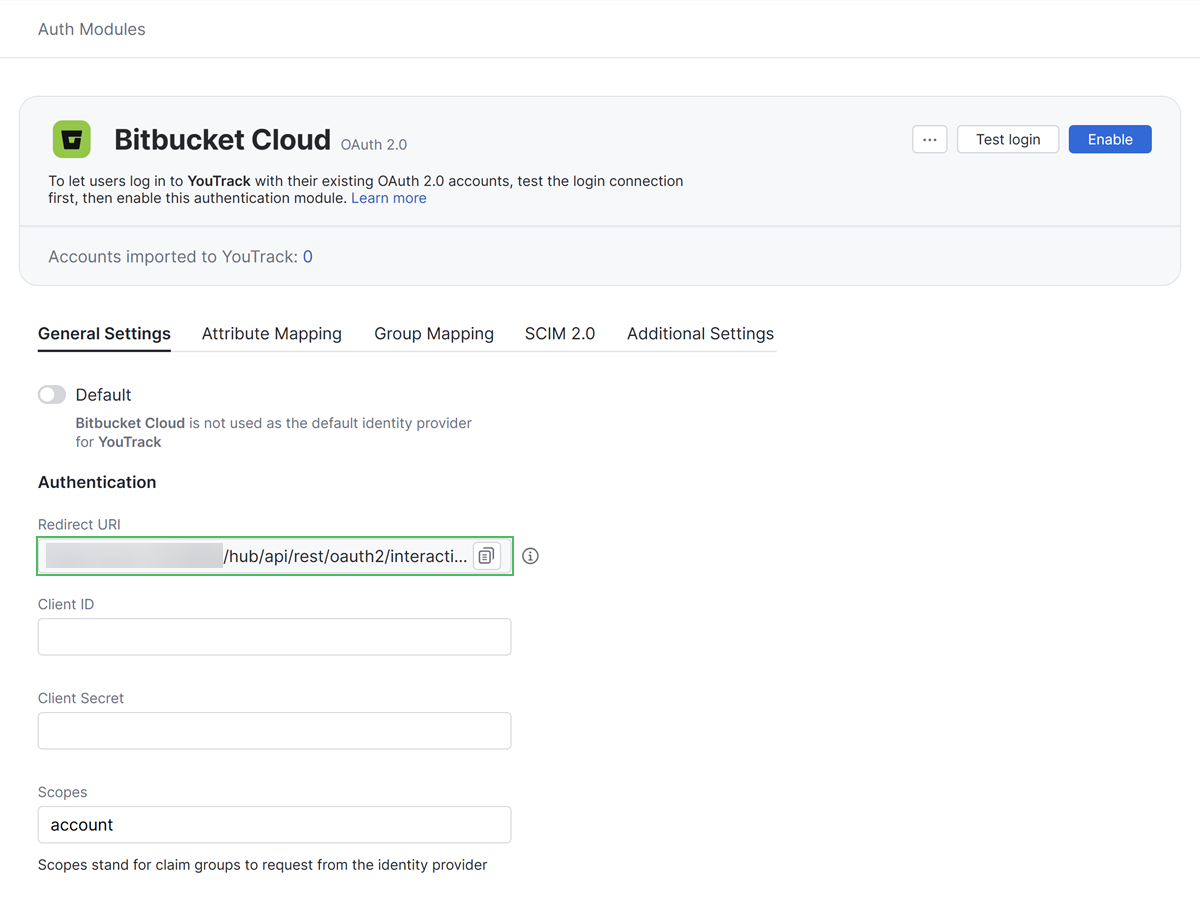
If the feature is supported by your browser, use the Copy button to copy the redirect URI to your clipboard.
Generate a Client ID and Secret
The next step is to register the authorized redirect URI for YouTrack in Bitbucket Cloud.
Log in to your Bitbucket instance. Open the Bitbucket Settings page and select Workspace settings.
Select OAuth in the left navigation, then click the Add consumer button.
In the Add OAuth consumer form, provide a name for your YouTrack service in Bitbucket and optional description.
In the Callback URL field, paste the generated URL from the Redirect URI field in YouTrack.
In the Permissions section, enable the Email and Read options in the Account section.
Click the Save button.
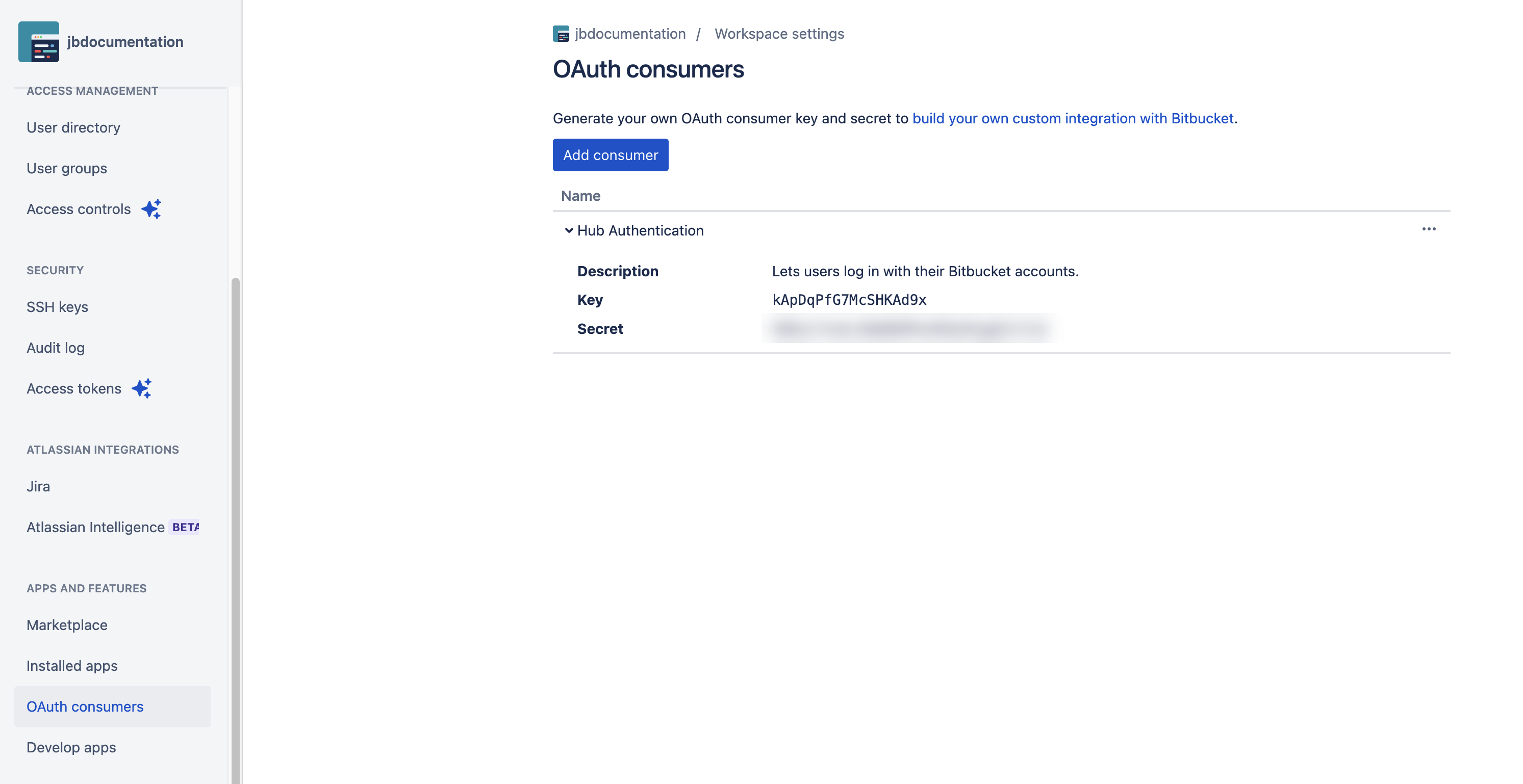
Expand the section for the new consumer to display the Key and Secret.
Enable the Auth Module in YouTrack
To complete the setup, store the client ID and secret from the authorization service in the Bitbucket Cloud auth module.
Copy the Key from Bitbucket Cloud and paste it into the Client ID input field in YouTrack.
Copy the Secret from Bitbucket Cloud and paste it into the Client secret input field in YouTrack.
Configure the optional settings for the authentication module. For more information, see Additional Settings.
Click the Save button to apply the settings.
Click the Enable button.
The Bitbucket Cloud authentication module is enabled.
The icon stored in the Button image setting is added to the login dialog window. Users can click this icon to log in to YouTrack with their credentials in Bitbucket Cloud.
Test the Connection
To verify that the Bitbucket Cloud authentication module is set up correctly, test the connection.
Click the Test login button in the header. This verifies the login process in a new browser tab.
If the authentication module is set up correctly, a success message is shown.
If there are problems with the connection, the authentication service displays an error message. Use the information provided on the error page to investigate the problem.
General Information
In the header of the settings page, you can find the general information about the authentication module.
Setting | Description |
|---|---|
Name | Stores the name of the authentication module. Use this setting to distinguish this module from other authentication modules in the Auth Modules list. You can change the name and icon of the authentication module using the Rename action. For more details, see Actions. |
Type | Displays the type of authorization service that is enabled for third-party authentication in YouTrack. |
Accounts imported to YouTrack | Displays the number of users that have been imported to YouTrack. |
Actions
The following actions are available in the header:
Action | Description |
|---|---|
Enable | Enables the authentication module. This option is only shown when the authentication module is currently disabled. |
Disable | Disables the authentication module. This option is only shown when the authentication module is currently enabled. |
Test login | Lets you test the connection with the authentication service. |
Rename | Lets you update the existing authentication module name and change its default icon. You can find this action in the |
Delete | Removes the authentication module from YouTrack. Use only when you have configured additional authentication modules that let users log into your YouTrack installation. You can find this action in the |

General Settings
On the General Settings tab, you find the general settings for the authentication module. This includes the redirect URI used to register YouTrack in the authorization service and the client credentials generated in the authorization service.
Setting | Description |
|---|---|
Default | Designates the authentication module as the default for your installation. Only one authentication module can be set as the default at any time. If another module is currently set as the default, that state is cleared. If none of the available authentication modules are designated as the default, unauthenticated users are always directed to the YouTrack login page. |
Authentication
The Authentication settings define the core security credentials and parameters required to connect YouTrack with Bitbucket Cloud's OAuth 2.0 identity provider. By entering the Key and Secret generated in Bitbucket Cloud into the Client ID and Client Secret fields, and defining the required access Scopes, you enable secure identity verification. This section also displays the unique Redirect URI that must be registered in Bitbucket Cloud to authorize the connection.
Setting | Description |
|---|---|
Redirect URI | Displays the authorized redirect URI used to register the connection to YouTrack in the authorization service. |
Client ID | Stores the identifier that the authorization service uses to validate a login request. You generate this value in the authorization service when you configure the authorization settings for a web application and enter an authorized redirect URI. |
Client Secret | Stores the secret or password used to validate the client ID. You generate this value in the authorization service together with the client ID. |
Scopes | A space-separated list of scopes YouTrack requests from the identity provider. Scopes determine which claim groups the identity provider returns. |
Authorization Service Endpoints
The settings in this section of the page store the OAuth 2.0 endpoints used by Bitbucket Cloud.
For pre-configured OAuth 2.0 modules, the values that are used by the selected authorization service are set automatically.
Setting | Description |
|---|---|
Authorization URL | Stores the endpoint that YouTrack uses to get authorization from the resource owner via user-agent redirection. |
Token URL | Stores the endpoint that YouTrack uses to exchange an authorization grant for an access token. |
User info URL | Stores the endpoint used to locate profile data for the authenticated user. |
Logout URL | The optional endpoint to invalidate the authorization service session on logout |
Email URL | Stores the endpoint used to locate the email address of the authenticated user. Use only when the email address is not stored in the user profile. |
Avatar URL | Stores the endpoint used to locate the binary file that is used as the avatar for the authenticated user. Use only when the avatar isn’t stored directly in the user profile. |
Attribute Mapping
When Bitbucket Cloud returns a user profile as a response object, values from the specified field paths are copied to the accounts stored in YouTrack. Use the following settings to define the endpoint that locates profile data for the authenticated user and map fields that are stored in the authorization service to the corresponding YouTrack accounts.
For the Bitbucket Cloud module, the values are set automatically.
To specify paths to fields inside nested objects, enter a sequence of segments separated by the slash character (
/).To reference values that may be stored in more than one location, use the "Elvis operator" (
?:) as a delimiter for multiple paths. With this option, YouTrack uses the first non-empty value it encounters in the specified field.
Field | Description |
|---|---|
User ID | Maps to the field that stores the value to copy to the User ID property in the YouTrack account. |
Username | Maps to the field that stores the value to copy to the Username field in the YouTrack account. |
Full name | Maps to the field that stores the value to copy to the Full name field in the YouTrack account. |
Maps to the field that stores the value to copy to the Email field in the YouTrack account. | |
Email verification state | Maps to the field that stores the value to copy to the verified email property in the YouTrack account. |
Avatar | Maps to the field that stores the image to use as the Avatar in the YouTrack account. |
Image URL pattern | Generates an image URL for avatars that are referenced by an ID. Use the <picture-id> placeholder to reference the field that stores the avatar. |
Groups | Maps to the attribute that stores group membership assignments in the connected authorization service. When this value is specified, you can map and sync group memberships in the authorization service with corresponding groups in YouTrack. For details, see Group Mappings. |
Group Mappings
SCIM 2.0
Additional Settings
The settings on the Additional settings tab let you manage account creation and group membership and reduce the loss of processing resources consumed by idle connections.
Option | Description |
|---|---|
User creation | Enables creation of YouTrack accounts for unregistered users who log in with an account that is stored in the connected authorization service. YouTrack uses the email address to determine whether the user has an existing account. |
Auto-join groups | Adds users to a group when they log in with an account that is stored in the connected authorization service. You can select one or more groups. New users that auto-join a group inherit all the permissions assigned to this group. We recommend that you add users to at least one group. Otherwise, a new user is only granted the permissions that are currently assigned to the All Users group. |
Authentication | Determines how credentials are passed to the authorization service. |
Email auto-verification | Determines how YouTrack sets the verification status of an email address when the authentication service does not return a value for this attribute. |
Extension grant type | Saves the value used for the To learn how to exchange access tokens using the YouTrack REST API, see Extension Grants. |
Connection timeout | Sets the period of time to wait to establish a connection to the authorization service. The default setting is 5000 milliseconds (5 seconds). |
Read timeout | Sets the period of time to wait to read and retrieve user profile data from the authorization service. The default setting is 5000 milliseconds (5 seconds). |
Changes made to Bitbucket Cloud | Links to the Audit Events page in YouTrack. There, you can view a list of changes that were applied to this authentication module. |