Clone an Article
Cloning articles lets you reuse existing content and streamline your documentation process. The clone action lets you create an exact copy of an existing article in the knowledge base, including its tags, visibility restrictions, and attachments. The cloned article is independent of the original, which means you can edit any part of it without impacting the source article.
Here are a few scenarios where cloning can come in handy:
Repurposing content: Save time by reusing content instead of starting from scratch.
Localization: Use cloning to quickly create translations or localized versions of your articles.
Building templates: Create an article with a standard structure, clone it, and use the copy as a template for new content.
The option to clone an article is supported using YouTrack workflow rules. These rules can be switched on and off at the project level. If the option to clone an article isn't available in a specific project:
Make sure you have been granted permission to create articles in the project that the article you want to clone belongs to.
Check the Workflows tab in the settings of the source project to make sure the Clone Article workflow is attached and its rules are active.
To learn more, see Manage Workflows.
While cloning an article, YouTrack creates a copy of the current article in the same project with a new article ID. The following attributes are set automatically:
The article author is set to the current user.
All tags except for the Star tag are copied.
Attachments are copied to the new article.
Comments are not copied to the new issue. This applies to both inline comments and article comments.
To clone an article as a draft:
Open the article you want to clone. Articles are accessible from the following locations:
From the main navigation menu, select
 Knowledge Base. Then use the left navigation panel or search interface to locate the article you want to clone.
From the main navigation menu, select
 Projects. Then select the project that the article you want to clone belongs to and use the left navigation panel or search interface to find it.
From the
 Show more menu in the article toolbar, select
  Clone article as draft.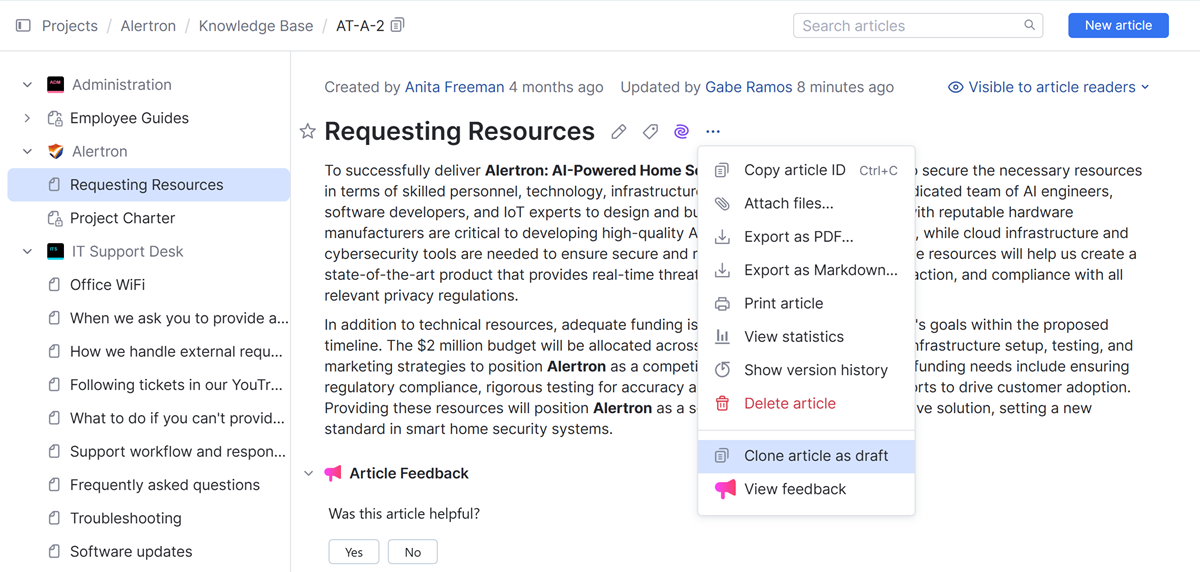
A clone of the current article is created as a draft.
To open and edit the draft, click the link in the alert message that confirms this action. Otherwise, you can locate and open the draft from the left navigation panel.