Connect to an External Mail Service
YouTrack Cloud instances are connected to a hosted mail service. You can, however, overwrite the default configuration and connect YouTrack to your own mail service.
To access these settings, select Global Settings from the Server Settings section of the Administration menu and select the Notifications tab.
Special Requirements for Connecting to Gmail
To send YouTrack notifications using a Gmail account, you need to generate and use an application-specific password (App Password). The Google account that you use for authentication must have 2-Step Verification enabled. To connect to the Gmail service with this account, generate an application-specific password in your Google account.
For the Username, enter the username for your Google account.
For the Password, enter an application-specific password that you generated in Google.
To learn more about app passwords for Google accounts, please refer to the Gmail Help.
Prerequisites for Sending Email With the Microsoft Graph API
Before you can enable email notifications using the Microsoft Graph API, you need to register an application in the Microsoft Entra ID platform and configure it to send email. Here's a general overview of the required steps:
Register a Microsoft Entra ID application.
Create a new application in the Microsoft Entra ID Portal.
Generate a client secret for the application.
Note and securely store the Tenant ID, Client ID, and Client Secret.
You will need to provide these values when setting up the connection.
Assign API permissions.
Navigate to the API permissions section of your application.
Add the
Mail.Sendpermission as an Application permission (not Delegated).Grant admin consent for the permission to ensure it is active for the entire tenant.
Designate a user account for sending email. Ensure the user has:
Full membership status (guest accounts are not supported).
An active mailbox.
By completing these steps, you will have met the prerequisites for sending email notifications using the Microsoft Graph API. For detailed instructions, please refer to the official documentation for Microsoft Graph.
Enable Email Notifications Using an External Email Service
To send email notifications from YouTrack using your own email provider, you need to establish a connection with the external email service. YouTrack supports multiple protocols for sending mail, including standard SMTP and Microsoft 365 via the Graph API. Depending on the selected protocol, different configuration settings and prerequisites apply. This section guides you through the steps required to enable email notifications and configure the connection to your preferred email service.
To connect to an external mail server:
From the main navigation menu, select
 .
.Select the Notifications tab.
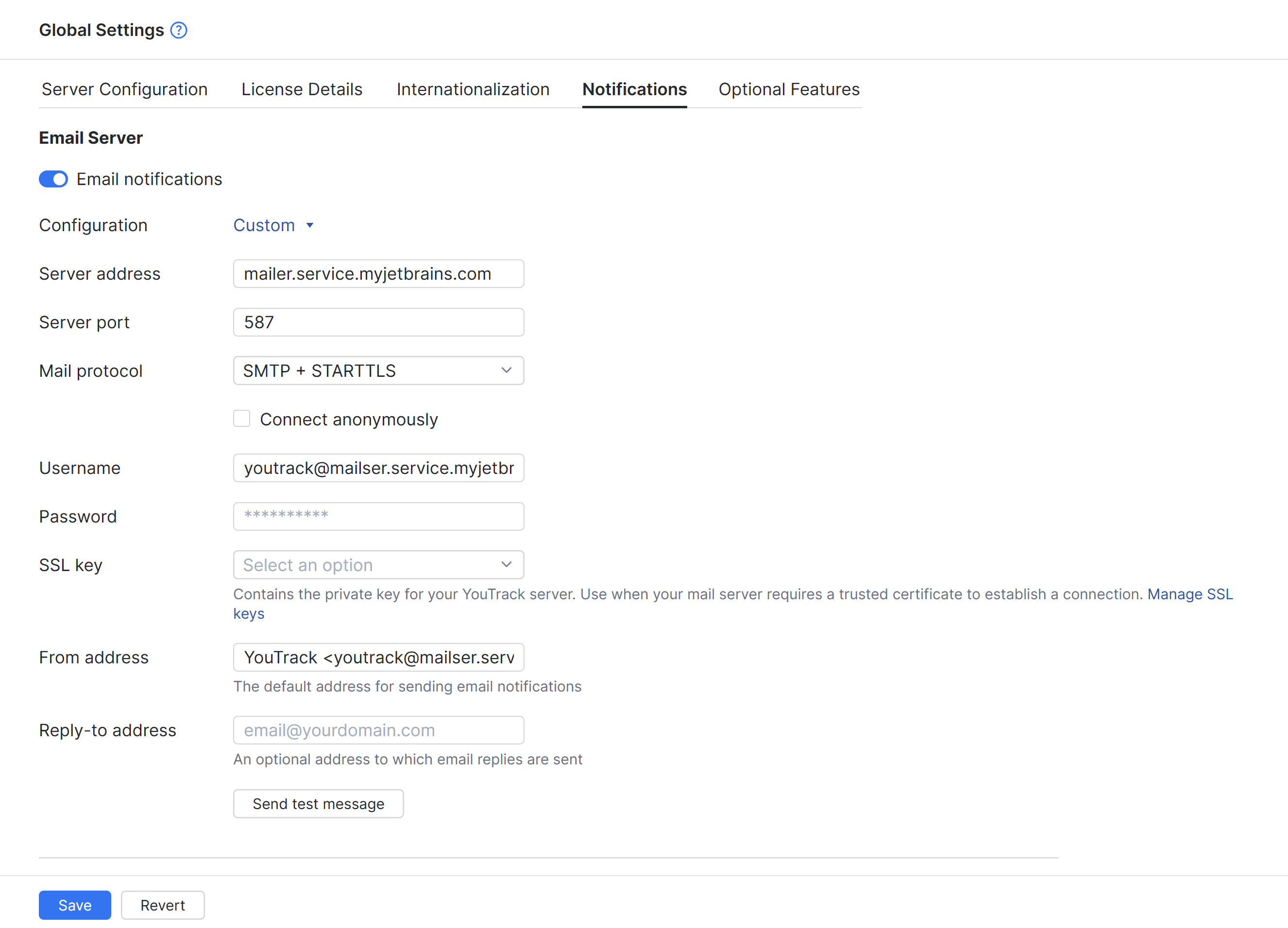
If it isn't already active, switch on the Email notifications option.
For the Configuration setting, select Custom.
Additional settings for connecting to an external mail service are shown.
For the Mail protocol, select the protocol used to connect with your email server.
If you select any one of the SMTP protocols, settings specific to that protocol are displayed. If you want to send email notifications using a Gmail account, there are special requirements you should bear in mind before you continue with this setup. For details, see Special Requirements for Connecting to Gmail.
If you select MS 365 Graph API, a different set of settings are shown. There are specific prerequisites required for sending mail using the Graph API. For details, see Prerequisites for Sending Email With the Microsoft Graph API.
Enter values for the following settings:
Setting
Description
Server address
Enter the server address of your mail service.
Server port
Enter the connection port for the mail service.
Connect anonymously
If your mail server does not require authentication, enable this option.
When enabled, YouTrack connects to your mail service without sending a username and password. The input fields for SMTP username and SMTP password are disabled. Values that are stored in these settings are ignored.
Username
Enter the username of the account that is used to access the mail server.
If you're connecting to Gmail, additional security requirements may apply. For details, see Special Requirements for Connecting to Gmail.
Password
Enter the password for the account that is used to access the mail service.
SSL key
Select a previously uploaded SSL key or trusted certificate for secure connection to your mail server. For details, see SSL Keys.
From address
Enter the address that you want to use to send email notifications. For more information about email addresses, see From and Reply-to Addresses.
Reply-to address
Enter an optional address that you want to use for email replies. For more information about email addresses, see From and Reply-to Addresses.
Setting
Description
User email
Enter the email address of the user account designed to send email for your Microsoft Entra ID application.
Tenant ID
Enter the Tenant ID assigned to your Microsoft Entra ID application.
Client ID
Enter the Client ID for your Microsoft Entra ID application.
Client secret
Enter the Tenant ID for your Microsoft Entra ID application.
Reply-to address
Enter an optional address that you want to use for email replies. For more information about email addresses, see From and Reply-to Addresses.
When finished, click the Save button.
Test the connection.
Click the Send test message button.
Enter an email address to which the test message should be sent.
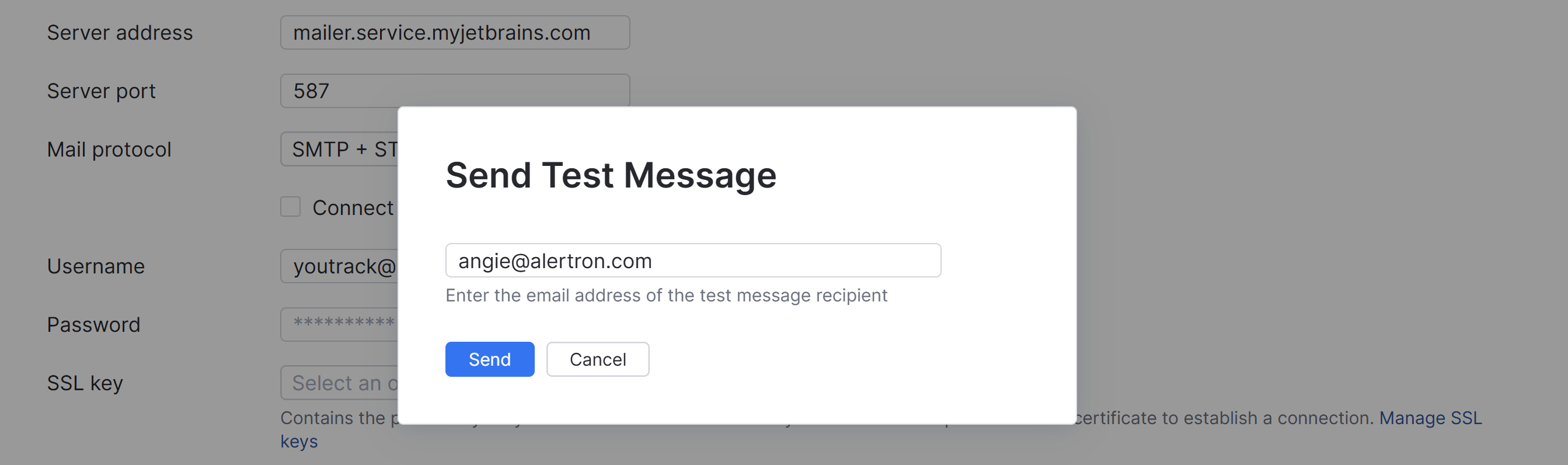
Click the Send button.
Check the email account that you sent the test message to and verify that the message was delivered.
If successful, the connection to your external mail service is configured and ready for use.
If unsuccessful, update your settings and test the connection until the message delivery is successful.