チュートリアル: 初めての RESTful Web サービス
このチュートリアルでは、IntelliJ IDEA で単純な RESTful Web サービスを作成し、それを Tomcat GlassFish アプリケーションサーバーにデプロイする方法について説明します。 Web ブラウザーから特定の URL にアクセスするか、この URL に GET リクエストを送信すると、サービスは Hello, World! を出力します。 別のアプリケーションサーバーの手順については、このページの上部にあるスイッチャーを使用してください。
新しい Java Enterprise プロジェクトを作成し、必要な Java コードを追加し、IntelliJ IDEA に GlassFish Tomcat サーバーの場所を伝え、実行構成を使用してアーティファクトをビルドし、サーバーを起動して、アーティファクトをデプロイします。
必要なものは次のとおりです。
関連するプラグイン | デフォルトでは、IntelliJ IDEA Ultimate には次の必要なプラグインがバンドルされ、有効になっています。 何かが機能しない場合は、次のプラグインが有効になっていることを確認してください。
プラグインをインストールする の説明に従って、 GlassFish プラグインをインストールして有効にします。 |
Java SE Development Kit (JDK) バージョン 1.8 以降 | Java 開発キット (JDK) に従って、IntelliJ IDEA から直接 JDK を取得するか、手動でダウンロードしてインストールできます(例: Oracle JDK または OpenJDK)。 |
Tomcat | Tomcat(英語) アプリケーションサーバーバージョン 7 以降。 |
GlassFish | GlassFish(英語) アプリケーションサーバーバージョン 4.0 以降。 公式リポジトリ(英語)から最新リリースを入手できます。 このチュートリアルの目的には、 Web プロファイルサブセットで十分です。 |
Web ブラウザー | Web アプリケーションを表示するには、Web ブラウザーが必要です。 |
新しい Java エンタープライズプロジェクトを作成する
IntelliJ IDEA には、さまざまな Java EE および Jakarta EE 実装に基づいて Java Enterprise プロジェクトを作成するための専用ウィザードが含まれています。 このチュートリアルでは、簡単な Web アプリケーションを作成します。
メインメニューで へ移動します。
新規プロジェクト ダイアログで、 Jakarta EE を選択します。
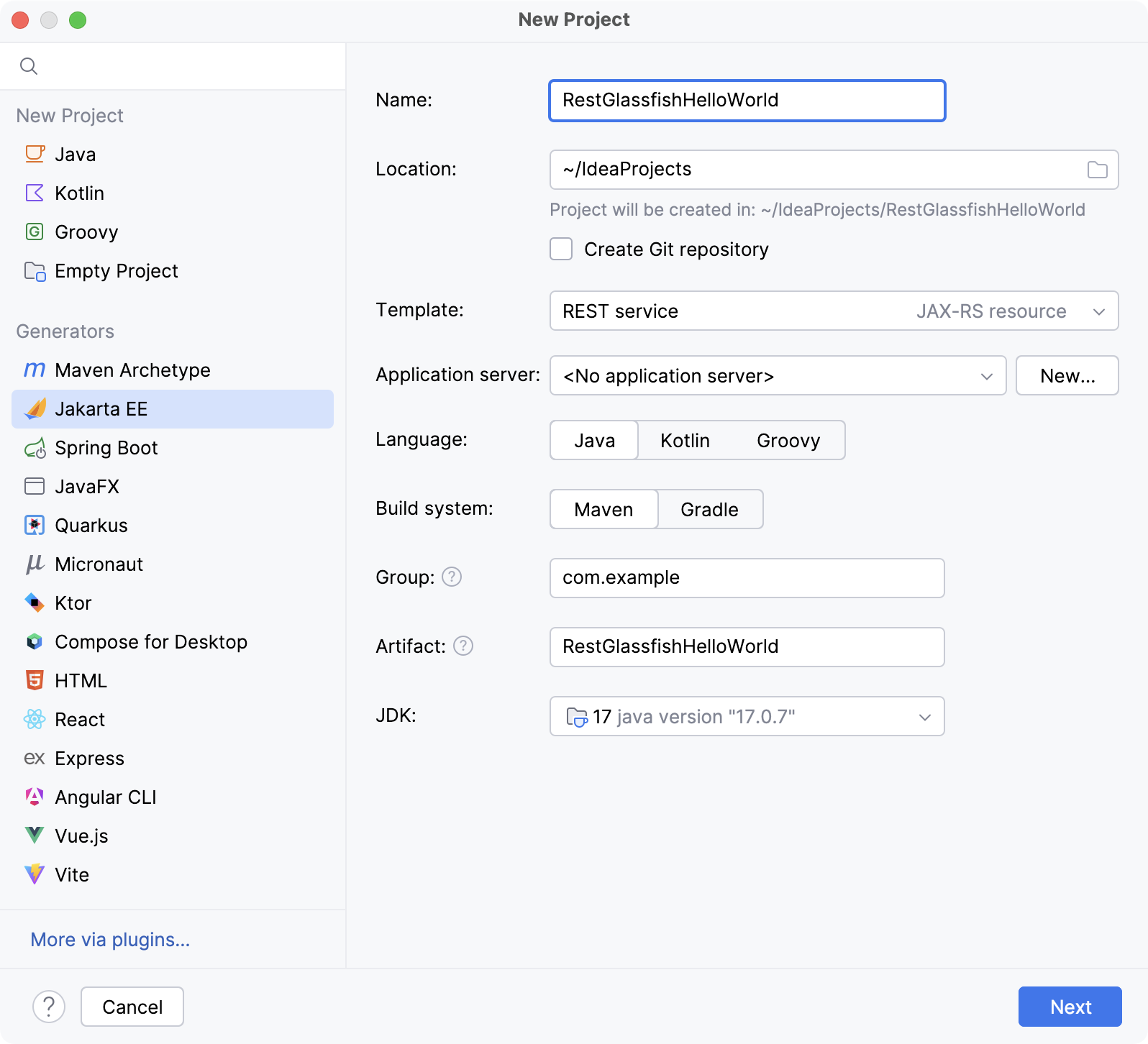
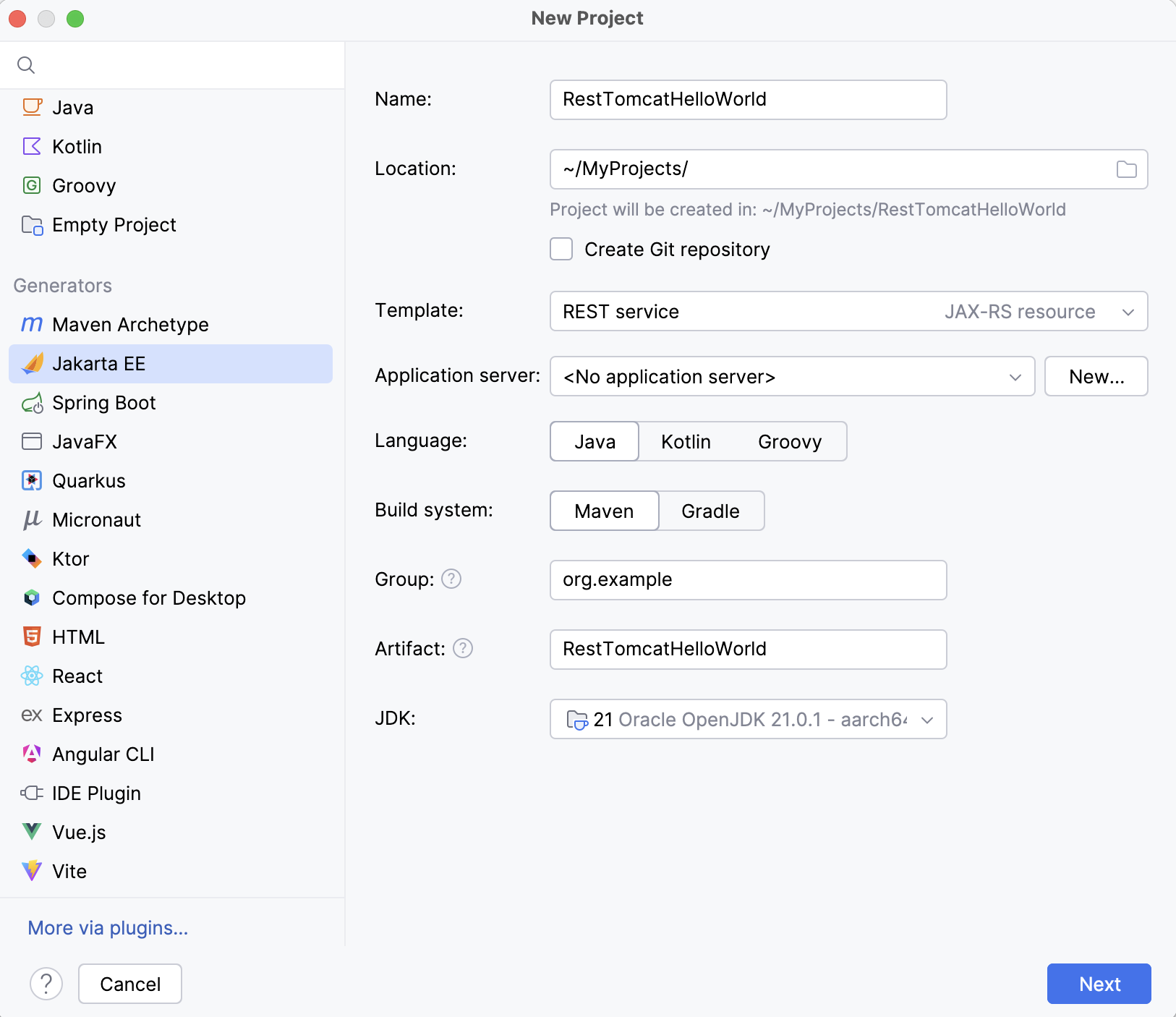
プロジェクト名を入力してください:
RestGlassfishHelloWorldRestTomcatHelloWorld。 このチュートリアルでは、プロジェクトの SDK としてOracle OpenJDK 21 を使用し、 REST サービス テンプレートを選択します。 後で行います。 Java と Maven を選択します。 次へ をクリックして続行します。バージョン フィールドでは、このチュートリアルで使用する Tomcat 10.1 と互換性がある Jakarta EE 10 を選択します。
バージョン フィールドで、 Jakarta EE 9.1 を選択します。このチュートリアルで使用されている GlassFish 6.2.5 と互換性があります。
依存関係 リストで、以下を選択します。
コンテキストおよび依存性注入 (CDI)
RESTful Web サービス (JAX-RS)
Servlet
Eclipse Jersey サーバー
Weld SE
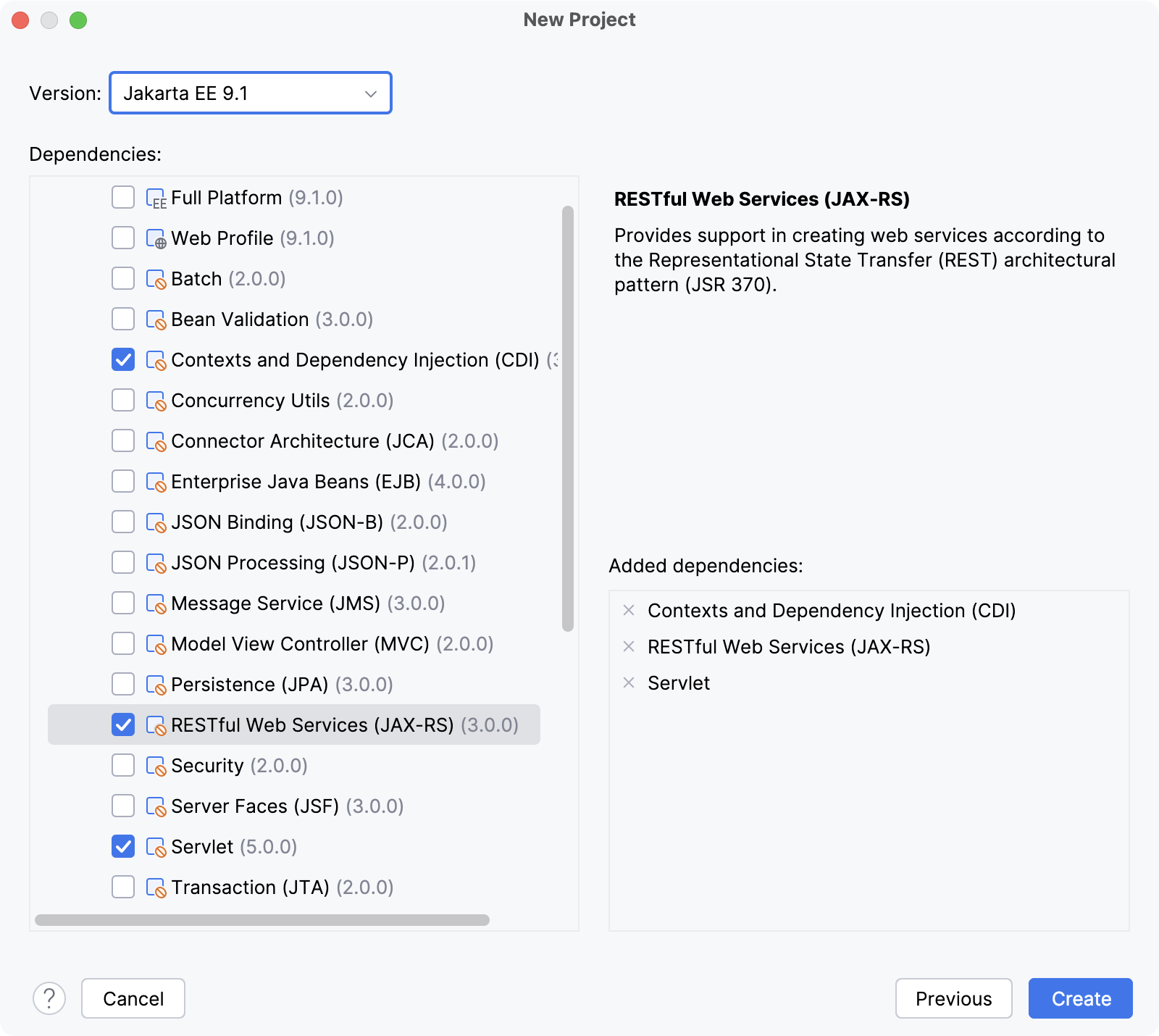
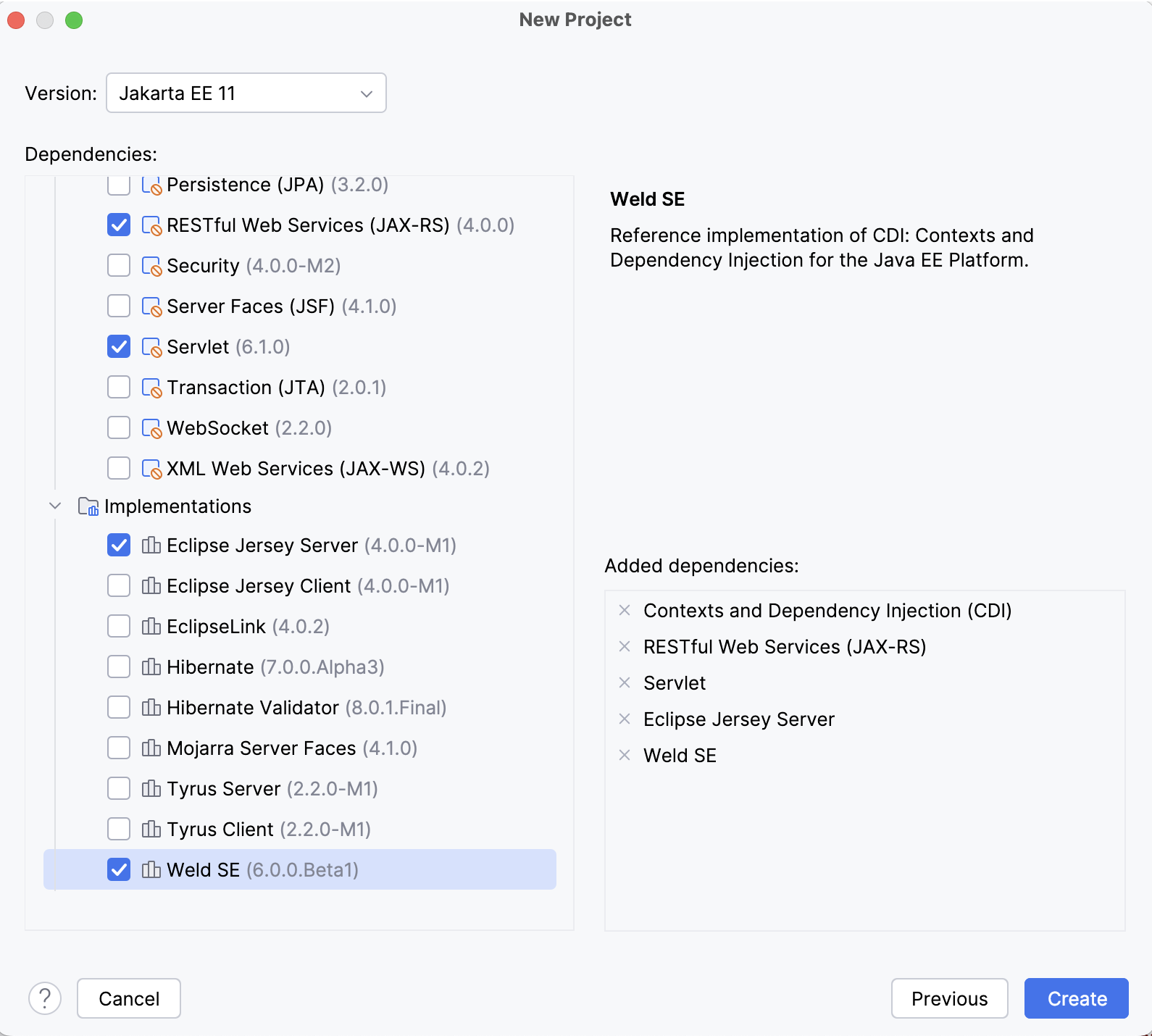
作成 をクリックします。
デフォルトのプロジェクト構造を調べる
IntelliJ IDEA は、正常にビルドおよびデプロイできる定型コードを使用してプロジェクトを作成します。
pom.xml は、プロジェクトのビルドに必要な依存関係やプラグインなど、Maven 構成情報を備えた プロジェクトオブジェクトモデルです。
<?xml version="1.0" encoding="UTF-8"?> <project xmlns="http://maven.apache.org/POM/4.0.0" xmlns:xsi="http://www.w3.org/2001/XMLSchema-instance" xsi:schemaLocation="http://maven.apache.org/POM/4.0.0 https://maven.apache.org/xsd/maven-4.0.0.xsd"> <modelVersion>4.0.0</modelVersion> <groupId>org.example</groupId> <artifactId>RestTomcatHelloWorld</artifactId> <version>1.0-SNAPSHOT</version> <name>RestTomcatHelloWorld</name> <packaging>war</packaging> <properties> <project.build.sourceEncoding>UTF-8</project.build.sourceEncoding> <maven.compiler.target>21</maven.compiler.target> <maven.compiler.source>21</maven.compiler.source> <junit.version>5.11.0-M2</junit.version> </properties> <dependencies> <dependency> <groupId>jakarta.servlet</groupId> <artifactId>jakarta.servlet-api</artifactId> <version>6.1.0</version> <scope>provided</scope> </dependency><dependency> <groupId>org.glassfish.jersey.containers</groupId> <artifactId>jersey-container-servlet</artifactId> <version>4.0.0-M1</version> </dependency> <dependency> <groupId>org.glassfish.jersey.media</groupId> <artifactId>jersey-media-json-jackson</artifactId> <version>4.0.0-M1</version> </dependency> <dependency> <groupId>org.glassfish.jersey.inject</groupId> <artifactId>jersey-cdi2-se</artifactId> <version>4.0.0-M1</version> </dependency><dependency> <groupId>org.jboss.weld.se</groupId> <artifactId>weld-se-core</artifactId> <version>6.0.0.Beta1</version> </dependency> <dependency> <groupId>org.junit.jupiter</groupId> <artifactId>junit-jupiter-api</artifactId> <version>${junit.version}</version> <scope>test</scope> </dependency> <dependency> <groupId>org.junit.jupiter</groupId> <artifactId>junit-jupiter-engine</artifactId> <version>${junit.version}</version> <scope>test</scope> </dependency> </dependencies> <build> <plugins> <plugin> <groupId>org.apache.maven.plugins</groupId> <artifactId>maven-war-plugin</artifactId> <version>3.4.0</version> </plugin> </plugins> </build> </project><?xml version="1.0" encoding="UTF-8"?> <project xmlns="http://maven.apache.org/POM/4.0.0" xmlns:xsi="http://www.w3.org/2001/XMLSchema-instance" xsi:schemaLocation="http://maven.apache.org/POM/4.0.0 https://maven.apache.org/xsd/maven-4.0.0.xsd"> <modelVersion>4.0.0</modelVersion> <groupId>com.example</groupId> <artifactId>RestTomcatHelloWorld</artifactId> <version>1.0-SNAPSHOT</version> <name>RestTomcatHelloWorld</name> <packaging>war</packaging> <properties> <project.build.sourceEncoding>UTF-8</project.build.sourceEncoding> <maven.compiler.target>11</maven.compiler.target> <maven.compiler.source>11</maven.compiler.source> <junit.version>5.9.2</junit.version> </properties> <dependencies> <dependency> <groupId>jakarta.servlet</groupId> <artifactId>jakarta.servlet-api</artifactId> <version>5.0.0</version> <scope>provided</scope> </dependency> <dependency> <groupId>org.glassfish.jersey.containers</groupId> <artifactId>jersey-container-servlet</artifactId> <version>3.0.4</version> </dependency> <dependency> <groupId>org.glassfish.jersey.media</groupId> <artifactId>jersey-media-json-jackson</artifactId> <version>3.0.4</version> </dependency> <dependency> <groupId>org.glassfish.jersey.inject</groupId> <artifactId>jersey-cdi2-se</artifactId> <version>3.0.4</version> </dependency> <dependency> <groupId>org.jboss.weld.se</groupId> <artifactId>weld-se-core</artifactId> <version>4.0.3.Final</version> </dependency> <dependency> <groupId>org.junit.jupiter</groupId> <artifactId>junit-jupiter-api</artifactId> <version>${junit.version}</version> <scope>test</scope> </dependency> <dependency> <groupId>org.junit.jupiter</groupId> <artifactId>junit-jupiter-engine</artifactId> <version>${junit.version}</version> <scope>test</scope> </dependency> </dependencies> <build> <plugins> <plugin> <groupId>org.apache.maven.plugins</groupId> <artifactId>maven-war-plugin</artifactId> <version>3.3.2</version> </plugin> </plugins> </build> </project>HelloResource.java は ルートリソースクラスであり、次の JAX-RS アノテーションを使用して RESTfulWeb サービスを実装します。
@Pathアノテーションは、アプリケーションルートを基準にして、このリソースにアクセスするための URI を識別します。@GETアノテーションは、hello()メソッドが指定された URI への HTTP GET 要求を処理することを示します。@Producesアノテーションは、メソッドが生成して返す MIME メディアタイプを指定します。
package com.example.restglassfishhelloworld; import jakarta.ws.rs.GET; import jakarta.ws.rs.Path; import jakarta.ws.rs.Produces; @Path("/hello-world") public class HelloResource { @GET @Produces("text/plain") public String hello() { return "Hello, World!"; } }package com.example.resttomcathelloworld; import jakarta.ws.rs.GET; import jakarta.ws.rs.Path; import jakarta.ws.rs.Produces; @Path("/hello-world") public class HelloResource { @GET @Produces("text/plain") public String hello() { return "Hello, World!"; } }HelloApplication.java は
javax.ws.rs.core.Applicationのサブクラスであり、アプリケーションがリソースクラスで定義された REST リソースを実行する環境を構成するために使用されます。@ApplicationPathアノテーションは、アプリケーションルートの URL マッピングを識別します(デフォルトでは、/apiに設定されています)。package com.example.restglassfishhelloworld; import jakarta.ws.rs.ApplicationPath; import jakarta.ws.rs.core.Application; @ApplicationPath("/api") public class HelloApplication extends Application { }package com.example.resttomcathelloworld; import jakarta.ws.rs.ApplicationPath; import jakarta.ws.rs.core.Application; @ApplicationPath("/api") public class HelloApplication extends Application { }
アプリケーションサーバーを構成する
IntelliJ IDEA に、 GlassFish Tomcat アプリケーションサーバーが配置されている場所を知らせます。
Ctrl+Alt+S を押して設定を開き、 を選択します。
 をクリックし、 GlassFish サーバーTomcat を選択します。
GlassFish Tomcat サーバーのインストール場所へのパスを指定します。 IntelliJ IDEA は、名前とバージョンを適切に検出して設定します。
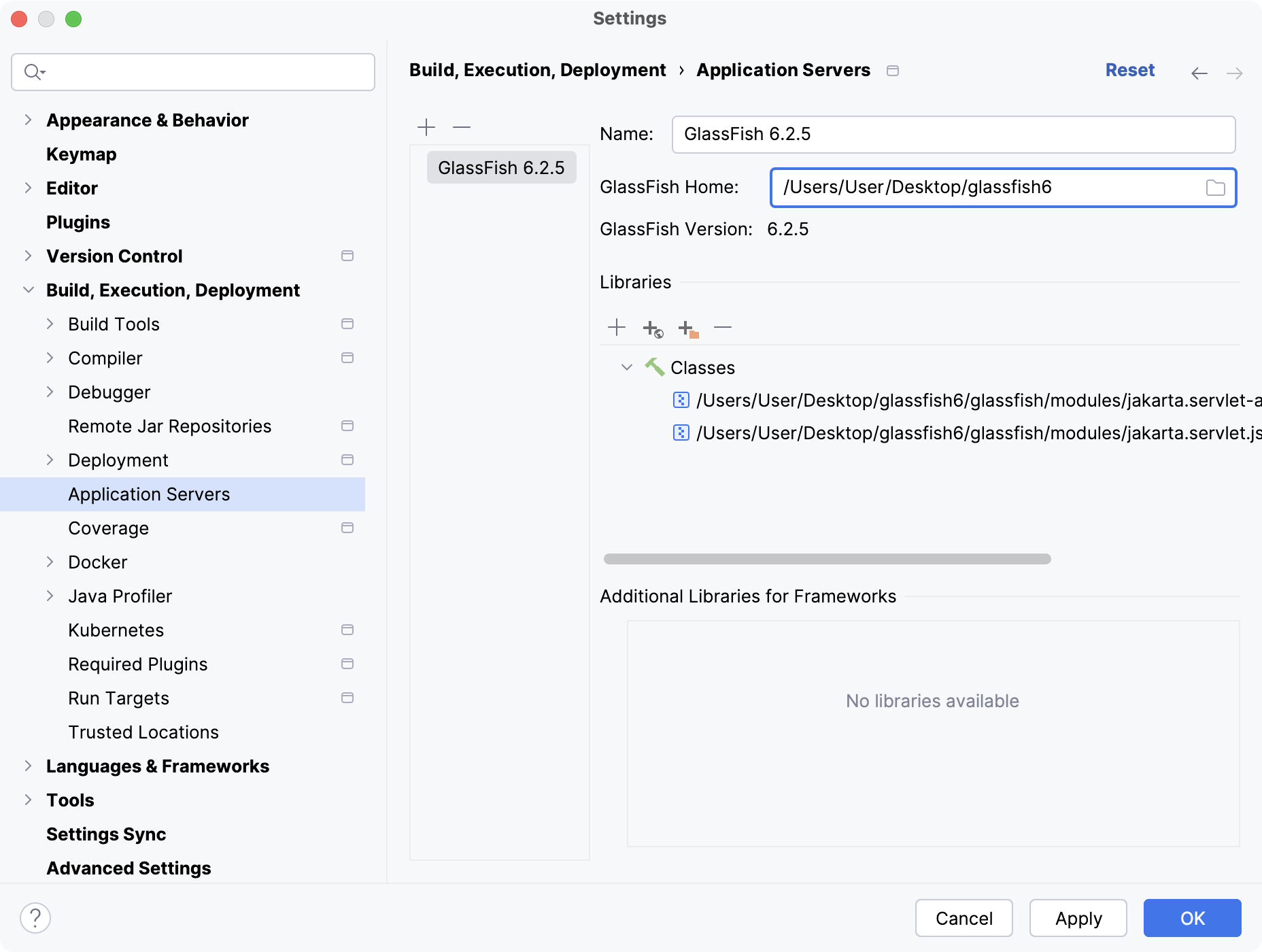
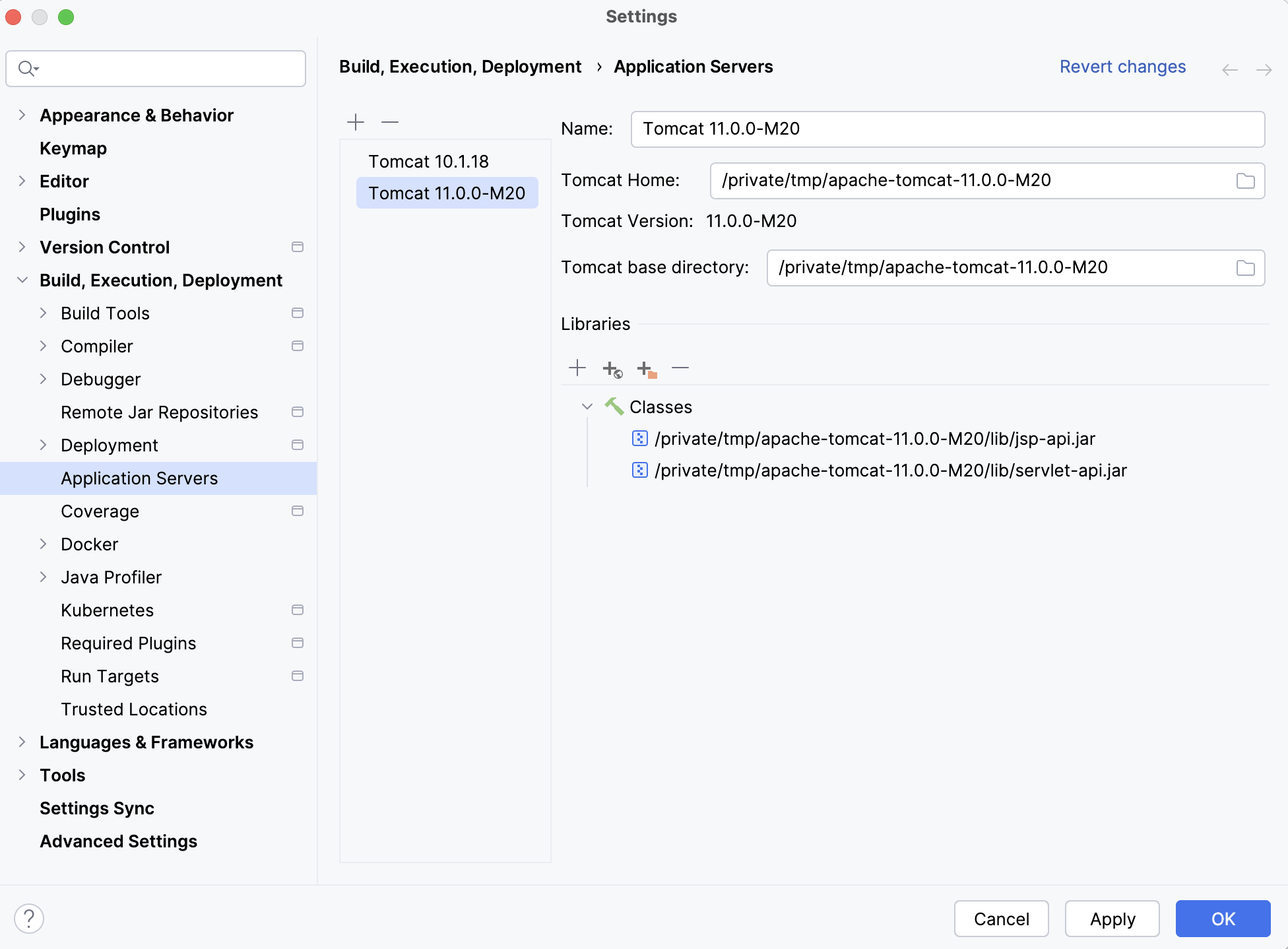
実行構成の作成
IntelliJ IDEA は、アーティファクトを構築してアプリケーションサーバーにデプロイするための実行構成を必要とします。
メインメニューで、 に移動します。
実行 / デバッグ構成 ダイアログで、
をクリックし、 GlassFish サーバーTomcat サーバー ノードを展開して、 ローカル を選択します。実行構成設定ダイアログの下部に表示される警告を修正します。

ほとんどの場合、以下を修正する必要があります。
サーバー タブで、 サーバードメイン を
domain1に設定します。デプロイ タブで、デプロイするアーティファクトを追加します:
RestGlassfishHelloWorld:war explodedRestTomcatHelloWorld:war exploded
サーバー タブで、ルートリソースを指すように URL を設定します。
http://localhost:8080/RestGlassfishHelloWorld-1.0-SNAPSHOT/api/hello-worldhttp://localhost:8080/RestTomcatHelloWorld_war_exploded/api/hello-world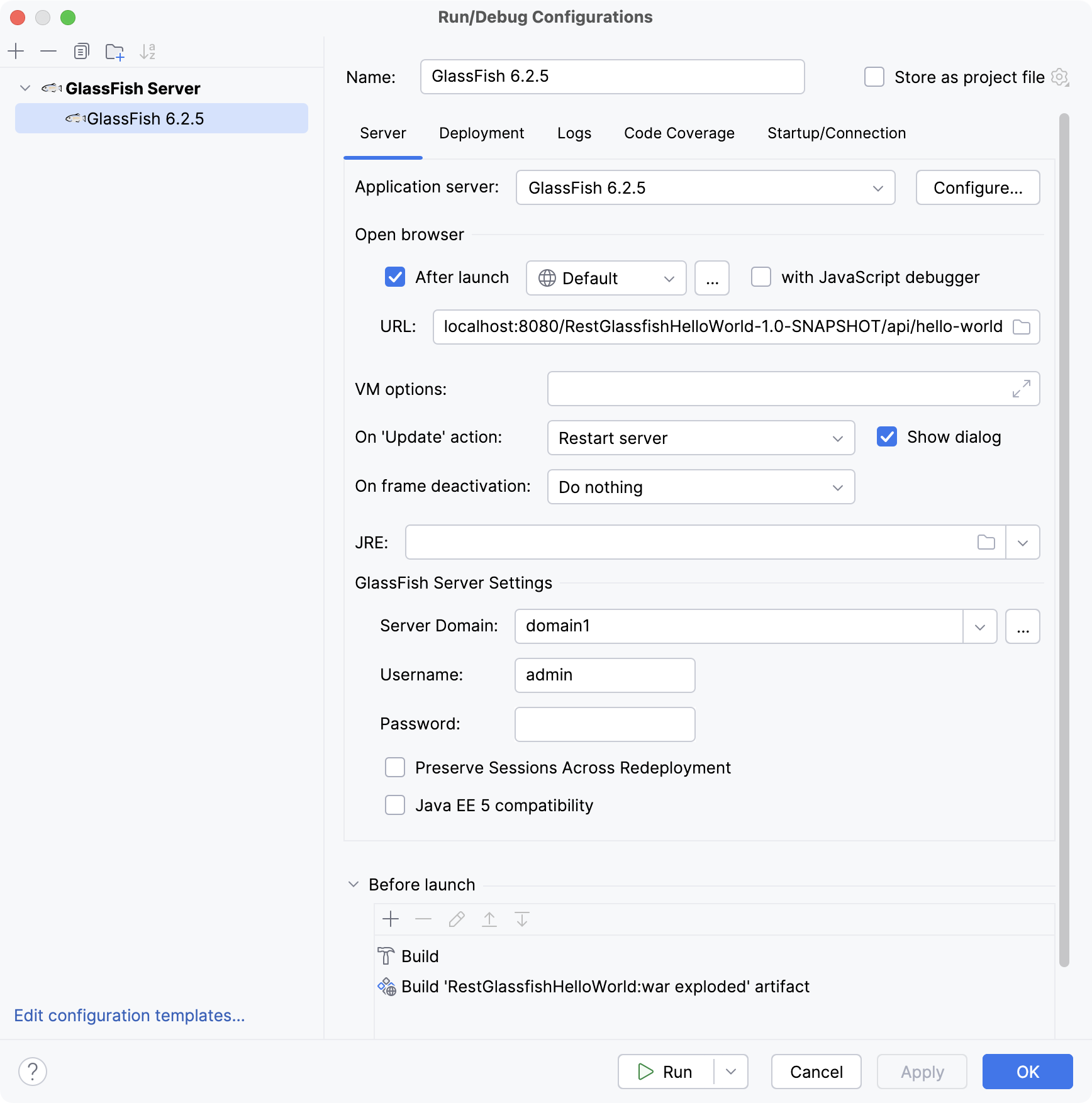
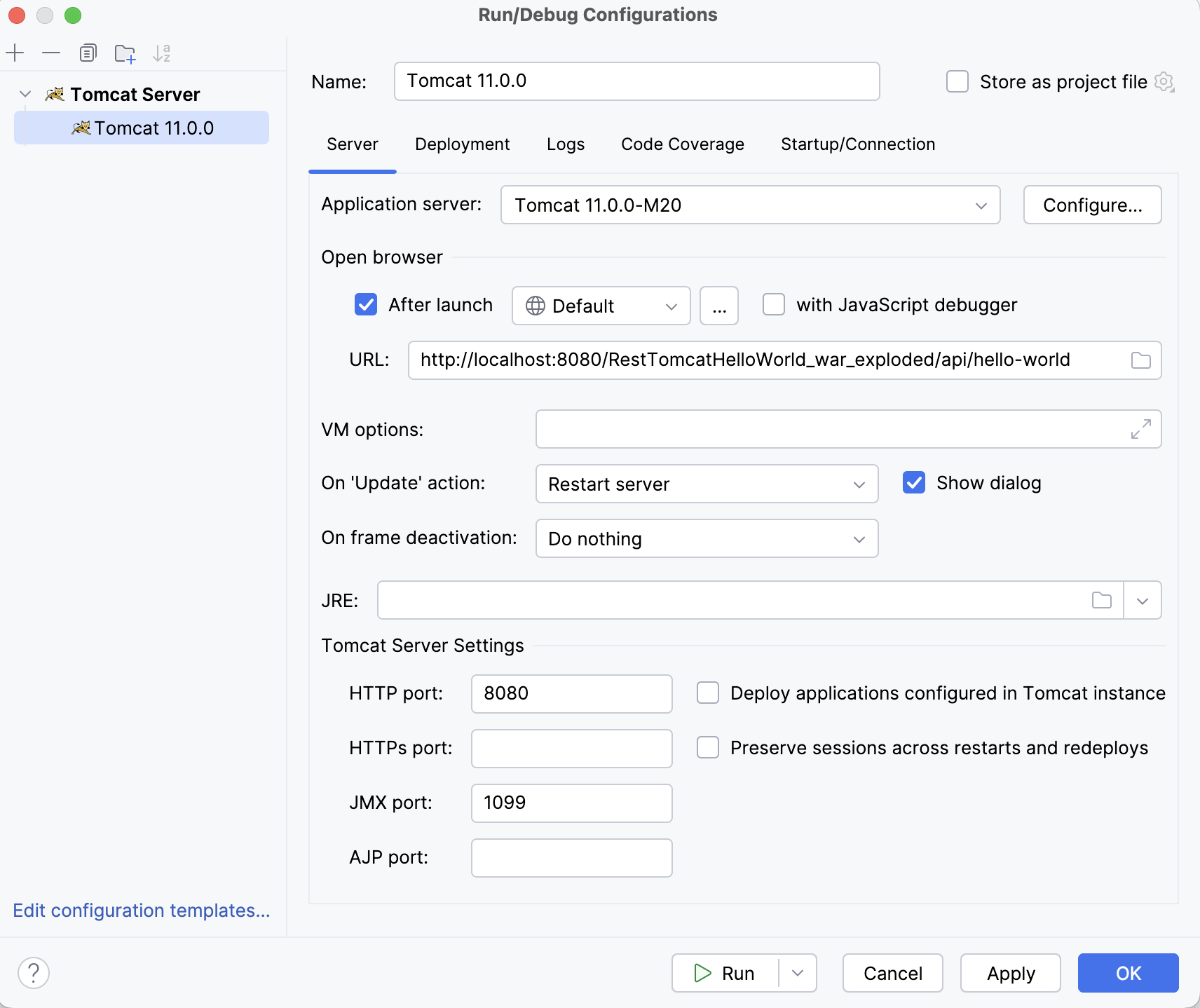
OK をクリックして、実行構成を保存します。
構成を実行するには、 Alt+Shift+F10 を押して、作成したアプリケーションサーバー構成を選択します。
あるいは、上部のメインツールバーで実行構成を選択している場合は、メインツールバーの
 をクリックするか、 Shift+F10 を押して実行できます。
この実行構成は、アーティファクトを作成してから、 GlassFish Tomcat サーバーを起動し、アーティファクトをサーバーにデプロイします。 サービス ツールウィンドウに対応する出力が表示されます。
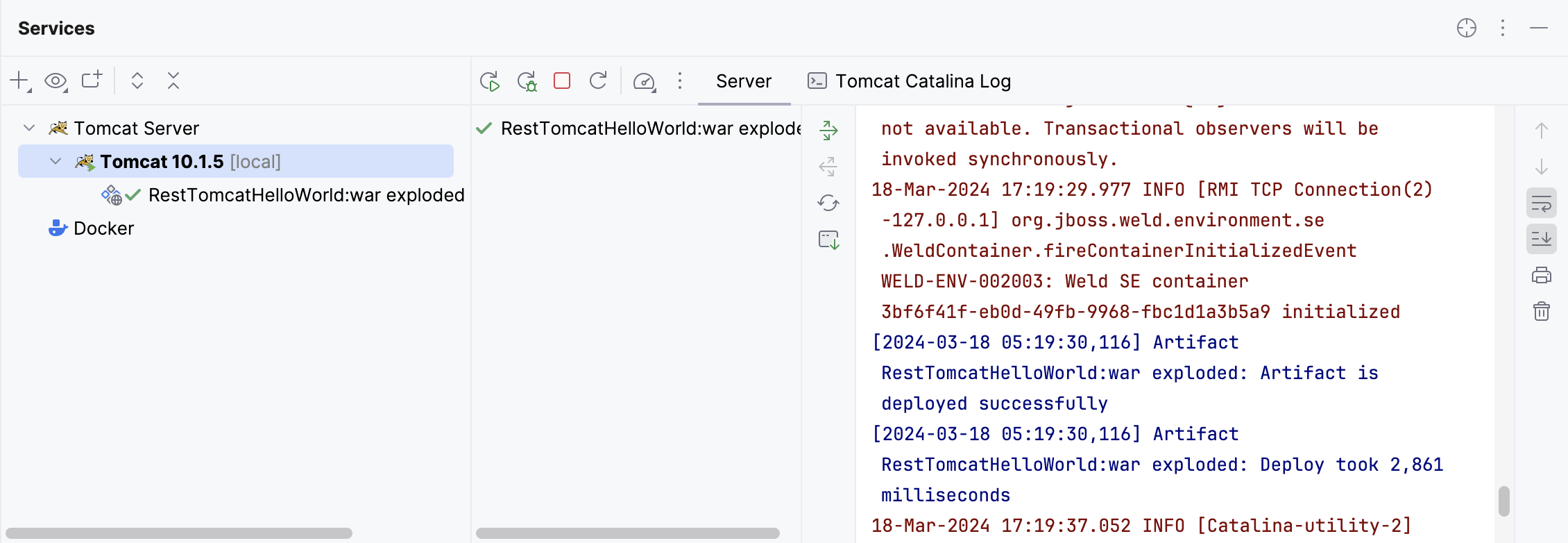
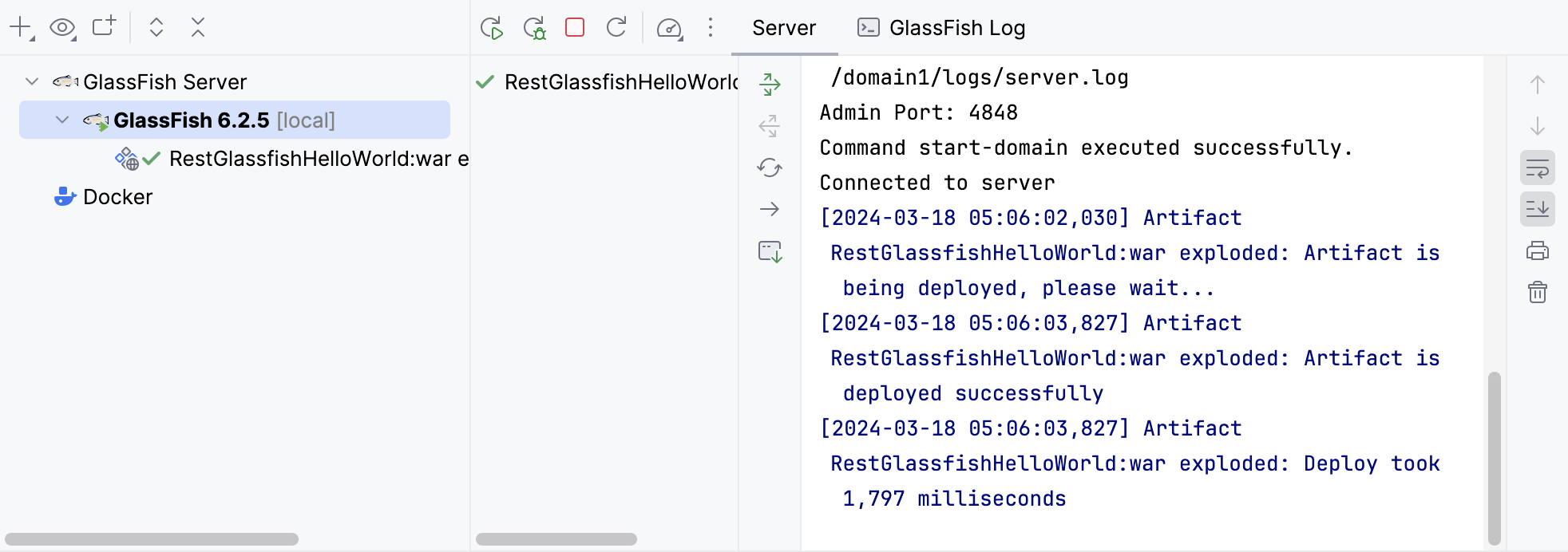
これが完了すると、IntelliJ IDEA は指定された URL を Web ブラウザーで開きます。
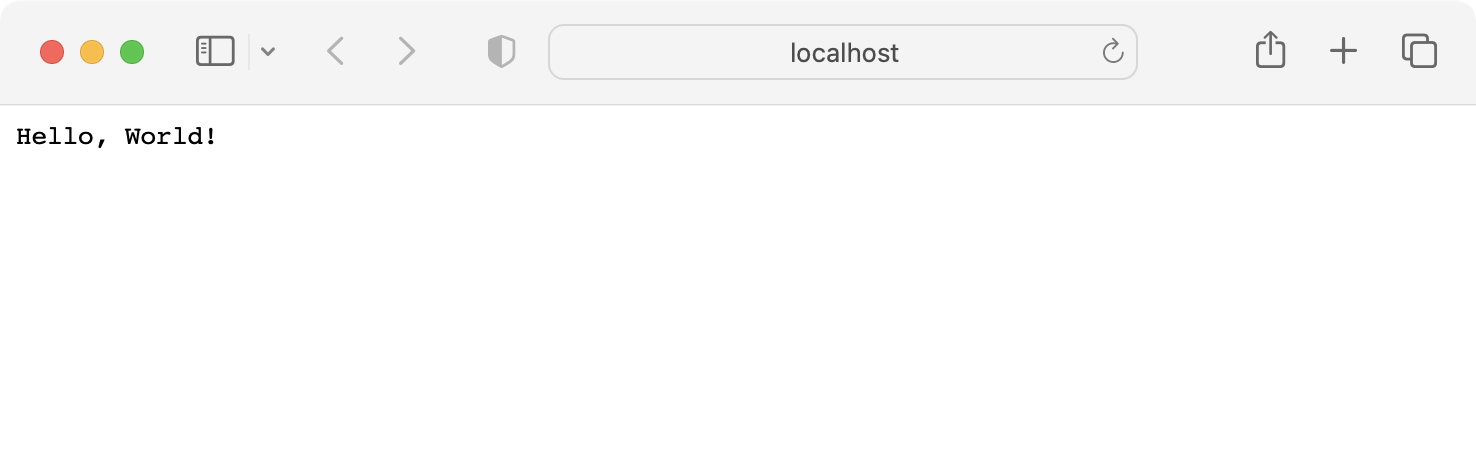
そうでない場合は、自分で URL を開いてみてください: http://localhost:8080/RestGlassfishHelloWorld-1.0-SNAPSHOT/api/hello-world http://localhost:8080/RestTomcatHelloWorld_war_exploded/api/hello-world
トラブルシューティング
Jakarta EE との互換性
404 エラーが発生した場合は、 プロジェクトの作成時に GlassFish のバージョンと互換性のある Jakarta EE 仕様バージョンを選択したことを確認してください。
詳細については、 GlassFish のバージョンの互換性(英語)を参照してください。
古い IntelliJ IDEA バージョン
IntelliJ IDEA バージョン 2020.2.2 以前を使用している場合、 新規プロジェクト ウィザードは Tomcat に必要なすべての依存関係を追加しません。 この場合、 pom.xml を開き、次の依存関係を追加します。
例: バージョン 2020.2.3 では、生成された pom.xml は次のようになります。