構造検索と置換
従来の検索プロセスでは、ソースコードの構文とセマンティクスが考慮されていません。 正規表現を使用した場合でも、WebStorm はコードを通常のテキストとして扱います。 構造検索および置換 (SSR )アクションを使用すると、コード構造を考慮して、コード内の特定のコードパターンまたは文法構造を検索できます。
WebStorm は、作成した 検索テンプレートと、適用した 条件に基づいてソースコードの断片を検索し、置換します。
ターゲットを構造的に検索する
メインメニューで に移動して、 構造検索 ダイアログを開きます。
構造置換 ダイアログにすばやく切り替えるには、
 をクリックします。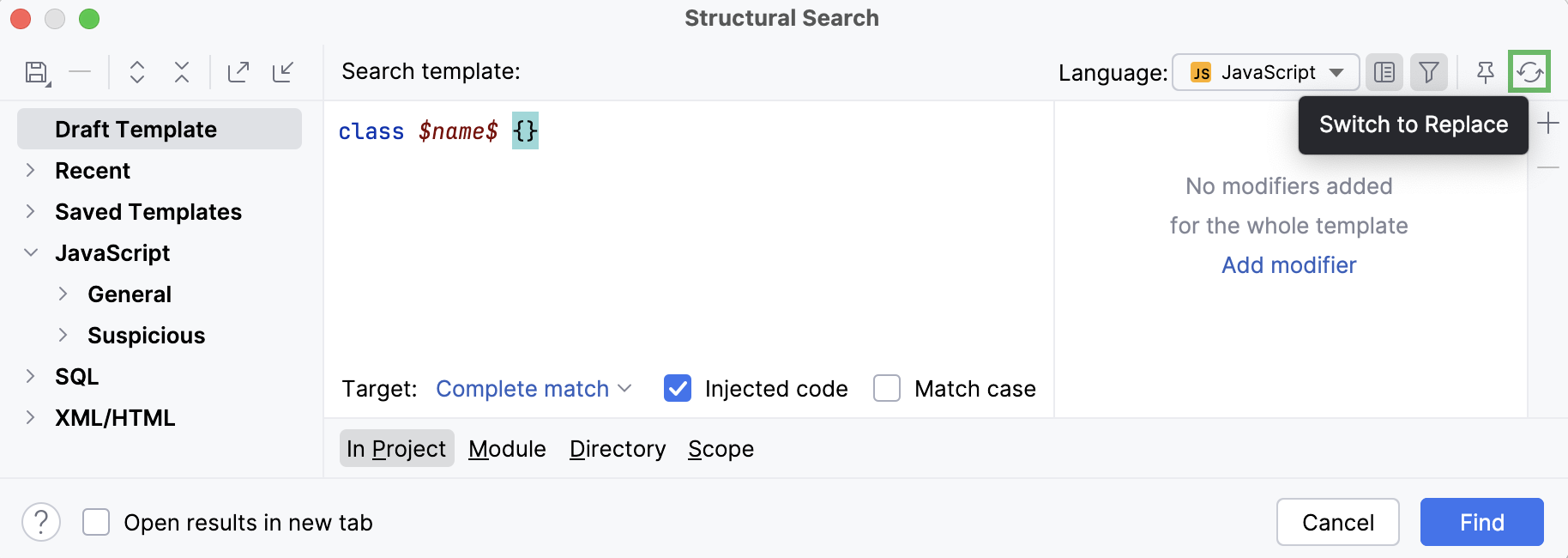
構造検索 ダイアログで、次のいずれかの操作を行います。
新規作成でテンプレートを作成:テンプレートの一覧から 下書きテンプレート を選択し、エディター領域にコードテンプレート(例:自分のコードを表現する場合は
$variable$)を入力します。カスタムテンプレートを将来使用するために保存するには、ダイアログツールバーの テンプレートを保存 アイコン(
 )をクリックします。 テンプレートをインスペクションとして保存することもできます。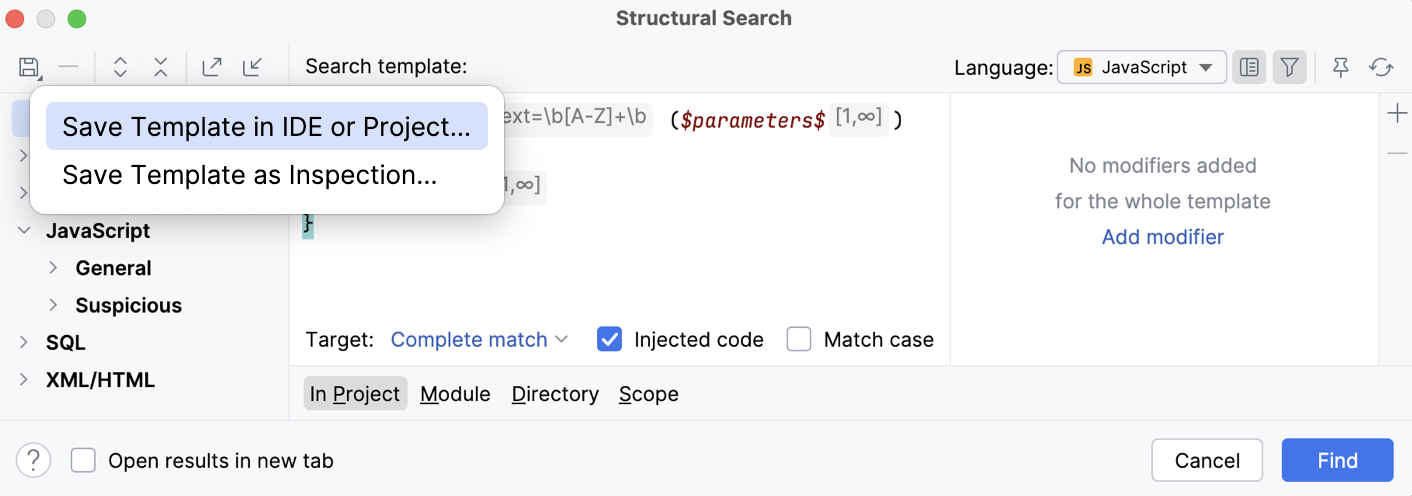
WebStorm は、作成したテンプレートをテンプレートリストの 最近 ノードに追加します。
既存のテンプレートの一つをプロトタイプとして利用するには、利用可能な既存のテンプレート一覧から必要なテンプレートを選択します。
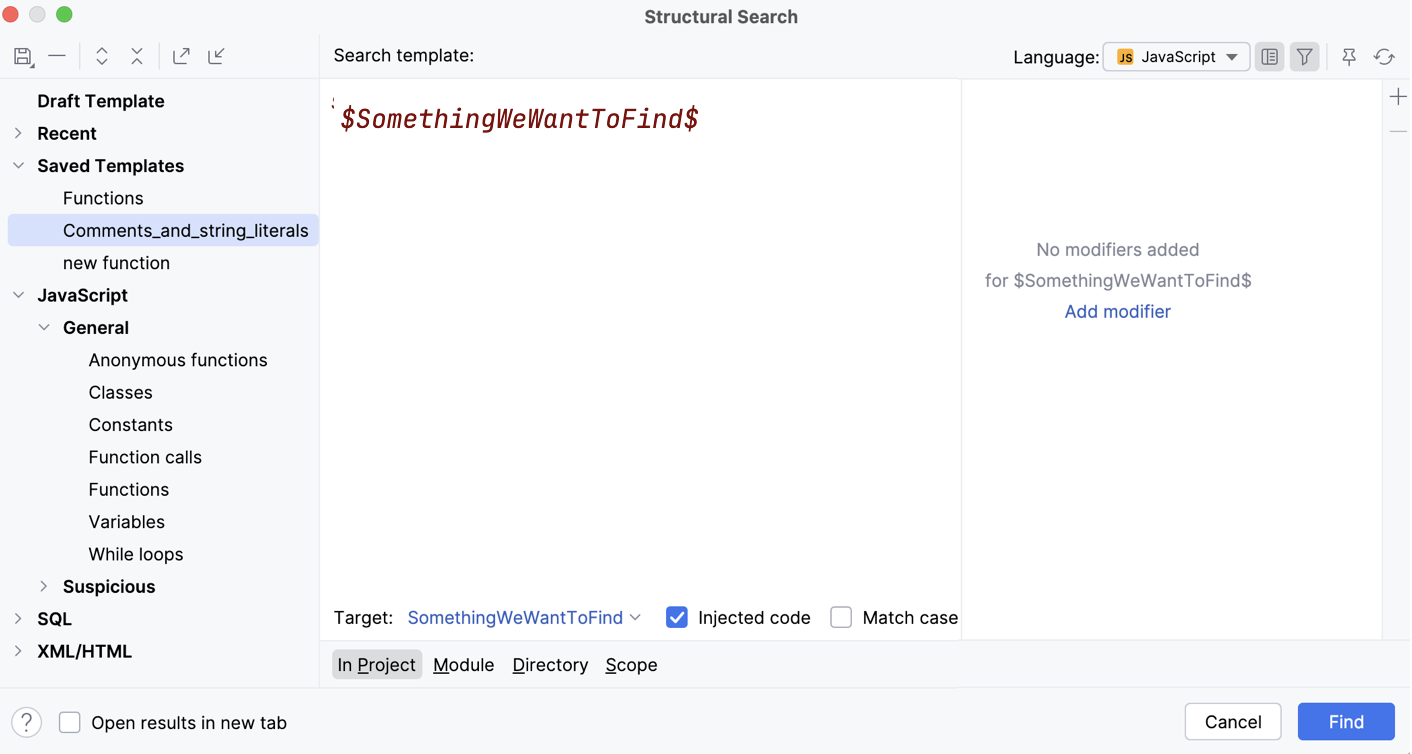
サンプル 1
次のクラスから関数を見つけてみましょう。
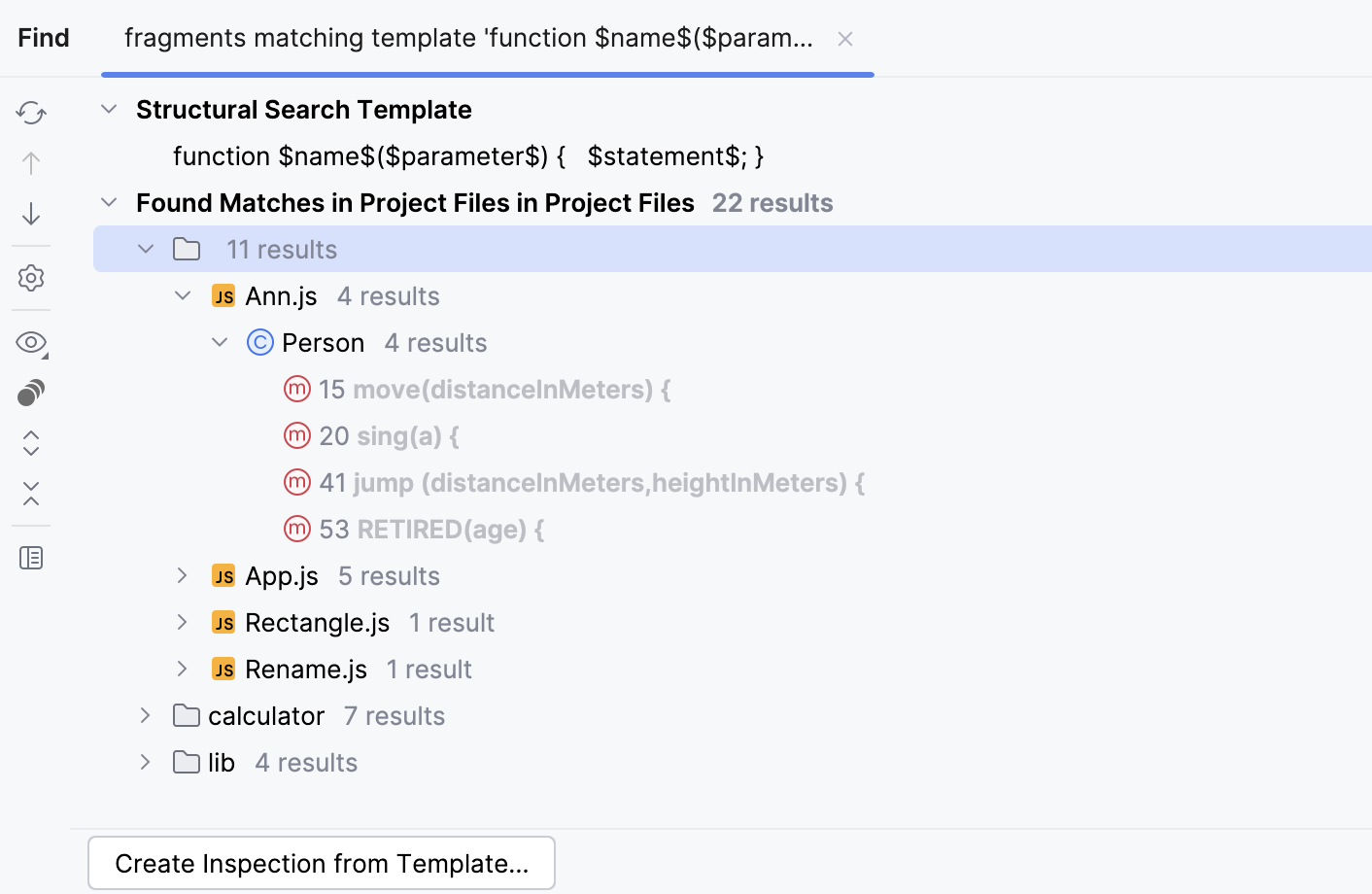
class Person { constructor(firstName, lastName, age, eyeColor) { this.firstName = firstName; this.lastName = lastName; this.eyeColor = eyeColor; this.age = age; } move(distanceInMeters) { console.log(`Person moved ${distanceInMeters}m.`); } sing(a) { console.log(`Person sings ${a}`); } jump (distanceInMeters,heightInMeters) { console.log(`Person jumped ${heightInMeters}m high and ${distanceInMeters}m right.`); } RETIRED(age) { return age >= 60; } }既存のテンプレートの一覧から、 JavaScript をクリックし、 一般 ノードを展開して、 関数テンプレートを選択します。
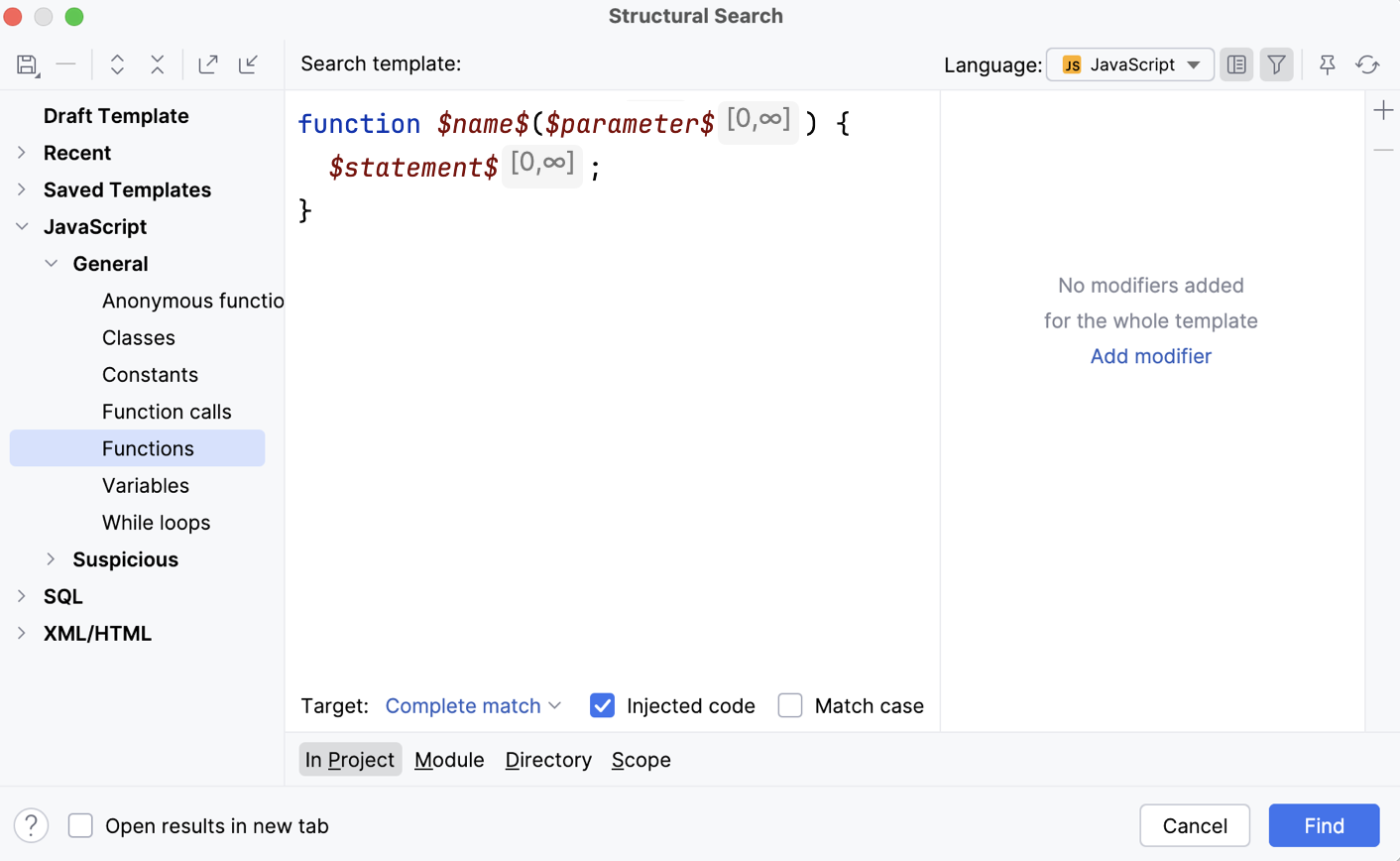
プロジェクト全体でこれらの構造を検索するには、 検索 をクリックします。 WebStorm は検索結果を 検索 ツールウィンドウに表示します。
現在のファイル内のすべての関数を検索するには、 スコープ をクリックし、リストから 現在のファイル を選択して、 検索 をクリックします。
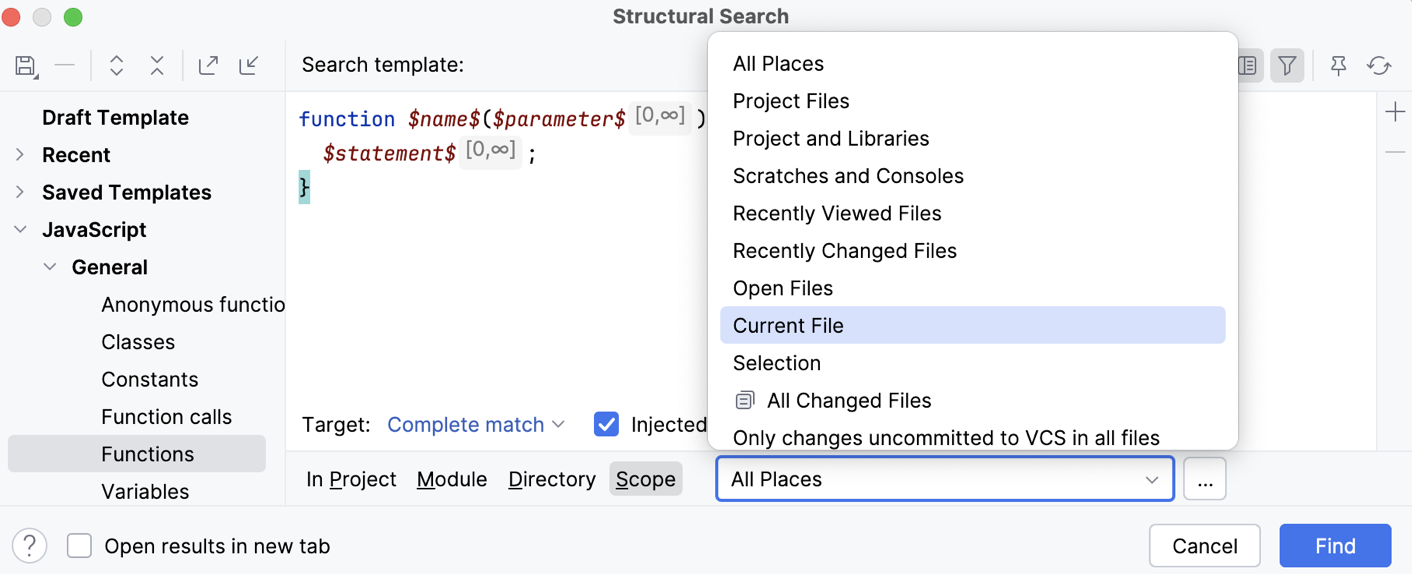
結果は 検索 ツールウィンドウにも表示されます。
構造検索 ダイアログには、選択したテンプレートとそのフィルターの値が表示されます。 既存のフィルターを編集したり、新しい 条件を追加したりできます。 コード変数にキャレットを置き、フィルター領域を使用してフィルターを管理します。
例: テンプレート内のパラメーターの数を変更するには、
$parameter$変数を選択し、適切な最小数を指定します。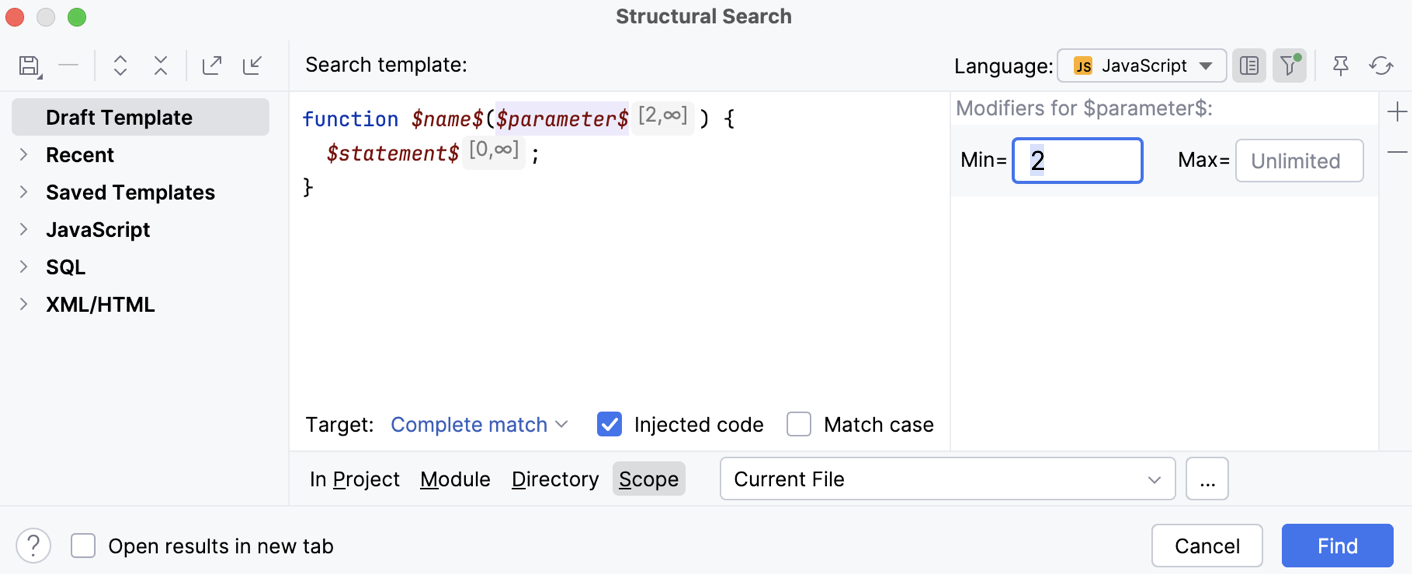
検索 をクリックすると、WebStorm は 検索 ツールウィンドウを開き、パラメーターが2つ以上あるメソッドの一覧を表示します。今回の例では
jump (distanceInMeters,heightInMeters) {}のみが表示されます。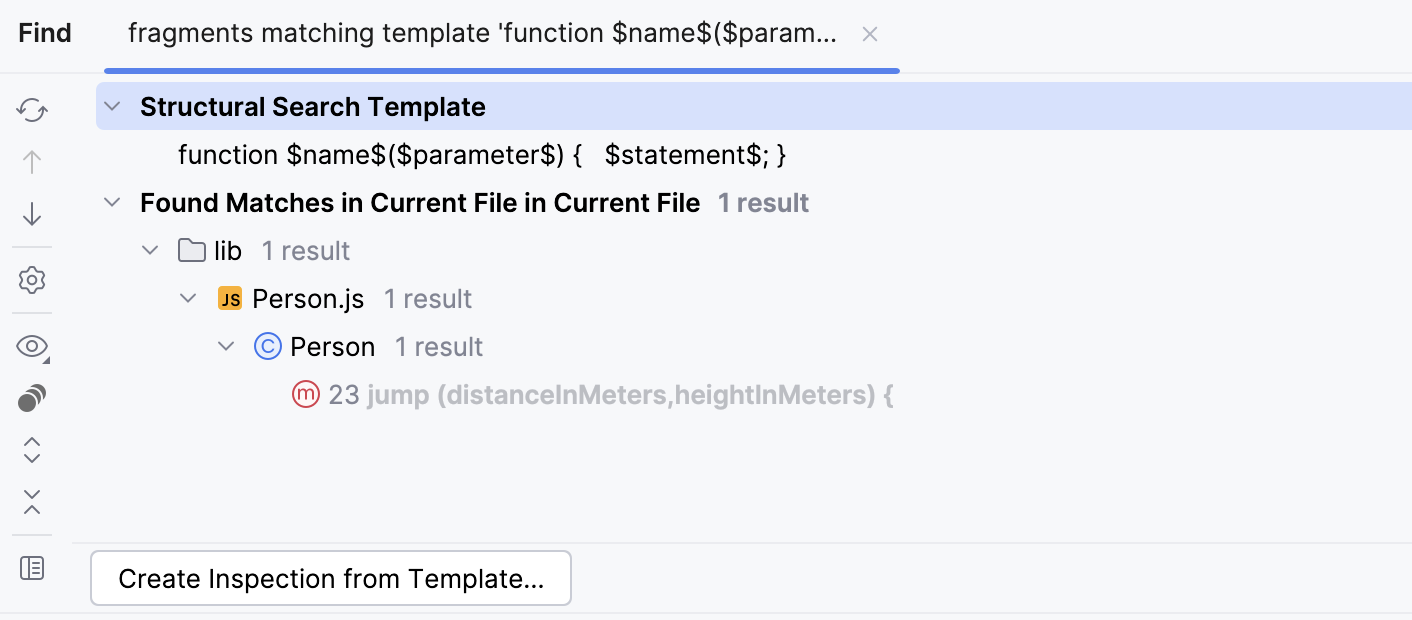
サンプル 2
$name$変数に条件を追加してみましょう。修飾子 パネルで、 追加 (
 )をクリックして新しい修飾子を作成します。 正規表現を使用する場合は、 テキスト を選択します。 変数に応じて 他の修飾子を追加することもできます。
テキスト 修飾子の場合は、次の正規表現を入力します。
\b[A-Z]+\b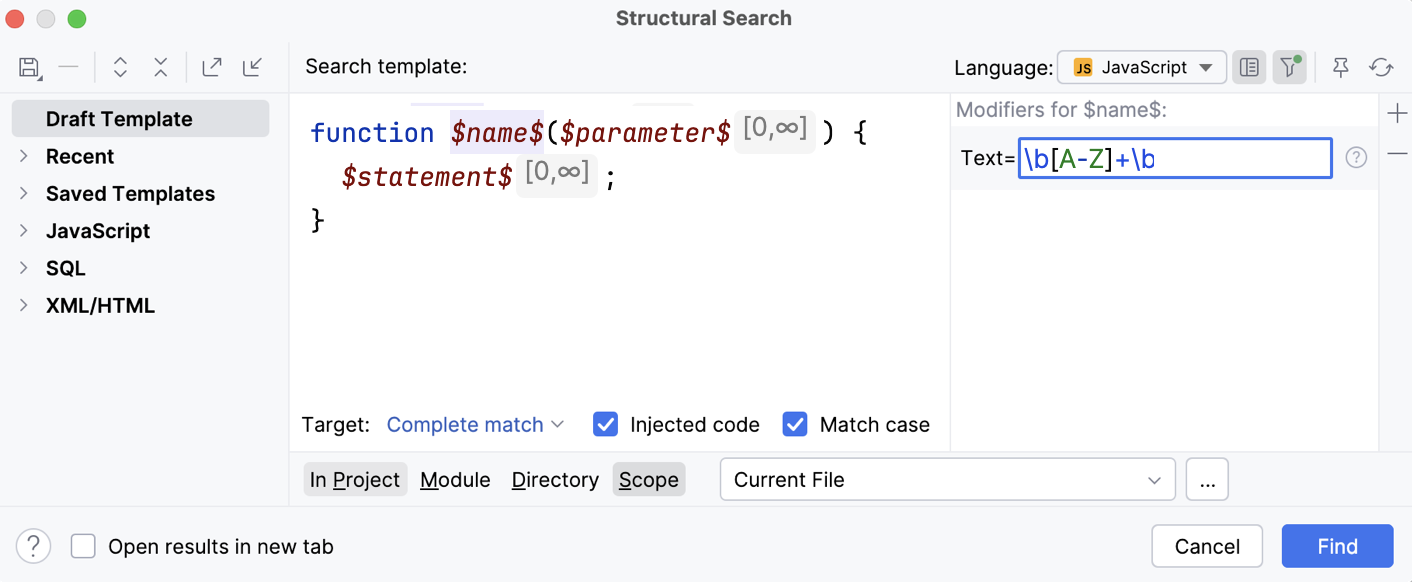
大文字・小文字を区別 チェックボックスをオンにして 検索 をクリックすると、関数名に大文字が含まれる関数のみが 検索 ツールウィンドウに表示されます。 この例では、関数
RETIREDが該当します。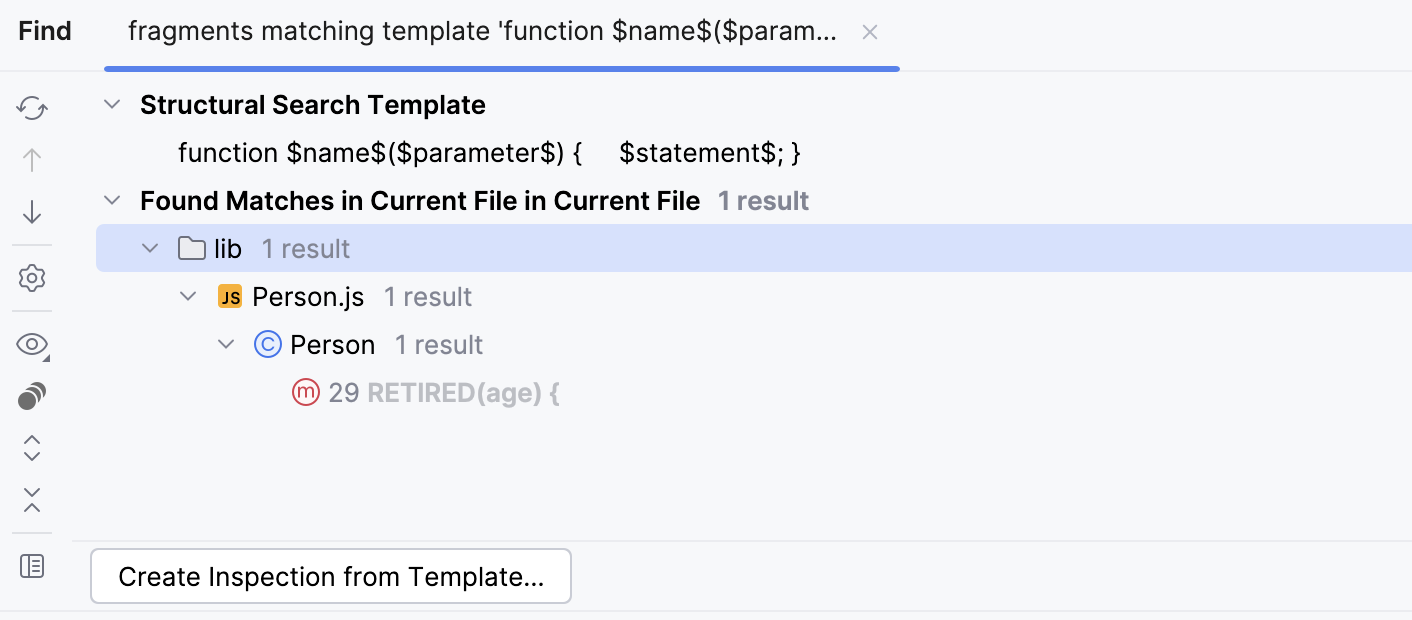
選択した言語に応じて、追加のオプションも利用できます。
例: 次のオプションを確認します。
言語: リストを使用して、検索に含めるファイルの種類を選択します。 この場合は JavaScript です。
ターゲット :リストを使って検索する項目を選択します。 この場合は
nameです。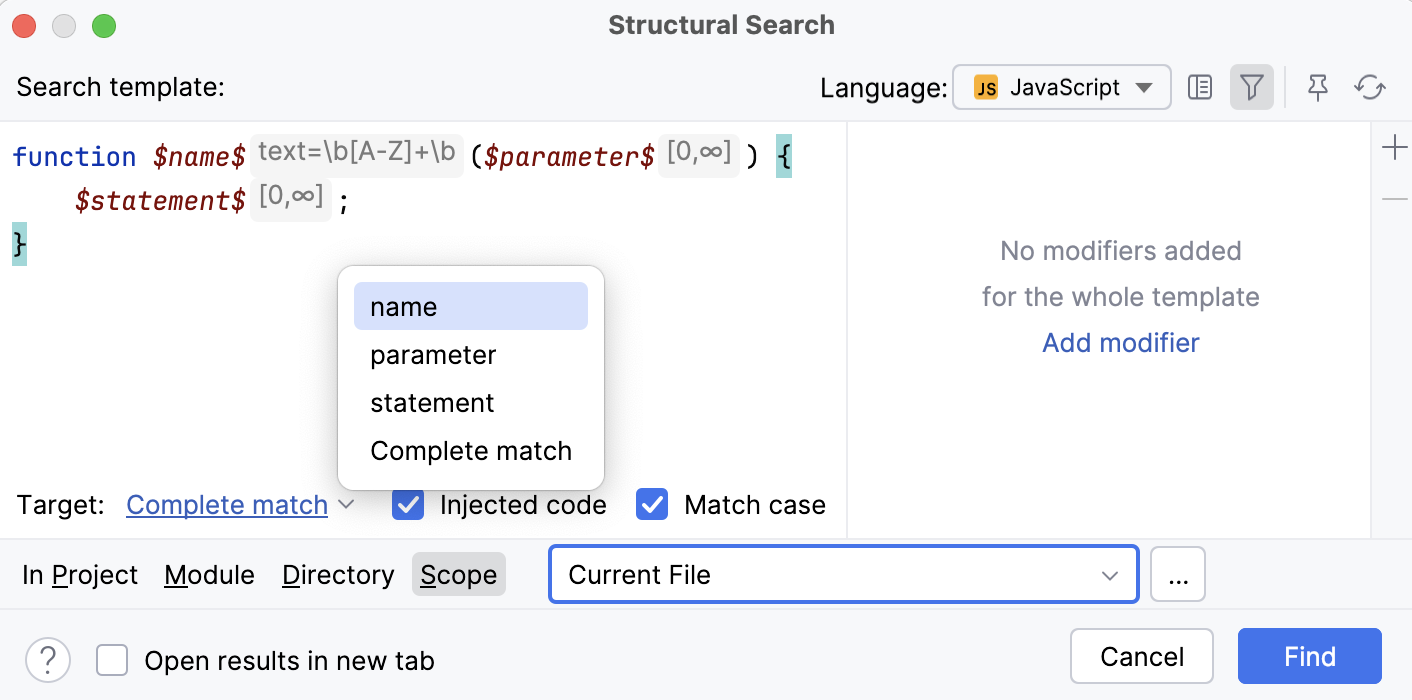
再帰的 :選択すると、WebStorm は再帰検索を実行し、すべてのネストされた項目が結果に含まれます。 例として、 再帰的 を有効にしてメソッド呼び出しを検索すると、WebStorm は
foo(foo(foo()))内でネストされた呼び出しも検索します。 再帰的 を無効にすると、外側の呼び出しのみが検索されます。挿入コード: 選択すると、HTML 内の JavaScript や Java 内の SQL などの挿入されたコードも検索に含まれます。
大文字・小文字を区別 :選択すると、検索結果は検索ターゲットの大文字・小文字に一致します。
検索範囲(プロジェクト、モジュール、ディレクトリ、カスタムスコープ)を指定します。
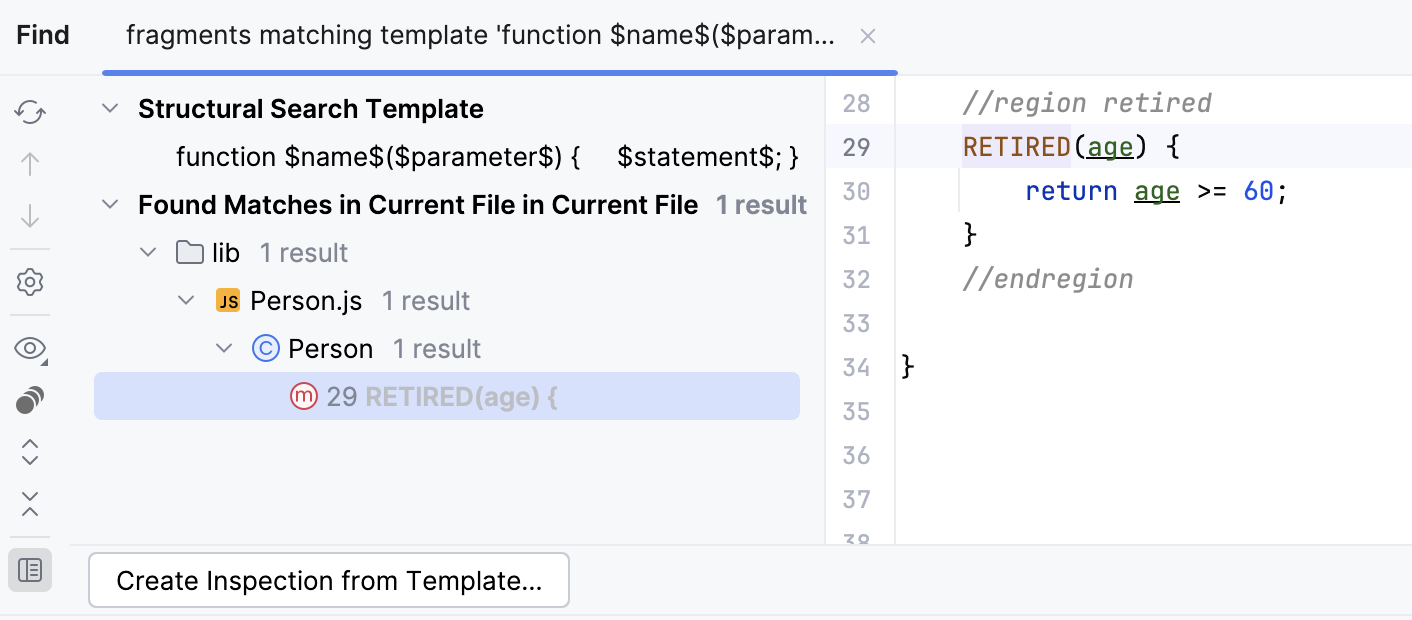
検索 をクリックしてください。
WebStorm は 検索 ツールウィンドウに結果を表示します。
ターゲットを構造的に置き換える
メインメニューで へ移動します。
構造置換 ダイアログで、新規または 既存のテンプレートを検索に追加し、テンプレート領域を置き換えます。 置換テンプレートは、 検索テンプレートと同じ方法で保存できます。
置換テンプレート内で変数にフィルターを追加する必要がある場合は、対象の変数にキャレットを置き、フィルター領域でフィルターを管理します。
フィルター領域では、あなたのように選択した内容に応じて、 フィルター条件を指定してください。
例: 検索した変数
$name$を取得し、見つかったテンプレートを小文字に置き換える条件を追加しましょう。変数
$name2$を作成し、基本的に Groovy スクリプトである次のフィルター スクリプトを追加しましょう:name.name.toLowerCase()。スクリプトが指定されていない場合、WebStorm は新しい変数をハイライトし、ホバーするとスクリプトが不足していることを示すツールチップが表示されます。
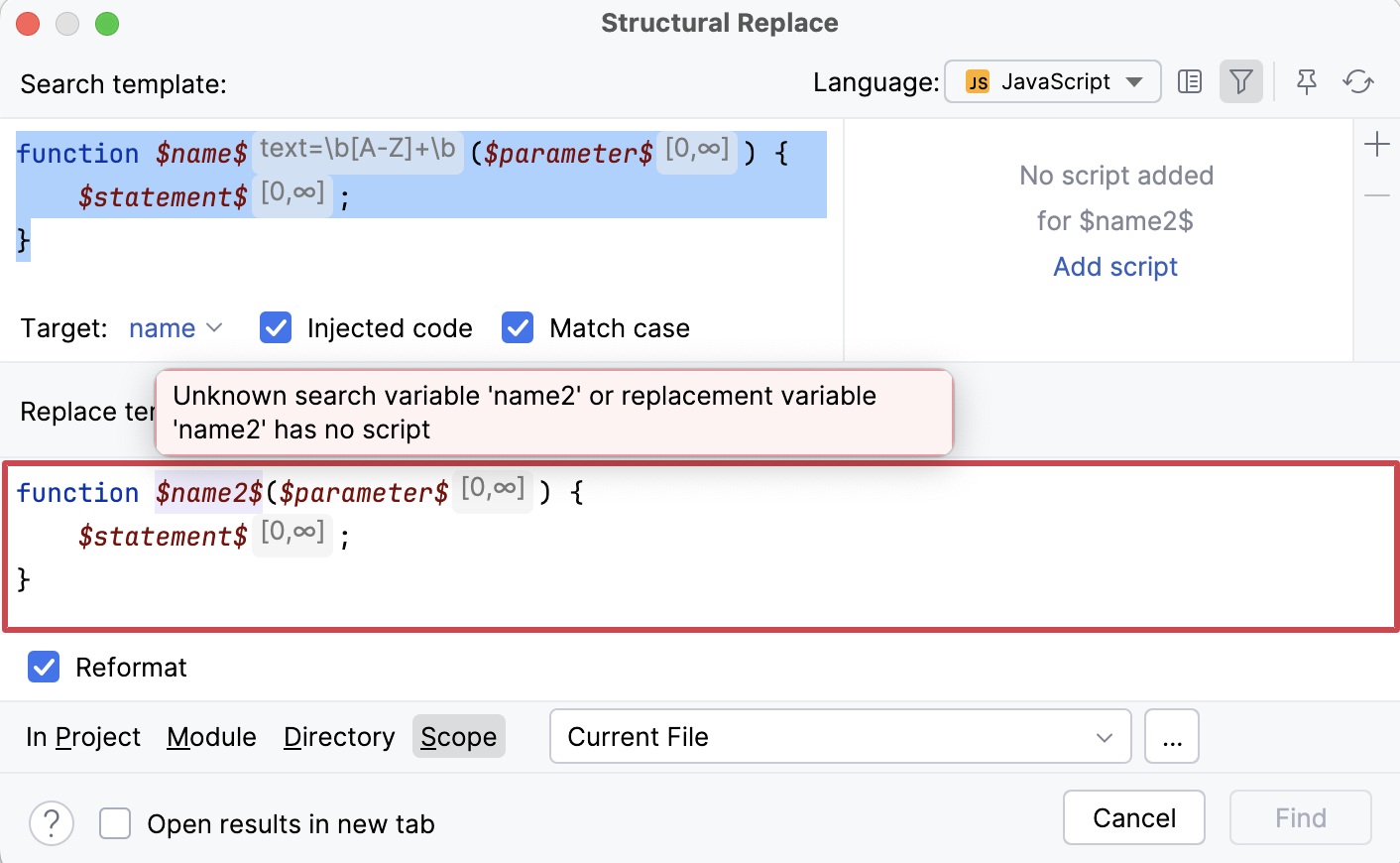
スクリプトの追加 リンクをクリックし、開いた編集フィールドでスクリプトを指定します。
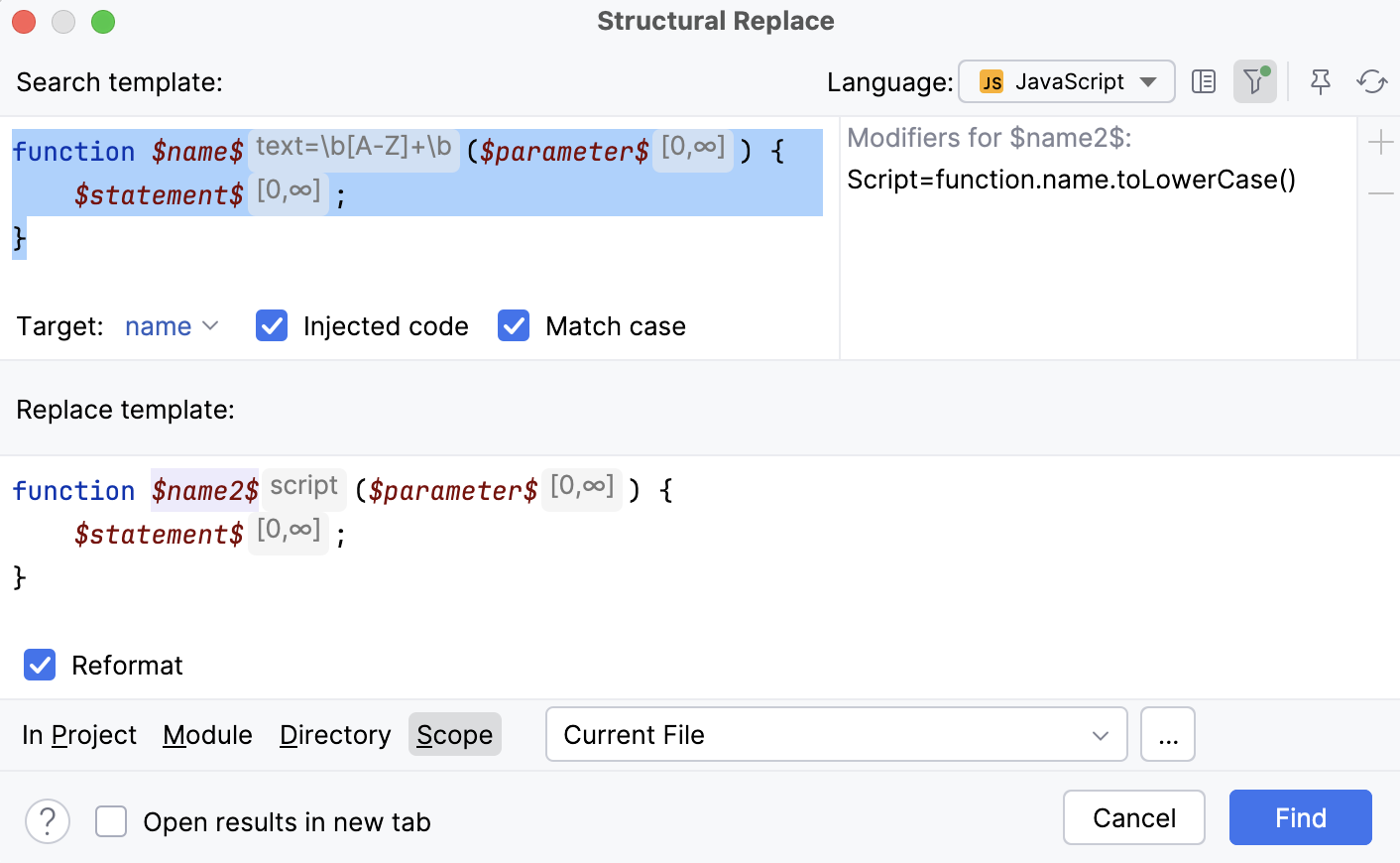
置換結果を絞り込むには、次のオプションを選択してください:
完全修飾名を短縮する - 完全修飾クラス名を短縮名およびインポートに置き換えます。
再フォーマット - 置き換えられたコードを自動的にフォーマットします。
静的インポートを使用する - 可能であれば、静的インポートを代わりに使用します。
必要なオプションを指定したら、 検索 をクリックします。 WebStorm は 検索 ツールウィンドウに結果を表示します。
検索 ツールウィンドウでは、結果をさらに操作して、見つかったアイテムを 1 つずつ、または一度にすべて置き換えたり、潜在的な変更をプレビューしたりできます。
検索テンプレートを共有する
検索テンプレートはエクスポートやインポートによって同僚と共有できます。
構造検索 ダイアログ( )で、 新しい検索テンプレートを作成するか、既存のテンプレートを使用します。
テンプレートをエクスポートするには、
 をクリックします。 WebStorm はテンプレートの XML 表現をクリップボードに追加します(クリップボードの内容を表示するには Ctrl+Shift+V を押してください)。 この表現は、チャット、メール、フォーラムで他の開発者と共有できます。
テンプレートをインポートするには、共有 XML コードを任意の場所(メール、チャット、フォーラム)からコピー(Ctrl+C )し、 構造検索 ダイアログで
 をクリックします。 WebStorm は XML コード表現を取得し、変数やスコープがあればそれらを含めてテンプレートに変換します。