Find and fix problems with AI
AI Assistant helps you find and fix problems in your code by analyzing the provided context, detecting potential issues, and providing suggestions to resolve them.
Find problems
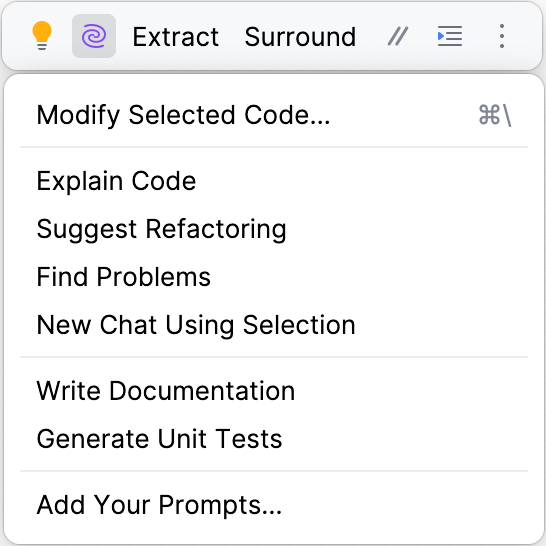
Select a code fragment and click
in the popup that appears.
In the menu, click Find Problems.

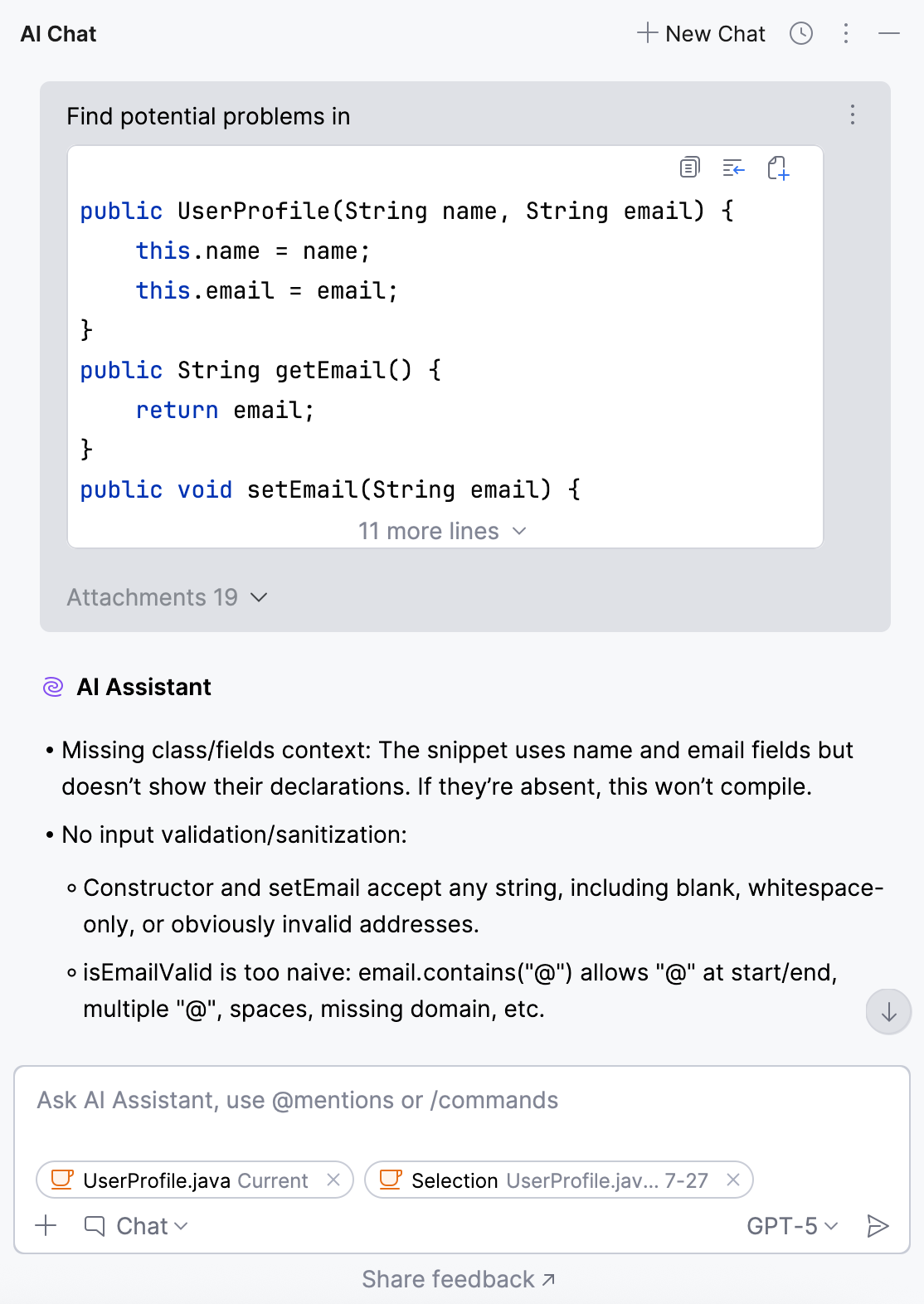
The AI Chat will open, where the model will analyze the selected code fragment, identifying potential issues and suggesting possible solutions.

Fix errors with AI
When JetBrains IDE detects code that produces errors, it suggests a quick-fix directly within the editor.
AI Assistant can suggest more precise fixes applicable to your specific case due to its context awareness.
Place the caret at a highlighted error in the editor. Then click the red light bulb icon
or press Alt+Enter to open the list of suggestions.
Click Fix with AI (in DataGrip, Fix with AI Assistant).

AI Assistant uses the Edit mode to gather all required context and sends it to the LLM to determine the fix for your problem.
The model then provides reasoning for the changes in the AI Chat and lets you decide whether you want to apply the suggested changes or not.
Process the changes either in the diff that opens in the editor, or directly in the chat.

Discard All – click to discard the proposed changes.
Accept All – click to apply changes to all affected files.
Show Changes in Toolbar – click to display the list of affected files in a separate toolbar.
Show Diff – click to open the diff viewer for the selected file. Diff viewer is used to visually compare and review differences between the file versions, helping you to understand what has changed.
± Create Patch – click to create a .patch file containing the changes. This file can be applied to your sources later.
Accept – click to apply changes to the selected file.
Discard – click to discard changes proposed for the selected file.
Group By – click to select how you want to group the modified files – by directory or module.
Compare Previous/Next File – compare changes in the previous or next file.
Previous/Next Difference – jump to the previous or next difference.
Accept all in the current file – apply all suggested changes.
Discard all in the current file – discard all suggested changes.
Revert – available in the gutter, click to revert a specific change.
Accept – available in the gutter, click to accept a specific change.
Fix SQL code
Available in: DataGrip and IDEs with Database Tools and SQL plugin starting from IDE version 2024.3
This feature may require attaching the database schema to suggest proper fixes.
For any problems higher than weak warning, the assistant suggests a fix. To use it, do the following:
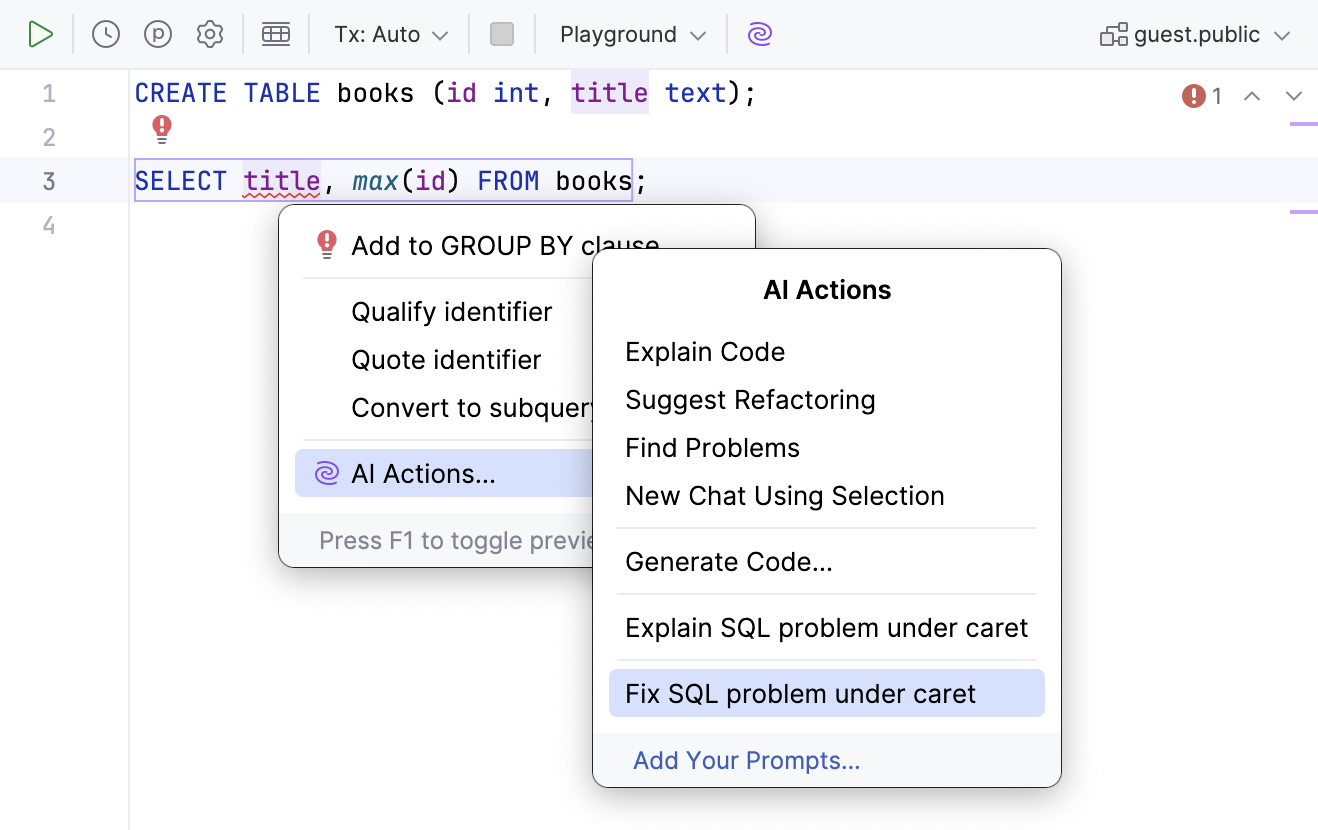
In the editor, invoke the intention actions by placing the caret at the highlighted code and pressing Alt+Enter, then select AI Actions.
In the AI Actions dialog, select Fix SQL problem under caret.

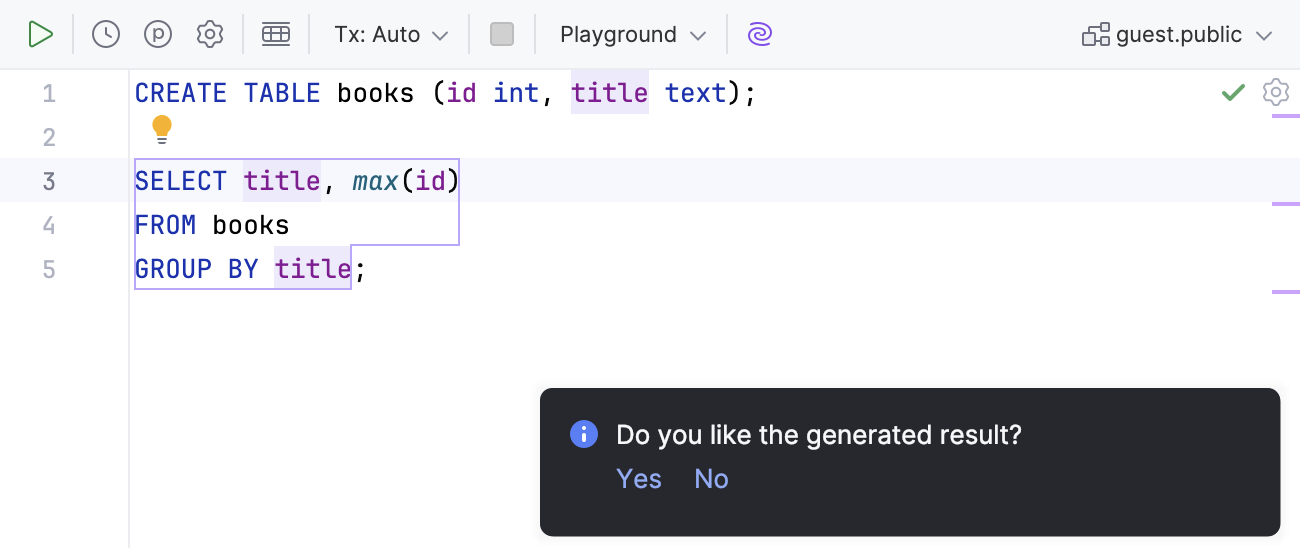
AI Assistant will provide its fix in editor.

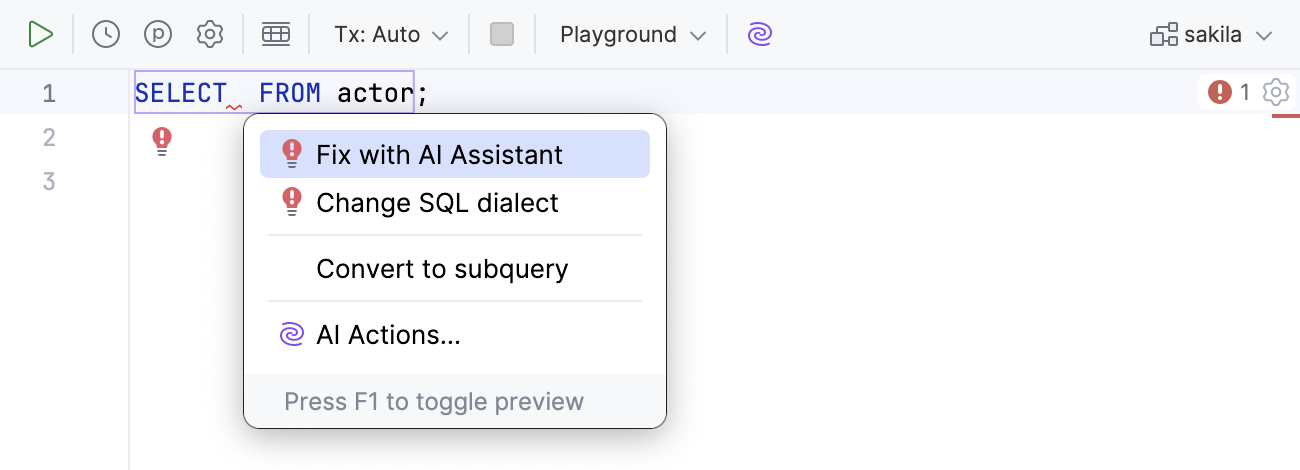
AI Assistant can also suggest fixes for syntax errors. To use them, do the following:
In the editor, invoke the intention actions by placing the caret at the highlighted code and pressing Alt+Enter, then select Fix with AI Assistant.

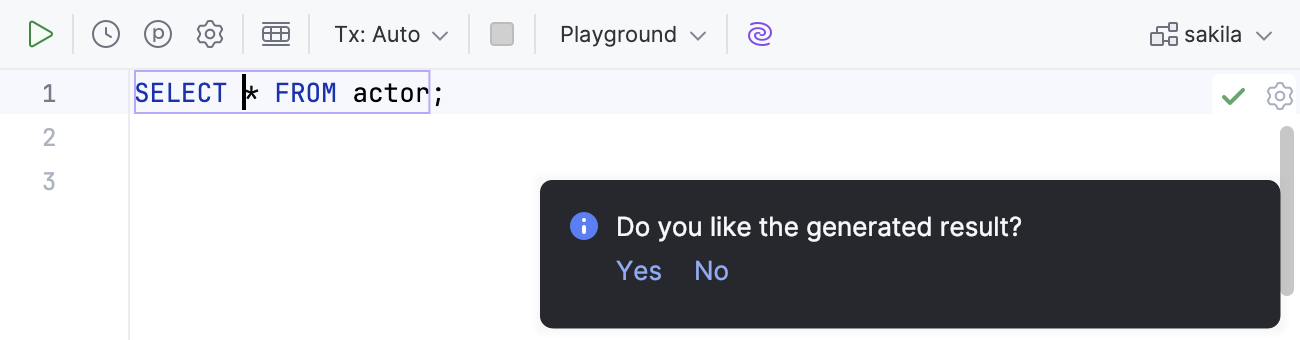
AI Assistant will provide its fix in editor.

Query execution error handling
Available in: DataGrip and IDEs with Database Tools and SQL plugin starting from IDE version 2024.3
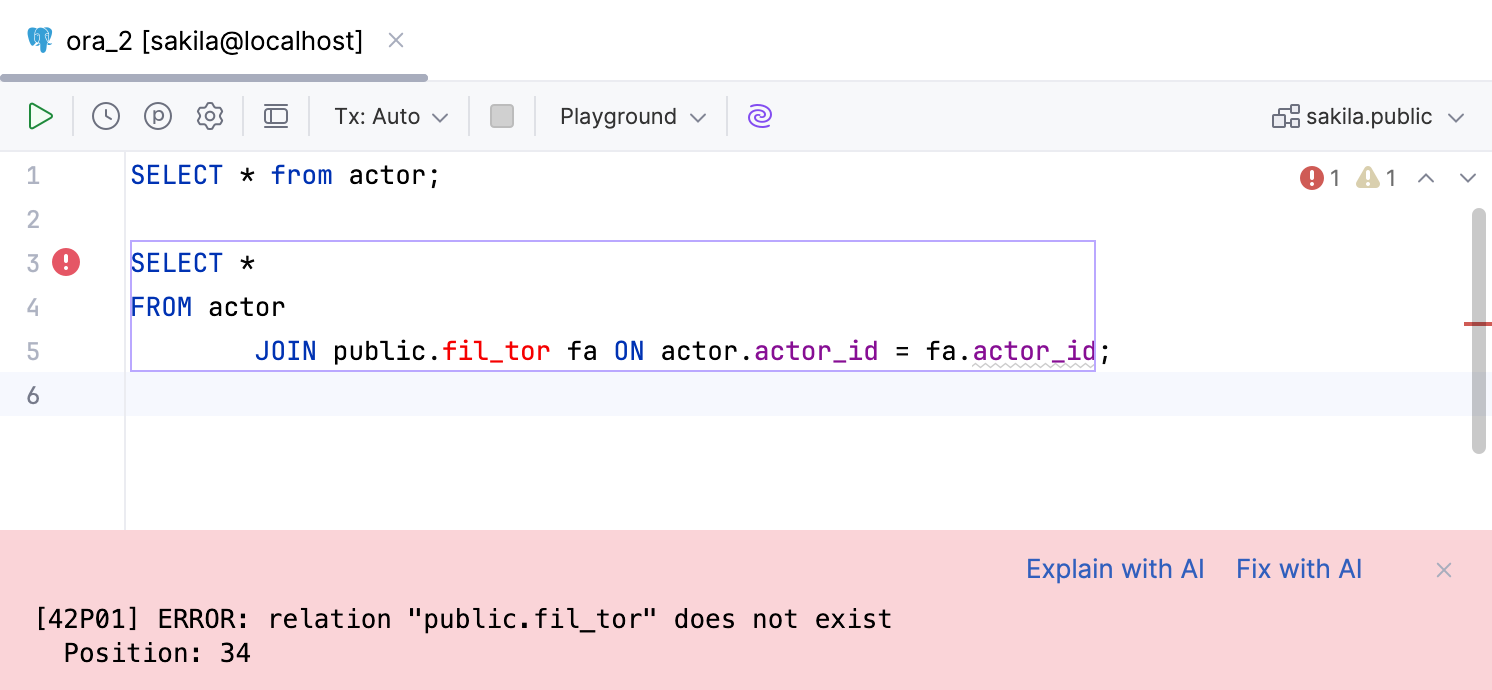
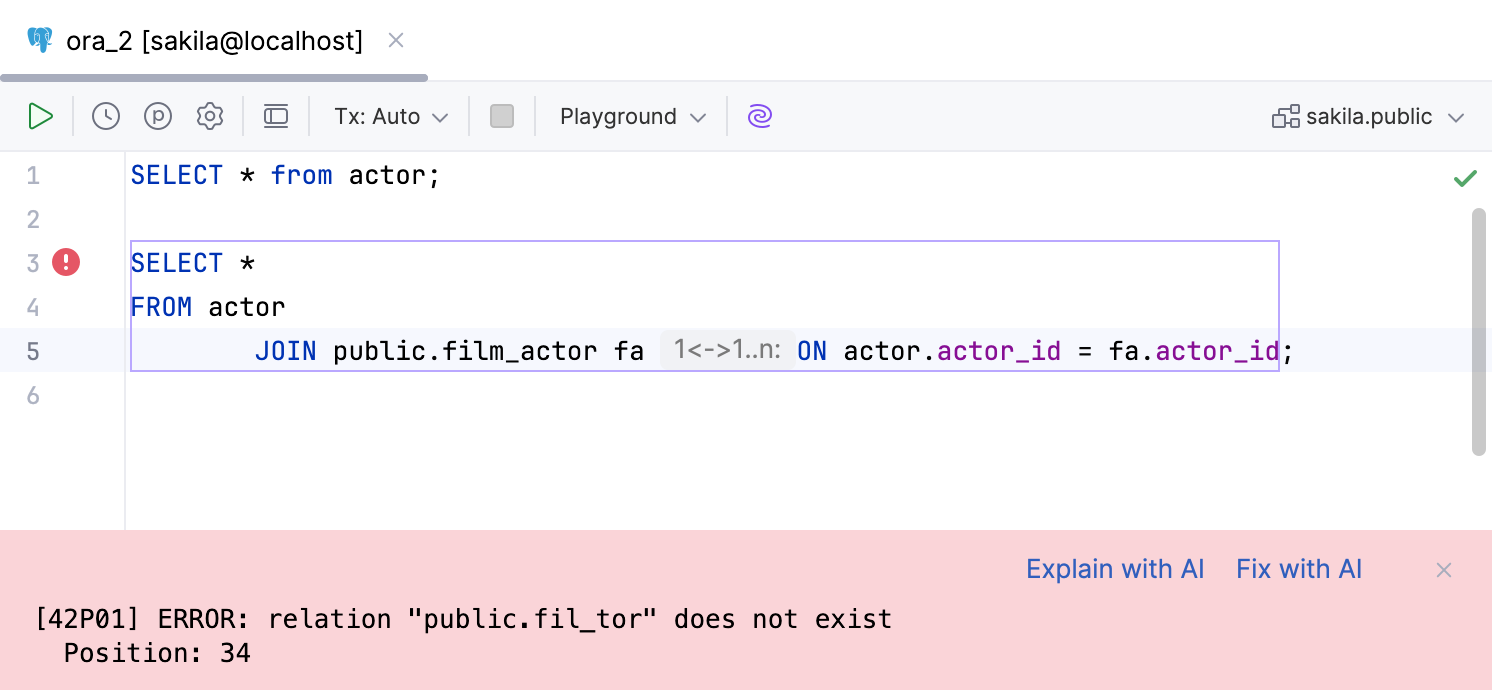
AI Assistant can explain and fix SQL query execution errors in editor tabs. The corresponding actions are available in the error message area.
Explain SQL errors
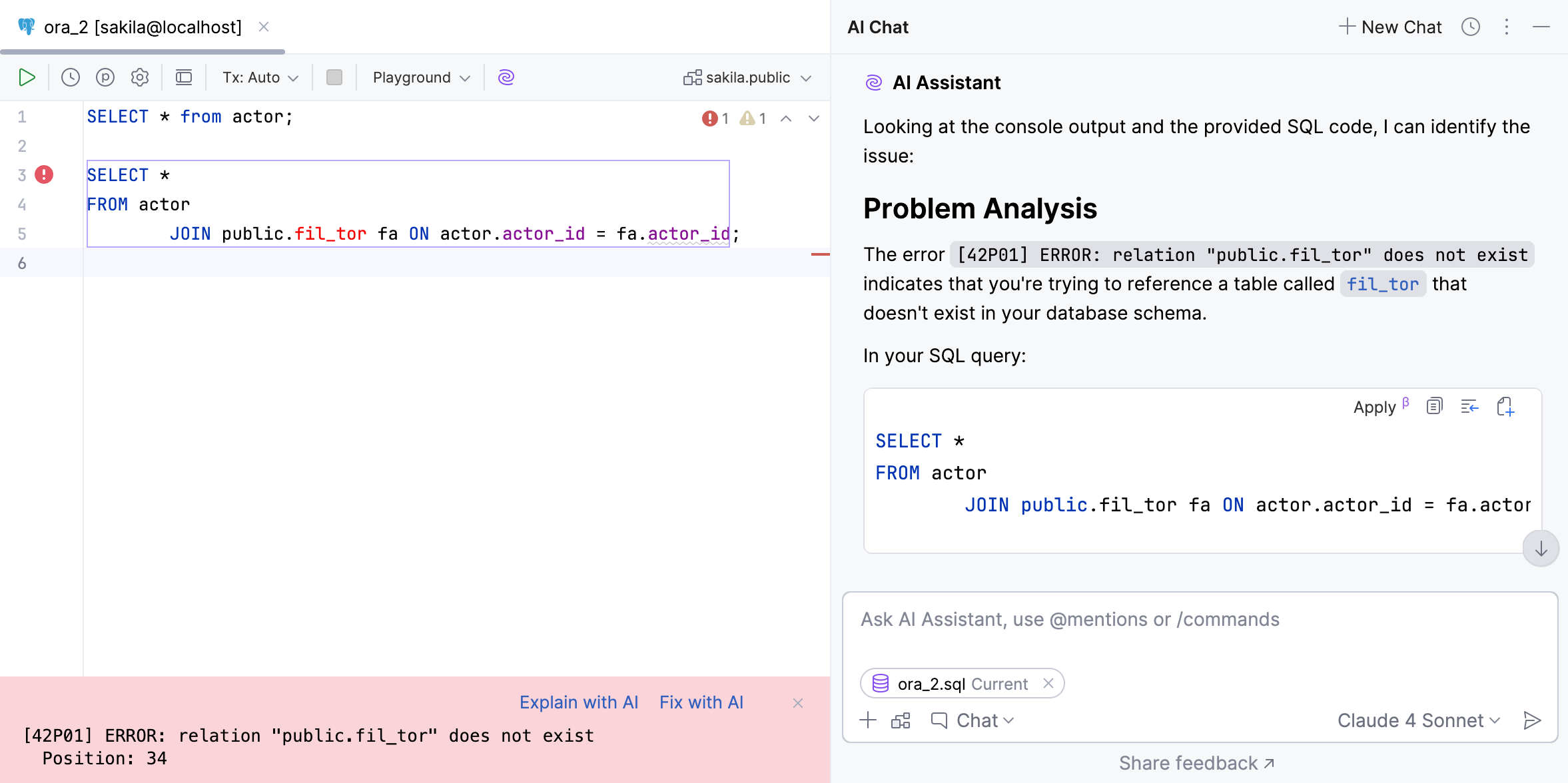
AI Assistant can explain the SQL execution error in your code. You can also ask further questions about the error in AI chat.
This feature may require attaching the database schema to suggest proper explanations.
Fix SQL errors
AI Assistant can fix the SQL execution error in your code.
This feature may require attaching the database schema to suggest proper fixes.
After running an SQL query and encountering a query execution error, click Fix with AI in the error message area.

AI Assistant generates a fix for the query execution error in the editor.