Code Vision
在 JetBrains Rider 选项页面,您可以配置 Code Vision 首选项。
启用代码视图 | 全局切换 Code Vision 功能。 |
当 Solution-Wide 分析被禁用或未准备好时显示不可用的指标 | 大多数 Code Vision 指标需要分析整个解决方案,因此,如果 解决方案范围分析 的结果不可用,这些指标会显示问号。 不过,您仍然可以单击这些指标以启动所需的计算并获取相应的结果,例如 查找符号的用法。 如果您想隐藏带有问号的指标,请取消选中此复选框。 在这种情况下,您可以使用 导航到 快捷键 Ctrl+Shift+G 获取隐藏指标的结果。 |
默认度量位置 | 您可以选择显示 Code Vision 指标的默认位置——在声明上方或之后。 The position of specific metrics can be also specified explicitly in the list of metrics. |
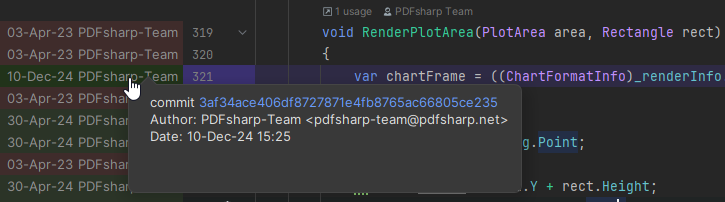
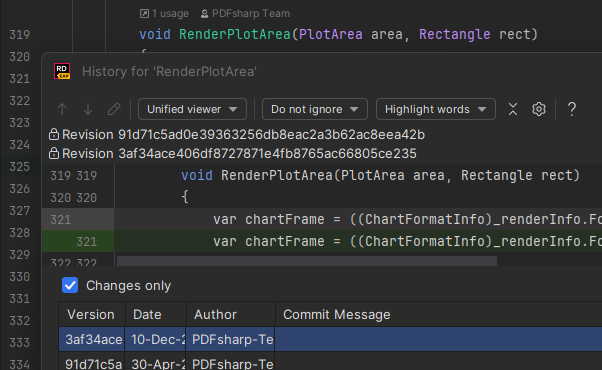
VCS 操作 | This option lets you choose how the IDE should behave when you click on the VCS Info metric. 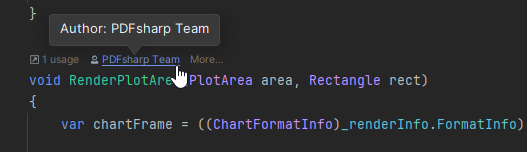
|
声明上方可见的指标 | 在声明上方可以显示的 Code Vision 指标的最大数量。 如果指标数量超过最大值,您可以将鼠标悬停在指标上,然后单击 展开 查看隐藏的指标。 |
声明旁边可见的指标 | 在声明之后可以显示的 Code Vision 指标的最大数量。 |
指标列表 | 在此列表中,您可以使用:
|