Auto import
When you reference a class that has not been imported, PyCharm helps you locate this file and add it to the list of imports. You can import a single class or an entire package, depending on your settings.
The import statement is added to the imports section, but the caret does not move from the current position, and your current editing session does not suspend. This feature is known as the Import Assistant. Using Import Assistant is the preferred way to handle imports in PyCharm because import optimizations are not supported via command line.
The same possibility applies to XML files. When you type a tag with an unbound namespace, the import assistant suggests creating a namespace and offers a list of appropriate choices.
Automatically add import statements
You can configure the IDE to automatically add import statements if there are no options to choose from.
Press Ctrl+Alt+S to open settings and then select .
In the Python section, configure automatic imports:
Select Show import popup to automatically display an import popup when tying the name of a class that lacks an import statement.
Select one of the Preferred import style options to define the way an import statement to be generated.
Disable import tooltips
When tooltips are disabled, unresolved references are underlined and marked with the red bulb icon  . To view the list of suggestions, click this icon (or press Alt+Enter) and select Import class.
Disable all tooltips
Hover over the inspection widget in the top-right corner of the editor, click
 , and disable the Show Auto-Import Tooltip option.
Disable auto import
If you want to completely disable auto-import, make sure that:
The automatic insertion of import statements is disabled.
Optimize imports
The Optimize Imports feature helps you remove unused imports and organize import statements in the current file or in all files in a directory at once according to the rules specified in .
Optimize all imports
Select a file or a directory in the Project tool window ().
Do any of the following:
In the main menu, go to (or press Ctrl+Alt+O).
From the context menu, select Optimize Imports.
(If you've selected a directory) Choose whether you want to optimize imports in all files in the directory, or only in locally modified files (if your project is under version control), and click Run.
Optimize imports in a single file
Place the caret at the import statement and press Alt+Enter or use the
 icon.
icon.Select Optimize imports.
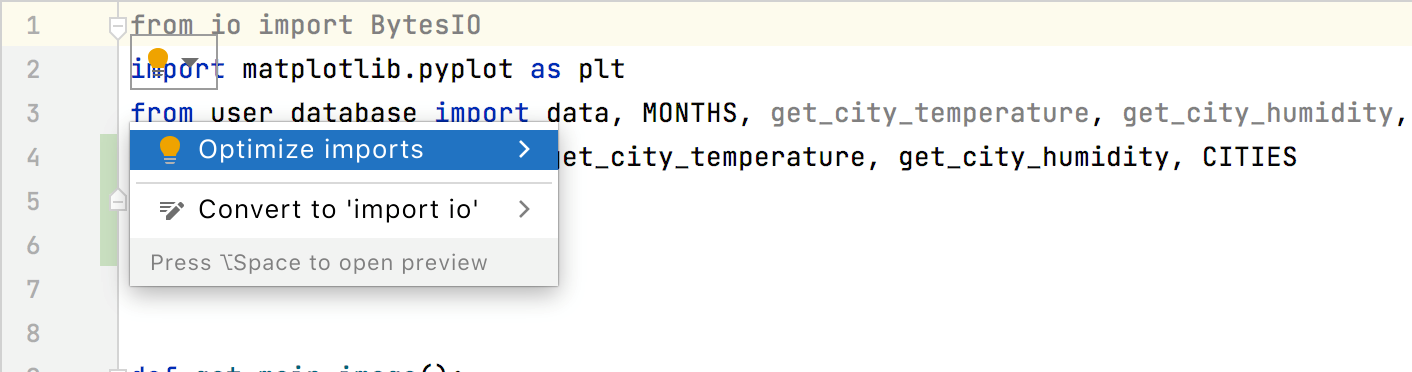
Optimize imports on commit
If your project is under version control, you can configure PyCharm to optimize imports in modified files before committing them to VCS.
Press Alt+0 to open the Commit tool window and click Show Commit Options
 .
.Click
and in the commit message area, select the Optimize imports checkbox.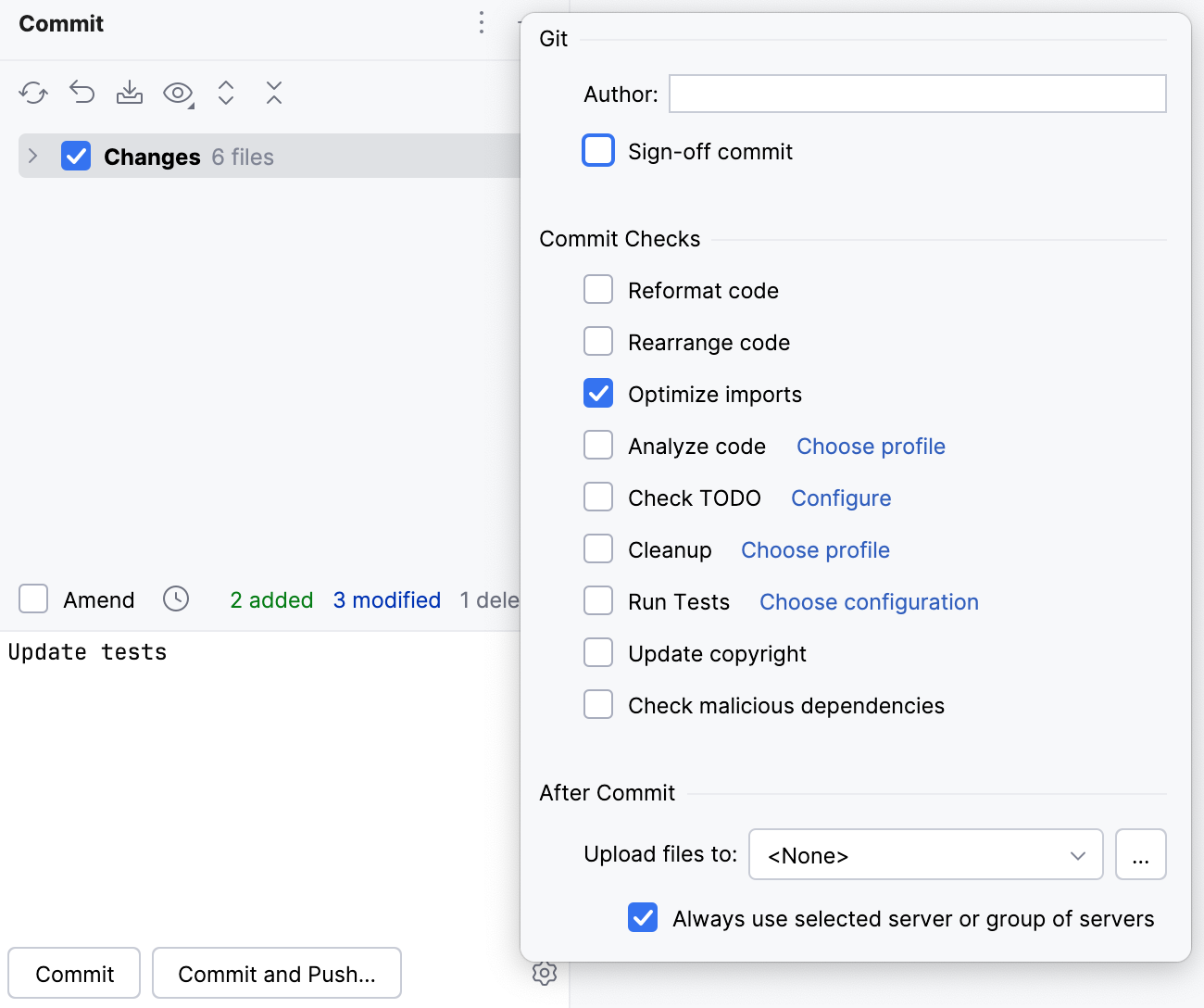
Automatically optimize imports on save
You can configure the IDE to optimize imports in modified files automatically when your changes are saved.
Press Ctrl+Alt+S to open settings and then select .
Enable the Optimize imports option.
Additionally, from the All file types list, select the types of files in which you want to optimize imports.
Apply the changes and close the dialog.
Optimize imports when reformatting a file
You can tell PyCharm to optimize imports in a file every time it is reformatted.
Open the file in the editor, press Ctrl+Alt+Shift+L, and make sure the Optimize imports checkbox is selected in the Reformat File dialog that opens.
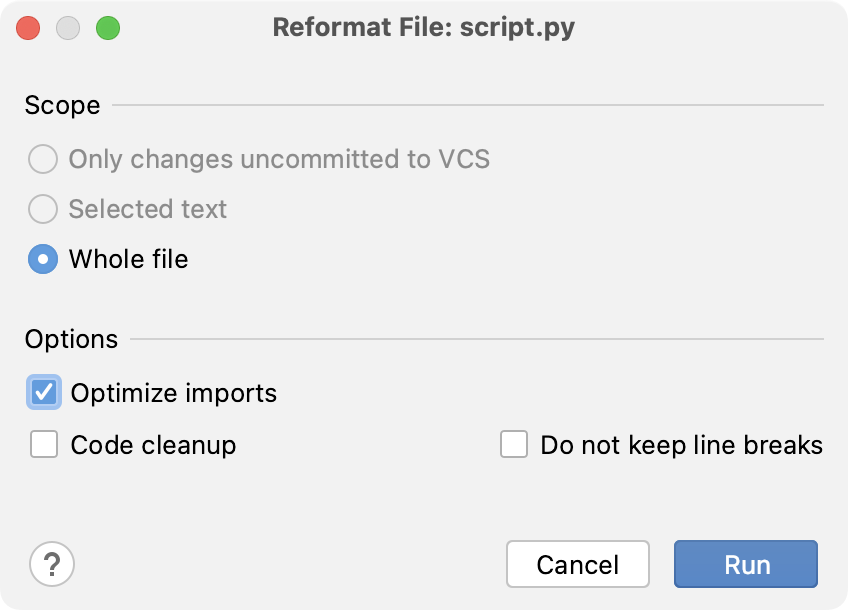
After that every time you press Ctrl+Alt+L in this project, PyCharm will optimize its imports automatically.
Optimize imports for all files in the folder
Right-click a folder in the Project tool window and select Optimize Imports.
In the Optimize Imports dialog, click Run.
Creating imports on the fly
Import packages on-the-fly
Start typing a name in the editor. If the name references a class that has not been imported, the following prompt appears:
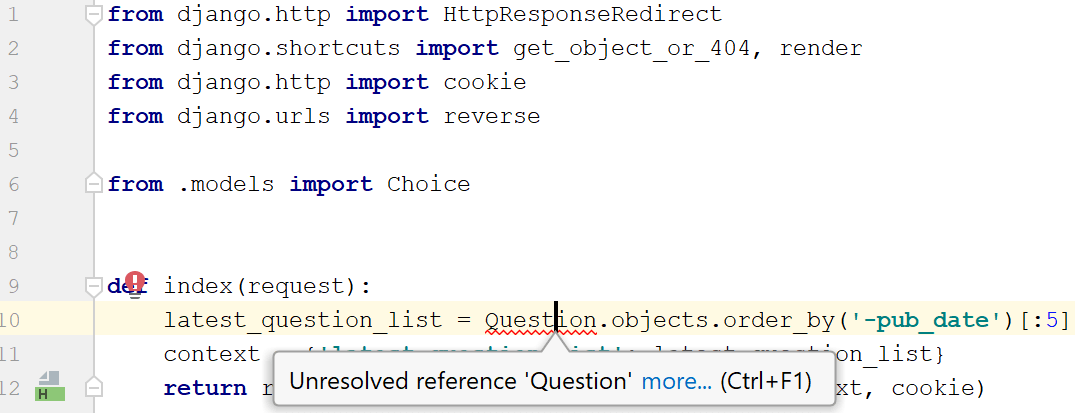
The unresolved references will be underlined, and you will have to invoke intention action   Add import  explicitly.
Press Alt+Enter. If there are multiple choices, select the desired import from the list.

You can define your preferred import style for Python code by using the following options available on the Auto Import page of the project settings ():
from <module> import <name> | import <module>.<name> |
|---|---|
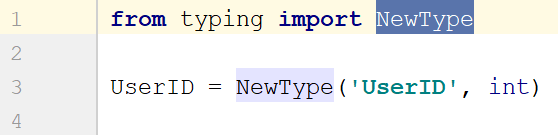 | 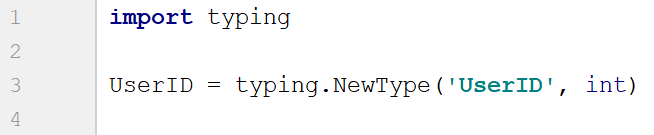 |
Toggling relative and absolute imports
PyCharm helps you organize relative and absolute imports within a source root. With the specific intention, you can convert absolute imports into relative and relative imports into absolute.
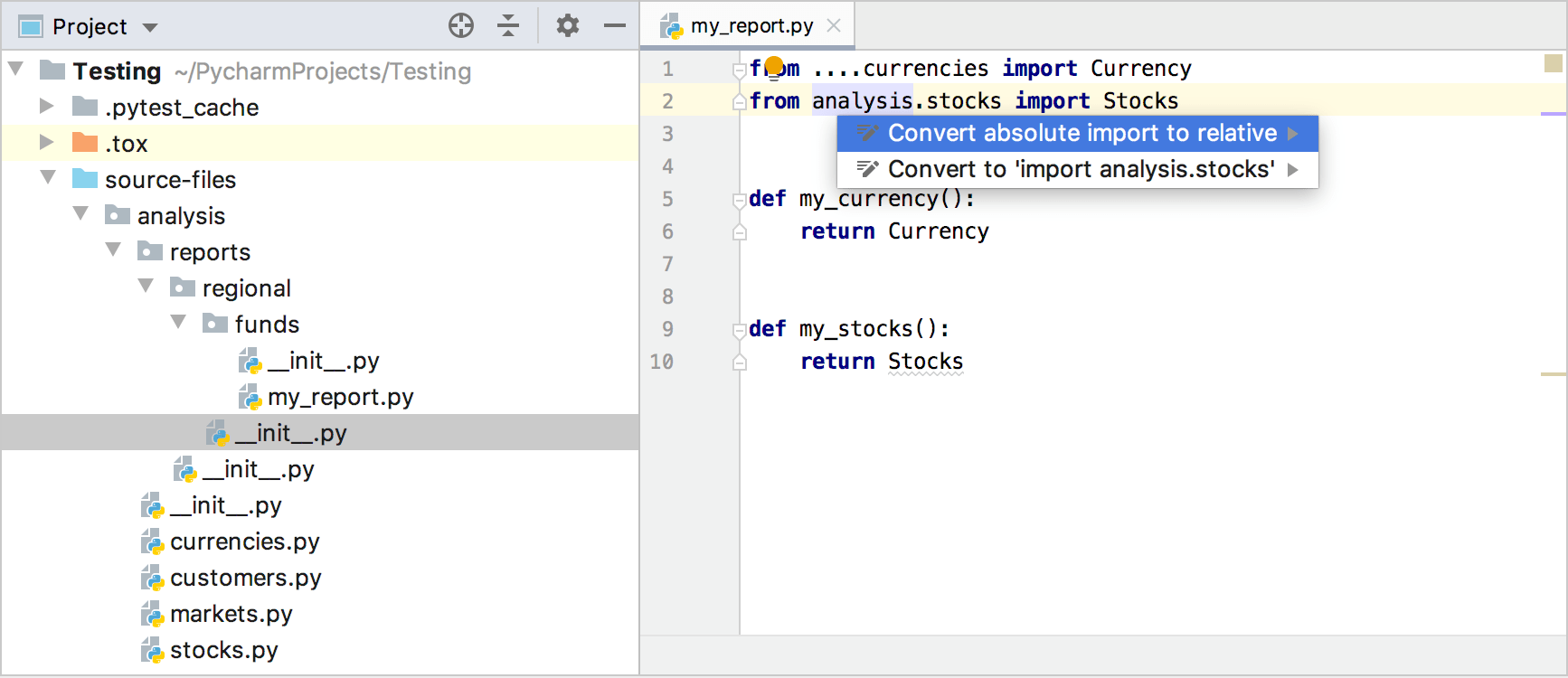
If your code contains any relative import statement, PyCharm will add relative imports when fixing the missing imports.
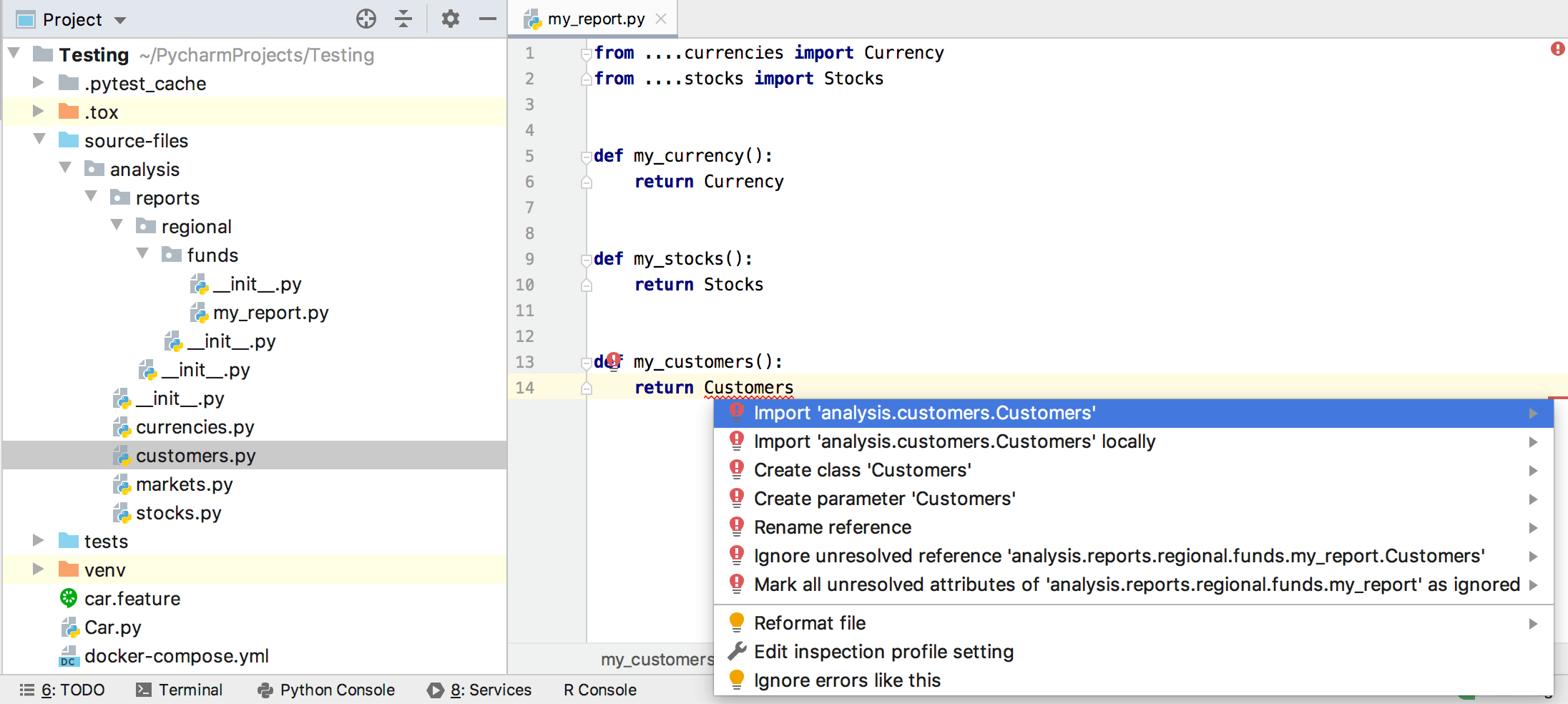
Note that relative imports work only within the current source root: you cannot relatively import a package from another source root.
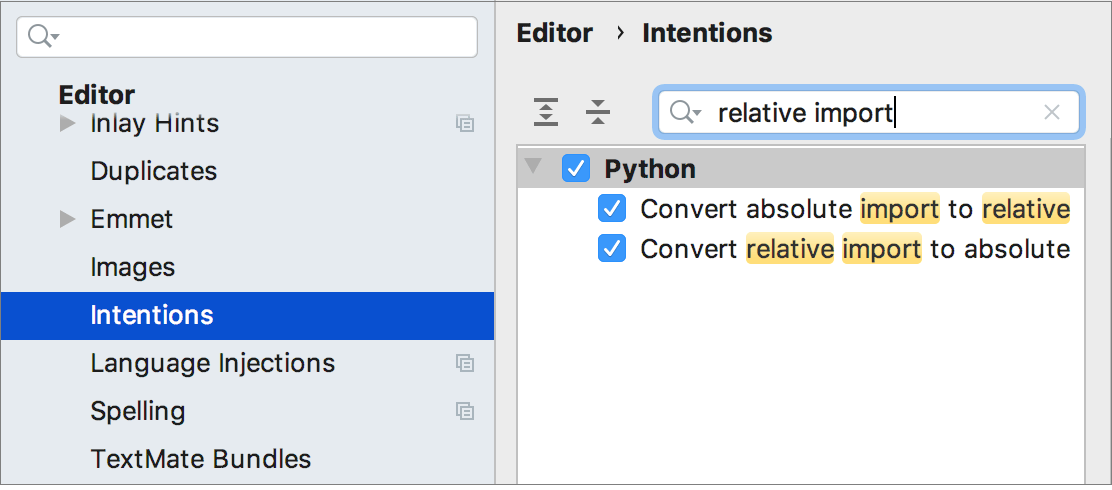
The intentions prompting you to convert imports are enabled by default. To disable them, open project Settings (Ctrl+Alt+S), select , and deselect the Convert absolute import to relative and Convert relative import to absolute.
Missing import statements can be added on the fly, as you complete a symbol, or later, using a quick fix or an intention action, or via an auto-import tooltip.
For ES6 symbols or CommonJS modules, PyCharm either decides on the style of the import statement itself or displays a popup where you can choose the style you need. Learn more from Auto-import in JavaScript.
Adding import statements on code completion
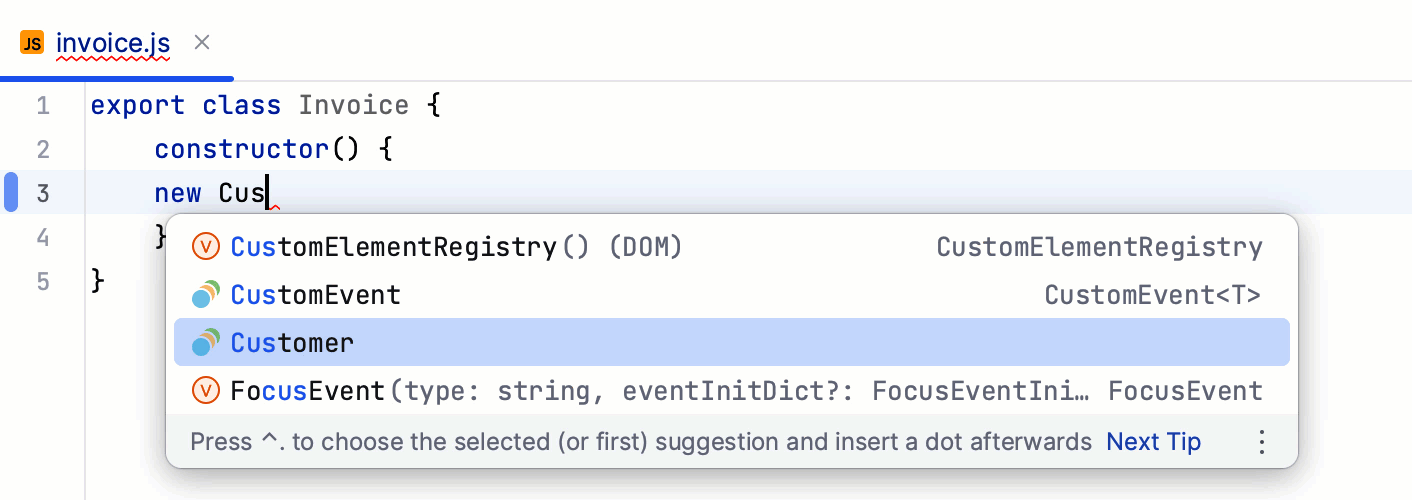
PyCharm automatically adds an import statement when you refer any module member or package in the Python code and invoke code completion. Auto-import on code completion is also applied to some popular package name aliases, such as np for numpy or pd for pandas.
PyCharm also adds import statements when you complete exported JavaScript or TypeScript symbols.
Configure auto-import on completion
You can disable auto-import on completion and use quick-fixes instead:
In the Settings dialog (Ctrl+Alt+S) , go to .
On the Auto Import page that opens, use the checkboxes in the TypeScript/JavaScript area to enable or disable import generation on code completion.
Ignoring missing import statements
If you use a module in your code that doesn't have any corresponding stub, PyCharm might show a missing statement error. To suppress this error message, use the # type: ignore comment:
