Run inspections
PyCharm analyzes code in the files that are opened in the editor and highlights problematic code as you type. Additionally, you can run the necessary inspection or a set of inspections on the selected scope of files manually. In this case, you will get a comprehensive report of all problems detected in the files.
Instant analysis of the current file
The IDE continuously checks your code and searches for problems. When PyCharm analyzes your code, it uses the inspections defined in the currently selected inspection profile. The widget in the top-right corner of the editor displays the number of problems of each severity detected in the current file:
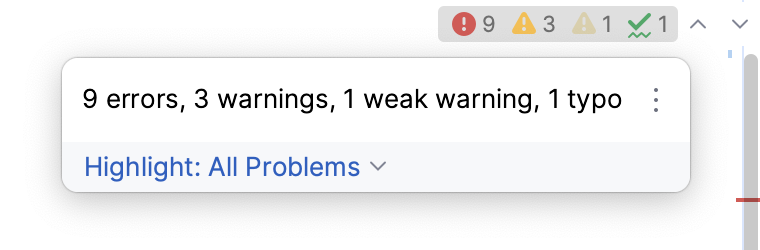
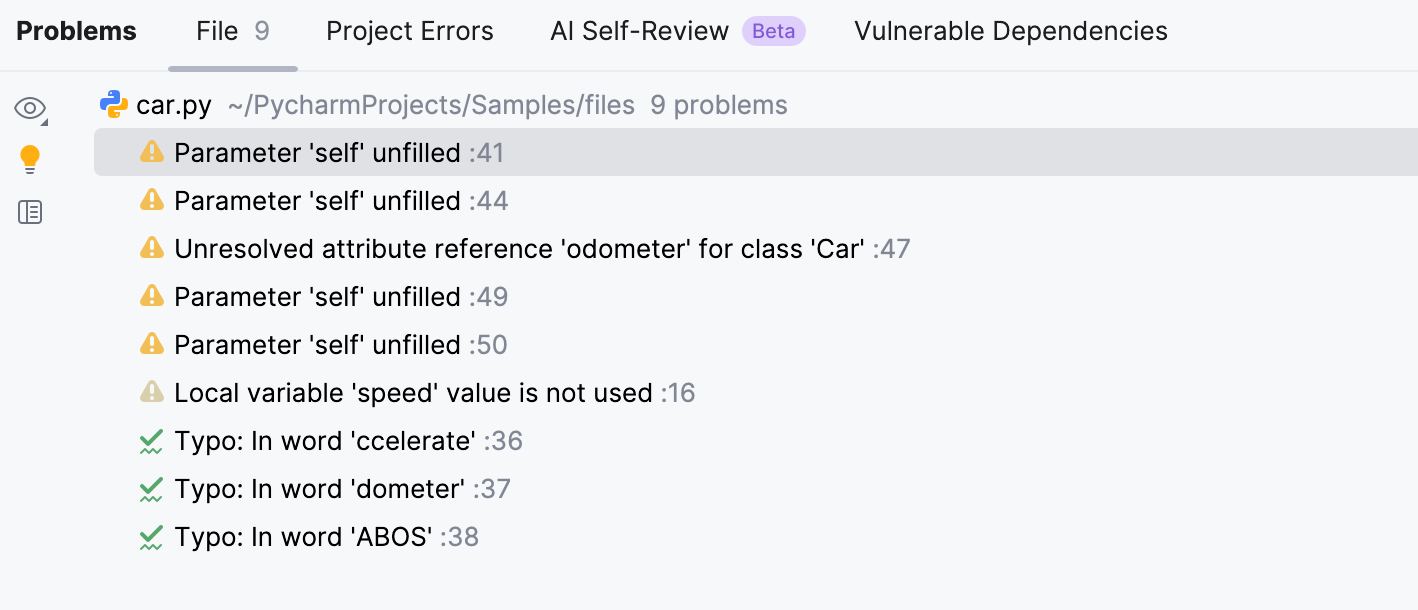
Click the widget to open the list of problems in the File tab of the Problems tool window. You can also access the Problems tool window by selecting or by pressing Alt+6.
For each problem, you can see the suggested quick-fix by pressing Alt+Enter or by clicking  . To jump to the corresponding line in the editor, press F4 or double-click the problem in the tool window.
Click  to be able to view and fix problems right in the tool window.
The color stripe in the scrollbar also marks the detected code problems and helps you quickly access the corresponding lines without scrolling the file. Hover over a mark on the stripe to see the detected problem in a tooltip. Click a mark to jump to the corresponding line.
Inspection tooltips can include links to referenced symbols and types. Click a link to navigate to the corresponding declaration.
Navigate to detected problems
You can jump from one highlighted problem to another within a file by clicking 
 in the widget or by pressing F2 or Shift+F2 accordingly. By default, the IDE will navigate you to problems according to their severity: errors > warnings > weak warnings > server problems > typos.
You can configure PyCharm to take you through the problems one by one regardless of their severity. Hover over the widget in top-right corner of the editor, click  , select 'Next Error' Action (F2) Goes Through, and enable All Problems.
Run inspections manually
Some inspections require global code analysis, and that is why they are disabled in the editor. These inspections are listed in . Click  and select Show only batch-mode inspections.
If you want to get a full report of all problems in your code, run inspections manually. In this case, the IDE runs all inspections enabled in your inspection profile and shows you the result in a dedicated tool window. The time required to finish the analysis depends on the number of enabled inspections and the size of the scope that you're analyzing.
Run all inspections
In the main menu, go to .
Select the scope of files that you want to analyze.
Click the
 icon to configure a new scope.
Select the inspection profile that you want to apply.
To create a new profile or modify one of the existing profiles, click Configure….
Click Analyze to start the analysis.
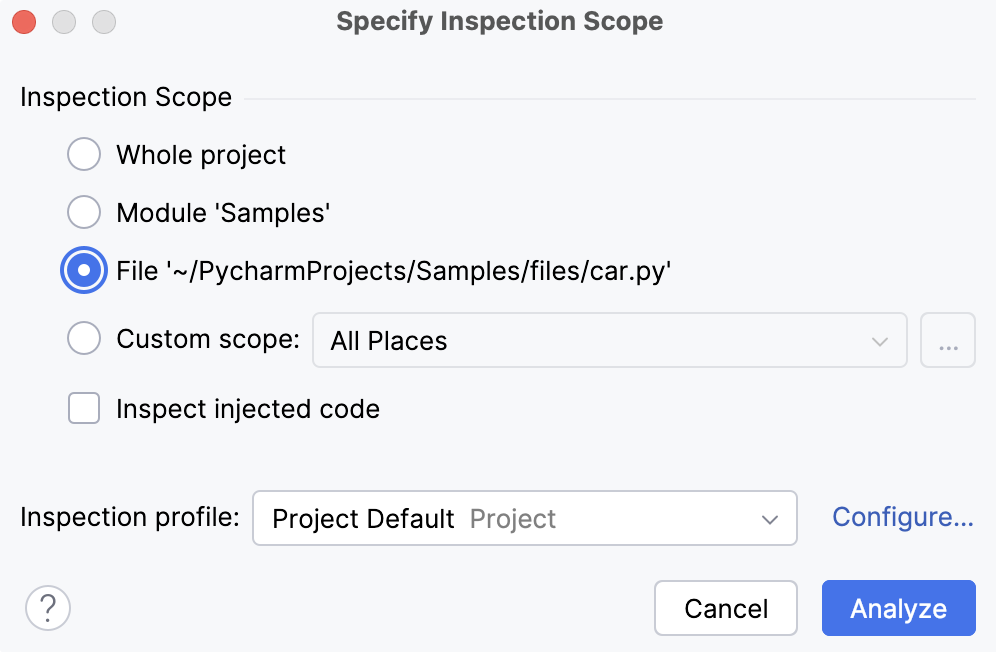
Specify Inspection Scope dialog
Item | Description |
|---|---|
Whole project | Inspect the whole project. |
Module <name> | Inspect the module that is currently selected in the Project tool window (Alt+1) . |
File <name> | Inspect the file that is currently selected in the Project tool window or opened in the editor. |
Selected files | Inspect the files that are currently selected in the Project tool window. |
Uncommitted files | This scope is only available for the projects under version control. Inspect only the files that have not been committed to the version control system. |
Directory | Inspect the directory that is currently selected in the Project tool window. |
Custom scope | Inspect a custom scope of files. Select a pre-defined scope from the list, or click |
Inspect injected code | Inspect pieces of code in other languages embedded in your code. |
Inspection profile | Select a profile that you want to use to inspect your code. If the required profile is not in the list, click Configure and create a new profile. |
Run a single inspection
Running a single inspection is useful in case you want to track a specific problem. If you find a warning in a file, you can inspect your entire project, or the necessary scope of files, to ensure that there are no more such warnings in your code base.
Press Ctrl+Alt+Shift+I or go to in the main menu.
Type the inspection name in the popup. Use CamelHumps to match camel case words and white spaces with initial letters of the words. The suggestion list will show you inspections that match your search request.
If you are not sure that you are selecting the correct inspection, you can view its description. To do so, select an inspection in the popup and press Ctrl+Q.
Double-click the necessary inspection.
In the dialog that opens, select the scope of files that you want to analyze.
Optionally, enable the File mask(s) checkbox. The File mask(s) option helps you narrow down the files to process. Specify one or more file name patterns using wildcards to match the files you want to include. Separate multiple file masks with commas. Learn more from Search in the specific file types.
Some inspections might have additional options that you will be prompted to configure.
These settings will only be applied to this run and will not affect this inspection's configuration in your current profile.
The IDE will show you the inspection results in the dedicated tool window tool window. There you can examine and fix detected problems.
Analyze code on commit
If your project is under Git or Mercurial version control, you can configure the IDE to analyze modified files before committing them.
Press Alt+0 to open the Commit tool window and click Show Commit Options
 .
.In the Commit Checks area, select the Analyze code checkbox.
Click Choose profile and select the required inspection profile from which the IDE will run inspections.
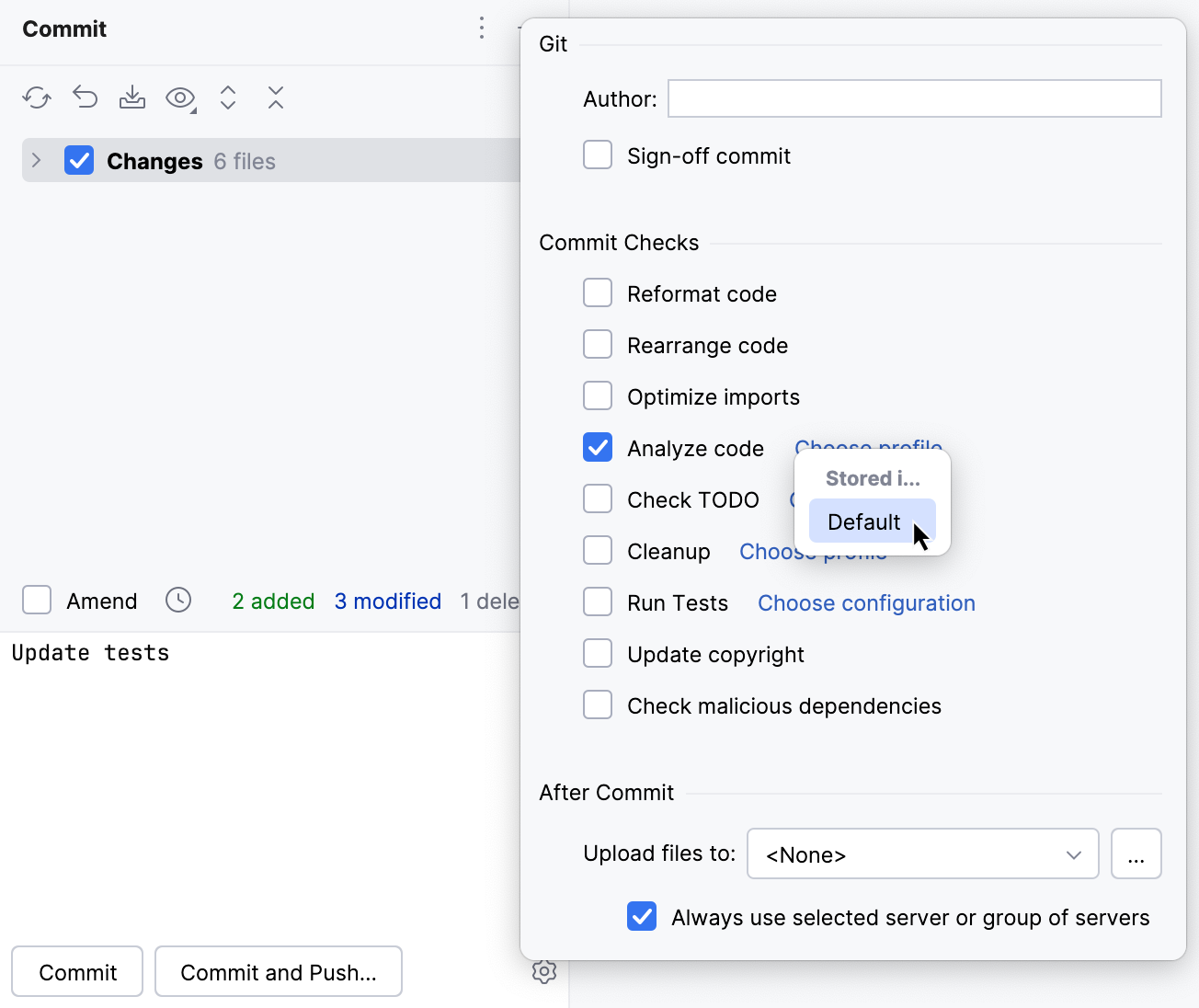
Click Commit.
PyCharm analyzes the code from the modified files by running inspections from the selected profile.
If any errors or warnings are detected, you will see a notification.
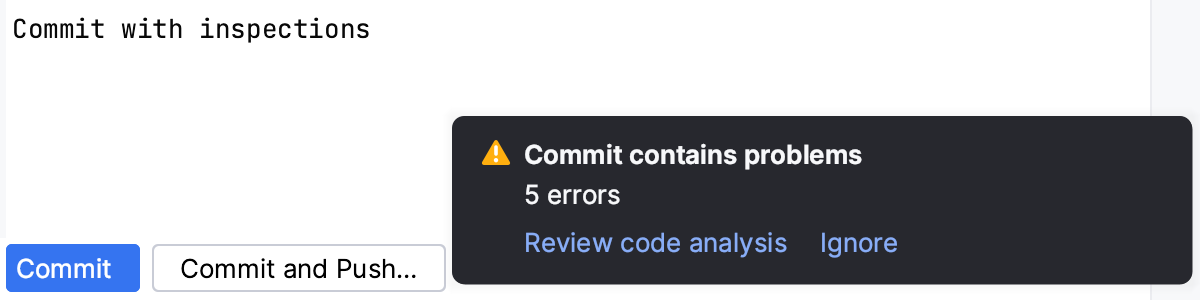
In the notification, click Review code analysis to see the list of the detected problems in the Messages tool window. Click Ignore to commit your changes without fixing the detected problems.
Run code inspection with Qodana
This functionality relies on the Qodana plugin, which is bundled and enabled in PyCharm by default. If the relevant features are not available, make sure that you did not disable the plugin. For more information, refer to Open plugin settings.
You can inspect your code locally or remotely using Qodana. The main use case for Qodana is to perform resource-intensive code analysis remotely, on a CI/CD server. However, you can also run the same analysis in the IDE to make sure that you have the same results, and to be able to locate the detected issues in your source code.
In the main menu, go to .
Select where you want to run inspections: locally or on your CI/CD server.
To run inspections on the server, you need to set up Qodana on your CI first.
The Qodana configuration file opens. In this file, you can specify a Qodana inspection profile, enable or disable specific inspections, and specify a list of plugins that should be installed before the analysis.
Click Run.
Once the analysis is finished, the report will be displayed in the Problems tool window on the Qodana tab. You can work with the results locally or send them to Qodana Cloud.
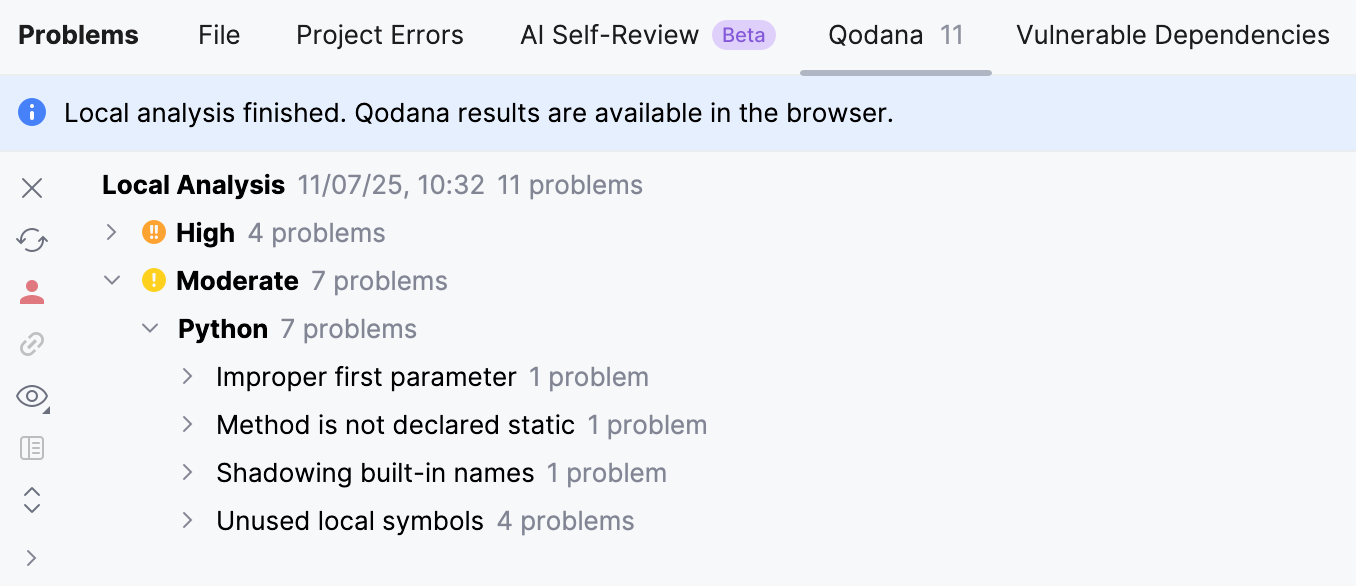
The reports of all local runs of Qodana analysis are saved and available from the main menu: . The currently opened report has a checkmark next to it, you can click it to close the report.
For more information about Qodana, refer to its documentation.
Run inspections offline
In addition to running code inspections from the IDE, you can launch inspections from the command line without actually running PyCharm. The inspection results will be stored in an XML file. For more information, refer to Run code inspections from the command line.
Change the order of scopes
By default, all enabled code inspections analyze all files in your project. Depending on your needs, you can run the same inspection in more than one scope of files with different settings.
If a file is included in multiple scopes, and you enable inspection in these scopes, PyCharm will process them based on their order in the list. The scope at the top has the highest priority and will be analyzed first.
In the Settings dialog (Ctrl+Alt+S) , select .
Select any inspection from the list.
From the In All Scopes list, select Edit Scopes Order.
Select the necessary scope, and use
 and
and  to move it up and down the list.
If needed, create a new scope. To do so, click
 (Edit Scopes…), specify scope settings, and select the files and folders that you want to include in it.