Share templates
A simple way to share code templates is to export them them into files and then share these files with other developers, who in their turn, will be able to import and use the templates.
Another way of sharing templates with your team members is using the mechanism of settings layers that ReSharper uses to store code templates. To make templates available to other developers who work on the same shared solution, you can either create new code templates in a team-shared settings layer or copy existing templates to a team-shared settings layer.
Create a shared code template
From the main menu, choose .
In the Templates Explorer window that appears, click one of the tabs to choose the type of the template: Live Templates, Surround Templates, or File Templates.
In the Layer selector, choose Solution [solution name] team-shared or another custom shared layer.
Follow the creating a template procedure.
Share existing code templates
Click Manage Layers
.png "ThemedIcon.Settings.Screen.(Gray).png") on the Templates Explorer window toolbar or choose in the main menu.
on the Templates Explorer window toolbar or choose in the main menu.In the Settings Layers dialog that appears, select a layer that contains templates to be shared.
Right-click the layer, select Copy Settings To and choose Solution [solution name] team-shared or another shared settings layer in the context menu.
In the Copy To dialog that appears, select the LiveTemplates checkbox under PatternsAndTemplates.
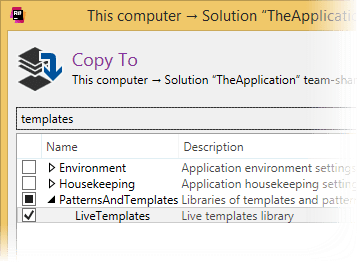
Click OK to complete the process.
In ReSharper's Storage of templates, it is possible that some settings layers may contain modifications to templates defined in other layers. If you want to make sure that the layer you are going to share contains correct template definitions, choose this layer in the Layer selector, click Filter Templates .png "ThemedIcon.Filter.Screen.(Gray).png") and disable Show predefined templates, then find your templates and double-click them to study them. If you cannot find some user-defined template in a specific layer, but still you can see it when the Smart layer is selected, then this template is actually defined in another layer. If the template is visible in a specific layer, but some of its fields differ when the Smart layer is selected, then these fields are overridden in upper layers and these modifications will not be shared.
and disable Show predefined templates, then find your templates and double-click them to study them. If you cannot find some user-defined template in a specific layer, but still you can see it when the Smart layer is selected, then this template is actually defined in another layer. If the template is visible in a specific layer, but some of its fields differ when the Smart layer is selected, then these fields are overridden in upper layers and these modifications will not be shared.