Diagrams
RubyMine lets you utilize UML diagrams to analyze Ruby classes, Rails models, gem dependencies, and so on. Depending on the project type and current context (for example, a file/folder selected in a project view or a caret position in the editor), you can use the following diagram types:
Ruby class diagram
Rails model dependency diagram
Gem dependency diagram
Show a class diagram
To display a diagram for a class, do the following:
Select the file containing the required class in the Project view Alt+1 or open the class in the editor.
From the context menu, select Ctrl+Alt+Shift+U or Ctrl+Alt+U.
In the invoked popup, select Ruby Class Diagram and press Enter.
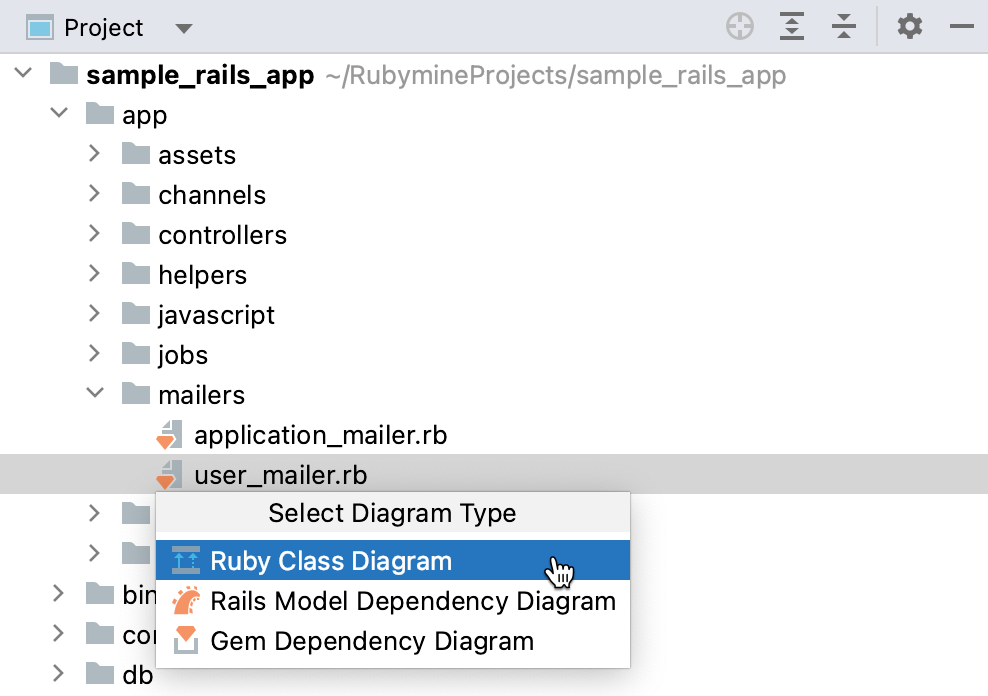
RubyMine will show the class diagram.
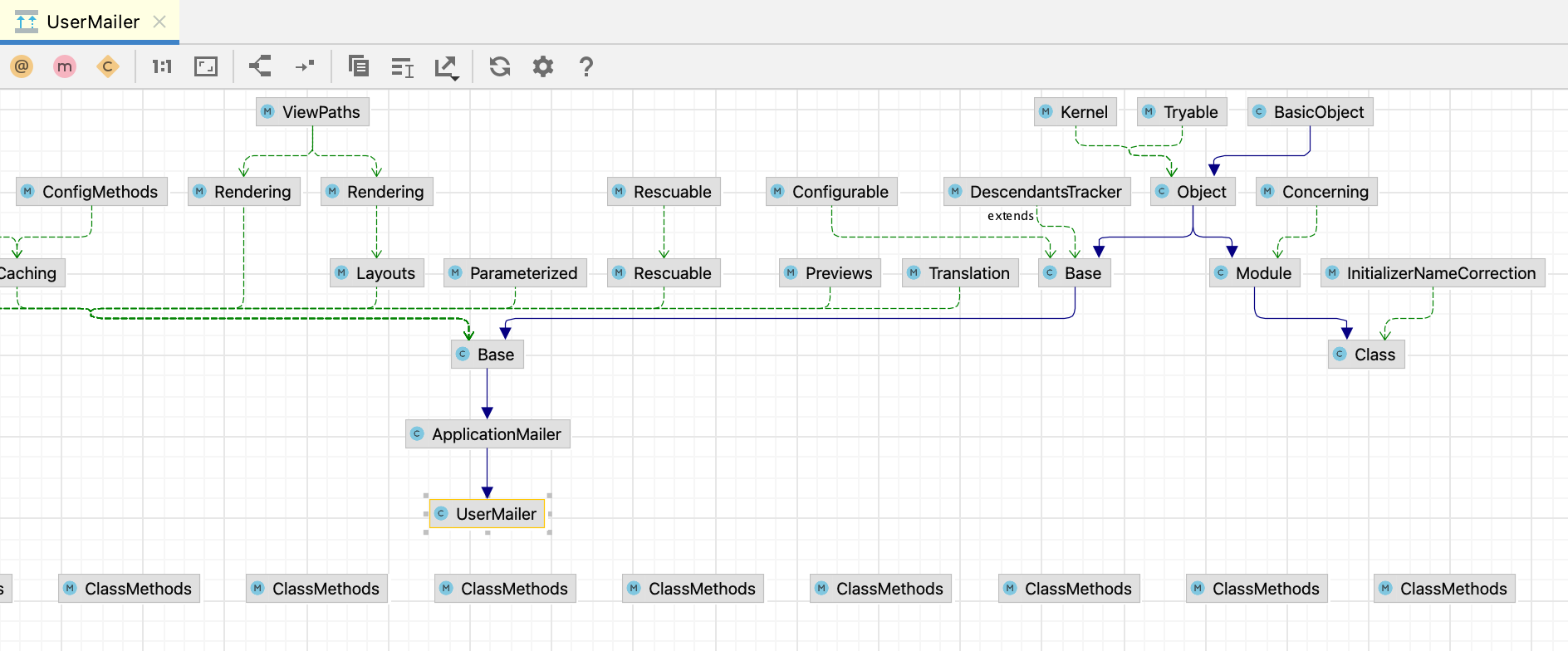
You can edit a generated diagram in various ways: add Space or remove Delete classes, display methods and class variables, add notes, and so on.
Show a Rails model diagram
If you work with a Rails project, you can display a dependency diagram for a Rails model. To do this:
Press Ctrl+Alt+Shift+U, select Rails Model Dependency Diagram in the invoked popup and press Enter:
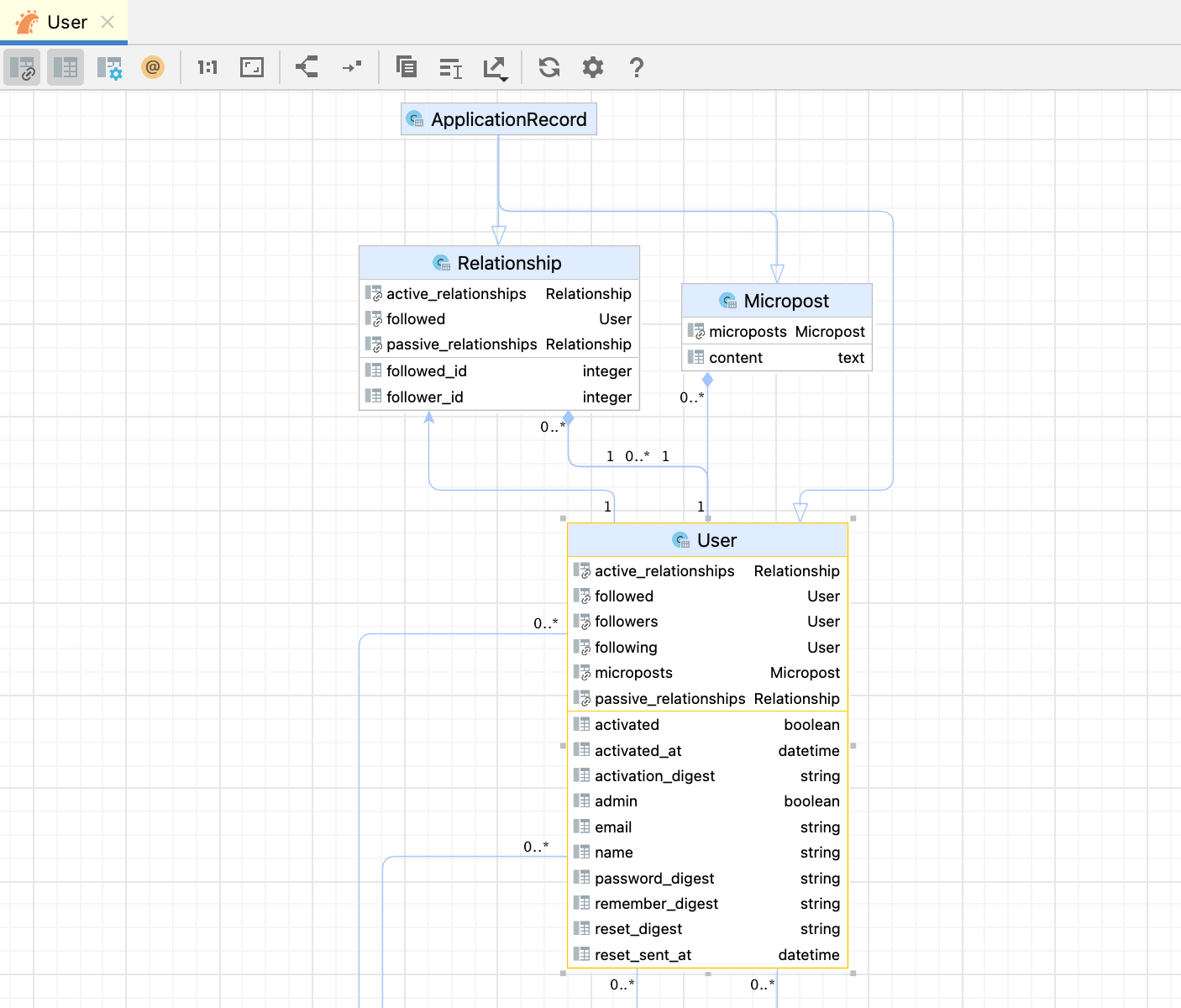
As for class diagrams, you can edit a model diagram: add Space and remove Delete tables, display association, and migration fields, add notes, and so on.
RubyMine also lets you create new models right from a diagram. To do this, right-click a diagram and select New | ActiveRecord Model. Learn more at Create models.
Work with a diagram
Select elements in a diagram
To select an element, click it in the diagram.
To select multiple adjacent elements, keep Shift pressed and click the desired elements, or drag a lasso around the elements to be selected.
To select multiple non-adjacent elements, keep Ctrl+Shift pressed and click the desired elements.
To select a member of a node element, double-click the node element, and then use the arrow keys, or the mouse pointer.
Manage the diagram layout
Right-click the diagram background and select the desired layout from the submenu.
Drag the diagram elements manually.
If necessary, reset the customized layout to the selected from the context menu by clicking
 .
.
Zoom in and out
Use the
 and
and  toolbar buttons.
Keeping Ctrl key pressed, rotate your mouse wheel up or down.
Press NumPad+ or NumPad-.
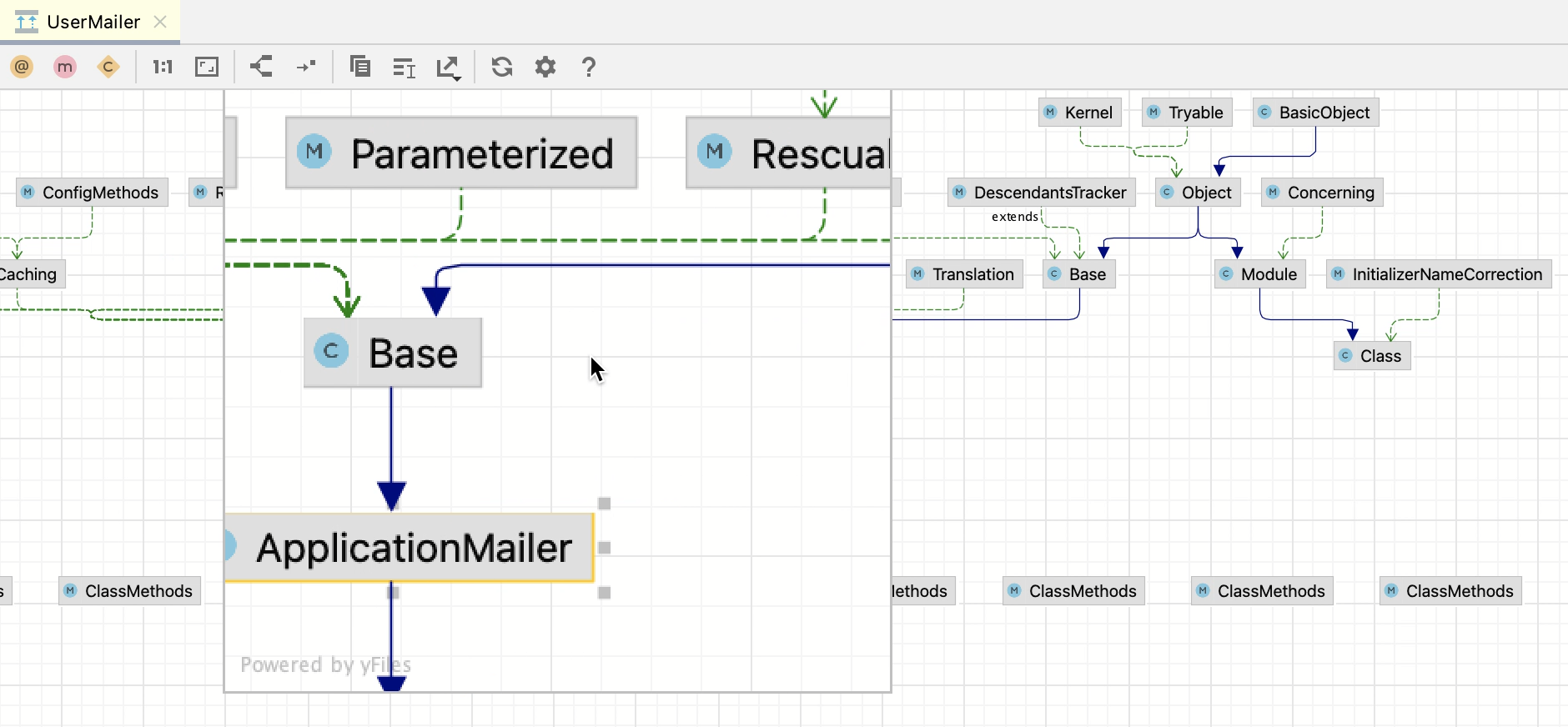
Use the magnifier tool
Keep the Alt key pressed, and hover over the desired areas of the diagram.
Use the Structure view
Open the Structure view Alt+7 to get a "10,000-feet" look on a diagram.
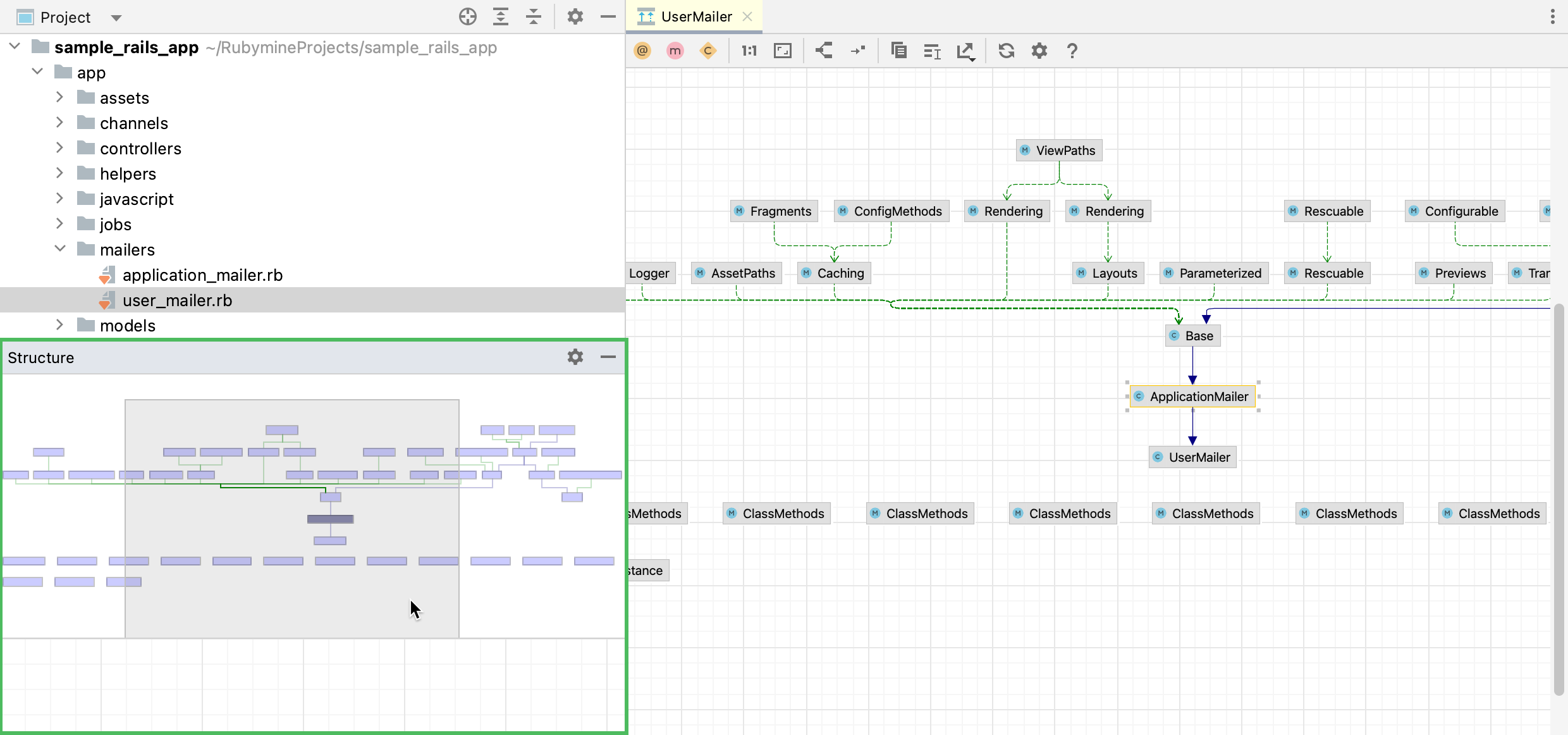
The shadow area represents the visible part of a diagram.
To navigate through the diagram, keep the left mouse button pressed and move the shadow area to obtain the desired view.
Work with source code
Diagrams help you to work with source code in several ways. Right-click the desired node in a diagram and select one of the following actions:
Allows you to jump to a class selected in a diagram.
Find Usages Alt+F7
Finds usages of a class in a project.
Allows you to perform various refactoring actions such as renaming a class or extracting a superclass.
Analyze graph
The Analyze Graph action group lets you analyze the graph in various ways such as perform auto clusterization, measure the node centrality, search cycles, filter path between two nodes, and so on.
Filter paths between two nodes
Most of the time, generated diagrams are big and complicated. Typically, you want to concentrate only on the specific part of the diagram. RubyMine lets you filter paths between two diagram elements.
In the diagram editor, select two nodes on which you want to focus and right-click one of them to open the context menu.
From the context menu, select .
In the dialog that opens, select additional options if needed and click Find.
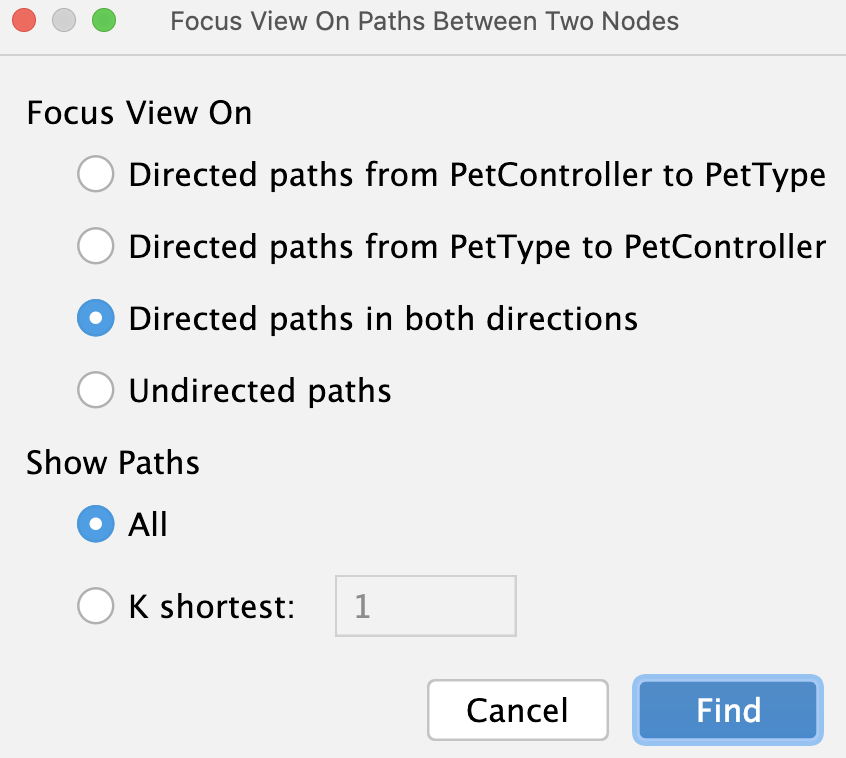
RubyMine displays connections associated only with the selected nodes.
Measure diagram centrality
You can use this action to identify the important nodes in the graph.
In the diagram editor, right-click anywhere in the editor to open the context menu.
From the context menu, select .
In the dialog that opens, select additional options if needed and click Measure.
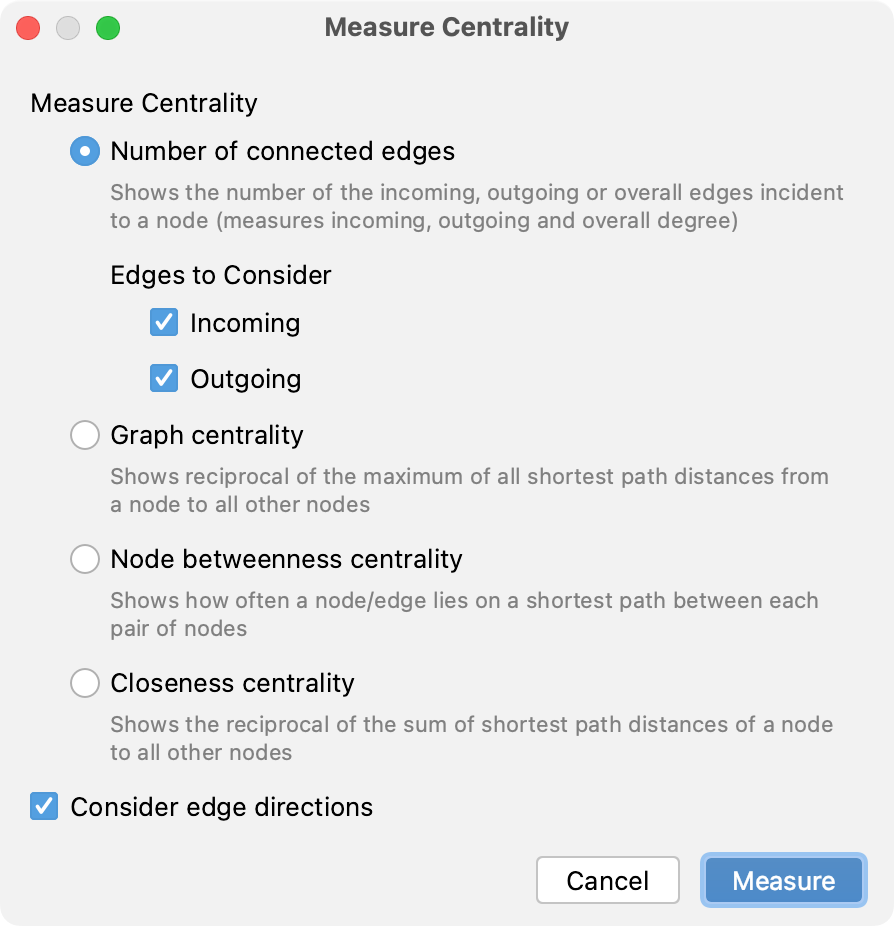
The node "importance" is expressed via fractional value from 0.0 to 1.0 measurement, and the brightest node selection should be explored first.
Configure diagram settings
To configure default settings for diagrams, open the Settings dialog and go to the Tools | Diagrams page. Here you can configure the diagram layout, specify various options for different kinds of diagrams, and so on.