Install RubyMine
RubyMine is a cross-platform IDE that provides a consistent experience on Windows, macOS, and Linux.
System requirements
Hardware
CPU | CPU with x86_64 or arm64 architecture and 4 cores |
|---|---|
RAM | 8 GB of total RAM; 3 GB available for the IDE processes |
Disk space | 10 GB |
Display resolution | 1280 x 720 |
Operating systems
Windows | 10, 11 |
|---|---|
macOS | 15, 26 |
Linux | Distributions:
Desktop environments:
|
Remote development
Learn more about JetBrains Remote Development.
Hardware | Same as for desktop installation. Local disk or network block storage (e.g., EBS) is required. |
|---|---|
OpenSSH server | Version 7.9p1 or later |
Docker (if the IDE is running in a container) | 25.0, 29.0 |
Connection | Server:
Client-server connection:
|
WSL | WSL 2 with a supported Linux distribution. |
You do not need to install Java to run RubyMine because JetBrains Runtime is bundled with the IDE (based on JBR 21).
Install using the Toolbox App
The JetBrains Toolbox App is the recommended tool to install JetBrains products. Use it to install and manage different products or several versions of the same product, including Early Access Program (EAP) and Nightly releases, update and roll back when necessary, and remove any tool. The Toolbox App maintains a list of all your projects to quickly open any project in the right IDE and version.
Install the Toolbox App
Download the installer .exe from the Toolbox App web page.
Run the installer and follow the wizard steps.
After you run the Toolbox App, click its icon
 in the notification area and select which product you want to install.
To install a specific version, click
 and select Available versions.
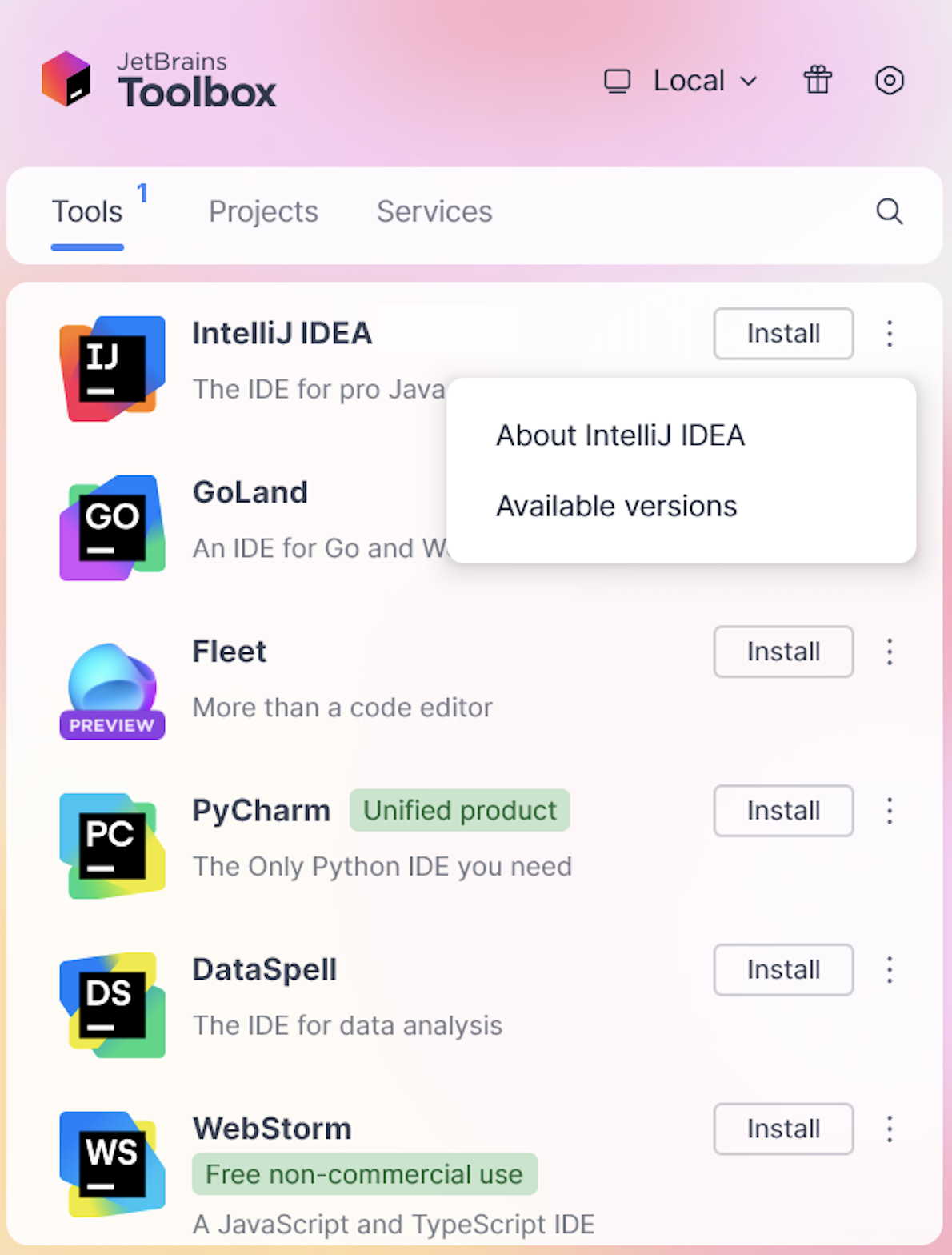
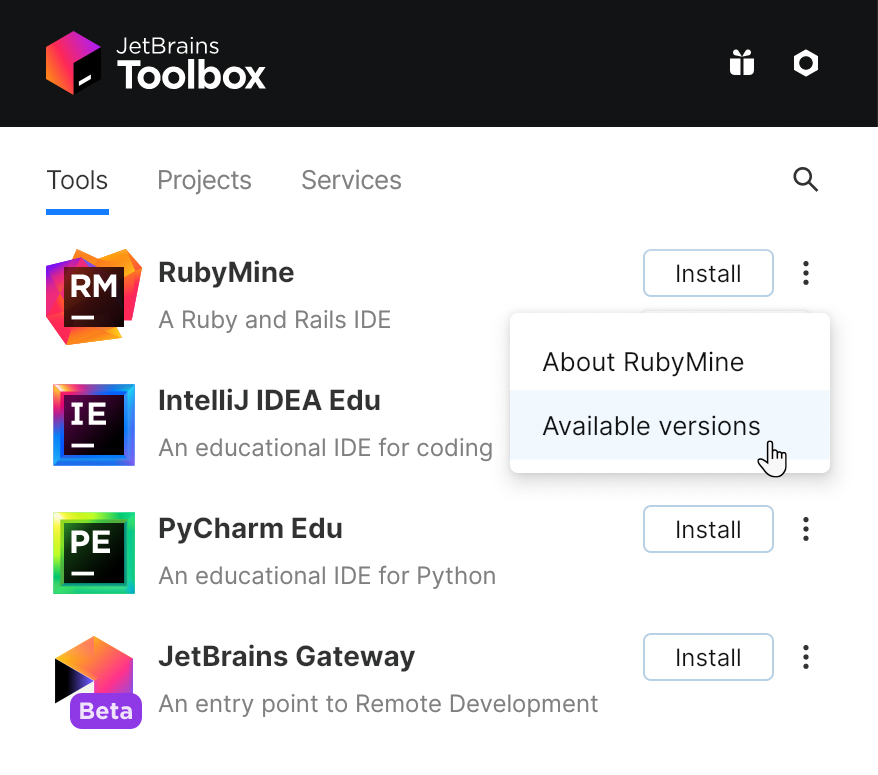
Log in to your JetBrains Account from the Toolbox App, and it will automatically activate the available licenses for any IDE that you install.
Install the Toolbox App
Download the disk image .dmg from the Toolbox App web page.
Mount the image and drag the JetBrains Toolbox app to the Applications folder.
After you run the Toolbox App, click its icon in the main menu and select which product you want to install.
To install a specific version, click
and select Available versions.
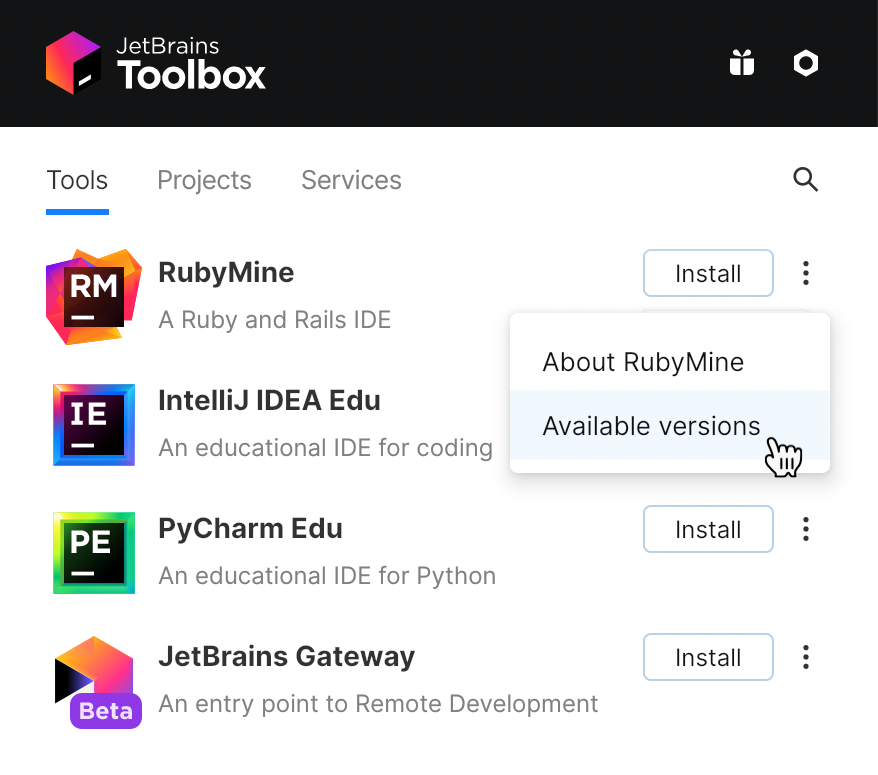
Log in to your JetBrains Account from the Toolbox App, and it will automatically activate the available licenses for any IDE that you install.
Install the Toolbox App
The following packages must be present:
libxi6 libxrender1 libxtst6 mesa-utils libfontconfig libgtk-3-bin tar dbus-user-session, libxcb-keysyms1.
Download the tarball .tar.gz.
Unpack the downloaded the Toolbox App distribution archive to the location where you want to install the application (
<installation-directory>):tar -xvf jetbrains-toolbox-<version>.tar.gz -C <installation-directory>To start the application, open a console, navigate to the installation directory (
cdinto<installation-directory>), and run the following command:./bin/jetbrains-toolboxThis will initialize various Toolbox application files in the application directory:
~/.local/share/JetBrains/ToolboxUpon the first launch, the Toolbox App will also create a
.desktopentry file in~/.local/share/applications.Select the product that you want to install.
To install a specific version, click
and select Available versions.
Log in to your JetBrains Account from the Toolbox App, and it will automatically activate the available licenses for any IDE that you install.
Standalone installation
Install RubyMine manually to manage the location of every instance and all the configuration files. For example, if you have a policy that requires specific install locations.
Download the installer .exe.
Run the installer and follow the wizard steps.
On the Installation Options step, you can configure the following:
Create a desktop shortcut for launching RubyMine.
Add the directory with RubyMine command-line launchers to the
PATHenvironment variable to be able to run them from any working directory in the Command Prompt.Add the Open Folder as Project action to the system context menu (when you right-click a folder).
To run RubyMine, find it in the Windows Start menu or use the desktop shortcut. You can also run the launcher batch script or executable in the installation directory under bin.
Extract the archive to the desired folder.
To run RubyMine, use the launcher batch script or executable in the extracted directory under bin.
Mount the image and drag the RubyMine app to the Applications folder.
Run the RubyMine app from the Applications directory, Launchpad, or Spotlight.
Download the tarball .tar.gz.
Extract the tarball to a directory that supports file execution.
For example, to extract it to the recommended /opt directory, run the following command:
sudo tar xzf RubyMine-*.tar.gz -C /opt/
Execute the ./bin/rubymine.sh script from the extracted directory to run RubyMine.
Create a desktop entry
In the main menu, go to .
Click Activities in the top-left corner of the screen.
Click the grid button in the dash to show all applications.
To pin the app to the dash, right-click the RubyMine icon and select Add to Favorites.
When you run RubyMine for the first time, you can take several steps to complete the installation, customize your instance, and start working with the IDE.
For more information, refer to Run RubyMine for the first time.
For more information about the location of the default IDE directories with user-specific files, refer to Directories used by the IDE.
Silent installation on Windows
Silent installation is performed without any user interface. It can be used by network administrators to install RubyMine on a number of machines and avoid interrupting other users.
To perform silent install, run the installer with the following switches:
/S: Enable silent install/CONFIG: Specify the path to the silent configuration file/D: Specify the path to the installation directoryThis parameter must be the last in the command line, and it should not contain any quotes even if the path contains blank spaces.
/NCRC: Disable the CRC check if you want to suppress the Verifying Installer popup.
For example:
To check for issues during the installation process, add the /LOG switch with the log file path and name between the /S and /D parameters. The installer will generate the specified log file. For example:
Silent configuration file
You can download the default silent configuration file for RubyMine at https://download.jetbrains.com/ruby/silent.config
The silent configuration file defines the options for installing RubyMine. With the default options, silent installation is performed only for the current user: mode=user. If you want to install RubyMine for all users, change the value of the installation mode option to mode=admin and run the installer as an administrator.
The default silent configuration file is unique for each JetBrains product. You can modify it to enable or disable various installation options as necessary.
Install as a snap package on Linux
You can install RubyMine as a self-contained snap package. Since snaps update automatically, your RubyMine installation will always be up-to-date.
To use snaps, install and run the snapd service as described in the snapd installation guide.
On Ubuntu 16.04 LTS and later, this service is pre-installed.
RubyMine is distributed via two channels:
The stable channel includes only stable versions. To install the latest stable release of RubyMine, run the following command:
sudo snap install rubymine --classicThe
--classicoption is required because the RubyMine snap requires full access to the system, like a traditionally packaged application.The edge channel includes EAP builds. To install the latest EAP build of RubyMine, run the following command:
sudo snap install rubymine --classic --edge
When the snap is installed, you can launch it by running the rubymine command.
To list all installed snaps, run sudo snap list.
Install a specific version
To check the list of available versions, run the following command:
snap info rubymineTo install the version you want, run the following command:
sudo snap install rubymine --channel=<version>/stable --classic
For more information about other snap commands, refer to the Snapcraft documentation.